
Weekly reports: what each report told your team
The Weekly reports page lists every weekly cost report your workspace prepared, newest first, and opens each one as its recipients read it: the week's total, the change against the week before, the daily trend, the top services and the open recommendations, in one currency.
What this page is for
“Weekly reports” answers one question: what did each weekly cost report tell your team about the week's cloud cost? It lists the reports your workspace prepared and opens each one as its recipients read it.
It is opened by whoever looks after cloud cost week by week: a finance lead, an engineering lead or a founder. Reading a report again helps you check what the team was told, follow a change from one week to the next, and decide whether the report needs other recipients or another language, which you change on “Report schedule”.
Before you start
A report needs cost imported from a connected Azure subscription and a report that is turned on, with at least one recipient, on “Report schedule”. The first report is prepared on the day and at the time set there; until then the page has nothing to show.
Read the Getting started guide
Weekly reports are part of the Growth, Pro and Enterprise plans. The page sits under “Reports” in the sidebar.
The latest report
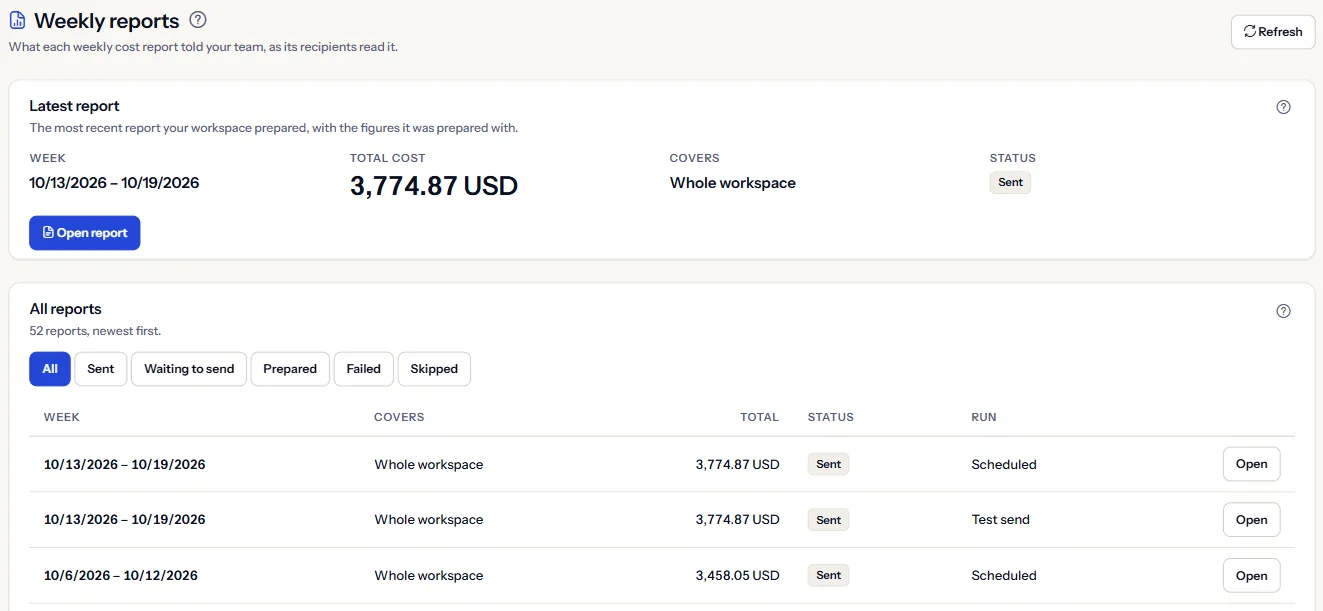
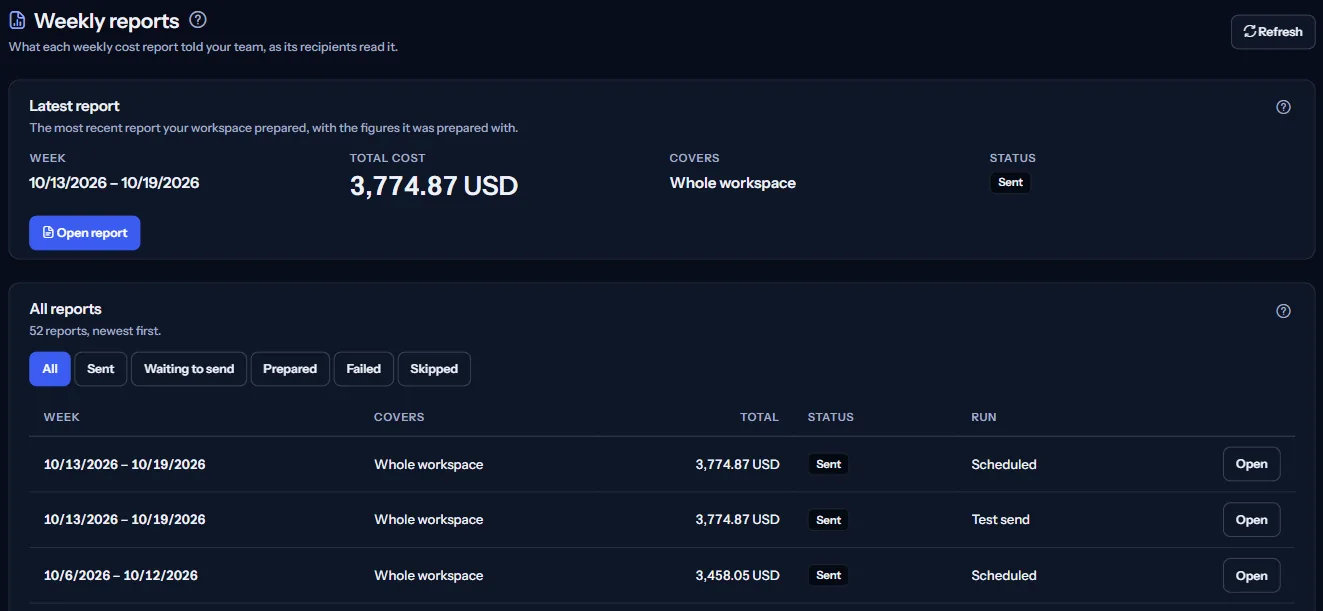
“Latest report” is the most recent report your workspace prepared, with the figures it was prepared with:
- “Week”: the seven days the report covers.
- “Total cost”: the cost recorded in those seven days, in the report's one currency.
- “Covers”: “Whole workspace” for the workspace report; for a report of an advanced schedule, the schedule's name and the part of the estate it covers.
- “Status”: where the report stands, for example “Sent” or “Failed”. Each status is explained under the list of all reports.


“Open report” shows the whole report on the page, as described in the section on reading a report.
All reports
“All reports” lists every report your workspace prepared, newest first, with its week, what it covers, its total, its status and how it was started. “Open” on a row shows that report.
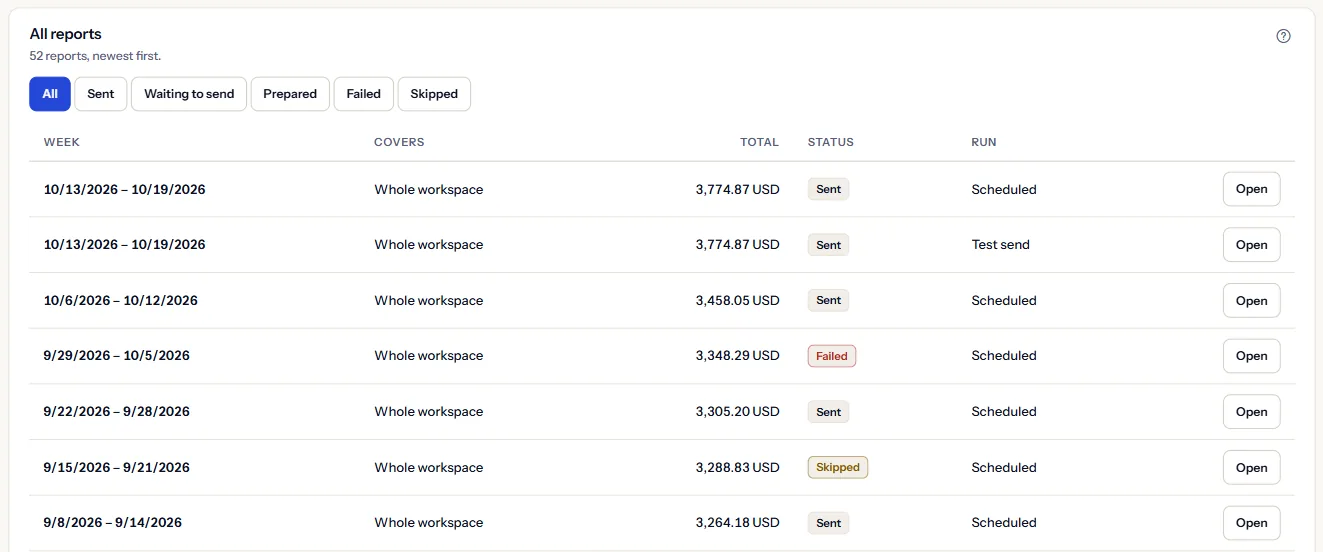
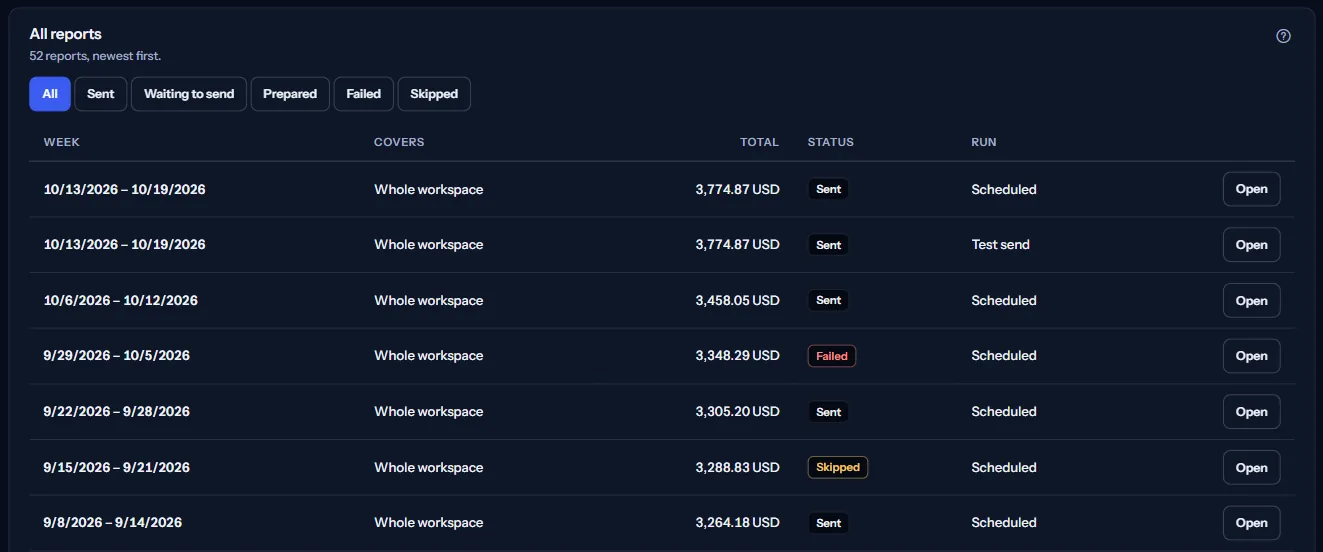
The status filter above the list shows only the reports with one status; “All” shows them all. The list holds twenty reports a page; “Previous” and “Next” move between pages.
What each status means
- “Prepared”: the report was prepared but not handed to the email service.
- “Waiting to send”: the report waits for the email service.
- “Sent”: the email service accepted the report for every recipient.
- “Failed”: at least one recipient was not reached. A failed report is not sent again; “Delivery history” says what to check.
- “Skipped”: the report was not sent on purpose; nothing failed.
How a report was started
- “Scheduled”: prepared by the report schedule, once a week.
- “Test send”: sent on request from “Report preview” to the recipients of the report schedule.
- “Earlier report”: a report prepared before CostGuard recorded how each report was started.
Read a report
An opened report is shown as its recipients received it, in the language of the report schedule at the time. A report holds:
- A summary: the week's total cost, the total of the seven days before, and the change in amount and percentage.
- The daily trend: the cost of each of the seven days.
- The five services that cost the most in the week, with their share of the total.
- Up to five open recommendations, with their severity.
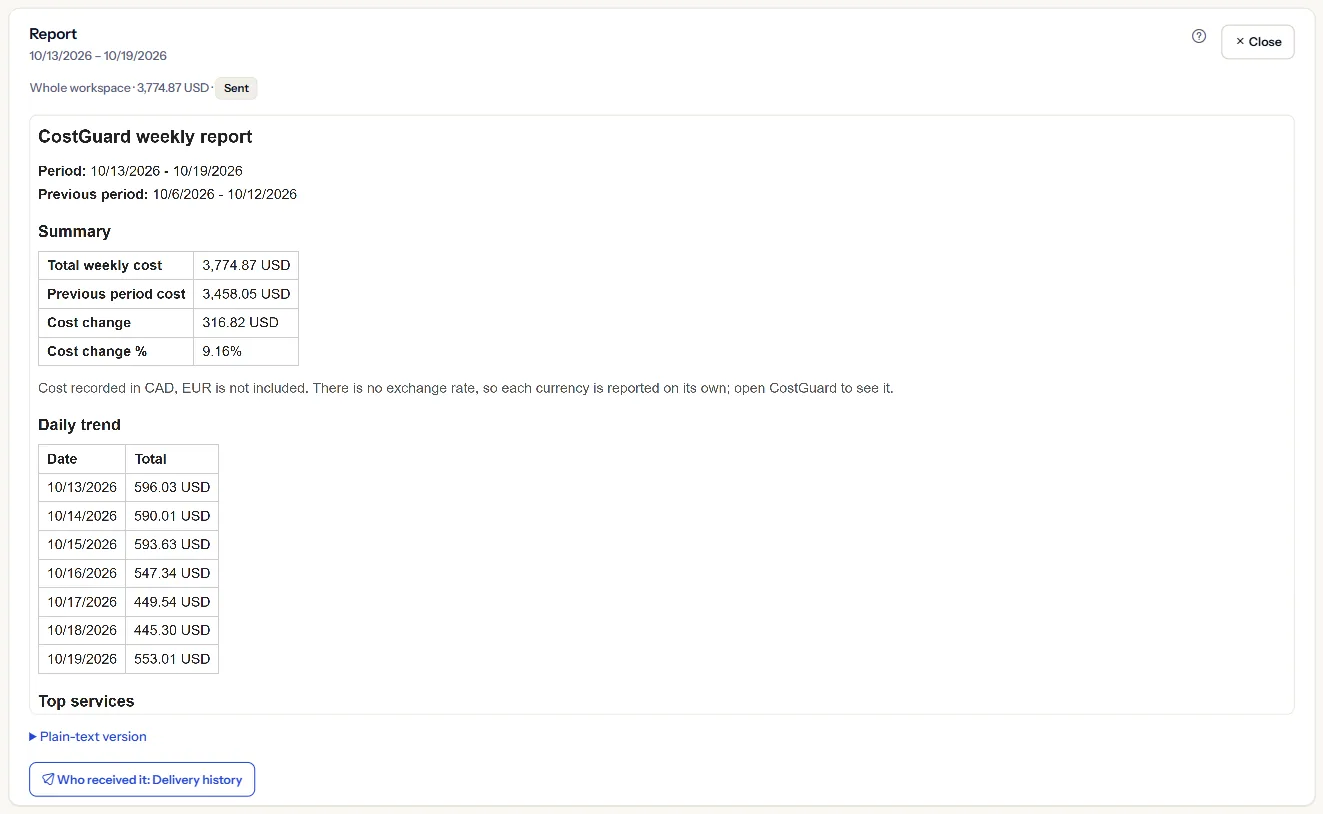
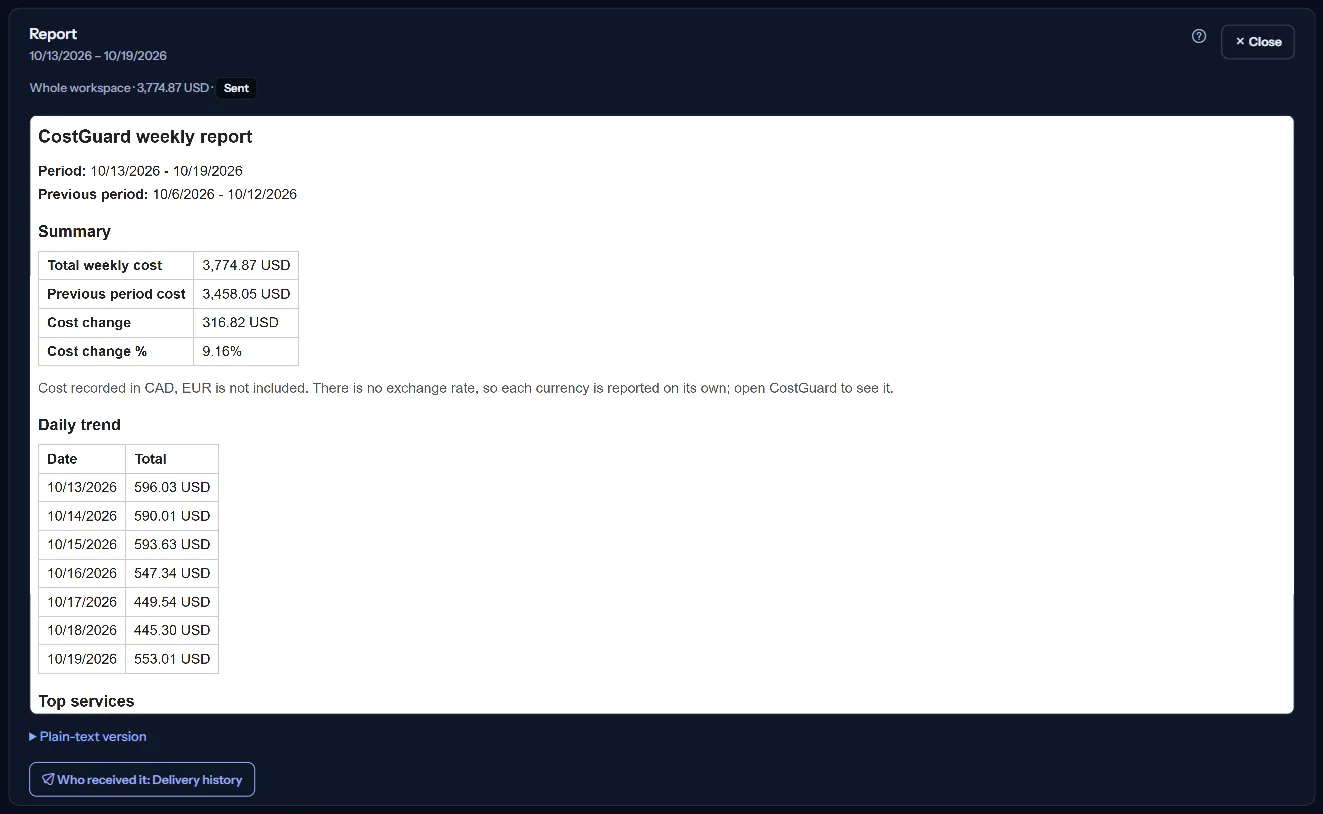
“Plain-text version” opens the text-only version that recipients receive beside the formatted one. Who received the report and when is shown on “Delivery history”, linked under the report. “Close” puts the report away.
Note
The report runs no script and its links do not open from the frame; the page only shows what was sent.
How a report is made
“How a weekly report is made” on the page states these rules:
- A report covers seven days that end on the latest day with recorded cost, because Azure cost data arrives a day or two late, so the week usually ends a day or two before the send day. It is compared with the seven days before.
- A report is in one currency: the one most of your subscriptions are billed in. Cost recorded in another currency is named in the report and not added, because there is no exchange rate.
- A report is written in the language chosen in the report schedule: English, French, Persian or Arabic, labels, numbers and dates alike.
- A report keeps the figures it was prepared with: cost imported later does not change a report already prepared.
Go further
The links at the bottom of the page lead on:
- “Report schedule”: turn the report on, choose its day, time, language and recipients.
- “Report preview”: see what the next report would say if it were prepared now, and send a test.
- “Delivery history”: whether each report reached its recipients, and what to do when one did not.
- “Cost overview”: the cost of any period, not only a report's week.
What you may see instead of figures
Instead of reports, the page can show:
- Grey blocks while the reports are read.
- “No weekly report yet”, with a link to “Report schedule”, until the first report is prepared.
- “Weekly reports could not be loaded”, with “Try again”. No report is shown until the reports can be read.
- “This report is no longer available in this workspace.” or a message that the report could not be loaded, when an opened report cannot be read.
- A notice that your session has ended, with a link to sign in again.
Sample data when your plan has no weekly reports
When your plan does not include weekly reports, the page shows a fixed example under the label “Sample data”, with the sentence “Your current plan does not include this feature. The figures shown here are an example, not your data.”
The sample shows two weekly reports of Contoso from August 2026 in US dollars, both “Sent”: the latest report and the list. It offers no filter, no paging and no action, and it is the same for everyone, never your data.
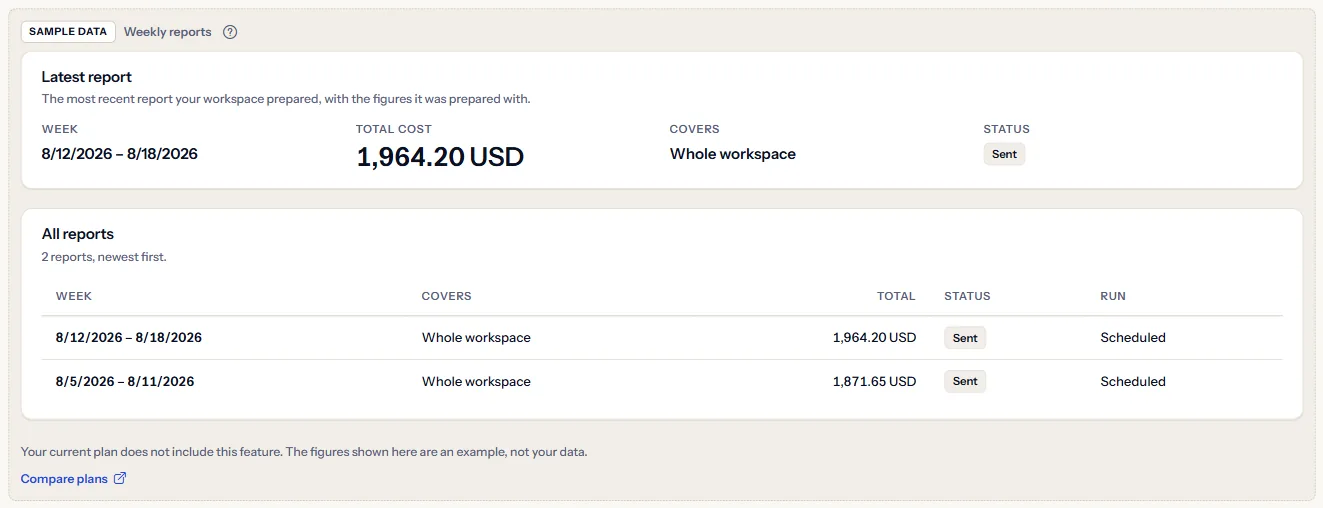
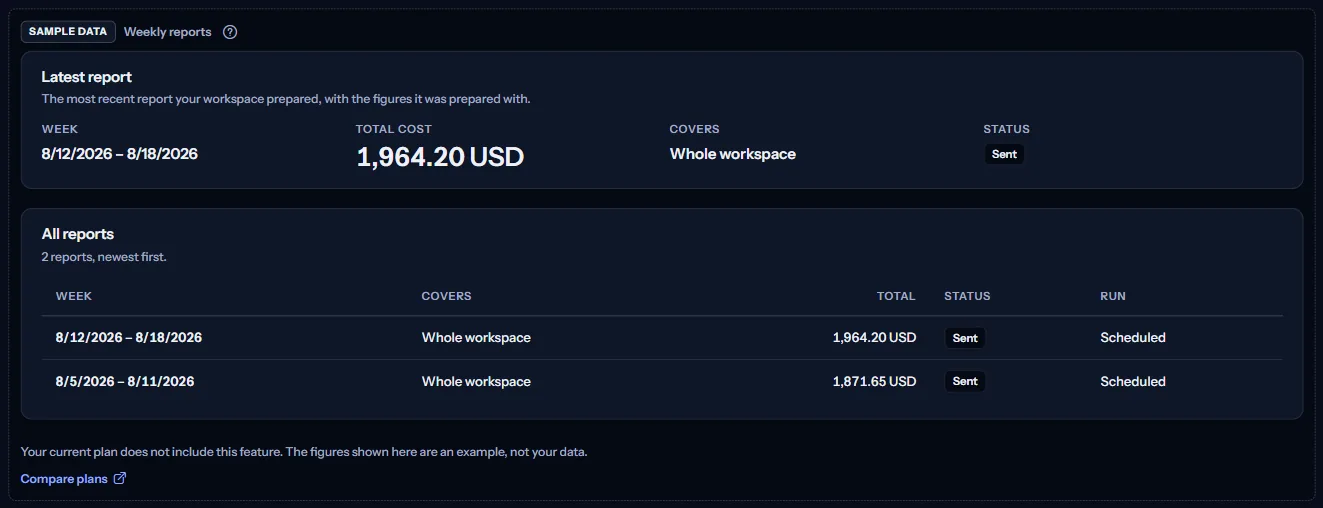
“Compare plans” opens the pricing page in a new tab. CostGuard decides what your plan includes on the server; the sample is only how the page shows it.
What each plan includes
The table shows the first plan that includes each part of the page. Every plan above it includes it too.
| Feature | Free | Starter | Growth | Pro | Enterprise |
|---|---|---|---|---|---|
| A labelled sample of the page | Included | Included | Included | Included | Included |
| Your workspace's weekly reports, each readable as it was sent | Not included | Not included | Included | Included | Included |
Growth, Pro and Enterprise include weekly reports; Free and Starter show the labelled sample, and no report is prepared for them. The plan is checked on the server, and the page never shows a price.
Troubleshooting
No report appears
Check on “Report schedule” that the report is on, has at least one recipient and was saved. A report is prepared once a week on the day and at the time set there; a change saved after this week's time takes effect from the next week, and a missed week is never sent late.
The report's week ends before the send day
That is on purpose: the week ends on the latest day with recorded cost, because Azure cost data arrives a day or two late. A week that ended on the send day would show its last days as nearly empty.
A subscription's cost is missing from the total
A subscription billed in another currency is not added to the report's currency, because there is no exchange rate. The report names that currency; “Cost overview” shows its cost on its own.
The report is not in my language
A report is written in the language of the report schedule, not in the language of this application. Reports are written in English, French, Persian or Arabic; change the language on “Report schedule”. A report already prepared keeps its language.
A report is marked Failed
Open “Delivery history”: the details of that report say what failed and what to check, often a recipient address. A failed report is not sent again; the next weekly report goes out as scheduled.