
Exports and sharing: the weekly report as a file
The Exports and sharing page takes the weekly cost report out of CostGuard as a PDF, Excel, CSV or web page file, fixed at the moment it is made, and shares a file through a private link that opens only for members of this workspace, until it expires or is revoked.
What this page is for
“Exports and sharing” answers one question: how do I take this week's report out of CostGuard, and share it privately? It makes the weekly report into a file, keeps every file it made, and gives each file private links.
It is opened by whoever needs the report outside CostGuard: for a meeting, for finance, or for a spreadsheet. The decision is which format to make, and who may open a link to it and for how long.
Before you start
An export holds the cost CostGuard has recorded, so connect an Azure subscription and let its first cost import finish. Workspace owners and admins create exports and links; every member of the workspace can download a file.
Read the Getting started guide
Report exports are part of the Pro and Enterprise plans. The page sits under “Reports” in the sidebar, which lists it in “Advanced” mode.
Create an export
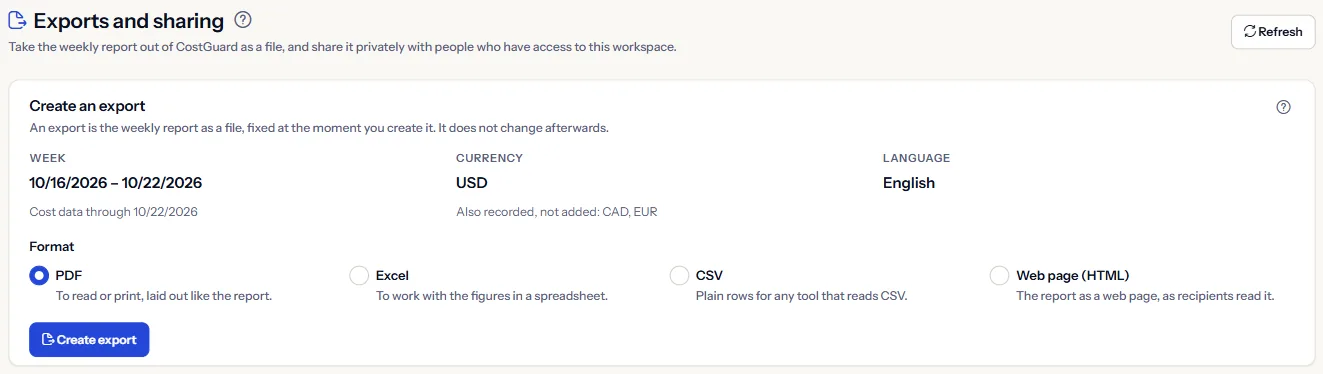
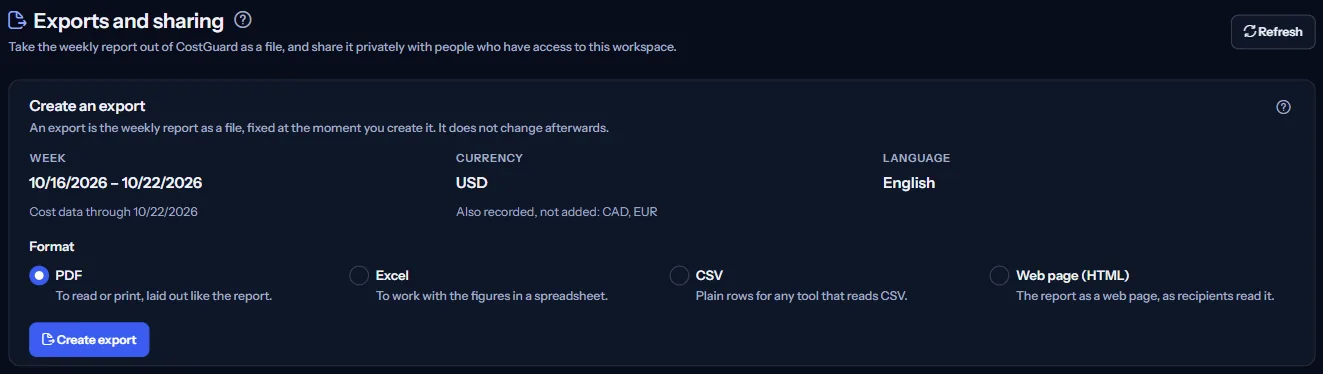
Before you make anything, the panel says what the next export covers:
- “Week”: the seven days of the weekly report, ending on the latest day with recorded cost, with the date cost data runs through.
- “Currency”: the one currency of the report; any other currency the workspace is billed in is named, not added.
- “Language”: the language of the saved report schedule, or the default until one is saved.
Then pick a “Format”:
- “PDF”: To read or print, laid out like the report.
- “Excel”: To work with the figures in a spreadsheet.
- “CSV”: Plain rows for any tool that reads CSV.
- “Web page (HTML)”: The report as a web page, as recipients read it.
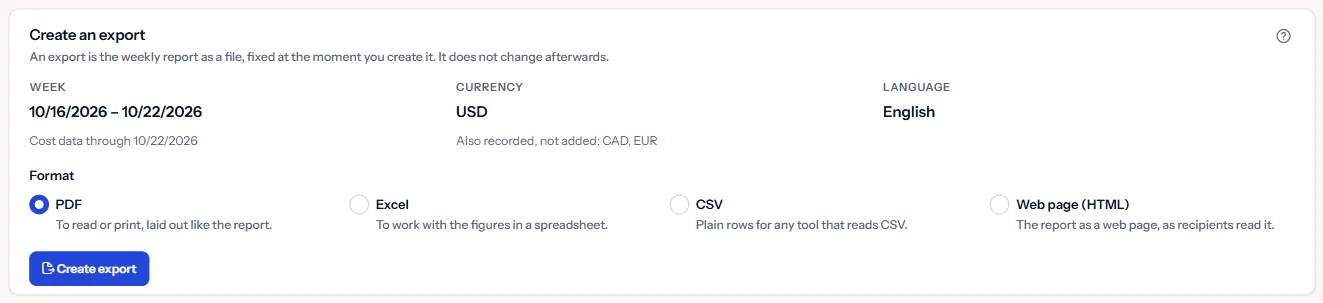
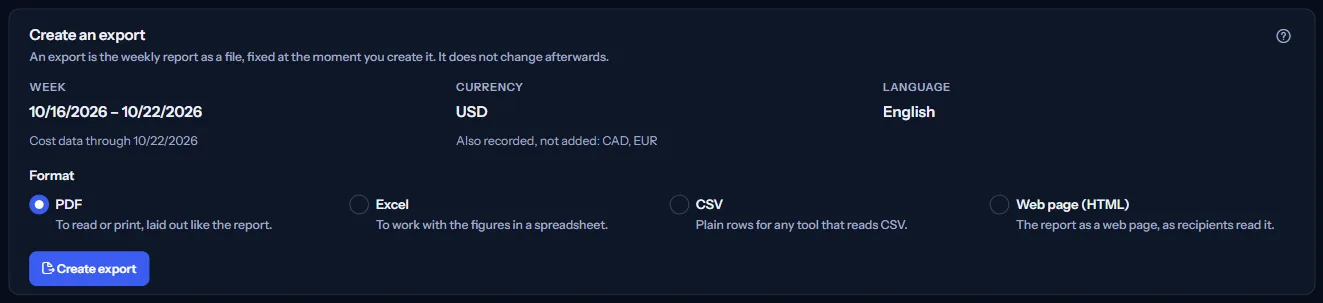
“Create export” makes the file. When it is ready the panel says “The export is ready. Download it from the list of exports below.” An export that cannot be made says why: the week's cost could not be read, or the file would be larger than 5 MB. Members who are not owners or admins read “Only workspace owners and admins can generate exports. You can download completed exports below.”
Exports
The list shows every export, newest first. Each row gives:
- “Format”, “Week” and “Language”: what the file holds, kept as it was made.
- “Created (UTC)”: when it was made.
- “Status”: “Completed”, or “Failed” with the reason.
- “Size” and “Active links”: the size of the file and how many of its links still open.
- “Actions”: “Download” for every member, and “Share” for owners and admins.
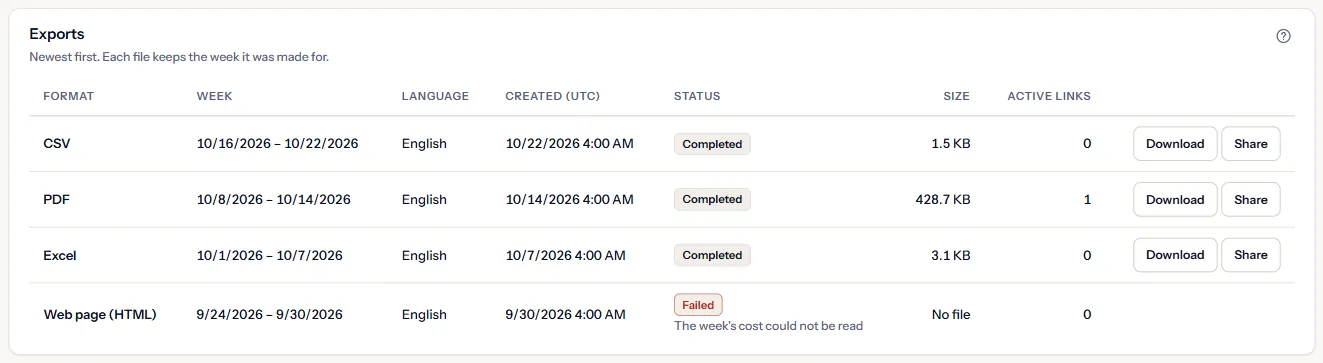
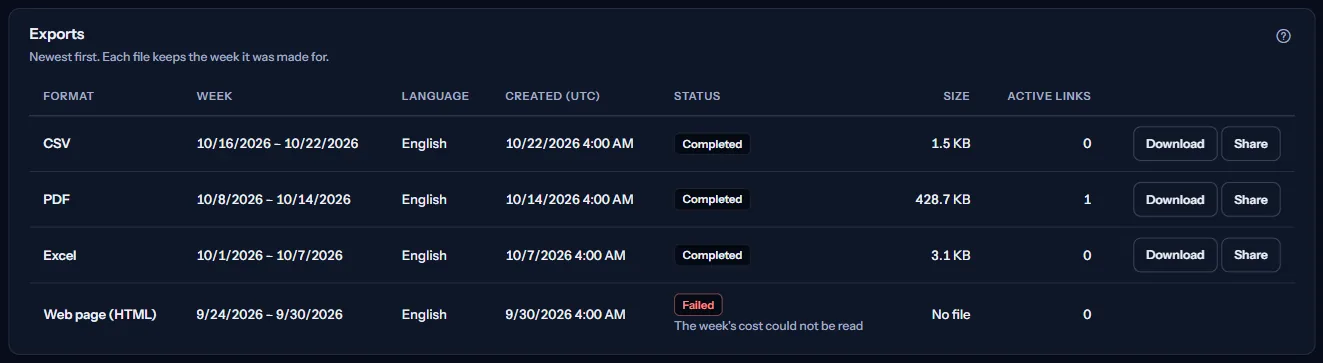
“Load more” reads older exports. When they cannot be read, the exports above stay as they are and the page says so.
Share privately
“Share” on a completed export opens its links. The panel says first who a link opens for: “Only signed-in members of this workspace with access to Reports can open this link.” CostGuard has no invitations yet, so today a link opens only for people who already have access to this workspace.
Choose when the link expires, after “1 day”, “7 days” or “30 days”, then “Create private link”. The new link appears with “Copy” to put it on the clipboard.
“Links to this file” lists every link of the file with its “State” (“Active”, “Expired” or “Revoked”), when it was created and when it expires, in UTC.
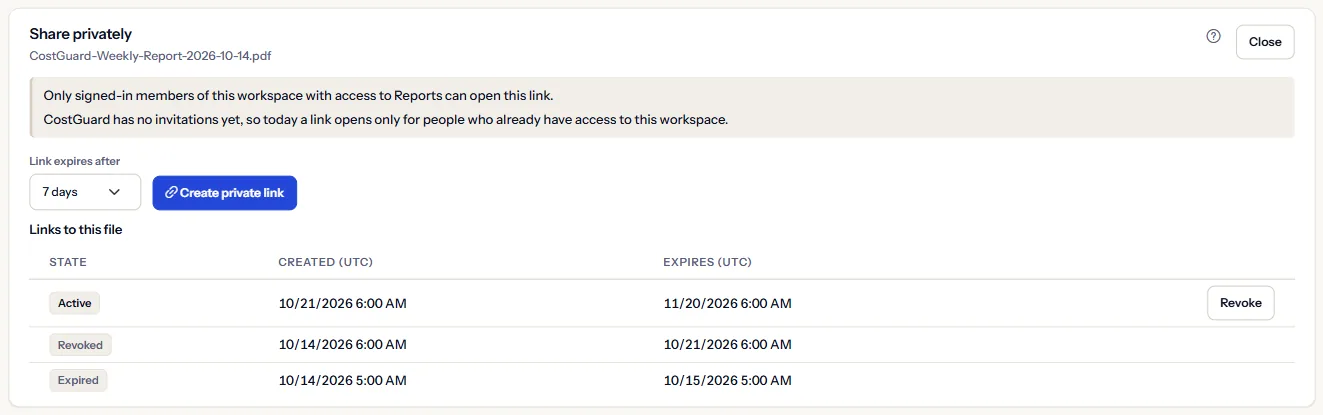
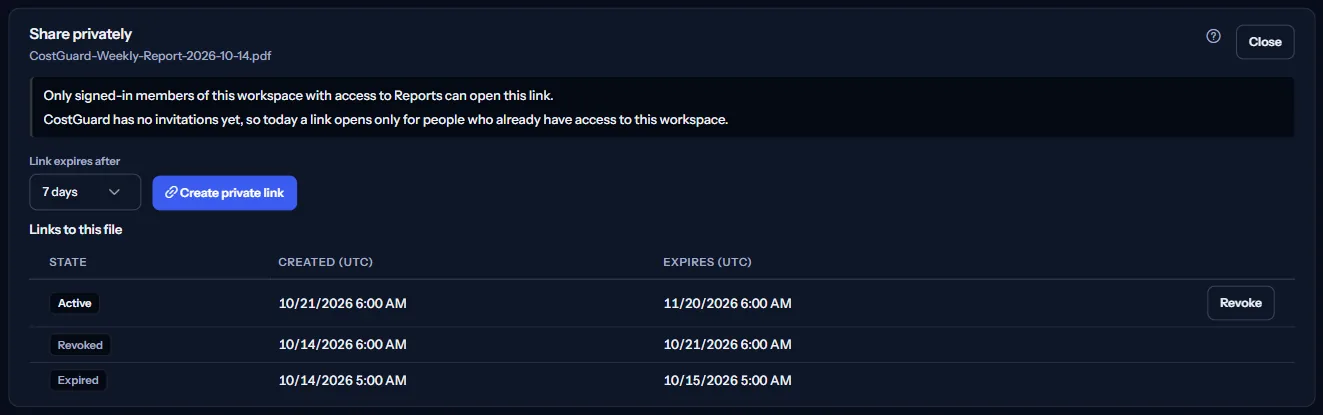
“Revoke” asks “Revoke this link?” first. A revoked link stops opening at once and cannot be turned back on; the file itself is kept. “Keep link” changes nothing.
Open a shared link
A link opens the page “Shared export” in CostGuard, after sign-in. It shows the file's “Format”, “Week”, “File created (UTC)”, “Link expires (UTC)” and “Size”, with “Download”.
An expired or revoked link says so and offers no download. A link that does not exist, belongs to another workspace, or is opened by someone without access shows “This link is not available”, with a way back to “Exports and sharing”.
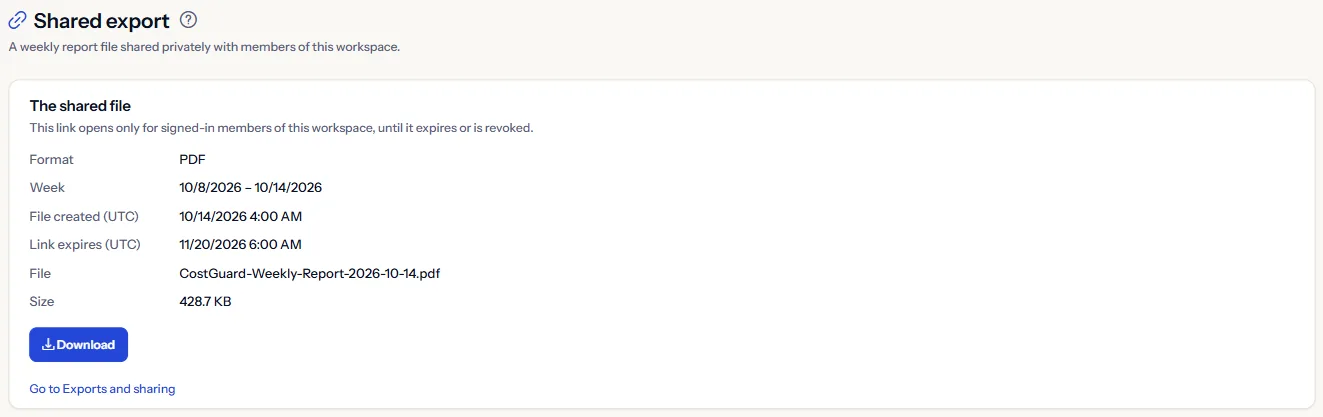
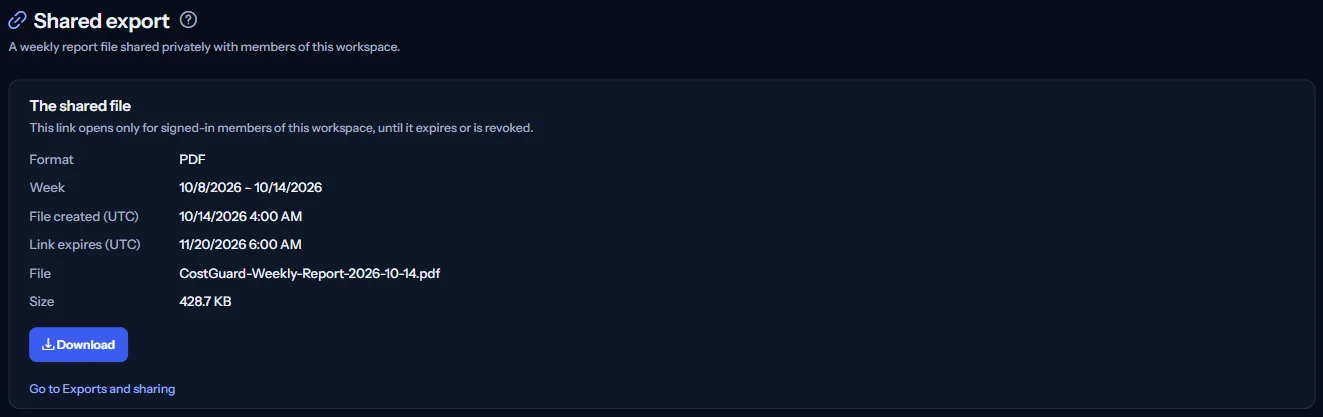
CostGuard has no invitations yet, so today a link opens only for people who already have access to this workspace. It is a private way to point a colleague at a file, not a public link.
How exports work
The notes at the bottom of the page say in short how exports work:
- A file holds the weekly report of its week: the same figures, the same one currency and the same language as the weekly report.
- A file never changes after it is created; create a new export to include newer cost.
- Workspace owners and admins create exports and links; every member of the workspace can download a file.
- A link opens only for signed-in members of this workspace, until it expires after 1, 7 or 30 days or is revoked. CostGuard checks this every time the link is opened.
- Exports stay in the list; CostGuard does not remove them on its own. A file larger than 5 MB is not kept.
- An export always covers the weekly report's week. For another date range, use Cost explorer.
Go further
The links at the bottom of the page lead on:
- “Weekly reports”: every report prepared, with its content.
- “Report preview”: what this week's report says before you export it.
- “Cost explorer”: cost over any other date range.
What you may see instead of figures
Instead of the exports, the page may show:
- Grey blocks while the exports are read.
- “No exports yet”, with a sentence on where a new export appears.
- “The exports could not be read”, with “Try again”. Nothing was changed.
- “What the next export covers could not be read. You can still create one.”
- “The export could not be downloaded. Try again.”
- A notice that your session has ended, with a link to sign in again.
When your plan does not include exports
When your plan does not include report exports, the page shows a fixed example under the label “Sample data”, with the sentence “Your current plan does not include this feature. The figures shown here are an example, not your data.”
The sample shows what a Contoso export would cover and four Contoso exports from August 2026: a PDF with one active link, a CSV, an Excel file, and a web page that failed. It offers no download and no link, and it is the same for everyone, never your data.
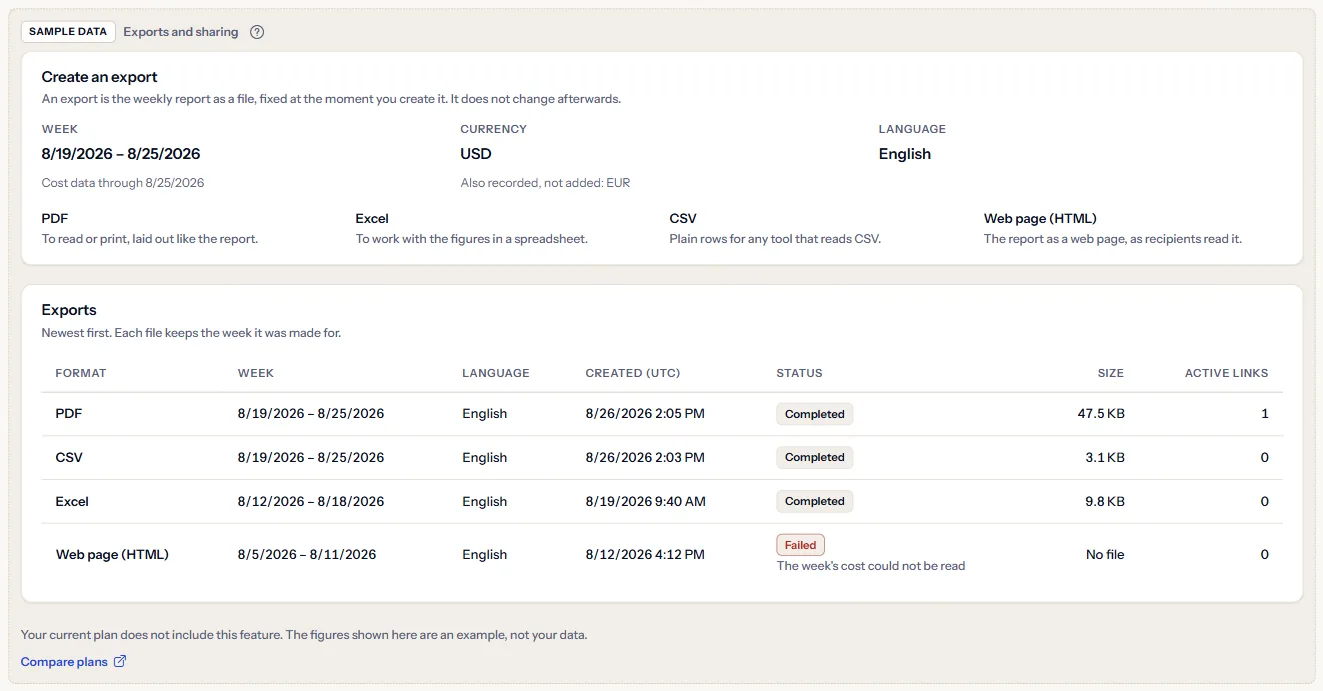
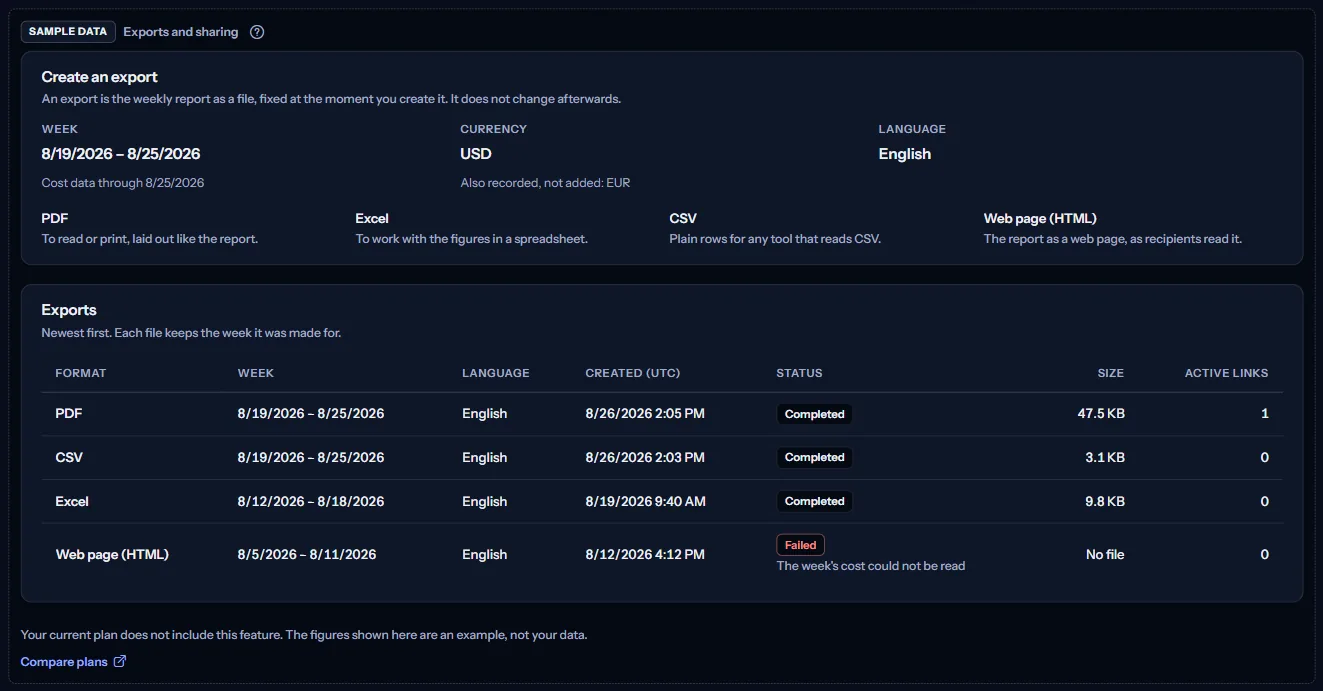
“Compare plans” opens the pricing page in a new tab. CostGuard decides what your plan includes on the server; the sample is only how the page shows it.
What each plan includes
The table shows the first plan that includes each part of the page. Every plan above it includes it too.
| Feature | Free | Starter | Growth | Pro | Enterprise |
|---|---|---|---|---|---|
| A labelled sample of the page | Included | Included | Included | Included | Included |
| Your workspace's report exports and private links | Not included | Not included | Not included | Included | Included |
Pro and Enterprise include report exports; Free, Starter and Growth show the labelled sample. The plan is checked on the server, and the page never shows a price.
Troubleshooting
A colleague cannot open a link
A link opens only for signed-in members of this workspace with access to Reports, until it expires or is revoked. Check the link's state in the file's links, ask the colleague to sign in to this workspace, and create a new link if the old one expired.
An export failed
The row says why. When the week's cost could not be read, try again a little later. A file larger than 5 MB is not kept; a CSV or Excel file of the same week is usually smaller.
I need another date range
An export always covers the weekly report's week. For any other range, use “Cost explorer”.
The page is not in the sidebar
The sidebar lists it in “Advanced” mode only. Choose “Advanced” at the top of the sidebar; the page's address opens in either mode.