
Notifications: what CostGuard told you
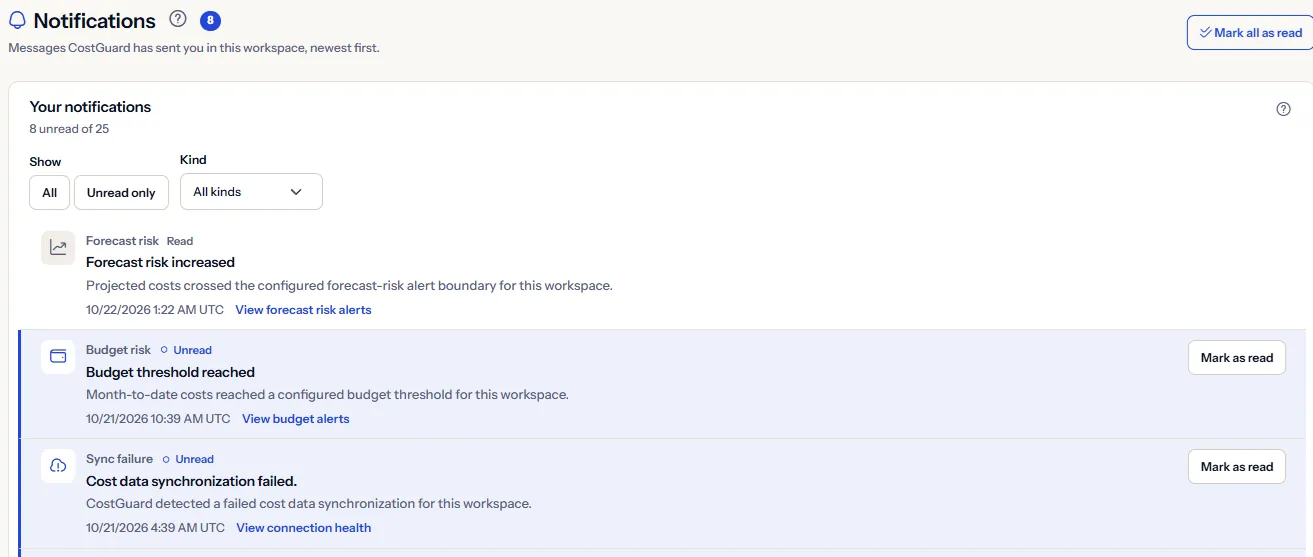
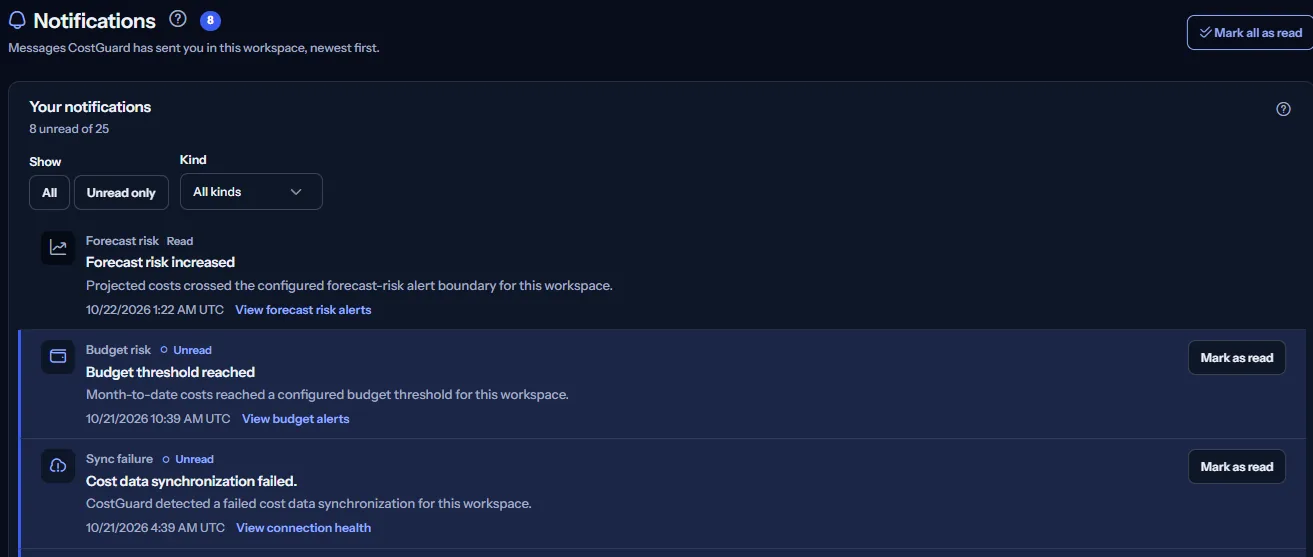
The Notifications page lists the messages CostGuard wrote for you in this workspace, newest first: which ones you have not read yet, what each one is about and where to act on it.
What this page is for
“Notifications” answers one question: what has CostGuard told me in this workspace that I have not read yet, and where do I act on each message? The page lists your own notifications, newest first.
Anyone with access to the workspace opens it, usually after the bell in the header shows something unread. Each notification leads to the page where you act: a failed cost import to the connections, a budget or forecast risk alert to its alert page, an Azure credit notice to Azure credits.
Before you start
There is nothing to set up. A notification appears when something happens that CostGuard tells you about: an alert rule detects a failed cost import, a budget threshold or a rising forecast risk, or an Azure credit needs attention. A new workspace with no alert yet shows an empty list.
Read the Getting started guide
The page is part of every plan. Budget and forecast risk alerts appear only when the workspace's plan includes those alerts.
Your notifications
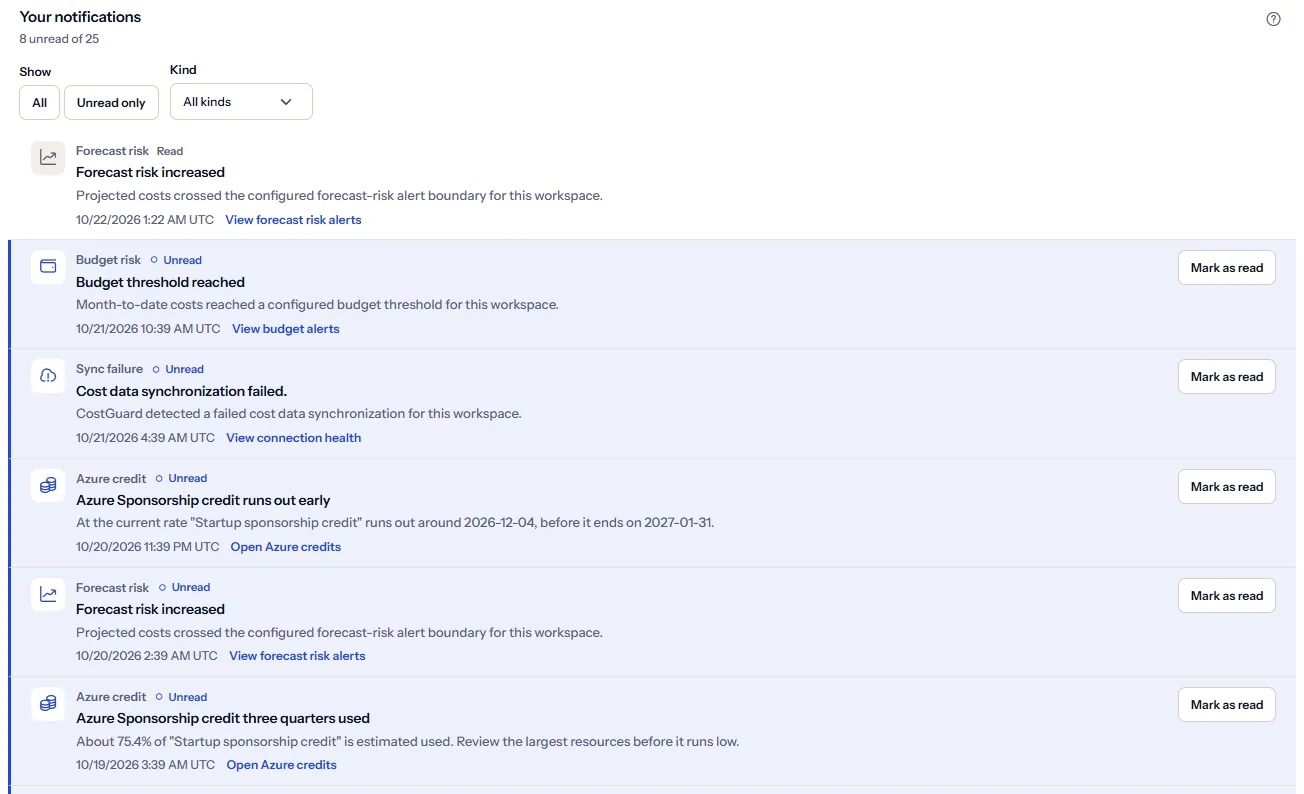
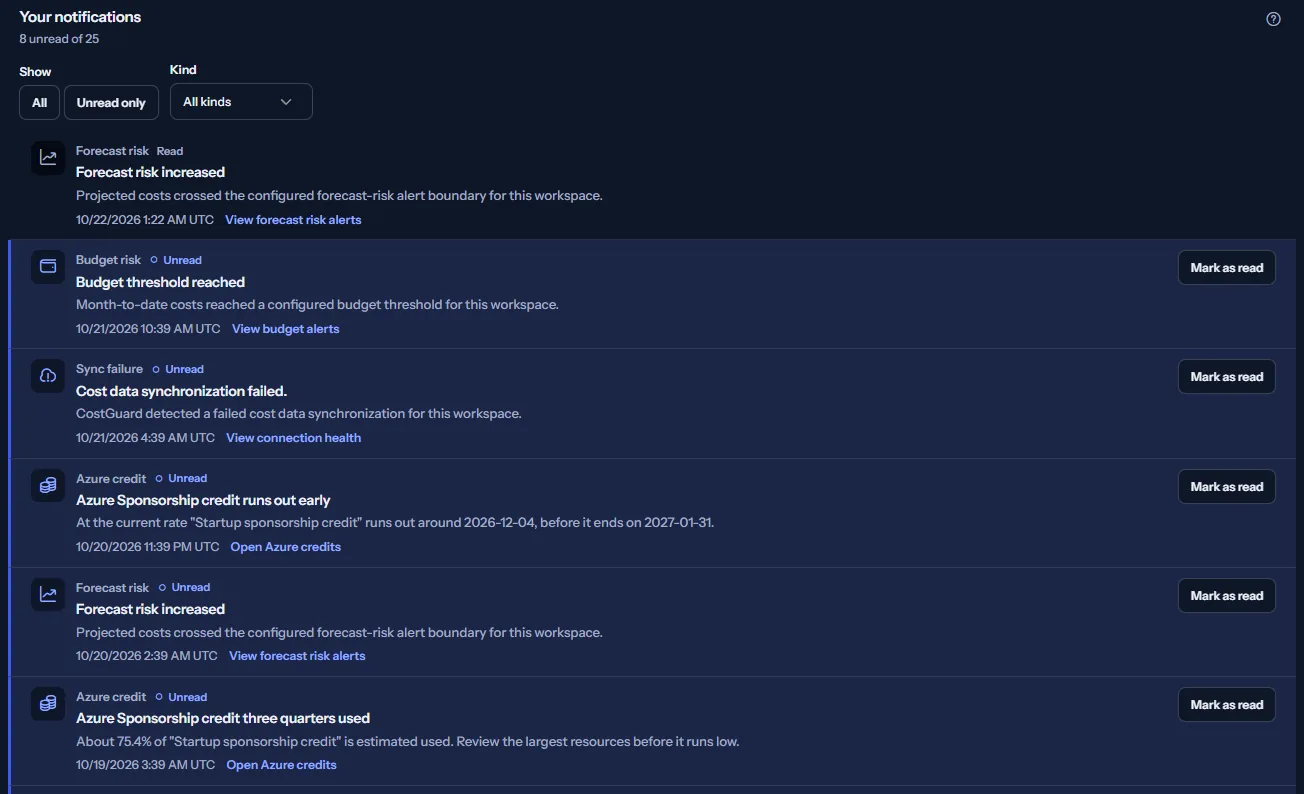
The list “Your notifications” shows twenty notifications at a time, newest first. Each one shows:
- What it is about, such as “Sync failure” or “Budget risk”, and whether it is “Unread” or “Read”.
- Its title and message, as they were written when it was created.
- When it was created.
- A link to the page where you act on it, such as “View connection health” or “View budget alerts”.
- “Mark as read”, while it is unread.
When you have more than twenty, “Load more” reads the next older ones. The line under the list says how many are shown out of how many.
Narrow the list
Two filters sit above the list:
- “Unread only” asks CostGuard for your unread notifications only, so older unread ones appear without loading every read one first.
- “Kind” narrows the notifications already shown to one kind: “Alerts”, “Azure credits”, “Reports”, “Support” or “Other”. It offers only the kinds present in the loaded list.
When no loaded notification is of the chosen kind, the page says so and offers “Load more” to look further back and “Clear filters” to see every kind again.
Mark notifications as read
“Mark as read” marks one notification; “Mark all as read”, beside the heading, marks every unread notification of yours in this workspace, loaded or not. CostGuard saves the change and then gives the page the new unread count, which the bell in the header follows.
If the change cannot be saved, the notification stays unread and the page asks you to try again. A read notification is kept; nothing is deleted.
How notifications work
The panel “About notifications” at the bottom of the page states the rules in short:
- CostGuard writes a notification here when an alert rule detects a budget threshold, a forecast risk or a failed cost import, and when an Azure credit needs attention.
- A notification keeps the words it was written in. Changing your language later does not translate the notifications that are already here.
- Email is separate from this list: “Notification settings” decides which alerts also reach you by email.
- You see only your own notifications, in the workspace you are working in. Notifications are kept, read or unread.
Go further
The links at the bottom of the page lead on:
- “Notification settings”: choose which alerts reach you by email and in the app.
- “Alert rules”: see and change the rules that raise alerts.
- “Alert events”: every alert the rules recorded, including those you were not notified about.
What you may see instead of notifications
While the page reads, a spinner stands in place of the list. After that, the page may show one of these:
- “No notifications yet”: CostGuard has not told you anything in this workspace yet.
- “You have read every notification.”: with “Unread only” on, nothing is left unread; “Show all notifications” shows the whole list.
- “Your notifications could not be loaded.”: the list could not be read; “Try again” reads it again.
- Older notifications could not be loaded: the notifications already shown stay as they are, and you can try again.
- “The unread count is unavailable right now.”: a change was saved but the new total could not be read; the page then says nothing about the total rather than show a wrong number.
- “Select a workspace to see your notifications.”: choose a workspace in the header first.
What each plan includes
The table shows the first plan that includes each part of the page. Every plan above it includes it too.
| Feature | Free | Starter | Growth | Pro | Enterprise |
|---|---|---|---|---|---|
| Your notifications, filters and marking as read | Included | Included | Included | Included | Included |
Every plan includes this page. Which alerts can reach it follows the plan: sync failure alerts on every plan, budget alerts from Starter, forecast risk alerts from Pro. The plan is checked on the server, and the page never shows a price.
Troubleshooting
An alert I expected is not here
Check “Alert events”: if the alert is there, in-app notifications for that kind of alert may be off in “Notification settings”. If it is not there, the rule may be off or still waiting before it repeats; “Alert rules” shows both.
A colleague sees notifications I do not
Each person sees only their own notifications, and only in the workspace they have open. Check that you are in the same workspace.
A notification is in another language
A notification keeps the language it was written in. Changing the language of the application does not change it.
The kind filter does not offer the kind I want
The filter offers only the kinds in the notifications already loaded. Load more to read older notifications; their kinds are then offered too.