
Alert rules: what is watched and what is on
The Alert rules page lists every alert rule of the workspace in one place: the sync failure rules you manage there, and the budget and forecast risk rules managed on their own pages. It shows what each rule watches, whether it is on and how long it waits before repeating.
What this page is for
“Alert rules” answers one question: which alert rules does this workspace have, which are on, and what does each one watch? There are three kinds: sync failure, budget and forecast risk.
A workspace owner or admin opens it to make sure the team hears about a failed cost import or a budget at risk. Sync failure rules are created and changed here; budget and forecast risk rules are listed here and changed on “Budget alerts” and “Forecast risk alerts”.


Before you start
A sync failure rule needs an Azure connection whose cost CostGuard imports; without one, there is nothing to fail. Only a workspace owner or admin can create or change rules; everyone else sees them read-only.
Read the Getting started guide
Sync failure rules are part of every plan. Budget rules appear when the plan includes budgets, from Starter, and forecast risk rules when it includes forecasting, from Pro.
The three kinds of rules
The panel “Rules by kind” shows, for each kind, how many rules are on out of how many:
- “Sync failure”: watches the cost imports from Azure and raises an alert while the latest finished import of the workspace has failed. “Managed on this page”.
- “Budget”: raises an alert when month-to-date cost reaches a share of the workspace's monthly budget. “Managed on Budget alerts”.
- “Forecast risk”: raises an alert when the month-end forecast puts the monthly budget at risk. “Managed on Forecast risk alerts”.
A kind outside the workspace's plan shows “Not in this workspace's plan”, and one that could not be read shows “Could not be read”. While filters are applied to the sync failure list, its figure says how many rules are shown.
Sync failure rules
The panel “Sync failure rules” lists the workspace's sync failure rules. Each row shows:
- “Name” and the description, if one was written.
- “Severity”: “Information”, “Warning” or “Critical”.
- “Status”: “On” or “Off”.
- “Waits before repeating”: how long the rule waits before it can raise the same alert again while the failure lasts, in words such as six hours or seven days.
- “Last changed (UTC)” and, for an owner or admin, “Edit” and “Switch on” or “Switch off”.
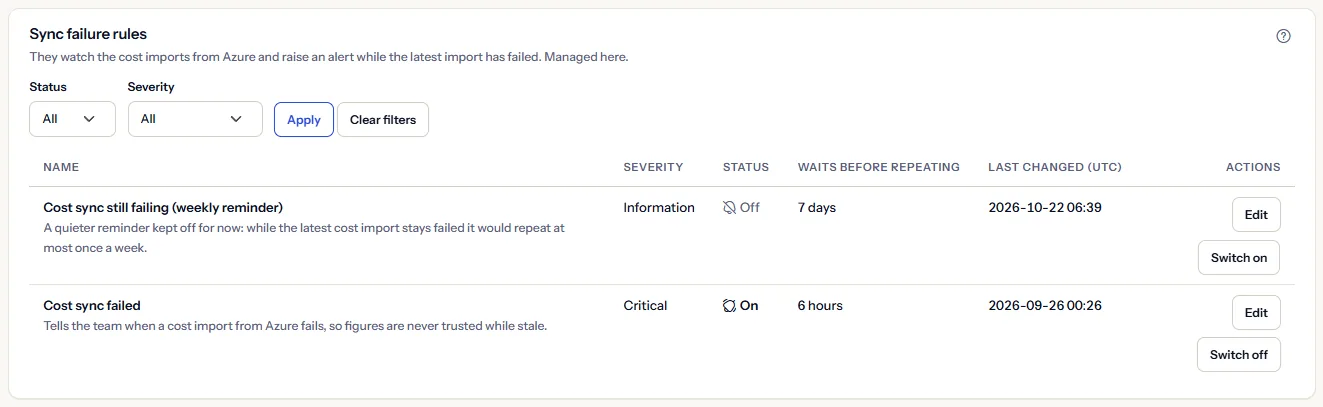
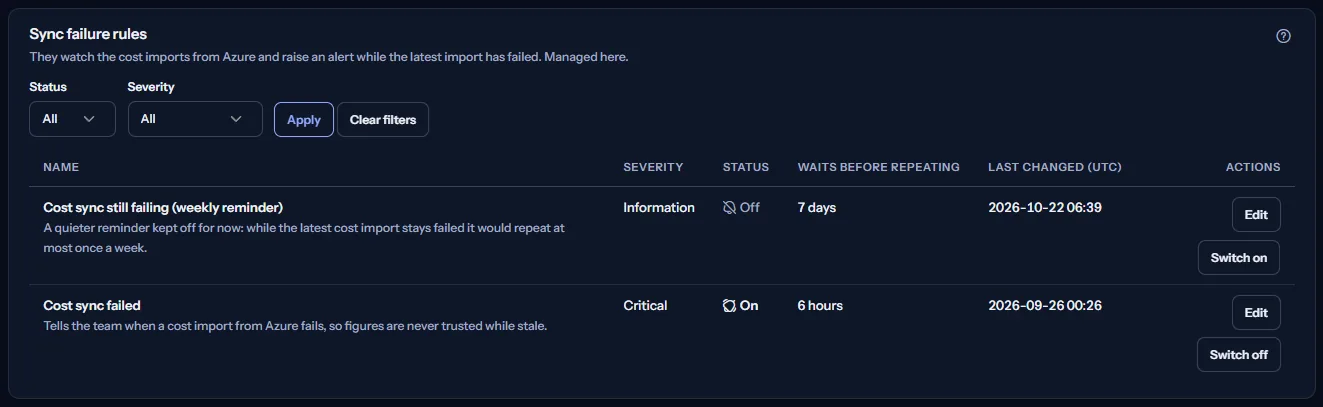
“Status” and “Severity” narrow the list; “Apply” applies them and “Clear filters” shows every rule again. “Load more” reads further rules when the workspace has many.
A member who is not an owner or admin sees “Only a workspace owner or admin can create or change alert rules.” and no buttons.
Create or edit a sync failure rule
“Create sync failure rule” or “Edit” opens the form. What the rule watches and what it covers are fixed: “Cost data sync from Azure” for “The whole workspace”. You fill in:
- “Name”, up to 200 characters.
- “Description (optional)”, up to 2,048 characters.
- “Severity”, a label for sorting alerts by importance.
- “Wait before repeating”, written as days.hours:minutes:seconds, for example 06:00:00 for six hours or 7.00:00:00 for a week.
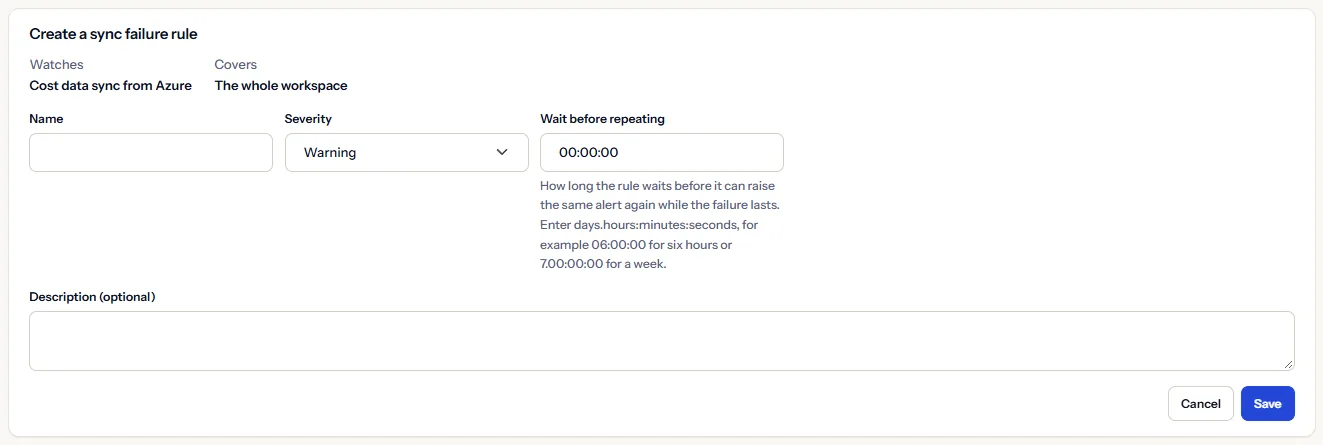
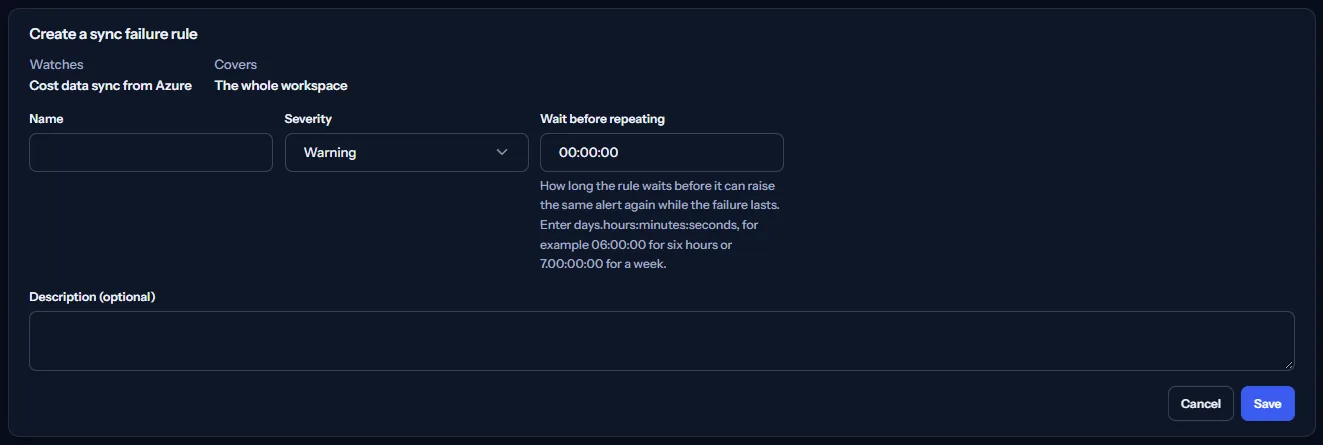
A new rule is on as soon as it is created. If someone changed the rule after you opened it, the page says so, saves nothing and offers “Reload the rule”; what you typed stays in the form.
Switch a rule on or off
“Switch on” and “Switch off” ask first. Switching a rule on means it starts watching from the next background check; switching it off means it raises no alert until it is switched on again.
There is no way to remove a rule; switch it off instead.
Budget and forecast risk rules
Two panels list the other kinds so every rule of the workspace is in one place:
- “Budget rules”: each rule with the share of the monthly budget it fires at, under “Fires at”, and a link “Change budget rules on Budget alerts”.
- “Forecast risk rules”: each rule with its status and wait, and a link “Change forecast risk rules on Forecast risk alerts”.
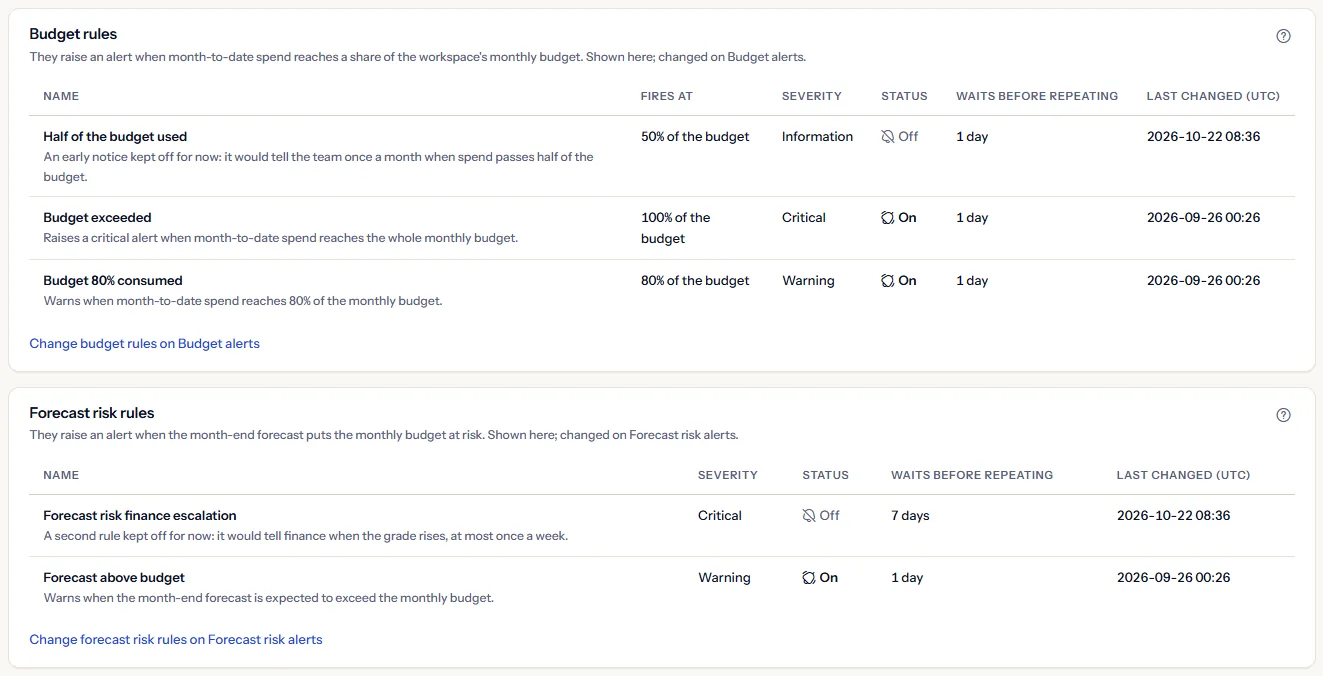
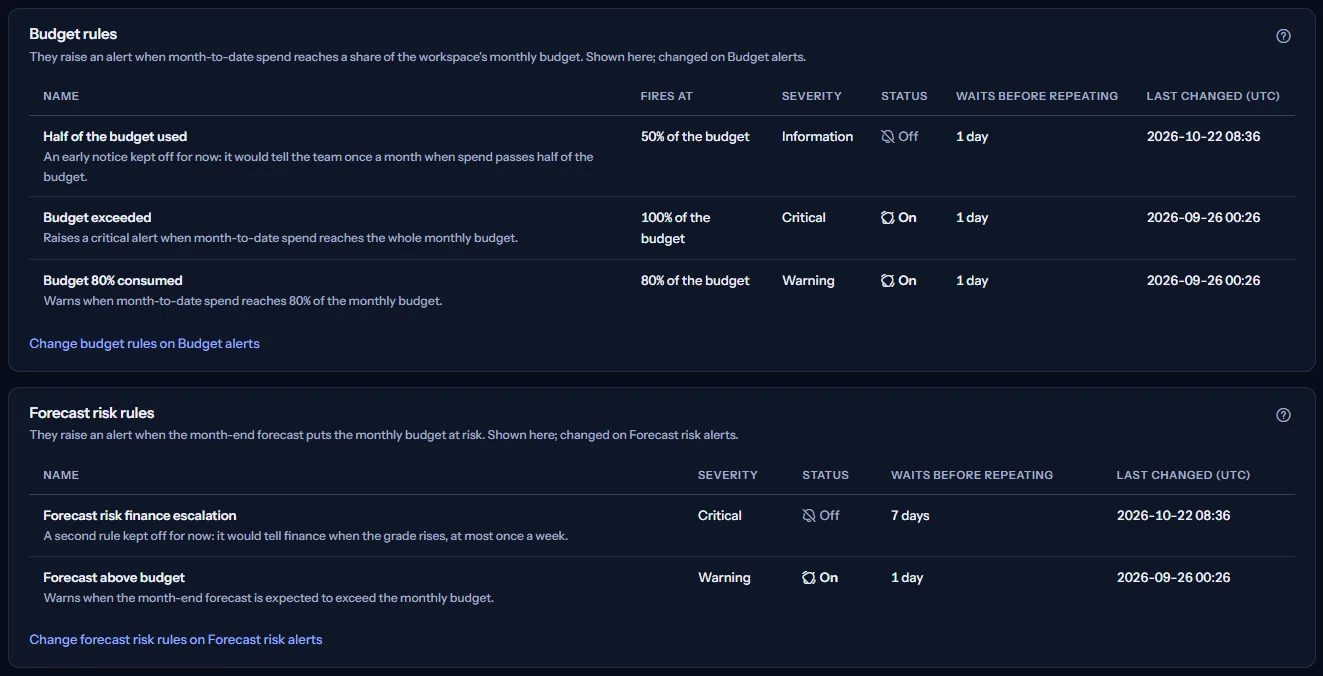
When the plan does not include a kind, its panel says so and offers “Compare plans”, which opens the public pricing page in a new tab. When a kind could not be read, the panel says so and offers “Try again”; the rest of the page still works.
How alert rules work
The panel “How alert rules work” states the rules in short:
- A sync failure rule fires while the latest finished cost import of the workspace has failed. It stays that way until an import succeeds, so the rule repeats its alert each time its wait has passed.
- Rules that are on are checked in the background every few minutes. Creating or switching on a rule raises nothing at once.
- When a rule fires, CostGuard records the alert on “Alert events” and adds a notification in the app; “Notification settings” decides whether it is also emailed.
- Severity is a label you choose to sort alerts by importance; it does not change when a rule fires.
- Alert rules only read CostGuard's own records; they never change anything in Azure.
Go further
The links at the bottom of the page lead on:
- “See the alerts the rules raised”.
- “Choose email or in-app notifications”.
- “Budget alerts”: change the budget rules.
- “Forecast risk alerts”: change the forecast risk rules.
- “Check the Azure connections”: see why an import failed.
What you may see instead of rules
While the page reads, “Loading the alert rules” stands in place of the list. After that, the page may show one of these:
- “No sync failure rule yet”: the workspace has no sync failure rule; an owner or admin can create one.
- “No rule matches these filters”: the filters hide every rule; “Clear filters” shows them again.
- “The sync failure rules could not be loaded”: nothing was changed; “Try again” reads the rules again.
- One kind could not be read: its panel says so with “Try again”, and the other kinds still show.
- “This rule was changed somewhere else after you opened it. Your changes were not saved.” “Reload to see the rule as it is now; what you typed stays in the form.”
- “Session Expired”: your sign-in ended; “Sign In Again” brings you back to this page.
What each plan includes
The table shows the first plan that includes each part of the page. Every plan above it includes it too.
| Feature | Free | Starter | Growth | Pro | Enterprise |
|---|---|---|---|---|---|
| Sync failure rules: list, create, edit, switch on and off | Included | Included | Included | Included | Included |
| Budget rules listed | Not included | Included | Included | Included | Included |
| Forecast risk rules listed | Not included | Not included | Not included | Included | Included |
Below Starter the budget panel says budget rules are not in the plan, and below Pro the forecast risk panel says the same; both offer the pricing page in a new tab. The plan is checked on the server, and the page never shows a price.
Troubleshooting
A rule is on but no alert was raised
A sync failure rule fires only while the latest finished import has failed, and only after the next background check. If it fired before, it waits for its wait to pass before raising the same alert again. “Alert events” shows what was raised.
I cannot create or change a rule
Only a workspace owner or admin can. Budget and forecast risk rules are changed on their own pages, not here.
The budget or forecast risk panel shows no rules
Either the plan does not include that kind, and the panel says so, or no rule of that kind exists yet; create one on “Budget alerts” or “Forecast risk alerts”.
The page is not in the sidebar
The sidebar lists it in “Advanced” mode only. Choose “Advanced” at the top of the sidebar; the page's address opens in either mode.