
Getting started: connect Azure and set up CostGuard
The Getting started page tells you whether CostGuard is receiving your Azure cost data and what to set up next. This article explains each step, every status it can show and what to do about it.
What the page is for
Getting started answers one question: is CostGuard receiving your Azure cost data, and what should you do next?
You open it in your first days with CostGuard, and again whenever a connection or an import stops working. Whoever set up the workspace, a founder, an engineering lead or the person who owns cloud costs, leaves it with a decision: fix the step that is broken, or move on to the Dashboard and to budgets.
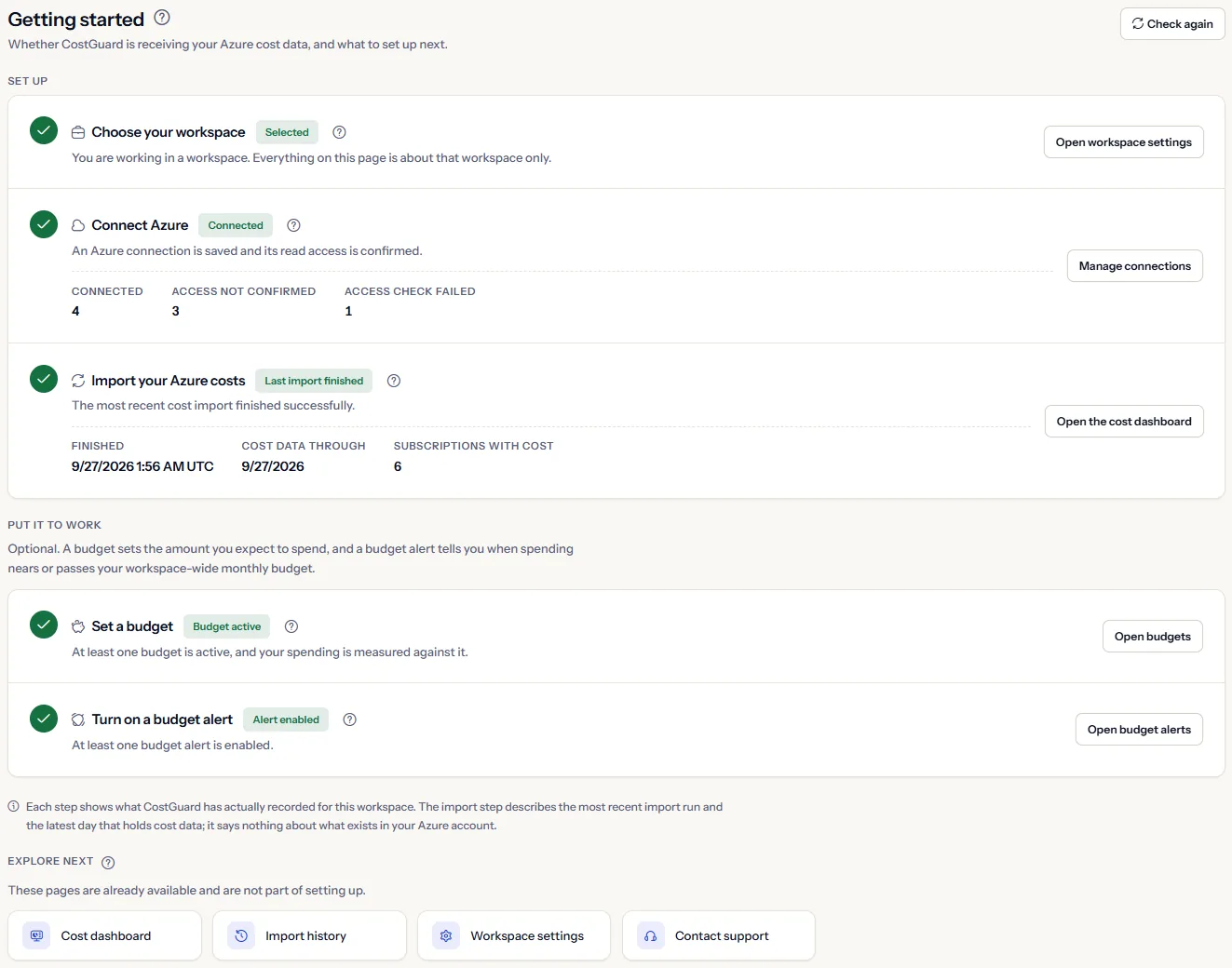
The page has three parts. “Set up” holds the three steps without which CostGuard has nothing to show. “Put it to work” holds two optional steps that make CostGuard warn you about spending. “Explore next” links to pages you can already use.
Every step shows what CostGuard has actually recorded for your workspace. Nothing is ticked because you visited a page or selected a button, and the page shows no percentage of completion.
Before you start
You need a CostGuard account and a workspace. To connect Azure you also need someone who can grant access to your Azure subscriptions. CostGuard asks for read access only.
The three setup steps are part of every plan. The two optional steps need budgets, which some plans do not include.
Choose a workspace
Everything on the page is about one workspace: the one selected in the workspace selector at the top of the application. When a workspace is selected, the step reads “Selected” and offers “Open workspace settings”.


When no workspace is selected, the page shows “Select a workspace to continue”, reads nothing on your behalf, and every other step reads “Waiting for a workspace”. Choose a workspace in the selector and the page checks every step again.
Connect Azure
This step reads the Azure connections saved in your workspace. It is done, with the status “Connected”, when at least one connection has confirmed read access.
Under the status, the page counts your connections by status, so a workspace with one working and one broken connection sees both:
- “Connected”: read access is confirmed.
- “Access not confirmed”: the connection is saved and its access has not been checked yet. A new connection starts here.
- “Access check failed”: CostGuard tried to read with this connection and could not.


The access check runs when you select “Verify Access” on the connections page; CostGuard does not repeat it on its own. When the check passes, CostGuard starts a first import of your costs in the background: the current month to date, then the three full months before it.
With no connection yet, the step reads “Not connected” and offers “Connect Azure”. Otherwise it offers “Manage connections”, which opens your connections.
Import your costs
This step reads the most recent cost import of your workspace, whichever connection it ran for. It is done when that import finished successfully: the status reads “Last import finished” and “Finished” gives the time it ended.
Two figures show how far your cost data reaches:
- “Cost data through”: the latest day that holds recorded cost. Azure publishes cost a day or two late, so the most recent days are not final yet.
- “Subscriptions with cost”: how many of your subscriptions have recorded cost.


Until an import has finished, the step shows one of these statuses:
- “No import yet”: no cost import has run for this workspace.
- “Import running”: come back when it has finished. An import that is still running after 30 minutes is marked as failed.
- “Last import failed”: the step offers “Open import history”, where each import shows what went wrong.
Limits to know
After you connect, CostGuard imports your cost for the current month to date and then for the three full months before it, so your charts have history from the start. Every later import, and “Sync Now” on the Dashboard, reads the current month to date.
Set a budget
The steps under “Put it to work” are optional. A budget sets the amount you expect to spend in a period, for the whole workspace or for one subscription, resource group or service. The period is monthly, daily, weekly, quarterly or annual, and it cannot be changed once the budget exists.
The step is done, with the status “Budget active”, when at least one budget is enabled, whatever its scope. “No budget” offers “Create a budget”. “All budgets disabled” means budgets exist but nothing is measured against them, and offers “Open budgets”.


When your plan does not include budgets, this step and the next read “Not in your plan” and offer “Compare plans”, which opens the pricing page in a new tab.
Turn on a budget alert
A budget alert tells you when spending nears or passes your workspace-wide monthly budget. Each alert has a threshold of 50, 80 or 100 percent of that budget. It reaches you in the application and by email, as your workspace notification settings allow.
The step is done, with the status “Alert enabled”, when at least one budget alert is enabled. With none enabled, it reads “No alert enabled” and offers “Set up budget alerts”.


Limits to know
A budget alert measures only the monthly budget of the whole workspace. A budget for one subscription, resource group or service, or for another period, raises no budget alert.
Explore next
“Explore next” links to pages you can use now. They are not part of setting up, so they never change a step:
- “Cost dashboard”: what you spend on Azure and what changed.
- “Import history”: every cost import with its outcome.
- “Workspace settings”: the settings of the workspace you are working in.
- “Contact support”: opens a new request to the CostGuard support team.


Statuses any step can show
Besides its own statuses, any step can show:
- “Checking”: the page is reading the latest information. The steps fill in one by one, and a slow answer does not hold back the others.
- “Could not check”: that information could not be read just now. It does not mean the step is not done. Select “Check again” at the top of the page.
- “Waiting for a workspace”: no workspace is selected, so nothing is read.
- “Not in your plan”: your plan does not include budgets, which budget alerts belong to. “Compare plans” opens the pricing page in a new tab.
“Check again” reads every step again. It is unavailable while a step is still being checked. When your session has expired, the page shows “Your session has expired” with the button “Sign in again”.
The marker beside each step repeats its status as a shape: a tick when the step is done, an exclamation mark when it failed, an hourglass while an import runs, and the step number while it is still to do. A dashed outline around the number means the step could not be checked.
Note
The page reads what exists now and stores no progress of its own. A step that was done can become undone, for example when a connection loses its access.
What each plan includes on this page
The table lists the parts of the page and the first plan that includes each. On a plan without budgets, the two optional steps read “Not in your plan”.
| Feature | Free | Starter | Growth | Pro | Enterprise |
|---|---|---|---|---|---|
| The workspace, Azure connection and cost import steps, and the links to explore next | Included | Included | Included | Included | Included |
| The budget step and the budget alert step | Not included | Included | Included | Included | Included |
Troubleshooting
The connection step reads “Access not confirmed”
The access of that connection has not been checked yet. Select “Manage connections”, then “Verify Access” on the connection.
The connection step reads “Access check failed”
CostGuard could not read with that connection. Check in Azure that the access you granted is still in place, then select “Verify Access” on the connection again.
Azure is connected, but no import has run
The first import starts in the background when a connection passes its access check. If the step still reads “No import yet”, select “Sync Now” on the Dashboard.
The import step reads “Last import failed”
Select “Open import history” to see what went wrong. Fix the connection if it needs it, then select “Sync Now” on the Dashboard.
Earlier months are missing
CostGuard imports the three full months before the current one after this month's cost, one month at a time, so they can arrive a few minutes later. A month that stays empty had no cost in Azure, or could not be read yet and is tried again on a later scheduled import. Months before those three are not imported.
A step reads “Could not check”
That information could not be read at that moment; it says nothing about whether the step is done. Select “Check again”. If it stays, contact support from “Explore next”.
A budget is active, but the budget alert step is not done
A budget and a budget alert are separate. Select “Set up budget alerts” and enable an alert. Keep in mind that a budget alert measures only the monthly budget of the whole workspace.