
Dashboard: what you spend on Azure, and what changed
The Dashboard shows what the selected subscriptions cost over the selected dates, how that compares with the period before, where the month is heading, and what needs your attention. This article explains every panel, how each figure is calculated and what it leaves out.
What the Dashboard is for
The Dashboard is the first page you see after you sign in. It answers one question: what are we spending on Azure, is that more or less than before, and what needs attention today?
An engineering lead opens it to see which service or subscription moved. A founder or a finance lead opens it for the spend of the period, the forecast to the end of the month and the state of the budget. Both leave with a decision: look closer at one service, act on a recommendation, or change nothing.
Every figure follows the scope you set at the top of the page: all subscriptions or one, one currency, one date range. Most panels carry a link to the page that holds the detail.
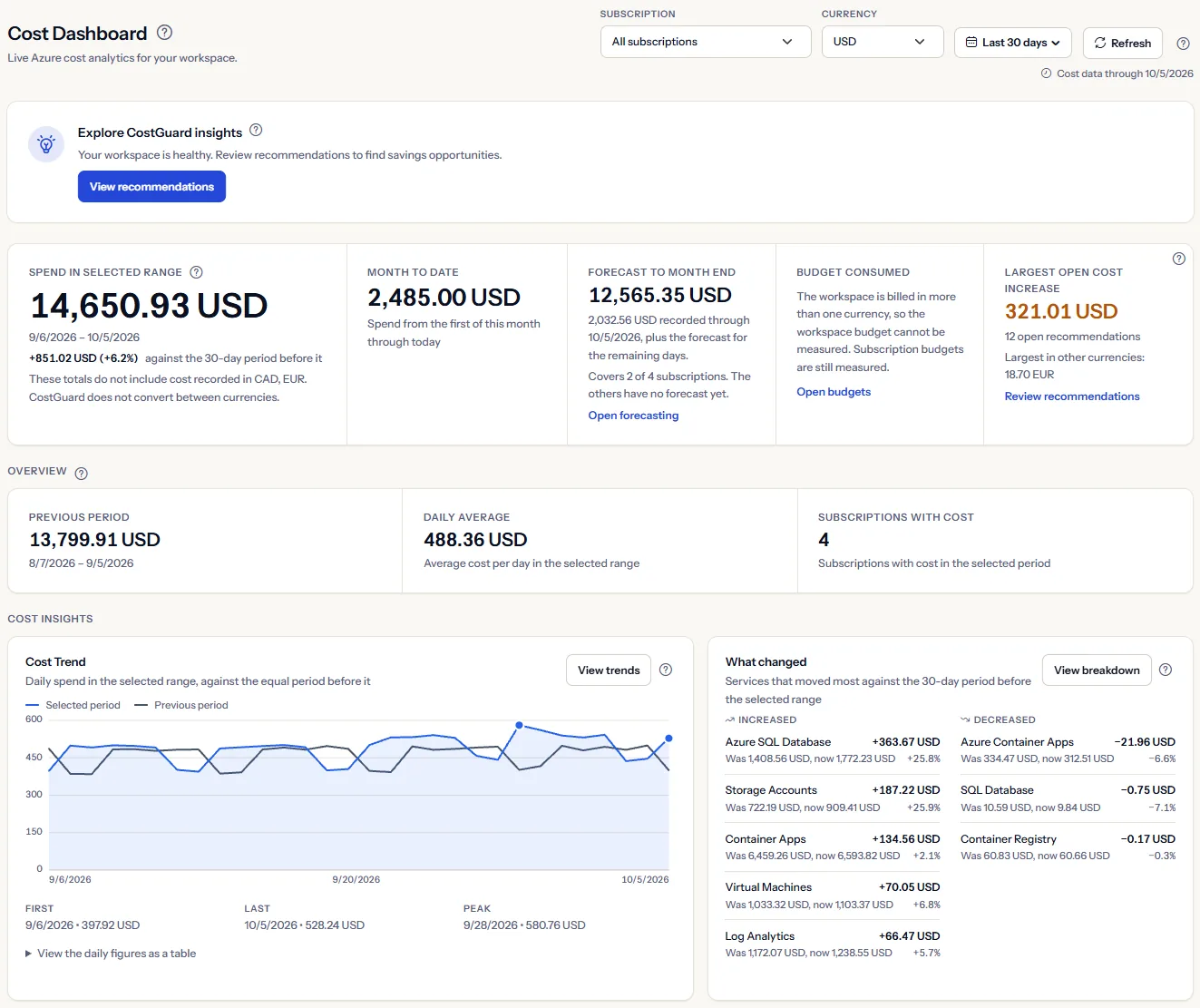
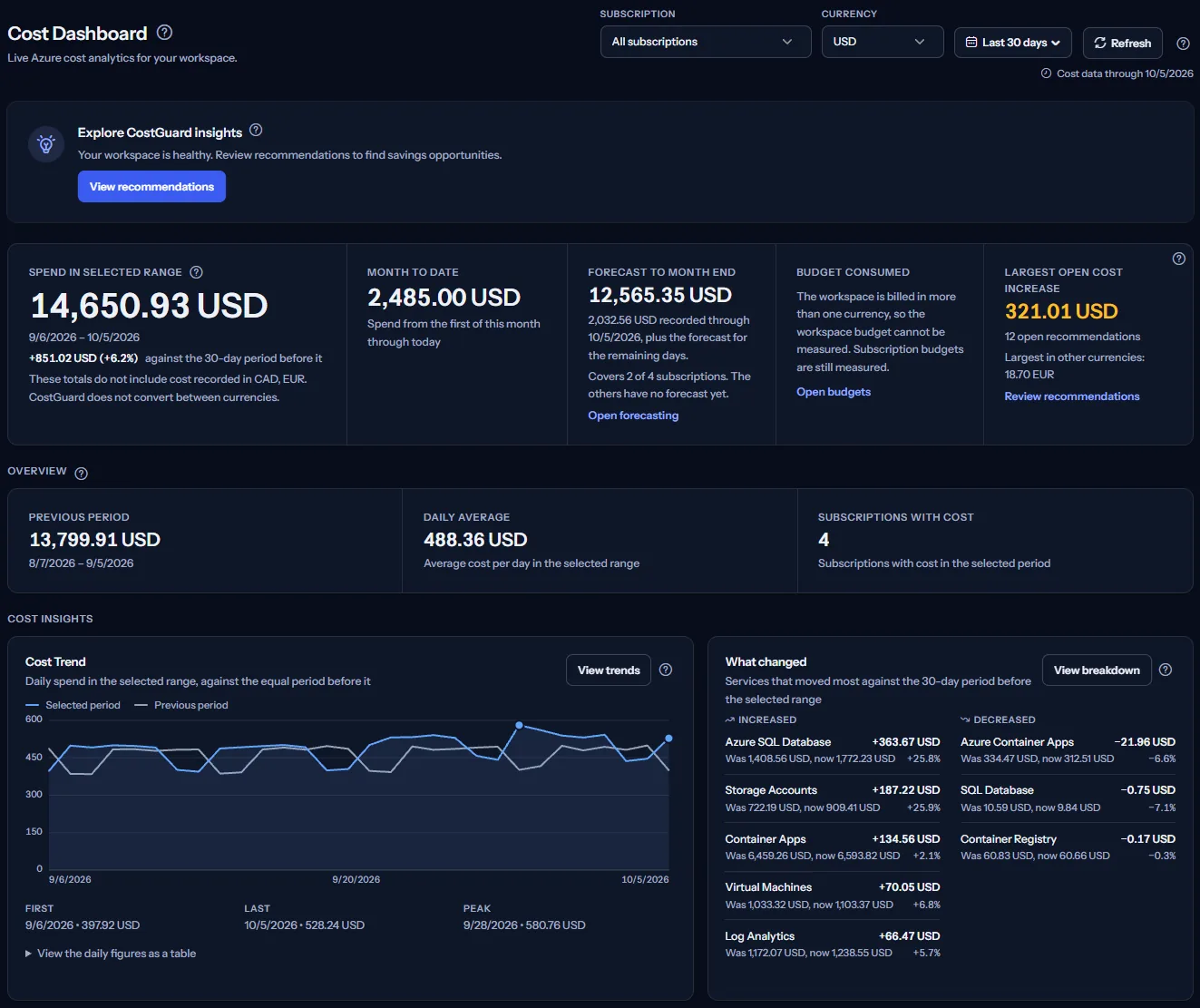
Before you start
The Dashboard shows your figures once three things exist.
- An Azure connection. Until you have one, the page shows “Get Started with CostGuard” with the button “Connect Azure Subscription”. CostGuard asks for read access only.
- A first import. After you connect, CostGuard imports your cost data. The page tells you where that import stands and fills in when it completes.
- A plan that includes the panel. The summary figures are part of every plan. Some panels need a higher plan and show a labelled sample until then.
Choose the scope: subscription, currency and dates


The bar at the top of the page sets the scope. Every figure, chart and list below it is calculated again for what you select. Two panels are the exception because they describe the whole workspace: commitments and credits, and data health.
- “Subscription”: “All subscriptions” or one subscription. The list holds the subscriptions that have recorded cost.
- “Currency”: shown only when the scope is billed in more than one currency. CostGuard holds no exchange rate, so it never adds two currencies. Every figure is in the one currency you select, and the page names the others.
- The date range: “Last 7 days”, “Last 30 days” (the page opens with it), “Month to date”, “Previous month” or “Custom range”.
- “Refresh” reads everything again for the same scope.
When you have not chosen a currency, the page uses the one that most of your subscriptions with cost in the range are billed in. It counts subscriptions; it never compares amounts across currencies.
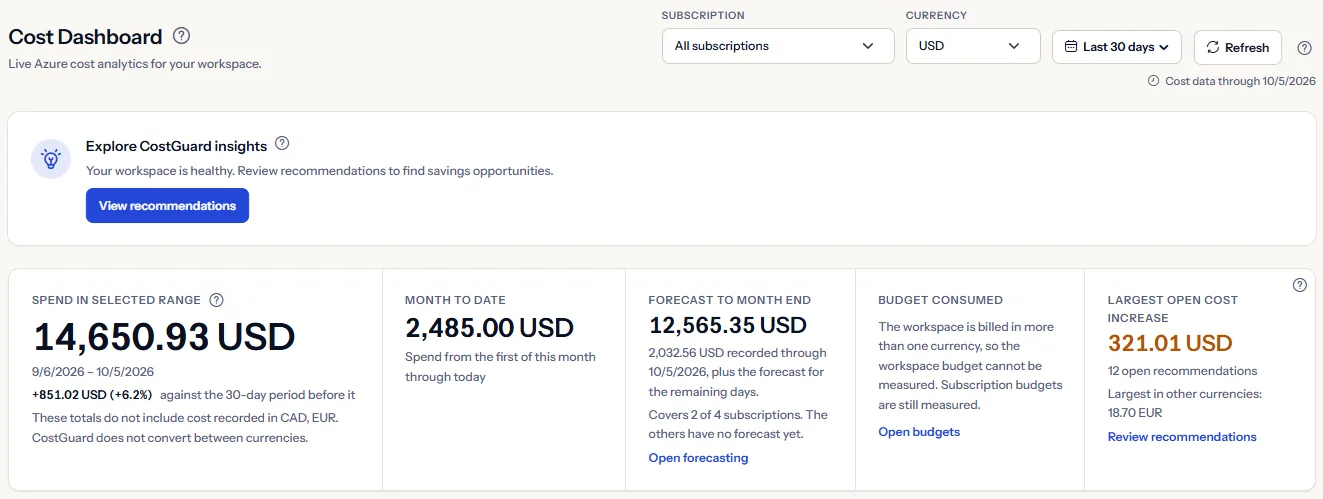
Watch it in motion
Set a custom range
- Open the date range list and choose “Custom range”.
- Enter a date under “From” and a date under “To”. Both days are included.
- Select “Apply”. “Cancel” closes the fields and keeps the range you had.
Limits to know
A custom range covers at most 366 days, starts on or before its end date and cannot end after today. When a date does not fit, a message beside the fields says what to correct, and nothing is reloaded until you do.
How far the cost data reaches
Note
“Cost data through” shows the latest day CostGuard holds cost for. Azure reports cost with a delay of a day or two, so the latest days can still change. A low last day is usually a day that is not complete yet, not a saving.
Next best action
Under the page header, one card names the single most useful next step. CostGuard picks it from the state of your workspace, in this order:
- You have no connection yet: “Connect Azure”.
- CostGuard cannot read your connection: “Fix Azure access”, which opens the access check of that connection.
- A sync is running: “First sync is running”.
- The last sync failed: “Retry cost sync”. When CostGuard can start a sync for you, the card has the button “Retry sync”.
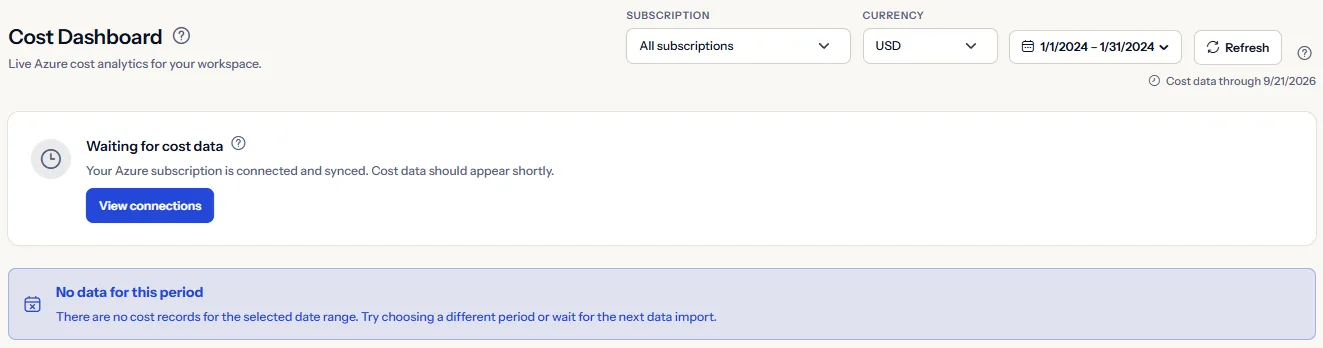
- You are connected and the selected range has no cost yet: “Waiting for cost data”.
- Cost data is there and the setup is not finished: “Review cost trends”.
- In every other case: “Explore CostGuard insights”, which opens your open recommendations.
The card is hidden while the page loads, when your session has expired and when the page could not be loaded.


Spend in the selected range
“Spend in Selected Range” is the recorded cost of the selected subscriptions over the selected dates, in one currency. The two dates of the range are written under the figure.
Under the dates you see the change against the period of the same length right before the selected one. For the last 30 days, that is the 30 days before them. The change is a signed amount with a percentage.
When the period before had no cost, the page says so and shows no percentage, because a percentage of nothing says nothing true. When the period before could not be read, the page says that instead of showing a zero.
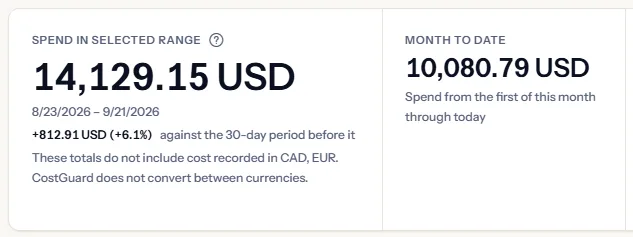
When the scope also holds cost in other currencies, a line under the figure names them and says they are not included. Select one of them in the scope bar to see its figures.
“Month to date” is the spend from the first day of this month through today, for the same subscriptions and the same currency. It does not follow the date range.
Forecast, budget and largest cost increase
Beside the headline, three tiles look ahead. Each one loads by itself. When one cannot be read it says “This figure could not be loaded.” and offers “Try again”, and the rest of the page stays as it is.
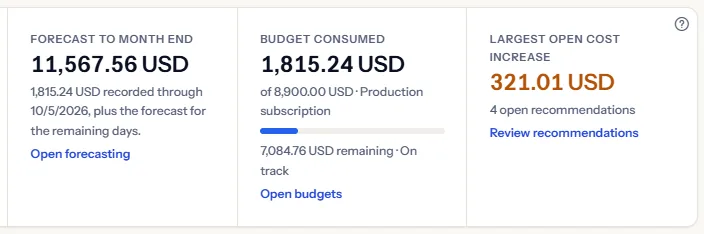
Forecast to month end
“Forecast to month end” is the cost recorded so far this month plus the forecast for the days that remain. The note under it says how much is recorded and through which day.
CostGuard forecasts each subscription separately. For all subscriptions, the tile adds the subscriptions that have a forecast, in one currency, and tells you how many of your subscriptions that covers. A subscription whose forecast does not reach the end of the month is left out rather than understated.
When no subscription in the scope has a usable forecast, the tile says “No forecast is available yet for this scope.”. “Open forecasting” opens the forecasting pages.
Budget consumed
For one subscription, “Budget consumed” measures the budget of that subscription: the cost of the budget's current period against the budgeted amount, as a percentage and a bar, with what remains or by how much you are over.
The tile reads “On track” below half of the budget, “At risk” from 50 percent and “Over budget” from 100 percent.
For all subscriptions, the tile measures the workspace budget. A workspace that is billed in more than one currency has no single total to hold against that budget, so the tile says that it cannot be measured. Your subscription budgets are still measured: select a subscription to see its budget.
With no budget for the scope, the tile says “No budget is set for this scope.”. “Open budgets” opens the budgets page, where you create one.
Largest open cost increase
“Largest open cost increase” shows the largest single cost increase a growth check found among the open recommendations in the scope. It is in one currency - the one selected in the scope bar when an increase carries it, otherwise the currency most increases carry - and it is the amount of one recommendation, never a sum. A note under it gives the number of open recommendations in the scope. Increases in other currencies are named beside it under “Largest in other currencies”, each with its own largest increase, and never added to it. A concentration of cost on one service never enters the figure, because its amount is the service's whole cost.
Limits to know
The figure is not a saving and not a total: CostGuard estimates no saving. It says how much more one service cost in the recent detection period, 14 days by default, than in the period before, and it is shown in amber, the colour of risk. When the scope has open recommendations but none carries a cost increase, the tile says “No open recommendation flags a cost increase.”
Overview: previous period, daily average, subscriptions
- “Previous Period” is the total of the period of equal length before the selected one, with its two dates. It is the base of the change in the headline.
- “Daily average” is the spend of the selected range divided by the number of days in it.
- “Subscriptions with Cost” counts the subscriptions of your workspace that have recorded cost. It does not change when you select one subscription.
A figure that could not be read is shown as unknown, never as zero.


Cost trend
“Cost Trend” draws the cost of every day in the selected range as a line. A second, quieter line draws the period of equal length before it, day for day, so you can tell a single unusual day from a level that moved.
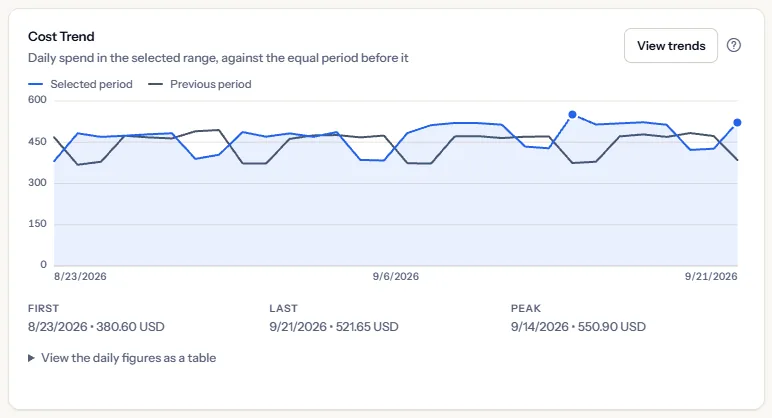
Under the chart, “First”, “Last” and “Peak” give the first day, the last day and the highest day of the range. Rest the pointer on a point of the line to read the cost of that day.
“View the daily figures as a table” opens the same numbers as a table, one row a day, with both periods. Use it with a screen reader, or when you need the exact amounts.
When the period before could not be loaded, only the selected period is drawn and a line under the chart says so. “View trends” opens the cost trends page.
Tip
A spike on the selected line that the previous line does not have is the place to look first. “What changed”, next to the chart, names the services behind it.
What changed
“What changed” lists the services whose cost moved most against the period before: up to five under “Increased”, largest increase first, and up to five under “Decreased”, largest decrease first. Each row gives the change and the two amounts behind it.
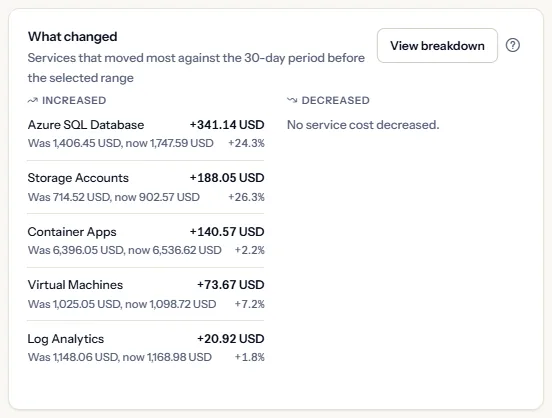
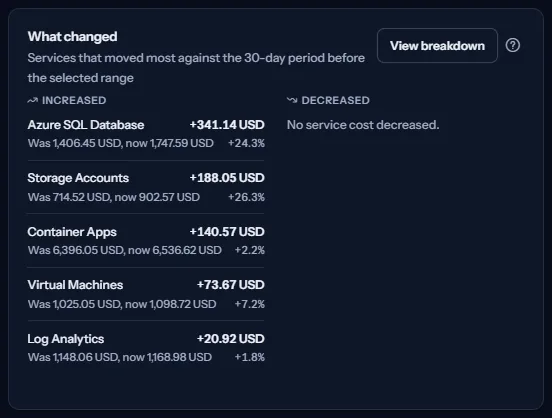
A service with no cost in the period before is marked “New in the selected period” and has no percentage. A service that had cost before and has none now is listed as a decrease of its whole earlier amount.
When the period before could not be loaded, the card says that the changes cannot be shown right now. It never guesses.
Cost by service, subscription and resource group
Three ranked cards split the spend of the range. Each lists the five largest entries with their amount and a bar for their share of the total. In “Cost by Service” everything after the fifth service is added up under “Other services”.
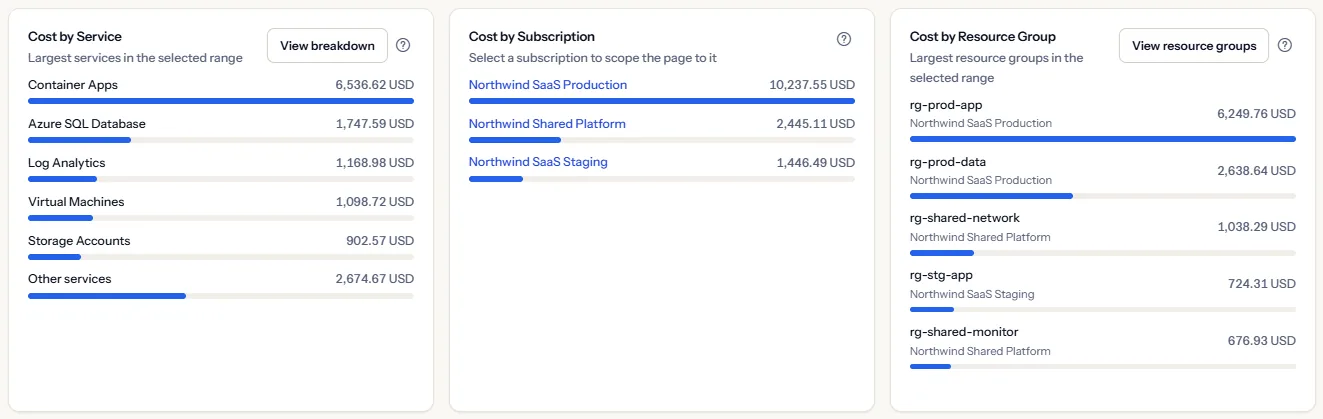
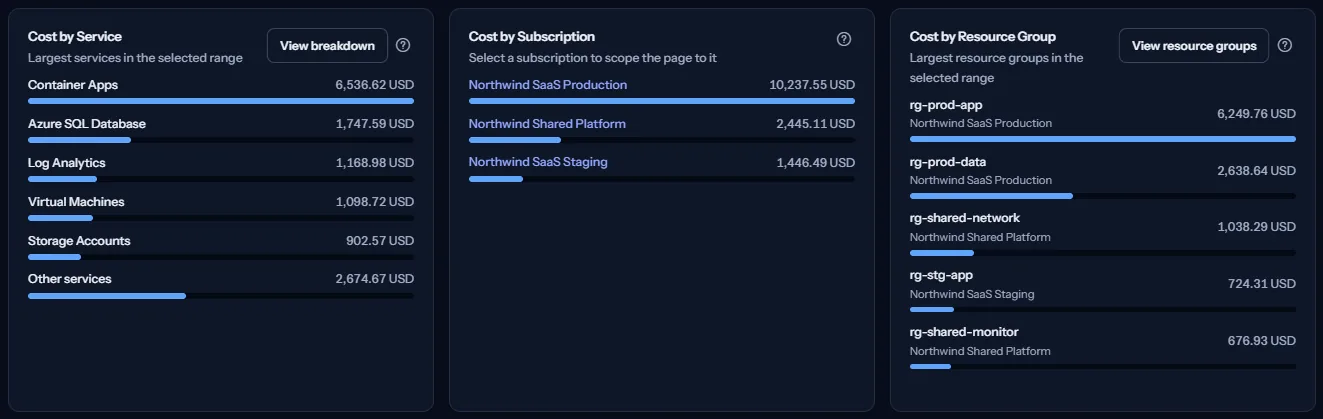
“Cost by Subscription” appears only when all subscriptions are selected and more than one of them has cost in the range. Select a subscription in this card to scope the whole page to it. It does the same as choosing it in the scope bar.
In “Cost by Resource Group”, cost that Azure reports without a resource group is listed under “No resource group”.
“View breakdown” and “View resource groups” open the pages with every entry.
Top cost drivers
“Top Cost Drivers” ranks the three services with the largest share of the spend in the range, each with its cost and its share. It is the short answer to where most of the money goes. “View overview” opens the cost overview page.
When the range holds no service cost, the card says “No top cost drivers available.”.


Needs attention
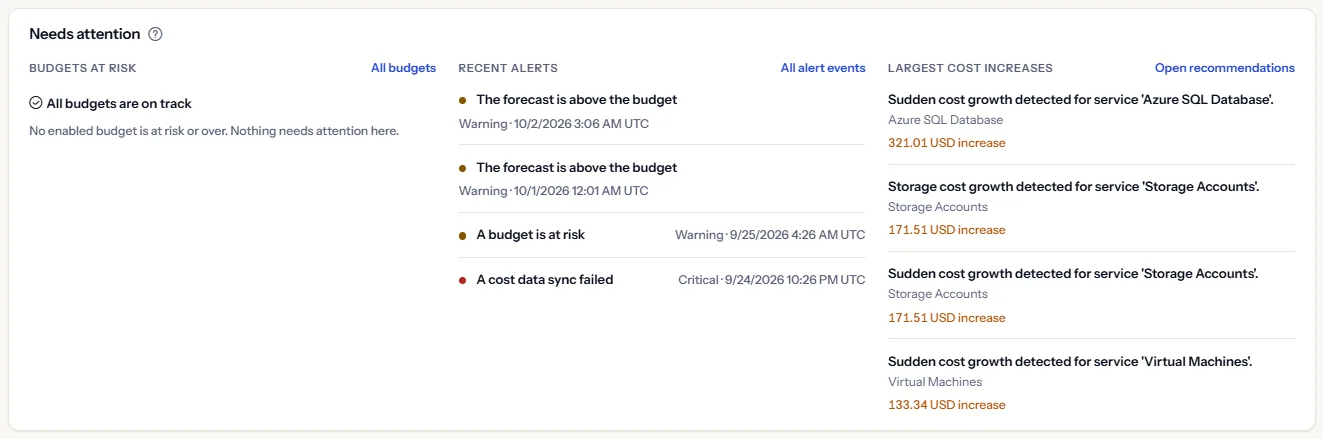
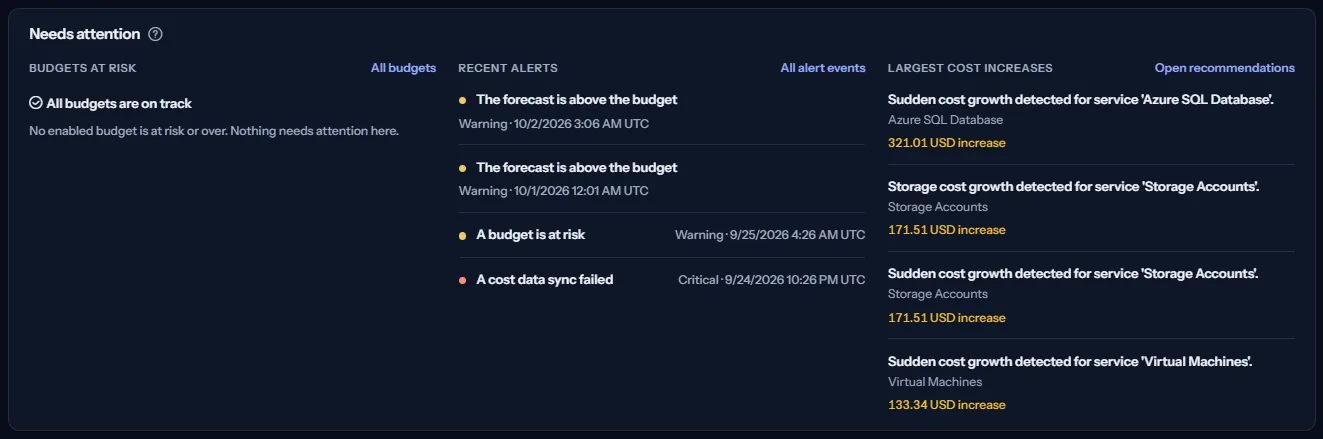
“Needs attention” collects what may need a decision today in three lists. Each list loads by itself and follows the selected subscription.
- “Budgets at risk”: the enabled budgets that reached 50 percent (“At risk”) or 100 percent (“Over budget”), the most consumed first, with the share used. With none, the list says “All budgets are on track”.
- “Recent alerts”: the four latest alert events with their severity. An event says that a budget is at risk, that the forecast is above the budget, or that a cost data sync failed. “All alert events” opens the full history.
- “Largest cost increases”: up to four open recommendations where a growth check found a cost increase, in the same currency as the “Largest open cost increase” tile, the largest first, each with the amount of its increase. These are risks to review, not savings, and the amounts are never added. “Open recommendations” opens the work queue of every open recommendation.
Commitments and credits
Commitments and credits are recorded for the workspace as a whole, so this panel does not follow the selected subscription. A note in the panel says so.
- “Commitments”: how many commitments you recorded, the lowest measured utilisation and the commitment it belongs to, and the next expiry. A utilisation nobody measured reads “Not measured yet”, never zero. An expiry within 60 days is marked “Expiring soon”.
- “Credits”: the remaining balance of your credit accounts, one line for each currency and never added together, and the next expiry.
With nothing recorded, each half explains what to record and links to its page: “Open commitments” and “Open credits”.


Sync status and data health
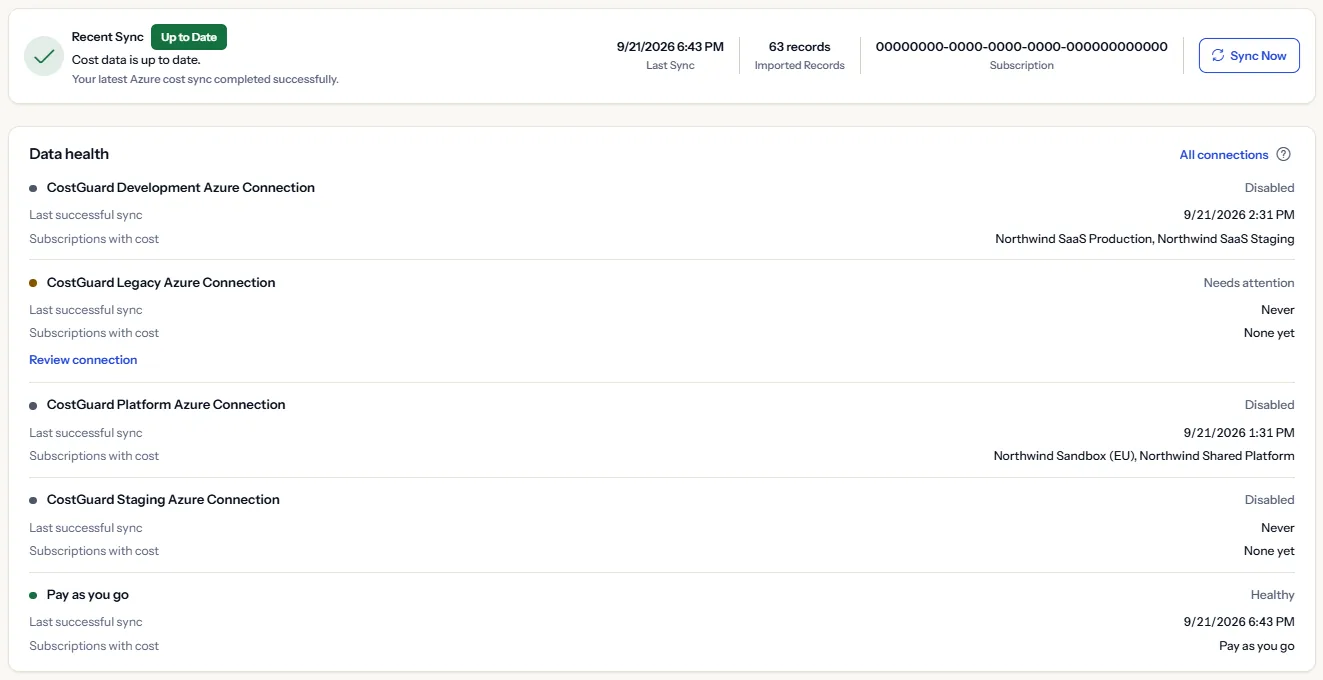
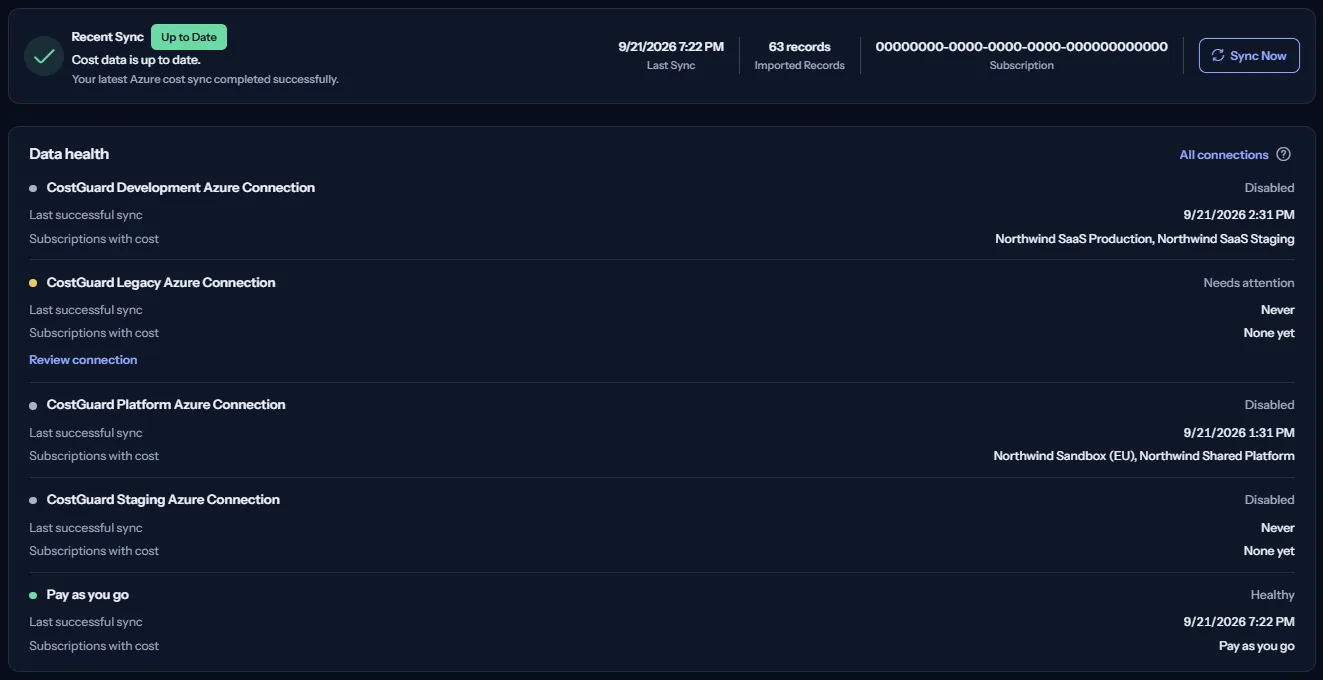
“Sync Status” tells you how fresh the figures above are. The card shows the state of the latest sync (“Up to Date”, “Syncing”, “Needs Attention”, “May Be Stale” or “Not Synced”), when it ran, how many records it imported and for which subscription.
“Sync Now” starts a sync now. The button is not available while a sync is running or when CostGuard has no read access to the connection.
“Data health” lists every connection with its state, its last successful sync and the subscriptions it brings cost for. A connection that needs you has the link “Review connection”; “All connections” opens the connections page.
At the foot of the page, “Last updated” gives the time the cost data of the page was last updated.
What you may see instead of figures
- Loading: grey placeholders hold the place of every figure, so the page does not jump when the data arrives.
- No connection yet: “Get Started with CostGuard” and the setup checklist replace the figures.
- Connected, nothing imported yet: a card tells you where the first import stands, and lets you retry it if it failed.
- No cost in the selected range: the notice “No data for this period” appears and the scope bar stays, so you can choose other dates.
- One panel failed: that panel alone says it could not be loaded and offers to try again. Every other panel keeps its figures.
- The page could not be loaded: “Dashboard unavailable” with the button “Try again”. This is usually temporary.
- Your session has expired: “Session Expired” with the button “Sign In Again”. Sign in again and the page returns.
Sample data for a feature your plan does not include
When your plan does not include a feature, its panel shows a fixed example under the label “Sample data”, with the sentence “Your current plan does not include this feature. The figures shown here are an example, not your data.”
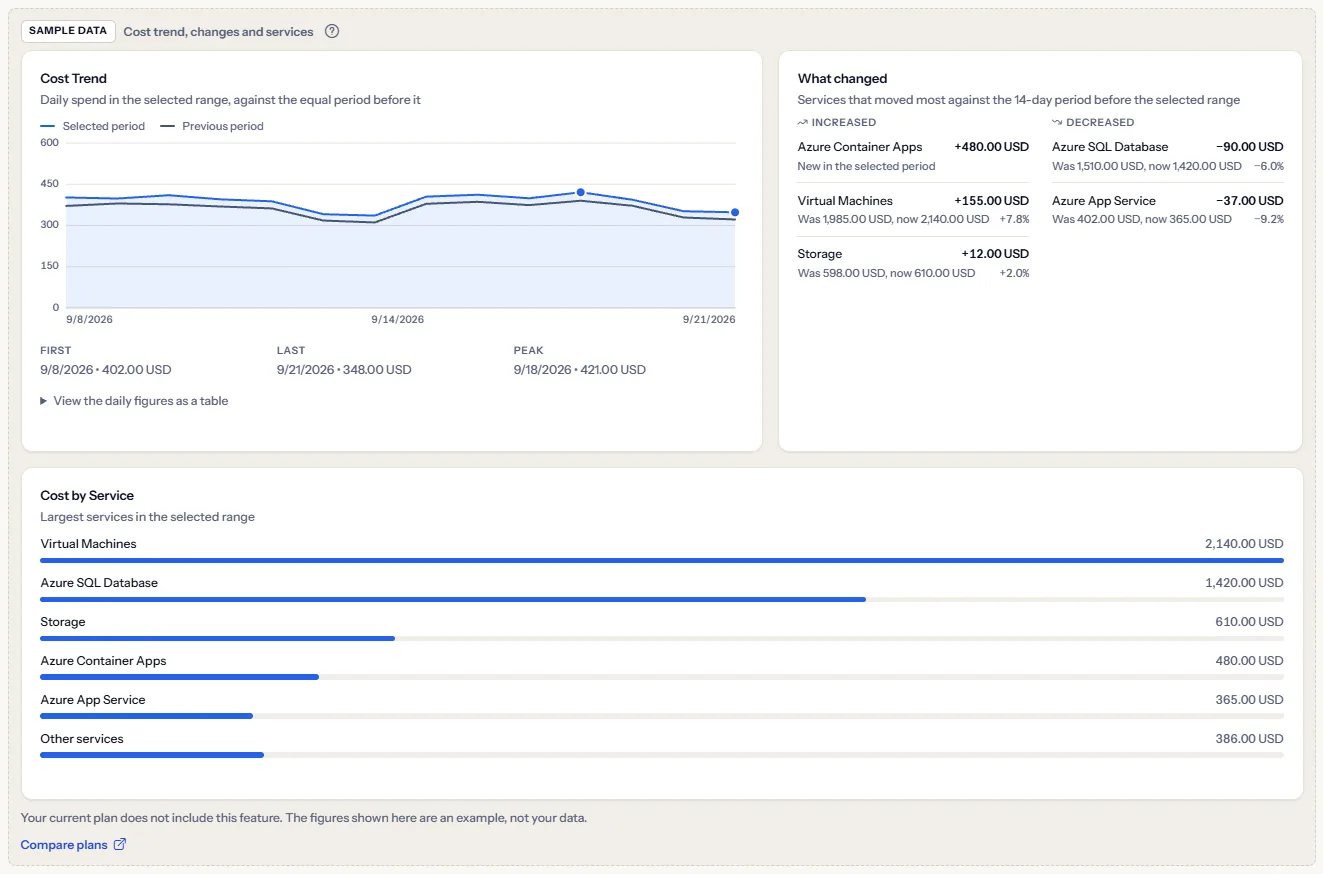
The figures of a sample are the same for everyone. They are never your data, they are never added to a real figure, and they do not change with the scope.
When your plan has no cost analytics, the whole “Cost Insights” section is one sample. The forecast, budget, cost increase, commitments and credits parts are sampled one by one.
“Compare plans” opens the pricing page in a new tab. CostGuard decides what your plan includes on the server; the sample is only how the page shows it.
What each plan includes on this page
The table lists the parts of the Dashboard and the first plan that includes each. A part your plan lacks is shown as a labelled sample.
| Feature | Free | Starter | Growth | Pro | Enterprise |
|---|---|---|---|---|---|
| Spend in range, month to date, overview, sync status and data health | Included | Included | Included | Included | Included |
| Cost trend, what changed, cost breakdown and top cost drivers | Not included | Included | Included | Included | Included |
| Budget consumed and budgets at risk | Not included | Included | Included | Included | Included |
| Largest open cost increase and largest cost increases | Not included | Not included | Included | Included | Included |
| Credits | Not included | Not included | Included | Included | Included |
| Forecast to month end | Not included | Not included | Not included | Included | Included |
| Commitments | Not included | Not included | Not included | Included | Included |
Troubleshooting
The page shows a setup checklist instead of figures
You have no connection yet, or the first import has not finished. Follow the card at the top of the page. The figures appear when the first import completes.
The last days look too low
Azure reports cost with a delay of a day or two. Check the date beside “Cost data through” in the scope bar. Days after it hold no cost yet, and the last day before it may still grow.
The total is lower than you expect
Look under the headline figure for a line that names other currencies. CostGuard does not convert between currencies, so cost billed in another currency is not part of the total. Select that currency in the scope bar to see it. Also check that the subscription list is set to “All subscriptions”.
The page says there is no data for this period
The selected subscription has no recorded cost on the selected dates. Choose a wider range or another subscription.
The figures are out of date
Look at the sync status card. When it reads “Needs Attention” or “May Be Stale”, open the connection from the data health list, confirm that CostGuard still has read access, then select “Sync Now”.
The forecast is missing or covers only some subscriptions
CostGuard forecasts each subscription separately. A subscription that has no forecast yet, or whose forecast does not reach the end of the month, is left out of the tile, and the tile tells you how many subscriptions it covers.
A panel shows sample data
Your plan does not include that feature. The table above shows which plan does, and the link under it opens the pricing page.