
Budgets: see which budget needs action
The Budgets page shows how much of each budget its current period has used and grades every budget as on track, at risk or over. An Owner or an Admin creates, edits, enables and disables budgets from it.
What this page is for
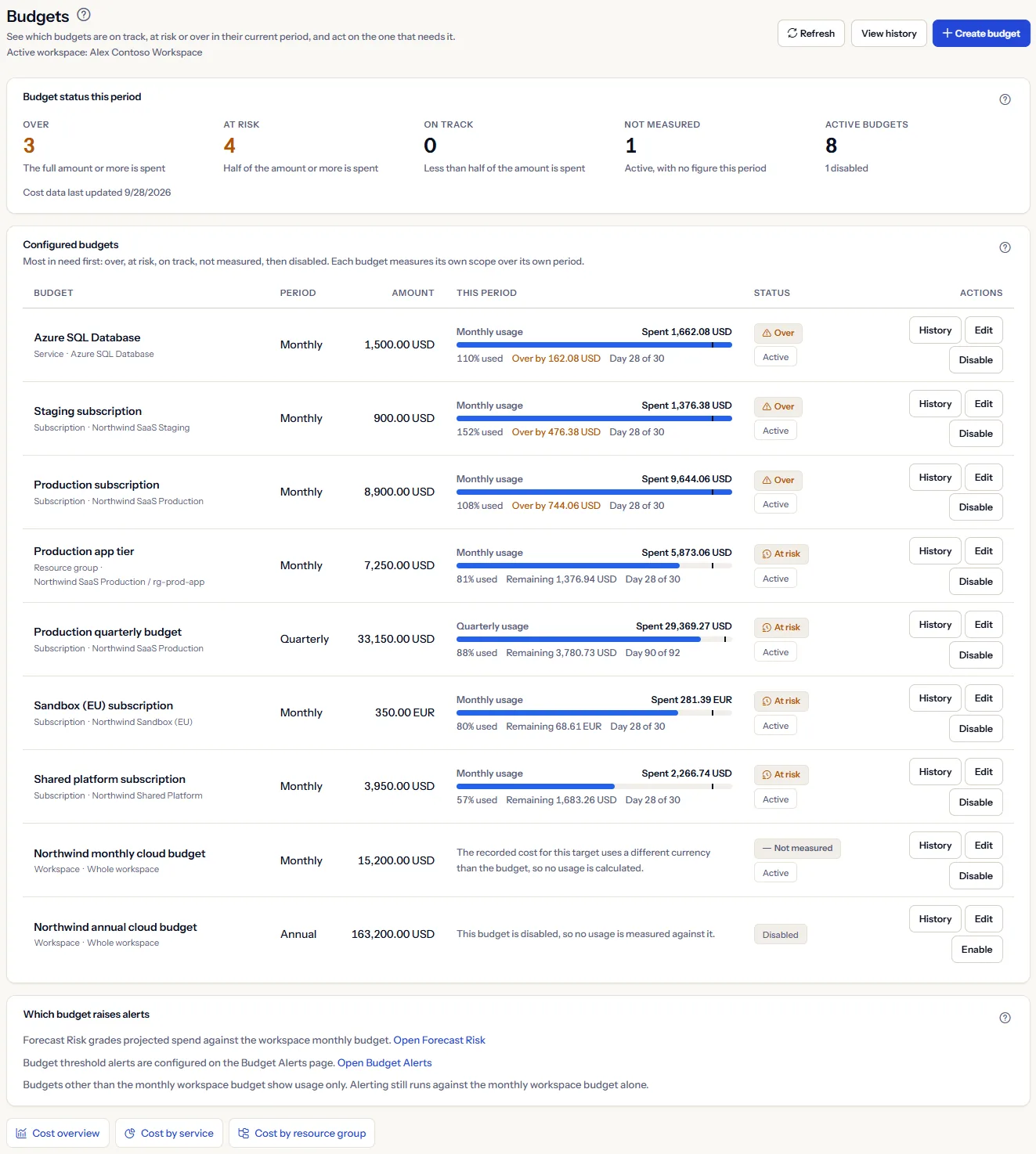
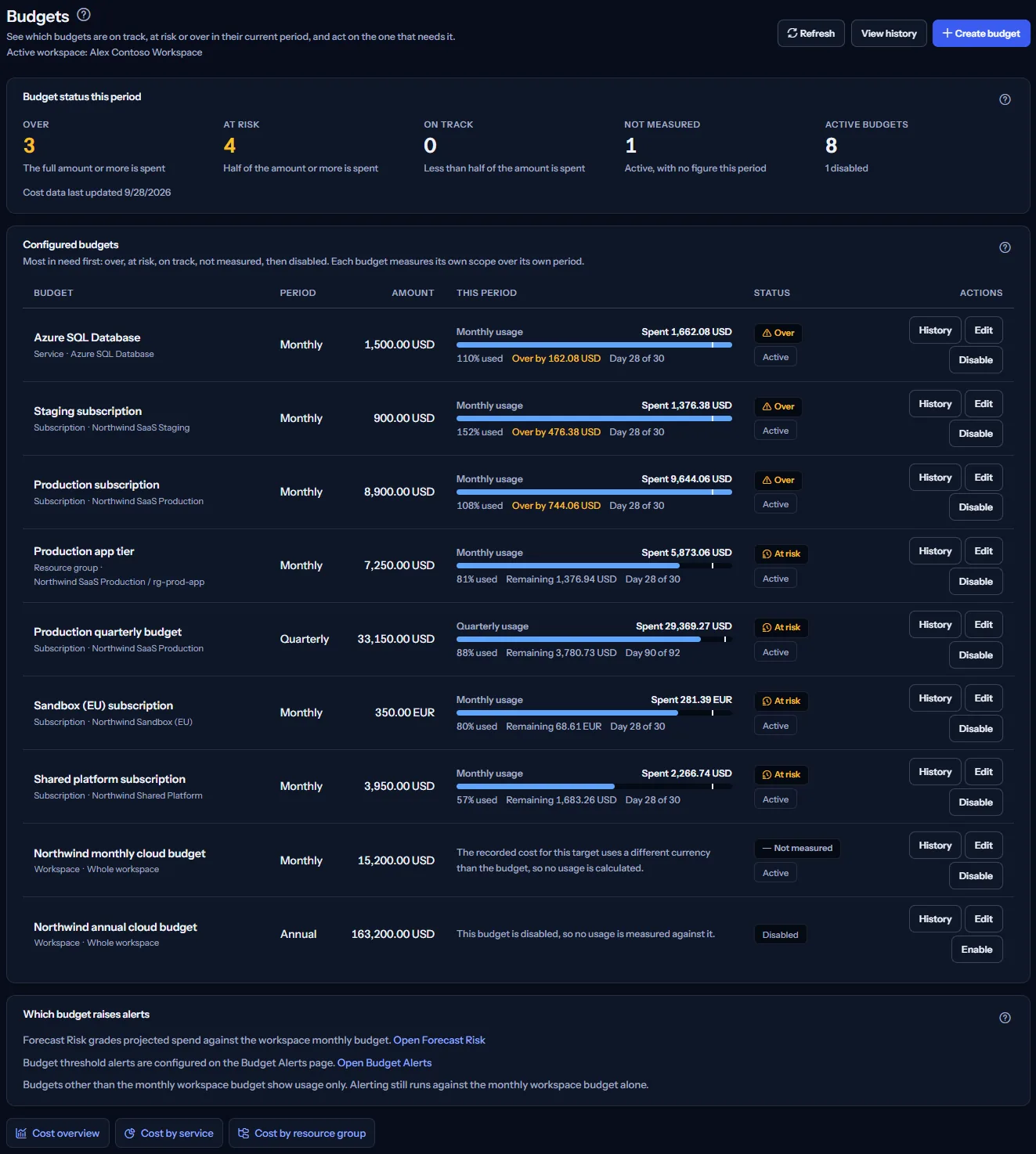
The Budgets page answers one question: which of your budgets are on track, at risk or over in their current period, and which one needs action?
The person who set the spending limits opens it, a finance owner or an engineering lead. It leads to a decision: raise a limit, look into the scope that overspends, or disable a budget that no longer fits.
At the top, “Refresh” reads the budgets again, “View history” opens the history of the monthly workspace budget, and “Create budget” opens the page where you create a budget. Only an Owner or an Admin sees “Create budget”.
Before you start
A budget measures the cost CostGuard has imported from Azure. Until a connection has completed a cost import, a budget shows no usage and says why.
Read the Getting started guide
Budgets are part of the Starter plan and every plan above it. On the Free plan the page shows a labelled sample instead of your budgets.
Every member of the workspace can see the budgets. Only an Owner or an Admin can create, edit, enable or disable one, and the server checks the role on every change.
Budget status this period
The summary card counts your budgets by their grade in the current period:
- “Over”: the full amount or more is spent.
- “At risk”: half of the amount or more is spent, but not all of it.
- “On track”: less than half of the amount is spent.
- “Not measured”: the budget is active, but no figure can be stated for this period. Its row in the list says why.
- “Active budgets”: how many budgets are active. When your plan allows a fixed number, it follows, as in “of 20 your plan allows”. Disabled budgets are counted under it, as in “1 disabled”.


The grades follow the same rule as the Dashboard: from 50 percent a budget is at risk, from 100 percent it is over.
“Cost data last updated” gives the date the cost behind these figures was last updated. It is when the data was updated, not a promise that every cost up to that date is in: Azure reports cost a day or two late.
Note
The summary counts budgets and never adds their amounts: budgets can be kept in different currencies, and CostGuard converts none.
The list loads 20 budgets at a time. While more remain, a note under the counts says that they cover the budgets loaded so far.
Configured budgets
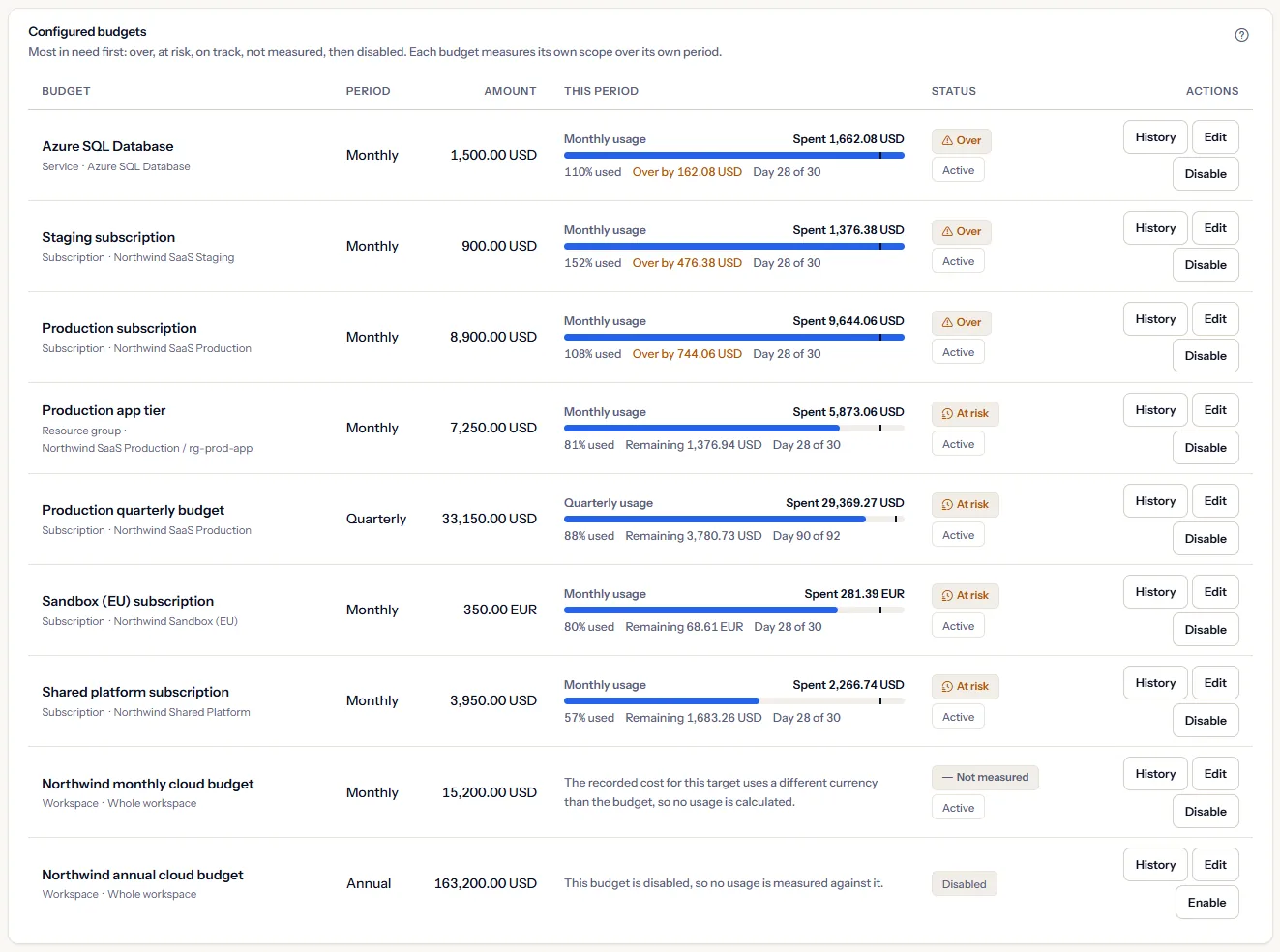
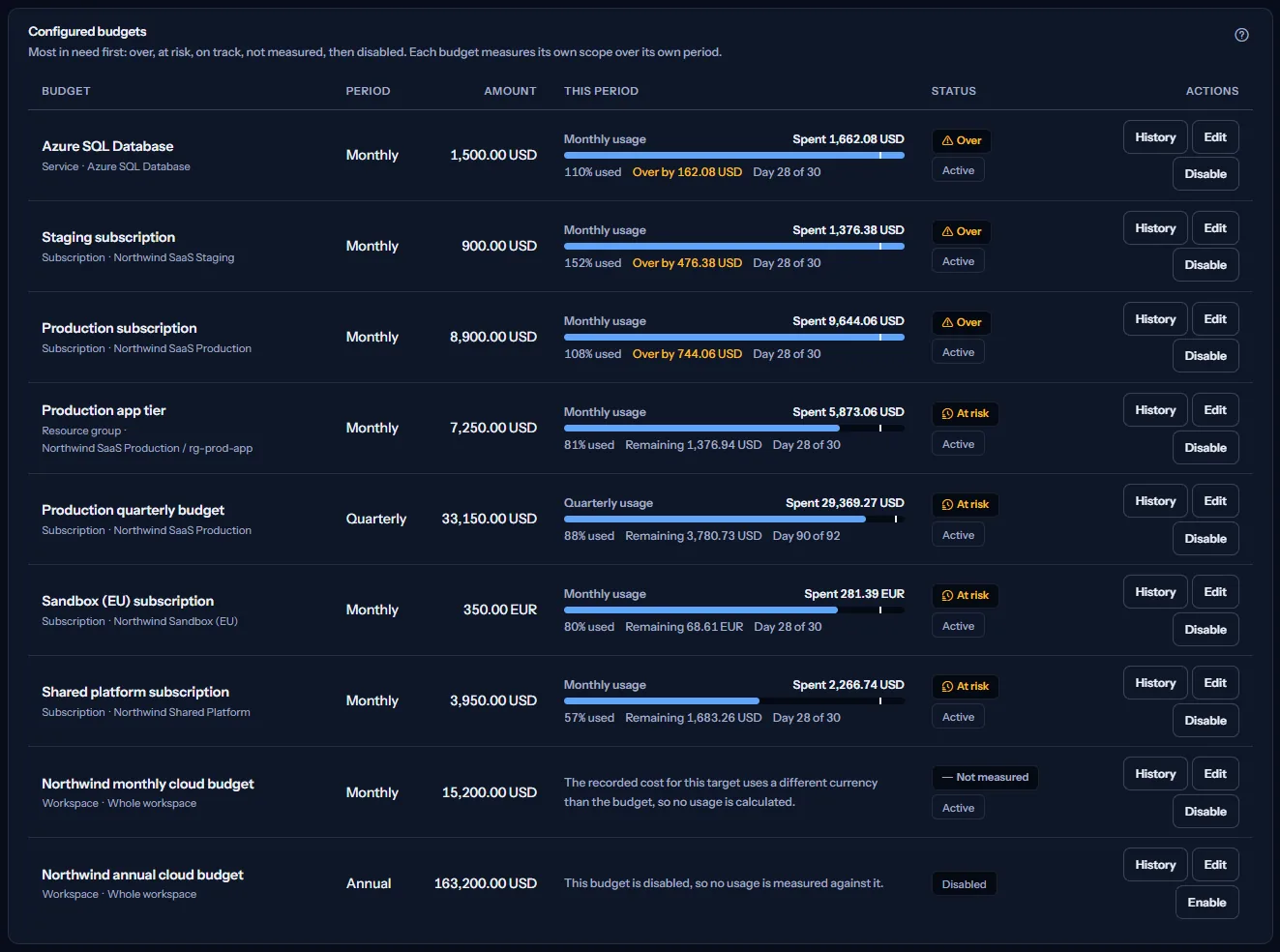
The list holds every budget of the workspace, the one most in need first: over, at risk, on track, not measured, then disabled. The rows take their places once the figures of this period are read, so they do not move while the figures arrive.
Each row shows:
- “Budget”: the name, then the scope and the target it measures: the whole workspace, a subscription by its name, a resource group with its subscription, or a service.
- “Period” and “Amount”: the period of the budget and its amount, in the budget's own currency.
- “This period”: what the current period has used, explained in the next section.
- “Status”: the grade, “Active” or “Disabled”, and “Ahead of the period's pace” when it applies.
- “Actions”: “History” opens the history of that budget. An Owner or an Admin also sees “Edit”, and “Disable” or “Enable”.
“Load more” under the list adds the next 20 budgets. For any other role, a note under the list says that an Owner or an Admin can create or change a budget.
Usage in this period
For an active budget, the “This period” column shows its current period without a click:
- “Spent”: the cost recorded so far in the period for the target of the budget.
- A bar of the share of the amount used, and that share as a percentage.
- “Remaining”: the amount minus what was spent. Once the amount is passed, “Over by” shows by how much instead.
- The day of the period, as in “Day 12 of 30”, and a mark on the bar at the share of the period elapsed.
- “Ahead of the period's pace”: the share used is larger than the share of the period elapsed, while the amount is not yet spent. It compares two shares; it is not a forecast.
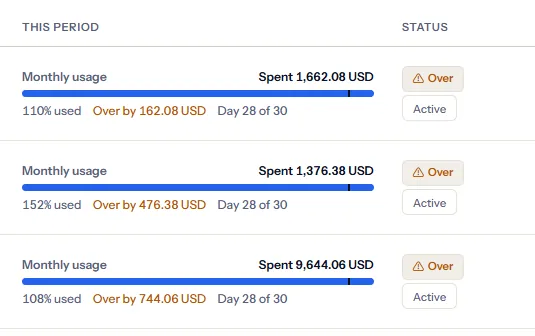
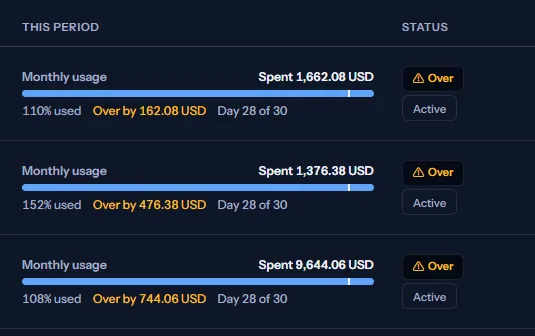
Periods are calendar periods in UTC: a day, a week from Monday, a month, a quarter (January to March, April to June, and so on) or a year. The full amount is compared with the spend so far; it is never prorated to the part of the period elapsed.
What counts as spend depends on the scope of the budget:
- “Workspace”: the cost of the whole workspace.
- “Subscription”: the cost of that subscription.
- “Resource group”: the cost of that resource group in its subscription.
- “Service”: the cost of that service in the workspace.
When a budget shows no figure
Instead of a figure, a row can say why none is stated. The reasons, checked in this order:
- The budget is disabled, so nothing is measured against it.
- No cost import has completed yet, so the usage is unknown rather than zero.
- The cost recorded for the target in this period is in another currency than the budget, so nothing is added up.
- No cost is recorded for the target in this period. The monthly workspace budget shows a spend of zero instead.
- The recorded cost is dated later than now, so it is not measured.
- The usage of the budget could not be read. Only that row says so, and “Refresh” tries again.
An active budget with one of these reasons counts as “Not measured” in the summary; a disabled one is counted as disabled.
Create a budget
“Create budget” opens a page of its own. Only an Owner or an Admin can create a budget.
- Choose the “Period”: “Daily”, “Weekly”, “Monthly”, “Quarterly” or “Annual”.
- Choose what the budget covers: “Workspace”, “Subscription”, “Resource group” or “Service”. For a subscription, choose the “Cloud connection” and the subscription; for a resource group, also the group; for a service, the service. The choices come from the cost data CostGuard has recorded.
- Enter a name of at most 100 characters in “Name”, and in “Amount per period” an amount above zero with at most two decimals.
- Enter the three-letter code of the “Currency”, such as USD or EUR, and select “Create budget”.
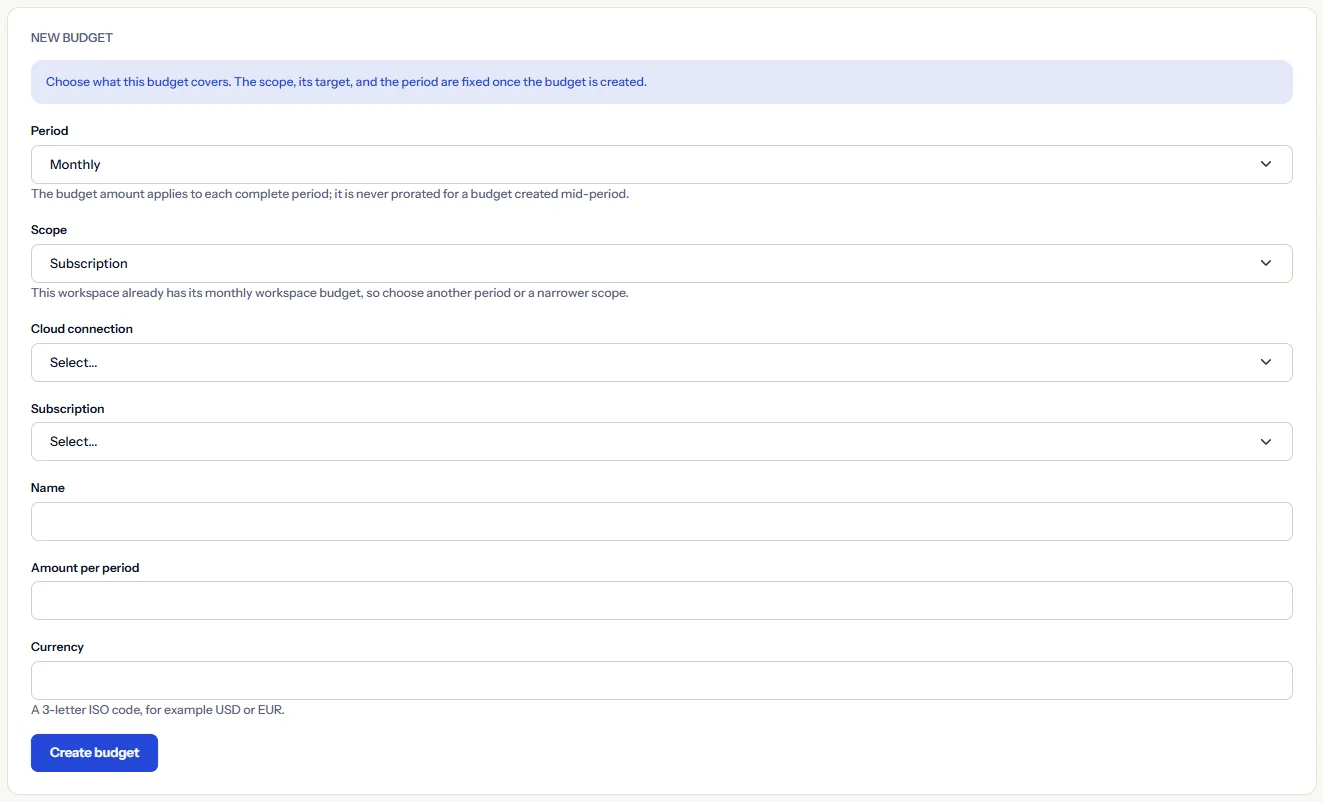
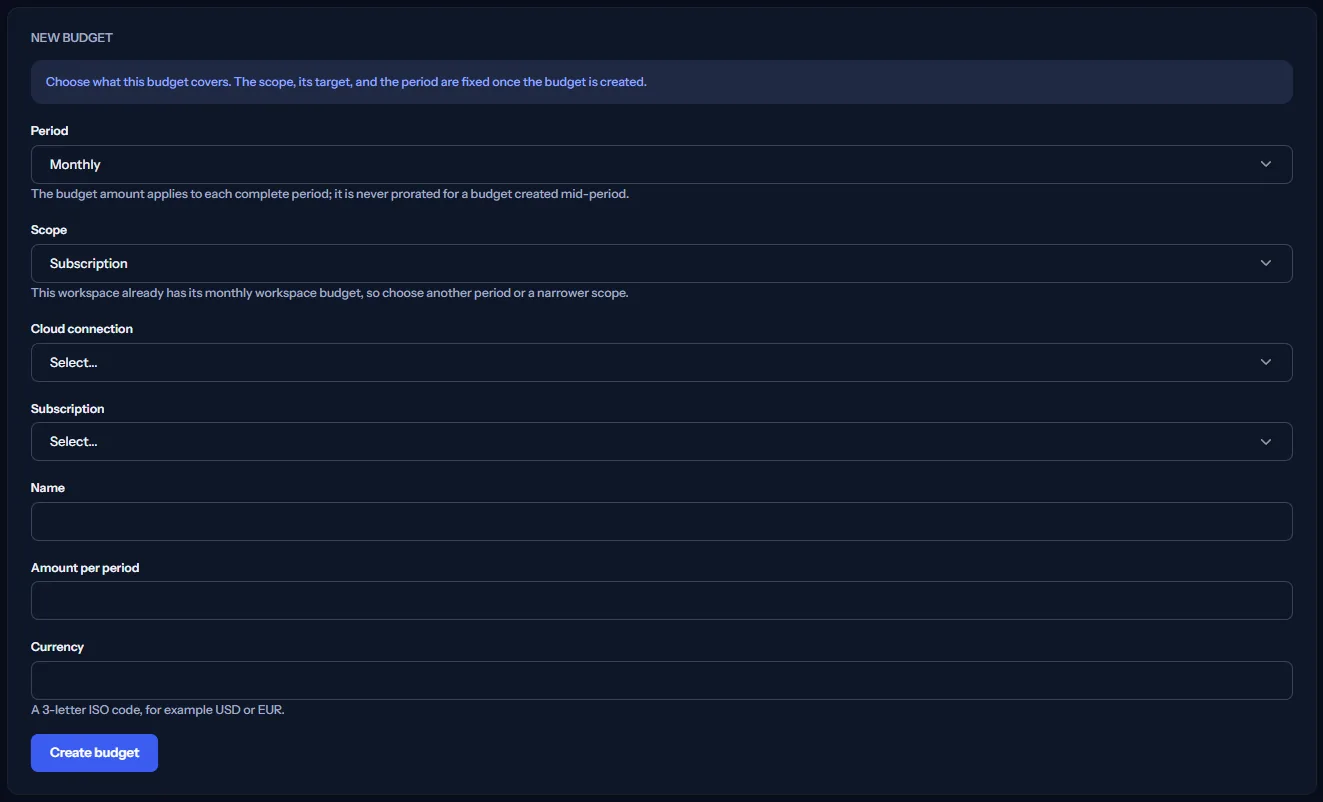
The scope, its target and the period cannot be changed once the budget exists. There is one budget per target and period: a second one is refused with a message that a budget already exists. While the monthly workspace budget exists, “Workspace” is not offered for “Monthly”.
Limits to know
Your plan limits how many budgets can be active at once. At the limit the budget is not created, and “Compare plans” opens the pricing page in a new tab.
Edit, enable or disable a budget
“Edit” opens a form in the row with “Name”, “Amount” and “Currency”. The scope, the target and the period stay as they are; to budget another target, create another budget.
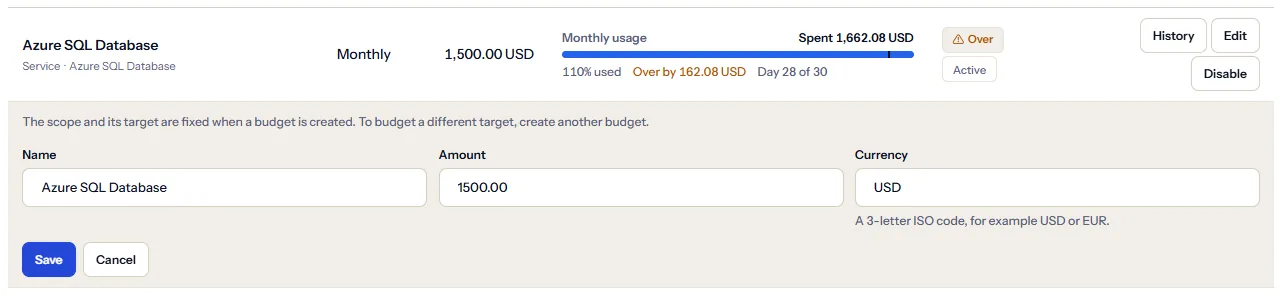
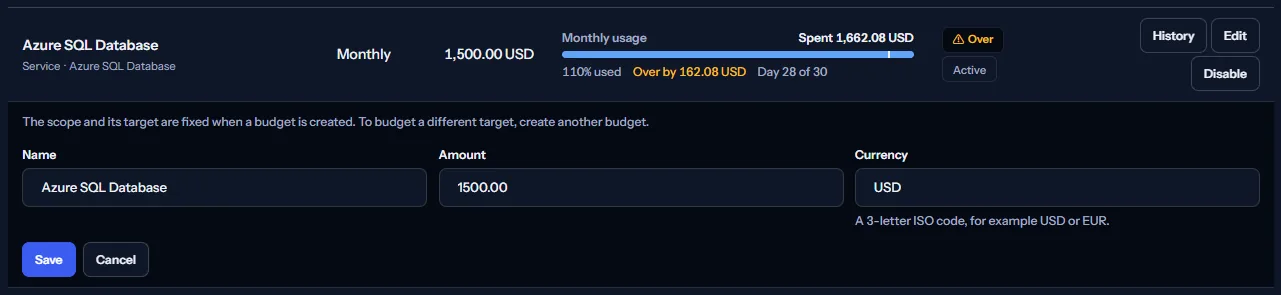
“Save” stores the change; saving values that did not change writes nothing. “Cancel” closes the form.
When someone changed the budget after the page read it, your change is refused and the page says so. “Reload” reads the current values, and you can edit again.
“Disable” stops measuring a budget, and it no longer counts against the limit of your plan. “Enable” measures it again, when your plan allows one more active budget.
Budget history
“View history” at the top opens the history of the monthly workspace budget. “History” in a row opens the history of that budget.
The history lists every recorded change, newest first, 20 at a time with “Load more”. Each entry shows its “Revision”, the change (“Created”, “Details changed”, “Enabled”, “Disabled” or “Recorded at start of history”), the state, the period, the name, the amount with its currency and the time, and what changed against the entry before it.


Which budget raises alerts
Alerts run against one budget only: the enabled monthly budget of the whole workspace. Every other budget, for a subscription, a resource group, a service or another period, shows its usage on this page and raises no alert.


The thresholds of the budget alerts are set on the Budget Alerts page; “Open Budget Alerts” on the card opens it.
Forecast Risk grades the projected spend against the same monthly workspace budget; “Open Forecast Risk” opens it.
Currencies
Each budget has one currency, the one you entered. Its usage adds up only cost recorded in that currency.
When the cost of the target in the period is in another currency, the budget is not measured: two currencies are never added together, and nothing is converted.
For the same reason, the summary counts budgets and never totals their amounts.
Go further
Three links at the bottom of the page lead to the cost behind a budget: “Cost overview”, “Cost by service” and “Cost by resource group”. Each page opens with its own settings.
What you may see instead of figures
While the figures load, grey placeholder bars stand where they will appear. After that, the page shows one of these instead of figures when there is nothing to show:
- “No budget yet”: the workspace has no budget. An Owner or an Admin sees “Create budget”; any other role reads who can create one.
- “The budgets could not be loaded”, with “Retry”: the budgets could not be read. Nothing was changed.
- A notice that your session has expired, with a link to sign in again. The page shows no figures until you do.
- A row that says its usage could not be read: only the status of that budget failed. The rest of the page is correct, and “Refresh” tries again.
After a change
A message under the list says how a change ended: saved; refused because the budget changed elsewhere, with “Reload”; refused because your role does not allow it; refused because the limit of active budgets of your plan is reached, with “Compare plans”; refused because a value is not valid; or failed, to try again.
Sample data when your plan has no budgets
When your plan does not include budgets, the page shows a fixed example under the label “Sample data”, with the sentence “Your current plan does not include this feature. The figures shown here are an example, not your data.”
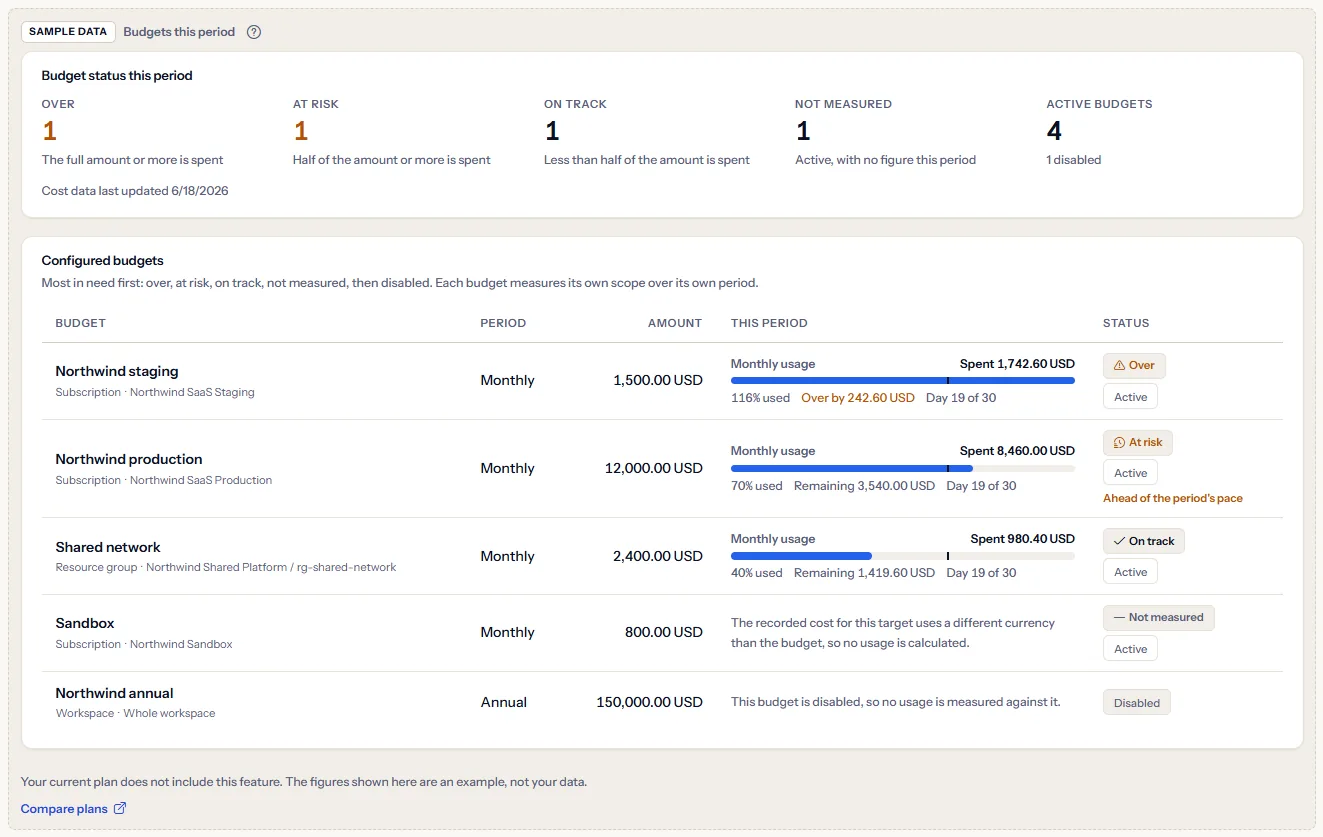
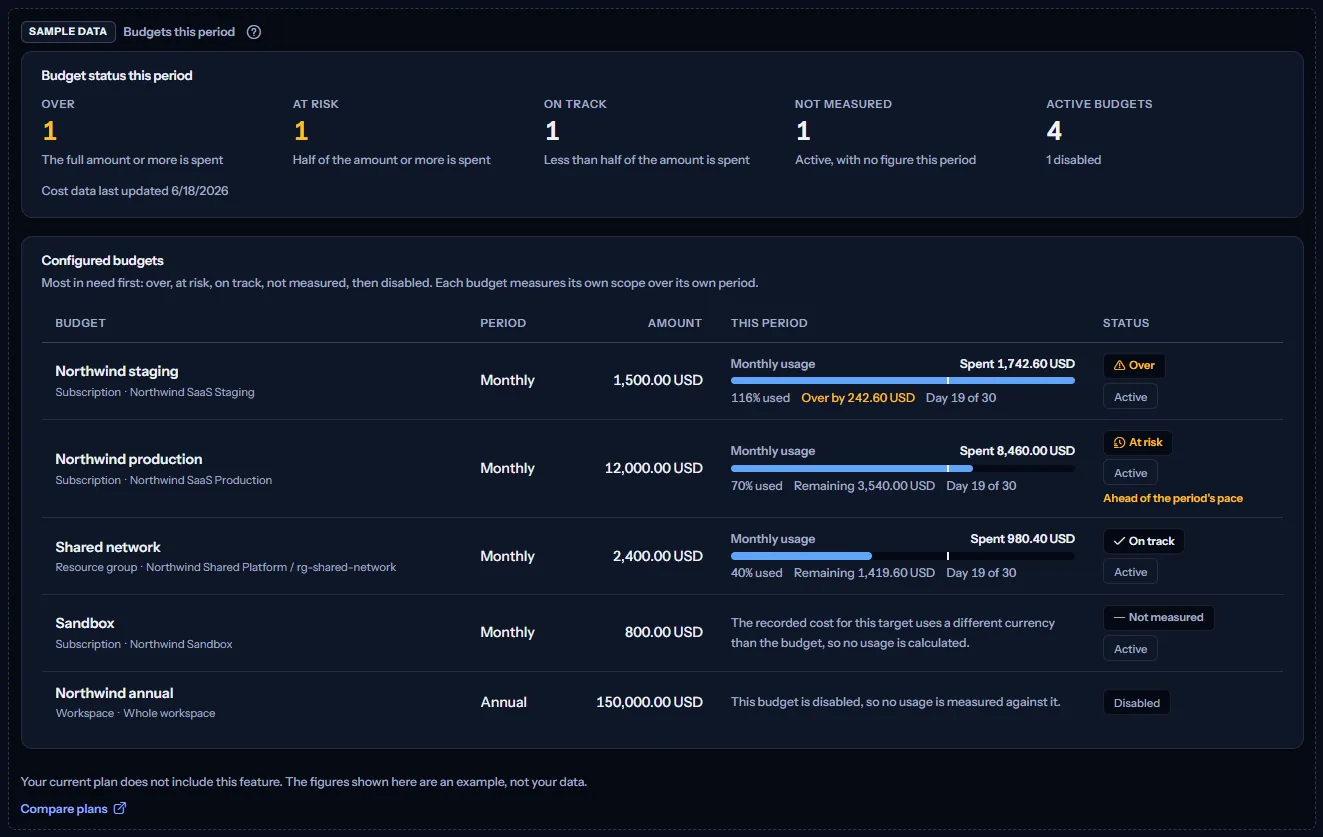
The sample shows five example Northwind budgets in US dollars, one over, one at risk and ahead of the period's pace, one on track, one not measured and one disabled, with the summary above them. It has no actions, and nothing in it can be changed. “Compare plans” opens the pricing page in a new tab.
What each plan includes
The table shows the first plan that includes each part of the page. Every plan above it includes it too.
| Feature | Free | Starter | Growth | Pro | Enterprise |
|---|---|---|---|---|---|
| A labelled sample of the page | Included | Included | Included | Included | Included |
| Budgets with your own cost data | Not included | Included | Included | Included | Included |
| 5 active budgets | Not included | Included | Included | Included | Included |
| 20 active budgets | Not included | Not included | Included | Included | Included |
| Any number of active budgets | Not included | Not included | Not included | Included | Included |
Starter allows 5 active budgets, Growth 20, and Pro and Enterprise any number. Disabled budgets do not count.
Troubleshooting
A budget shows “Not measured”
Its row says why. The reasons are listed in the section about usage in this period, above: no completed import, another currency, no cost in the period, cost dated later than now, or a read that failed.
The spend looks too low
Azure reports cost a day or two late, so the last days of the period are not in yet. “Cost data last updated” in the summary shows when the data was last updated.
No budget shows any usage
No connection has completed a cost import yet. Follow the Getting started guide; the usage appears once the first import completes.
A budget is not measured because of its currency
The cost of its target is recorded in another currency. When the target is billed in one other currency, edit the budget to use it. A workspace billed in two currencies cannot be measured as a whole: create a budget for each subscription instead.
A budget cannot be created or enabled
The limit of active budgets of your plan is reached. Disable a budget you no longer need, or open “Compare plans” to see what each plan allows.
My change was refused because the budget changed
Someone changed the budget after the page read it. Select “Reload” and make your change again.
A budget already exists for that scope and period
There is one budget per target and period. Edit the budget that exists instead of creating a second one.
The page shows sample data
Your plan does not include budgets. The table above shows which plan does, and the link under it opens the pricing page.
A budget raises no alert
Only the enabled monthly workspace budget raises alerts. A budget for a subscription, a resource group, a service or another period shows its usage only.