
Alert events: what the rules detected
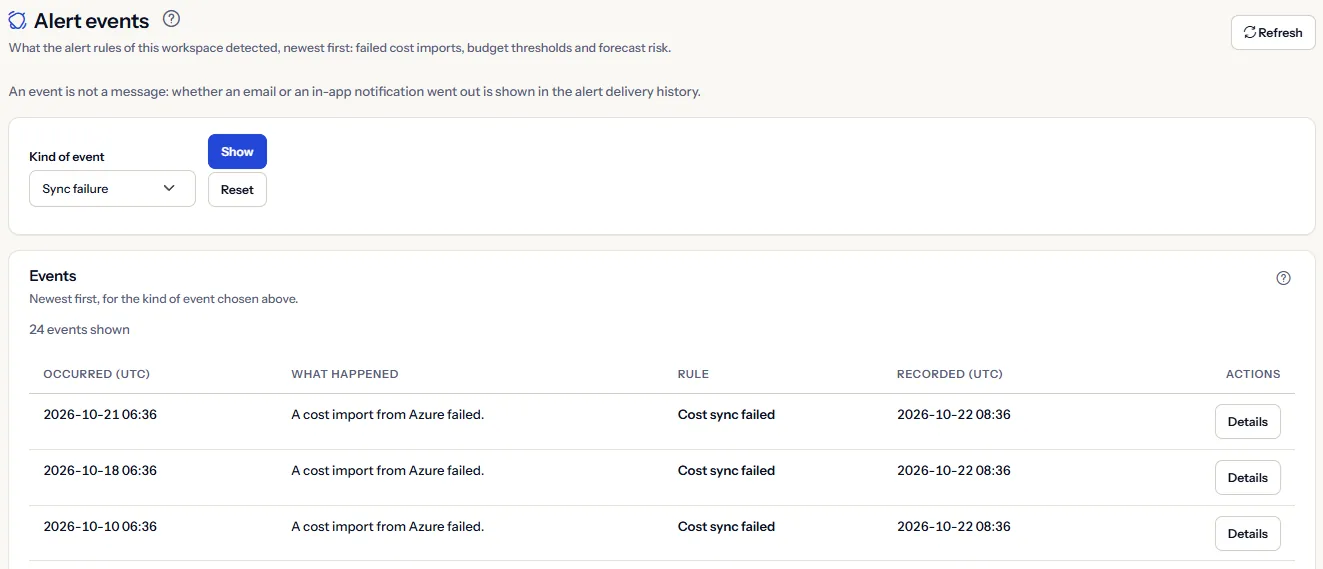
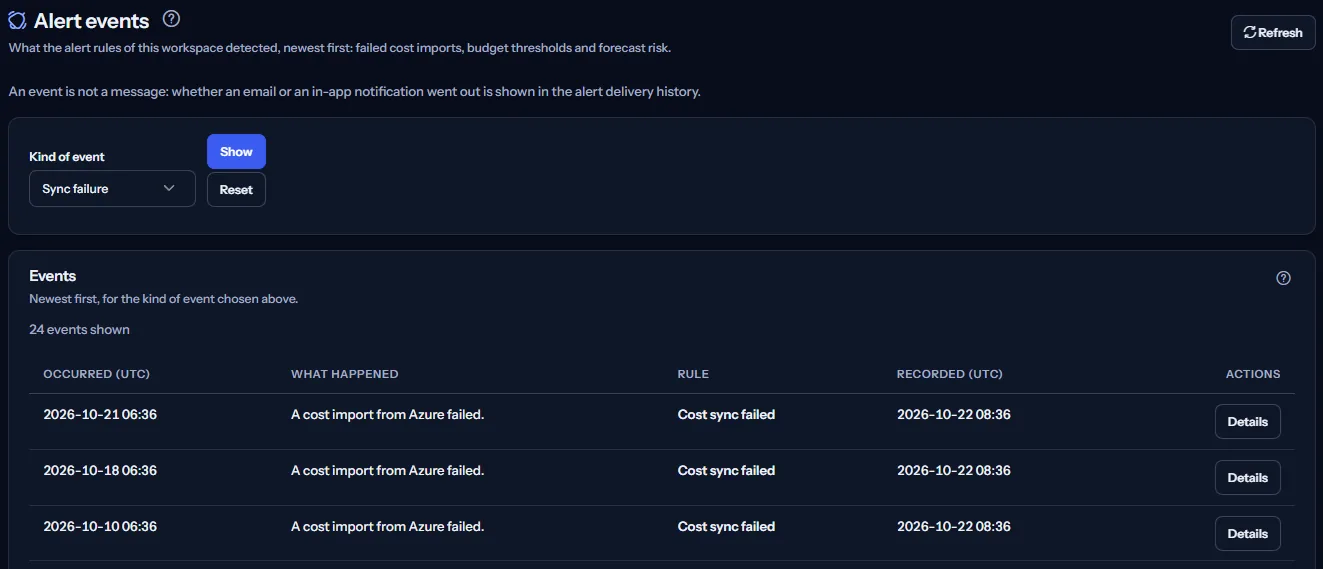
The Alert events page lists what the alert rules of the workspace detected, newest first and one kind at a time: failed cost imports, budget thresholds and rising forecast risk, with when it happened, which rule raised it and where to look next.
What this page is for
“Alert events” answers one question: what did the alert rules detect, when, and where do I look next? Each event records that a rule's condition was met.
Anyone with access to the workspace opens it to see the history behind an alert: how often an import failed, or when the budget or the forecast first raised a warning. It shows what was detected, not whether a message went out; that is on “Alert delivery history”.
Before you start
Events appear only when an alert rule that is on finds its condition met. A workspace with no rule, or whose rules have found nothing, shows an empty list; “Alert rules” lists the rules.
Read the Getting started guide
Sync failure events are part of every plan. Budget threshold events need a plan with budgets, from Starter, and forecast risk events a plan with forecasting, from Pro.
Choose the kind of event
“Kind of event” chooses which events the list shows; “Show” reads them and “Reset” goes back to the first kind:
- “Sync failure”: “A cost import from Azure failed.”
- “Budget threshold”: “Month-to-date cost reached the rule's threshold of the monthly budget.”
- “Forecast risk”: “The month-end forecast risk rose.”
Each kind is read from its own rules, so the list never mixes kinds. A kind outside the workspace's plan shows a sentence saying so and “Compare plans”, which opens the public pricing page in a new tab.
The list of events
The panel “Events” lists the events of the chosen kind, newest first. Each row shows:
- “Occurred (UTC)”: when a check found the condition met.
- “What happened”: one sentence for the kind of event.
- “Rule”: the name of the rule that raised it.
- “Recorded (UTC)”: when CostGuard saved the event.
- “Details”, which opens the event's details above the list.
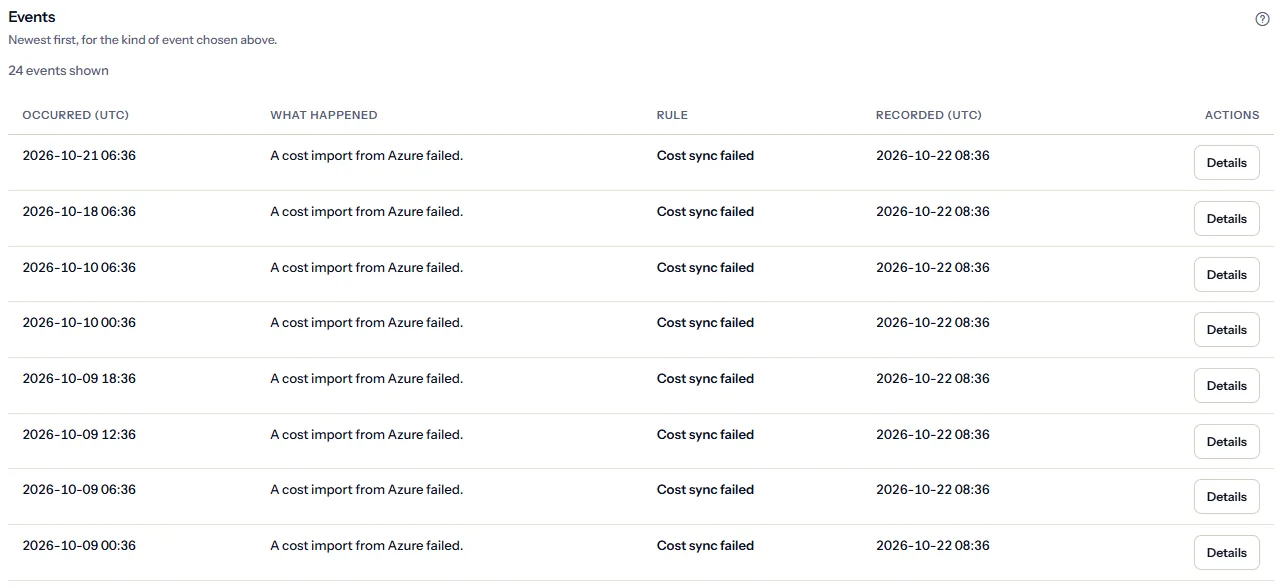
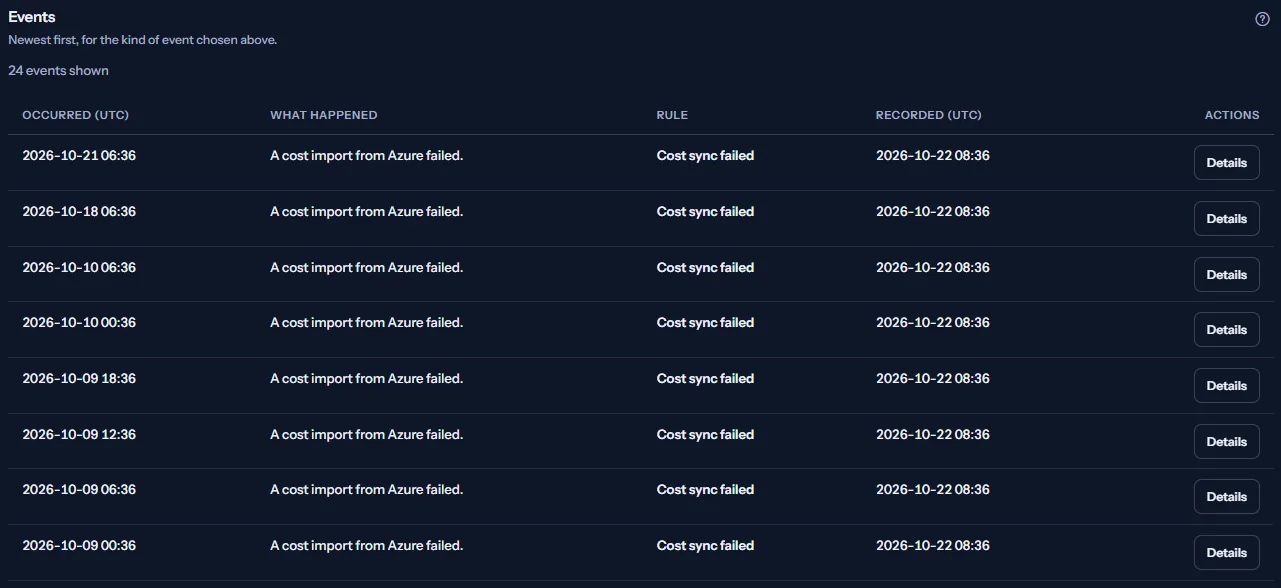
When there are more events, “Load older events” reads the next older ones. “Refresh”, at the top of the page, reads the chosen kind again from the start.
Event details
“Details” opens the panel “Event details” and moves the focus to it. It shows:
- What happened and “Kind”.
- The rule that raised it.
- “Severity”.
- When it occurred and when it was recorded, in UTC.


The link under the details depends on the kind: “Check connection health”, “Go to budget alerts” or “Go to forecast risk alerts”. “Close” closes the panel and returns the focus to the row's button.
How alert events work
The panel “How alert events work” states the rules in short:
- An event records that a rule's condition was met. It never changes afterwards, and there is nothing to acknowledge or close.
- While a condition stays met, a rule records a new event only after its wait has passed.
- Every event is recorded with the severity Warning, whatever the severity of its rule; it is shown in the event details.
- Times are in UTC: occurred is when a check found the condition met, recorded is when CostGuard saved the event.
- An event is not a message. Whether an email or an in-app notification went out is shown on “Alert delivery history”; recording an event changes nothing in Azure.
Go further
The links at the bottom of the page lead on:
- “Change the rules that raise these events”.
- “See which alert messages went out”.
- “Read the notifications”.
- “Check the Azure connections”.
What you may see instead of events
While the page reads, “Loading alert events…” stands in place of the list. After that, the page may show one of these:
- “No events of this kind”: no rule of that kind has found its condition met in this workspace.
- “The events could not be read”: nothing was changed; “Try again” reads them again.
- “The rule names could not be read, so the events are listed without them.”
- “This alert event is no longer available.” or “The event details could not be read. Try again in a moment.”: the list stays as it is.
- “Session Expired”: your sign-in ended; “Sign In Again” brings you back to this page.
What each plan includes
The table shows the first plan that includes each part of the page. Every plan above it includes it too.
| Feature | Free | Starter | Growth | Pro | Enterprise |
|---|---|---|---|---|---|
| Sync failure events | Included | Included | Included | Included | Included |
| Budget threshold events | Not included | Included | Included | Included | Included |
| Forecast risk events | Not included | Not included | Not included | Included | Included |
Every plan includes this page and its sync failure events. The plan is checked on the server, and the page never shows a price.
Troubleshooting
Something failed but there is no event
A rule of that kind must be on, the background check must have run, and a rule that fired recently waits before recording the same event again. Check the rule on “Alert rules”.
There is an event but no email
An event does not send anything by itself. “Notification settings” decides whether that kind of alert is emailed, and “Alert delivery history” shows what went out and what did not.
The severity is not the one I chose for the rule
Every event is recorded with the severity Warning, whatever its rule's severity. The rule's severity is a label on the rule itself.
The page is not in the sidebar
The sidebar lists it in “Advanced” mode only. Choose “Advanced” at the top of the sidebar; the page's address opens in either mode.