
Budget alerts: thresholds of the monthly budget
The Budget alerts page shows whether this month's cost has crossed 50%, 80% or 100% of the workspace monthly budget, which rule watches each threshold, the alerts those rules raised and who is told about them.
What this page is for
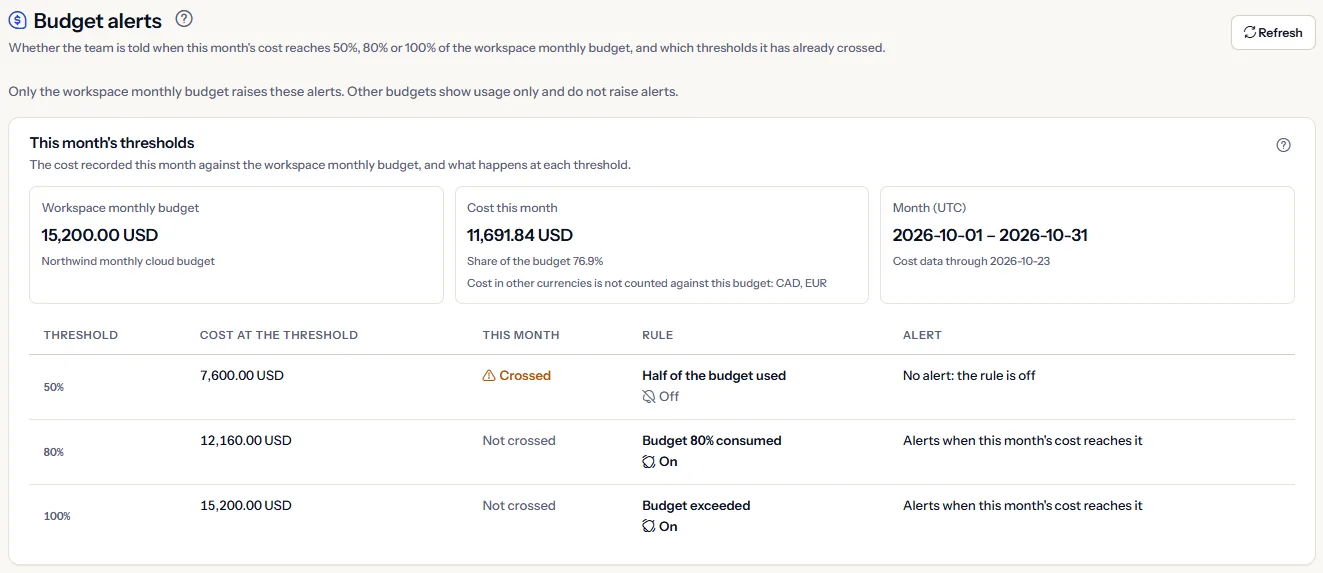
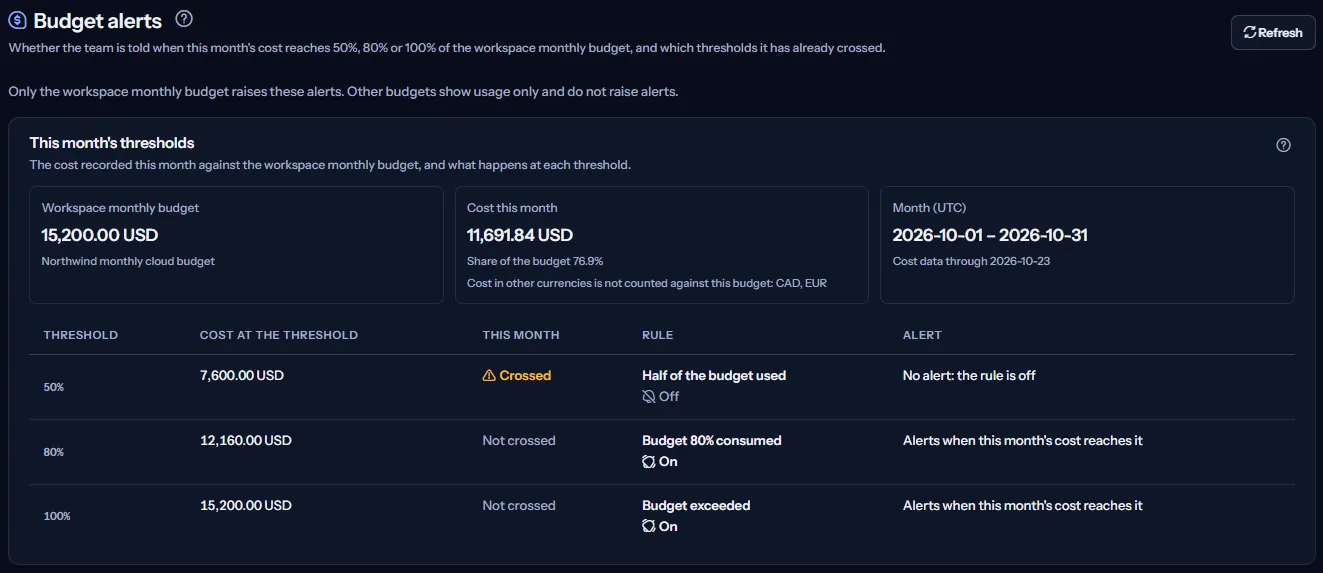
“Budget alerts” answers one question: will the team be told when this month's cost reaches 50%, 80% or 100% of the workspace monthly budget, and which of those thresholds has it already crossed?
Whoever owns the cloud budget opens it to check that each threshold is watched, and to see this month's position at a glance. “Only the workspace monthly budget raises these alerts. Other budgets show usage only and do not raise alerts.” The budget itself is changed on “Budgets”.
Before you start
Thresholds can be checked only when the workspace has an active monthly budget on “Budgets” and a finished cost import covers it. Without them the page says why no threshold can be checked yet.
Read the Getting started guide
Budget alerts need a plan that includes budgets, from Starter. Only workspace Owners and Admins create and change threshold rules; everyone else reads them.
This month's thresholds
“This month's thresholds” shows the budget, “Cost this month”, “Share of the budget”, the month and “Cost data through”. Below them, one row per threshold:
- “Cost at the threshold”: the cost at which 50%, 80% or 100% of the budget is reached, in the budget's currency.
- “This month”: “Crossed” or “Not crossed”, as the server reports it. A crossed threshold is the only mark in amber, because it is a risk.
- “Rule”: “On”, “Off” or “No rule”. An Owner or an Admin sees “Create a rule” on a threshold with no rule.
- “Alert”: what happens this month, for example “Alert raised”, “No alert: the rule is off” or “Alerts when this month's cost reaches it”.
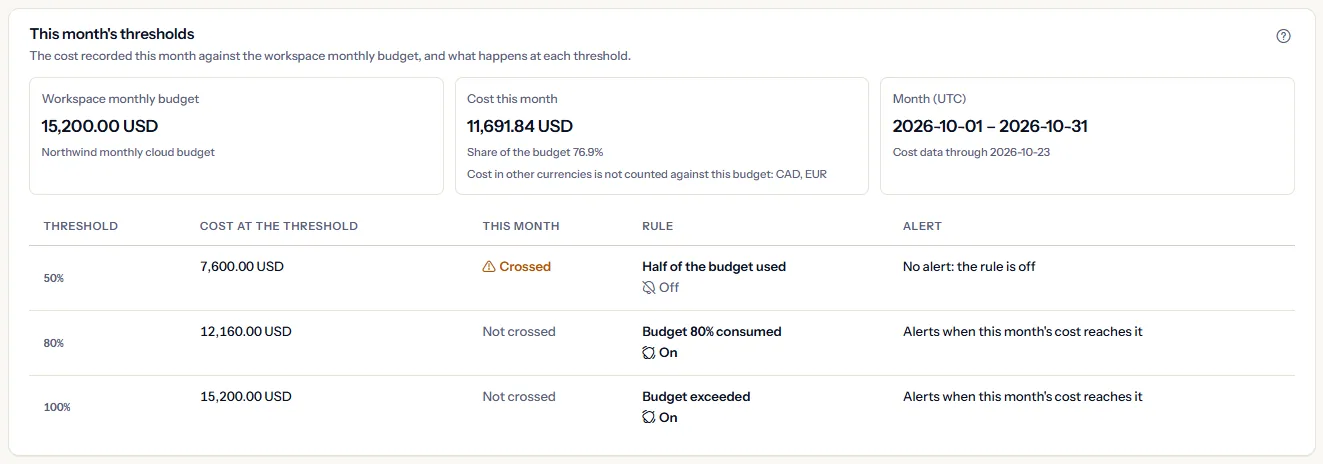
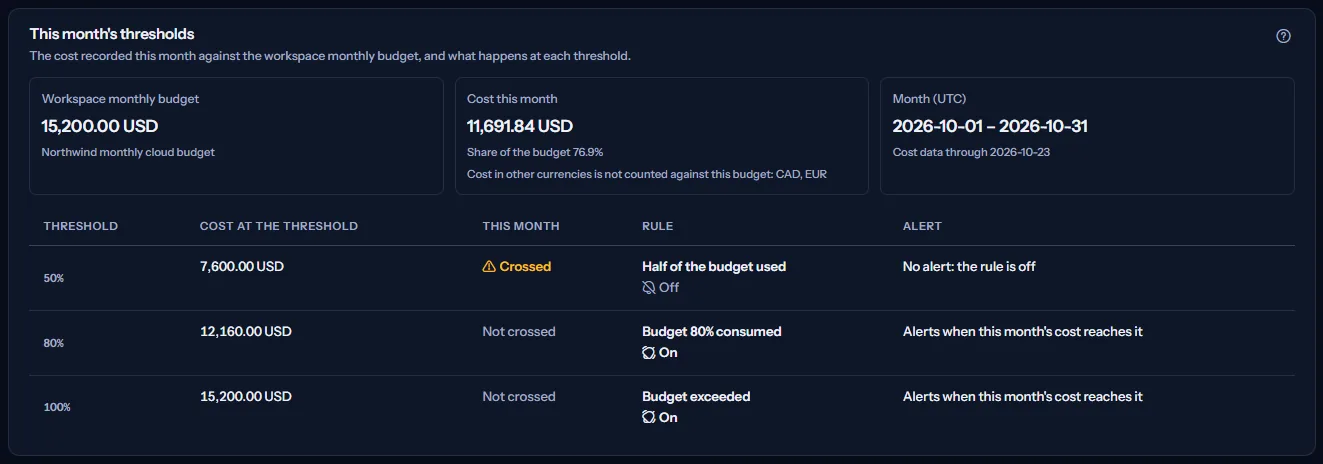
The cost is the cost recorded this calendar month (UTC) in the budget's currency. Cost recorded in another currency is never converted or added: the page names those currencies under “Cost in other currencies is not counted against this budget”. Azure cost data arrives a day or two late, so “Cost data through” says how far it goes.
Threshold rules
“Threshold rules” lists at most one rule per threshold, with its name, severity, wait and whether it is on. An Owner or an Admin can:
- Create a rule with “Create rule”: choose the threshold, a name, a severity, the wait before repeating and an optional description, then “Save”.
- Change a rule with “Edit”. If someone changed it since the page read it, nothing is saved and “Reload current rule” reads it again.
- “Switch on” or “Switch off” a rule. Both ask first, and “Cancel” changes nothing.
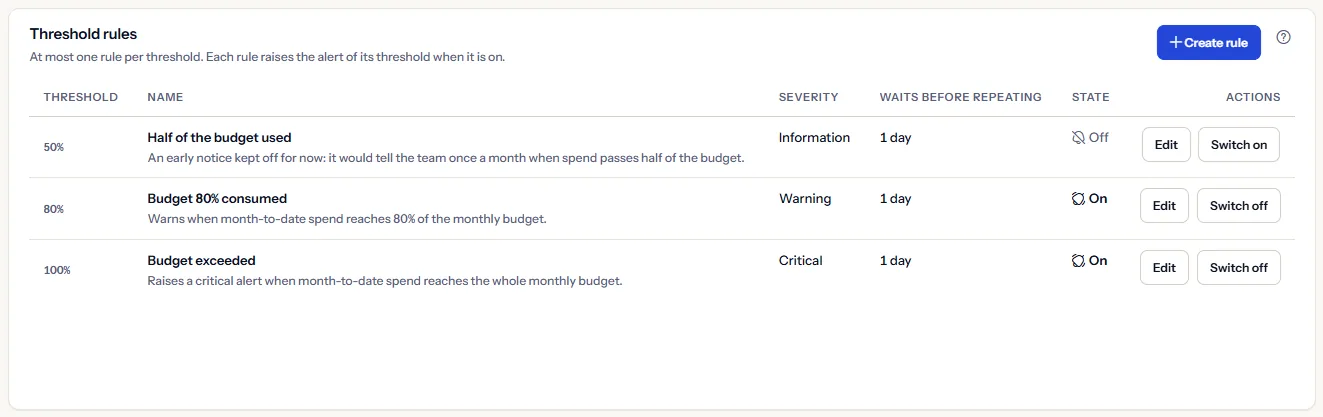
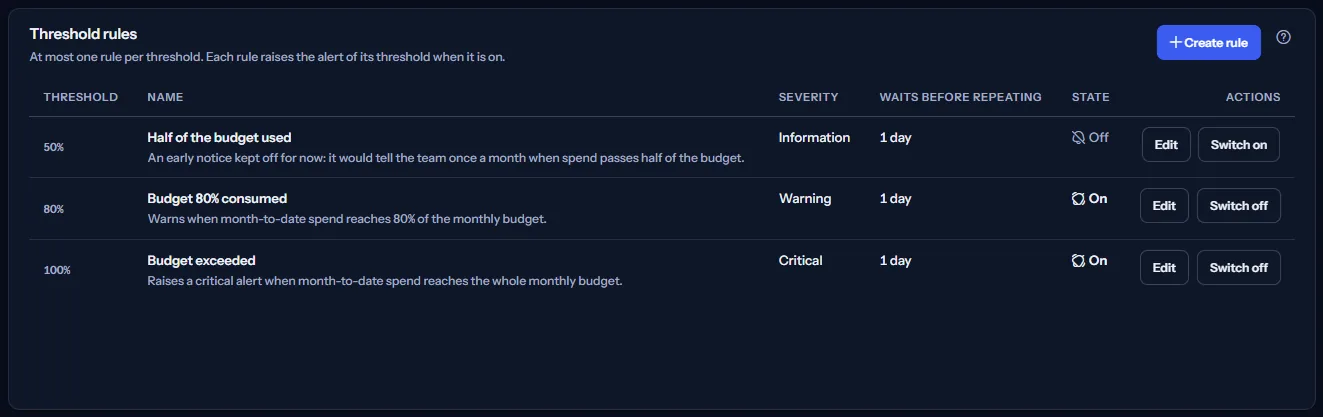
Severity is a label you choose to sort alerts by importance; it does not change when a rule fires. A second rule for the same threshold is refused.
Alerts raised
“Budget threshold alerts” lists, newest first, each alert a threshold rule raised: when (UTC), what happened, the threshold, the rule and the severity. Alerts of this month carry “This month”. “See every alert event” opens “Alert events”, where every kind of alert is listed.


A rule that was removed since shows as “A rule that is no longer listed”. An alert stays in the list even if its rule was switched off afterwards.
Who is told
“Whether a budget threshold alert is sent by email, shown as an in-app notification, or both, is set for the workspace on Notification settings.” Alert email goes to the workspace's Owners and Admins; “Open Notification settings” leads there. Whether an email was accepted is on “Alert delivery history”.
How budget alerts work
“How budget alerts work” at the bottom of the page states it in short:
- The thresholds are 50%, 80% and 100% of the workspace monthly budget, and each has at most one rule.
- This month's cost is the cost recorded so far in the calendar month (UTC), in the budget's currency. Azure cost data arrives a day or two late.
- CostGuard checks the thresholds about once an hour. A rule raises one alert per month for its threshold; after the budget is changed, a threshold that is still crossed can alert again.
- A rule's wait is the least time between two alerts from that rule.
- An alert changes nothing in Azure and nothing in the budget.
Go further
The links at the bottom of the page lead on:
- Change the workspace monthly budget
- See the alerts the rules raised
- Choose email or in-app notifications
- See which alert messages went out
- Check the month-end forecast against the budget
What you may see instead of figures
Each part of the page reads on its own, so one failure leaves the others standing. Instead of the thresholds you may see:
- “No threshold can be checked yet”, with the reason: no active workspace monthly budget yet (with “Open Budgets”), no finished cost import yet, or recorded cost dated in the future.
- “The budget could not be read”, with “Try again”: no threshold is shown as safe while the budget cannot be read.
- “The threshold rules could not be read.” or “The budget threshold alerts could not be read.”, each with “Try again” in its own panel; the rest of the page is still correct.
- “No threshold rule exists in this workspace yet.” or “No budget threshold alert has been raised in this workspace yet.”: nothing has been created or raised yet.
- A notice that your session has expired, with a link to sign in again. The page shows nothing until you do.
Sample data when your plan has no budgets
When your plan does not include budgets, the page shows a fixed example under the label “Sample data”, with the sentence “Your current plan does not include this feature. The figures shown here are an example, not your data.”
The sample shows an example month, June 2026: a Contoso monthly budget of 12,000 US dollars with 8,760 recorded, the 50% threshold crossed, rules for 50% and 80% on and for 100% off, and three example alerts. It has no actions and is never your data.
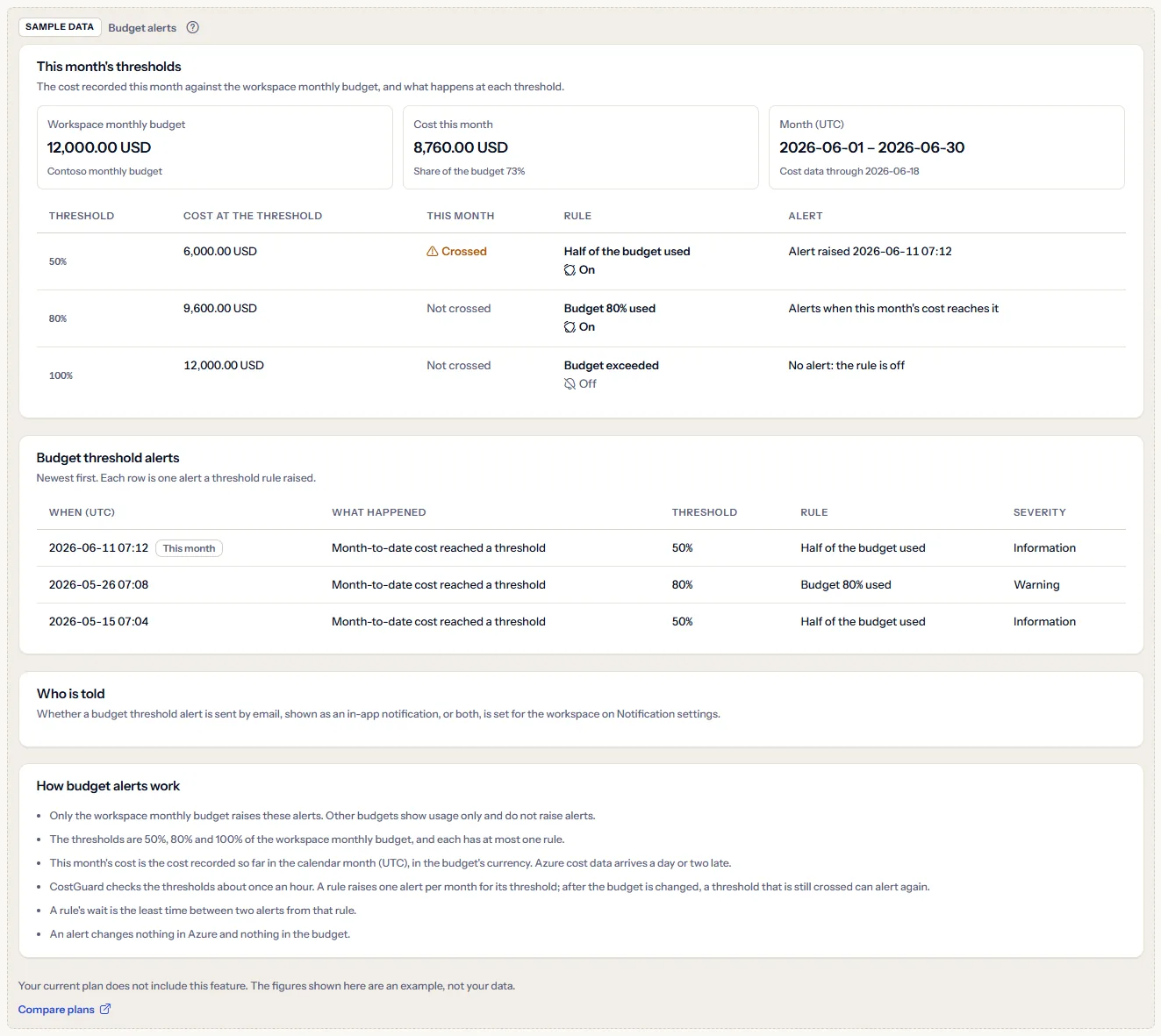
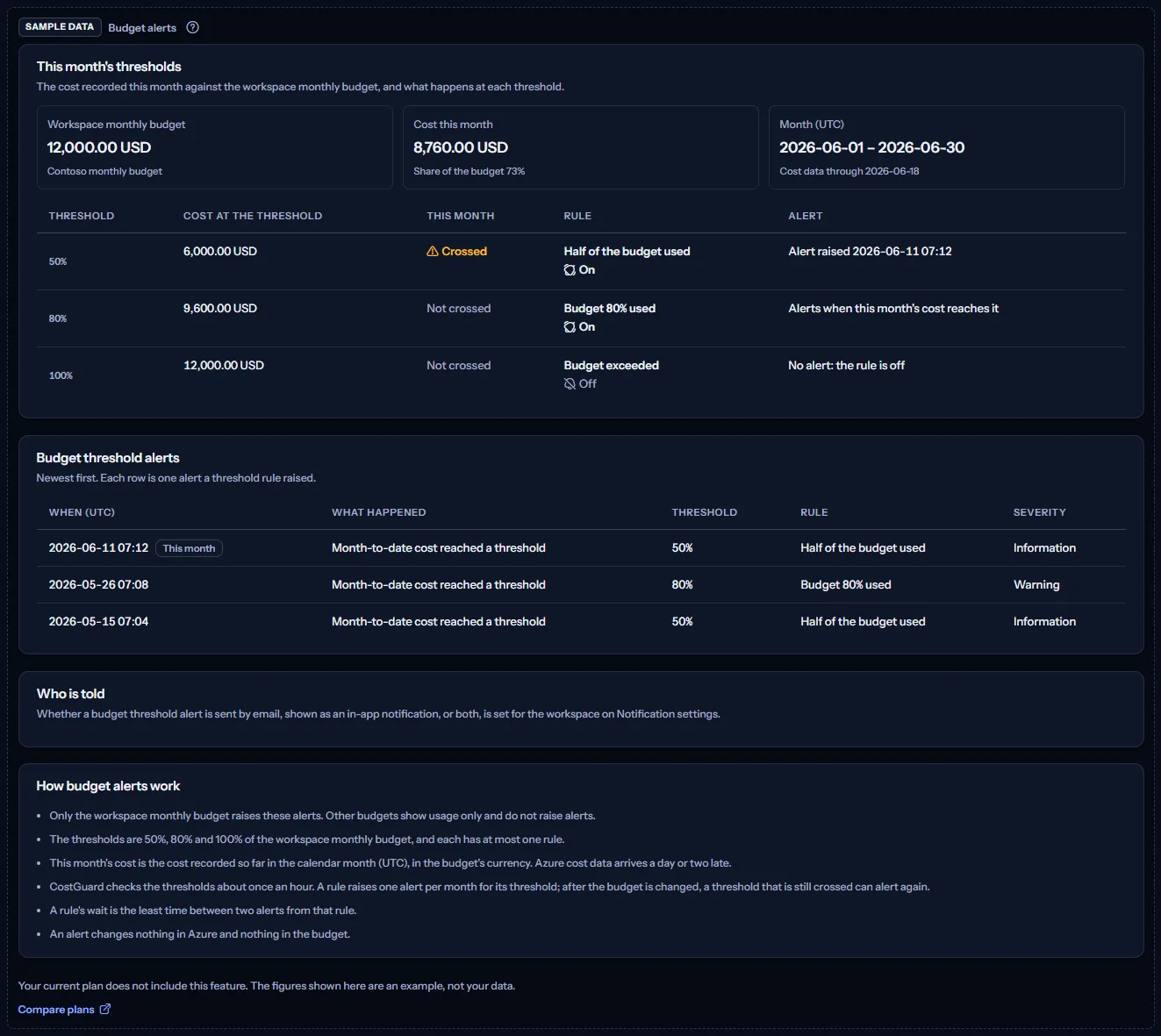
“Compare plans” opens the pricing page in a new tab. CostGuard decides what your plan includes on the server; the sample is only how the page shows it.
What each plan includes
The table shows the first plan that includes each part of the page. Every plan above it includes it too.
| Feature | Free | Starter | Growth | Pro | Enterprise |
|---|---|---|---|---|---|
| A labelled sample of the page | Included | Included | Included | Included | Included |
| Budget alerts of your own monthly budget | Not included | Included | Included | Included | Included |
Starter and every plan above it include budget alerts; Free shows the labelled sample. The plan is checked on the server, and no price appears in the application.
Troubleshooting
A threshold is crossed but no alert was raised
Look at “Alert” for that threshold: its rule may be off or missing. Thresholds are checked about once an hour, so a new crossing can take that long to raise its alert.
An alert was raised but nobody received an email
Email for budget alerts may be off on “Notification settings”, or quiet hours may be holding it back. “Alert delivery history” shows what happened to each message.
Part of the month's cost is not counted
Only cost in the budget's currency counts against the budget. Cost in another currency is named under “Cost in other currencies is not counted against this budget” and never converted, because CostGuard has no exchange rate.
The page is not in the sidebar
The sidebar lists it in “Advanced” mode only. Choose “Advanced” at the top of the sidebar; the page's address opens in either mode.