
Forecast risk alerts: be told when the grade rises
The Forecast risk alerts page shows this month's forecast risk grade, the rules that raise an alert when it rises to “Watch”, “At risk” or “Likely over budget”, who is told, and the alerts raised so far.
What this page is for
“Forecast risk alerts” answers one question: will the team be told when the month-end forecast puts the monthly budget at risk, and what has been raised so far?
Whoever owns the cloud budget opens it to make sure a rising forecast is noticed before the month ends. The grade itself is explained on “Risk indicators”; this page alerts on it.
Before you start
A grade needs a workspace-wide monthly budget on “Budgets” and an active Baseline forecast that reaches the end of the month. Without them the page shows why there is no grade, and no forecast risk alert can be raised.
Read the Getting started guide
Forecast risk alerts need a plan that includes forecasting, from Pro. Only a workspace owner or admin creates or changes rules; everyone else reads them.
This month's grade
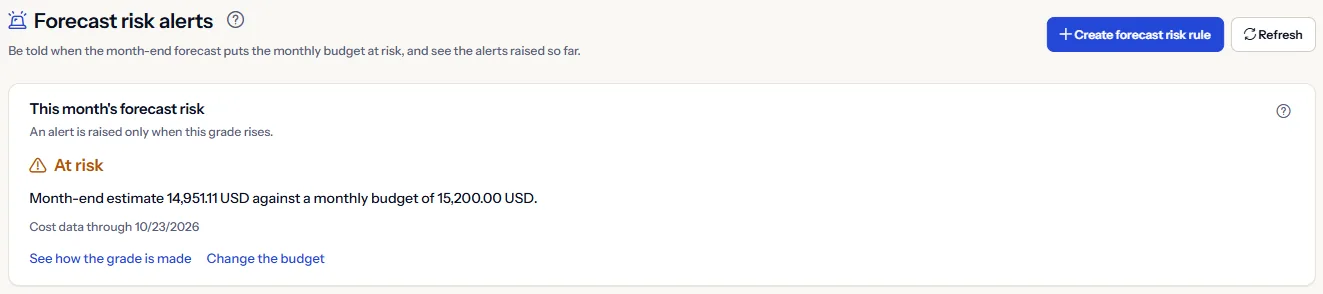
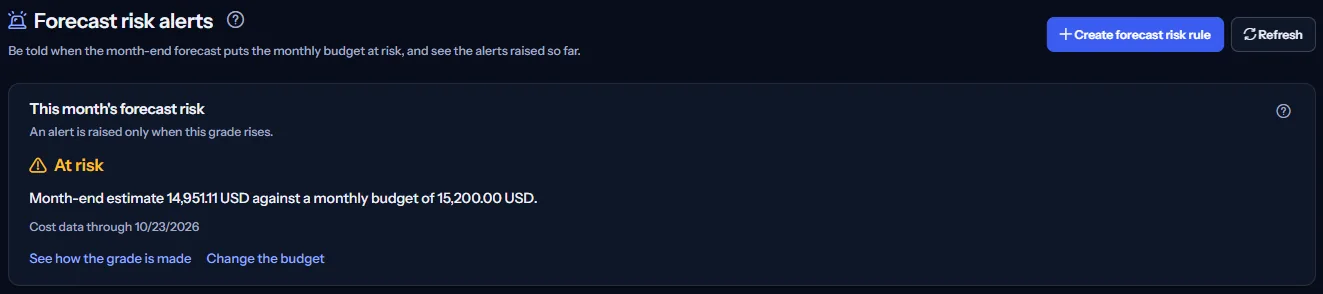
“This month's forecast risk” shows the same grade as “Risk indicators”, with the month-end estimate against the monthly budget and the date the cost data goes to. The grade is one of:
- “On track”
- “Watch”
- “At risk”
- “Likely over budget”
“See how the grade is made” opens “Risk indicators”, and “Change the budget” opens “Budgets”. The month-end estimate is the cost recorded this month plus the Baseline forecast of the remaining days, a projected estimate, not a bill.
Forecast risk rules
“Forecast risk rules” lists every rule with its name, severity, state and wait before repeating. A workspace owner or admin can:
- Create a rule with “Create forecast risk rule”: a name, a severity and a wait chosen from the list, then “Save”. The new rule is on.
- “Switch on” or “Switch off” a rule. Both ask first, and “Cancel” changes nothing.
- If someone changed a rule since the page read it, nothing is changed and the rules are read again.


“There is no forecast risk rule yet, so no alert is raised when the grade rises.” Severity is a label you choose to sort alerts by importance; it does not change when a rule fires.
Who is told
“Who is told” shows whether a forecast risk alert is sent by email, shown in the app, or both, as “Notification settings” sets it; “Open notification settings” leads there. When both are off, alerts are still recorded, but nobody is told.
Alerts raised
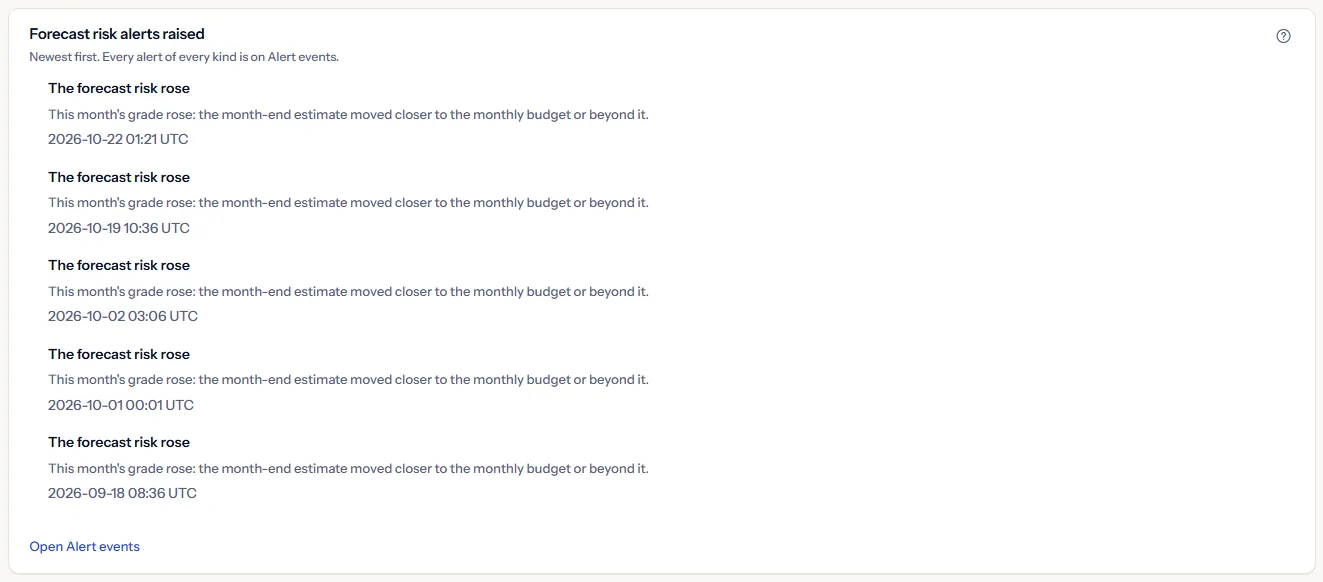
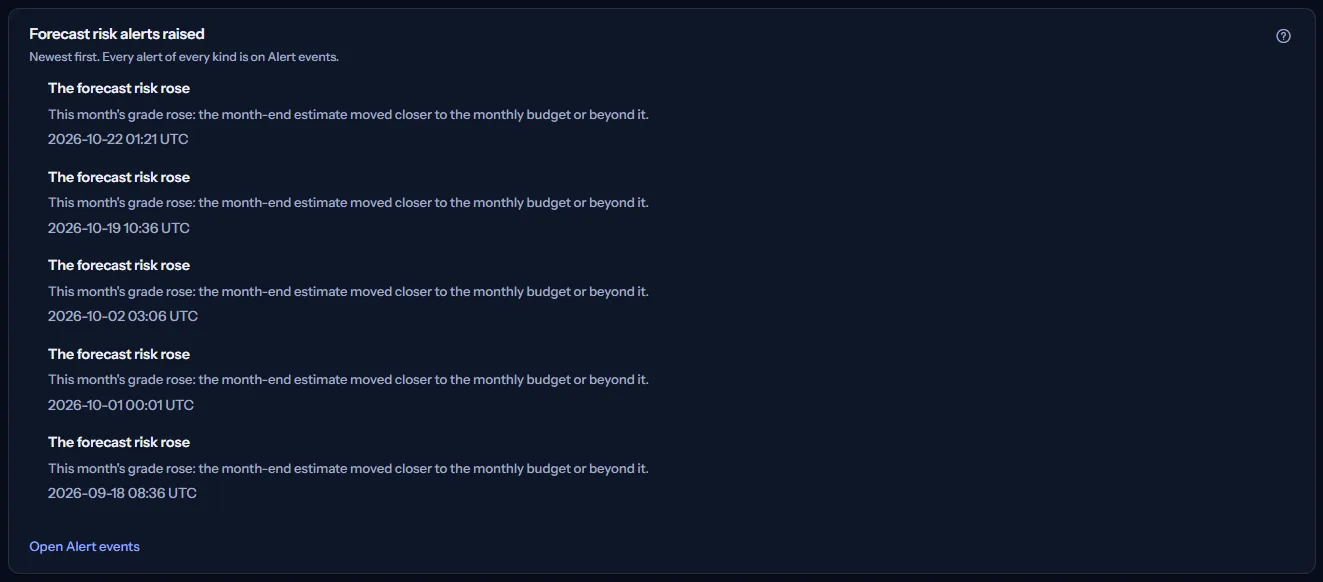
“Forecast risk alerts raised” lists, newest first, each alert a rule raised, as “The forecast risk rose”, with its time in UTC, its rule and its severity. “Open Alert events” opens “Alert events”, where every kind of alert is listed.
How forecast risk alerts work
“How forecast risk alerts work” at the bottom of the page states it in short:
- A rule that is on raises one alert when this month's grade rises to Watch, At risk or Likely over budget.
- The grade is checked in the background every few minutes. Creating or switching on a rule raises nothing at once.
- A grade that stays the same or improves raises nothing.
- A rule's wait holds back its next alert, even if the grade rises again in the meantime.
- The grade comes from a projected estimate of the month end, not from a bill.
- The range around the estimate is shown on Forecast range; this page alerts on the grade only.
- Alert rules only read CostGuard's own records; they never change anything in Azure.
Go further
The links at the bottom of the page lead on:
- Risk indicators
- Forecast overview
- Budgets
- Alert events
- Notification settings
What you may see instead of figures
Each part of the page reads on its own, so one failure leaves the others standing. You may see:
- “Not graded” with its reason, such as “No workspace-wide monthly budget” or “No forecast for the rest of the month yet”, and “Without a grade, no forecast risk alert can be raised.”
- “This month's grade could not be read. The rules and alerts below are still current.”
- “The forecast risk rules could not be read.”, “Who is told could not be read.” or “The forecast risk alerts could not be read.”, each with “Try again” in its own panel.
- A notice that your session has expired, with a link to sign in again. The page shows nothing until you do.
Sample data when your plan has no forecasting
When your plan does not include forecasting, the page shows a fixed example under the label “Sample data”, with the sentence “Your current plan does not include this feature. The figures shown here are an example, not your data.”
The sample shows an example month, August 2026, graded “At risk”: a month-end estimate of 10,560 US dollars against a monthly budget of 12,000, one Contoso rule on and one off, one example alert, and email and in-app both on. It has no actions and is never your data.
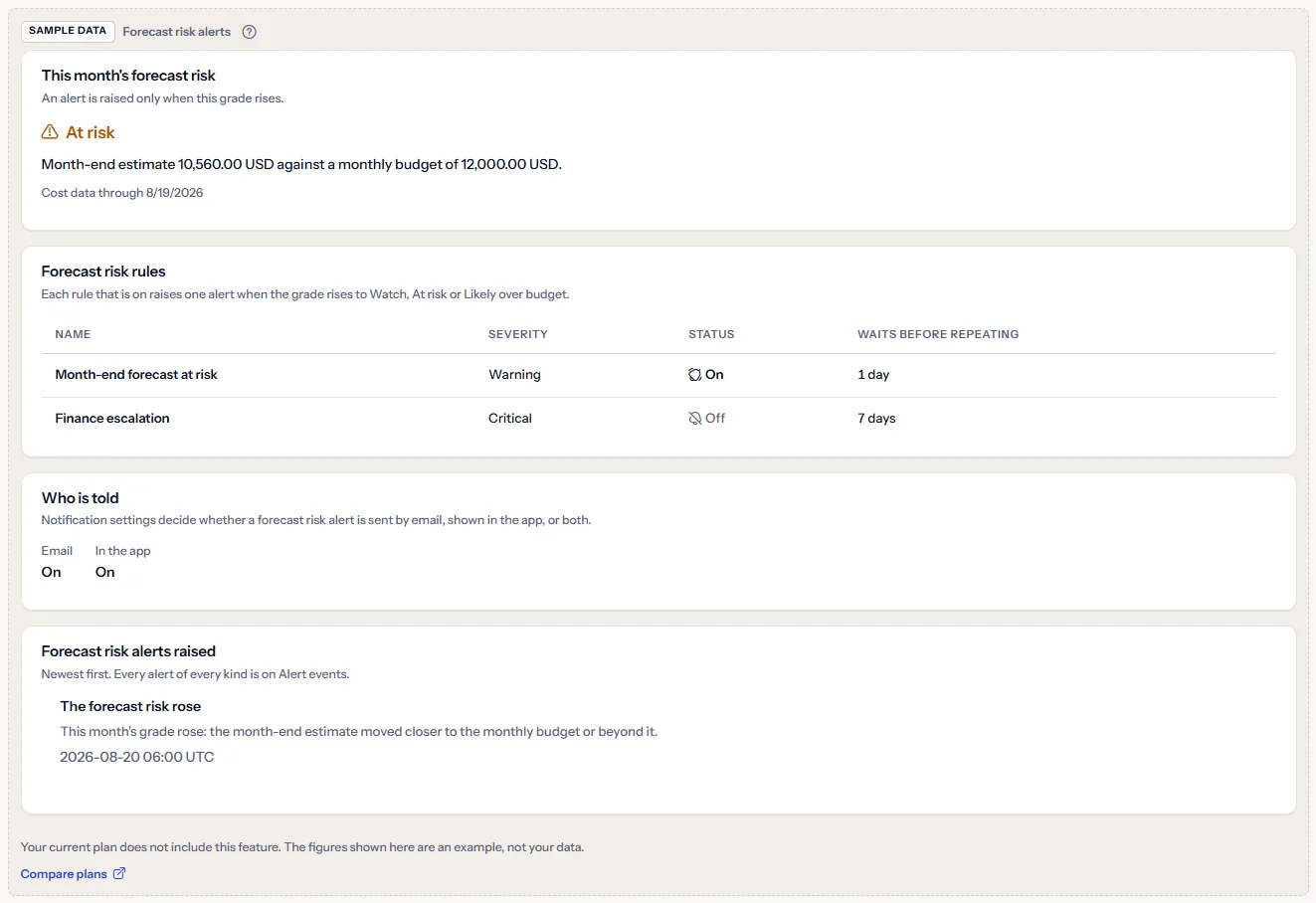
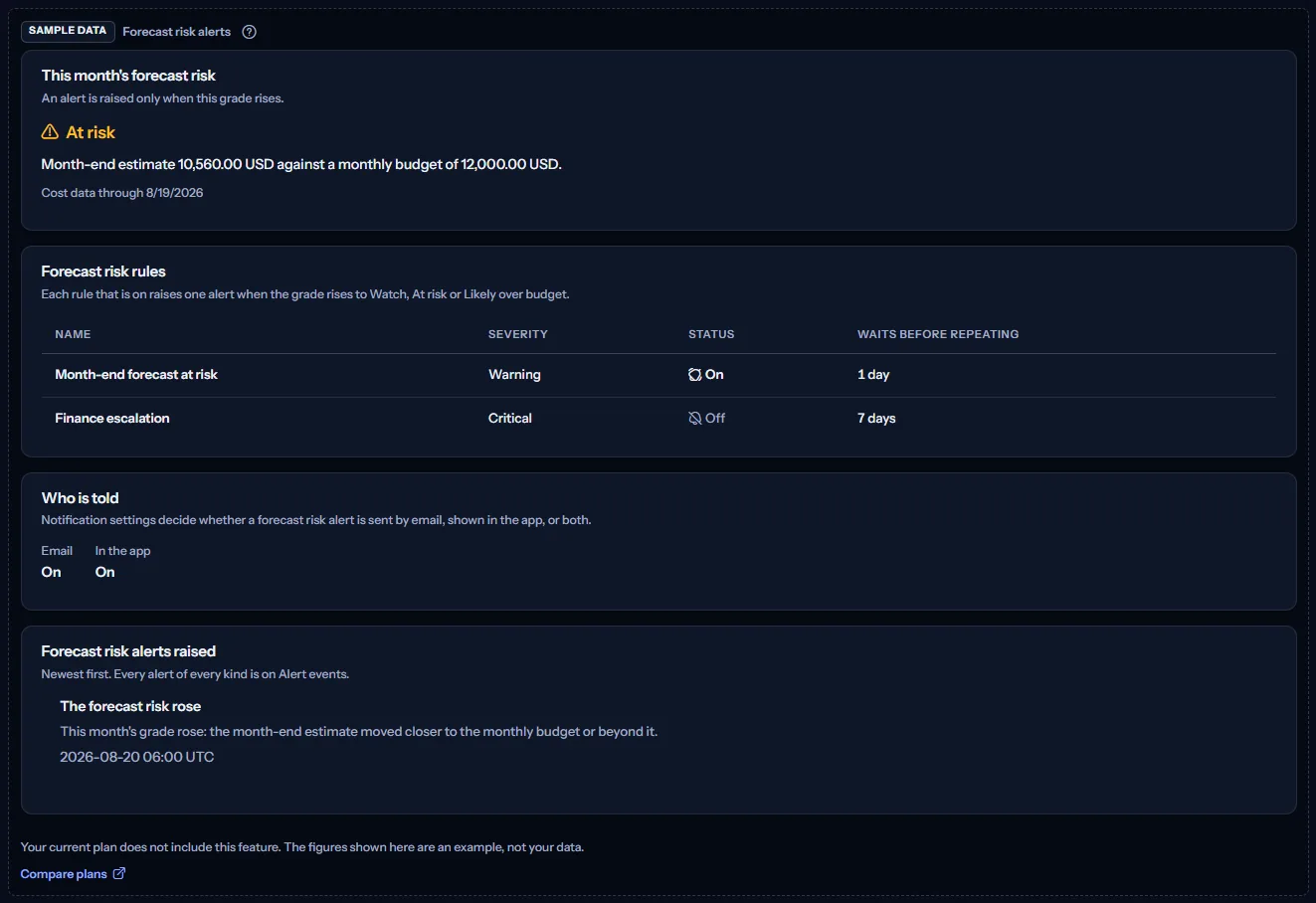
“Compare plans” opens the pricing page in a new tab. CostGuard decides what your plan includes on the server; the sample is only how the page shows it.
What each plan includes
The table shows the first plan that includes each part of the page. Every plan above it includes it too.
| Feature | Free | Starter | Growth | Pro | Enterprise |
|---|---|---|---|---|---|
| A labelled sample of the page | Included | Included | Included | Included | Included |
| Forecast risk alerts of your own month | Not included | Not included | Not included | Included | Included |
Pro and Enterprise include forecast risk alerts; Free, Starter and Growth show the labelled sample. The plan is checked on the server, and no price appears in the application.
Troubleshooting
The grade rose but no alert was raised
Check that a rule is on, and that its wait has passed since its last alert. A rule raises nothing at the moment it is created or switched on; it alerts at the next rise of the grade.
There is no grade
The grade needs a workspace-wide monthly budget and an active Baseline forecast that reaches the end of the month. “Risk indicators” shows which subscriptions are counted and why one is left out.
An alert was raised but nobody received an email
Email may be off for forecast risk alerts on “Notification settings”, or quiet hours may be holding it back. “Alert delivery history” shows what happened to each message.
The page is not in the sidebar
The sidebar lists it in “Advanced” mode only. Choose “Advanced” at the top of the sidebar; the page's address opens in either mode.