
Notification settings: how alerts reach you
The Notification settings page decides how the workspace is told about each kind of alert: by email, in the app or not at all, in which language alert email is written, and when email waits during quiet hours.
What this page is for
“Notification settings” answers one question: for each kind of alert, is the workspace told by email, in the app, or not at all, in which language, and when does email wait?
A workspace owner or admin opens it to decide who is interrupted by what. The rules that raise alerts are kept on “Alert rules”; this page only decides how an alert reaches people.
Before you start
Only a workspace owner or admin changes these settings; “Your workspace role can view these settings but cannot change them.” is what anyone else reads. Alert email goes to the active owners and administrators of the workspace.
Read the Getting started guide
The page is part of every plan. Budget alerts need a plan with budgets, from Starter, and forecast risk alerts a plan with forecasting, from Pro.
Where each alert goes
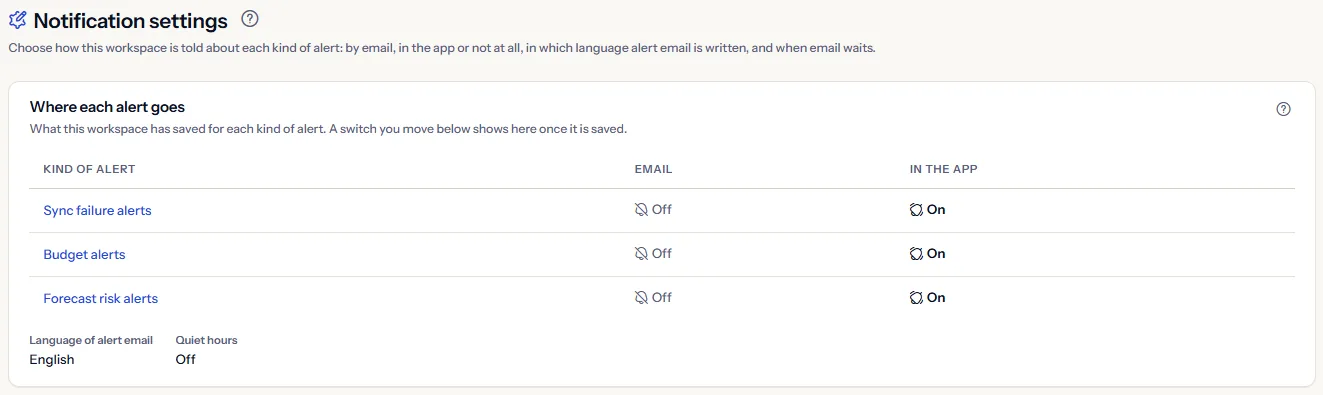
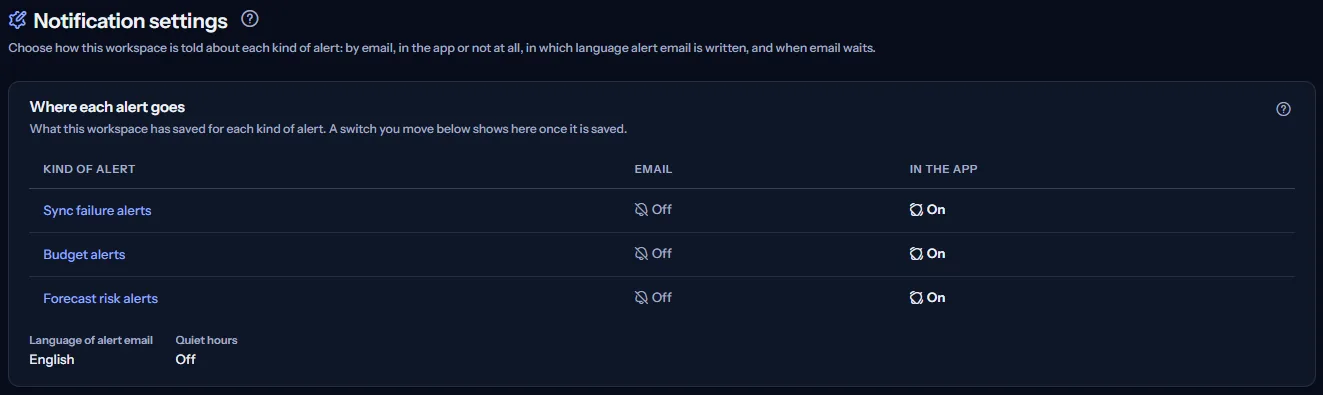
“Where each alert goes” shows, for each kind of alert, what the workspace has saved for email and for the app:
- “On” / “Off”
- “Not in your plan”: the plan does not include that kind, so it is not sent.
- “Could not be read”: that setting could not be read; nothing about it was changed.
- “Language of alert email” and the quiet hours, as saved below.
Each kind in the summary links to its own section further down. A switch you move below appears in the summary only once it is saved.
The three kinds of alert
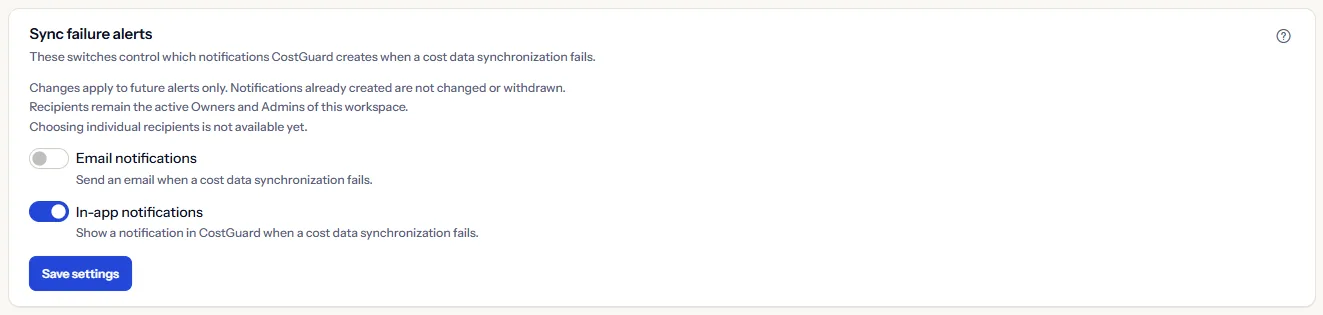
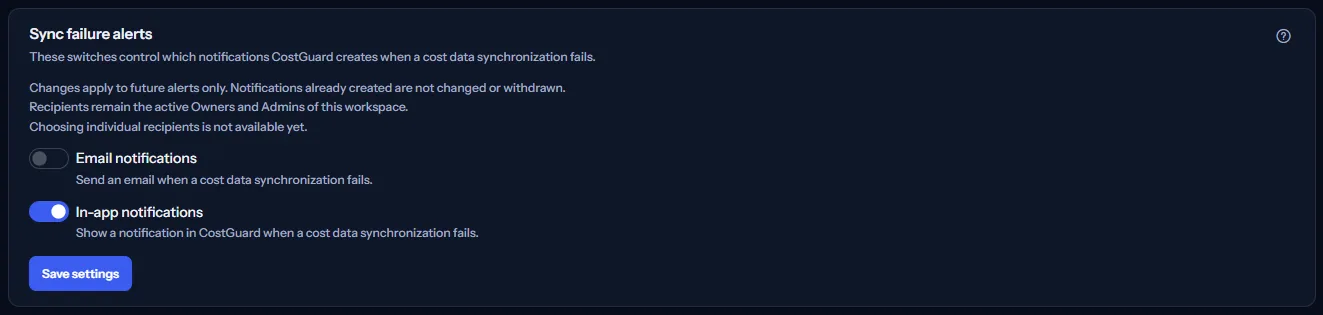
Each kind has its own section with “Email notifications”, “In-app notifications” and “Save settings”:
- “Sync failure alerts”: a cost data sync failed. Every plan includes it.
- “Budget alerts”: a threshold of the workspace monthly budget was reached. Without budgets in the plan, the section says so instead of showing switches.
- “Forecast risk alerts”: the month-end forecast puts the monthly budget at risk. Without forecasting in the plan, the section says so instead of showing switches.
“No settings have been saved yet, so both channels are on by default.” “Changes apply to future alerts only. Notifications already created are not changed or withdrawn.”
If someone changed a section since you opened the page, nothing is saved, your choices are kept, and “Reload settings” reads the current settings.
Your own notifications
“Your own notifications” lets an owner or administrator choose which kinds of alert appear in their own notification centre. “This applies to your notification centre only. Alert email to this workspace is unaffected and keeps arriving under the workspace settings above. You cannot switch on something the workspace has switched off.”
Anyone else reads “These alerts are sent to the workspace's owners and administrators, so there is nothing here for you to change. If your role changes, this section will appear.”
The language of alert email
“Notification language” chooses the language CostGuard writes this workspace's alert emails in: English, French, German, Persian, Arabic or Chinese.
This applies to everyone in the workspace. CostGuard does not keep a language for each person, so every alert email is written in the language chosen here. It changes alert emails only. The language of this site is chosen separately, and changing one does not change the other.
Quiet hours
“Hold alert email during quiet hours” holds alert email back during a period you set:
- “From” and “Until”: the start and end of the period. A period that runs past midnight belongs to the day it starts on.
- “Timezone”: the times are read in this time zone.
- “Days”: selecting no day applies the period every day.


Nothing is discarded. Every alert raised during quiet hours is sent once the period ends. Quiet hours apply to email only. In-app notifications still appear immediately — they wait in your notification centre and interrupt nobody.
How notification settings work
“How notification settings work” at the bottom of the page states it in short:
- CostGuard raises three kinds of alert: a failed cost data sync, a budget threshold reached, and a forecast that puts the monthly budget at risk. Each kind has its own switches. Budget alerts need a plan with budgets, and forecast risk alerts a plan with forecasting.
- Alert email goes to the active owners and administrators of the workspace, and in-app notifications appear in their notification centre. Choosing individual recipients is not available.
- A change applies to alerts raised after it is saved. Notifications already created are not changed or withdrawn.
- Quiet hours hold alert email back until the window ends. Nothing is discarded, and in-app notifications still appear at once.
- The notification language changes alert email only and applies to the whole workspace. The language of this site is chosen separately.
Go further
The links at the bottom of the page lead on:
- Alert rules
- Budget alerts
- Forecast risk alerts
- Alert delivery history
- Notifications
What you may see instead of settings
Each section reads on its own, so one failure leaves the others standing. You may see:
- “Notification settings are unavailable”, with “Try again”: the settings could not be loaded.
- These settings could not be read, so nothing is shown here. Nothing has changed about what this workspace receives, and no setting was saved.
- A plan note such as “Your plan does not include budgets, so budget alerts are not sent.”, with “Compare plans”, which opens the pricing page in a new tab.
- A notice that your session has expired, with a link to sign in again. The page shows no settings until you do.
What each plan includes
The table shows the first plan that includes each part of the page. Every plan above it includes it too.
| Feature | Free | Starter | Growth | Pro | Enterprise |
|---|---|---|---|---|---|
| Notification settings, sync failure alerts, language and quiet hours | Included | Included | Included | Included | Included |
| Settings of budget alerts | Not included | Included | Included | Included | Included |
| Settings of forecast risk alerts | Not included | Not included | Not included | Included | Included |
The plan is checked on the server, and no price appears in the application.
Troubleshooting
Nobody receives alert email
Check “Where each alert goes”: email may be off for that kind, or quiet hours may be holding it back. Alert email goes only to the active owners and administrators. “Alert delivery history” shows what happened to each message.
A kind of alert shows “Not in your plan”
Budget alerts need a plan with budgets and forecast risk alerts a plan with forecasting. “Compare plans” opens the pricing page in a new tab.
The switches cannot be changed
Only a workspace owner or admin can change the workspace's settings; any other role reads them. Your own notifications appear only for the owners and administrators who receive the alerts.
The page is not in the sidebar
The sidebar lists it in “Advanced” mode only. Choose “Advanced” at the top of the sidebar; the page's address opens in either mode.