
Alert delivery history: what became of each message
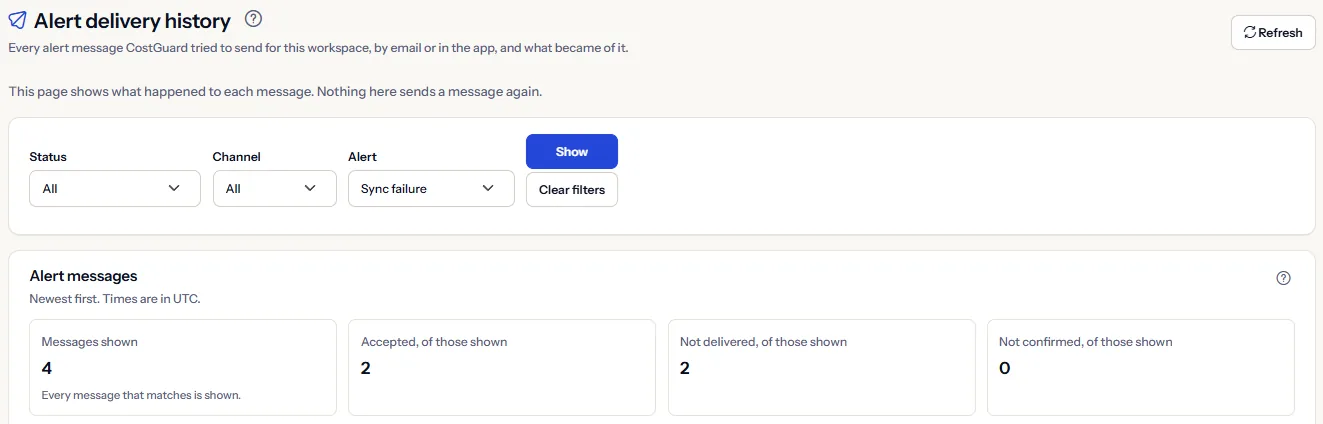
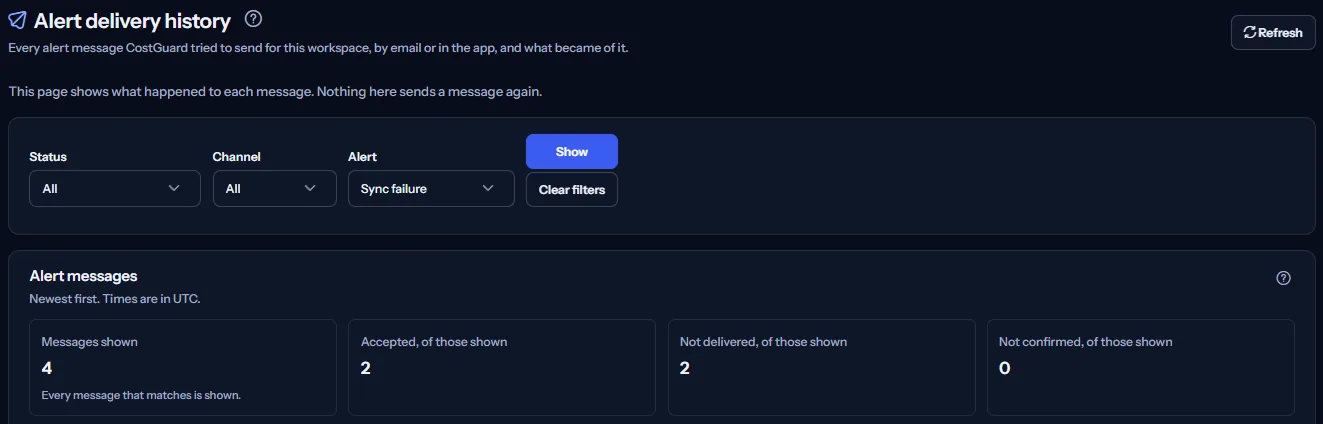
The Alert delivery history page lists every alert message CostGuard tried to send for the workspace, by email or in the app, with what became of it and what each result means.
What this page is for
“Alert delivery history” answers one question: did each alert notification reach its channel, and if not, why and what do I do?
Open it when someone says an alert never arrived. “This page shows what happened to each message. Nothing here sends a message again.” What the alert rules detected is on “Alert events”.
Before you start
A row appears only when an alert rule raised an alert and its channel was on in “Notification settings”. A workspace with no alert yet, or with every channel off, shows an empty list.
Read the Getting started guide
The page is part of every plan. Which kinds of alert can appear depends on the plan: sync failure alerts on every plan, budget alerts from Starter and forecast risk alerts from Pro.
Choose which messages
Three filters narrow the list, and “Show” reads it again:
- “Status”: one status at a time, or “All”.
- “Channel”: “Email” or “In the app”.
- “Alert”: “Sync failure”, “Budget threshold” or “Forecast risk”.
When nothing matches, the page says “No message matches these filters”; “Clear filters” shows every message again.
The alert messages
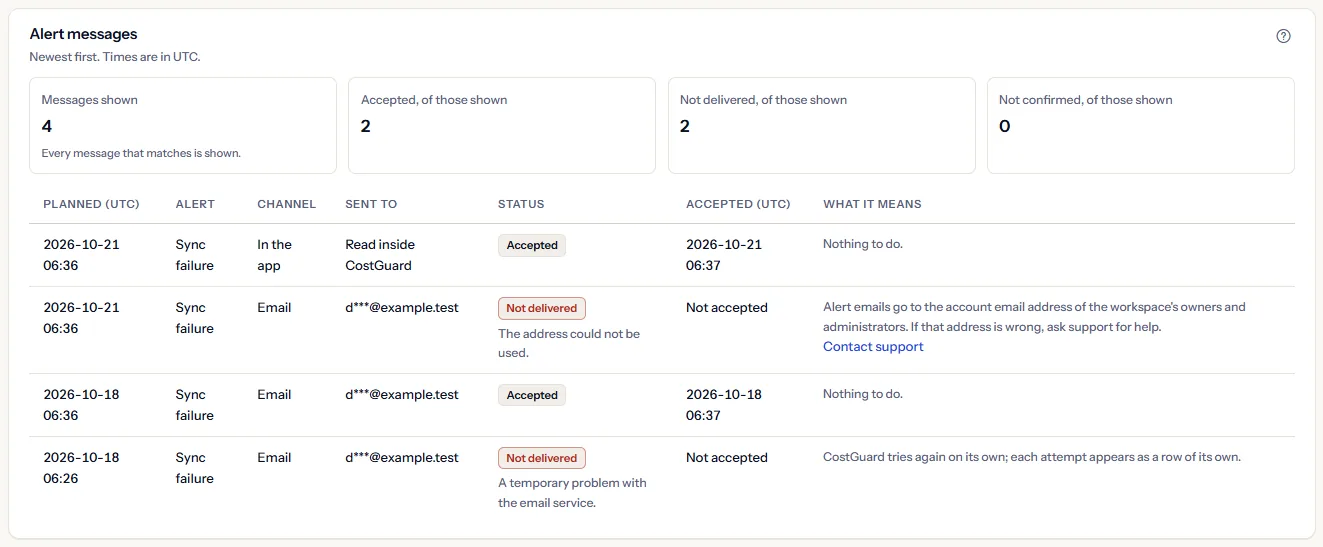
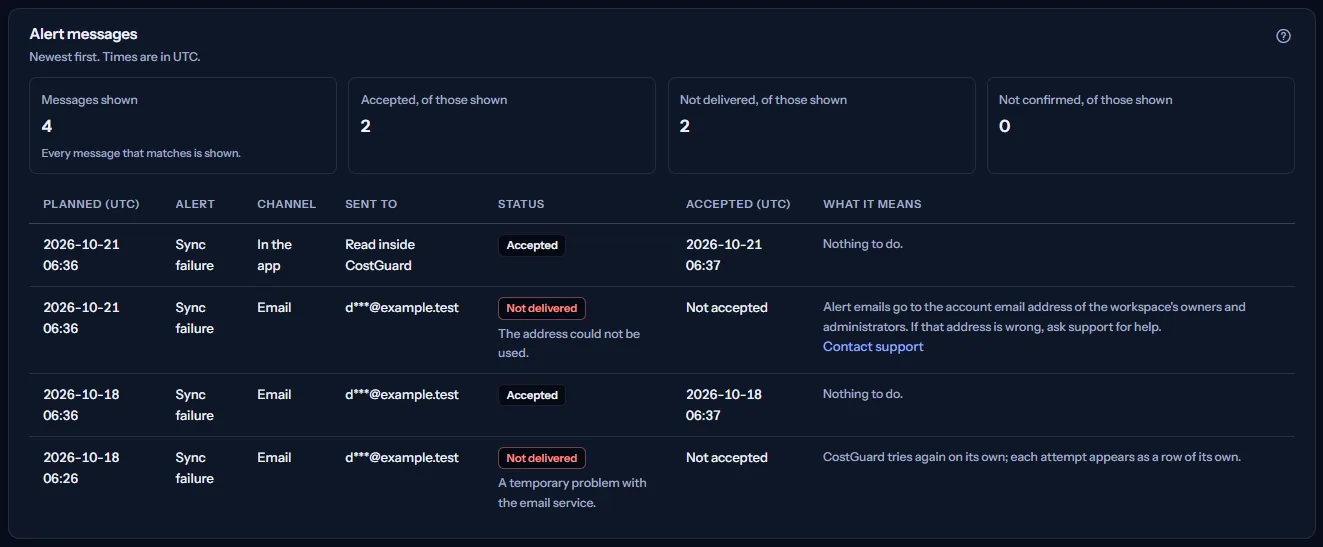
“Alert messages” lists the messages newest first, above counts of the messages shown: “Messages shown”, “Accepted, of those shown”, “Not delivered, of those shown” and “Not confirmed, of those shown”. Each row shows:
- “Alert” and “Channel”: the kind of alert and email or in the app.
- “Sent to”: a shortened email address, “Read inside CostGuard” for an in-app message, or “No address recorded”.
- “Status”
- “Planned (UTC)” and “Accepted (UTC)”, or “Not accepted”.
- “What it means”: one sentence on the result, with “Contact support” where your help is needed.
“Load older messages” reads older messages. Email addresses are always shortened, so no full address of a colleague appears on the page.
What each status means
The status says how far a message got:
- “Accepted”: “Accepted means the email service or the app took the message. CostGuard does not learn whether an email later reached a mailbox.”
- “Not delivered”: the email service refused the message, or the address could not be used. “What it means” gives the reason in plain words.
- “Not confirmed”: “The email service took the message but never confirmed the result. CostGuard does not send it again, so it cannot arrive twice.”
- “Held back” or “Cancelled”: nothing was sent, on purpose.
- “Waiting to be sent”, “Queued to send” or “Sending”: “Not finished yet. CostGuard sends it on its own.”
A message that hit a temporary problem is tried again on its own, and each attempt is a row of its own, so one alert can show a failed row and an accepted one.
How alert delivery works
“How alert delivery works” at the bottom of the page states it in short:
- Alert emails go to the account email address of each owner and administrator of the workspace.
- When the email channel of an alert is off in Notification settings, no email is planned for it, so nothing appears here.
- A message that hits a temporary problem is tried again on its own. Each attempt is a row of its own.
- A message whose result was never confirmed is not sent again, so it cannot arrive twice.
- An in-app message is read inside CostGuard, on the Notifications page; it has no address.
Go further
The links at the bottom of the page lead on:
- Choose how alerts are sent
- See what the alert rules detected
- Change the alert rules
- Read the notifications
What you may see instead of messages
While the list reads, “Loading the alert messages…” stands in its place. After that, you may see:
- “No alert message yet”: no alert message has been planned for this workspace yet.
- “Delivery history could not be read”, with “Try again”: the messages could not be read. That does not mean there are none.
- Older messages could not be loaded. The messages shown are unchanged.
- You do not have access to this workspace's alert delivery history.
- A notice that your session has expired, with a link to sign in again. The page shows no messages until you do.
What each plan includes
The table shows the first plan that includes each part of the page. Every plan above it includes it too.
| Feature | Free | Starter | Growth | Pro | Enterprise |
|---|---|---|---|---|---|
| Alert delivery history | Included | Included | Included | Included | Included |
Every plan includes the page. The kinds of alert it can list follow the plan, as “Alert events” describes. No price appears in the application.
Troubleshooting
An alert was raised but no message is listed
When a channel of that kind of alert is off on “Notification settings”, no message is planned for it, so nothing appears here. Check the filters too: “Clear filters” shows every message.
A message says “Not delivered”
Read “What it means” on that row. Alert email goes to the account address of each owner and administrator; if an address is wrong or refuses email, “Contact support” is the way to have it looked at.
A message says “Not confirmed”
The email service took the message but never confirmed the result. CostGuard does not send it again, so it cannot arrive twice; ask the recipient whether it arrived.
The page is not in the sidebar
The sidebar lists it in “Advanced” mode only. Choose “Advanced” at the top of the sidebar; the page's address opens in either mode.