
Plan and usage: your plan, allowances and limits
What your plan includes, how much of each allowance the workspace uses, and which limits CostGuard actually enforces.
What this page is for
The “Plan and usage” page answers one question: what does this workspace's plan include, and how close is the workspace to the limits that can stop it? Workspace owners, and whoever looks after the CostGuard subscription, open it before connecting another subscription or adding a budget.
It reads the same plan the server uses to decide access, so what you see here is what CostGuard enforces. It never shows a price.
Before you start
Every plan includes this page. It needs no Azure connection: the plan belongs to the workspace, not to an Azure subscription.
Your plan
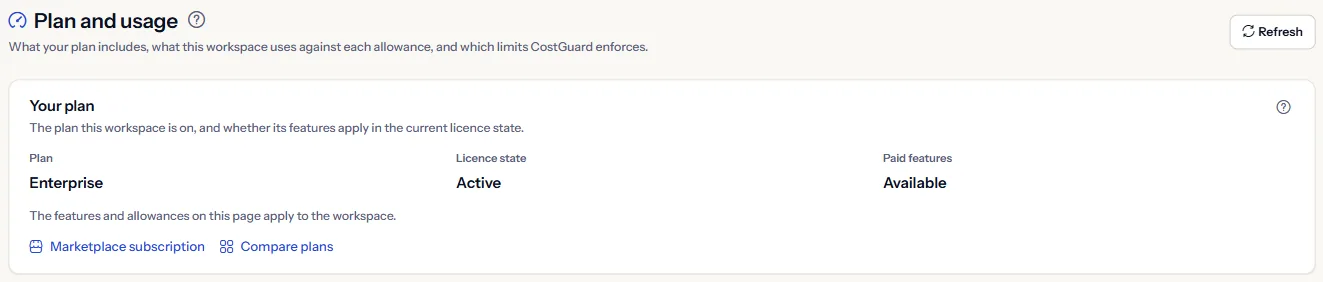
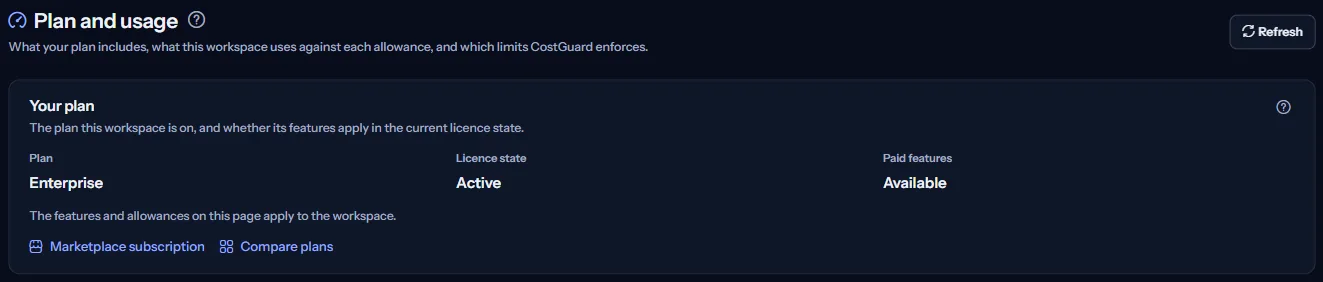
The “Your plan” panel shows three facts:
- “Plan”: the plan the workspace is on. “Not established” means the workspace has no plan record yet.
- “Licence state”: where the subscription stands, for example “Active”, “Trial” or “Grace period”.
- “Paid features”: whether the plan's paid features apply in that licence state.
Paid features apply in three licence states: “Active”, “Trial” and “Grace period”. In every other state they do not, and one sentence under the facts says so. During a grace period the features still apply, but the subscription has lapsed: check it before access is suspended.
“Marketplace subscription” opens the page of the Azure Marketplace subscription behind the plan. “Compare plans” opens the public pricing page in a new tab.
Allowances and usage
The “Allowances and usage” table has one row for each allowance your plan defines:
- “Your plan allows”: the number the plan states, or “Unlimited”.
- “You are using”: what the workspace uses now, counted the way CostGuard counts it when it refuses an action. “Not counted” means CostGuard has no count for that allowance.
- “Share used”: the usage as a percentage of the allowance, written out and repeated by a bar.
- “Enforced” says whether CostGuard refuses the next action at the limit (“Enforced”) or the plan only states the allowance and nothing stops you going past it (“Not enforced”).
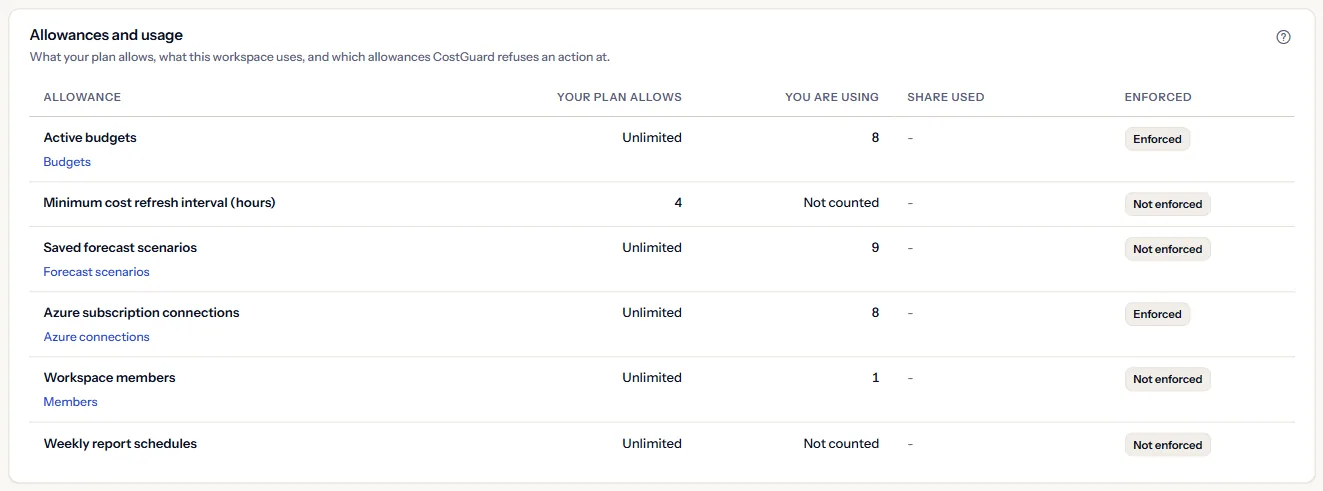
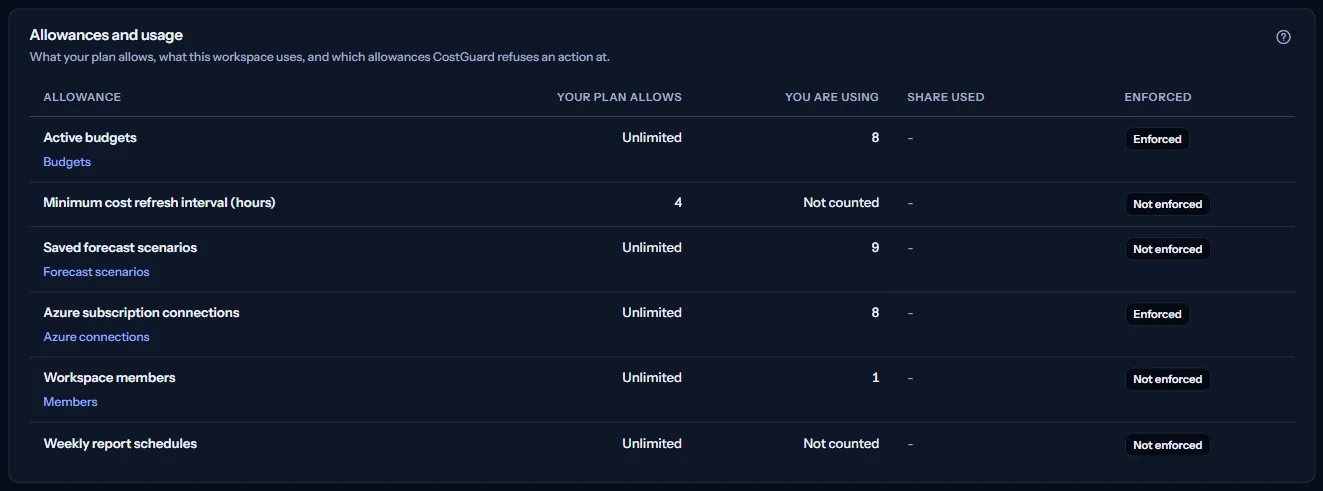
Two allowances are enforced: Azure subscription connections, checked when a connection is created, and active budgets, checked when a budget is created or switched back on. Only enabled budgets count.
On those two rows a mark appears from 80% of the allowance: “Near the limit”, then “At the limit: the next one is refused” and “Over the limit: the next one is refused, existing ones stay”. It is the page's only warning colour. Rows that are not enforced never get it, because they stop nothing.
Each counted row links to the page where those items are managed.
What your plan includes
The “What your plan includes” panel lists the capabilities the plan enables, grouped by area: “Costs”, “Optimization”, “Budgets and forecasting”, “Reports” and “Connections and workspace”.
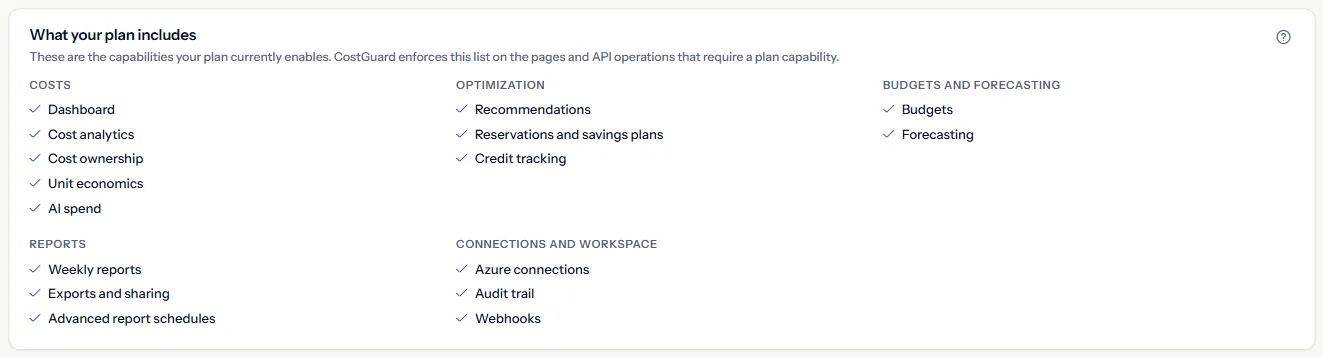
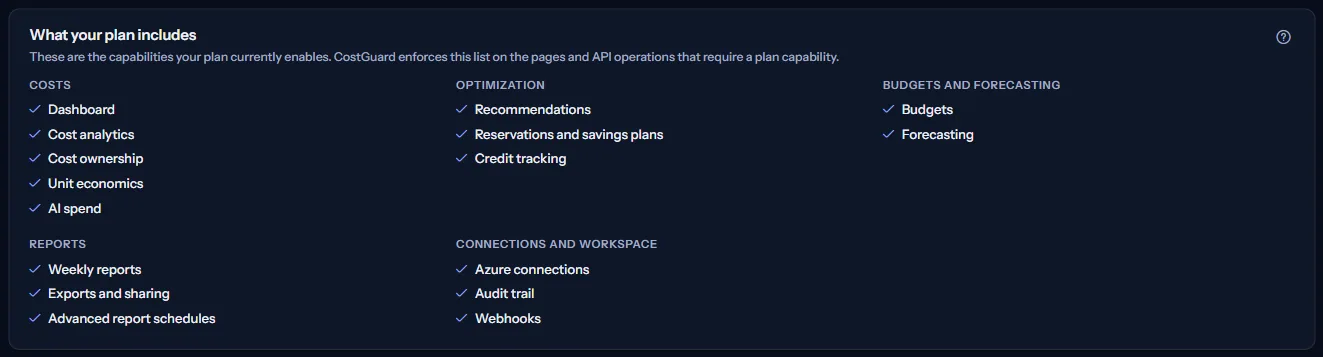
A page whose capability is not in the list shows a labelled sample instead of your data. A capability CostGuard has no name for appears under “Other” with its code.
How to read this page
The notes at the bottom of the page say, in short:
- Enforced means CostGuard refuses the action once the allowance is reached; the other allowances are stated but not applied.
- Usage counts every Azure connection of the workspace, and enabled budgets only.
- After a move to a smaller plan a workspace can be over an enforced allowance. Nothing is removed; CostGuard refuses the next connection or budget until usage is back under the allowance.
- CostGuard does not delete cost history, so the retention allowance is not applied to your data.
Go further
The links at the bottom of the page lead on:
- “Marketplace subscription”: the subscription behind the plan, and where it is managed.
- “Azure connections”: the connections the subscription allowance counts.
- “Budgets”: the budgets the budget allowance counts.
- “Forecast scenarios”: the saved forecast scenarios.
What you may see instead of figures
While the page reads, grey bars stand where the panels will appear. After that, the page may show one of these instead:
- “No workspace selected”: choose a workspace at the top of the application.
- “Plan and usage could not be read”: the plan could not be read just now, which says nothing about the plan itself. “Try again” reads it again.
- No allowances: in a licence state without paid features no allowance applies, and one sentence replaces the table.
- No capabilities: the plan enables nothing in its current licence state.
What each plan includes
The table shows the first plan that includes each part of the page. Every plan above it includes it too.
| Feature | Free | Starter | Growth | Pro | Enterprise |
|---|---|---|---|---|---|
| The Plan and usage page | Included | Included | Included | Included | Included |
Every plan includes this page. What it lists depends on the plan; it never shows a price, and “Compare plans” opens the pricing page in a new tab.
Troubleshooting
Usage is higher than the allowance
That happens after a move to a smaller plan. Nothing is deleted: the existing connections or budgets keep working, and CostGuard refuses the next one until usage is below the allowance.
An allowance shows “Not counted”
CostGuard has no count for that allowance, for example weekly report schedules, where no rule says what the limit counts. A count is never guessed.
The page says paid features are not available
The licence state does not grant them, for example when the subscription is suspended or cancelled. Open “Marketplace subscription” to see the subscription's state and where to restore it.
The page is not in the sidebar
The sidebar lists it in “Advanced” mode only. Choose “Advanced” at the top of the sidebar; the page's address opens in either mode.