
Marketplace subscription: state, access and cancelling
Whether the CostGuard subscription behind your workspace is active in the Azure Marketplace, what its state means for access, and where to manage or cancel it.
What this page is for
The “Marketplace subscription” page answers: is the CostGuard subscription behind this workspace active, and what does its state mean for access? The person who bought CostGuard in the Azure Marketplace, or who looks after its billing, opens it.
Microsoft bills CostGuard through the Azure Marketplace. This page shows what Microsoft reports and links to the Marketplace; CostGuard never changes or charges a subscription itself.
Before you start
Every plan includes this page. It shows a subscription only when CostGuard was bought in the Azure Marketplace and Microsoft has told CostGuard about it.
A subscription
Each subscription linked to your workspaces has its own panel: the workspace's name, a state, one sentence on that state, and these facts:
- “Plan”: the CostGuard plan the subscription buys.
- “Paid features”: “Available” only while the subscription is active.
- “Licence state”: the licence state CostGuard keeps for the subscription, for example “Trial” or “Grace period”.
- “Azure Marketplace state”: the state Microsoft reports, for example “Subscribed” or “Suspended”.
- “Last checked with Microsoft”: when that state was last confirmed with Microsoft, in UTC.
Below the facts, one sentence says what the state means for the workspace's paid features.
What each state means
The state beside the workspace's name is one of these:
- “Active”: the paid features of the plan apply. A subscription in its trial or in a grace period also shows as active; the sentence under the facts says which.
- “Being set up”: Microsoft is still setting the subscription up. Paid features apply once it is done.
- “Suspended”: usually a billing problem. Paid features do not apply until the subscription is restored in the Azure Marketplace.
- “Cancelled”: the subscription no longer gives access to paid features.
- “Unknown”: CostGuard does not know the state right now, and gives no paid access until it does.
Manage or cancel
“Manage in the Azure Marketplace” opens the Azure Marketplace in a new tab. Invoices, payment methods and plan changes live there.
“Cancel subscription” does not cancel anything by itself. It opens a short confirmation that says cancelling happens in the Azure Marketplace: “Keep subscription” closes it, and “Open the Azure Marketplace to cancel” opens the Marketplace in a new tab.
After you cancel there, Microsoft tells CostGuard and the page shows the subscription as cancelled. Until Microsoft confirms it, the workspace keeps its current access. A cancelled subscription has no actions.
Temporary access
When CostGuard support has extended a workspace's access for a limited time, a “Temporary access” panel shows the date and time the extension ends, in UTC. It changes neither the Marketplace subscription nor its billing.
How to read this page
The notes at the bottom of the page say, in short:
- Microsoft bills CostGuard through the Azure Marketplace; CostGuard never charges you directly.
- CostGuard records the state Microsoft reports, and “Last checked with Microsoft” is when it was last confirmed.
- What a workspace can use is set by its plan, shown on “Plan and usage”.


Go further
The links at the bottom of the page lead on:
- “Plan and usage”: the plan in force and its allowances.
- “Contact support”: when a subscription you bought does not appear, or its state looks wrong.
What you may see instead of figures
While the page reads, a grey bar stands where the subscriptions will appear. After that, the page may show one of these instead:
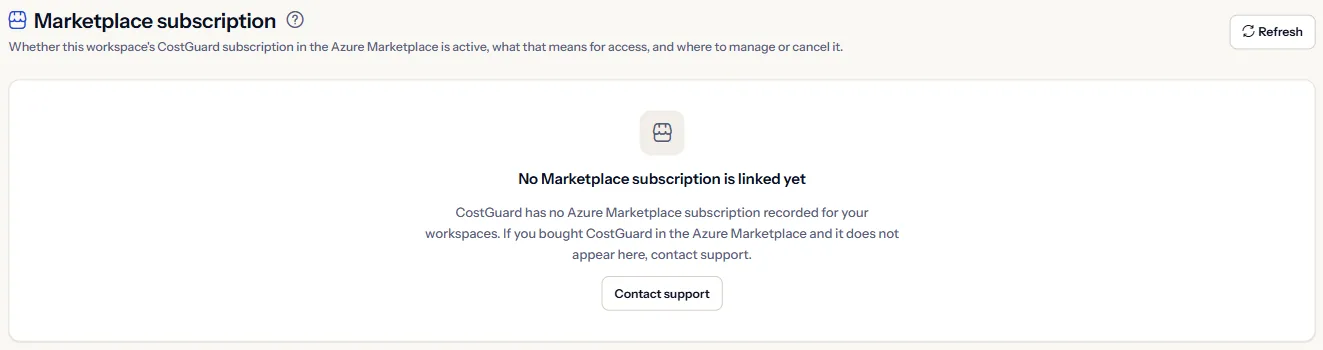
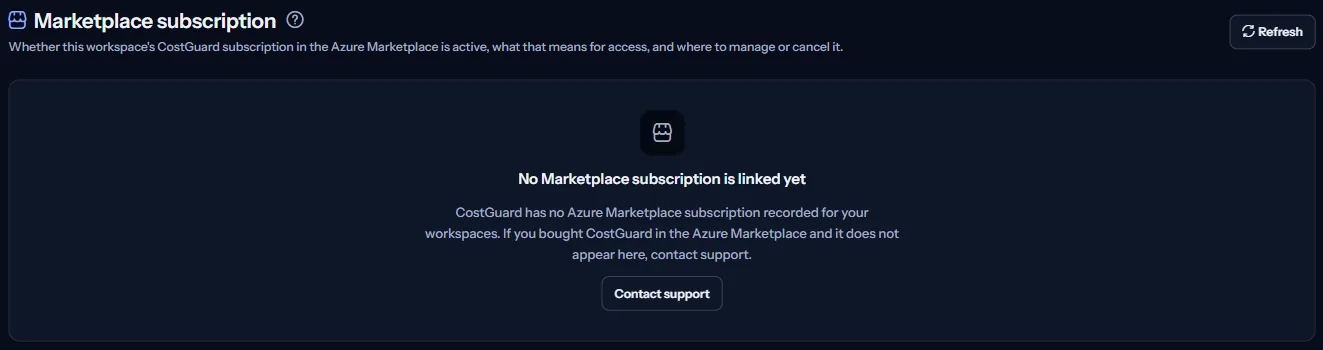
- “No Marketplace subscription is linked yet”: CostGuard has no Azure Marketplace subscription for your workspaces. If you bought one and it does not appear, contact support.
- “Your subscription could not be read”: the subscriptions could not be read just now, which says nothing about their state. “Try again” reads them again.
What each plan includes
The table shows the first plan that includes each part of the page. Every plan above it includes it too.
| Feature | Free | Starter | Growth | Pro | Enterprise |
|---|---|---|---|---|---|
| The Marketplace subscription page | Included | Included | Included | Included | Included |
Every plan includes this page. The plan a subscription buys is chosen in the Azure Marketplace, and the application never shows a price.
Troubleshooting
I bought CostGuard, but no subscription is linked
Microsoft may still be setting it up, which usually takes a few minutes; select “Refresh” a little later. If it still does not appear, use “Contact support” so support can link it.
The subscription is suspended
A suspension usually comes from a billing problem in the Azure Marketplace. Check the billing details there; paid features return once Microsoft reports the subscription active again.
I cancelled, but the page still shows the subscription
The page shows what Microsoft has confirmed. Until Microsoft tells CostGuard about the cancellation, the workspace keeps its access; “Last checked with Microsoft” shows when the state was last confirmed.
The page is not in the sidebar
The sidebar lists it in “Advanced” mode only. Choose “Advanced” at the top of the sidebar; the page's address opens in either mode.