
Azure credits: see when your credit runs out
When does an Azure Sponsorship credit run out? You can check its balance yourself in the Azure Sponsorships portal, or let the Azure credits page estimate, for each grant you track, what is used, what is left and the day it runs out at the current rate, before or after its end date. The page also keeps your other credit accounts and reads Microsoft Customer Agreement credit from Azure billing.
When your Azure credit runs out
An Azure Sponsorship credit, for example one granted through a start-up programme, lasts until its usage has used the whole grant or until its end date, whichever comes first. Azure does not publish the remaining Sponsorship balance to apps, so there are two ways to know when yours runs out: check the balance yourself in the Azure Sponsorships portal, or let CostGuard estimate it from your usage.
On the “Azure credits” page, CostGuard prices the usage Azure reports for your connected Sponsored subscriptions at the Azure Sponsorship offer's own rates. For each grant you track, it shows what is estimated used and left, and the day the credit runs out at the current rate, with whether that day comes before or after the grant's end date. It is an estimate, never a balance read from Azure.
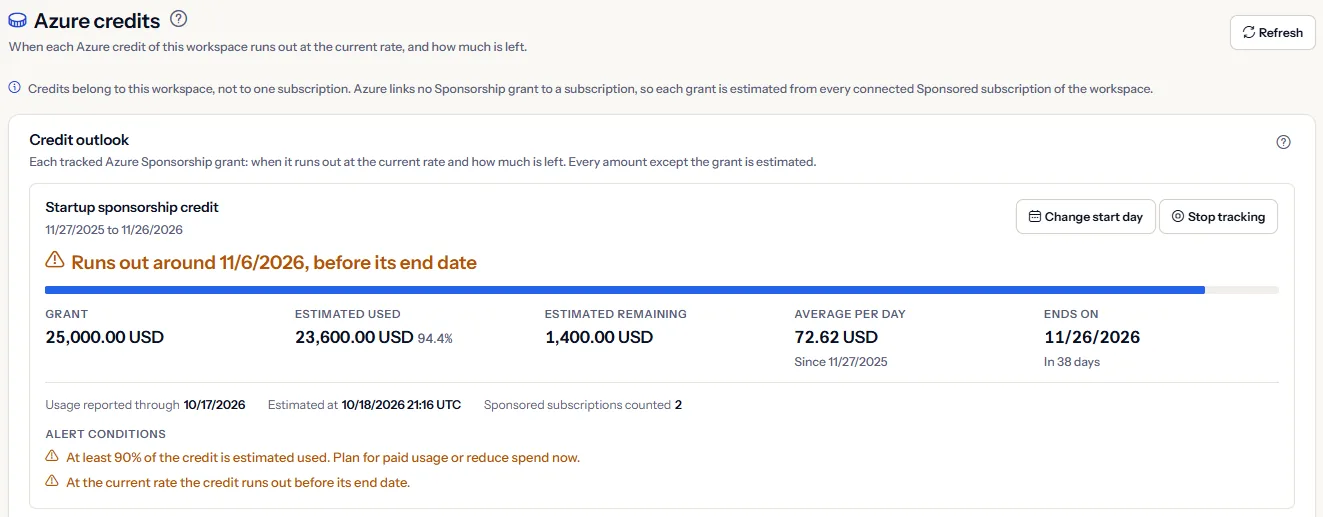
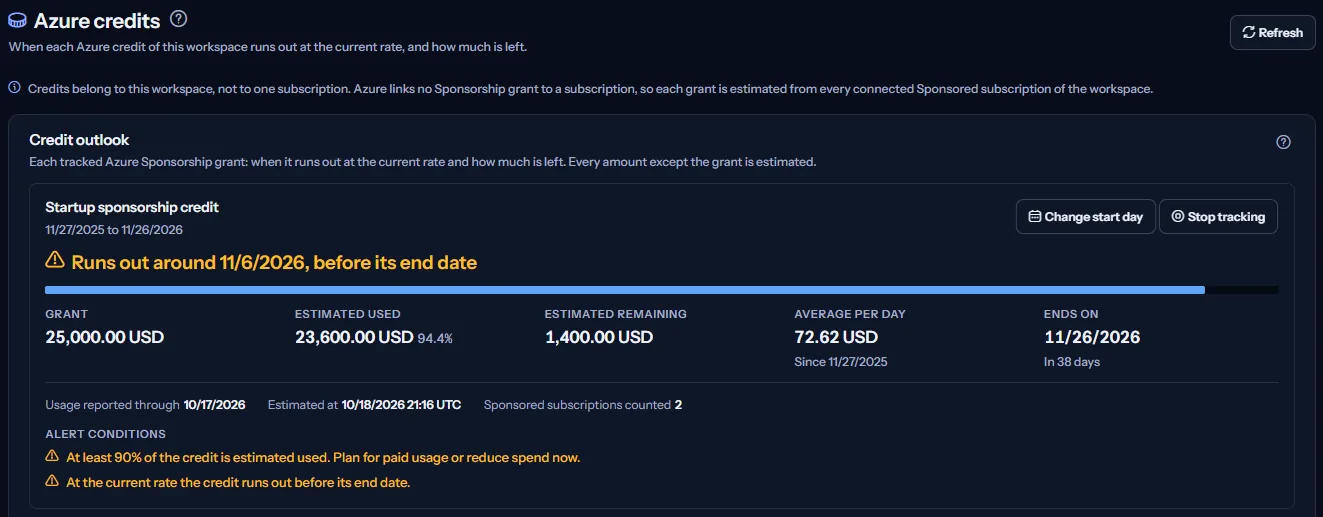
The page is for the founder, the engineering lead or the finance person of a company that runs on Azure credit. It leads to decisions such as planning for paid usage before the run-out day, reducing spend now, using credit that would otherwise be left unused at the end date, or applying for further credit. Nothing on this page changes anything in Azure.
An estimate takes three steps:
- Under “Credit accounts”, open “Record a credit account” and record the grant: its total as the starting amount, in USD, and its end date, if it has one.
- Choose “Track usage” on the grant's row and enter the first day of the sponsorship.
- Read the grant under “Credit outlook” once it has been estimated: after you choose “Check Azure billing”, or after the next background refresh.
To open the page, choose “Advanced” in the sidebar, then select “Azure credits” under “Billing & Credits”.
Check the balance in the Azure Sponsorships portal
The Azure Sponsorships portal shows the balance and the usage of an Azure Sponsorship. Sign in there with the account that holds the sponsorship to see them.
Open the Azure Sponsorships portal
The portal shows the balance only to a signed-in person. It offers no access that an app can be given, so CostGuard never reads that balance and never uses your portal sign-in.
The portal can show a little more used than CostGuard's estimate: Azure reports usage to apps about a day and a half behind.
Before you start
To estimate a grant, CostGuard needs an active Azure connection to each Sponsored subscription the grant pays for, with the Reader role given to the CostGuard app on that subscription. Every connected Sponsored subscription of the workspace counts towards every grant, because Azure names no link between a grant and its subscriptions.
Read the Getting started guide
Record the grant in USD: usage is priced in USD only, so a grant in another currency is kept but not estimated.
Azure credit tracking is part of the Growth, Pro and Enterprise plans. On Free and Starter the page shows a labelled sample instead of your credits. The sidebar lists the page in “Advanced” mode.
Note
Azure credit does not pay for CostGuard; CostGuard is billed separately.
Read the credit outlook
“Credit outlook” shows one card for each tracked grant: grants in effect first, the one that ends first on top, then grants that start later, then grants that have ended. Each card opens with a headline:
- “Runs out around …, before its end date”: at the current rate the credit runs out before the grant ends. The headline is in the risk colour.
- “Runs out around …”: the day the credit runs out at the current rate, for a grant with no end date recorded.
- “Lasts past its end date”: at the current rate the credit is not used up before the end date. The line under it says about how much would be left unused on that day, in the risk colour when some would be.
- “Estimated fully used”: the estimate has reached the whole grant. Further usage may be billed, so check the Azure Sponsorships portal.
- “Ended on …”: the end date has passed. The line under it says about how much was left unused.
- “Not estimated yet”: the grant has no estimate yet. It is estimated at the next check or background refresh.
- “No run-out day at the current rate”: for a grant with no end date recorded, the usage counted so far gives no run-out day.
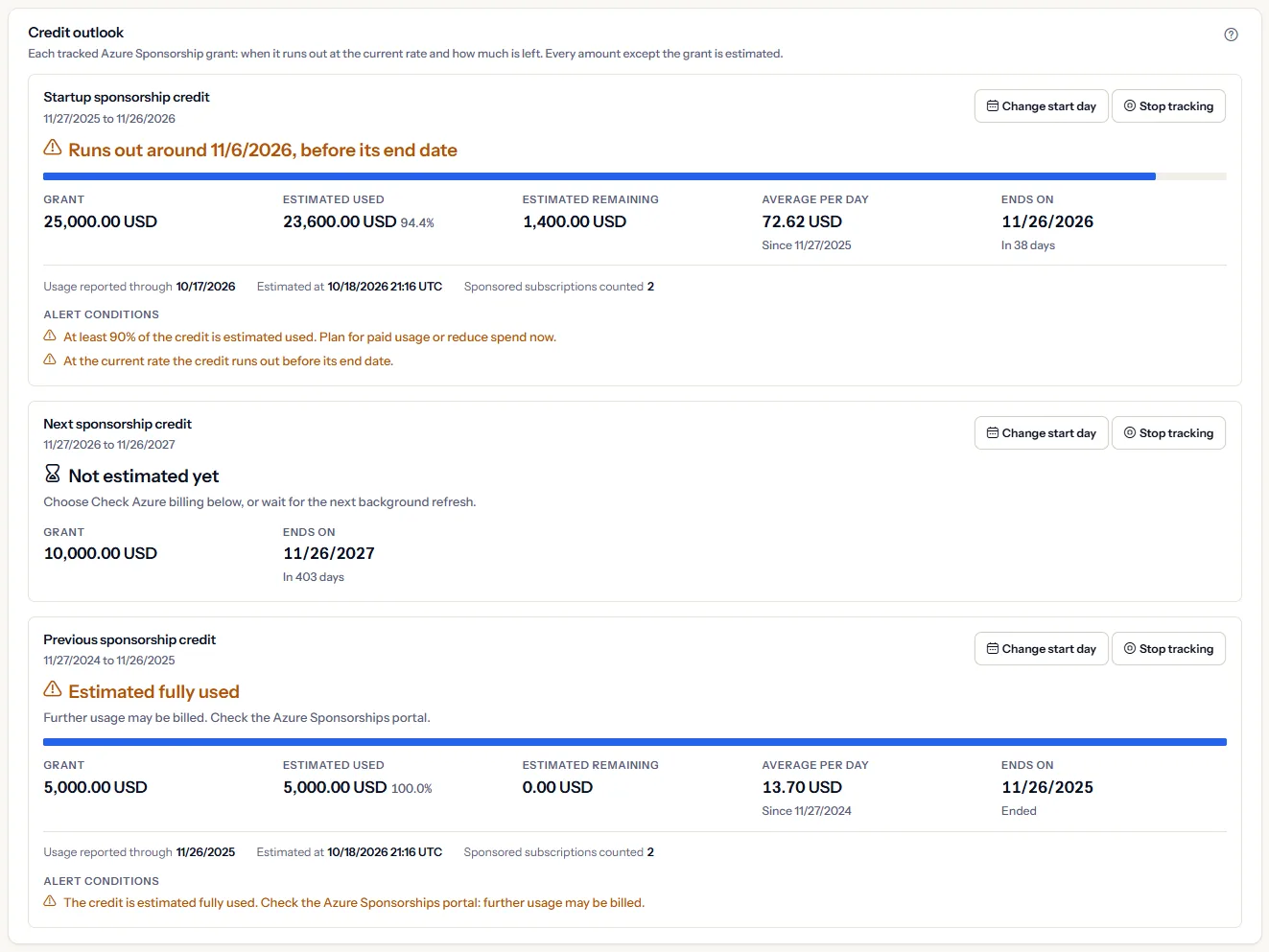
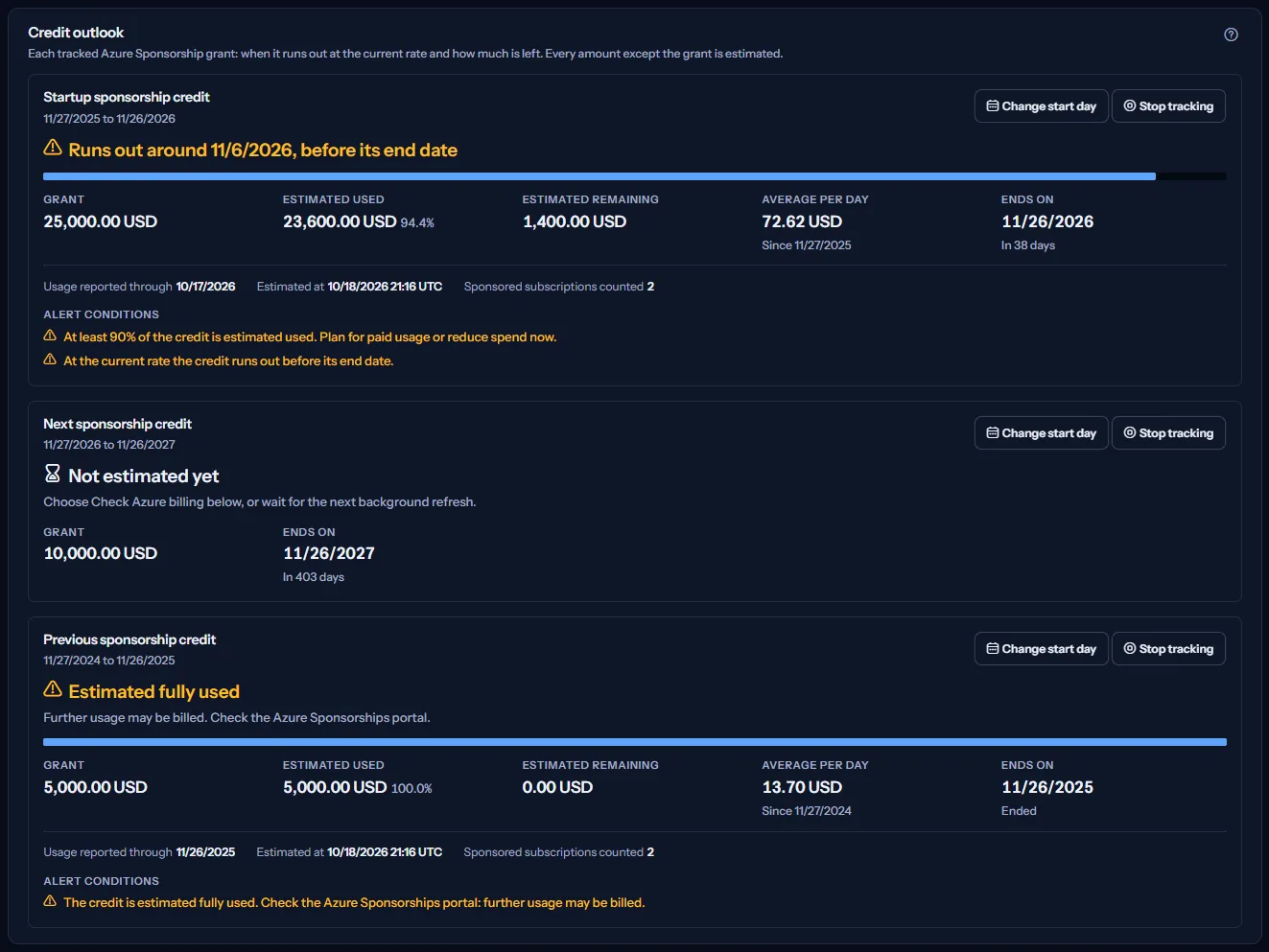
Under the headline, a bar shows the share estimated used, and the figures are:
- “Grant”: the starting amount you recorded for the grant.
- “Estimated used”: the usage of your connected Sponsored subscriptions from the grant's first day, priced at the Azure Sponsorship offer's own rates, with its share of the grant.
- “Estimated remaining”: the grant minus the estimated used amount.
- “Average per day”: the estimated used amount divided by the days from the first day through the last day with reported usage. It is an average since the start, not a recent rate.
- “Ends on”: the grant's end date and how many days are left until it.
The run-out day is the last day with reported usage plus the days the remaining amount lasts at the average per day. The credit left unused at the end date is the remaining amount minus the average per day for each day from the last day with reported usage to the end date.
The line under the figures says what the estimate rests on: “Usage reported through”, the last day Azure had reported usage for; “Estimated at”, when the estimate was made, in UTC; and “Sponsored subscriptions counted”, how many connected Sponsored subscriptions were counted.
Limits to know
Every figure except the grant is an estimate, in USD. A grant is estimated from every connected Sponsored subscription of the workspace, and usage the offer has no price for is not counted, so the estimate can be lower than what is used.
Alert conditions and notifications
“Alert conditions” on a card lists the conditions that hold for the grant. Those that need attention are in the risk colour:
- At least half, at least three quarters, or at least 90% of the grant is estimated used. Only the highest of these is listed.
- The credit is estimated fully used.
- At the current rate the credit runs out before its end date.
- The grant ends within 30 days with credit still unused.
When a grant first meets a condition, CostGuard tells the workspace's active owners and admins once for that condition: a notification in the app, written in English, which names the grant and the figure, and an email in the workspace's language, which names neither. The email waits for the end of the workspace's quiet hours.
A condition is sent again only after it stops holding and then holds again, or after the start day changes. Stopping tracking stops the alerts of the grant.
Change the start day or stop tracking
Each tracked grant has two actions:
- “Change start day” opens “First day of the sponsorship”, filled with the day the grant is tracked from. “Save start day” stores the new day and discards the current estimate and the record of alerts already sent, so they can be sent again; the next check or background refresh estimates the grant again from the new day.
- “Stop tracking” asks first. “Stop tracking” removes the estimate and stops the alerts of the grant; the credit account stays in the register. “Keep tracking” closes the question.
One tracking change runs at a time. When the server refuses a change, the reason appears under the form and nothing is stored.
The credit accounts register
“Credit accounts” lists every credit the workspace recorded, one row each, with these columns:
- “Account”: the name you gave it.
- “Starting amount”: the total of the credit, in its own currency.
- “Latest balance”: the latest balance, the moment it was true in UTC, and how it became known: “Entered manually”, “Imported from a file” or “Read from Azure billing”. A balance nobody recorded reads “Not recorded”.
- “Ends on”: the end date and the days until it.
- “Usage tracking”: “Tracked” for a tracked grant, “Track usage” for an account that can be tracked, or why it cannot be: no starting amount yet, or a balance read from Azure billing.
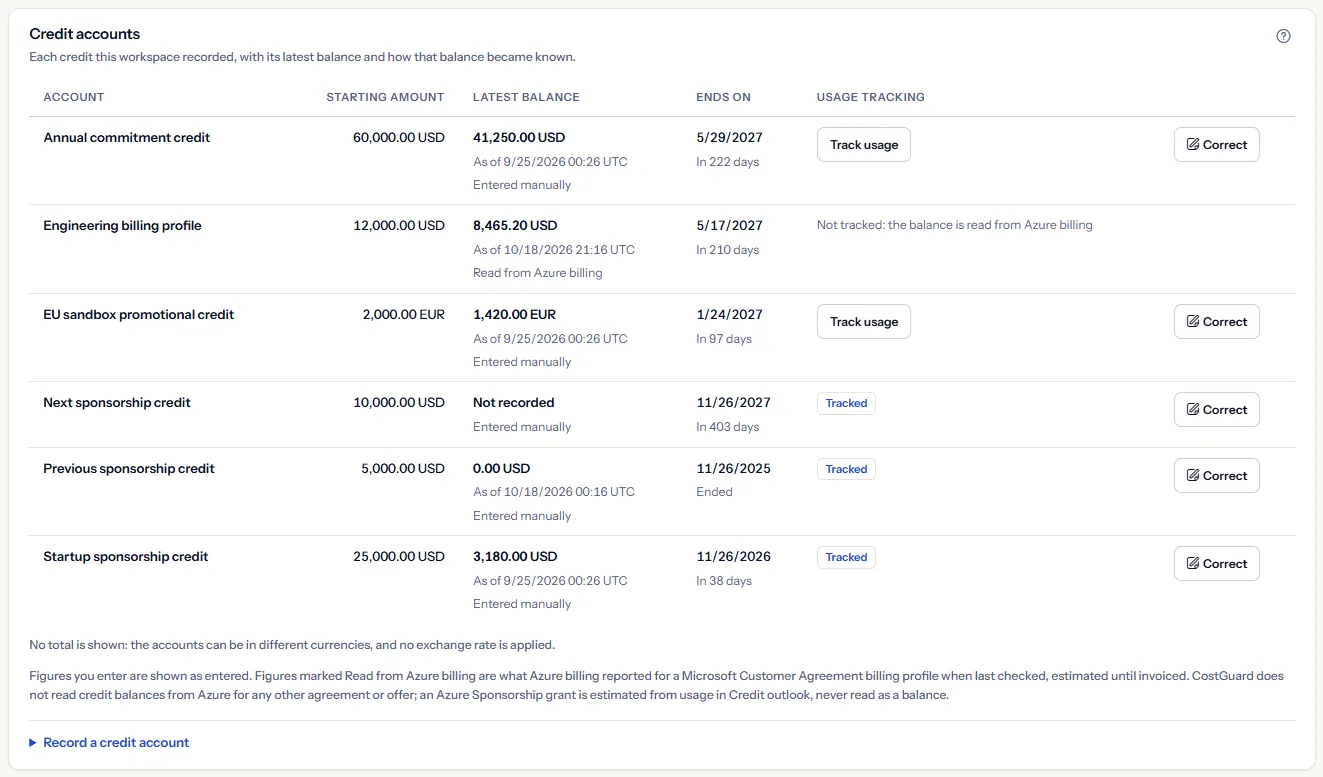
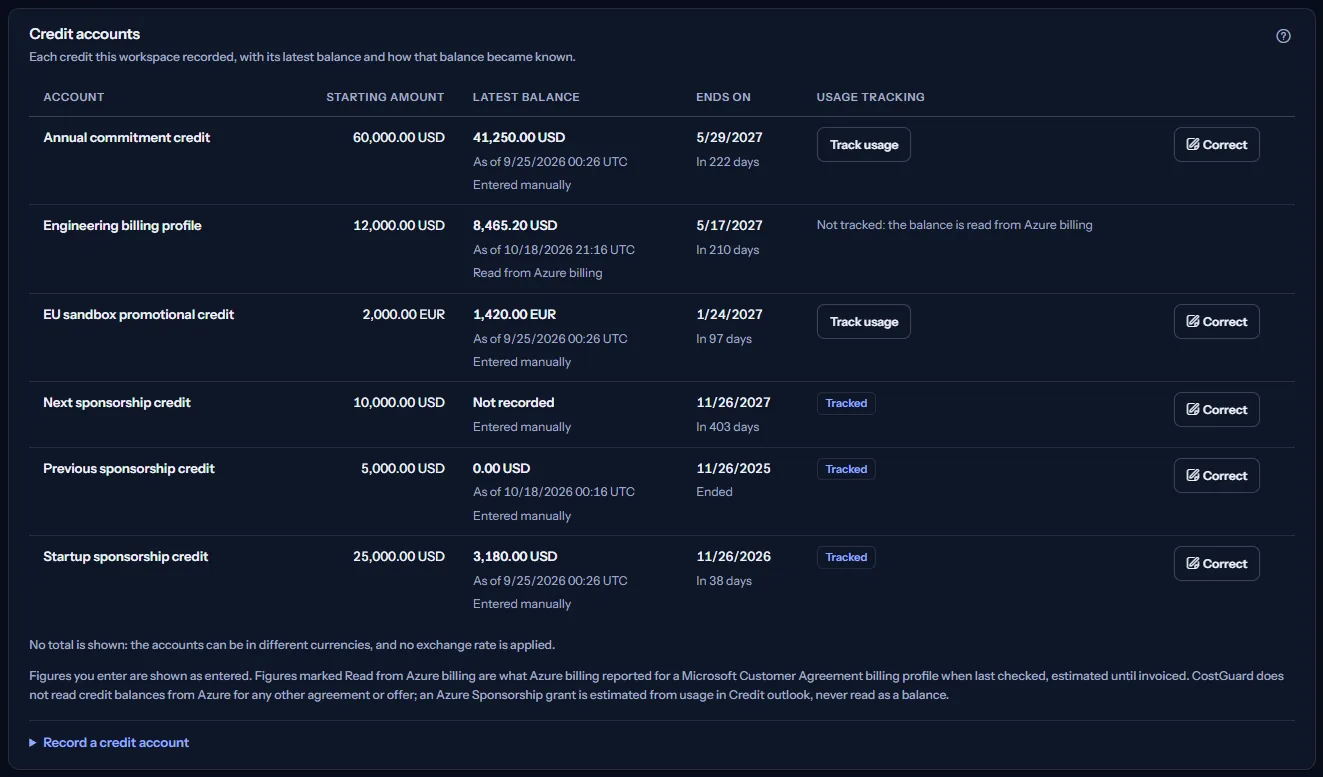
No total is shown: the accounts can be in different currencies, and no exchange rate is applied. The balance of a tracked grant in this register is the one you entered; its estimate is in “Credit outlook” and never overwrites it.
“Correct” opens the account's values under its row. “Save correction” replaces the stored values; a balance you leave as it was keeps the moment it was true. An account read from Azure billing has no “Correct”: the next check rewrites it. An account cannot be deleted from this page.
Track the usage of a Sponsorship grant
Tracking tells CostGuard that an account is an Azure Sponsorship grant whose usage it should estimate.
- Choose “Track usage” on the grant's row. An account without a starting amount shows “Record its starting amount to track usage.” instead.
- Enter “First day of the sponsorship”.
- Choose “Start tracking”. The grant appears under “Credit outlook” as “Not estimated yet” until the next check or background refresh estimates it.
Tracking is refused, with the reason under the row, when:
- the account has no starting amount;
- the first day is after the account's end date;
- the grant's period overlaps another tracked grant, because the same usage would then be counted twice. Grants that follow one another, such as a renewal, can each be tracked.
Note
An account read from Azure billing is not tracked: its balance comes from Azure billing, not from an estimate of usage.
Record a credit account
“Record a credit account” opens a form under the register. It is already open when the workspace has no account yet. Its fields:
- “Account name”: a name you will recognise, such as the name of the grant.
- “Currency”: the currency code, such as USD. A Sponsorship grant must be in USD to be estimated.
- “Starting amount”: the total of the credit. A Sponsorship grant needs it to be tracked.
- “Latest known balance”: the balance you know, if any.
- “Ends on”: the end date of the credit.
- “Notes”: anything else you want to keep with it.
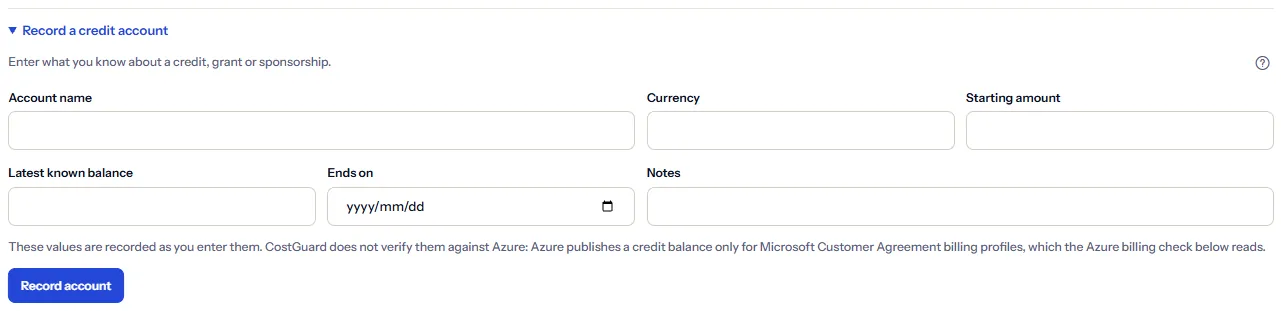
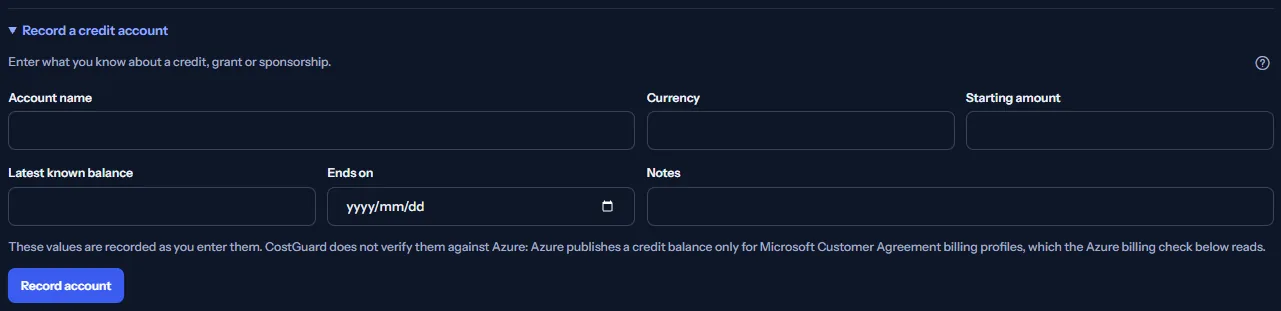
“Record account” records the values as you entered them. When the server refuses a value, its reasons appear above the form and nothing is stored.
When CostGuard cannot confirm whether the account was recorded, the page says so. Refresh the page before you record it again, so it is not recorded twice.
Check Azure billing for Microsoft Customer Agreement credit
Azure publishes a credit balance only for Microsoft Customer Agreement billing profiles. “Check Azure billing” reads that credit for every active connected subscription of the workspace, up to 50, and estimates every tracked grant again.
To let CostGuard read it, give the CostGuard app the Billing profile reader role on the billing profile: in the Azure portal, open Cost Management + Billing, then Billing profiles, choose the billing profile, open Access control (IAM) and add the role.


The result lists each connection with one of these results:
- “Credit read”: Azure billing reported credit on the billing profile. It is saved as an account marked “Read from Azure billing”, with the balance Azure reported, the total of its active credit lots as the starting amount, and the earliest end date of those lots.
- “No credit”: Azure billing reports no credit on the billing profile.
- “Billing access needed”: the subscription is on a Microsoft Customer Agreement, but the CostGuard app does not have the Billing profile reader role yet.
- “Not published by Azure”: the subscription is on an offer that publishes no balance, such as Azure Sponsorship. The row links to the Azure Sponsorships portal; record and track the grant instead.
- “No credit balance API”: the subscription's billing agreement publishes no credit balance. Record its credit yourself.
- “Subscription not readable”: CostGuard cannot read the subscription. Give the CostGuard app the Reader role on it again.
- “Check failed”: Azure billing did not answer this time. Try again later.
The list of results is shown for this visit only and is not stored; the accounts and estimates the check wrote are. A grant the check could not estimate says why on its card, for example that no active Sponsored subscription is connected, that the grant is not in USD, or that it starts in the future.
How the estimate is made
“How the estimate is made” at the bottom of the page sums up how the figures are made:
- Azure publishes no Azure Sponsorship balance to an app. CostGuard reads the usage Azure reports for each connected Sponsored subscription, from the grant's first day through its end date or today, and prices it at the Azure Sponsorship offer's own rates.
- This needs only the Reader role on each Sponsored subscription, no billing role.
- The estimate is made in USD only.
- Azure reports usage about a day and a half behind, so the Azure Sponsorships portal can show slightly more used.
- Tracked grants are estimated again in the background at the interval your plan includes, and each time you choose “Check Azure billing”. “Refresh” reads what is stored again; it makes no new estimate.
- The average per day is taken over every day since the start day, so a recent rise in usage shows only gradually.
- Usage that the Azure Sponsorship offer has no price for is not counted, so the estimate can be lower than what is used.
Note
The estimate never overwrites a balance you entered, and a balance you enter never changes the estimate.
Go further
The links at the bottom of the page lead on:
- “Set a budget for paid usage”: a budget for the cost that is billed once the credit is used up.
- “Open Cost overview”: where the workspace's cost comes from.
- “Open the notification center”: the credit alerts sent in the app.
- “Review reservations and savings plans”: the reservations and savings plans recorded for the workspace.
What you may see instead of the panels
While the page reads, grey blocks stand where the panels will appear, and a screen reader announces “Reading the Azure credits of this workspace.” After that, the page may show one of these:
- “No workspace selected”: choose a workspace to see its credits.
- “The Azure credits could not be read”, with “Try again”: the credit accounts could not be read. Nothing has changed, and a failed read is never shown as a workspace without credits.
- A note in “Credit outlook” that the tracked grants could not be read: the credit accounts below were read, and “Refresh” tries again.
- “No grant is tracked yet”: the panel says how to record a grant and track it.
- “No credit account yet”: the workspace has no credit account yet, and the record form is open.
- A grant the last check could not estimate, with the reason on its card.
- A notice that your session has expired, with a link to sign in again.
When you switch workspace, the page clears what it showed, checks the plan of the new workspace and reads its credits.
Sample data when your plan has no credit tracking
When your plan does not include credit tracking, the page shows a fixed example under the label “Sample data”, with the sentence “Your current plan does not include this feature. The figures shown here are an example, not your data.”
The sample shows one Contoso sponsorship grant that runs out before its end date, three Contoso credit accounts (one read from Azure billing, one in EUR and the tracked grant) and the notes. It offers no action, no record form and no Azure billing check, and it is the same for everyone, never your data.
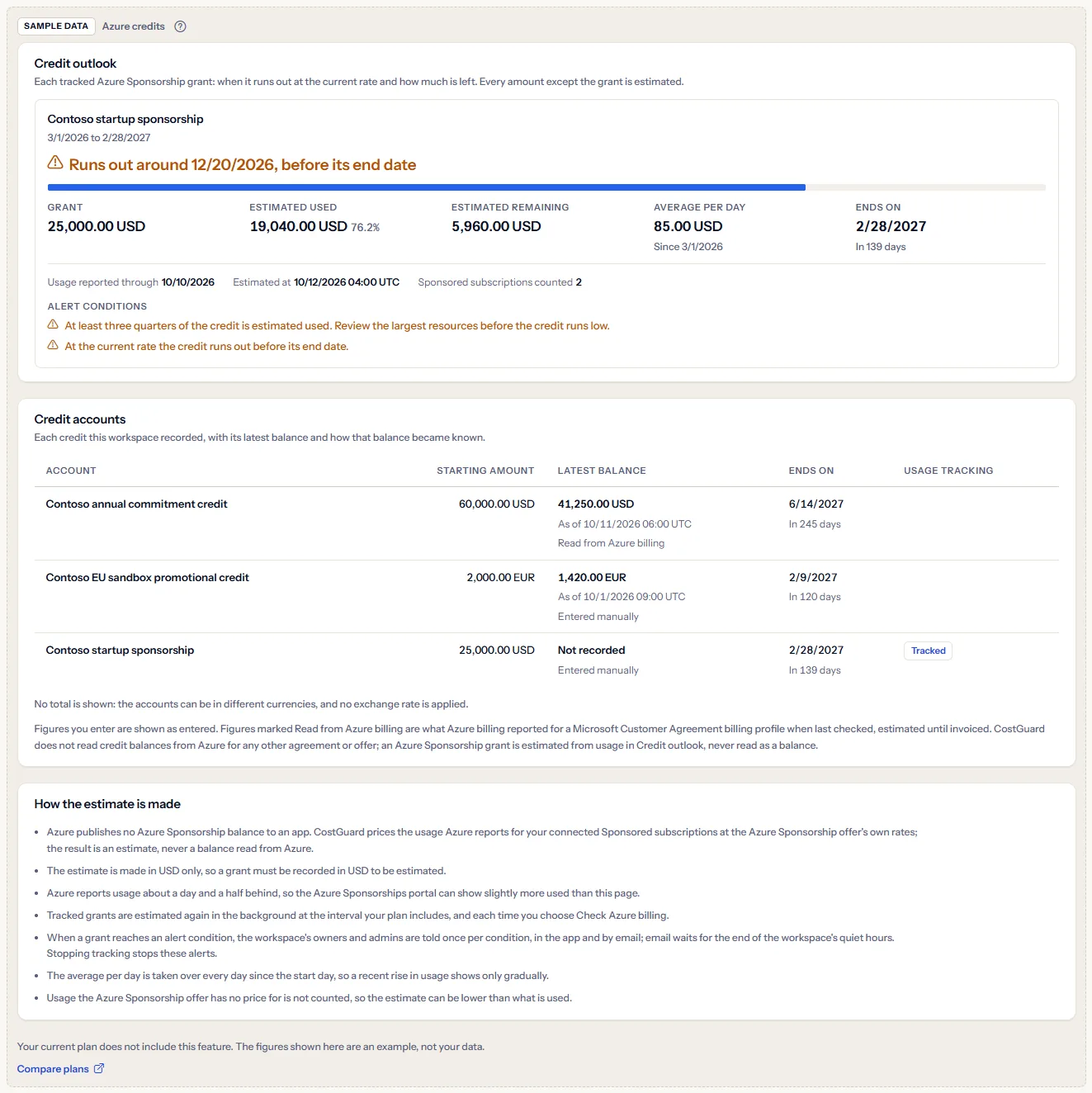
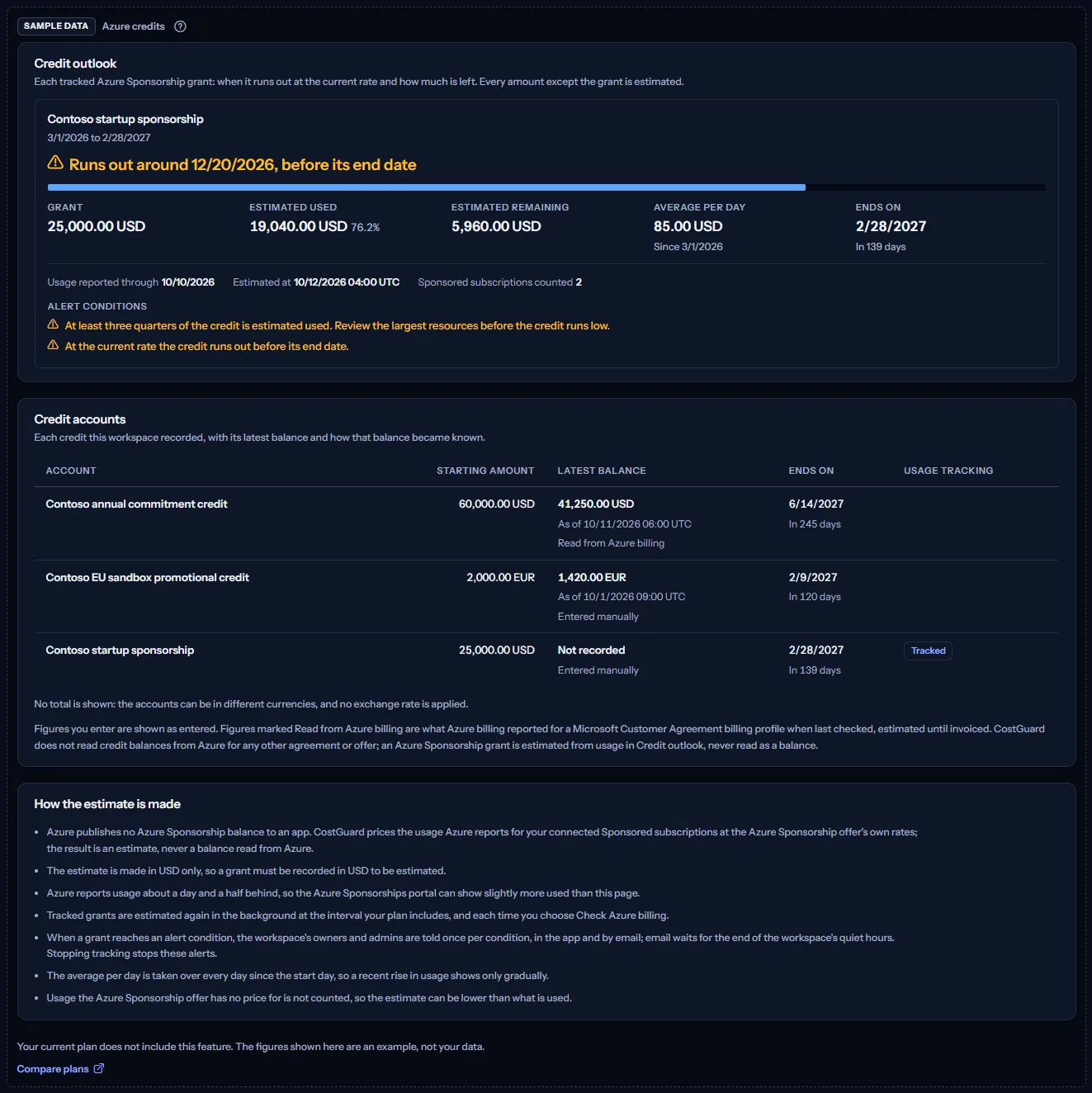
“Compare plans” opens the pricing page in a new tab. CostGuard decides what your plan includes on the server; the sample is only how the page shows it.
What each plan includes
The table shows the first plan that includes each part of the page. Every plan above it includes it too.
| Feature | Free | Starter | Growth | Pro | Enterprise |
|---|---|---|---|---|---|
| A labelled sample of the page | Included | Included | Included | Included | Included |
| Azure credits with your own accounts, tracked grants, estimates and alerts | Not included | Not included | Included | Included | Included |
Growth, Pro and Enterprise include Azure credit tracking with your own accounts and estimates; Free and Starter show the labelled sample. The plan is checked on the server, the background refresh estimates only workspaces whose plan includes credit tracking, and how often it runs depends on the plan. The page never shows a price.
Troubleshooting
The estimate is lower than the Azure Sponsorships portal
Azure reports usage to apps about a day and a half behind, and usage the Azure Sponsorship offer has no price for is not counted. Look at “Usage reported through” on the card: usage after that day is not in the estimate yet.
A grant is not estimated
Choose “Check Azure billing”: the card then says why. The usual causes are no active connected Sponsored subscription in the workspace, a subscription the CostGuard app has no Reader role on, a grant not recorded in USD, a sponsorship that starts in the future, or two tracked grants whose periods overlap.
The estimate looks too high
Every connected Sponsored subscription of the workspace counts towards a grant from its first day. Check “Sponsored subscriptions counted” on the card and the grant's first day, and correct the first day with “Change start day” if it is too early.
The run-out day moves from one day to the next
The run-out day follows the average per day since the start day, and the grant is estimated again at each background refresh and each check, so the day moves as usage is reported. A sharp recent rise moves it only gradually.
A credit is in another currency
Only a grant in USD can be estimated. An account in another currency stays in the register with the balance you enter, and its amounts are never added to amounts in USD.
The Azure billing check finds no credit
Only Microsoft Customer Agreement billing profiles publish a credit balance, and the CostGuard app needs the Billing profile reader role on the billing profile. Other agreements and offers, Azure Sponsorship included, publish none: record those credits yourself.
The page is not in the sidebar
The sidebar lists it in “Advanced” mode only. Choose “Advanced” at the top of the sidebar; the page's address opens in either mode.