
Workspace settings: the workspace name and other settings
How to rename the workspace, who may do it, and where every other setting that applies to the whole workspace is changed.
What this page is for
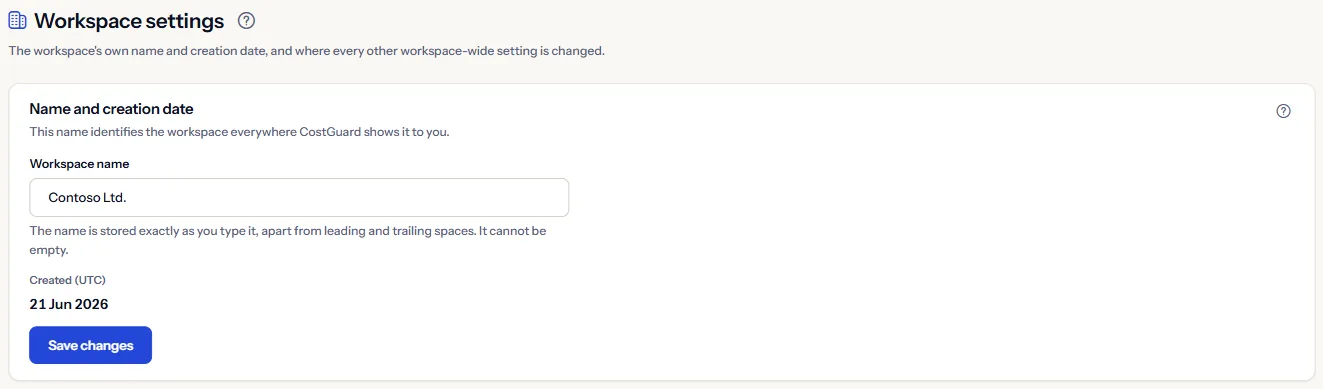
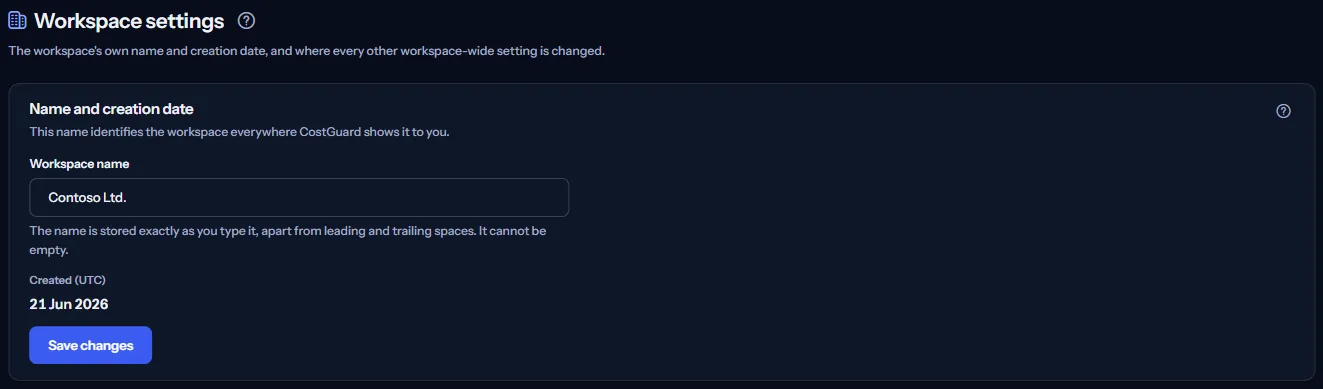
This page holds the workspace's own name and the day it was created, and lists the pages where every other setting of the workspace is changed. Owners and admins open it to rename the workspace; every other member can read it.
The page reads nothing from Azure and changes nothing in Azure.
Before you start
The page needs a workspace, which CostGuard creates when you first sign in, and every plan includes it. To rename the workspace, your role in it must be Owner or Admin.
The workspace name
Type the new name in “Workspace name” and choose “Save changes”. CostGuard checks the name again on its server:
- Spaces at the start and the end are removed; the rest is stored as you typed it.
- The name cannot be empty and is at most 200 characters long. Spaces alone count as empty.
- Only an owner or an admin may save. Anyone else sees the name without the button, with the note “Your role in this workspace does not allow changing these settings.”
The page sends the name it last read along with your change. If someone renamed the workspace in another tab or browser in the meantime, nothing is saved and the page says so. Choose “Reload” to see the stored name, then save again if it still needs changing.
The new name appears in the workspace menu at the top of the application. The panel also shows “Created (UTC)”: the day the workspace was created, as a date in UTC. It cannot be changed.
Where other settings are changed
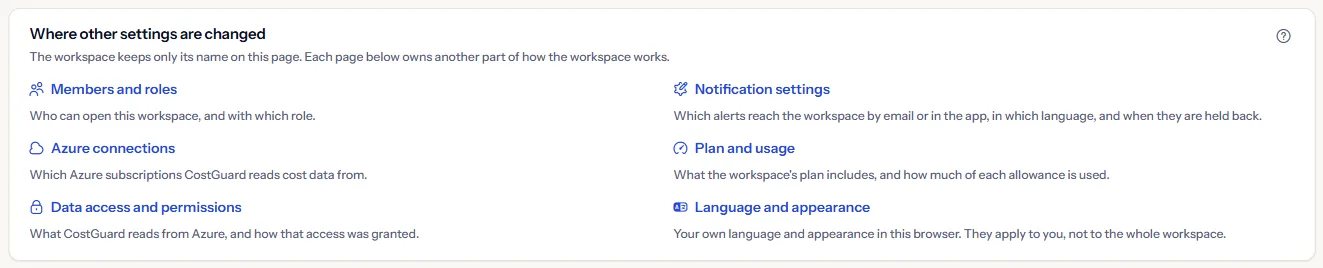
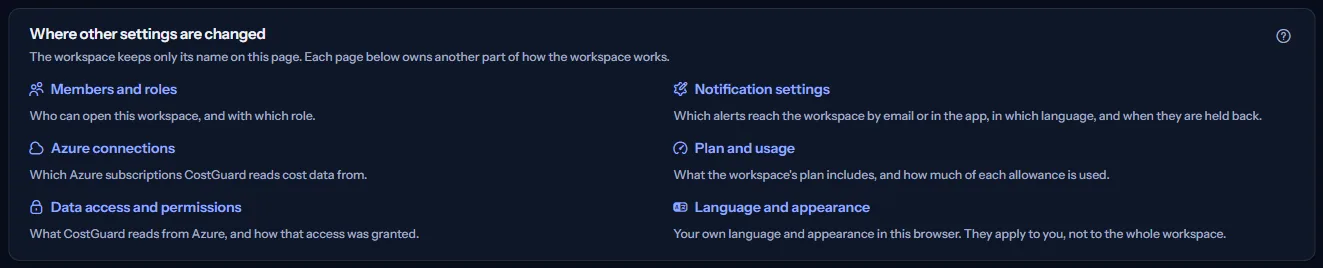
The workspace keeps only its name on this page. “Where other settings are changed” links to the page that owns each other part of how the workspace works:
- “Members and roles”: Who can open this workspace, and with which role.
- “Notification settings”: Which alerts reach the workspace by email or in the app, in which language, and when they are held back.
- “Azure connections”: Which Azure subscriptions CostGuard reads cost data from.
- “Plan and usage”: What the workspace's plan includes, and how much of each allowance is used.
- “Data access and permissions”: What CostGuard reads from Azure, and how that access was granted.
- “Language and appearance”: Your own language and appearance in this browser. They apply to you, not to the whole workspace.
Currency and time zone
CostGuard has no currency for the whole workspace. Every cost, budget and forecast amount keeps the currency its source reported, and no amount is converted between currencies.
Nor is there a time zone for the whole workspace. The one time zone you can choose belongs to the weekly report and is set on “Report schedule”. The application pages show dates in UTC.
What you may see instead of figures
While the page reads, grey bars stand where the panels will appear. After that, the page may show one of these instead:
- “Workspace settings are unavailable”: the settings could not be read. Choose “Try again”; the page never shows another workspace's values instead.
- After you save, a line under the button says whether the name was saved, refused because of your role, not accepted, or could not be saved. A refused or failed save changes nothing.
- When the name was changed elsewhere after the page read it, nothing is saved and “Reload” shows the stored name.
- When your session has ended, CostGuard first signs you in again on its own. If that is not enough, the page asks you to sign in again instead of showing the settings.
What each plan includes
The table shows the first plan that includes each part of the page. Every plan above it includes it too.
| Feature | Free | Starter | Growth | Pro | Enterprise |
|---|---|---|---|---|---|
| The Workspace settings page | Included | Included | Included | Included | Included |
Every plan includes this page, and renaming the workspace does not depend on the plan.
Troubleshooting
The button that saves the name is missing
Your role in the workspace is neither Owner nor Admin. An owner can change your role on “Members and roles”.
Nothing was saved and the page asks you to reload
Someone renamed the workspace after you opened the page. Choose “Reload”, check the stored name, and save again if it still needs changing.
The name was not accepted
The name is empty, holds only spaces, or is longer than 200 characters. Shorten it or type a name, then save again.
Another tab still shows the old name
An open page keeps the name it read. Reload that tab to see the new name.