
Language and appearance: your choices in this browser
How to choose the language and the light or dark appearance of CostGuard, and where those choices are kept.
What this page is for
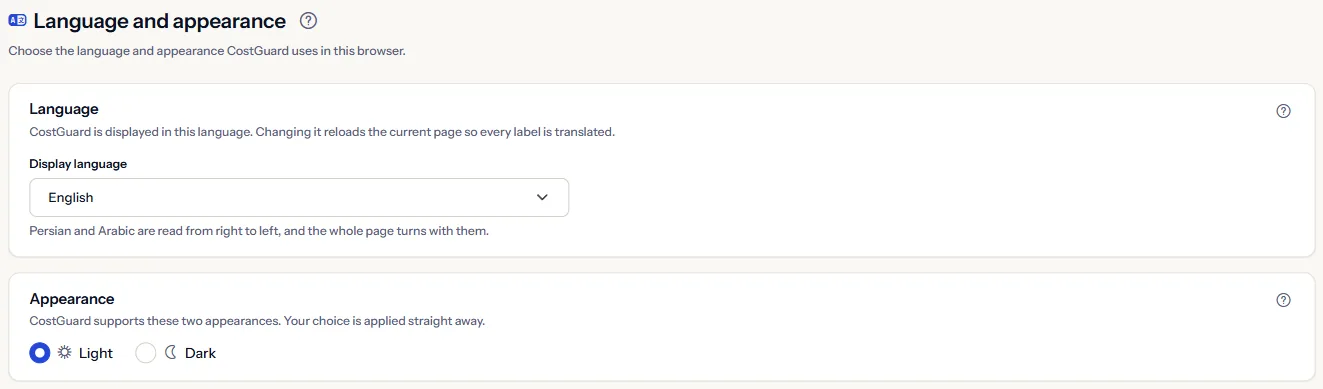
This page sets the language CostGuard is displayed in and its light or dark appearance, for you, in this browser. Anyone signed in can open it, and it changes nothing for the rest of the workspace.
The language menu and the light and dark switch at the top of every page change the same two choices, so a change made in either place shows in both.
Before you start
You only need to be signed in. Every plan includes the page, and it reads nothing from your workspace.
Language
Pick a language in “Display language”. CostGuard offers English, French, German, Persian, Arabic and Chinese.
Choosing a language reloads the page you are on, so every label is shown in it. Persian and Arabic are read from right to left, and the whole page turns with them.
Dates are written with the Gregorian calendar in every language, Persian included, and amounts keep their own currency code.
Appearance
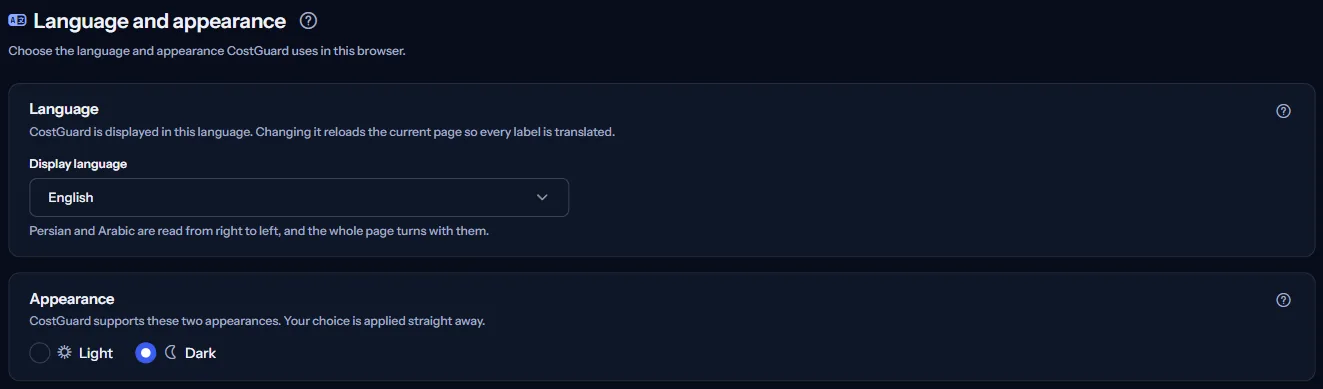
Choose “Light” or “Dark”. Your choice applies at once, without a reload.
These are the only two appearances. There is no choice that follows your device's own setting; CostGuard keeps the one you pick.
What is in use
“In use in this browser” shows “Language in use” and “Appearance in use”: what this browser applies right now. It follows a change made with the switch at the top of the page too.
Where your choices are kept
The page states it in “Where your choices are kept”:
- These preferences are stored in this browser, not on your CostGuard account. Another browser or device keeps its own language and appearance.
- Your language is also kept in a cookie in this browser, so CostGuard opens every page in that language straight away.
- The public website and its help articles take their language from the address, so a shared link opens in the language it names.
- Alert emails and the weekly report have languages of their own, set for the whole workspace. Changing the language here does not change them.


Go further
The links at the bottom of the page lead on:
- “Notification settings”: Choose how alerts reach the workspace and the language of alert emails.
- “Report schedule”: Choose when the weekly report is sent, to whom and in which language.
- “Workspace settings”: Rename the workspace and find every setting that applies to the whole workspace.
- “Help center”: Find the help article for each page of CostGuard.
What you may see instead
“Preferences could not be read”: this browser does not let CostGuard read its storage, for example in some private windows. The page then shows no choice as current and offers no control, because a change would be saved nowhere. Nothing has been changed.
What each plan includes
The table shows the first plan that includes each part of the page. Every plan above it includes it too.
| Feature | Free | Starter | Growth | Pro | Enterprise |
|---|---|---|---|---|---|
| The Language and appearance page | Included | Included | Included | Included | Included |
Every plan includes this page and every language and appearance.
Troubleshooting
The language or appearance changes back
Your choices are kept in this browser. Another browser, another device, a private window or cleared site data starts with its own choices. Choose them again there.
A shared help link opens in another language
Public pages and help articles take their language from the address, so a link opens in the language it names. Use the language menu of the public page to read it in another.
Alert emails arrive in another language
Emails and the weekly report use languages set for the whole workspace. Change them on “Notification settings” and “Report schedule”.
The page shows no current choice
This browser blocks the storage CostGuard keeps your choices in. Allow site data for CostGuard, or use a normal window, then open the page again.