
Report schedule: when, in which language, for whom
The Report schedule page decides when the workspace's weekly cost report is prepared, in which language and who receives it by email. It shows what is saved now, when the next report is due in your time zone and in UTC, and how each report's week is chosen.
What this page is for
“Report schedule” answers one question: when is the workspace's weekly cost report prepared, in which language, and who receives it? It holds the one schedule of the report that covers the whole workspace.
It is opened by the person who decides who hears about cloud cost each week: a finance lead, an engineering lead or a founder. The decision is the day and time, the language, and the list of people who receive the report.


Before you start
A report has figures once cost is imported from a connected Azure subscription. Each recipient needs only an email address: a recipient does not need a CostGuard account, and adding one invites no one.
Read the Getting started guide
Weekly reports are part of the Growth, Pro and Enterprise plans. The page sits under “Reports” in the sidebar, which lists it in “Advanced” mode.
The schedule at a glance
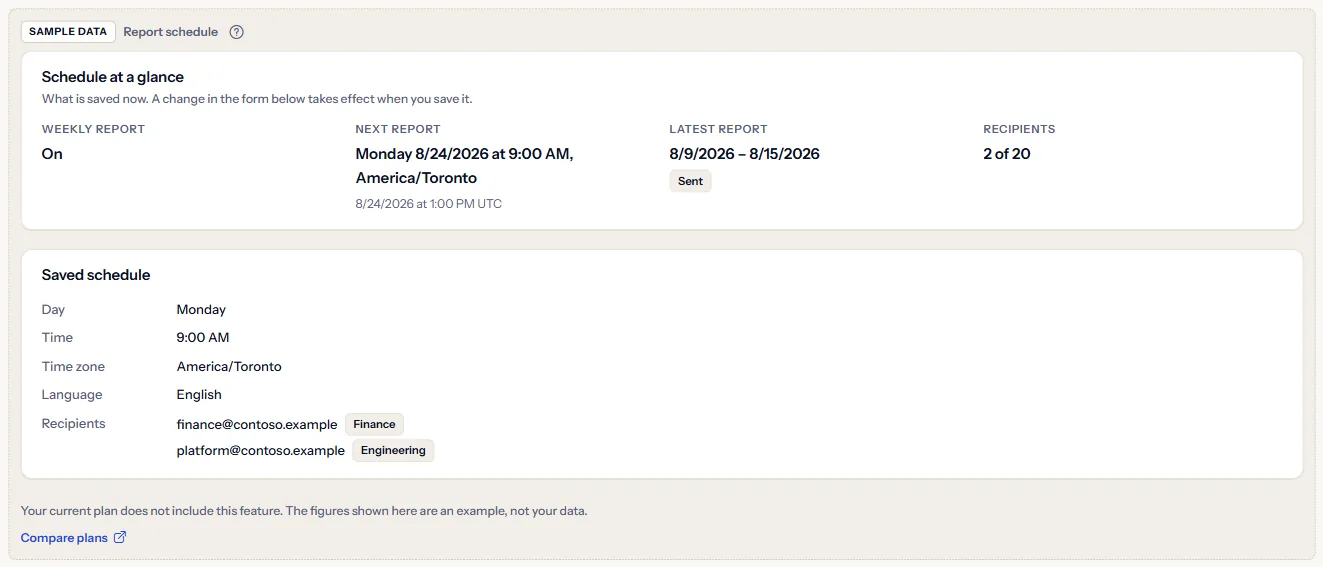
“Schedule at a glance” shows what is saved now. A change in the form below takes effect only when you save it.
- “Weekly report”: “On”, “Off”, or “Off, not saved yet” when no schedule has been saved yet.
- “Next report”: the day and time of the next report in the schedule's time zone, and the same moment in UTC; “None while the report is off” when the report is off.
- “Latest report”: the week and status of the most recent report, with “Read the reports” to open it on “Weekly reports”.
- “Recipients”: how many recipients are saved, out of the twenty a schedule can hold.


Before a schedule is saved, the form shows starting values and the report stays off until you turn it on and save. “Next report” reads “Cannot be worked out for this time zone” in the rare case the time zone cannot be resolved.
Change the schedule
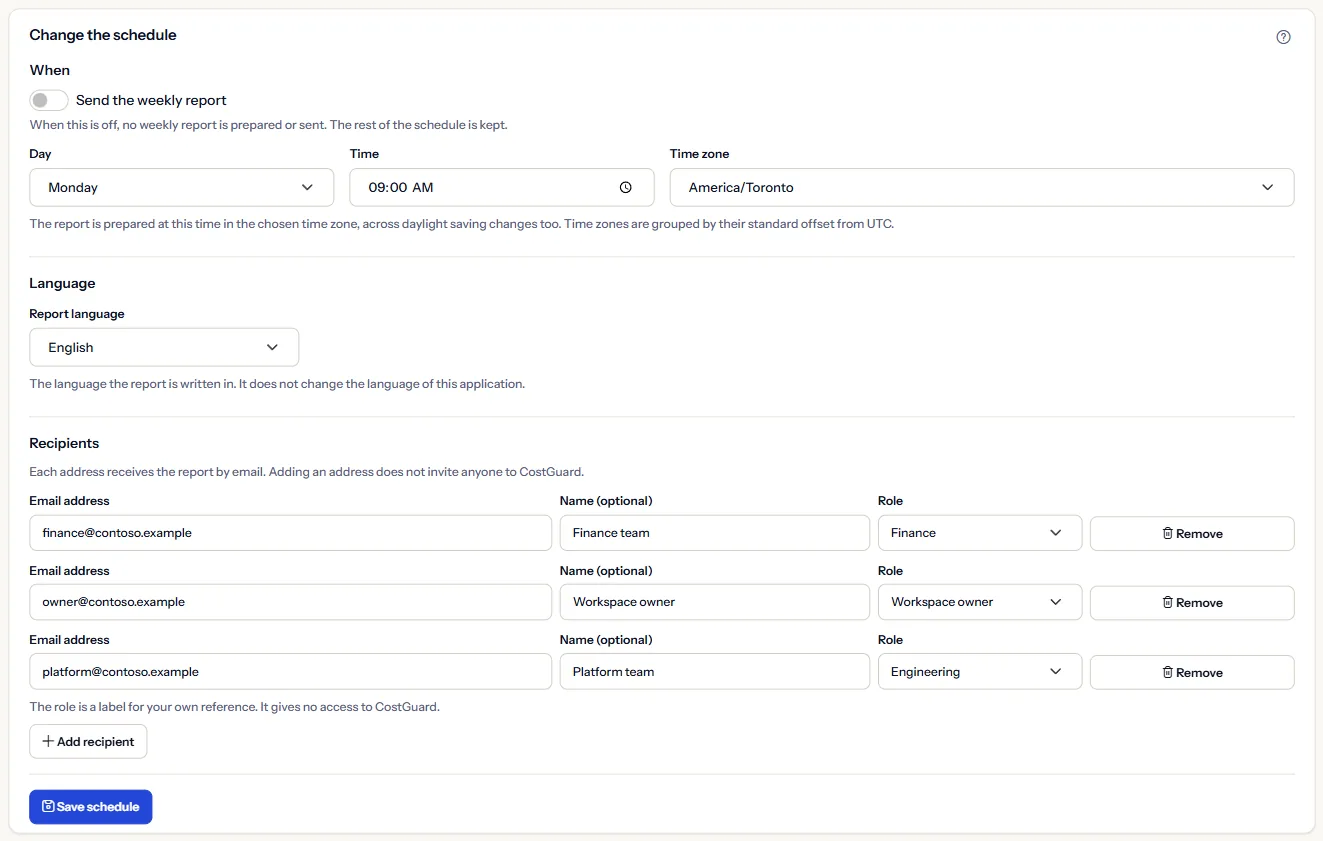
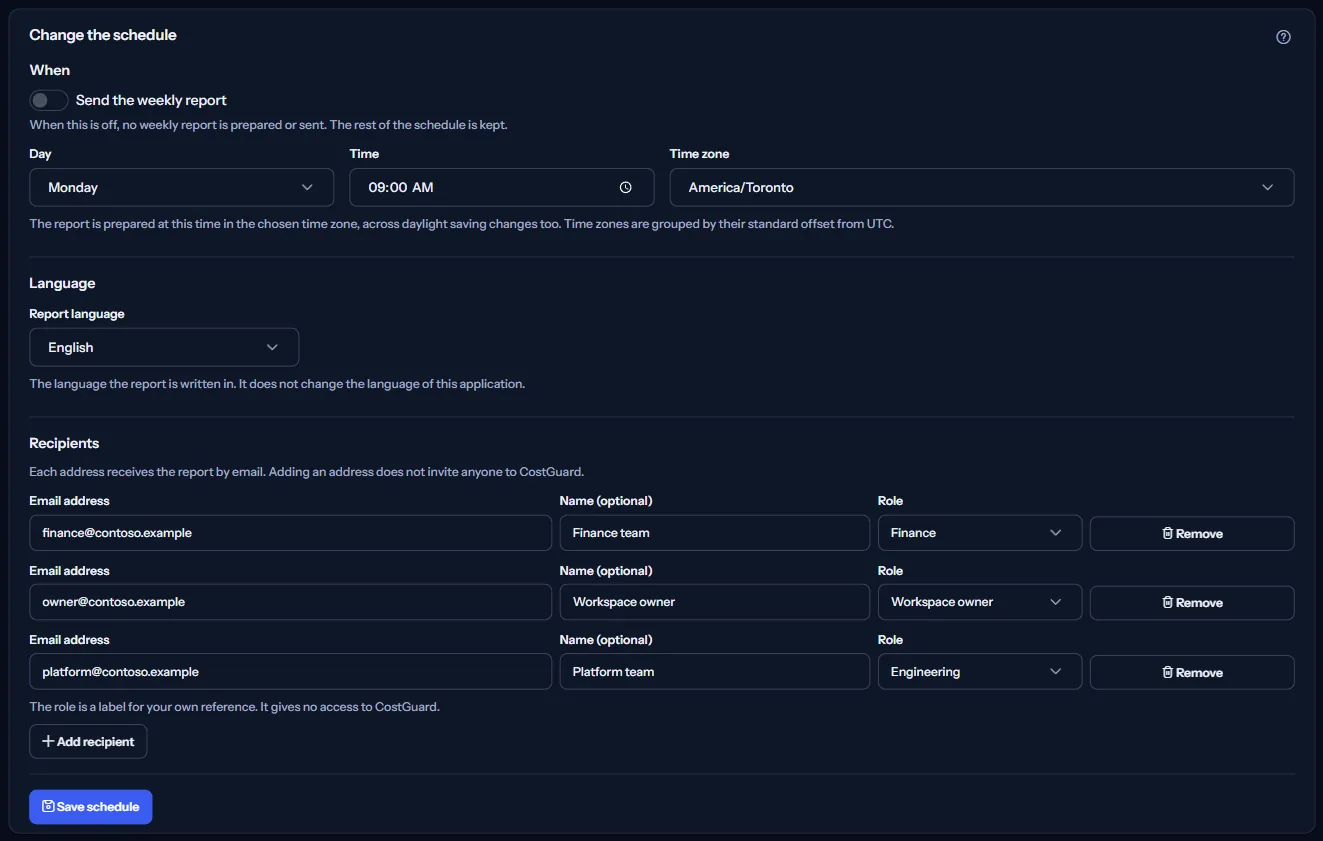
“Change the schedule” holds every value of the schedule. Saving changes the coming reports only: it sends nothing now. To see a report before it goes out, open “Report preview”.
When
“Send the weekly report” turns the report on or off. When it is off, no report is prepared or sent, and the rest of the schedule is kept.
“Day”, “Time” and “Time zone” set when the report is prepared. The time follows the chosen time zone across daylight saving changes too. The time zones are grouped by their standard offset from UTC.
Language
“Report language” is the language the report is written in: “English”, “French”, “Persian” or “Arabic”. It does not change the language of this application, and a report already prepared keeps its language.
Recipients
Each recipient receives the report by email. “Add recipient” adds a row with “Email address” and “Name (optional)”; “Remove” takes one out. A schedule holds up to twenty recipients, and a schedule that is on needs at least one.
“Role” is a label for your own reference, such as “Finance” or “Engineering”. It gives no access to CostGuard, and adding an address does not invite anyone.
Save, or turn the report off
“Save schedule” saves every value at once. The page then says the schedule was saved, or that nothing changed when the values were already saved.
Turning off a report that is on asks first: “Turn the weekly report off?” “Turn off and save” saves it off; “Keep it on” leaves it as it was.
Note
Only the workspace's owner or an admin can change the schedule; anyone else sees it without being able to save.
How the weekly report works
“How the weekly report works” on the page states these rules:
- This report covers the whole workspace. A report for one subscription, resource group or service is set up in “Advanced report schedules”.
- Each report covers seven days that end on the latest day with recorded cost, because Azure cost data arrives a day or two late, so the week usually ends before the send day.
- A report is in one currency: the one most of your subscriptions are billed in. Cost in another currency is named in the report and not added, because there is no exchange rate.
- One report is prepared per week. A change saved after this week's time takes effect from the next week, and a week that was missed is never sent late.
- Whether a report reached its recipients is shown in “Delivery history”.
Go further
The links at the bottom of the page lead on:
- “Report preview”: see what the next report would say, and send a test to the saved recipients.
- “Weekly reports”: read every report the workspace prepared.
- “Delivery history”: whether each report reached its recipients.
- “Advanced report schedules”: weekly reports for one part of the estate, each with its own recipients.
What you may see instead of the schedule
Instead of the schedule, the page can show:
- Grey blocks while the schedule is read.
- “The report schedule could not be loaded”, with “Try again”. Nothing was changed.
- “You no longer have access to this workspace's report schedule.”
- A notice that your session has ended, with a link to sign in again.
When a save is refused
A refused save changes nothing, and the page says why in its own words:
- “The schedule was not saved. Correct the following and save again.” with what to correct, for example “Add at least one recipient, or turn the weekly report off.”
- “Someone changed the schedule after you opened it. Nothing was saved. Reload to see the current schedule, then make your change again.” “Reload” shows the current schedule.
- “Your role in this workspace cannot change the schedule. Nothing was saved.”
- “The schedule could not be saved. Nothing was changed. Try again in a moment.”
Sample data when your plan has no weekly reports
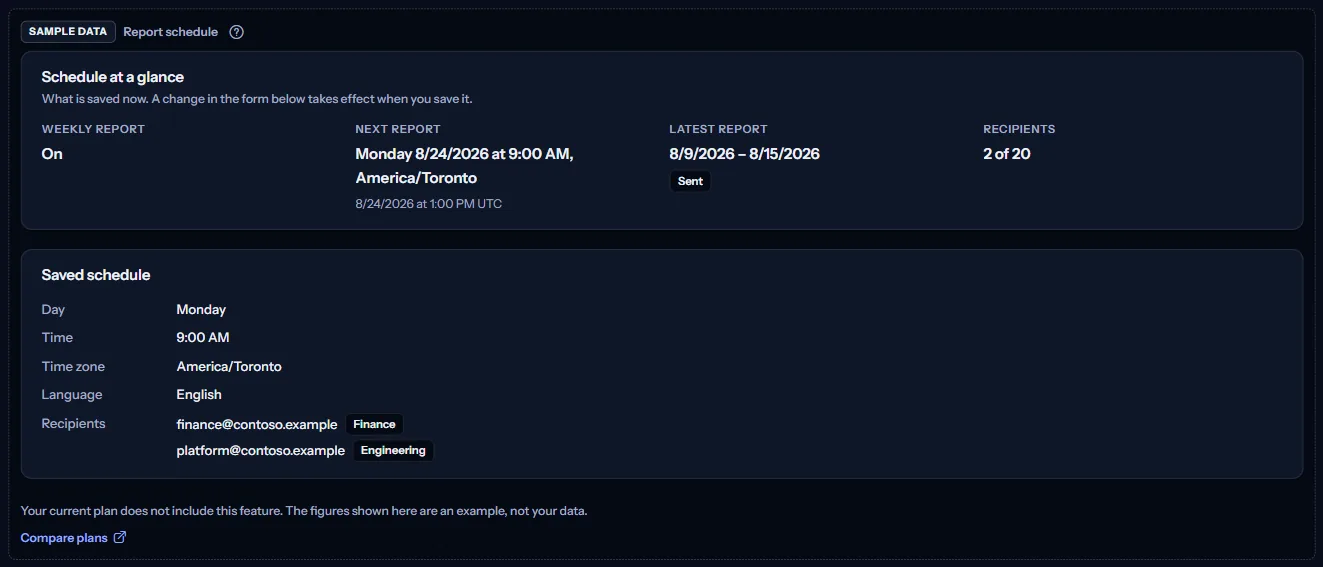
When your plan does not include weekly reports, the page shows a fixed example under the label “Sample data”, with the sentence “Your current plan does not include this feature. The figures shown here are an example, not your data.”
The sample shows a Contoso schedule that is on: a report every Monday at 09:00 in Toronto time, in English, for two recipients, with its next report and its latest report. It has no form and no action, and it is the same for everyone, never your data.
“Compare plans” opens the pricing page in a new tab. CostGuard decides what your plan includes on the server; the sample is only how the page shows it.
What each plan includes
The table shows the first plan that includes each part of the page. Every plan above it includes it too.
| Feature | Free | Starter | Growth | Pro | Enterprise |
|---|---|---|---|---|---|
| A labelled sample of the page | Included | Included | Included | Included | Included |
| Your workspace's report schedule, its recipients and its language | Not included | Not included | Included | Included | Included |
Growth, Pro and Enterprise include the weekly report and its schedule; Free and Starter show the labelled sample, and no report is prepared for them. The plan is checked on the server, and the page never shows a price.
Troubleshooting
I saved a change, but this week's report did not follow it
One report is prepared per week. A change saved after this week's time takes effect from the next week; the report of this week is not prepared again.
A recipient did not receive the report
Open “Delivery history” and the details of that week's report: they say how many recipients were reached and what to check. Check the address here, then save the schedule again.
The next report time looks wrong
Check “Time zone”: the time is kept in the schedule's time zone, which can differ from yours. The UTC time under it is the same moment for everyone.
I cannot save the schedule
Read the message above the form: it names what to correct, such as an address that appears twice or a schedule that is on with no recipient. Only the workspace's owner or an admin can save.
The page is not in the sidebar
The sidebar lists it in “Advanced” mode only. Choose “Advanced” at the top of the sidebar; the page's address opens in either mode.