
Advanced report schedules: a report per part
The Advanced report schedules page sends the weekly cost report of one connection, subscription, service or resource group to the people who look after it: which schedules exist, whether each one sends, when the next report goes out and how the last one went.
What this page is for
“Advanced report schedules” answers one question: which parts of the estate get their own weekly report, for whom and when, and did the last one go out? Each schedule sends the weekly cost report of one connection, subscription, service or resource group to the people it lists.
It is opened by whoever runs cost reporting for several teams. The decision is who should see which part of the cost each week: a new schedule for a team, a recipient added or removed, a schedule paused for a while, or archived when the team no longer needs it. The whole workspace keeps its own report on “Report schedule”.


Before you start
A schedule covers a part of the estate that has recorded cost, so connect an Azure subscription and let its first cost import finish. Only workspace owners and admins create and change schedules; other members see the list without its actions.
Read the Getting started guide
Advanced report schedules are part of the Pro and Enterprise plans. The page sits under “Reports” in the sidebar, which lists it in “Advanced” mode.
The schedules
“Schedules at a glance” counts the schedules as “Sending weekly”, “Paused” and “Archived”. The server answers one page of schedules at a time, so while more remain the panel says it counts the schedules shown and “Load more” brings the rest.
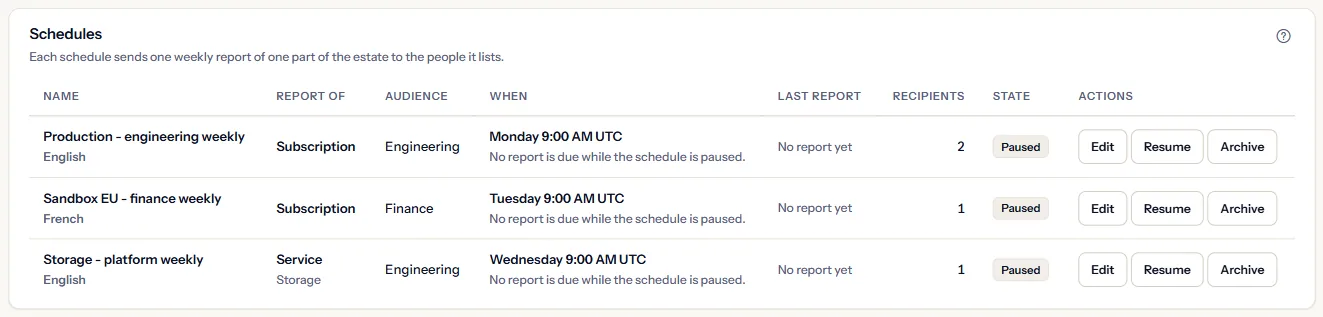
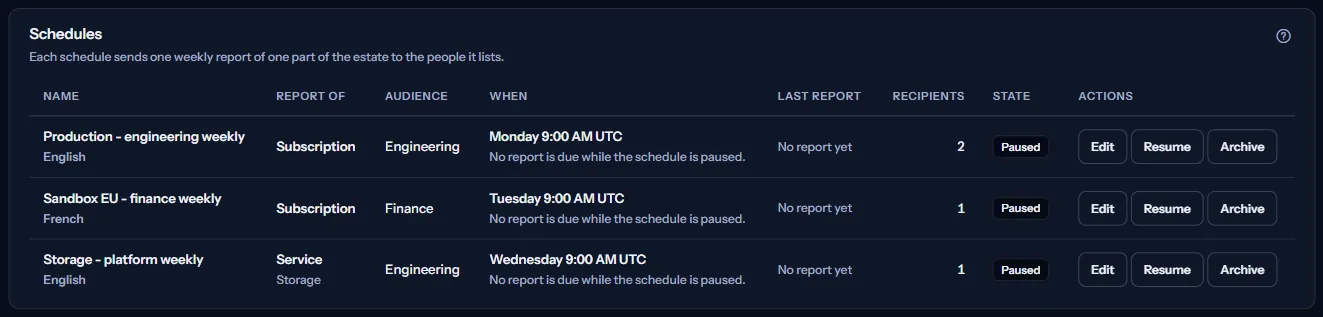
“Schedules” lists every schedule that is not archived, one row each:
- “Name” and “Report of”: the name you gave it and the connection, subscription, service or resource group the report covers.
- “Audience”: a label for who the report is written for. Every audience gets the same report.
- “Recipients”: how many people the report is sent to, at most 20.
- “State”: “Sends weekly” or “Paused”.
- “Last report”: when the newest report of the schedule was prepared, in UTC, how its delivery went, and a link to “Delivery history”; “No report yet” until the first one.
- “When”: the day, time and time zone of the schedule and, below them, the next report the server worked out, in UTC. A paused schedule shows “No report is due while the schedule is paused.”
Archived schedules
Below the list, “Archived schedules” stays closed until you open it. It lists each archived schedule with what it covered and its last report. An archived schedule sends nothing more and cannot be resumed; the reports it sent are kept.
Create or change a schedule
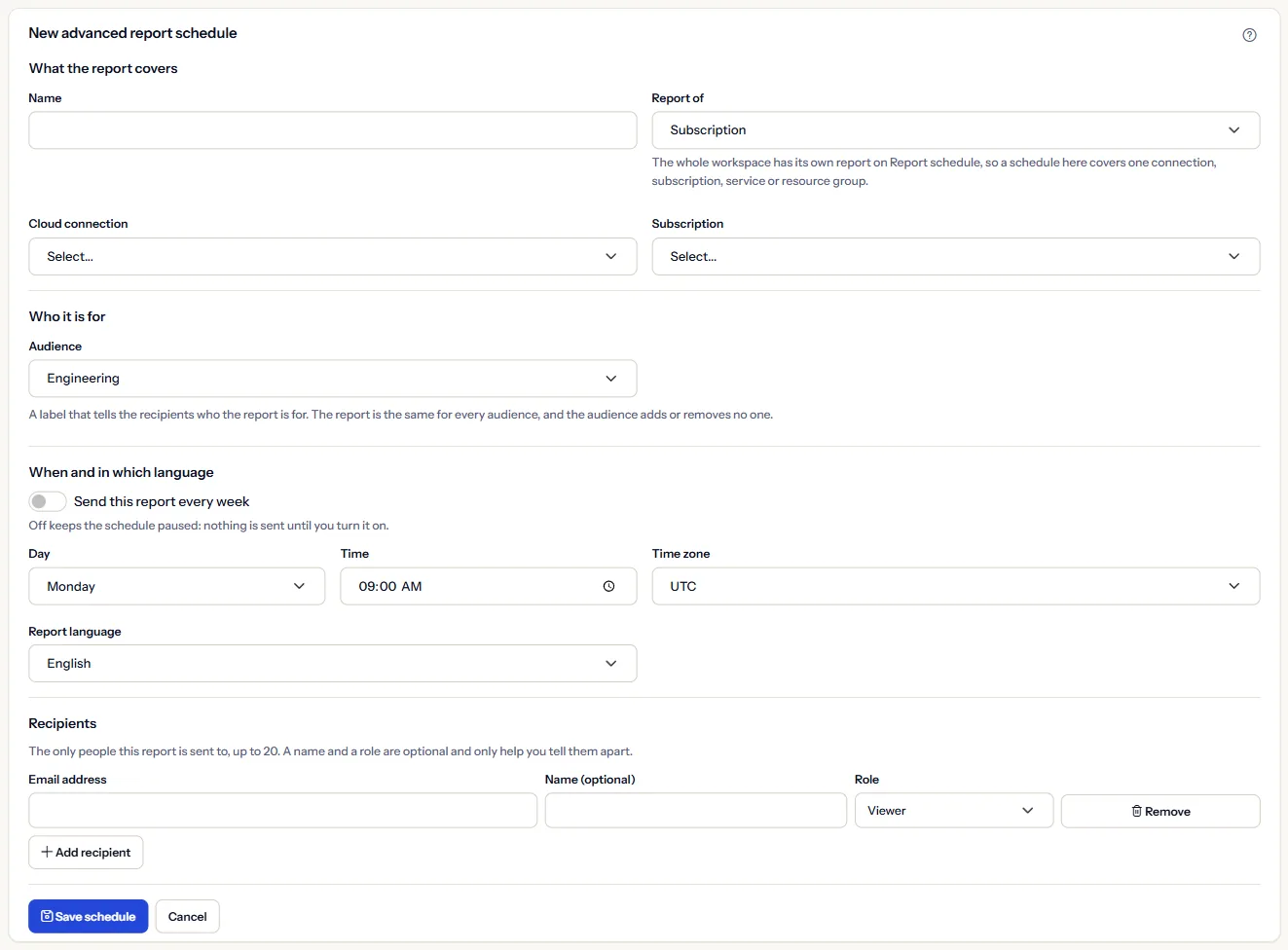
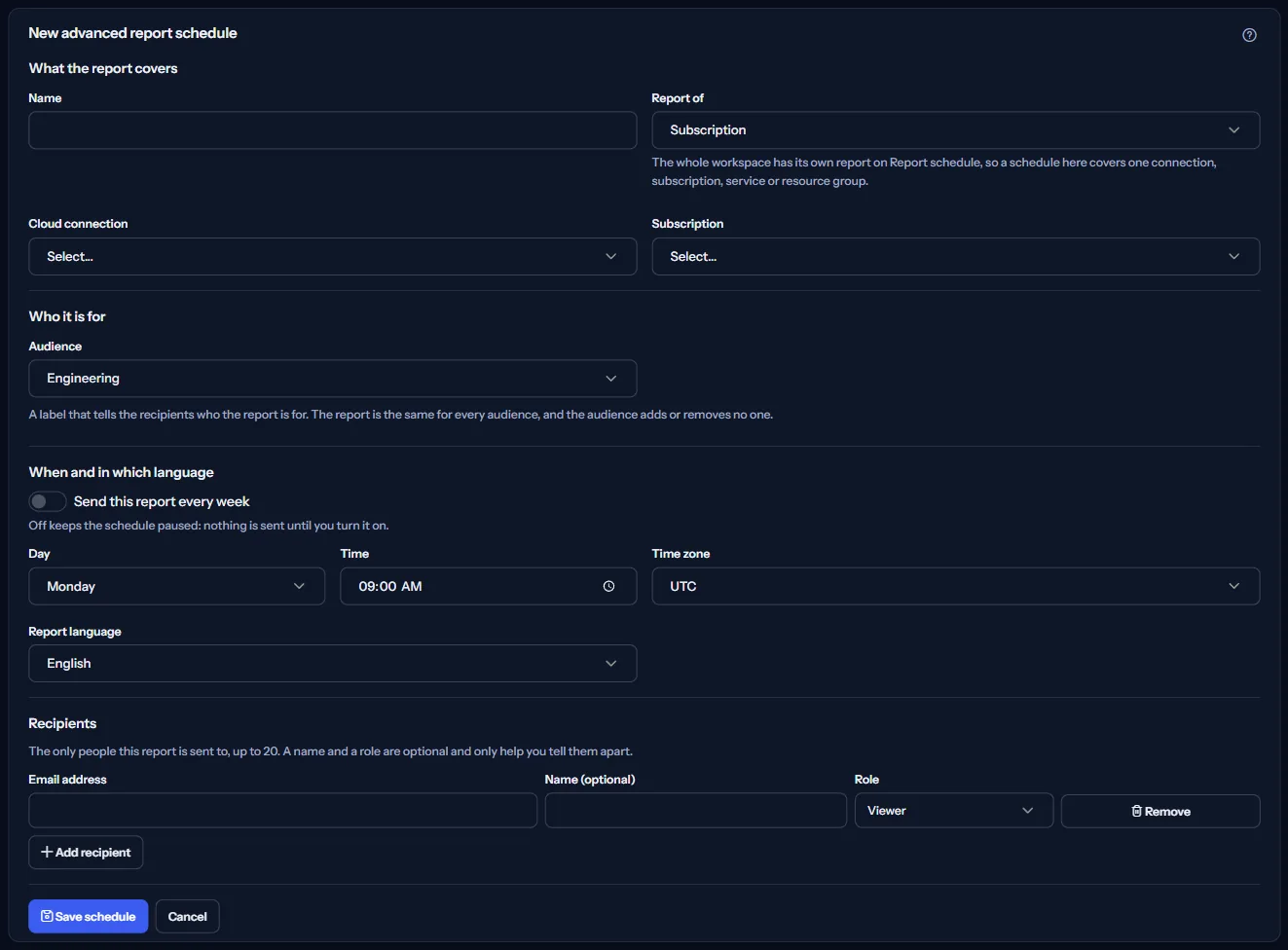
“New schedule” opens “New advanced report schedule”; “Edit” on a row opens the same form with the schedule's settings. The form asks, in this order:
- “What the report covers”: a “Name” and “Report of”, then the connection, subscription, service or resource group, picked from lists of what this workspace has recorded cost for.
- “Who it is for”: “Audience”, or a label of your own with “Custom”. It only tells the recipients who the report is for.
- “Send this report every week”: on, the schedule sends every week; off, it is saved paused and sends nothing.
- “When and in which language”: the “Day”, the “Time” and the “Time zone”, chosen from the lists, and the “Report language”: English, French, Persian or Arabic.
- “Recipients”: up to 20 email addresses, each with an optional name and role that only help you tell them apart. These are the only people the report is sent to. A schedule that sends every week needs at least one.
- “Save schedule” stores it; “Cancel” closes the form and changes nothing.
When a detail cannot be accepted, the form lists what to fix in plain words, for example a recipient that is not a valid email address, and nothing is saved.
What a schedule can cover
A schedule covers one of these, and its report holds the cost of that part only:
- “Cloud connection”
- “Subscription”
- “Service”
- “Resource group”
The lists offer only what this workspace has recorded cost for, so a connection, subscription, service or resource group appears after its cost has been imported. A resource group report leaves out recommendations.
The whole workspace is not offered for a new schedule: its report is the default one on “Report schedule”. A schedule saved earlier for the whole workspace keeps that scope when you edit it.
When a save is refused
Two schedules that would send the same report, with the same part of the estate, audience, day, time, time zone and language, cannot both send every week. The second is refused with “Another schedule already sends this same report every week. Add your recipients to that one, or change the day, the time, the audience or the language.”
When the schedule was changed in another tab or by someone else after you opened it, your save is refused with “This schedule was changed elsewhere after it was read. Refresh, then make your change again.” Nothing of yours overwrites their change.
A save from someone whose workspace role no longer allows it is refused with “Your workspace role does not allow this change.”
Pause, resume and archive
“Pause” asks “Pause this schedule?” first. Paused, a schedule sends nothing until you resume it; its settings and recipients are kept.
“Resume” needs no confirmation: the schedule sends its report every week again, from the next due day.
“Archive” asks “Archive this schedule?” first, because it is final: an archived schedule never sends again and cannot be resumed. The reports it already sent are kept, and it moves to “Archived schedules”.
How an advanced report works
The notes at the bottom of the page say in short how an advanced report works:
- It is the same weekly report as the workspace's default one, narrowed to the part of the estate the schedule covers.
- It covers the seven days that end on the latest day with recorded cost, in one currency, and names any other currency without adding it.
- On the schedule's day and time in its time zone, CostGuard prepares the report and sends it by email to the recipients listed, in the language chosen. How each one went is on “Delivery history”.
- The audience is only a label: the recipients listed are the only people a report is sent to.
- Pausing keeps everything and can be undone. Archiving is final, and the reports already sent are kept.
Go further
The links at the bottom of the page lead on:
- “Report schedule”: the default weekly report of the whole workspace.
- “Weekly reports”: every report prepared, with its content.
- “Delivery history”: whether each report reached its recipients.
- “Report preview”: what this week's report of the whole workspace would say.
What you may see instead of figures
Instead of the schedules, the page may show:
- Grey blocks while the schedules are read.
- “No advanced report schedule yet”, with a sentence on what a schedule does.
- “The schedules could not be loaded”, with “Try again”. Nothing was changed.
- “You do not have access to this workspace's advanced report schedules.”
- In the form, “The choices for this scope could not be loaded. Nothing was changed.”, with “Try again”.
- A notice that your session has ended, with a link to sign in again.
When your plan does not include advanced schedules
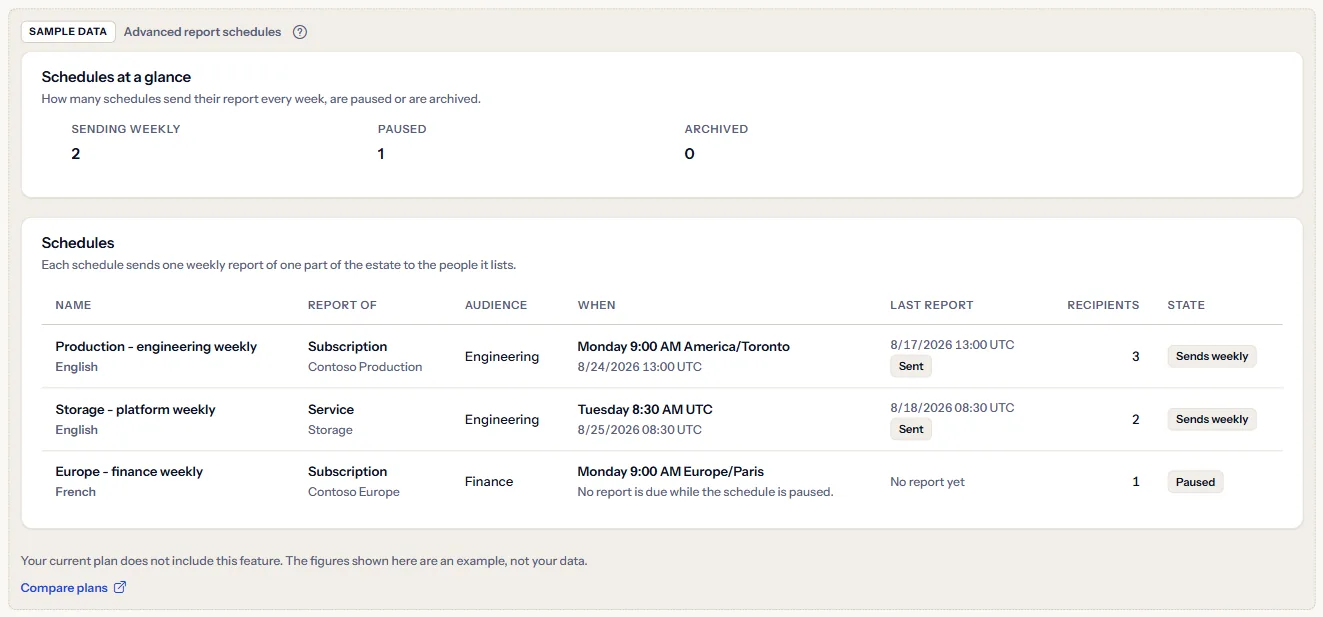
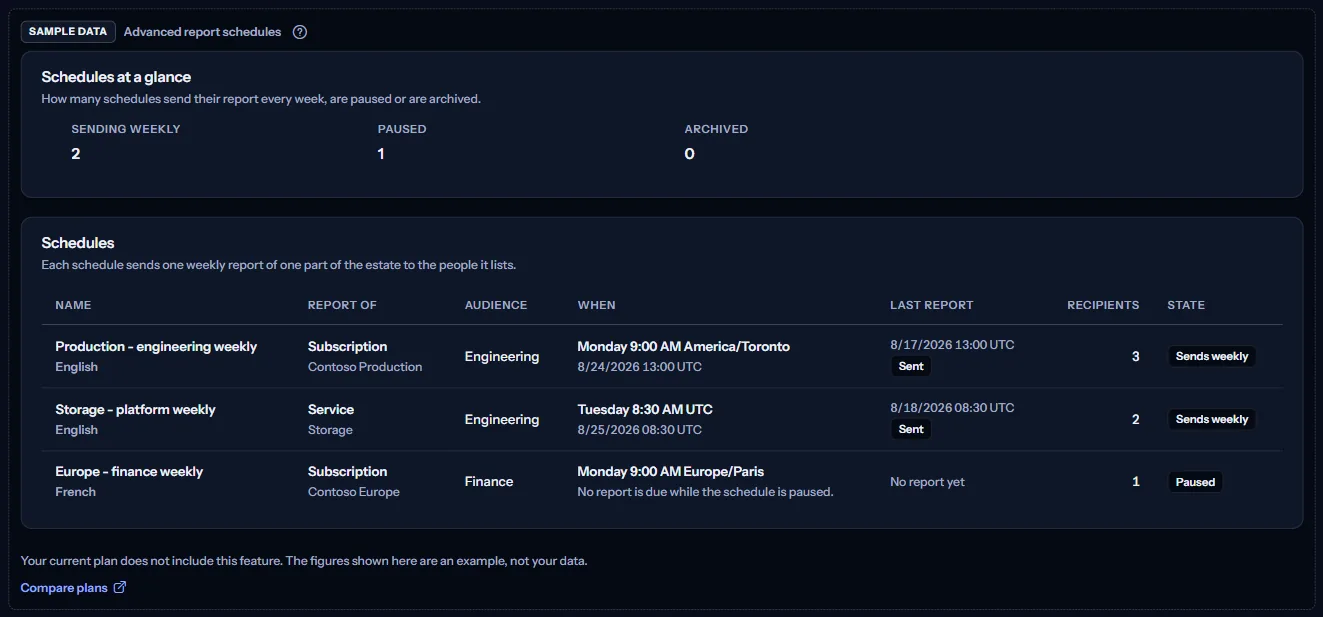
When your plan does not include advanced report schedules, the page shows a fixed example under the label “Sample data”, with the sentence “Your current plan does not include this feature. The figures shown here are an example, not your data.”
The sample shows three Contoso schedules from August 2026: a subscription and a service that send every week, with their last report sent, and a paused subscription schedule in French. It offers no action, and it is the same for everyone, never your data.
“Compare plans” opens the pricing page in a new tab. CostGuard decides what your plan includes on the server; the sample is only how the page shows it.
What each plan includes
The table shows the first plan that includes each part of the page. Every plan above it includes it too.
| Feature | Free | Starter | Growth | Pro | Enterprise |
|---|---|---|---|---|---|
| A labelled sample of the page | Included | Included | Included | Included | Included |
| Your workspace's advanced report schedules | Not included | Not included | Not included | Included | Included |
Pro and Enterprise include advanced report schedules; Free, Starter and Growth show the labelled sample. The plan is checked on the server, and the page never shows a price.
Troubleshooting
A subscription, service or resource group is missing from the list
The lists offer only what this workspace has recorded cost for. A part of the estate appears after its cost has been imported; if it was removed from Azure and has no cost any more, a save that names it is refused with “The chosen connection, subscription, service or resource group has no recorded cost in this workspace any more. Choose another.”
The save is refused because another schedule sends the same report
Add your recipients to that schedule, or change the day, the time, the audience or the language of yours. Two schedules may cover the same part of the estate as long as they differ in one of these.
A recipient says the report did not arrive
Check that the schedule shows “Sends weekly” and lists that address. Then open “Delivery history” from “Last report”: it says whether the last report was sent, failed or skipped, and what to do.
The page is not in the sidebar
The sidebar lists it in “Advanced” mode only. Choose “Advanced” at the top of the sidebar; the page's address opens in either mode.