
Delivery history: did each weekly report arrive?
The Delivery history page shows whether each weekly report and each test send reached its recipients: its status, how many recipients were reached, when, and, for a report that did not arrive, what to check and where to fix it.
What this page is for
“Delivery history” answers one question: did each weekly report reach its recipients, and if not, why and what to do? It lists every run, the scheduled reports and the test sends alike.
It is opened by whoever looks after the report when someone says it did not arrive. The decision is what to fix: a recipient address on “Report schedule”, an advanced schedule, or nothing, when the report was skipped on purpose.


Before you start
A run appears once a report is prepared: the weekly report turned on with recipients on “Report schedule”, a report of “Advanced report schedules”, or a test sent from “Report preview”.
Read the Getting started guide
Weekly reports are part of the Growth, Pro and Enterprise plans. The page sits under “Reports” in the sidebar, which lists it in “Advanced” mode.
Runs shown
“Runs shown” counts the runs loaded on the page by status: “Sent”, “Waiting to send”, “Failed” and “Skipped”. It counts only what is loaded; “Load older runs” adds older runs to the counts.


The runs
“Runs” lists the runs, newest first. Each row shows:
- “Week”: the seven days the report covered.
- “Run”: “Scheduled”, “Test send”, or the name of an advanced schedule and the part of the estate it covers. “Earlier report” marks a run recorded before CostGuard noted how each run was started.
- “Status”: where the run stands, as described under its details.
- “Recipients reached”: how many recipients the email service accepted, out of how many the report had. Recipients are counted, never listed.
- “Last change (UTC)”: when the run last changed, in UTC.
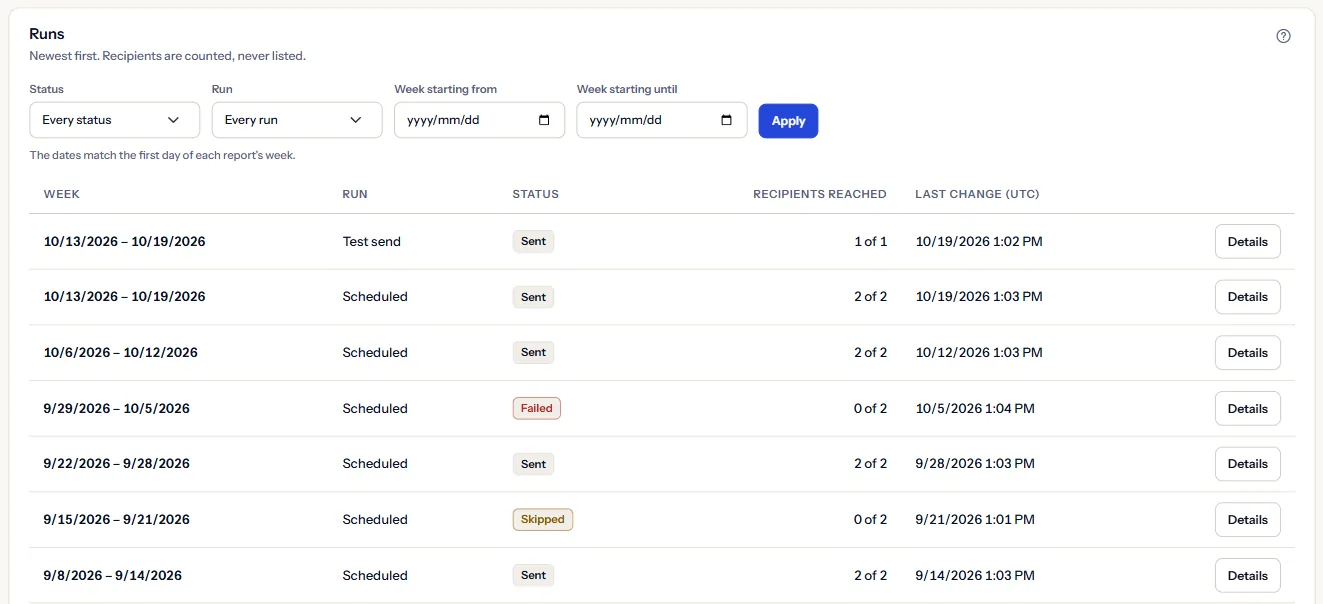
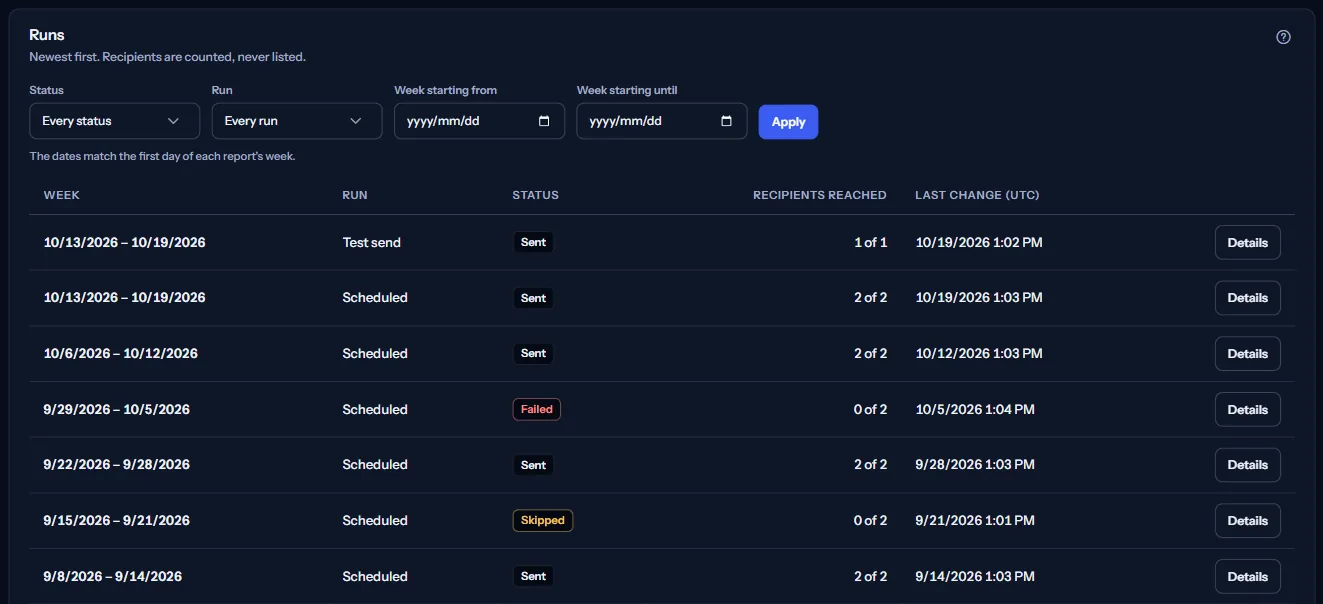
“Details” on a row opens that run's details. “Load older runs” adds older runs under the list; when they cannot be read, the runs above stay as they were.
Filter the runs
“Status”, “Run”, “Week starting from” and “Week starting until” narrow the list. The dates match the first day of each report's week. “Apply” reads the runs again with the filters; “Clear filters” removes them.
A first date after the second is refused on the page, with “The first date must not be after the second.”, and nothing is read.
A run's details
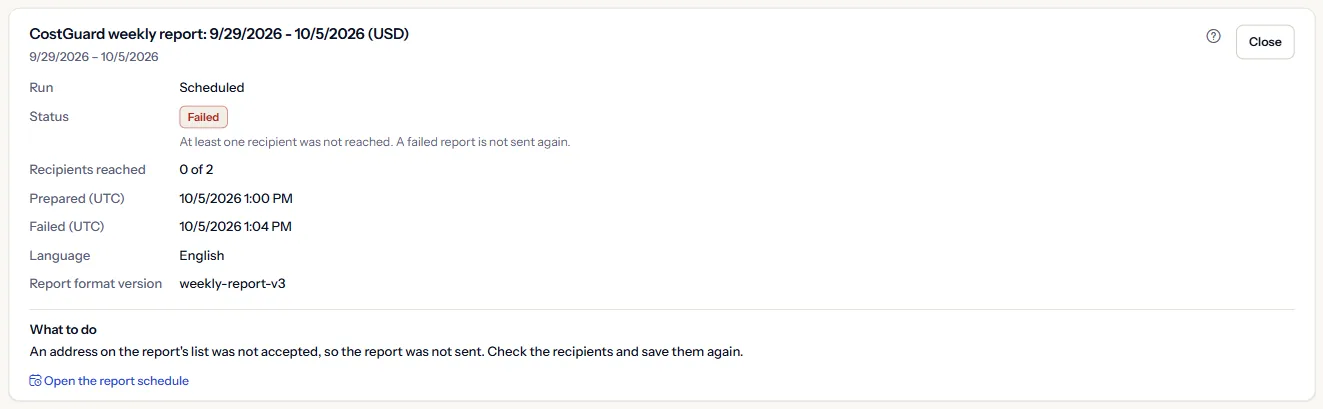
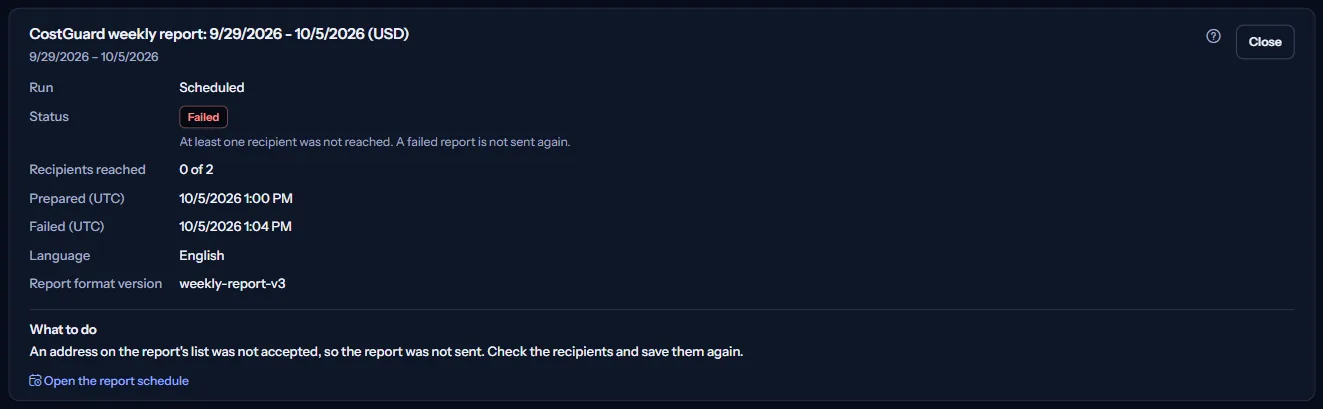
“About this run” lists the week, the run, the status, the recipients reached, the times the run was prepared, sent, failed or skipped in UTC, the report's language and its format version. “Close” puts the details away.
What each status means
- “Prepared”: “The report was prepared but not handed to the email service.”
- “Waiting to send”: “The report waits for the email service. No recipient is counted until the service accepts the email.”
- “Sent”: “The email service accepted the report for every recipient.”
- “Failed”: “At least one recipient was not reached. A failed report is not sent again.”
- “Skipped”: “The report was not sent on purpose; nothing failed.”
What to do when a report does not arrive
Under “What to do”, the details of a failed run name the cause in plain words, with one link to the page that fixes it. The causes are:
- “An address on the report's list was not accepted, so the report was not sent. Check the recipients and save them again.”
- “The email service did not deliver the report to every recipient. Check that each address is right; if they are, contact support.”
- “The email service asked for fewer emails at once. This report is not sent again; the next weekly report is sent as scheduled.”
- “The report could not be prepared for sending. Check that the schedule has at least one recipient; if it does, contact support.”
- “The email service could not be reached. This report is not sent again; the next weekly report is sent as scheduled.”
- “The delivery did not complete for a reason CostGuard could not name. If it happens again, contact support.”
How delivery is recorded
“How delivery is recorded” on the page states these rules:
- ““Waiting to send” means the report waits for the email service; “Sent” is shown only once the service accepted it for every recipient.”
- Recipients are counted, never listed: the history shows how many were reached, not their addresses.
- A failed report is not sent again; the next weekly report goes out as scheduled.
- Times are in UTC.
- To read what a report said, open it on “Weekly reports”.
Go further
The links at the bottom of the page lead on:
- “Read the weekly reports”: what each report told the team.
- “Change who receives the report”: on “Report schedule”.
- “Preview the next report and send a test”: on “Report preview”.
- “Weekly reports for parts of the estate”: on “Advanced report schedules”.
What you may see instead of figures
Instead of the runs, the page can show:
- Grey blocks while the history is read.
- “No weekly report has been sent yet”, with “Open the report schedule”.
- “The delivery history could not be read”, with “Try again”. Nothing was changed.
- “This run could not be read. Open its details again in a moment.”
- A notice that your session has ended, with a link to sign in again.
Sample data when your plan has no weekly reports
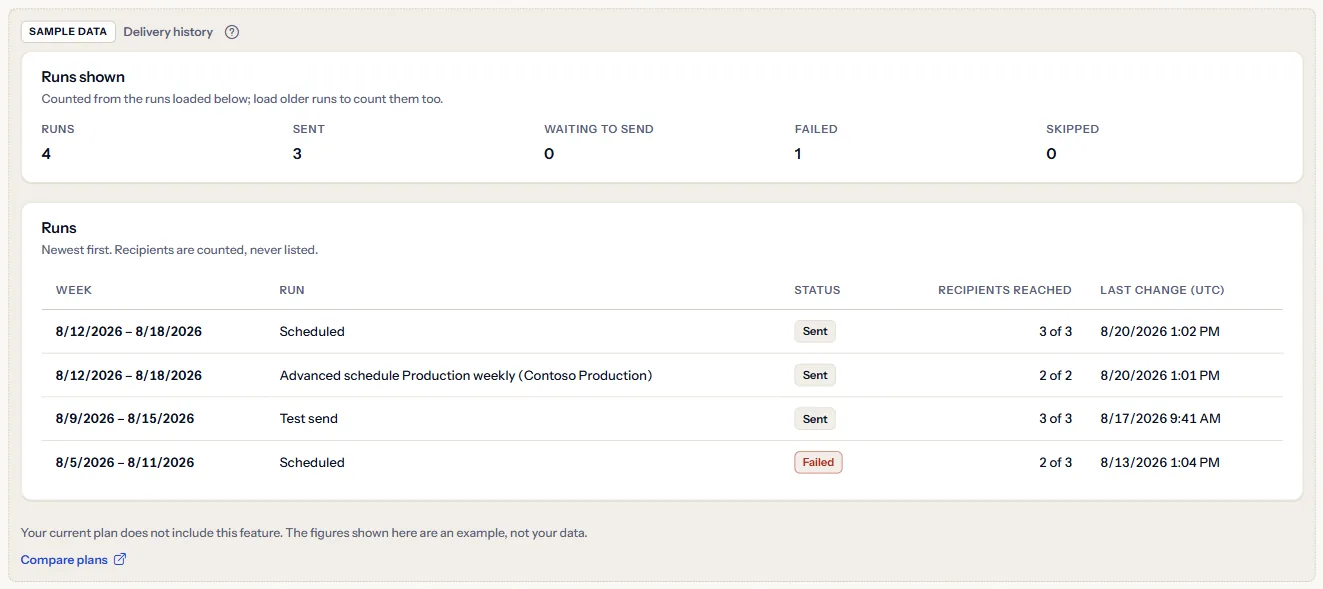
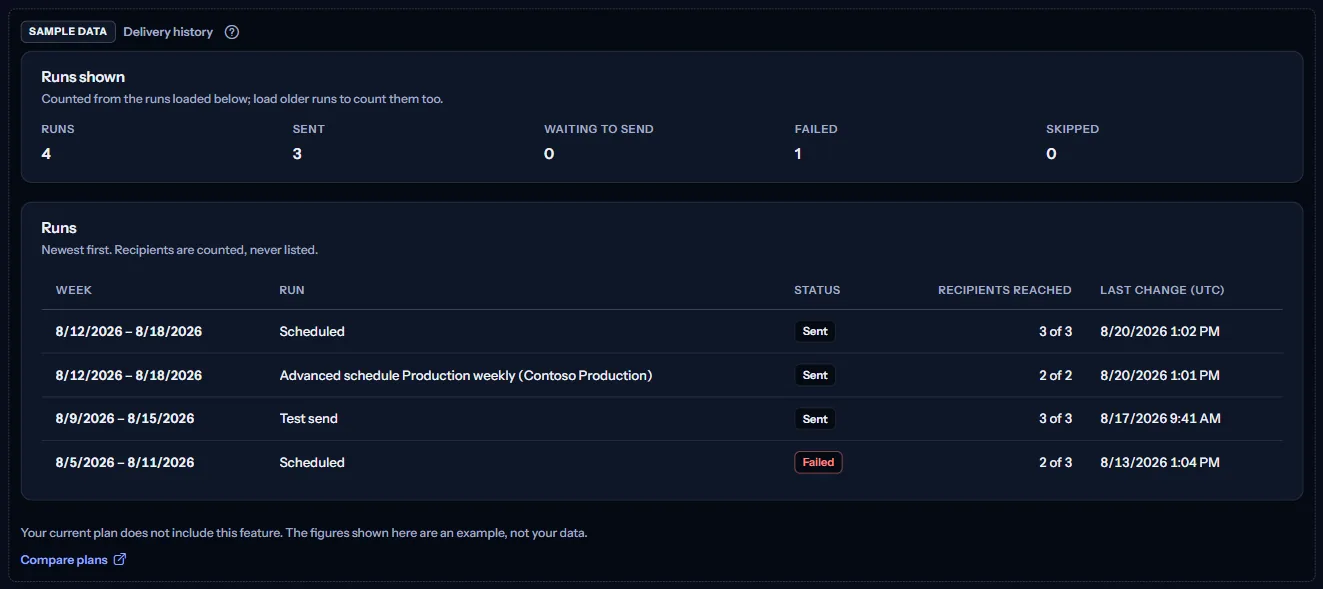
When your plan does not include weekly reports, the page shows a fixed example under the label “Sample data”, with the sentence “Your current plan does not include this feature. The figures shown here are an example, not your data.”
The sample shows four Contoso runs from August 2026: a scheduled report and a report of an advanced schedule, both “Sent”, a test send, and a scheduled report “Failed” with two of three recipients reached. It offers no filter and no action, and it is the same for everyone, never your data.
“Compare plans” opens the pricing page in a new tab. CostGuard decides what your plan includes on the server; the sample is only how the page shows it.
What each plan includes
The table shows the first plan that includes each part of the page. Every plan above it includes it too.
| Feature | Free | Starter | Growth | Pro | Enterprise |
|---|---|---|---|---|---|
| A labelled sample of the page | Included | Included | Included | Included | Included |
| The delivery history of your workspace's reports and test sends | Not included | Not included | Included | Included | Included |
Growth, Pro and Enterprise include the delivery history; Free and Starter show the labelled sample. The plan is checked on the server, and the page never shows a price.
Troubleshooting
A run stays Waiting to send
The report waits for the email service, and no recipient is counted until the service accepts the email. Refresh the page a little later; the status changes on its own.
A report failed: will it be sent again?
No. Fix what its details name, usually a recipient address on “Report schedule”; the next weekly report goes out as scheduled. To check the fix at once, send a test from “Report preview”.
The counts do not match the whole history
“Runs shown” counts only the runs loaded on the page. Load older runs, or narrow the list with the filters, to count what you are looking for.
The page is not in the sidebar
The sidebar lists it in “Advanced” mode only. Choose “Advanced” at the top of the sidebar; the page's address opens in either mode.