
Report preview: the next weekly report, before it goes out
The Report preview page builds the weekly cost report as it would be prepared now, from the cost your workspace has recorded, and shows it as its recipients would read it. It sends nothing on its own; a test send emails the report to the saved recipients when you ask for it.
What this page is for
“Report preview” answers one question: what would this week's report say if it were prepared now? It builds the report from the cost your workspace has recorded and shows it the way its recipients would read it.
It is opened before a first report goes out, or after a change on “Report schedule”: to check the figures, the language and the currency the team will read, and to decide whether the report is ready to send.
Before you start
The preview has figures once cost is imported from a connected Azure subscription. Without a saved report schedule it is written in English; a test send needs a schedule with at least one recipient, saved on “Report schedule”.
Read the Getting started guide
Weekly reports are part of the Growth, Pro and Enterprise plans. The page sits under “Reports” in the sidebar, which lists it in “Advanced” mode.
This week's report
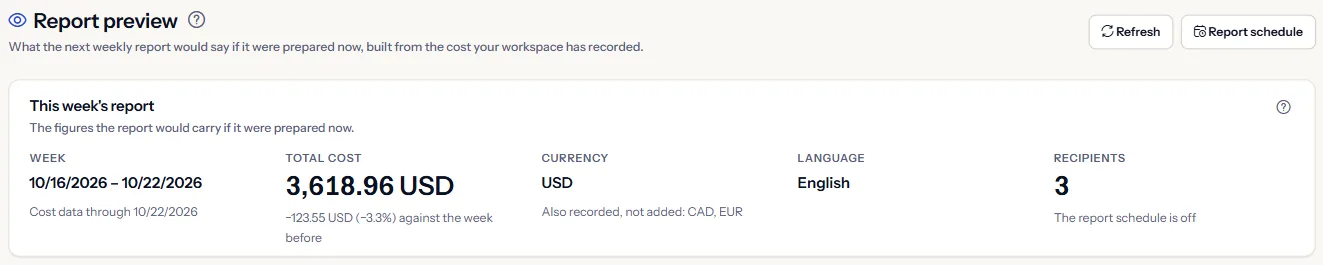
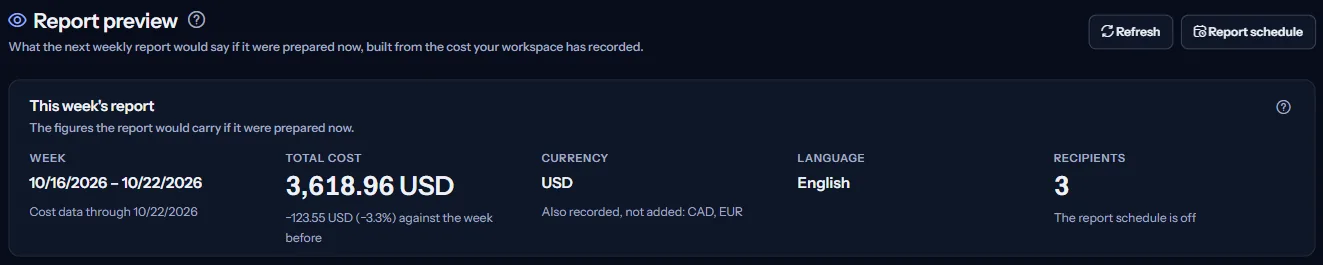
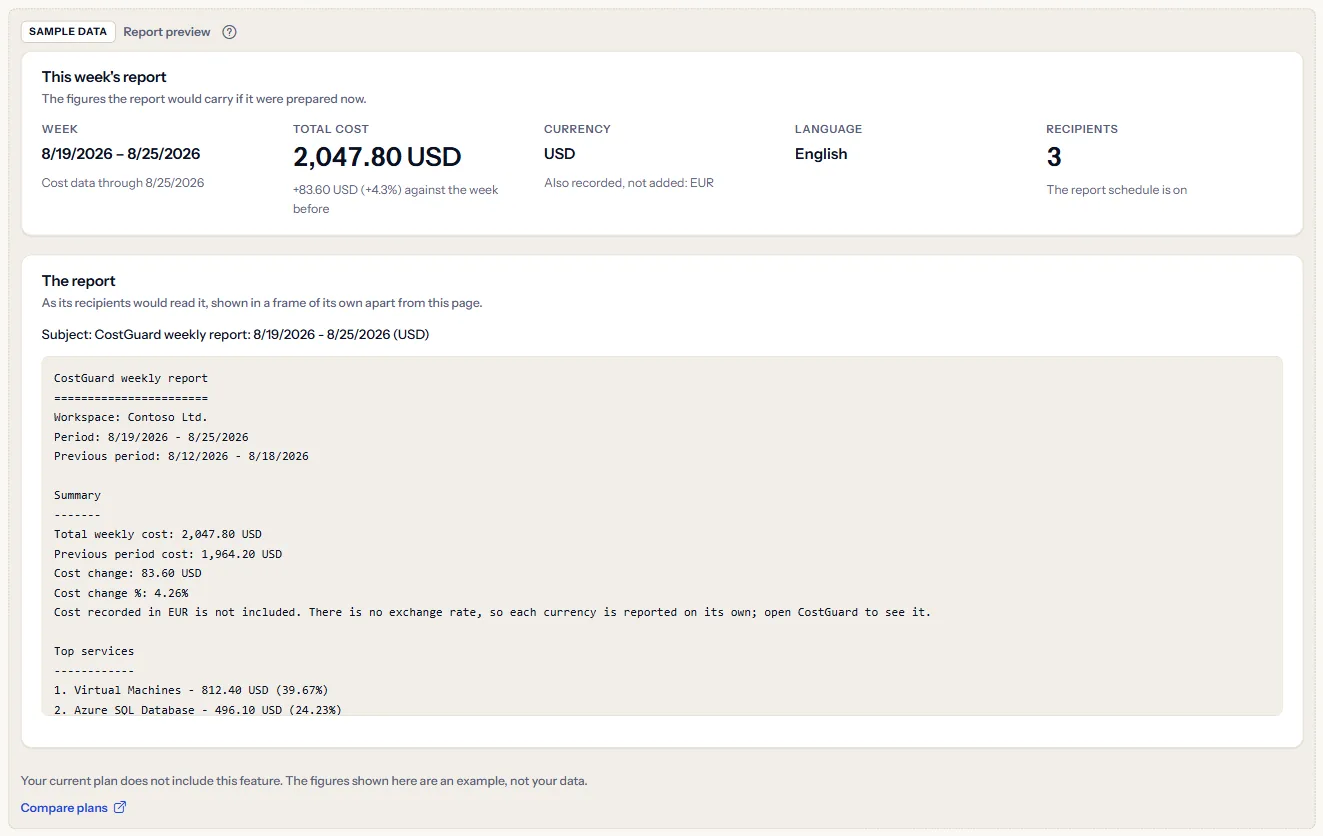
“This week's report” shows the figures the report would carry if it were prepared now:
- “Week”: the seven days the report would cover, with the date of the latest cost data under them.
- “Total cost”: the cost of those seven days and its change against the seven days before, in amount and percentage, or “No cost was recorded the week before”.
- “Currency”: the report's one currency, and the other currencies recorded in the week, named but not added.
- “Language”: the language of the report schedule, or “The default until a report schedule is saved”.
- “Recipients”: how many recipients the schedule holds, and whether the schedule is on, off or not saved yet. The addresses are never shown here.


The report
“The report” shows the email's subject line, then the report as its recipients would read it, in a frame of its own apart from the page. It holds the week's summary, the daily trend, the top services and the open recommendations, as on “Weekly reports”.
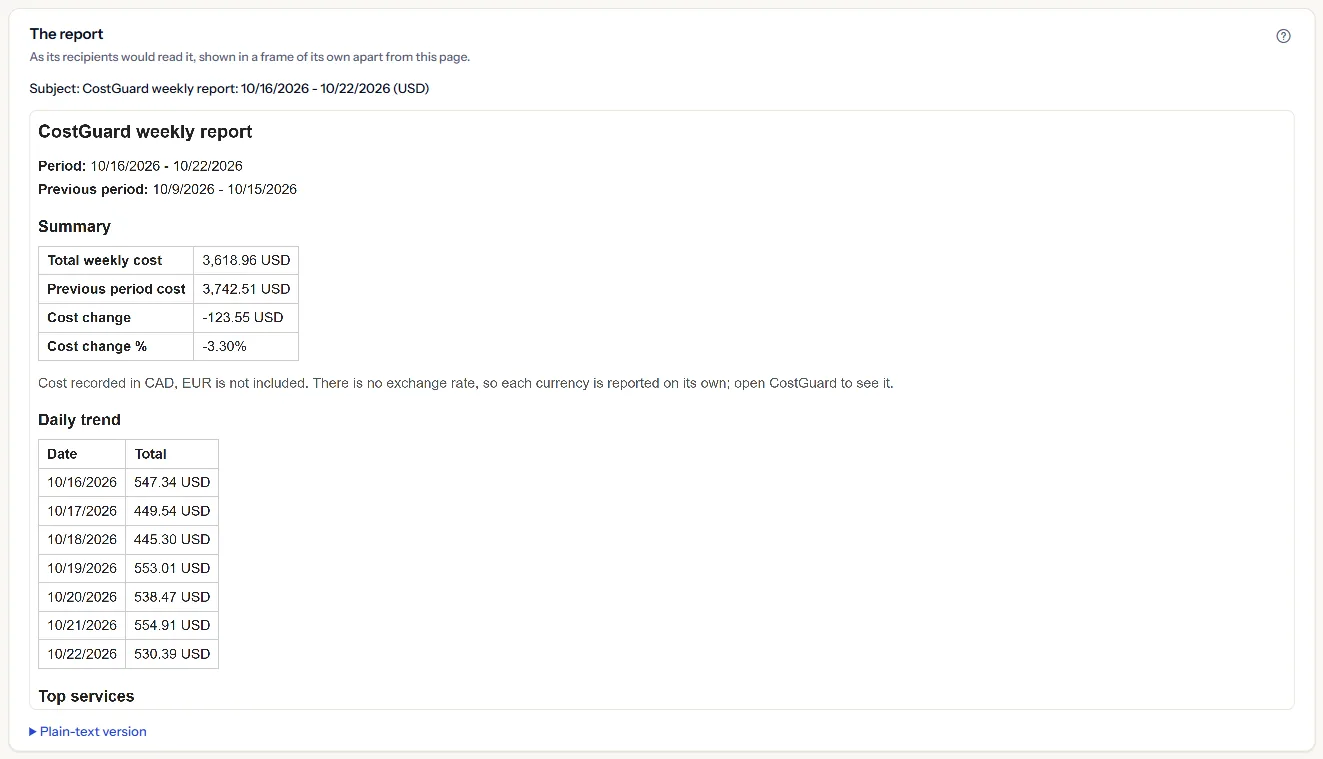
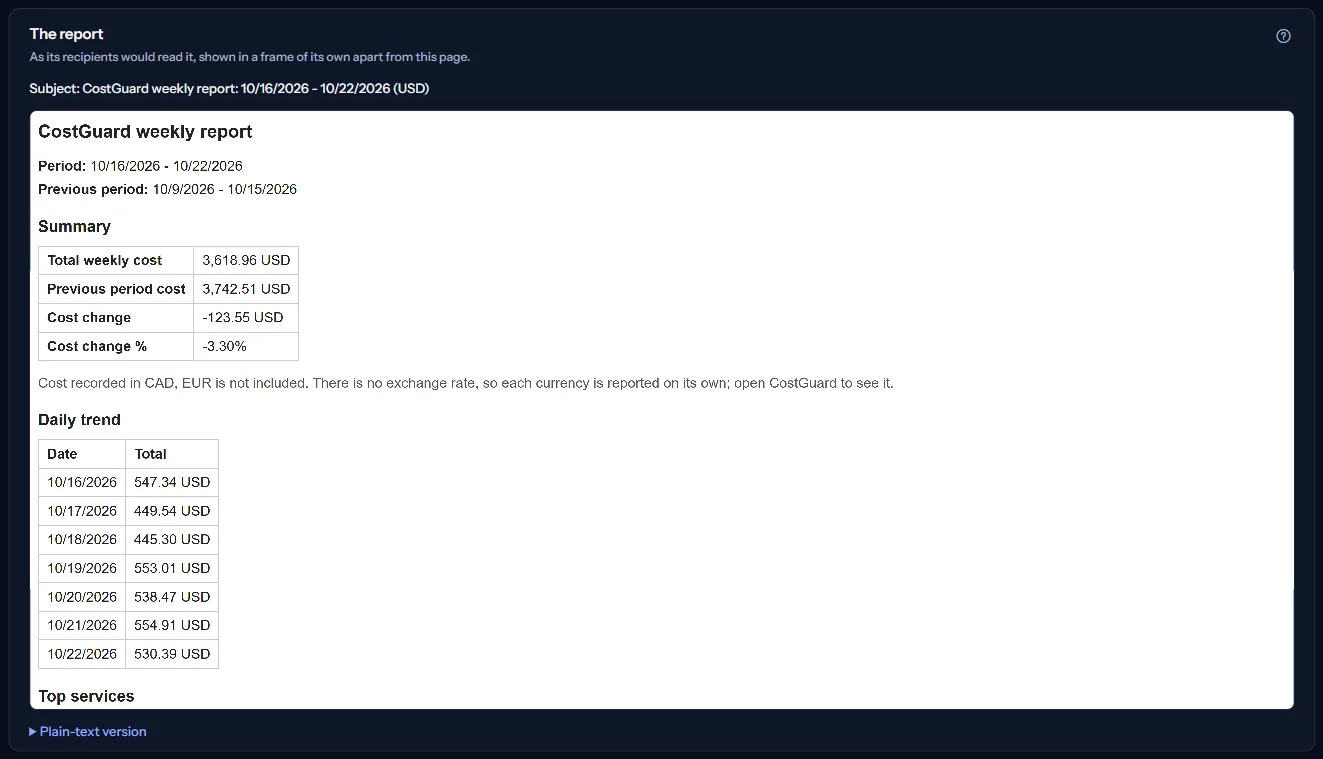
“Plain-text version” opens the text-only version sent beside the formatted one. The report runs no script and its links do not open from the frame.
When no cost is recorded for the week yet, the report says so, and the page adds that this is what would be sent, with “How cost data arrives”.
Send a test
“Send a test” sends the report above as a real email, now, to the recipients saved in the report schedule. It does not change the schedule, and a sent email cannot be taken back.
“Send a test report” asks first, with the number of recipients: “Send a real email now?” “Send the test” sends it; “Cancel” sends nothing.


Once the test is accepted, the page says it is on its way, when the next test is possible in UTC, and links to “Delivery history”, which shows what became of each email. One test is allowed every five minutes.
Note
Only the workspace's owner or an admin can send a test. Without a saved schedule, or with a schedule that has no recipient, the page says so and offers “Open the report schedule” instead.
When a test is refused
A refused test sends nothing, and the page says why:
- “A test report was sent less than 5 minutes ago, and one test is allowed every 5 minutes. Nothing was sent.”
- “There is no report schedule yet, so a test has no one to go to. Nothing was sent.”
- “The recipients of the report schedule could not be used. Check them on the report schedule. Nothing was sent.”
- “This report is too large to send by email. Nothing was sent.”
How the preview is made
“How the preview is made” on the page states these rules:
- Opening the page sends nothing and records nothing. Only the test send emails the report.
- The preview is built from the cost recorded now. The scheduled report is built when it is prepared, so its figures can differ if more cost arrives in between.
- A report covers seven days that end on the latest day with recorded cost, because Azure cost data arrives a day or two late, and compares them with the seven days before.
- A report is in one currency: the one most of your subscriptions are billed in. Cost recorded in another currency is named in the report and not added, because there is no exchange rate.
- The report is written in the language chosen in the report schedule; without a schedule, in English.
Go further
The links at the bottom of the page lead on:
- “Report schedule”: change the day, the language or the recipients.
- “Weekly reports”: read the reports already sent.
- “Delivery history”: whether a report or a test reached its recipients.
- “Cost overview”: the cost of any period, not only this week.
What you may see instead of figures
Instead of the preview, the page can show:
- “Preparing the preview”, with grey blocks while the report is built.
- “The preview could not be prepared”, with “Try again”. Nothing was sent.
- “You no longer have access to this workspace's reports.”
- A notice that your session has ended, with a link to sign in again.
Sample data when your plan has no weekly reports
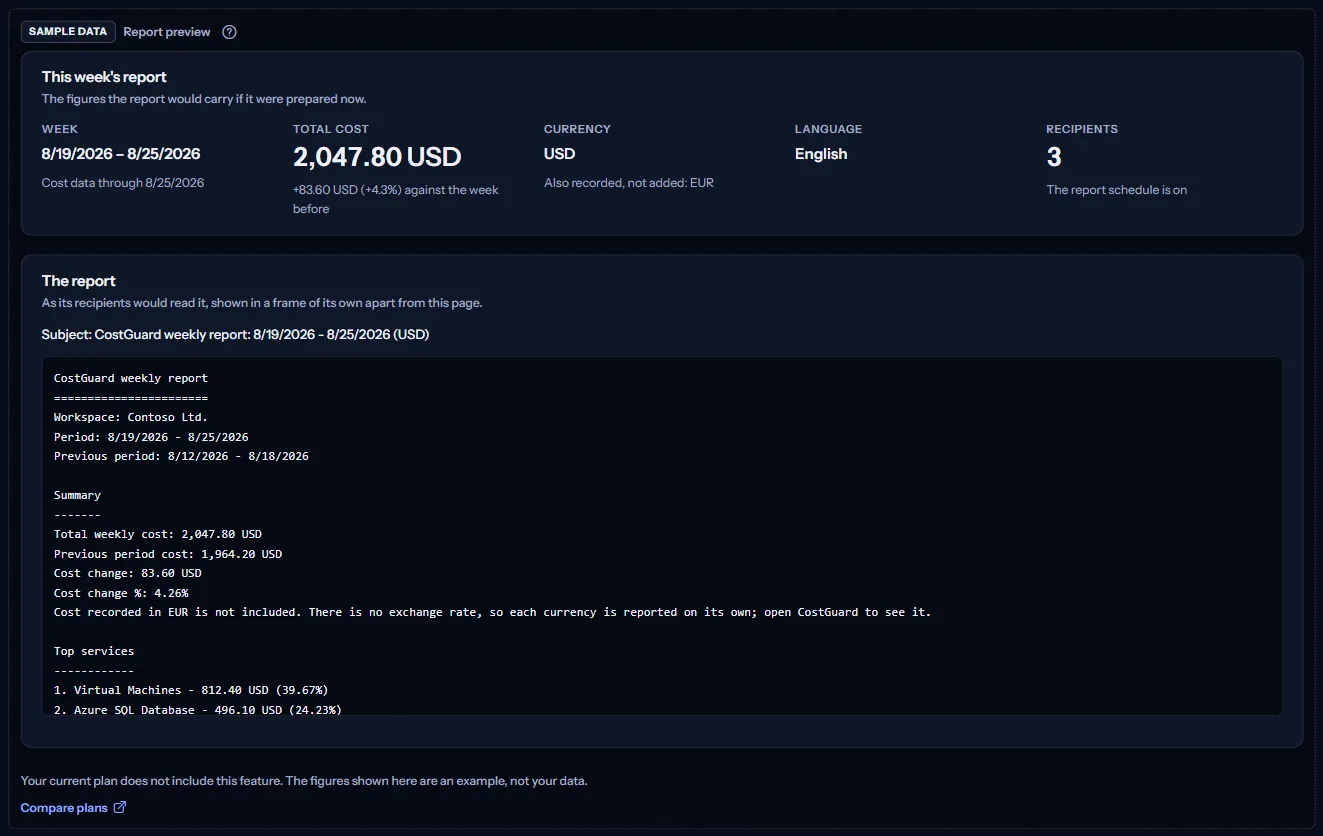
When your plan does not include weekly reports, the page shows a fixed example under the label “Sample data”, with the sentence “Your current plan does not include this feature. The figures shown here are an example, not your data.”
The sample shows a Contoso week in August 2026 in US dollars, with cost in euros named and not added: its figures and the text of its report. It offers no test send and no action, and it is the same for everyone, never your data.
“Compare plans” opens the pricing page in a new tab. CostGuard decides what your plan includes on the server; the sample is only how the page shows it.
What each plan includes
The table shows the first plan that includes each part of the page. Every plan above it includes it too.
| Feature | Free | Starter | Growth | Pro | Enterprise |
|---|---|---|---|---|---|
| A labelled sample of the page | Included | Included | Included | Included | Included |
| The preview of your workspace's next report, and the test send | Not included | Not included | Included | Included | Included |
Growth, Pro and Enterprise include the preview and the test send; Free and Starter show the labelled sample. The plan is checked on the server, and the page never shows a price.
Troubleshooting
The report that was sent differs from the preview
The preview uses the cost recorded when you open it; the scheduled report uses the cost recorded when it is prepared. Cost that arrived in between, or a later latest day, changes the week and its figures.
I cannot send a test
A test needs a saved schedule with at least one recipient, and only the workspace's owner or an admin can send one. After a test, the next one is possible five minutes later.
The test email did not arrive
Delivery happens in the background. Open “Delivery history”: the test appears there with its status and, when it failed, what to check.
The page is not in the sidebar
The sidebar lists it in “Advanced” mode only. Choose “Advanced” at the top of the sidebar; the page's address opens in either mode.