
Members and roles: who can reach the workspace
Who can open the workspace, what each role may do, how to change a role or revoke access, and why there is no invite button.
What this page is for
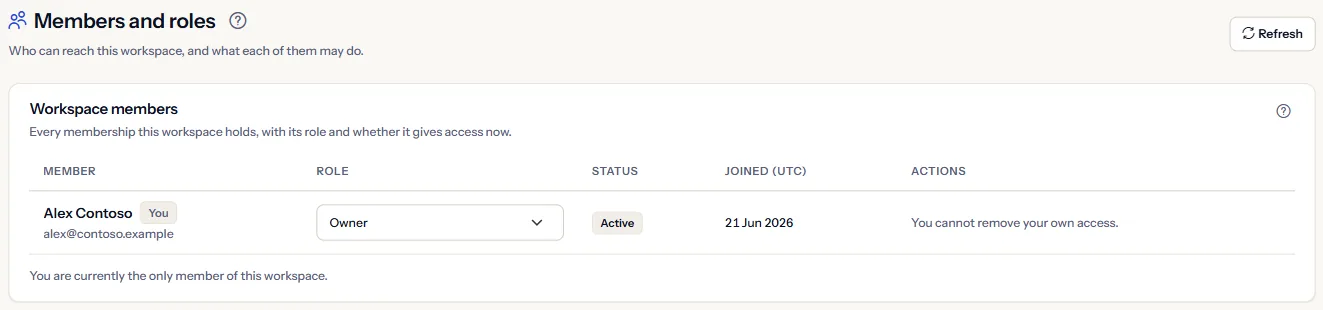
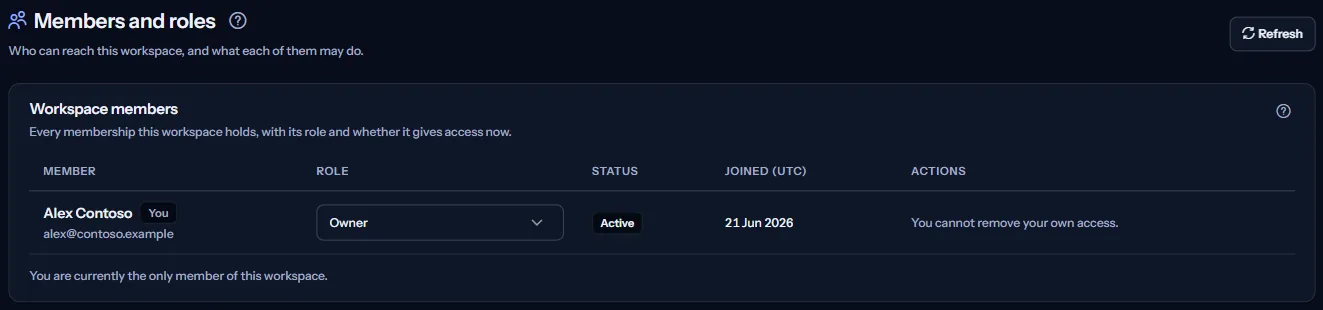
This page shows every membership the workspace holds: who it is, their role, whether it gives access now, and when they joined. A workspace owner opens it to change a role, revoke access or restore it.
The page manages the memberships that exist. It cannot add a new person, and it reads nothing from Azure.
Before you start
Only a workspace owner sees the members and can change them; anyone else sees “Only a workspace owner can manage members”. Every plan includes the page.
The members list
“Workspace members” has one row per membership:
- “Member”: the person's name and email address. “You” marks your own row.
- “Role”: the person's role, chosen in a list on the row.
- “Status”: “Active” when the membership gives access now, “No access” when its access was revoked.
- “Joined (UTC)”: the day the person joined, as a date in UTC.
Choosing another role in the list saves it at once. Taking the owner role away from someone asks you to confirm first, because they lose the ability to manage members and roles.
A workspace always keeps at least one active owner. A change that would leave none is not applied, and the page says so.
Because CostGuard cannot add a person to an existing workspace yet, a workspace usually has one member: you, as its owner. The page then says “You are currently the only member of this workspace.”
What each role can do
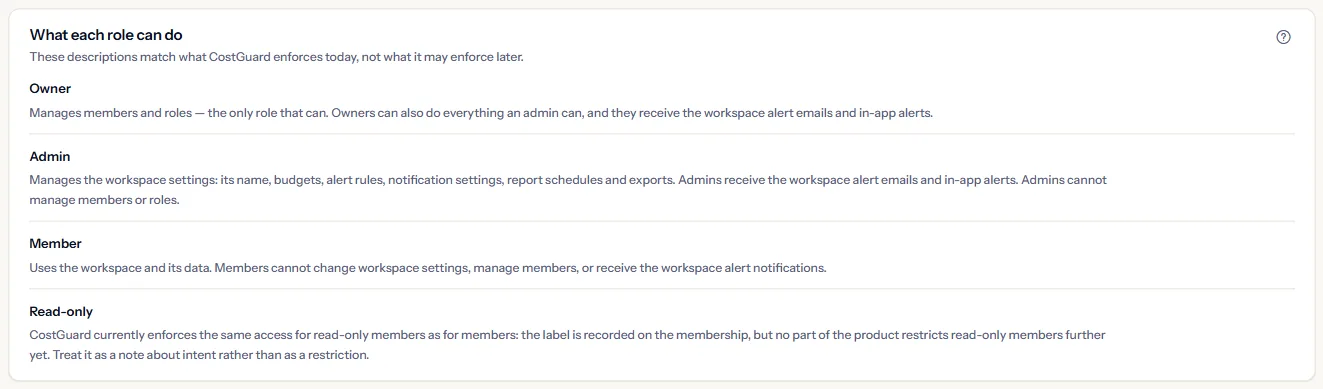
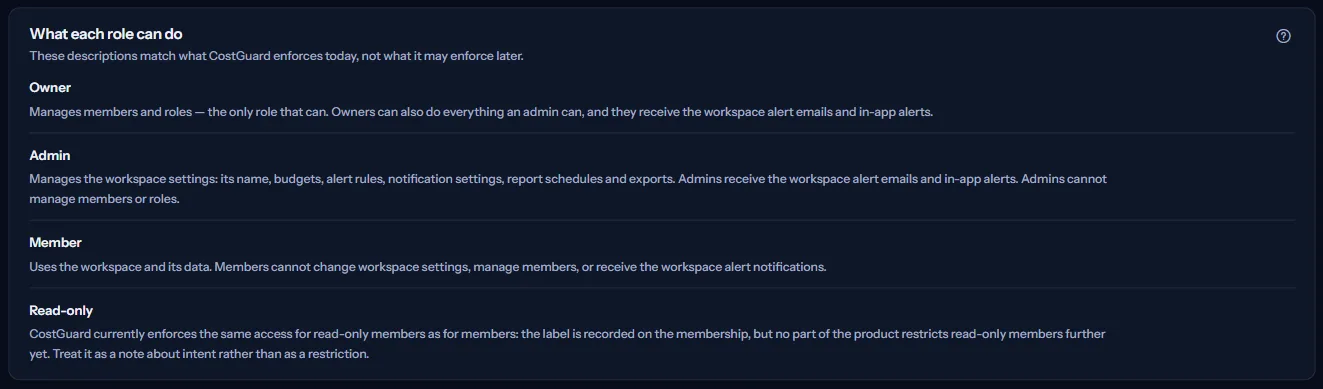
The page describes the four roles as CostGuard enforces them today:
- “Owner”: Manages members and roles — the only role that can. Owners can also do everything an admin can, and they receive the workspace alert emails and in-app alerts.
- “Admin”: Manages the workspace settings: its name, budgets, alert rules, notification settings, report schedules and exports. Admins receive the workspace alert emails and in-app alerts. Admins cannot manage members or roles.
- “Member”: Uses the workspace and its data. Members cannot change workspace settings, manage members, or receive the workspace alert notifications.
- “Read-only”: CostGuard currently enforces the same access for read-only members as for members: the label is recorded on the membership, but no part of the product restricts read-only members further yet. Treat it as a note about intent rather than as a restriction.
Adding someone new
There is no invite button, on purpose. CostGuard cannot yet add a person to an existing workspace, and sending an email or storing an address would not give anyone access.
If you need another person in this workspace, use “Contact support” on the page.
Revoking and restoring access
“Revoke access” removes a person's access at once. Their membership is kept, so “Restore access” gives the access back, with the role shown. Both ask you to confirm first.
You cannot revoke your own access, because you would lose the only page that could give it back. Your row shows “You cannot remove your own access.”
Go further
The links at the bottom of the page lead on:
- “Security”: Your own account, your role and how you sign in.
- “Data access and permissions”: What CostGuard reads from Azure, and who in the workspace can see it.
- “Audit log”: Who changed what in this workspace, and when.
- “Contact support”: Ask for another person to be given access to this workspace.
What you may see instead
While the page reads, grey bars stand where the panels will appear. After that, the page may show one of these instead:
- “Only a workspace owner can manage members”: your role is not Owner, so the page shows no members.
- “Members are unavailable”: The workspace members could not be loaded. This does not mean the workspace has no members. Try again in a moment.
- This workspace has more members than can be shown here, so the list below is incomplete.
- After a change, a line above the list says whether it was saved, not applied because the workspace would lose its last owner, refused because of your role, or could not be saved. A change that was not saved alters nothing.
- When your session has ended, CostGuard first signs you in again on its own. If that is not enough, the page asks you to sign in again instead of showing the members.
What each plan includes
The table shows the first plan that includes each part of the page. Every plan above it includes it too.
| Feature | Free | Starter | Growth | Pro | Enterprise |
|---|---|---|---|---|---|
| The Members and roles page | Included | Included | Included | Included | Included |
Every plan includes this page. What limits it is the owner role, not the plan.
Troubleshooting
The page says only an owner can manage members
Your role in the workspace is not Owner. Ask an owner of the workspace to change your role or to make the change for you.
A colleague needs access to the workspace
CostGuard cannot add a person to an existing workspace yet. Use “Contact support” and say who needs access.
A role change was not applied
The workspace must keep at least one active owner, so you cannot take the owner role from its last owner, including yourself. Make another active member an owner first.
The page is not in the sidebar
The sidebar lists it in “Advanced” mode only. Choose “Advanced” at the top of the sidebar; the page's address opens in either mode.