
Contact support: ask the CostGuard team for help
How to write a support request, which files you can add, what the page sends with it, and what happens after you send it.
What this page is for
“Contact support” is where you ask the CostGuard support team for help: a question about a figure, a connection that will not sync, a report, your plan or anything else.
You write one request, send it, and follow it on “Support requests”, where every answer from the team appears and where you can reply.
Before you start
Any member of a workspace can send a request, on every plan and in both sidebar modes. The request is linked to your account and to the workspace you are in, so open the workspace the question is about first.
Write your request
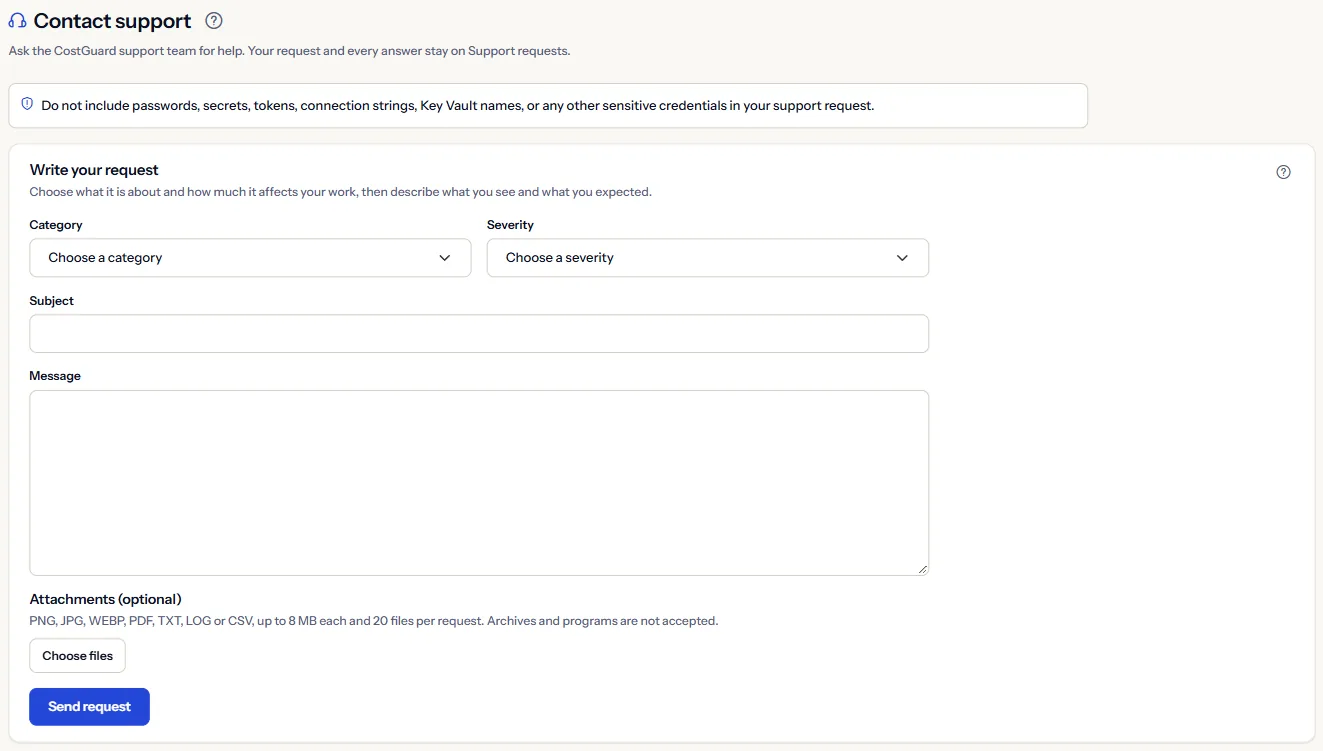
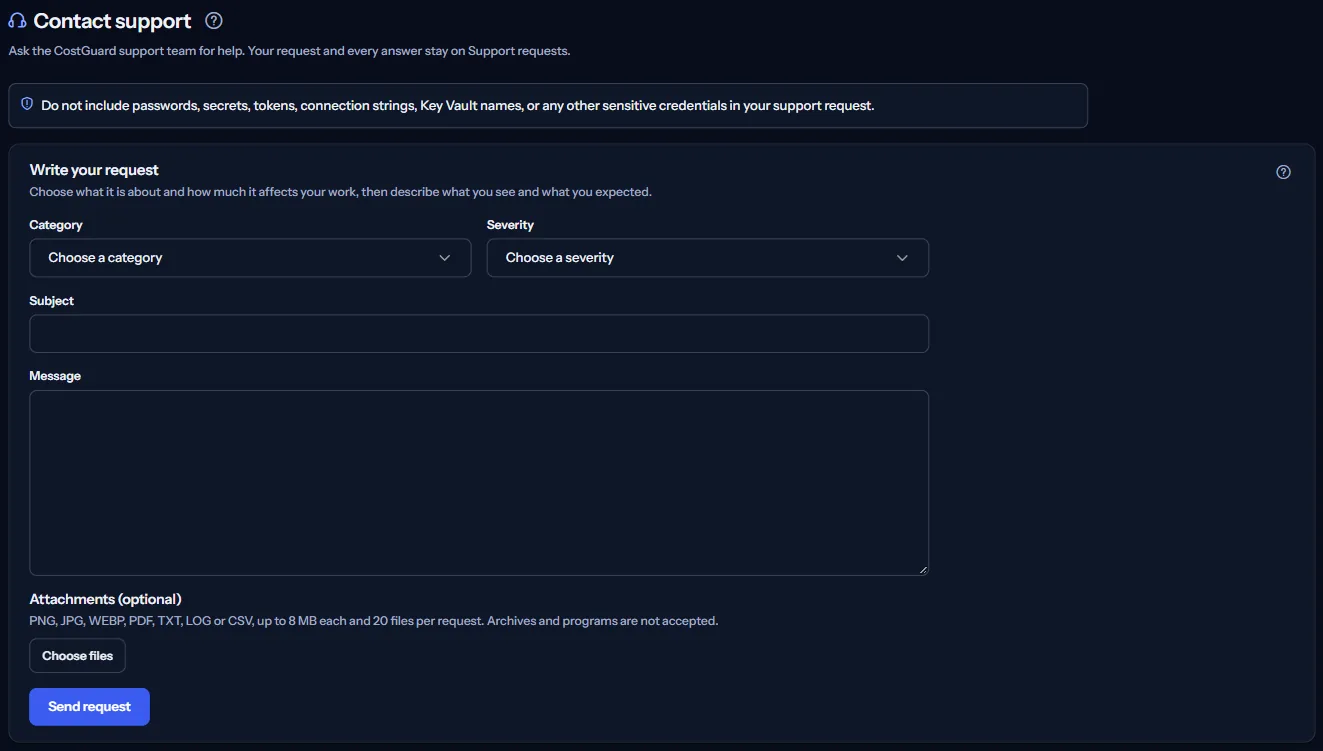
The panel “Write your request” asks for four things, all required:
- “Category”: what the request is about, from “Azure connection” to “General question”. A line under the field describes the category you chose.
- “Severity”: how much it affects your work, from “Low” to “Urgent”. Each choice says what it means; it helps the team read the request, and it is not a promise of a response time.
- “Subject”: one line, up to 200 characters.
- “Message”: what you see, what you expected and the page it happened on, up to 8,000 characters.
Never put a password, secret, token, connection string or key in a request. CostGuard never needs one to help you, and people read what you write.
Add files
Under “Attachments (optional)”, “Choose files” adds screenshots or files: PNG, JPG, WEBP, PDF, TXT, LOG or CSV, up to 8 MB each and 20 files per request. Archives and programs are refused before anything is sent.
The files go up right after the request is created. If one of them could not be added, the page says so; open the request on “Support requests” and add it there.
What is sent with your request
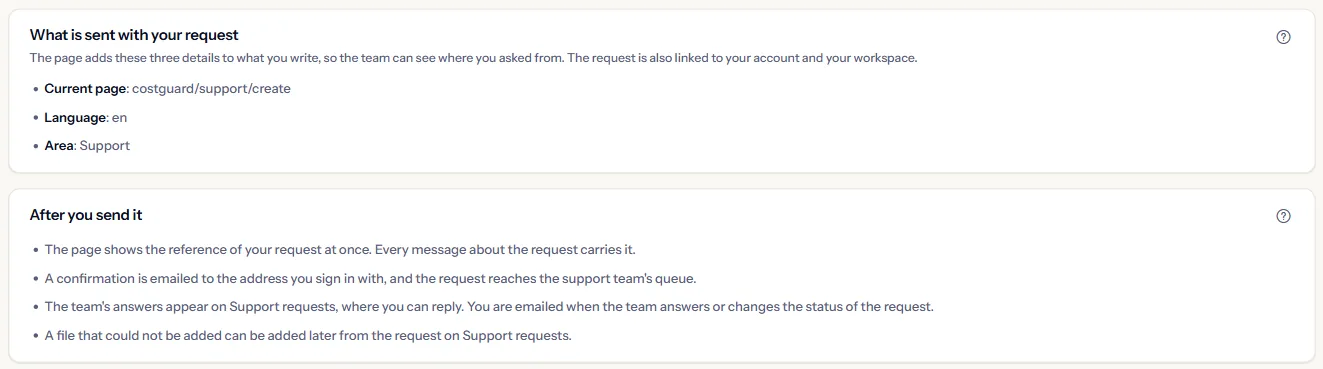
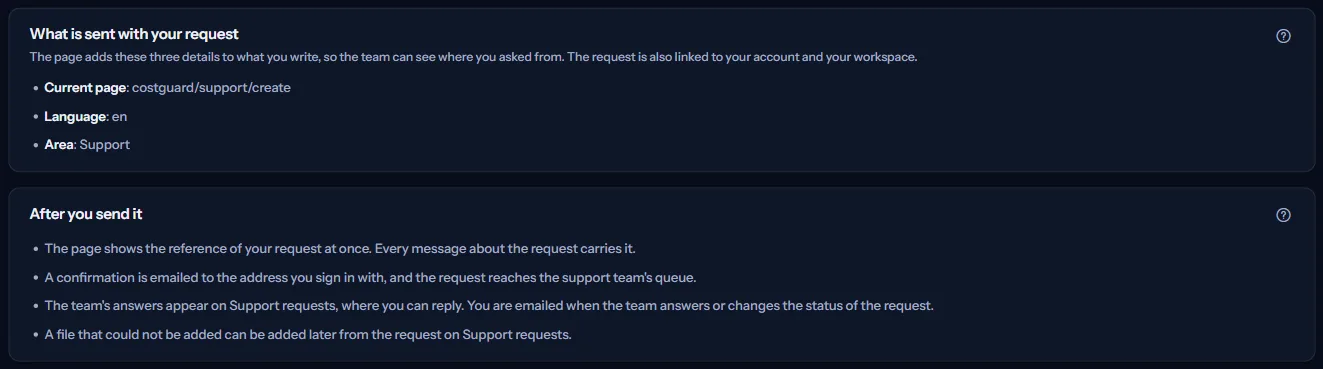
The panel “What is sent with your request” shows the three details the page adds to what you write, so the team can see where you asked from:
- “Current page”: the address of the page in CostGuard, without your sign-in details.
- “Language”: the language CostGuard is shown in.
- “Area”: the part of CostGuard the request came from.
The request is also linked to your account and to the workspace you are in. Nothing else is read from your browser or your Azure subscriptions.
After you send it
When you press “Send request”, this happens:
- The page shows the reference of the request at once, with its subject, its state and when it was sent (UTC). Every message about the request carries that reference.
- A confirmation is emailed to the address you sign in with, and the request reaches the support team.
- The team's answers appear on “Support requests”, where you can reply. You are emailed when the team answers or changes the state of the request.
CostGuard does not promise a response time. If CostGuard itself seems to be down, the public “Service status” page says whether it is working normally.
Go further
The links at the bottom of the page lead on:
- “Support requests”: Follow your requests and answer the team.
- “Help center”: Find the article for the page you have a question about.
- “Service status”: See whether CostGuard is working normally right now.
What you may see
Above the form, one line says what happened to the last request you sent:
- Sent: the reference, the subject, the state and the time, with “Open Support requests”.
- Sent, but a file could not be added: add it later from the request on “Support requests”.
- Not sent because a field needs a change: the page names the field, and what you wrote stays in the form.
- Not sent because something went wrong: what you wrote stays in the form, so try again in a moment.
- Your sign-in ended before the request was sent: copy what you wrote, choose “Sign in again”, then send it.
- The workspace changed while the request was being sent: open “Support requests” in the workspace you sent it from to check it.
What each plan includes
The table shows the first plan that includes each part of the page. Every plan above it includes it too.
| Feature | Free | Starter | Growth | Pro | Enterprise |
|---|---|---|---|---|---|
| The “Contact support” page | Included | Included | Included | Included | Included |
Every plan includes this page, and every member of the workspace can use it.
Troubleshooting
No confirmation email arrived
The confirmation goes to the address you sign in with, not to another one. Look in its junk folder. The request is sent all the same: its reference is on the page and on “Support requests”.
A file is refused
Only PNG, JPG, WEBP, PDF, TXT, LOG and CSV files of up to 8 MB are accepted. Save a screenshot as PNG, or export a log as TXT, and add it again.
The request I sent is not on “Support requests”
A request belongs to the workspace it was sent from, and “Support requests” lists only the requests you sent yourself. Open the workspace you sent it from.
CostGuard does not open at all
Look at the public “Service status” page first: it says whether CostGuard is working normally. If it is and the problem stays, send a request once you can sign in.