
Support requests: follow and answer your requests
Where each of your support requests stands, what each state means, how to reply and add files, and when you are emailed.
What this page is for
“Support requests” lists the requests you sent to the CostGuard support team from this workspace and where each one stands, with the ones waiting for you first.
Open a request to read the team's answers, reply, add files and see what happened to it.


Before you start
Every plan includes the page, and any member of the workspace can open it. It lists only the requests you sent yourself, from the workspace you are in; a request starts on “Contact support”.
Where your requests stand
The panel “Where your requests stand” counts the listed requests in each state: “Waiting for you” first, then “With support”, “Open”, “Resolved” and “Closed”.
The counts cover the requests on the page, whatever the filter below shows. A request waiting for you is set apart by weight; no state is a colour, because none of them is good or bad news on its own.
Your requests
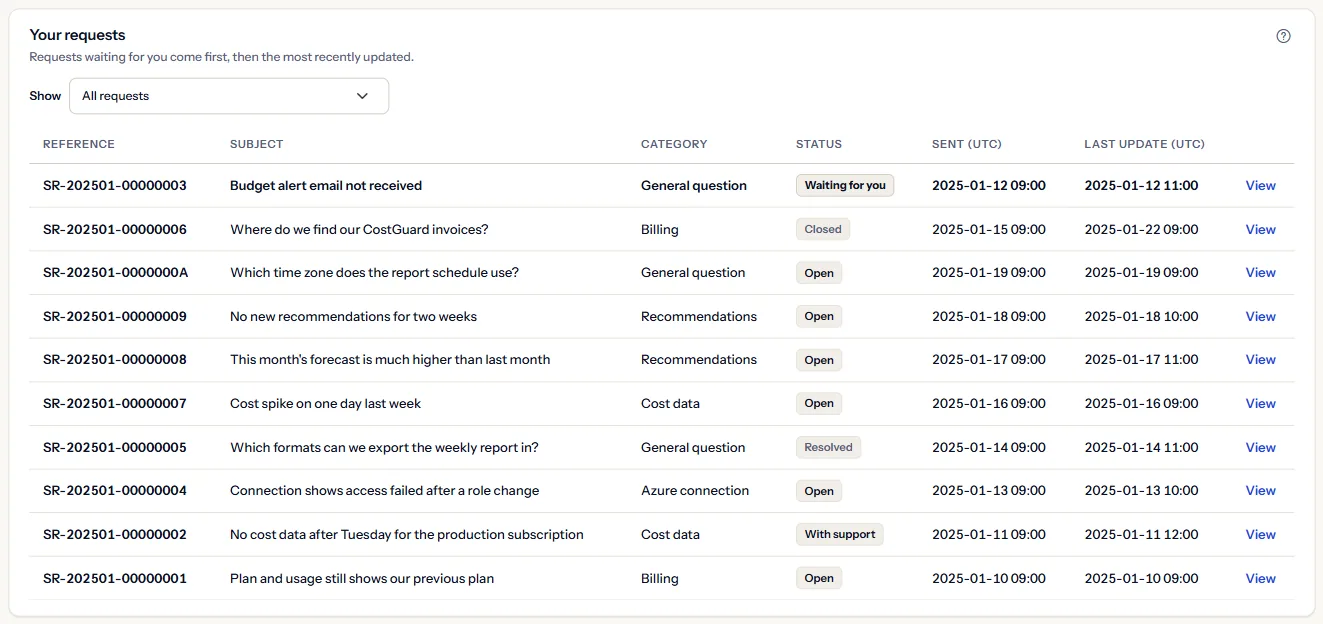
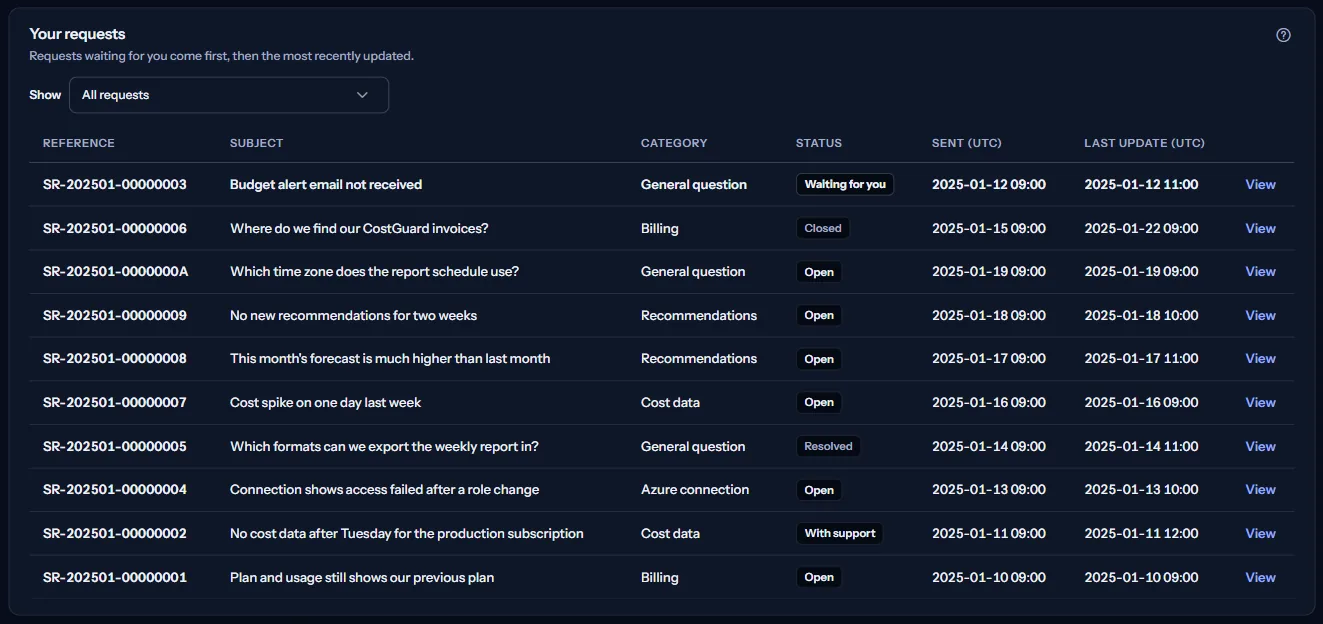
The list “Your requests” shows the requests waiting for you first, then the most recently updated. Each row shows:
- “Reference”: the reference CostGuard gave the request; every email about it carries it.
- “Subject”: the subject you wrote.
- “Category”: what the request is about.
- “Status”: where the request stands; the next section says what each state means.
- “Sent (UTC)”: when you sent it, in UTC.
- “Last update (UTC)”: the last message, file or change of state, in UTC.
“Show” narrows the list to one state; “All requests” shows every request again. “View” opens a request.
What each state means
The support team moves a request between states; your reply moves it too. Each state means:
- “Waiting for you”: Support answered and is waiting for your reply.
- “With support”: Your latest message is with the support team.
- “Open”: Support has your request and has not answered yet.
- “Resolved”: Support marked this request resolved. Replying reopens it.
- “Closed”: This request is closed and takes no more replies.
Open a request
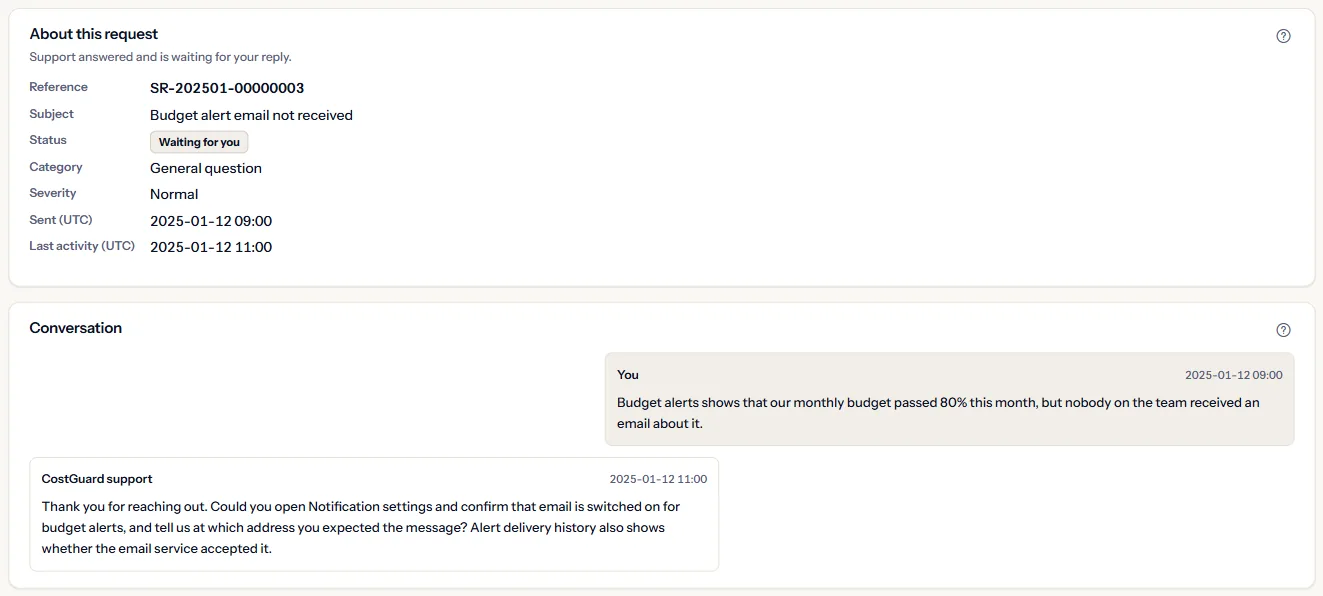
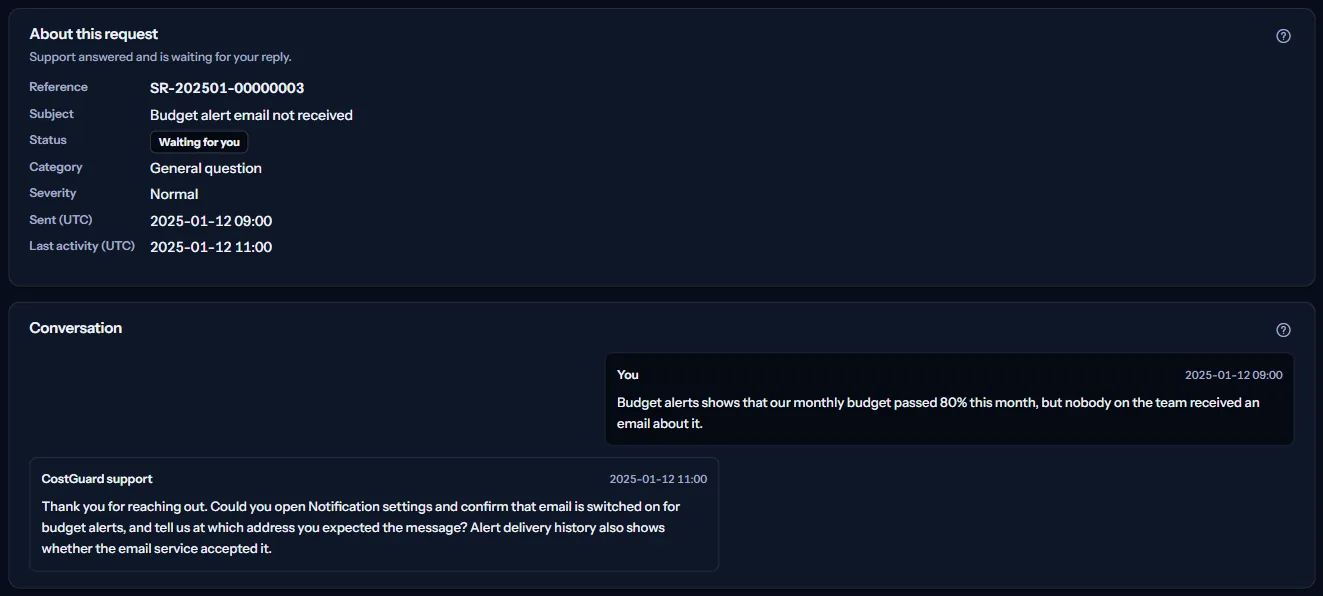
A request opens on its own page, with its reference in the heading and “Support requests” to return to the list. The panel “About this request” says what its state means for you, then shows its reference, subject, state, category, severity, when it was sent and its last activity, in UTC.
“Conversation” shows every message, oldest first: yours under “You”, the team's under “CostGuard support”. The team's internal notes are not shown.
Only a request you sent yourself, from the workspace you are in, opens here. Any other address says the request could not be found.
Reply and add files
In “Add a reply”, write in “Your message” and choose “Send reply”. Your reply joins the conversation and the request moves to “With support”.
Replying to a “Resolved” request reopens it. A “Closed” request takes no more replies: send a new request from “Contact support” instead.
Under “Add attachment”, “Choose file” then “Upload” adds PNG, JPG, WEBP, PDF, TXT, LOG or CSV files of up to 8 MB each, up to 20 files per request in all.
“Attachments” lists every file you and the team added; “Download” saves one to your computer.
Activity
“Activity” records what happened to the request, oldest first, each with its time in UTC:
- “Request sent”: you sent the request.
- “You replied”: you added a message.
- “Support replied”: the team answered.
- “State changed”: the request moved to another state.
- “File added”: a file was added to the request.
Good to know
- Only the requests you sent yourself from this workspace are listed. A request sent by someone else in the workspace is not shown to you.
- When the support team replies or changes the state of a request, an email goes to the address you sign in with. The answer itself is always on the request's page.
- Your own replies and files are not emailed back to you; they appear on the request's page at once.
- CostGuard does not promise a response time for a request.
Go further
The links at the bottom of the page lead on:
- “Contact support”: Send a new request to the support team.
- “Help center”: Read the help articles; one may answer your question at once.
- “Service status”: See whether CostGuard is working normally right now.
What you may see instead
While a page reads, it says it is loading. After that, it may show one of these instead:
- “No support requests yet”: you have not sent a request from this workspace; “Contact support” starts one.
- “Your support requests could not be loaded.”: the list could not be read. This does not mean you have no requests; choose “Try again”.
- “No request is in this state.”: the filter shows no request; “Show all requests” shows them all again.
- “This support request could not be found. Only the requests you sent yourself from this workspace can be opened here.”
- “This request was closed before your reply arrived, so it was not added. Send your message as a new request.”
- “Your sign-in has ended, so the reply was not sent. Copy your text before you sign in again.” Your text stays in the box; “Sign in again” signs you in. If your session cannot be restored, the page asks you to sign in again instead of showing the requests.
What each plan includes
The table shows the first plan that includes each part of the page. Every plan above it includes it too.
| Feature | Free | Starter | Growth | Pro | Enterprise |
|---|---|---|---|---|---|
| The “Support requests” page and each request's page | Included | Included | Included | Included | Included |
Every plan includes these pages, and every member of the workspace can use them.
Troubleshooting
A request is missing from the list
The list shows only the requests you sent yourself from the workspace you are in. Switch to the workspace you sent it from, and check that the filter shows “All requests”.
I cannot reply to a request
A “Closed” request takes no more replies. Send a new request from “Contact support” and mention the old reference in it.
No email arrived about an answer
The email goes to the address you sign in with; look in its junk folder. The answer is on the request's page either way, and “Refresh” reads the list again.
A file will not upload
Only PNG, JPG, WEBP, PDF, TXT, LOG and CSV files of up to 8 MB are accepted, and a request holds 20 files at most. Save a screenshot as PNG or a log as TXT and try again.