
Risk indicators: will the month stay within budget?
The Risk indicators page grades this month against the workspace's monthly budget: On track, Watch, At risk or Likely over budget. It shows the month end the grade rests on, the cost recorded so far plus the Baseline forecast of the remaining days, and which subscriptions it counts.
What this page is for
“Risk indicators” answers one question: will this month's cloud cost stay within the workspace's monthly budget? It answers with a grade and shows the figures the grade rests on, so you can check it instead of trusting it.
It is opened by whoever owns the monthly budget: a finance lead, an engineering lead or a founder. A grade that asks for attention leads to a decision before the month closes: slow down a cost, raise the budget on purpose, or accept the overrun knowingly. Nothing changes in Azure.
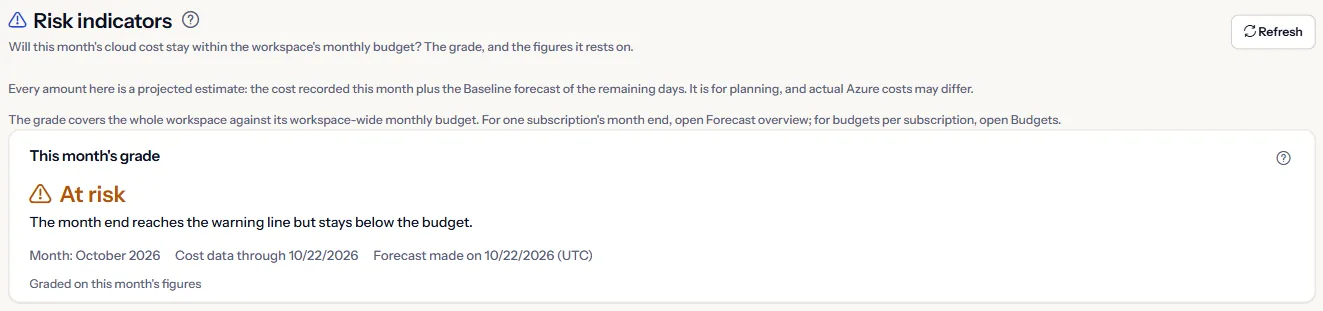
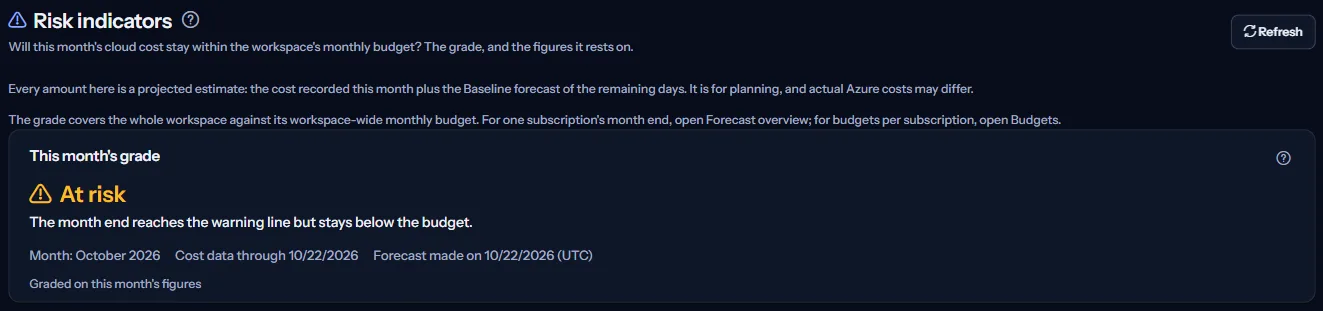
The grade covers the whole workspace against one budget: the enabled monthly budget that covers the whole workspace. Every amount is a projected estimate for planning, not a bill, and actual Azure costs may differ. For one subscription's month end, open “Forecast overview”.
Before you start
The grade needs three things: cost imported from a connected Azure subscription, one enabled monthly budget that covers the whole workspace, created on Budgets, and an active Baseline whose forecast reaches the end of the month, kept on “Forecast scenarios”.
Read the Getting started guide
The page is part of forecasting, which the Pro and Enterprise plans include. It sits under “Forecasting” in the sidebar, which lists it in “Advanced” mode.
This month's grade
The “This month's grade” panel names the grade in words and says what it means. There are four grades, and a fifth answer when there is none:
- “On track”: the month end and the high end of its range stay below the warning line.
- “Watch”: the month end is below the warning line, but the high end of its range reaches it.
- “At risk”: the month end reaches the warning line but stays below the budget.
- “Likely over budget”: the month end reaches or passes the budget.
- “Not graded”: something the grade needs is missing. The page says what, and no level is implied.
“Watch”, “At risk” and “Likely over budget” are shown in amber with a warning icon, because they ask for attention. “On track” is shown in the page's neutral colour, not green: in CostGuard green means money saved, and staying within a budget is not a saving.
Under the grade, the panel names the month it is for, the last day of recorded cost (“Cost data through”) and the day the forecast was made, in UTC. Azure reports cost a day or two late, so the last recorded day is usually yesterday or the day before.
Month-end figures
The “Month-end figures” panel shows every number the grade uses, all in the budget's currency:
- “Month end”: the cost recorded so far this month plus the forecast of the remaining days.
- “Range”: the low and high end of the month end. Only the forecast days have a range; recorded cost has none.
- “Recorded so far”: the cost Azure has reported for this month, for every subscription billed in the budget's currency.
- “Forecast of the remaining days”: the Baseline forecast from the day after the last recorded day to the end of the month.
- “Monthly budget”: the amount of the workspace-wide monthly budget.
- “Month end against the budget”: the share of the budget the month end uses.
- “Warning line”: 80% of the budget. From this amount the month is “At risk”.
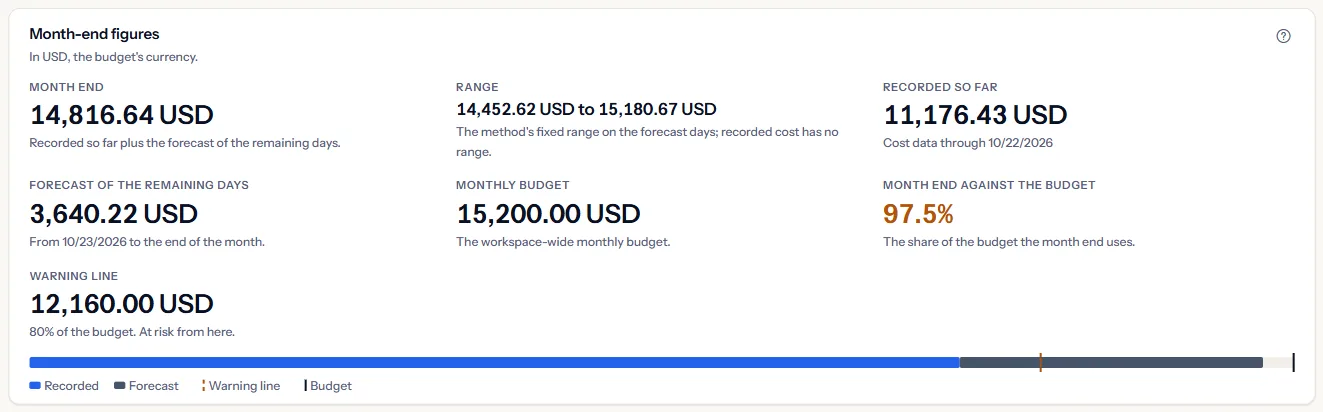
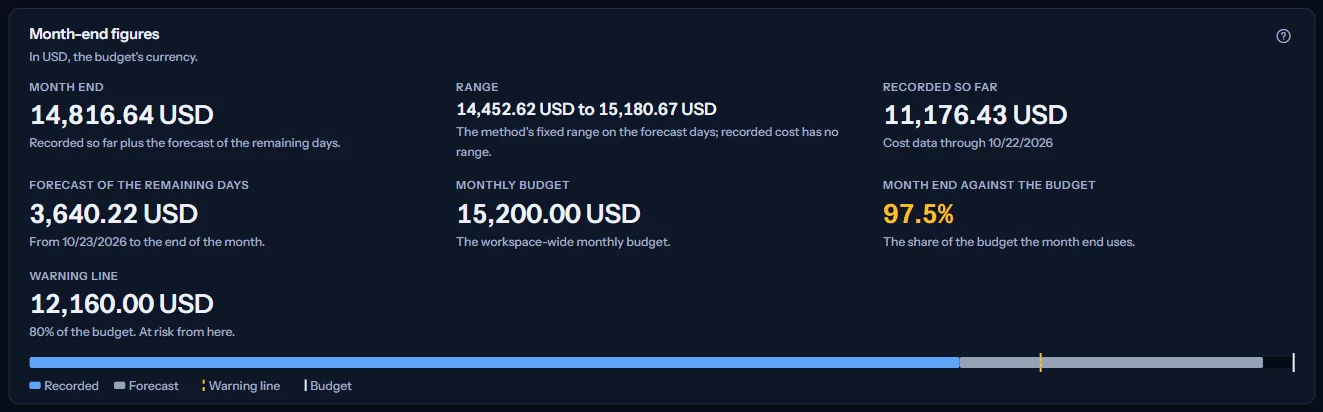
The bar under the figures puts the recorded part and the forecast part side by side against the budget, with a mark for the warning line. It is drawn for the eye only: the figures above it say everything it shows.
Limits to know
Only the budget's currency is counted. Cost billed in another currency is not converted and does not enter the month end.
What the grade counts
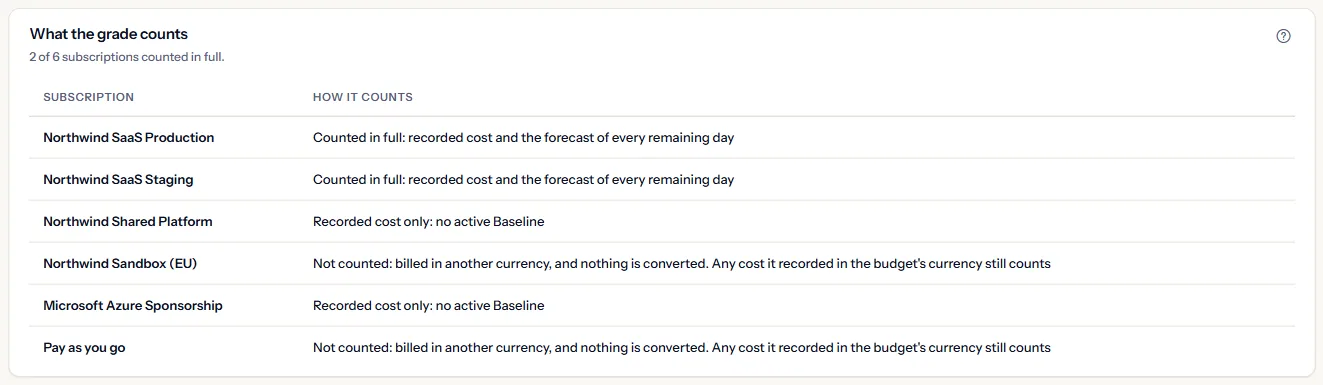
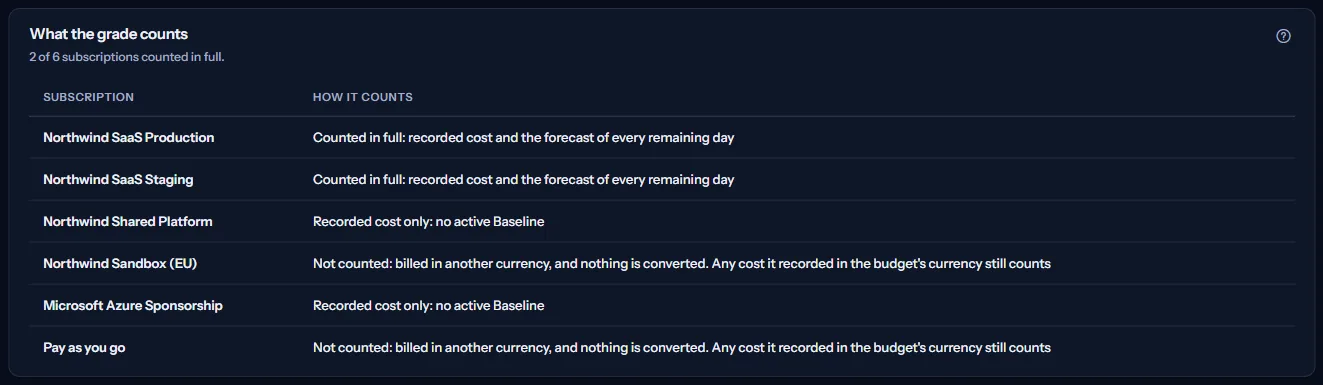
The “What the grade counts” table lists each subscription with cost recorded this month or an active Baseline, and says in “How it counts” how it enters the month end:
- Counted in full: its recorded cost and its Baseline forecast of every remaining day.
- Recorded cost only, because it has no active Baseline.
- Recorded cost only, because its Baseline has no forecast for the remaining days yet.
- Recorded cost only, because its Baseline forecast stops before the end of the month.
- Not counted, because it is billed in another currency than the budget. Any cost it recorded in the budget's currency still counts.
Note
A subscription is named by its name in Azure, never by its identifier. When the names cannot be read, it is shown by the end of its identifier.
How the grade is decided
The “How the grade is decided” panel gives the rules in the order CostGuard checks them. The first rule that holds is the grade:
- The month end reaches the budget: “Likely over budget”.
- The month end reaches the warning line: “At risk”.
- The high end of the month end's range reaches the warning line: “Watch”.
- None of the above: “On track”.
The warning line is at 80% of the budget. It is the same for every workspace, and the page shows its amount among the figures.
The month end adds the cost recorded this month in the budget's currency, for every subscription, to the Baseline forecast of the days after the last recorded day. A subscription's forecast is added only when it covers every remaining day of the month. The Baseline is the one “Forecast overview” uses for that subscription.
Note
The range is the forecast method's fixed 10% either side of each forecast day. It is not a probability, and an actual cost can fall outside it.
The grade is worked out each time the page is read, from the forecast stored at that moment. Active scenarios are forecast about once an hour, or at once with “Generate now” on “Forecast scenarios”.
Forecast risk alerts
The “Forecast risk alerts” card leads to the page where you choose to be told when the grade gets worse. An alert is raised only when the grade moves to a worse level that asks for action; an unchanged or better grade raises none.
The alerts use the same grade as this page, so what an alert says and what this page shows agree.
Go further
The links at the bottom of the page lead on:
- “Forecast overview: the month end per subscription”
- “Forecast scenarios: the Baselines behind the forecast”
- “Budgets: the monthly budget and its pace”
- “Cost overview: where this month's cost comes from”
What you may see instead of figures
Instead of a grade, the page may show:
- A loading indicator while the grade is read.
- “The risk grade could not be read”, with “Try again”. A failed read is never shown as a low risk.
- A notice that your sign-in has expired, with a link to sign in again.
- “No workspace-wide monthly budget”, with “Open Budgets”. The grade needs one enabled monthly budget, and only one, that covers the whole workspace.
- “No forecast for the rest of the month yet”, with “Open Forecast scenarios”: no active Baseline forecasts the remaining days of the month.
In each of these, the grade reads “Not graded” and no amount is shown, so silence is never shown as safety.
When the forecast cannot be graded
“The forecast cannot be graded” comes with its cause:
- Two active Baselines cover the same subscription, so no single forecast can be counted. Disable or archive one on “Forecast scenarios”.
- The Baseline forecasts are in another currency than the budget. Nothing is converted, so the month end cannot be compared with the budget.
- The Baseline forecasts stop before the end of the month. Generate the forecast again, or lengthen its horizon, on “Forecast scenarios”.
- The newest forecast is dated after now. The grade waits for the next forecast run.
- The stored forecast contradicts itself: its range does not hold its expected value. The grade waits for the next forecast run.
Sample data when your plan has no forecasting
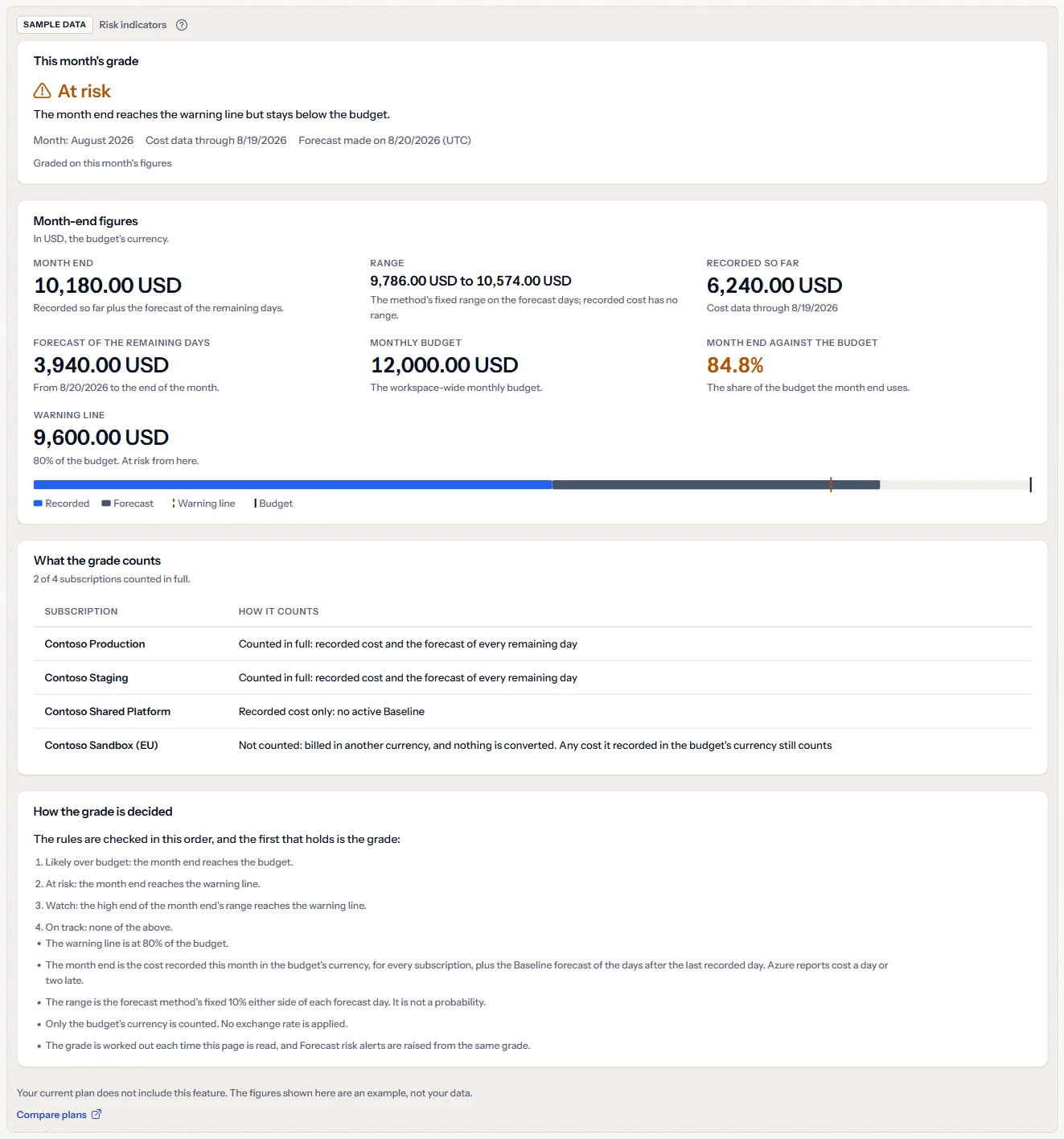
When your plan does not include forecasting, the page shows a fixed example under the label “Sample data”, with the sentence “Your current plan does not include this feature. The figures shown here are an example, not your data.”
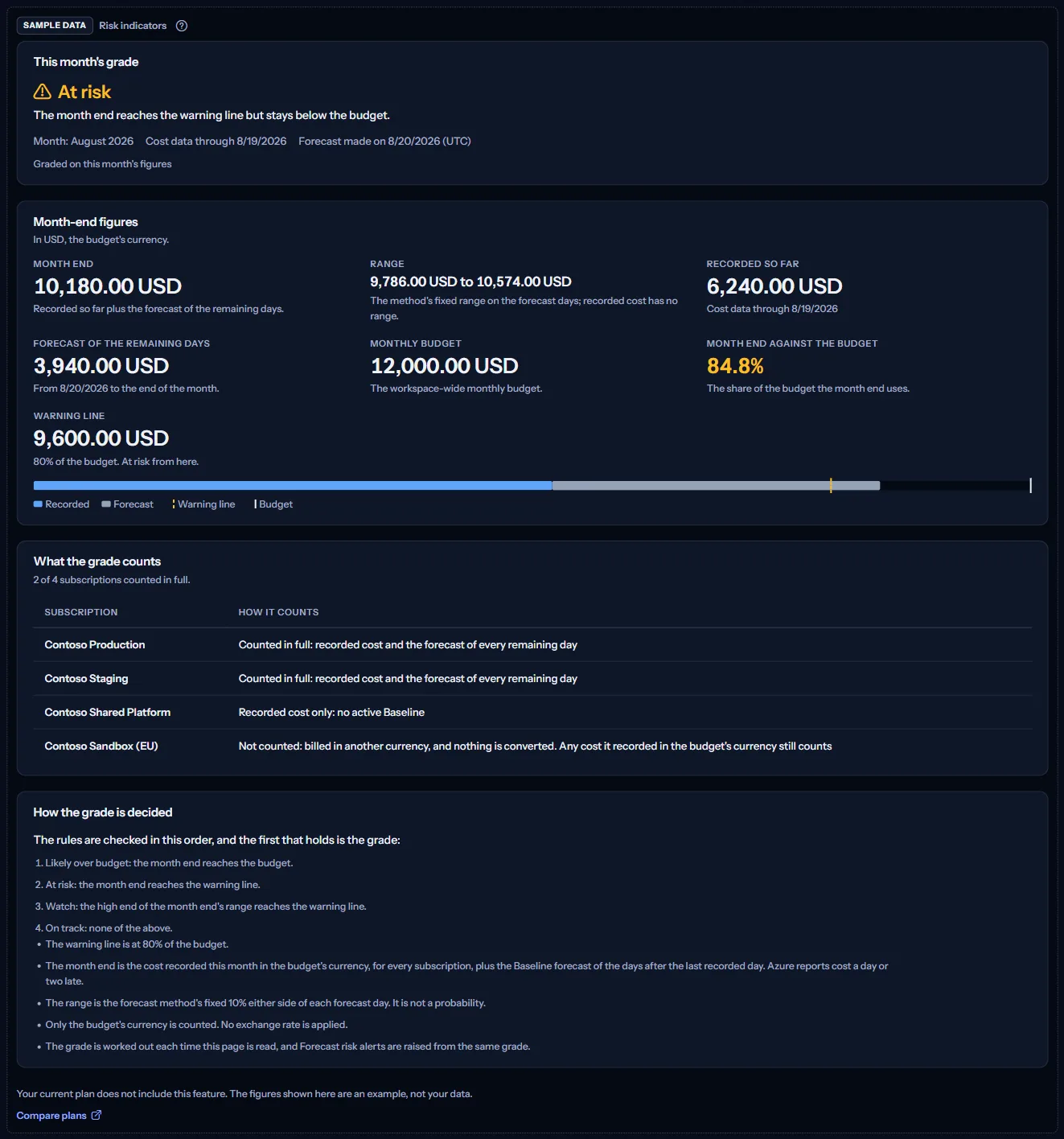
The sample shows a Contoso month graded “At risk”: its month-end figures against a monthly budget, four Contoso subscriptions and how each one counts, and the notes on how the grade is decided. It has no action, and it is the same for everyone, never your data.
“Compare plans” opens the pricing page in a new tab. CostGuard decides what your plan includes on the server; the sample is only how the page shows it.
What each plan includes
The table shows the first plan that includes each part of the page. Every plan above it includes it too.
| Feature | Free | Starter | Growth | Pro | Enterprise |
|---|---|---|---|---|---|
| A labelled sample of the page | Included | Included | Included | Included | Included |
| The grade of your own month against your own budget | Not included | Not included | Not included | Included | Included |
Pro and Enterprise include the grade of your own month; Free, Starter and Growth show the labelled sample. The plan is checked on the server, and the page never shows a price.
Troubleshooting
The grade does not match what Budgets shows
Budgets shows each budget against the cost recorded so far. This page grades the month end, recorded cost plus the forecast of the remaining days, against the one monthly budget that covers the whole workspace. A budget for one subscription does not enter the grade.
A subscription is missing from the table
The table lists subscriptions with cost recorded this month or an active Baseline. A subscription with neither adds nothing to the month end, so it is not listed.
A subscription billed in euros is not counted
The grade counts only the budget's currency, and CostGuard never converts amounts between currencies. The subscription's month end is on “Forecast overview” in its own currency.
The grade disappeared after I added a second Baseline
Two active Baselines on one subscription leave no single forecast to count, so the grade waits. Keep one Baseline active per subscription on “Forecast scenarios”; use another scenario type for an alternative.
The forecast stops before the end of the month
A forecast starts on the day after the latest recorded day and runs for its horizon. If it was made some days ago, or its horizon is short, it may end before the month does. Generate it again with “Generate now”, or lengthen the horizon, on “Forecast scenarios”.
The page is not in the sidebar
The sidebar lists it in “Advanced” mode only. Choose “Advanced” at the top of the sidebar; the page's address opens in either mode.