
Forecast scenarios: the assumptions behind each forecast
The Forecast scenarios page keeps the scenarios behind every forecast, for all subscriptions or one: which Baseline feeds each subscription's month-end forecast on Forecast overview, whether each active scenario has a forecast and how far it reaches, and which subscriptions with recorded cost have no Baseline yet. It is also where a scenario is created, changed, paused and archived.
What this page is for
The “Forecast scenarios” page holds the forecast scenarios of your workspace, for all subscriptions or one. It answers four questions: which Baseline feeds each subscription's month-end forecast, is each active scenario producing a forecast, how far does that forecast reach, and which subscriptions with recorded cost have no Baseline at all?
It is for the person who keeps the forecast assumptions: a FinOps practitioner or an engineering lead. It leads to decisions such as creating a Baseline for a subscription without one, lengthening a forecast that stops before the end of the month, adjusting a growth assumption, adding an alternative scenario to compare, or disabling or archiving a scenario you no longer need. Nothing on this page changes anything in Azure.
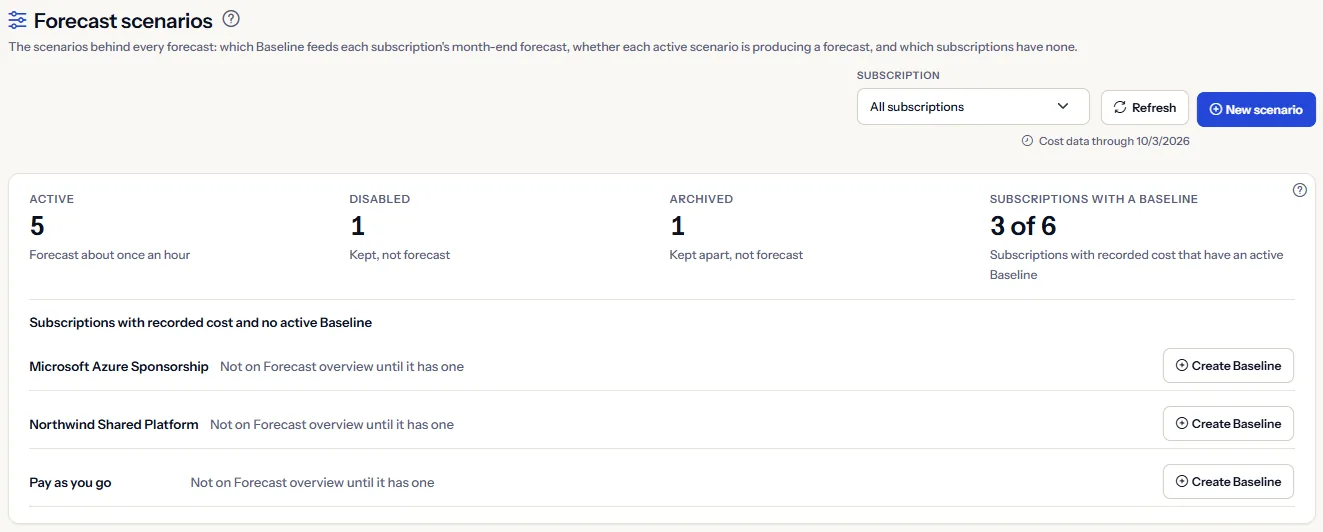
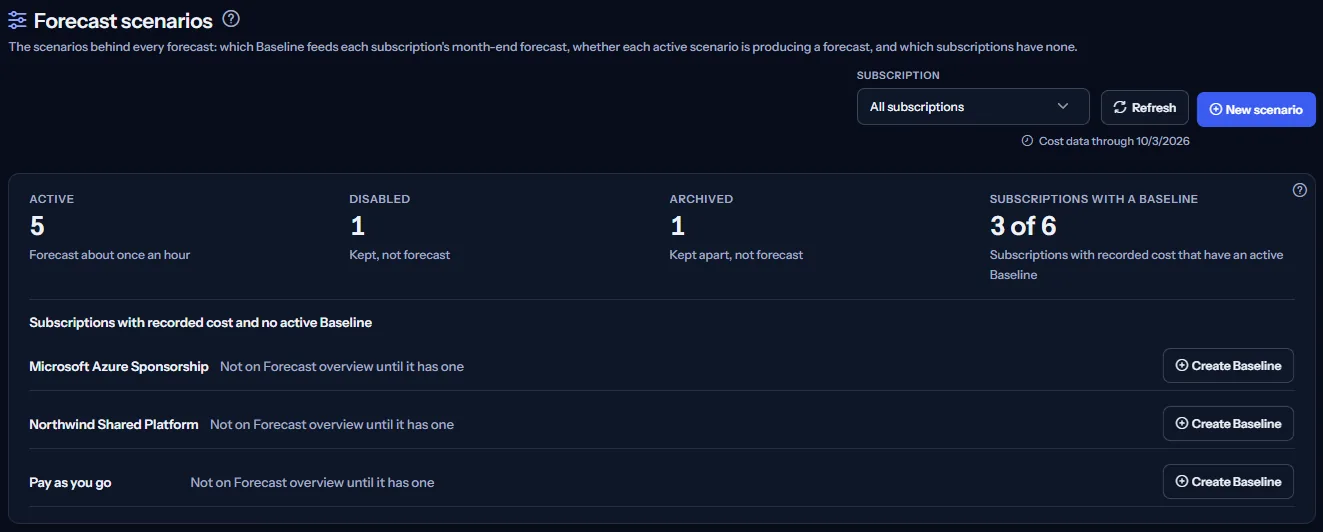
“Forecast overview” shows the outcome: where this month's cost is heading. This page is where its inputs are kept: the Baseline of each subscription is the scenario whose forecast it adds to the cost recorded so far.
Read how the Forecast overview is calculated
To open it, choose “Advanced” in the sidebar, then select “Forecast scenarios” under “Forecasting”. Its address opens in either mode.
Before you start
A scenario forecasts the recorded cost of one subscription, so the page needs an Azure connection that has imported cost. Without a connection it shows “No Azure connection yet” and “Connect Azure”; with a connection but no recorded cost yet, it shows “No recorded cost yet” and “Open Getting started”.
Read the Getting started guide
Forecast scenarios are part of the Pro and Enterprise plans. On Free, Starter and Growth the page shows a labelled sample instead of your scenarios.
Choose the scope: all subscriptions or one
Use “Subscription” to see “All subscriptions” or one subscription. With one subscription, the counts, the coverage and the register hold only that subscription's scenarios. Changing the scope closes an open form or forecast and reads the page again.
There is no currency selector and no date range: the register shows no amount, and the forecast of a scenario is shown day by day, each amount in its own currency. “Refresh” reads everything again.
“Cost data through” names the latest day with recorded cost. Azure reports cost a day or two late, so that day is usually before today. A scenario's forecast starts the day after the latest day recorded for its subscription.
“New scenario” opens the form of a new scenario, explained below. It is unavailable while the page reads or saves a change, while the form is already open, or when no subscription with recorded cost can be chosen.
Scenario counts and Baseline coverage
The first panel shows four figures for the scope:
- “Active”: the scenarios that are forecast, about once an hour.
- “Disabled”: scenarios that are kept but not forecast.
- “Archived”: scenarios that are kept apart and not forecast.
- “Subscriptions with a Baseline”: how many of the subscriptions with recorded cost in scope have an active Baseline scenario, out of how many.
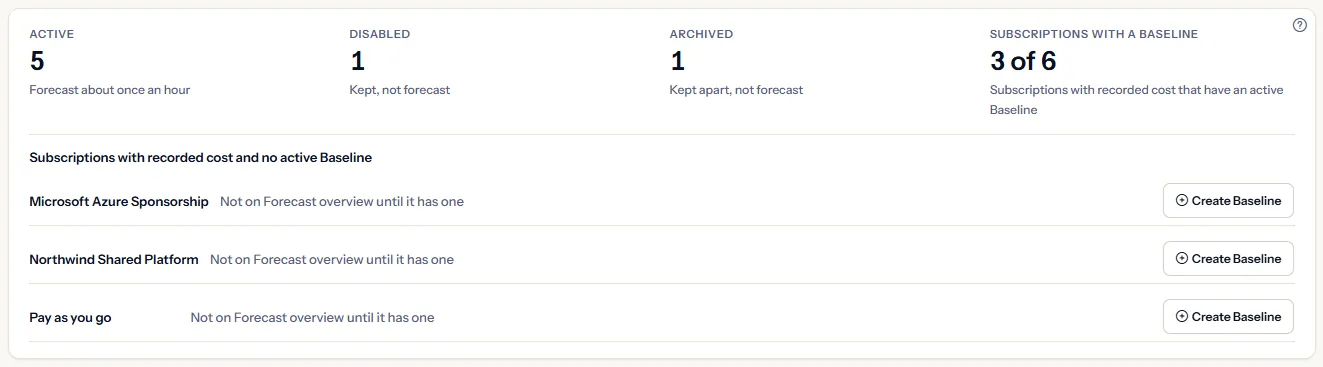
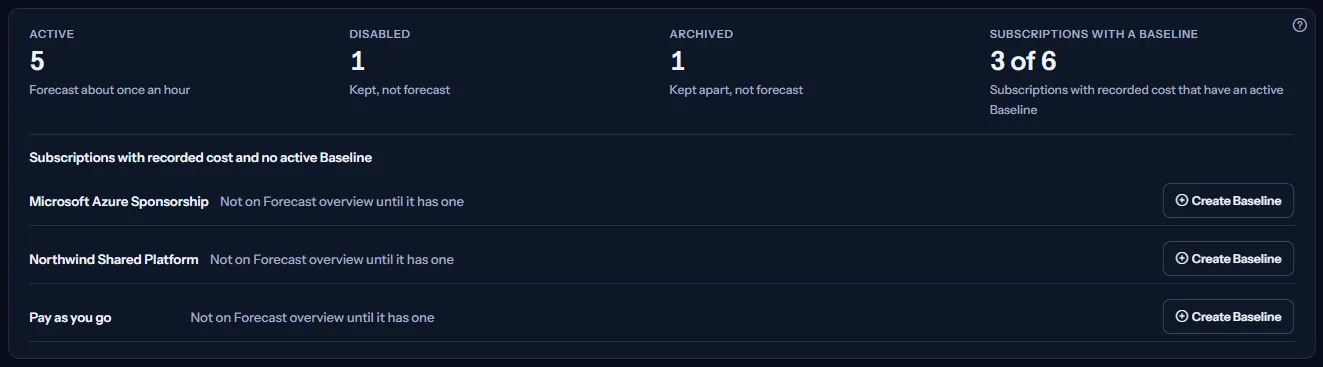
Under the figures, “Subscriptions with recorded cost and no active Baseline” names each subscription without one, with the reason “Not on Forecast overview until it has one”. “Create Baseline” opens the form with that subscription chosen, the type Baseline and a suggested name such as “Northwind Shared Platform baseline”; you can change any of them before saving.
A subscription is covered when it has at least one active scenario of the type Baseline. A disabled or archived Baseline, or an active scenario of another type, does not cover it. When the subscriptions with recorded cost cannot be read, the figure says “Could not be read” and no list is shown.
Note
This panel says whether a subscription has a Baseline. Whether that Baseline's forecast reaches the end of the month is shown in the register, in the “Forecast” column.
The scenario register
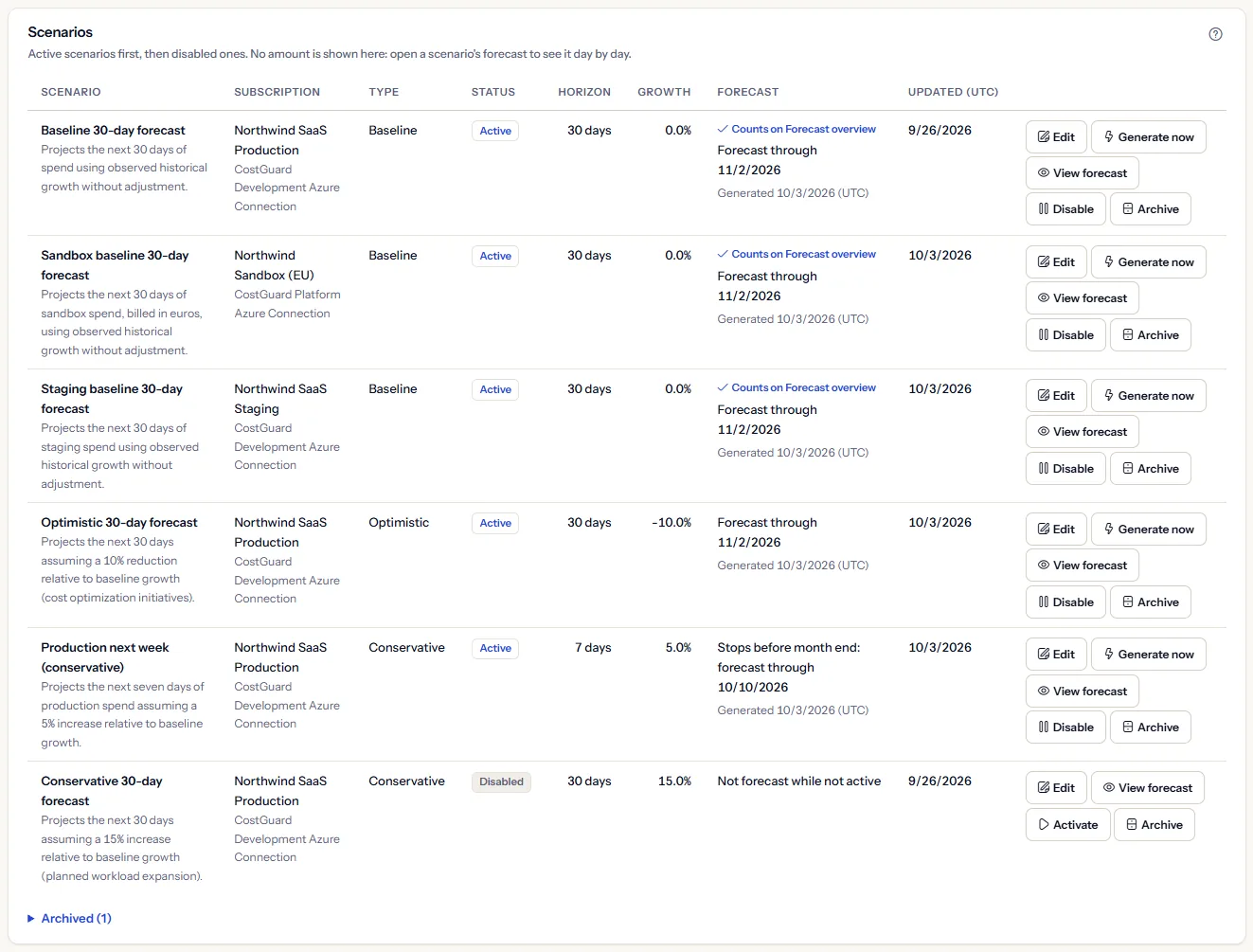
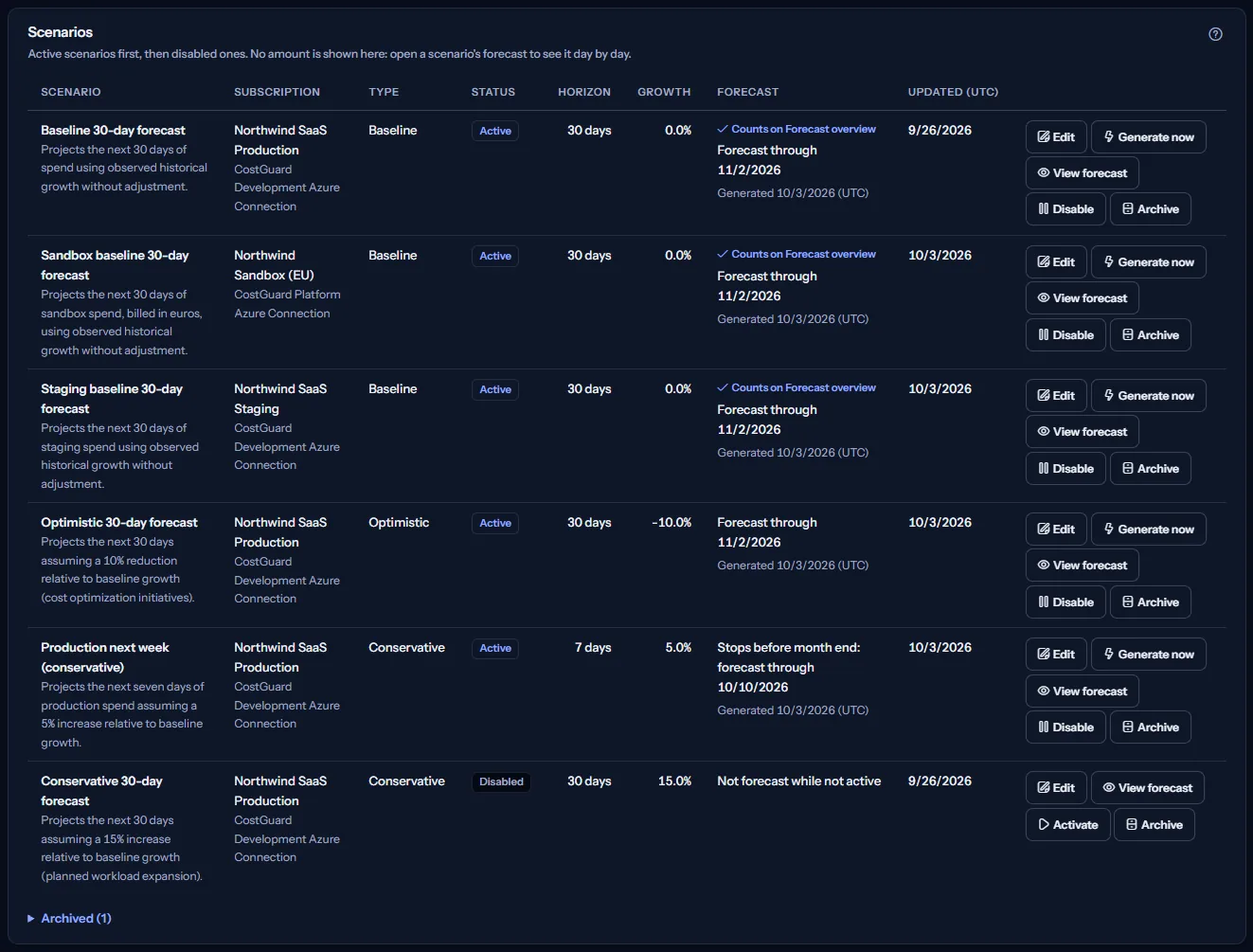
The panel “Scenarios” lists the active scenarios first, then the disabled ones. Archived scenarios are in a closed section, “Archived” with their number, that you open to see them. No amount is shown here. Each row has these columns:
- “Scenario”: the scenario's name, and its description when it has one.
- “Subscription”: the subscription's name, with the connection its cost comes through. A subscription that is not among those with recorded cost is shown by the end of its identifier.
- “Type” and “Status”: “Baseline”, “Optimistic”, “Conservative” or “Custom”, and “Active”, “Disabled” or “Archived”.
- “Horizon”: the number of days the forecast covers, counted from the day after the latest recorded day.
- “Growth”: the growth adjustment, the percentage by which the forecast of every day is raised or lowered.
- “Forecast”: what the scenario means for Forecast overview and what its forecast says, explained below.
- “Updated (UTC)”: the date of the scenario's last change.
What the forecast column says
“Counts on Forecast overview” marks the Baseline that Forecast overview uses for its subscription's month-end forecast. When a subscription has more than one active Baseline, only the most recently updated one counts; the others say “Not used - a newer Baseline counts”. Under that mark, the column says what the scenario's forecast holds:
- “Forecast through” and a date: the forecast reaches the end of the current month.
- “Stops before month end: forecast through” and a date: the forecast ends before the month does. A Baseline whose forecast ends early leaves its subscription out of the forecast to month end on Forecast overview; a longer horizon reaches it.
- “No forecast yet”: the scenario is active and its subscription has recorded cost, but no forecast exists yet. The next run makes it, or “Generate now” at once.
- “No recorded cost to forecast from”: no cost is recorded for the scenario's subscription, so there is nothing to start a forecast from.
- “Not forecast while not active”: the scenario is disabled or archived.
- “Not read” or “Could not be read”: the page reads the forecast of a limited number of active scenarios at a time, and a note above the panels says how many; a forecast that was not read, or could not be, is never shown as missing.
When a forecast exists, the column also gives the date, in UTC, on which it was generated. The register adds nothing up: a subscription forecast in two currencies has two forecasts, which the scenario's forecast lists one after the other.
Change, generate, pause and archive a scenario
Each row carries the actions that fit its status:
- “Edit”: opens the form with the scenario's values. Its subscription and connection cannot be changed. The forecast keeps its earlier days until the next run or “Generate now”.
- “Generate now”, on an active scenario: forecasts it at once from the latest recorded cost, replaces its earlier forecast, then shows the forecast under the register.
- “View forecast”: shows the scenario's forecast day by day, explained in the next section.
- “Disable”, on an active scenario: stops forecasting it. On a disabled or archived scenario, “Activate” takes its place and makes the scenario active again.
- “Archive”: stops forecasting the scenario and moves it to the archived section. Archiving is reversible with “Activate”.
Disabling and archiving ask you to confirm in the row first. When the scenario is the Baseline that counts, the confirmation adds: “Forecast overview then stops using this Baseline for its subscription's month-end forecast.” “Keep it” leaves the scenario as it is.
Saving an edit or activating a scenario makes it the most recently updated scenario of its subscription. For an active Baseline, that makes it the one that counts on Forecast overview. Activating is refused when an active scenario of the same subscription already has its name.
Note
One change runs at a time, and its outcome appears above the panels. Nothing on this page deletes a scenario: it is disabled or archived, and can be activated again.
Read the forecast of one scenario
“View forecast” opens a panel under the register, titled with the scenario's name, with its subscription under the title. The table lists each forecast day:
- “Date (UTC)”: the forecast day.
- “Currency”: the currency of that day's forecast, the currency the subscription's cost is recorded in.
- “Expected”: the forecast cost of that day.
- “Low end” and “High end”: the method's fixed band, 10 percent below and above the expected cost of the day.
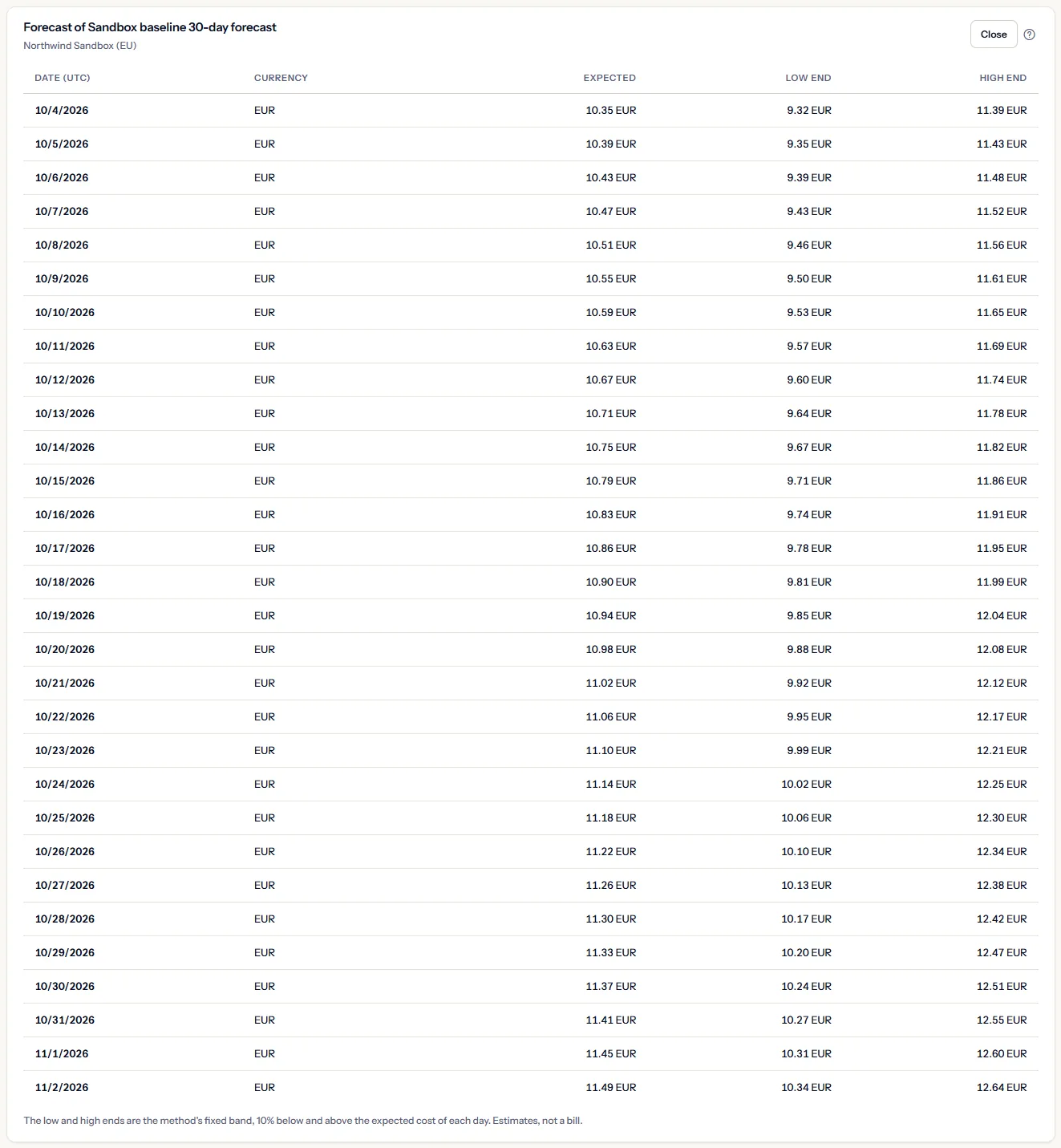
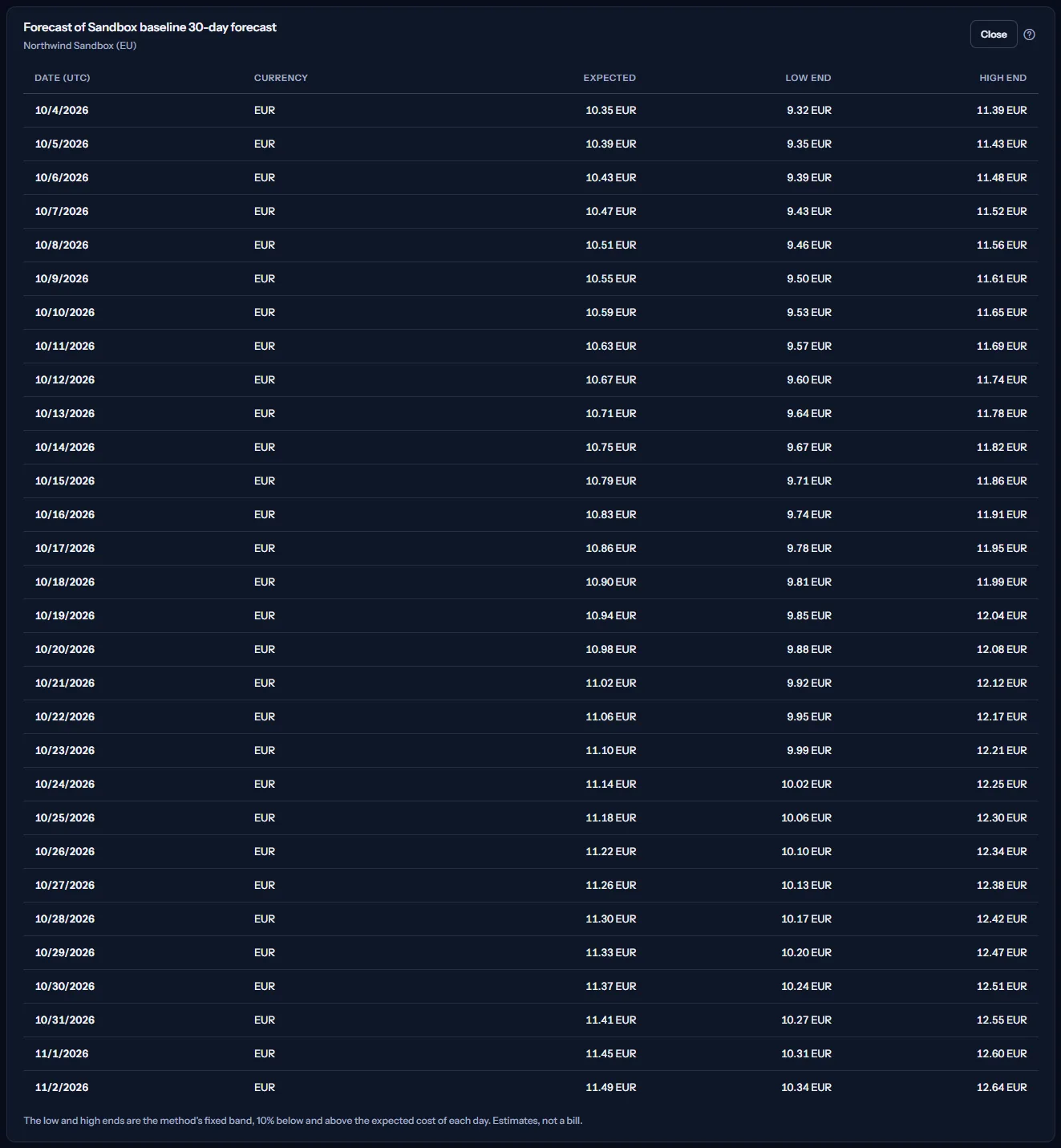
A subscription whose cost is recorded in two currencies has one forecast per currency; the table lists one currency after the other and never adds them. No exchange rate is applied anywhere.
A scenario that is not active keeps its last forecast, and the panel says “This scenario is not active, so this forecast is no longer renewed.” When there is no forecast yet, it says “No forecast yet. Active scenarios are forecast about once an hour, or at once with Generate now.” “Close” closes the panel.
Limits to know
The low and high ends are a fixed band of the method, not a probability or a range the cost must stay in. A forecast is an estimate from recorded cost, not a bill.
Create or edit a scenario
“New scenario” opens “New forecast scenario”, and “Create Baseline” opens it with a subscription already chosen; “Edit” opens “Edit forecast scenario”. The form appears under the register. To create a scenario:
- In “Subscription”, choose one of the subscriptions with recorded cost, listed by name with their connection. A subscription whose connection is not active is listed but cannot be chosen.
- In “Name”, enter up to 200 characters. The name must be unique among the active scenarios of that subscription.
- In “Type”, choose the type; the next section explains what it changes.
- In “Horizon (days)”, enter a whole number from 1 to 365. The hint under the field says how many days reach the end of this month.
- In “Growth adjustment (%)”, enter a percentage from -100 to 100, or leave 0.
- In “Description (optional)”, add a note of up to 2,048 characters if you want one.
- Select “Save”.
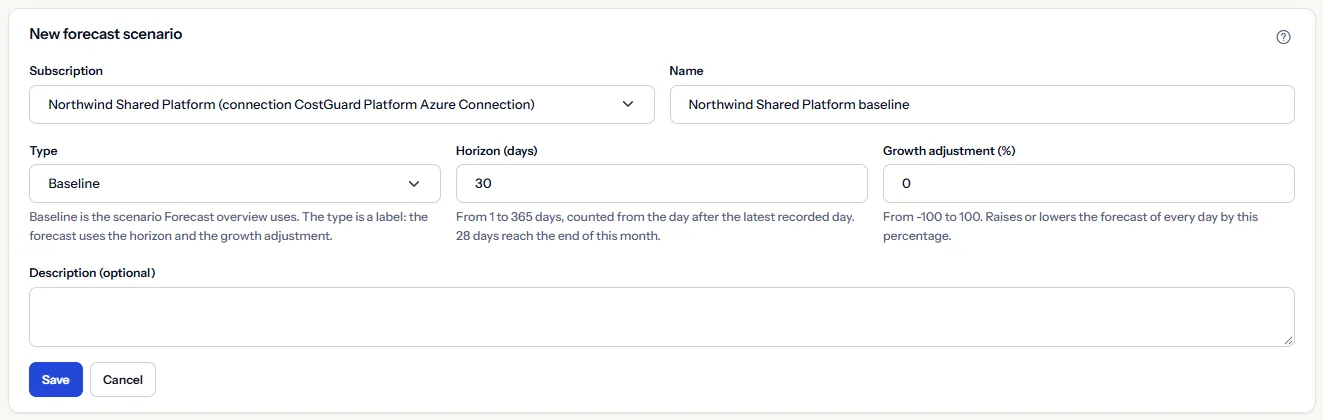
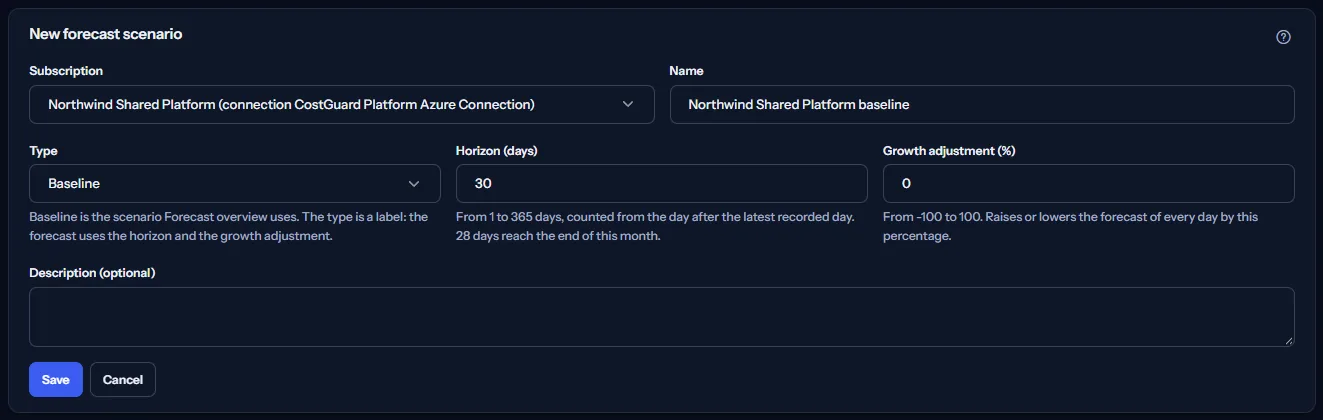
A new scenario is active. Its forecast is made within about an hour, or at once with “Generate now” in its row.
The edit form shows the subscription and its connection as text: they are chosen when a scenario is created and cannot be changed. When that connection is not active, the form warns that no new cost is imported for the subscription, so its forecast keeps starting from the last cost recorded.
When a save is refused
A field whose value the page does not accept is marked, with a message under it, and nothing is sent. When CostGuard refuses a save, the form says why:
- “An active scenario of this subscription already has this name.” Choose another name, or disable or archive the other scenario first.
- “This scenario was changed after you opened it, so your edit was not saved. Reload it to see the current values.” “Reload” reads the scenario again with its current values; make your change again.
- “This workspace has no recorded cost for that subscription, so no scenario can be created for it.”
- “This scenario no longer exists in this workspace. The page has been read again.”
Baseline and the other scenario types
“Baseline” is the type Forecast overview uses: the most recently updated active Baseline of each subscription feeds that subscription's month-end forecast there. Keep one active Baseline per subscription you want in the month-end forecast.
“Optimistic”, “Conservative” and “Custom” scenarios are alternatives. They are forecast like any active scenario, are not used by Forecast overview, and are compared on “Scenario comparison”.
The type is a label: it does not change how the forecast is made. Two scenarios of the same subscription with the same horizon and growth adjustment have the same forecast, whatever their types. To make an optimistic or a conservative view differ, give it a lower or a higher growth adjustment.
How a forecast is made
For each active scenario, whatever its type, the forecasting run takes the recorded daily cost of the scenario's subscription through its connection, one currency at a time, and:
- averages its latest seven days with recorded cost, or all of them when fewer are recorded;
- once fourteen or more days are recorded, adds a daily trend: the difference between the average of the latest seven days and of the seven before them, spread over the days ahead;
- raises or lowers the average and the trend by the scenario's growth adjustment;
- starts the day after the latest recorded day and continues for the scenario's horizon, never below zero on any day;
- puts a band of 10 percent either side of each forecast day.
The run repeats about once an hour for every active scenario of a workspace whose plan includes forecasting. Each run replaces the scenario's earlier forecast, and days it no longer forecasts are removed. “Generate now” does the same for one scenario at once.
The method extends recent recorded cost: it knows nothing of planned changes, reservations or prices to come, and a one-off spike in the latest days carries into the trend. Use the growth adjustment to express what you expect to change.
Note
The panel “How scenarios are used” at the bottom of the page states these points in short.
Go further
The links at the bottom of the page lead on:
- “Forecast overview”: the month-end forecast that the Baselines feed.
- “Scenario comparison”: the scenarios of a subscription compared with one another.
- “Confidence bands” and “Risk indicators”: the other pages of the “Forecasting” group.
- “Azure connections”: the connections through which each subscription's cost is imported.
What you may see instead of the register
While the page reads, grey bars stand where the figures and the register will appear, and a screen reader announces “Reading the forecast scenarios…”. After that, the page may show one of these:
- “No Azure connection yet”, with “Connect Azure”: the workspace has no Azure connection.
- “No recorded cost yet”, with “Open Getting started”: a connection exists, but no cost has been imported yet.
- “No forecast scenario yet”, with “Create the first Baseline”: there is no scenario in scope. The button opens the form for a Baseline of a subscription with recorded cost in scope.
- “No active scenario”: every scenario in scope is disabled or archived, so nothing is forecast. The register is still shown, so you can activate one.
- “The forecast scenarios could not be read”, with “Retry”: the scenarios could not be read. The page never shows a failed read as an empty register.
- A note above the panels when part of the page could not be read: the subscriptions with recorded cost (subscriptions are then named by the end of their identifier and no scenario can be created), the connections (their names are not shown), or the forecast of some scenarios (their rows say so).
- A notice that your session has expired, with a link to sign in again.
When you switch workspace, the page clears what it showed, closes an open form, checks the plan of the new workspace and reads its scenarios.
Sample data when your plan has no forecasting
When your plan does not include forecasting, the page shows a fixed example under the label “Sample data”, with the sentence “Your current plan does not include this feature. The figures shown here are an example, not your data.”
The sample shows five scenarios of three Contoso subscriptions: three active, one disabled and one archived, with the counts, the coverage, where Contoso Shared Platform has no Baseline, the register and the notes. It has no scope bar, no action, no form and no daily forecast, and it is the same for everyone, never your data.
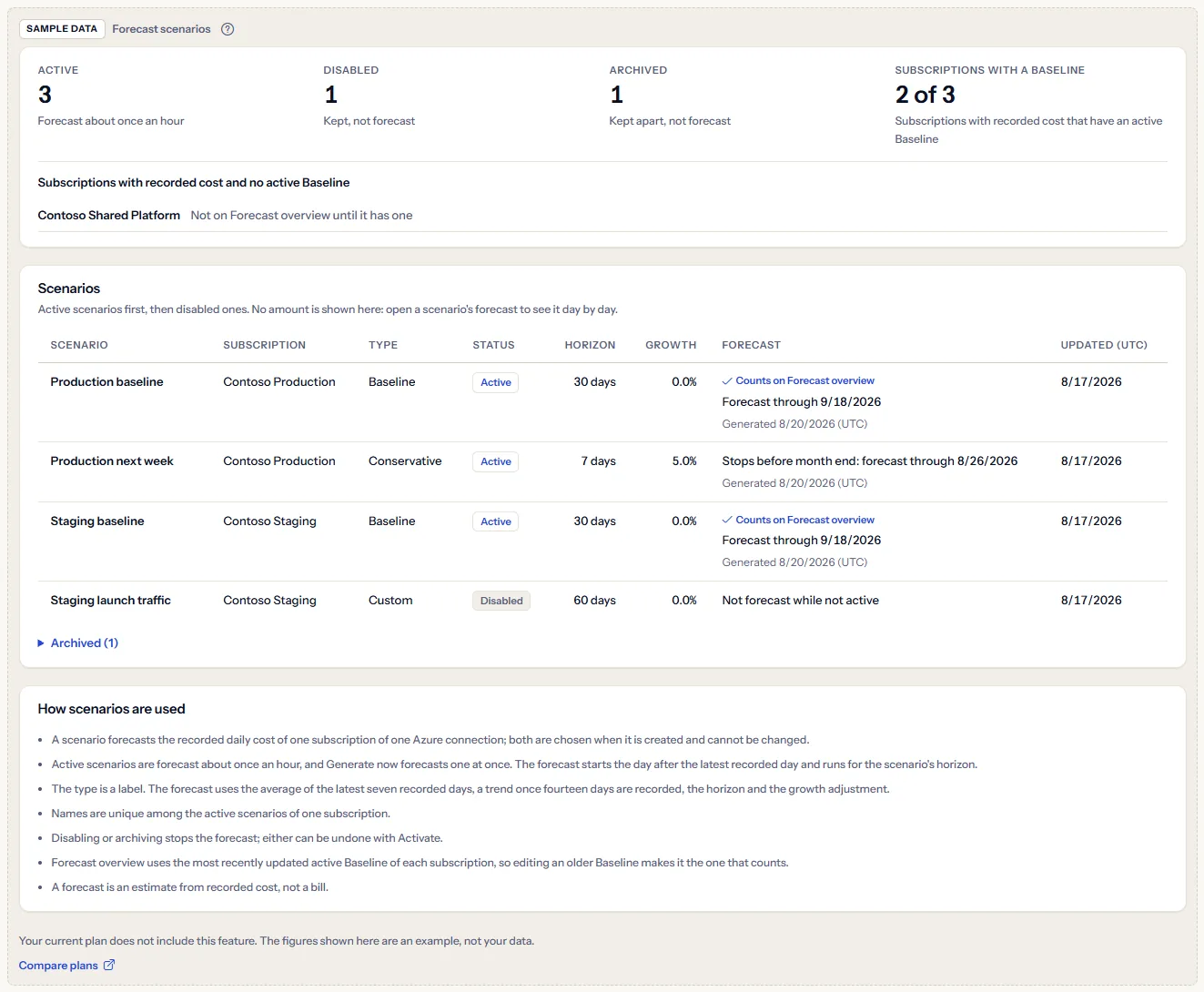
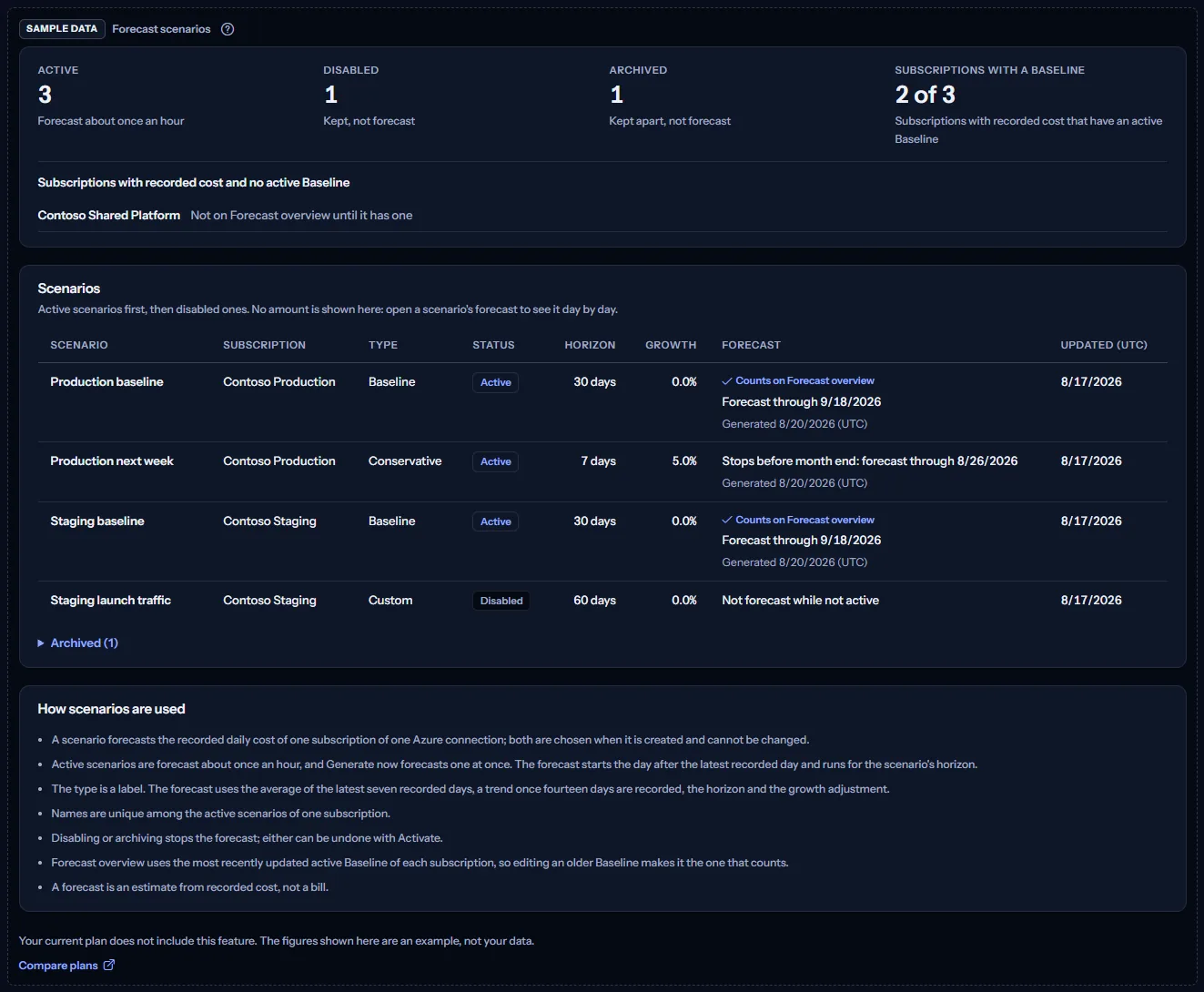
“Compare plans” opens the pricing page in a new tab. CostGuard decides what your plan includes on the server; the sample is only how the page shows it.
What each plan includes
The table shows the first plan that includes each part of the page. Every plan above it includes it too.
| Feature | Free | Starter | Growth | Pro | Enterprise |
|---|---|---|---|---|---|
| A labelled sample of the page | Included | Included | Included | Included | Included |
| Forecast scenarios with your own scenarios and forecasts | Not included | Not included | Not included | Included | Included |
Pro and Enterprise include forecast scenarios with your own scenarios and forecasts; Free, Starter and Growth show the labelled sample. The plan is checked on the server, the forecasting run forecasts only workspaces whose plan includes forecasting, and the page never shows a price.
Troubleshooting
I created a scenario and its row says “No forecast yet”
Forecasts are made by a run that takes place about once an hour. Select “Generate now” in the row to forecast it at once, or wait for the next run and select “Refresh”.
A row says “No recorded cost to forecast from”
No cost is recorded for the scenario's subscription, so there is nothing to forecast from. Check that its connection imports that subscription's cost; a new scenario can only be created for a subscription with recorded cost.
A subscription is missing from the form's subscription list
The list holds only the subscriptions with recorded cost. A subscription whose connection is not active is listed but cannot be chosen. When the subscriptions with recorded cost cannot be read, a note above the panels says so and no scenario can be created until they are read again.
Saving or activating says the name is already used
Names are unique among the active scenarios of one subscription. Give the scenario another name, or disable or archive the active scenario that already has it.
A forecast stops before the end of the month
A forecast covers the scenario's horizon, counted from the day after the latest recorded day. When the horizon is short, or the cost data is several days old, it ends before the month does. Edit the scenario and lengthen the horizon: the hint under the field says how many days reach the end of this month.
Forecast overview does not use the Baseline I expect
Forecast overview uses one active Baseline per subscription: the most recently updated. Look for “Counts on Forecast overview” in the forecast column; saving an edit or activating a Baseline makes it the one that counts. A Baseline without a forecast yet, or whose forecast stops before the month end, leaves its subscription out of the forecast to month end there.
The page is not in the sidebar
The sidebar lists it in “Advanced” mode only. Choose “Advanced” at the top of the sidebar; the page's address opens in either mode.