
Cost trend: how spend moved day by day
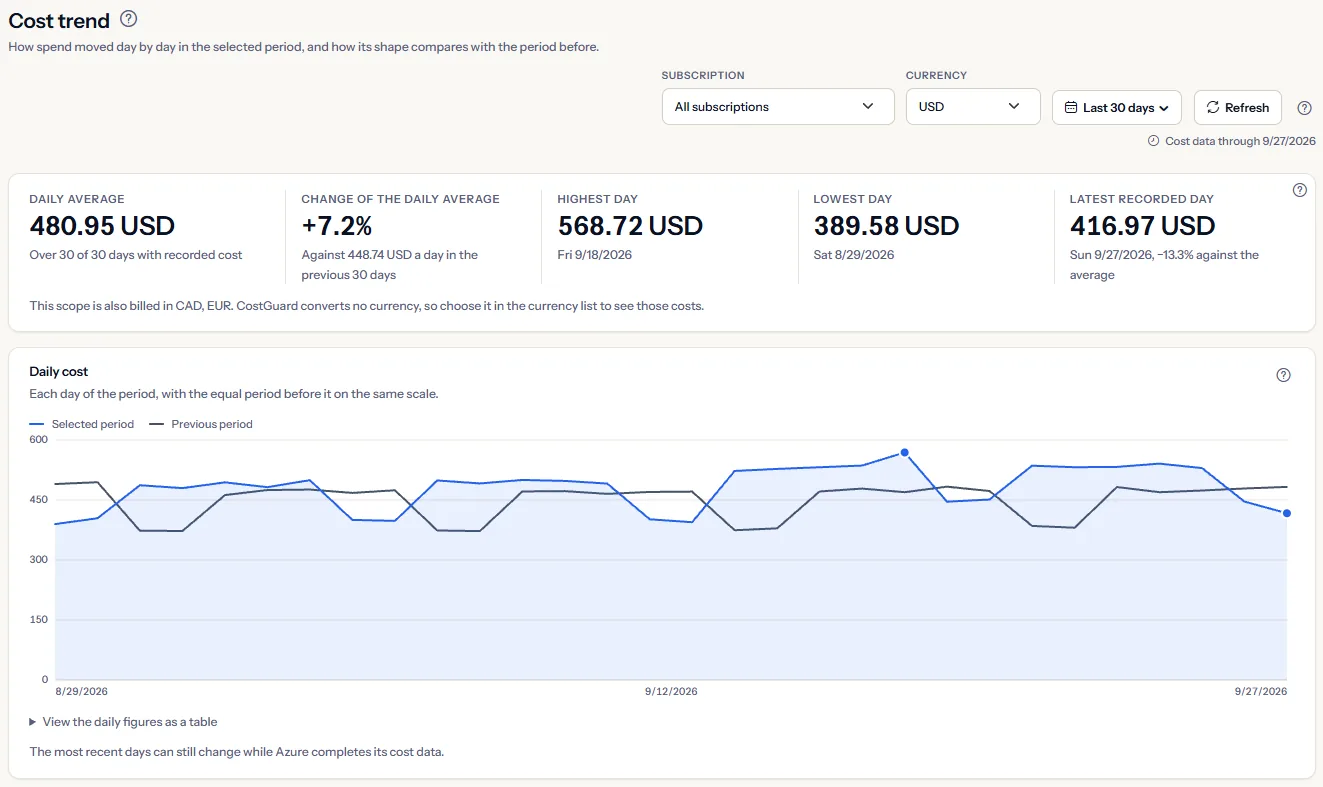
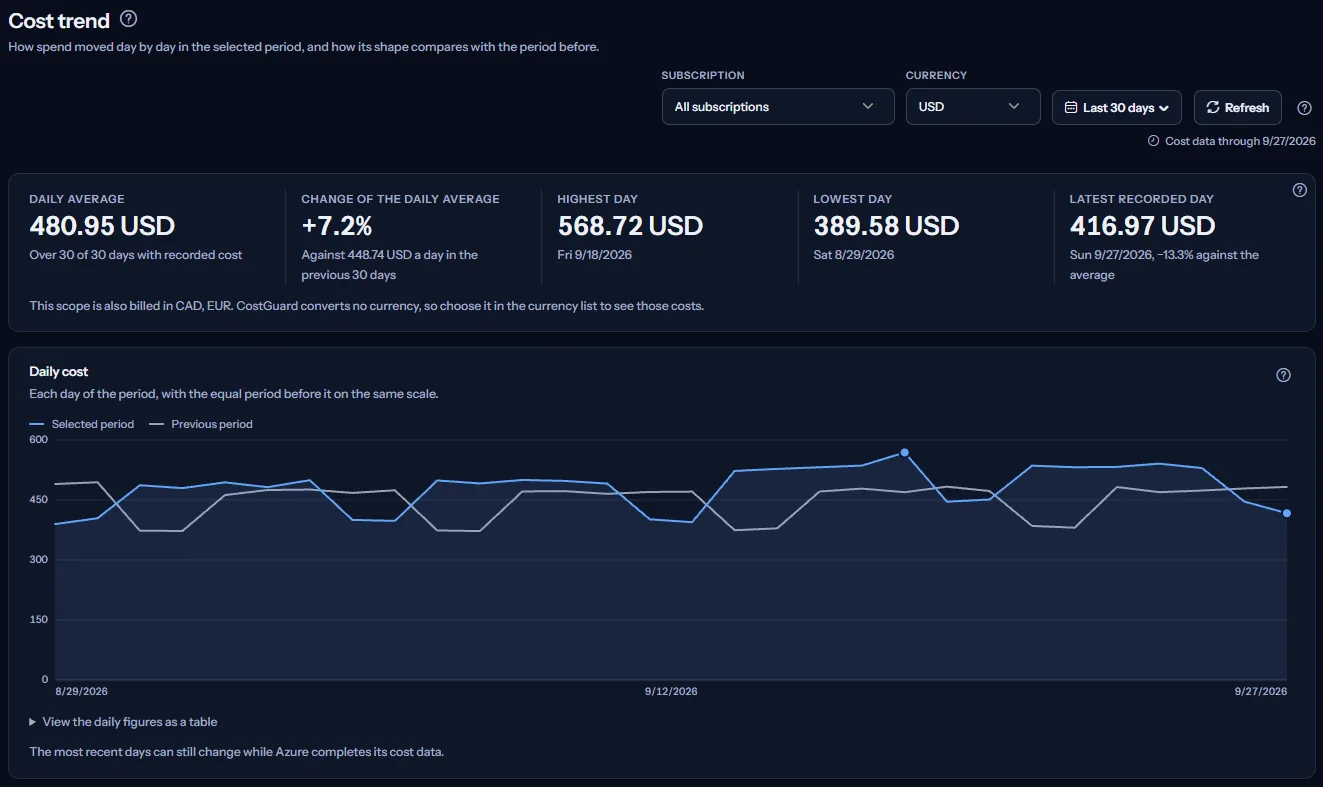
Cost trend shows the selected scope's cost day by day, laid over the period just before, with the figures that describe its shape: the daily average and its change, the highest, lowest and latest day, the average by day of the week and the cost month by month. This article explains every part of the page, how each figure is calculated and what it leaves out.
What this page is for
Cost trend answers one question: how did spend move day by day in this period, and where does its shape differ from the period before? It is the page to open after the Dashboard or the Cost overview showed that something moved and you want to see when.
It is for the person who owns cloud cost or leads engineering, checking whether a rise is a one-day spike, a weekly rhythm or a lasting step, and for a finance lead checking the month's run rate. The Cost overview shows where the money went; this page shows when.
From top to bottom: the scope bar, the figures that describe the period, the daily chart with the period before it, then the average by day of the week and the cost month by month when the range is long enough for them.
Before you start
The page shows figures once an Azure connection has imported its cost data. Until then it shows “No cost data yet” and a link to Getting started, which walks you through connecting Azure and the first import.
Read the Getting started guide
Cost analytics is part of the Starter plan and every plan above it. On the Free plan the page shows a labelled sample instead of your data.
Choose the scope: subscription, currency and dates
The bar at the top of the page sets the scope. Every figure, table and list below it is calculated again for what you select.
- “Subscription”: “All subscriptions” or one subscription. The list holds the subscriptions that have recorded cost.
- “Currency”: shown only when the scope is billed in more than one currency. CostGuard holds no exchange rate, so it never adds two currencies. Every figure is in the one currency you select.
- The date range: “Last 7 days”, “Last 30 days” (the page opens with it), “Month to date”, “Previous month”, “Last 90 days”, “Last 12 months” or “Custom range”. The last two presets are offered on this page because a trend often needs a longer view.
- “Refresh” reads everything again for the same scope.


When you have not chosen a currency, the page uses the same one as the Dashboard and the Cost overview for the same scope, so one scope reads in one currency on every cost page. “Last 12 months” runs from the day after the same date a year ago through today.
Set a custom range
- Open the date range list and choose “Custom range”.
- Enter a date under “From” and a date under “To”. Both days are included.
- Select “Apply”. “Cancel” closes the fields and keeps the range you had.
Limits to know
A custom range covers at most 366 days, starts on or before its end date and cannot end after today. When a date does not fit, a message beside the fields says what to correct, and nothing is reloaded until you do.
How far the cost data reaches
“Cost data through” shows the latest day CostGuard holds cost for. Azure reports cost with a delay of a day or two, so the latest days can still change, and a range that ends today is not final yet.
The shape of the period in five figures
Every figure in this card counts only the days with recorded cost. A day without a cost record is not a day that cost nothing: Azure may not have delivered it yet, or no subscription was connected then. The note under the first figure says how many of the range's days that is.
- “Daily average”: the cost of the recorded days divided by their number.
- “Change of the daily average”: how far that average lies from the daily average of the period of the same length just before, in the same currency. Comparing averages keeps the comparison fair when the two periods have a different number of recorded days.
- “Highest day” and “Lowest day”: the most and the least expensive recorded day, with its day of the week and date. When two days tie, the earlier one is shown.
- “Latest recorded day”: the most recent day with recorded cost, and how far it lies from the daily average in percent.


A change wears no colour: a rise or a fall is neither money saved nor a risk by itself. When the period before holds no recorded cost, or could not be read, the change reads “Not available” and the note under it says which.
Note
When the scope is also billed in other currencies, a line under the figures names them. Those costs are not in the figures: select the currency in the scope bar to see them.
Read the daily chart
“Daily cost” draws each recorded day of the period as a line over a light wash, labelled “Selected period”. The period of the same length just before it is the second line, “Previous period”, laid over the same days so that the first day of one sits above the first day of the other.
- Both lines share one value axis that starts at zero, so the height of a line is its real size and the two can be compared directly.
- Two dots mark the most expensive day and the last recorded day. Point at any day to see its date and cost, and the matching day of the period before.
- “View the daily figures as a table” opens every value of both lines as a table.
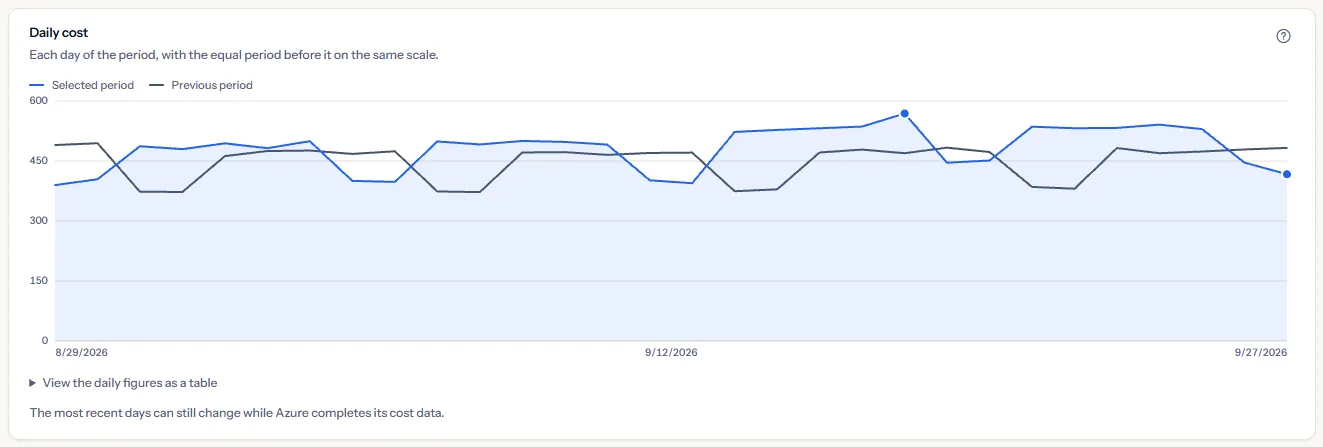
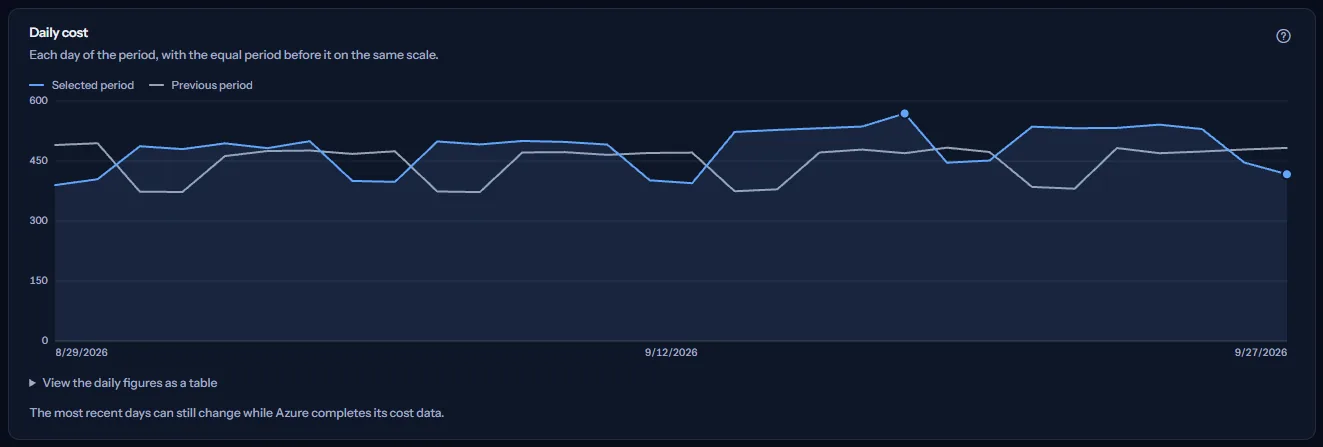
A single tall day is usually a batch job or a one-off event; a step that stays up is new or larger infrastructure; a regular dip every few days is the week's rhythm, which the next section averages. When the previous period could not be read, the chart says “The previous period could not be loaded, so only the selected period is drawn.”
Limits to know
The line shows the days with recorded cost and joins them; a day without a record is skipped, not drawn at zero. “The most recent days can still change while Azure completes its cost data.”
The week's rhythm
“By day of the week” averages each day of the week over the days with recorded cost. It appears when the range covers 14 days or more, so the range holds every day of the week at least twice; a day without a cost record is left out of the average, and “Days with cost” shows how many days each average rests on. The table starts on the first day of the week of your language.
- “Average per day” is the average of that day of the week; the bar beside it compares it with the highest average of the week. “Days with cost” is how many such days had a cost record.
- A sentence above the table names the day with the highest and the day with the lowest average.
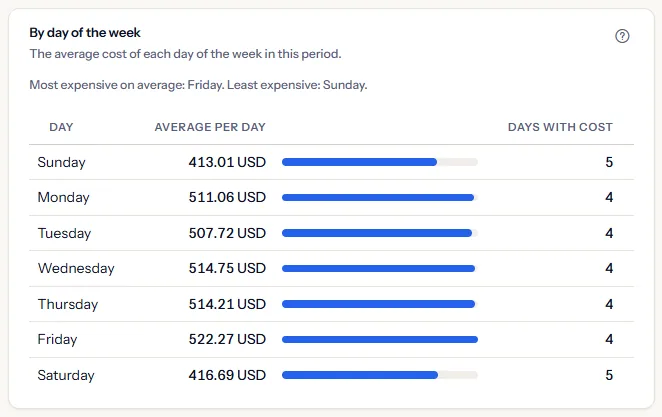
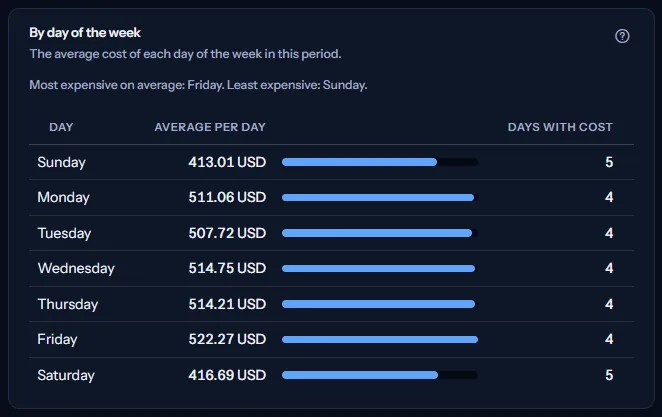
A clear gap between working days and the rest of the week usually comes from resources that run on office hours; a flat week comes from resources that run all the time. If development or test resources stay as expensive on quiet days, they may be worth stopping outside working hours. The page does not call any day a weekend, because that depends on where you work.
Month by month
“Month by month” appears when the range touches two calendar months or more. Each row is one calendar month, named in the calendar Azure bills by: “Total” is the cost recorded in the part of the month the range covers, and “Average per day” divides it by that part's recorded days.
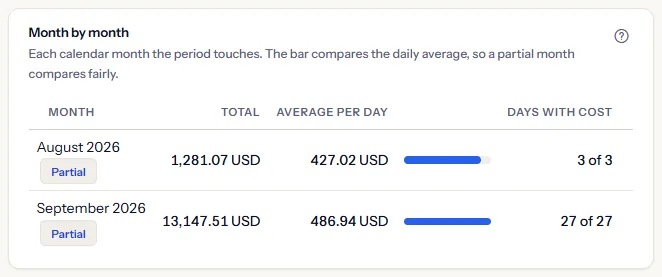
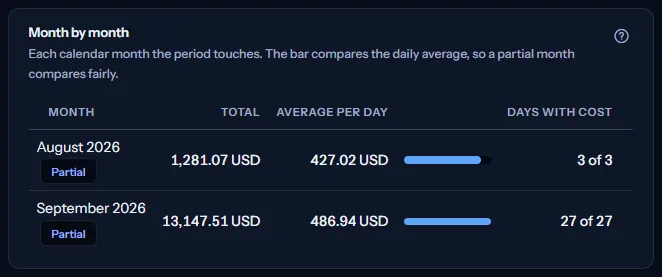
The bar compares the average per day, not the total, so a month the range covers only in part compares fairly with a whole one. Such a month carries “Partial”, and “Days with cost” shows the days with cost out of the month's days in the range, for example 12 of 15.
Go further
Two links at the bottom of the page lead on. Each page opens with its own settings, not the scope chosen here. “See where the money went” opens the Cost overview, which ranks where the money went. “Group the cost your way” opens Cost Explorer, which lists the cost by service, resource group, resource, meter or subscription, each item against the period before.
What you may see instead of figures
While the figures load, grey placeholder bars stand where they will appear. After that, the page shows one of these instead of figures when there is nothing to show:
- “No cost data yet”, with “Open Getting started”: no connection has imported cost yet.
- “No cost in this range”: the workspace has cost data, but none of it falls in the selected range and scope.
- “Not available” under “Change of the daily average”, with “The previous period could not be compared.”: the period before could not be read. The rest of the page still shows its figures; “Refresh” in the scope bar tries again.
- “The cost trend could not be loaded.”, with “Try again”: nothing could be read. Nothing was changed.
- A notice that your session has expired, with a link to sign in again. The page shows no figures until you do.
Sample data when your plan has no cost analytics
When your plan does not include cost analytics, the page shows a fixed example under the label “Sample data”, with the sentence “Your current plan does not include this feature. The figures shown here are an example, not your data.”
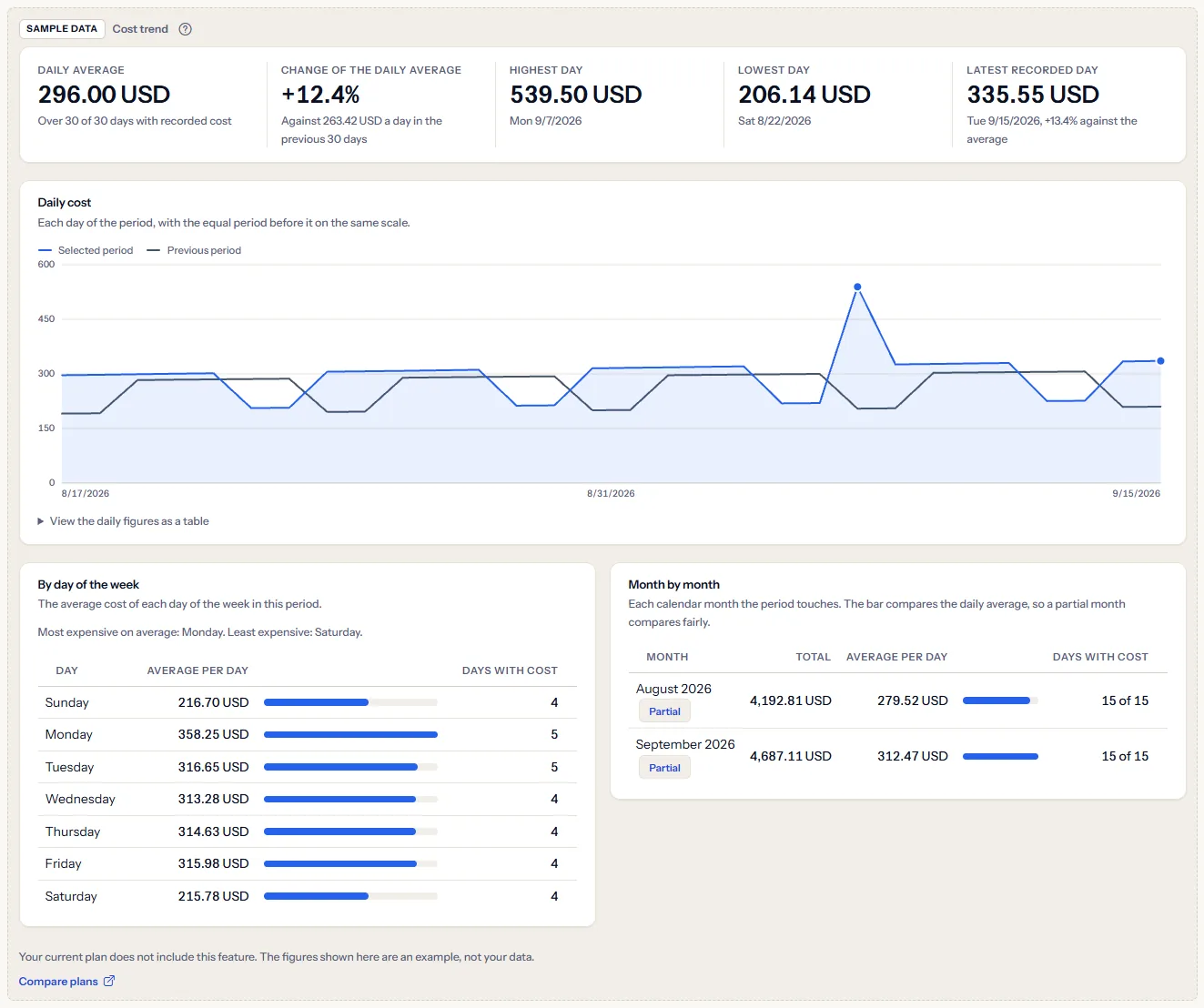
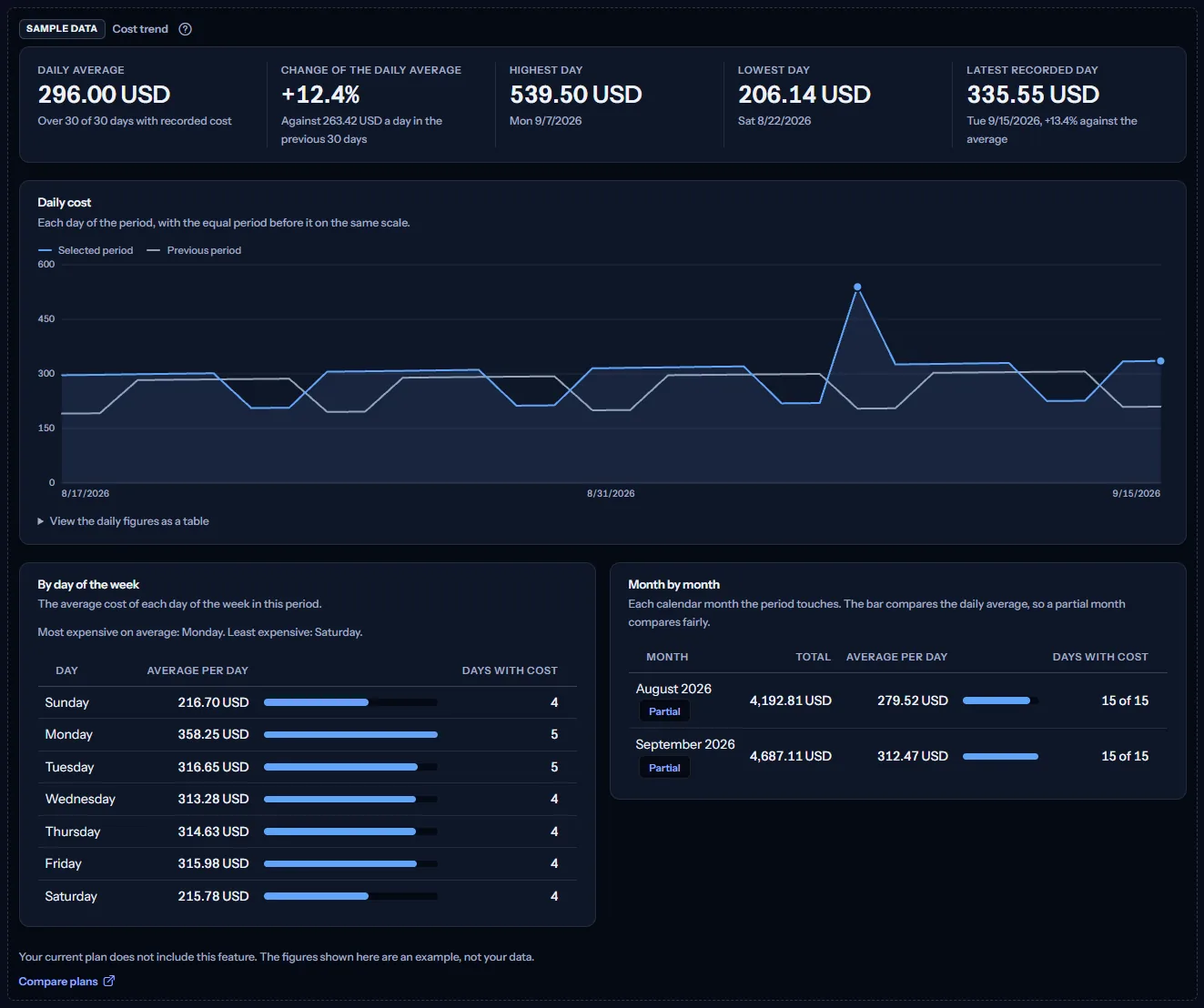
The sample holds the five figures, the daily chart and both tables for a fixed period, with figures that are the same for everyone. They are never your data, there is no scope bar, and nothing in the sample changes.
“Compare plans” opens the pricing page in a new tab. In the sidebar, “Cost Trend” under “Costs” carries the Starter badge. CostGuard decides what your plan includes on the server; the sample is only how the page shows it.
What each plan includes
The table shows the first plan that includes each part of the page. Every plan above it includes it too.
| Feature | Free | Starter | Growth | Pro | Enterprise |
|---|---|---|---|---|---|
| A labelled sample of the page | Included | Included | Included | Included | Included |
| Cost trend with your own cost data | Not included | Included | Included | Included | Included |
Troubleshooting
The page says “No cost data yet”
You have no connection yet, or its first import has not finished. Open Getting started and follow the steps; the figures appear when the first import completes.
The last days look too low
Azure reports cost with a delay of a day or two. Check the date beside “Cost data through” in the scope bar. Days after it hold no cost yet, so a range that ends today reads lower than it will be.
The line looks flatter than the change suggests
The value axis starts at zero, so a change of a few percent moves the line only a little. That is the true size of the change. Open “View the daily figures as a table” to read the exact values.
The page says “No cost in this range”
The selected subscription has no recorded cost on the selected dates, or the range starts before your cost history does. Choose a wider range or all subscriptions.
The tables by day of the week or by month are missing
The table by day of the week needs a range of 14 days or more, and the month table a range that touches two calendar months. Choose “Last 90 days” or “Last 12 months” to see both.
The previous period line is missing or short
The period before starts before your cost history does, so it has fewer recorded days or none. With “Last 12 months” this is common, because the period before is the twelve months before those. The change is then measured over the recorded days only, or reads “Not available”.
The page shows sample data
Your plan does not include cost analytics. The table above shows which plan does, and the link under it opens the pricing page.