
Scenario comparison: alternatives beside the Baseline
The Scenario comparison page puts each active scenario of a subscription beside its Baseline, over the same forecast days and in the same currency: the total of each over those days, how much higher or lower it is than the Baseline, and which scenarios are left out and why. For all subscriptions, it shows which can be compared.
What this page is for
The “Scenario comparison” page answers one question for one subscription at a time: how much higher or lower is the forecast of each of its active scenarios than its Baseline, over the same days and in the same currency? With “All subscriptions”, it answers which subscriptions have scenarios to compare, and why the others cannot be compared yet.
It is for the person who plans with forecasts: a FinOps practitioner or an engineering lead preparing a budget or a capacity decision. It leads to decisions such as choosing the assumption to plan a budget on, adjusting or retiring an alternative scenario, creating a missing Baseline or alternative, or keeping the Baseline as the planning figure. Nothing on this page changes anything in Azure.
“Forecast scenarios” is where scenarios are created and changed, and “Forecast overview” uses each subscription's Baseline for its month-end forecast. This page compares the other active scenarios of a subscription with that same Baseline, so you can see what each assumption changes.
Read how forecast scenarios are kept
To open it, choose “Advanced” in the sidebar, then select “Scenario comparison” under “Forecasting”. Its address opens in either mode.
Before you start
A comparison is made from forecasts, and a forecast is made from recorded cost. The page therefore needs a subscription with recorded cost, an active Baseline scenario for it, and at least one other active scenario of the same subscription with a forecast. Without recorded cost the page shows “No recorded cost yet” and “Open Getting started”; without any active scenario it shows “No active forecast scenario yet” and “Open Forecast scenarios”.
Read the Getting started guide
Scenario comparison is part of the Pro and Enterprise plans. On Free, Starter and Growth the page shows a labelled sample instead of your scenarios.
Choose the scope: all subscriptions or one
Use “Subscription” to see “All subscriptions” or one subscription. With all subscriptions, the page lists them without any amount; with one, it shows the comparison of that subscription. Choosing “Compare” in the list does the same as choosing the subscription here.
There is no currency selector and no date range: a subscription is compared in the currency of its Baseline's forecast, and the compared days are the days the forecasts have in common. “Refresh” reads the scenarios and their forecasts again.
“Cost data through” names the latest day with recorded cost. Azure reports cost a day or two late, so that day is usually before today. A scenario's forecast starts the day after the latest day recorded for its subscription when the forecast is made.
All subscriptions: which can be compared
With “All subscriptions”, the “Subscriptions” table has one row for each subscription with recorded cost, and for any other subscription with an active scenario. Its columns are:
- “Subscription”: the subscription's name.
- “Baseline used”: the name of the Baseline scenario that Forecast overview uses for the subscription, or “None”.
- “Other active scenarios”: how many other active scenarios the subscription has.
- “Comparison”: whether they can be compared, or why not.
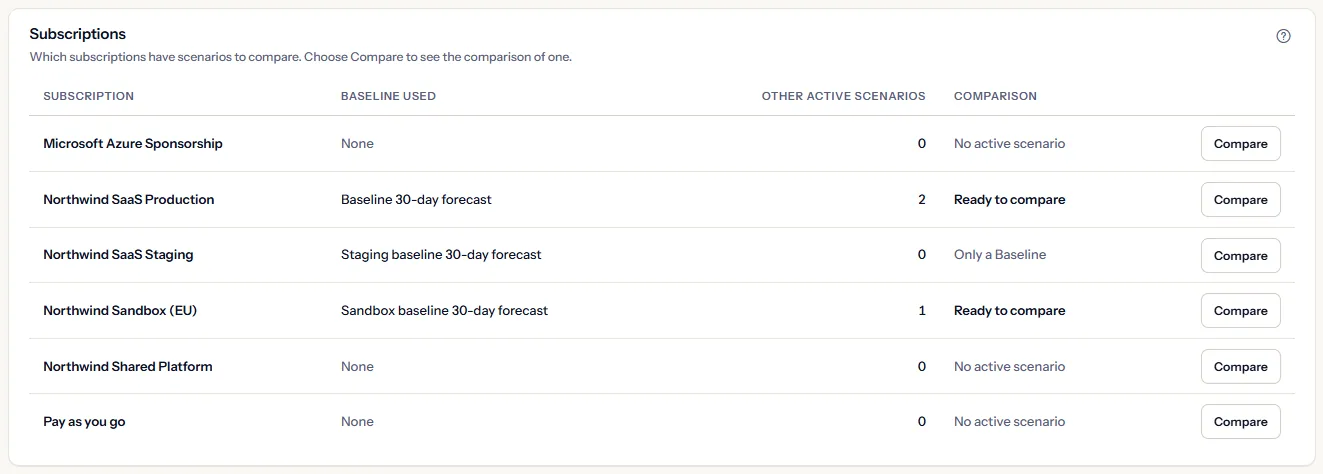
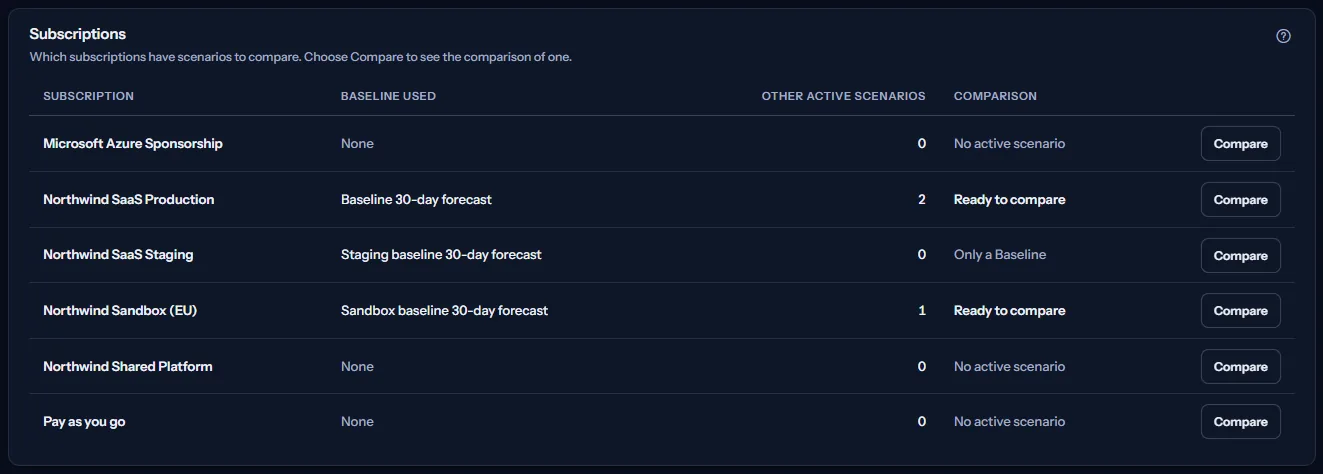
The “Comparison” column says one of these:
- “Ready to compare”: the Baseline has a forecast and at least one other active scenario can be compared with it.
- “No active scenario”: the subscription has recorded cost but no active scenario.
- “No active Baseline”: the subscription has active scenarios, but none of them is a Baseline.
- “Only a Baseline”: the Baseline is the subscription's only active scenario.
- “No forecast yet”: the Baseline has no forecast yet.
- “Forecast could not be read”: the Baseline's forecast could not be read.
- “Different currencies”: the other scenarios forecast only in currencies the Baseline does not forecast in.
- “Nothing to compare yet”: other active scenarios exist, but none can be compared yet, for example because they have no forecast yet or no forecast day in common with the Baseline.
“Compare” opens the comparison of that subscription, as choosing it in “Subscription” does. It is offered on every subscription the selector lists.
Note
This table shows no amount. Forecasts of different subscriptions, and amounts in different currencies, are never put side by side or added.
The comparison of one subscription
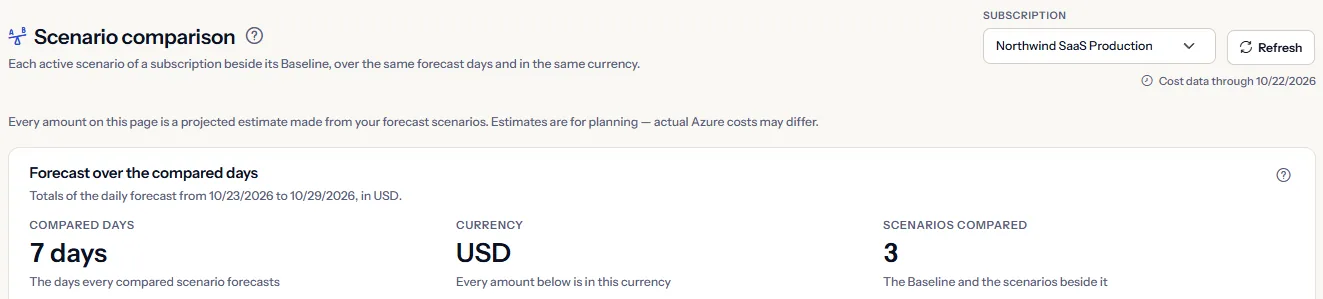
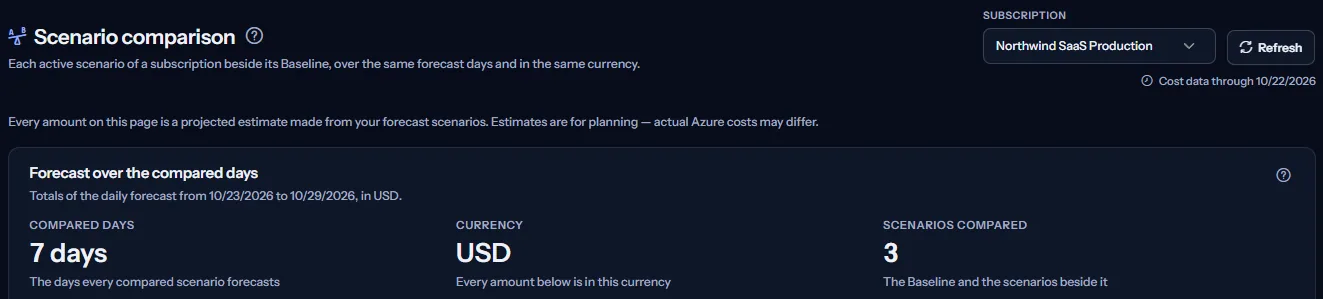
With one subscription, the panel “Forecast over the compared days” compares its scenarios over the days they all forecast. Its subtitle names those days and the currency, and three figures sum them up:
- “Compared days”: how many days the totals cover.
- “Currency”: the currency of every amount in the panel.
- “Scenarios compared”: the Baseline and the scenarios beside it.
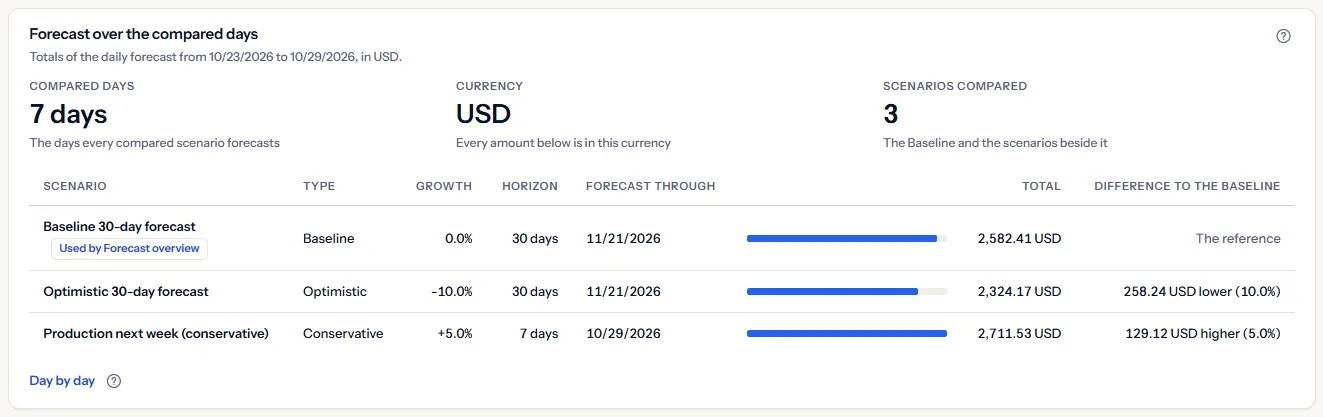
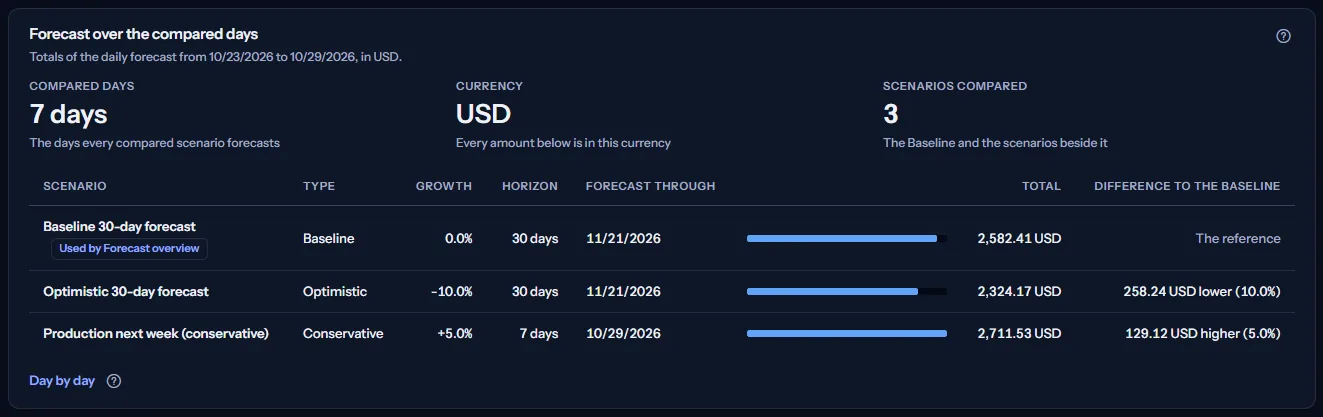
The table has one row per scenario, the Baseline first:
- “Scenario”: the name you gave the scenario. The Baseline carries “Used by Forecast overview”; another active Baseline of the subscription is marked “Another Baseline” and compared like any other scenario.
- “Type”: the type you chose: “Baseline”, “Optimistic”, “Conservative” or “Custom”.
- “Growth”: the scenario's growth adjustment, in percent.
- “Horizon”: how many days the scenario forecasts.
- “Forecast through”: the last day of the scenario's forecast, as a UTC calendar date.
- “Total”: the sum of the scenario's daily forecast over the compared days, with a bar beside it; the longest bar is the largest total.
- “Difference to the Baseline”: how much higher or lower the total is than the Baseline's, in amount and in percent. The Baseline's row reads “The reference”, and a total equal to the Baseline's reads “Same as the Baseline”.
A difference is written as higher or lower and is never coloured: a lower forecast is not money saved, and a higher one is not a risk grade. When the Baseline's total is zero, only the amount is shown, without a percent.
When the Baseline forecasts in more than one currency, the page says so and shows one panel per currency. Amounts in different currencies are never added.
Limits to know
Every amount is an estimate made from recorded cost, for planning. Actual Azure costs may differ.
Day by day
Under the table, “Day by day” opens a table of the compared days: one row per day and one column per scenario, each cell holding the scenario's forecast for that day in the panel's currency.
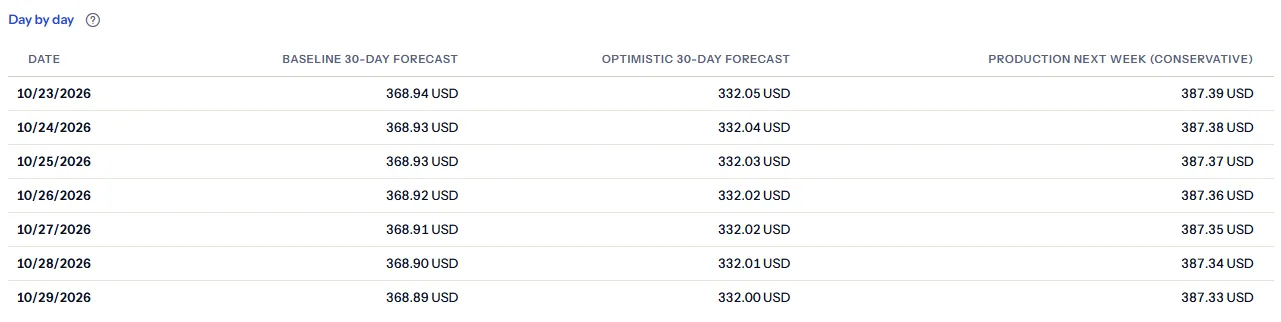
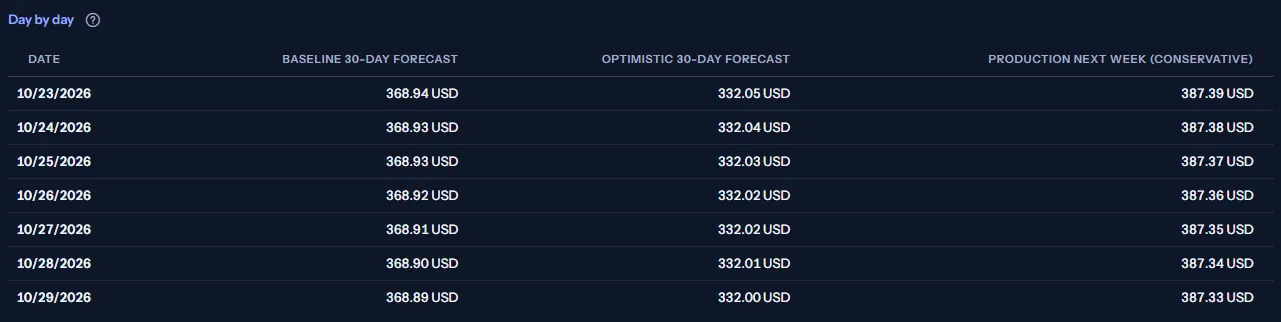
Use it to see whether two scenarios drift apart over the days or differ by about the same amount every day. Dates are UTC calendar dates.
Scenarios not compared
When an active scenario of the subscription cannot be compared, the panel “Not compared” names it with its reason:
- It has no forecast yet. Active scenarios are forecast about once an hour, or at once with “Generate now” on “Forecast scenarios”.
- It forecasts in another currency than the Baseline; the panel names both currencies. Amounts in different currencies are never compared.
- Its forecast days do not overlap the compared days.
- Its forecast could not be read. Refreshing the page reads it again.
- It was not read: the page reads the forecast of at most 25 active scenarios at a time.
The link under the list opens “Forecast scenarios”, where a scenario is activated, edited or forecast at once.
Note
A scenario left out never narrows the comparison of the others. The scenarios that share the most days with the Baseline are taken first, and a scenario joins only if the compared days would not become empty.
How the comparison is made
The panel “How the comparison is made” at the bottom of the page states these rules in short:
- The reference is the Baseline that Forecast overview uses for the subscription: its active Baseline scenario updated most recently.
- Only active scenarios are compared. Disabled and archived scenarios are not forecast and are not shown.
- Totals cover only the days every compared scenario forecasts, so a 7-day scenario and a 30-day one are compared over the same 7 days.
- Each currency is compared on its own, and no exchange rate is applied.
- Amounts of different subscriptions are never added.
- Every amount is an estimate made from recorded cost, not a bill.
Every scenario is forecast the same way: the average daily cost of the latest seven recorded days, a daily trend once fourteen days are recorded, and the scenario's growth adjustment on top.
Note
A scenario's type is a name you choose; it does not change how the forecast is made. Two scenarios of one subscription with the same growth adjustment, forecast from the same recorded cost, have the same daily forecast, whatever their types.
Go further
The links at the bottom of the page lead on:
- “Forecast scenarios”: create, edit, activate or forecast the scenarios compared here.
- “Forecast overview”: the month-end forecast the Baseline feeds.
- “Budgets”: set a monthly budget from the assumption you choose.
- “Forecast range” and “Risk indicators”: the other pages of the “Forecasting” group.
What you may see instead of a comparison
While the page reads, grey bars stand where the figures and the table will appear, and a screen reader announces “Loading the scenario comparison…”. After that, the page may show one of these:
- “No recorded cost yet”, with “Open Getting started”: no cost has been imported for the workspace yet.
- “No active forecast scenario yet”, with “Open Forecast scenarios”: there is no active scenario in scope.
- “The scenario comparison could not be loaded”, with “Try again”: the scenarios could not be read. A failed read is never shown as a subscription with nothing to compare.
- A note above the panels when part of the page could not be read: the subscriptions with recorded cost (subscriptions are then named by the end of their identifier and only all subscriptions can be shown), or the forecast of some scenarios (each is named with that reason).
- A notice that your session has expired, with a link to sign in again.
When you switch workspace, the page clears what it showed, checks the plan of the new workspace and reads its scenarios.
When one subscription has nothing to compare
With one subscription chosen, the page explains why nothing is compared and what to do:
- “This subscription has no active scenario”: create a Baseline for it on “Forecast scenarios”, then another scenario to compare it with.
- “This subscription has no active Baseline”: create or activate a Baseline scenario for it.
- “Only a Baseline to compare”: create another scenario with a different growth adjustment or horizon.
- “The Baseline has no forecast yet”: wait for the next forecasting run, about once an hour, or use “Generate now” on “Forecast scenarios”.
- “The Baseline's forecast could not be read”: refresh the page to read it again.
- “The other scenarios forecast in another currency”: the scenarios left out are named with their currency.
- “No scenario can be compared with the Baseline yet”: each other active scenario is named with its reason under “Not compared”.
Sample data when your plan has no forecasting
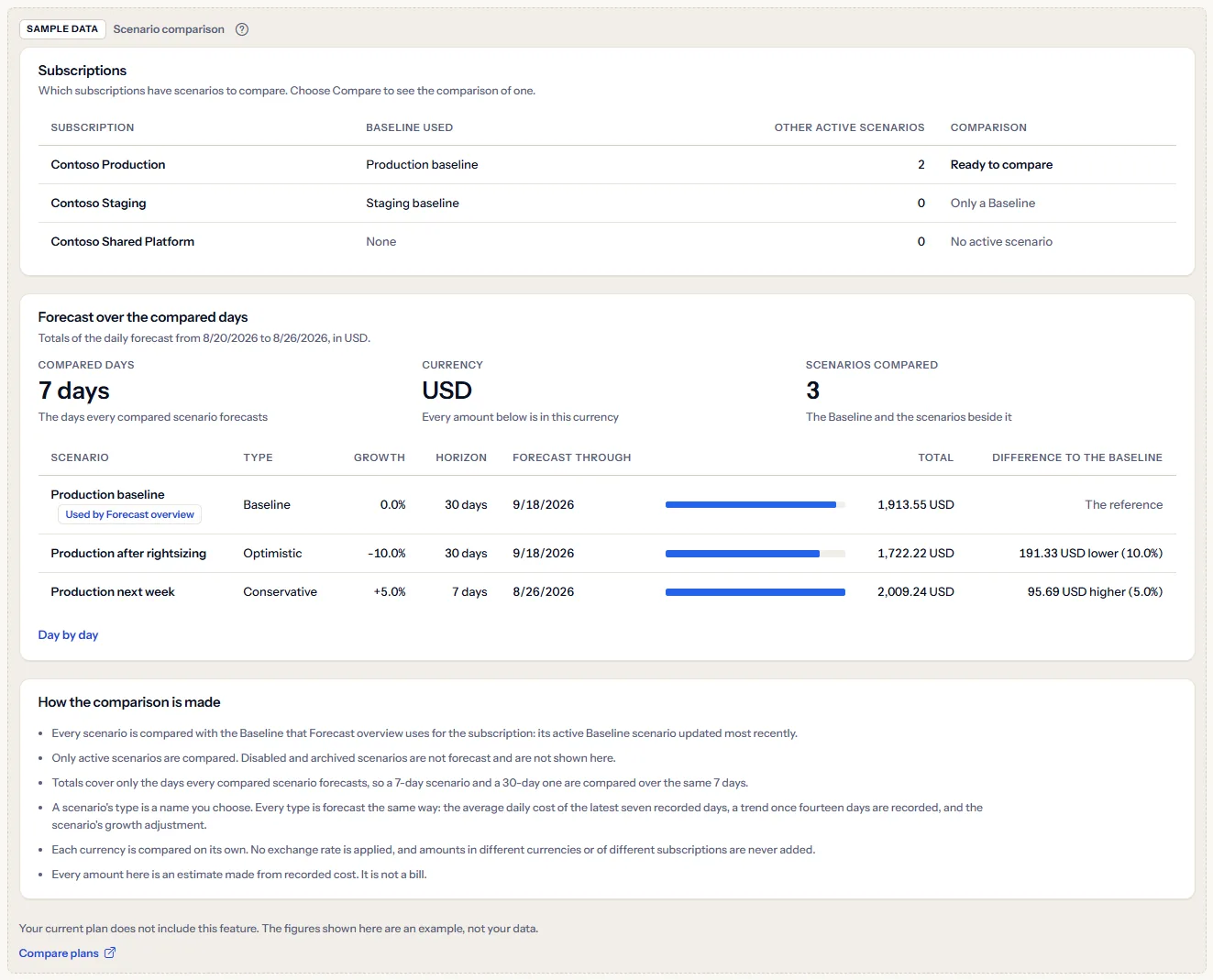
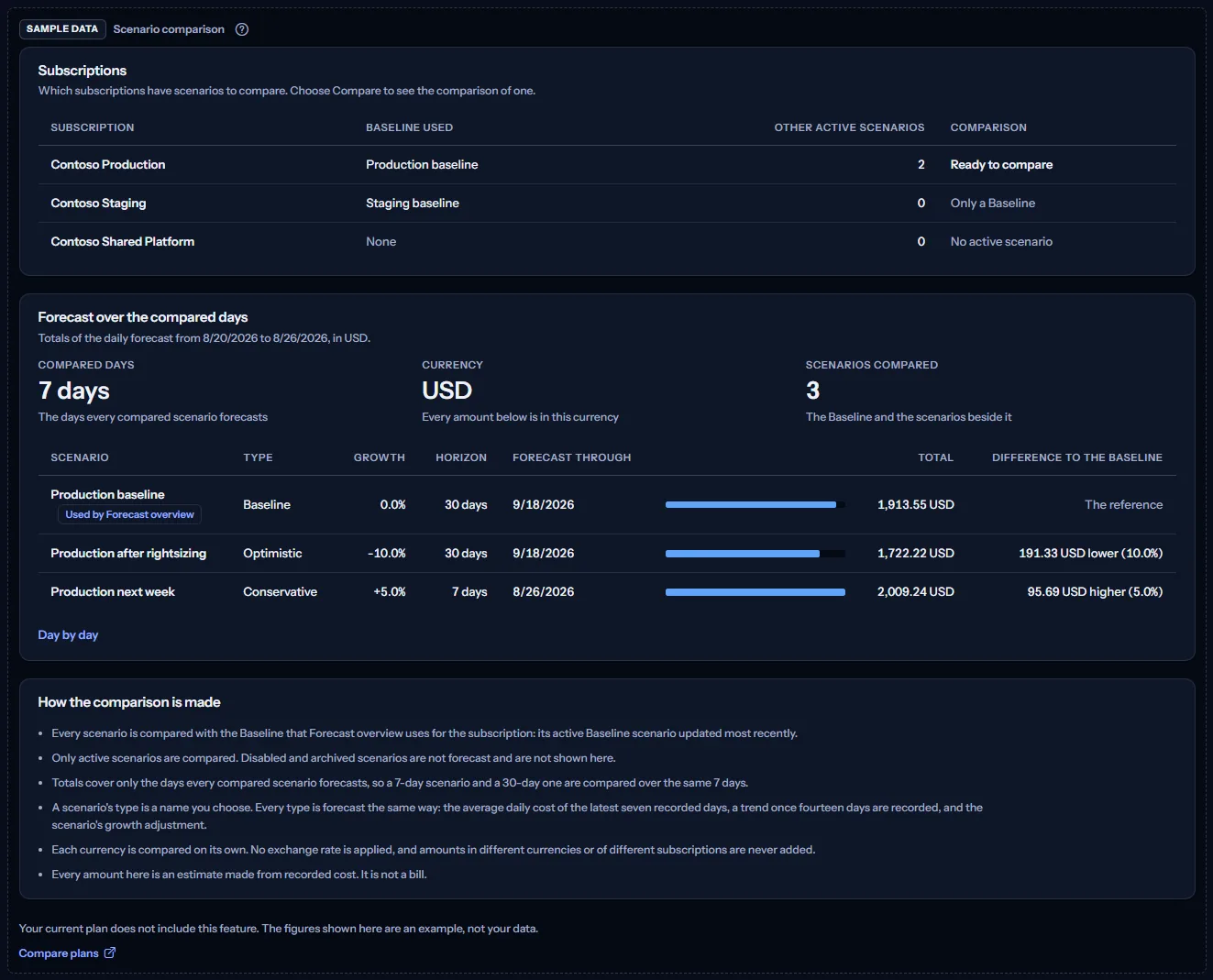
When your plan does not include forecasting, the page shows a fixed example under the label “Sample data”, with the sentence “Your current plan does not include this feature. The figures shown here are an example, not your data.”
The sample shows three Contoso subscriptions: Contoso Production with its Baseline, an optimistic scenario and a seven-day scenario ready to compare, Contoso Staging with only a Baseline, and Contoso Shared Platform with no active scenario; then the comparison of Contoso Production and the notes. It has no scope bar and no action, and it is the same for everyone, never your data.
“Compare plans” opens the pricing page in a new tab. CostGuard decides what your plan includes on the server; the sample is only how the page shows it.
What each plan includes
The table shows the first plan that includes each part of the page. Every plan above it includes it too.
| Feature | Free | Starter | Growth | Pro | Enterprise |
|---|---|---|---|---|---|
| A labelled sample of the page | Included | Included | Included | Included | Included |
| Scenario comparison with your own scenarios and forecasts | Not included | Not included | Not included | Included | Included |
Pro and Enterprise include the comparison of your own scenarios; Free, Starter and Growth show the labelled sample. The plan is checked on the server, the forecasting run forecasts only workspaces whose plan includes forecasting, and the page never shows a price.
Troubleshooting
A scenario I created is not in the comparison
Only active scenarios of the chosen subscription are compared. Check on “Forecast scenarios” that the scenario is active and belongs to that subscription. A new scenario is forecast within about an hour; until then it is listed under “Not compared” as having no forecast yet. Use “Generate now” to forecast it at once, then “Refresh”.
The comparison covers fewer days than the horizon
Totals cover only the days every compared scenario forecasts. A shorter scenario, such as a 7-day one, sets the compared days for all of them, and scenarios forecast at different times may start on different days. Use “Generate now” on each scenario so that they all start the day after the latest recorded day.
Two scenarios have the same total
The type does not change the method. Two scenarios with the same growth adjustment, forecast from the same recorded cost, have the same forecast. Give the alternative a different growth adjustment on “Forecast scenarios”.
The comparison does not use the Baseline I expect
The page uses the Baseline that Forecast overview uses: the active Baseline updated most recently. Saving an edit to a Baseline, or activating one, makes it the reference. Another active Baseline of the subscription is compared as “Another Baseline”.
A scenario is listed in another currency
A subscription billed in two currencies has a forecast per currency. Each currency is compared on its own, and a scenario that forecasts only in a currency the Baseline does not is listed under “Not compared” with its currency.
The page is not in the sidebar
The sidebar lists it in “Advanced” mode only. Choose “Advanced” at the top of the sidebar; the page's address opens in either mode.