
Help center: find every page and its help article
How the Help center lists every page CostGuard opens today, what each card tells you, how to find a page, and where to turn when a page does not answer your question.
What this page is for
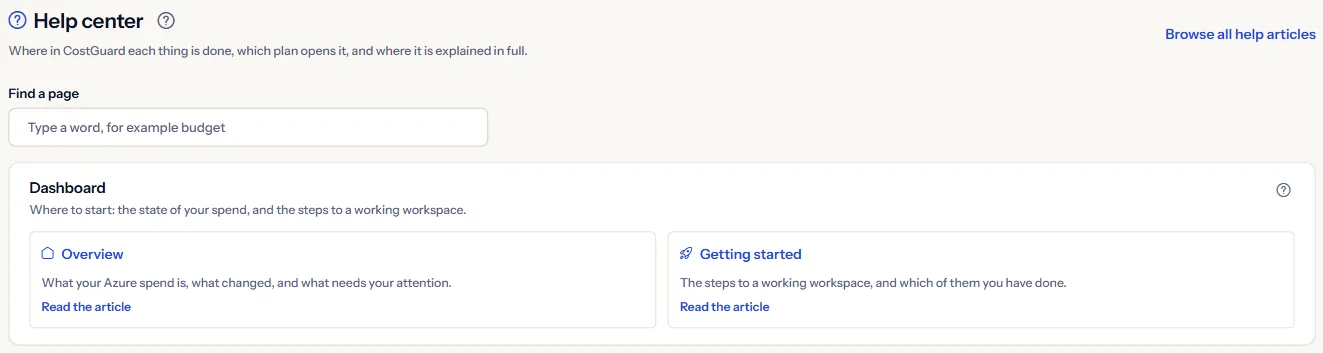
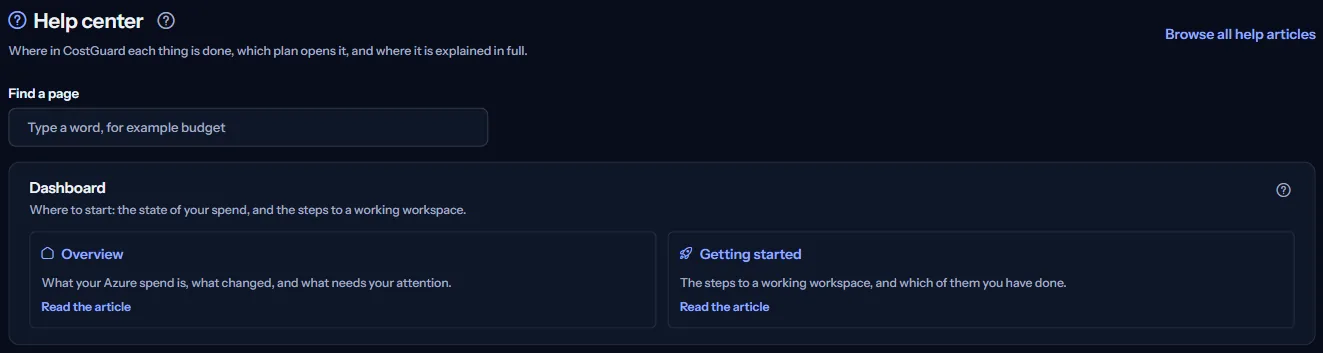
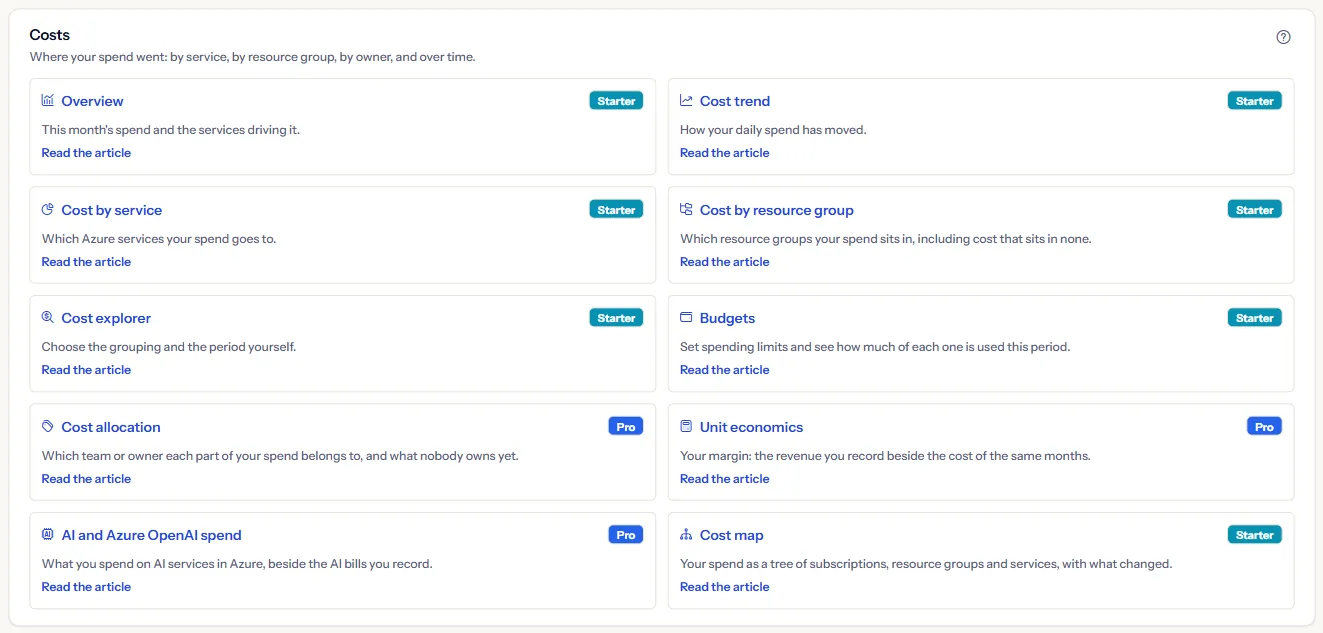
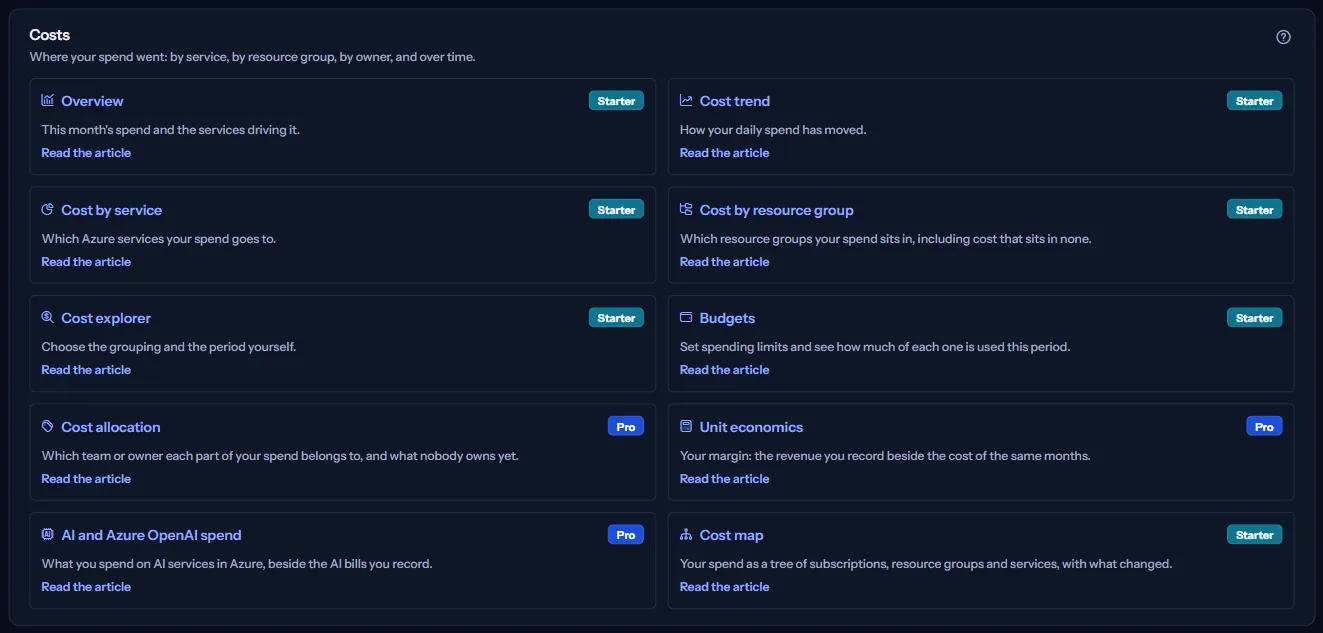
The “Help center” page is a directory of CostGuard: one card for every page the sidebar opens today, grouped as the sidebar groups them and in the same order. Each card says what its page answers, names the plan its sidebar badge names, and links to the help article that explains the page when one is published.
Open it when you know what you want to find out but not where it is, or when you want the full explanation of a page. Every card opens a page that works today; pages that are announced but not available yet are not listed.
Before you start
Nothing has to be set up first. The page is open to every member of a workspace, on every plan and in both sidebar modes. It lists every live page, including those the sidebar shows only in advanced mode; such a page still opens from its card.
Find a page
Type a word into “Find a page” to keep only the cards whose page name or line contains it. The search reads the names and lines in the language you use CostGuard in, ignores capital letters and accents, and a group with no matching card is left out.
When nothing matches, the page says so. “Clear” empties the box and shows every card again.
What a card shows
Each card shows:
- The page name, as the sidebar names it. Select it to open the page.
- One line that says what the page answers.
- A plan badge (Starter, Growth, Pro or Enterprise) when the sidebar names a plan for the page; a page without a badge is on every plan. The badge names the plan the page is designed for. It is not a statement about your workspace's plan: the page itself decides what you see when you open it.
- “Owners only” on the pages only workspace owners can open, such as “Members and roles”.
- “Read the article” when a help article explains the page. It opens the article in a new tab, in your language.
A card has no article link when no help article explains that page yet. The “Trust Center” card opens the public Trust Center in your language.
Every help article
“Browse all help articles” at the top of the page opens the public help center in a new tab, in your language. It lists every article by topic, and its search reads the whole text of every article.
A page that has an article also carries a help icon beside its title, and many of its panels carry one too; each opens the article at the matching section.
Getting help
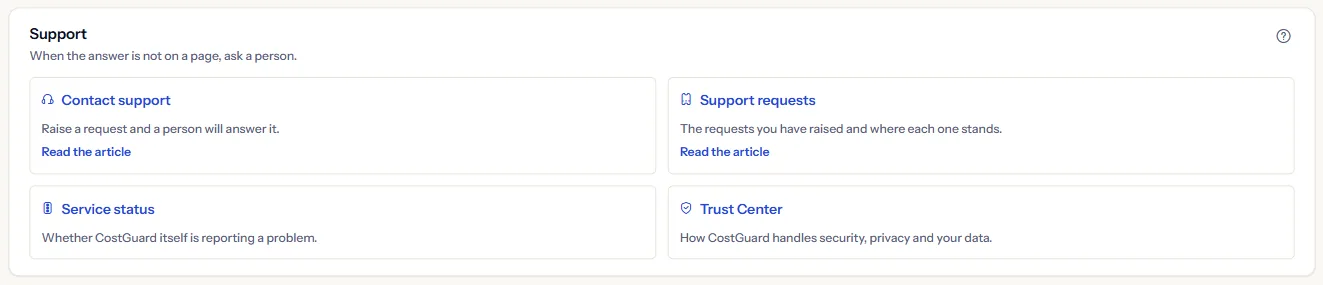
The last group, “Support”, is where you turn when a page does not answer your question:
- “Contact support” sends a request to the CostGuard support team, and a confirmation email goes to your sign-in address.
- “Support requests” lists the requests you sent and where each one stands; the team's answers appear there.
- “Service status” opens the public status page in your language. It is described below.
- “Trust Center” opens the public pages on how CostGuard handles security, privacy and your data.
What the status page shows
The status page shows a measured reading for four parts of CostGuard, read from the health signals the service reports about itself, and an overall status above them:
- “Web application”: The CostGuard website and the signed-in application.
- “API”: The programming interface the application and integrations call.
- “Background processing”: Scheduled work such as cost data import, recommendations, forecasts, alerts and report delivery.
- “Data store”: The storage that holds workspace data.
Each reading is one of “Operational”, “Degraded”, “Outage”, “Maintenance” or “Unknown”, with the time of the last check in UTC. The page explains each label and shows no internal diagnostics.
If CostGuard does not behave the way the status page reports, send a request from “Contact support”.
What you may see
The page is built from what CostGuard ships, so it never waits for data or fails to load. You may see:
- No page matches what you typed. Clear the search to see every page.
- A card whose page needs another plan still opens that page; the page then shows what your plan allows, for example a labelled sample.
What each plan includes
The table shows the first plan that includes each part of the page. Every plan above it includes it too.
| Feature | Free | Starter | Growth | Pro | Enterprise |
|---|---|---|---|---|---|
| The “Help center” page | Included | Included | Included | Included | Included |
Every plan includes this page, and every member of the workspace can use it.
Troubleshooting
A page I expected is not in the directory
The directory lists only pages that work today. Entries the sidebar shows as not available yet are not listed, and the Help center does not list itself. If you typed a word, clear the search.
A card has no article link
No help article explains that page yet, or the page is explained elsewhere: the status page is explained in this article, and the Trust Center is itself a set of public pages. “Browse all help articles” searches the text of every article.
A card names a plan my workspace does not have
The badge names the plan the page is designed for. Open the page: it decides what your plan shows, for example a labelled sample instead of your own figures.
The search finds nothing for a word I know
The search reads the page names and lines in the language you use CostGuard in. Try the word in that language, or a shorter part of it.