
Connection health: which connections need attention
How CostGuard decides the health of each connection from its import records, what each state means and which action fixes it.
What this page is for
“Connection health” answers which connections need attention now, why, and what to do next. Those that need attention come first.
“Health is derived from CostGuard’s latest recorded synchronization evidence. It is not a live Azure availability monitor.”
Before you start
The page shows the connections you made on “Connect Azure”. Until one exists it shows “No connections yet” and “Connect a subscription”. Every plan includes it.
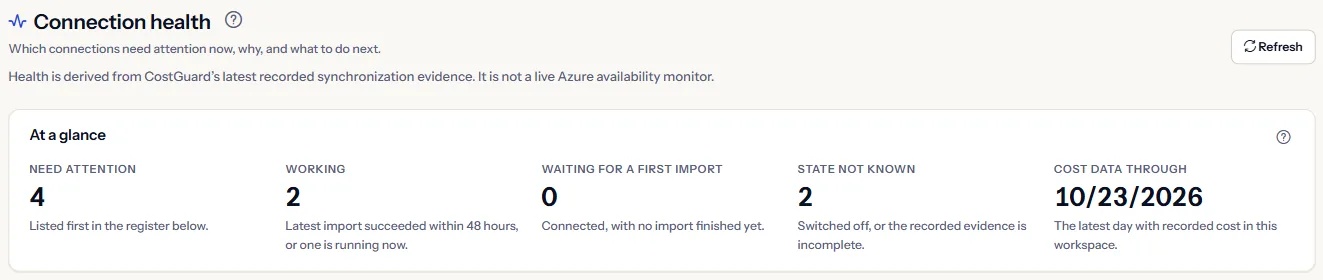
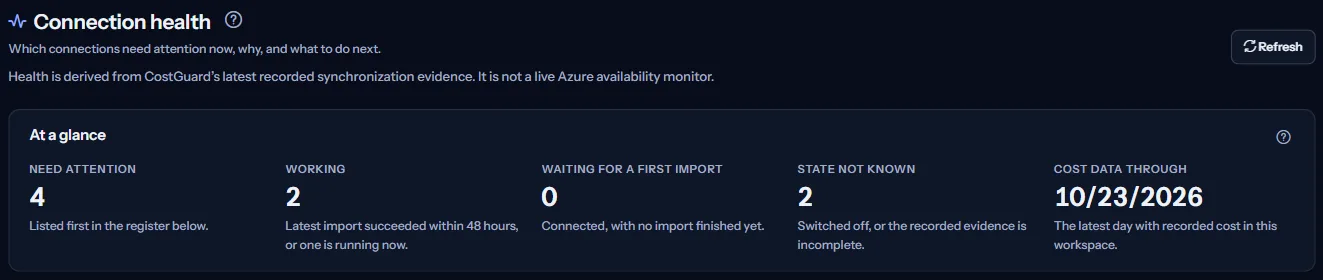
The figures at the top
“At a glance” counts the connections by what they need:
- “Need attention”: Listed first in the register below.
- “Working”: Latest import succeeded within 48 hours, or one is running now.
- “Waiting for a first import”: Connected, with no import finished yet.
- “State not known”: Switched off, or the recorded evidence is incomplete.
- “Cost data through”: The latest day with recorded cost in this workspace.
The list of connections
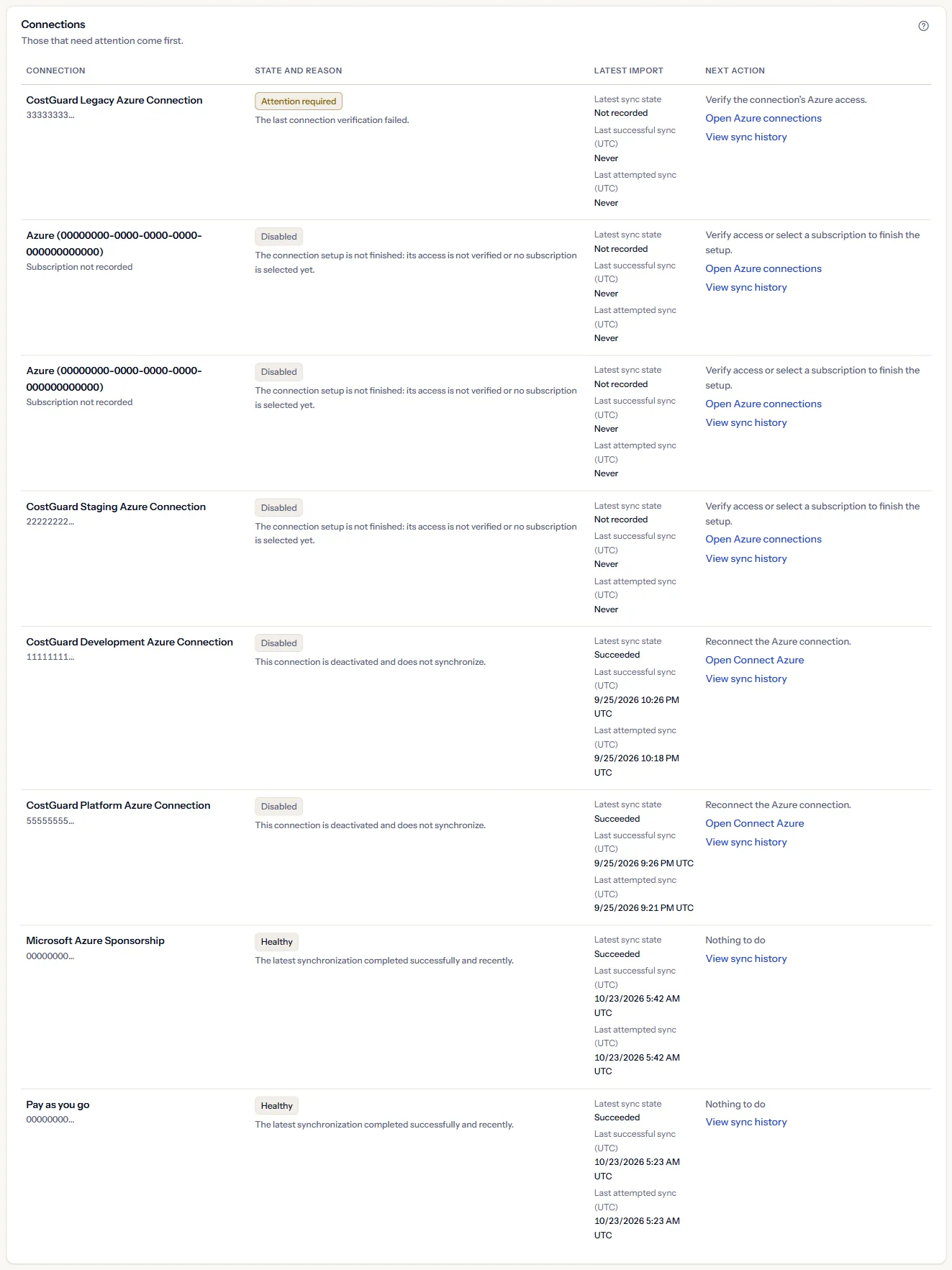
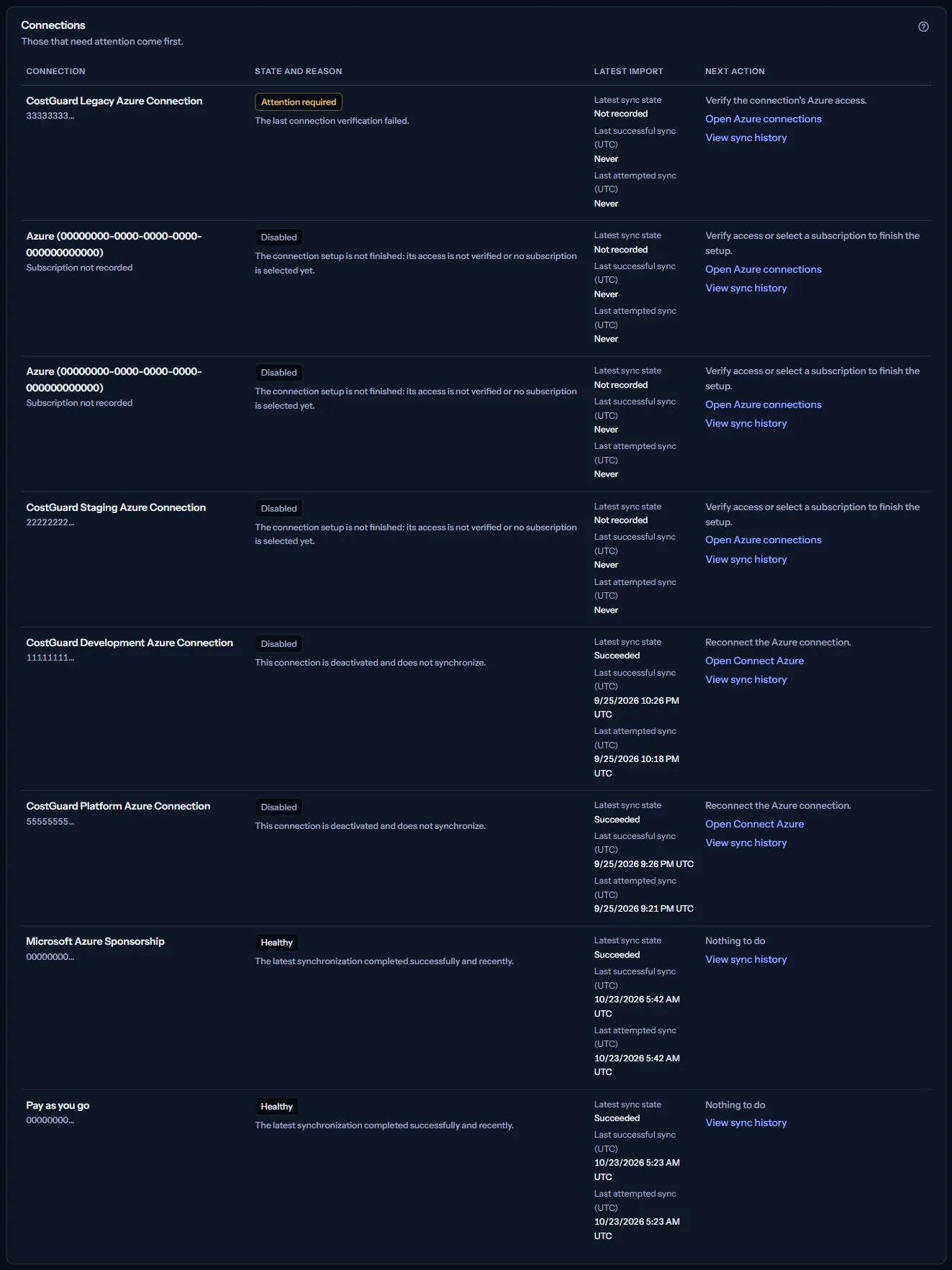
“Connections” lists every connection, those that need attention first:
- “Connection”: the name and the first characters of the subscription ID.
- “State and reason”: the health state and one sentence that says what it is based on.
- “Latest import”: the state of the latest run, “Last successful sync (UTC)” and “Last attempted sync (UTC)”.
- “Next action”: what to do, with a link to the page where you do it, or “Nothing to do”.
The page sorts and counts connections the same way as “Azure connections”, so both pages always agree on which connections need attention.
What each state means
Each state comes from the connection's recorded imports and its setup:
- “Healthy”: The latest synchronization completed successfully and recently.
- “Sync in progress”: A synchronization is currently running for this connection.
- “Stale”: The last successful synchronization is older than expected.
- “Never synchronized”: No synchronization has completed for this connection yet.
- “Attention required”: Recent synchronizations failed with likely temporary problems.
- “Sync failed”: Recent synchronizations failed with a likely access or credential problem.
- “Disabled”: This connection is deactivated and does not synchronize.
“Attention required” is also shown when the latest import did not finish, when an import started but never recorded a result, when the access check failed, or when the setup is not complete. “Status unavailable” means the recorded evidence is incomplete.
Each next action
The action in a row, and where you carry it out:
- “Review the sync history for details.” “Open sync history” shows every run of the connection.
- “Verify the connection’s Azure access.” “Open Azure connections”, then use its verify button.
- “Verify access or select a subscription to finish the setup.” “Open Azure connections” continues the setup.
- “Reconnect the Azure connection.” “Open Connect Azure” connects the subscription again.
- “Wait for the current or first synchronization to complete.” There is no link; refresh the page later.
How health is decided
“How health is decided” lists the rules the page applies:
- A connection whose latest successful import is more than 48 hours old is stale.
- An import that started more than 30 minutes ago without a result is treated as stalled, not as running.
- A failed latest import is shown even when an older import succeeded.
- Only the kind of problem is shown here; error details from Azure never appear on this page.
Go further
The links at the bottom of the page lead on:
- “Azure connections”: Verify access, see each subscription in full and disconnect.
- “Sync history”: See every import run of each connection and its result.
- “Connect Azure”: Connect another subscription with read-only access.
What you may see
Instead of the list you may see:
- “Loading connection health…” while the health is read.
- “No connections yet” with “Connect a subscription” when nothing is connected.
- “The connection health could not be loaded. Please try again.” with “Retry”. A failed read never shows as an empty list.
- “Not available” beside “Cost data through” when only that date could not be read.
- A notice that your session has expired, after CostGuard tried once to sign you in again.
What each plan includes
The table shows the first plan that includes each part of the page. Every plan above it includes it too.
| Feature | Free | Starter | Growth | Pro | Enterprise |
|---|---|---|---|---|---|
| The “Connection health” page | Included | Included | Included | Included | Included |
Every plan includes this page, and every member of the workspace can open it.
Troubleshooting
A connection is “Stale” although Azure shows recent cost
No import of that connection has succeeded for more than 48 hours, so CostGuard has not brought that cost in. “Open sync history” shows whether the imports fail or do not run.
A connection stays “Never synchronized”
The first import has not finished yet. It runs after the access is checked; if it does not start, check the connection on “Azure connections”.
The access check failed
CostGuard could not read the subscription with the access granted, for example because the Reader role was removed in Azure. Assign it again, then verify the connection on “Azure connections”.