
Azure connections: the subscriptions CostGuard reads
How to read the list of connected Azure subscriptions, what each state means, what to do about a connection that needs attention, and what disconnecting does.
What this page is for
“Azure connections” lists every Azure subscription this workspace has connected to CostGuard. For each one it says whether the connection works, when its cost was last imported, and what to do when it needs attention.
Open it when a figure looks incomplete, after you connect a subscription, or when CostGuard tells you a connection needs attention. CostGuard only reads from Azure; nothing on this page changes anything there.


Before you start
The page lists what you connected on “Connect Azure”. Until a subscription is connected it shows only “Connect a subscription”. Every plan includes the page; how many connections your plan allows is on “Plan and usage”.
The figures at the top
“At a glance” counts the connections of this workspace:
- “Connections”: every connected subscription. When your plan limits the number, the limit is shown beside it.
- “Working”: active connections whose latest successful import is recent, or that are importing right now.
- “Need attention”: connections that wait for verification, failed their access check, or whose import is late or did not finish.
- “Cost data through”: the latest day with recorded cost in the whole workspace, in UTC.
Azure reports cost a day or two late, so the latest days are not final even when every connection works.
The connected subscriptions
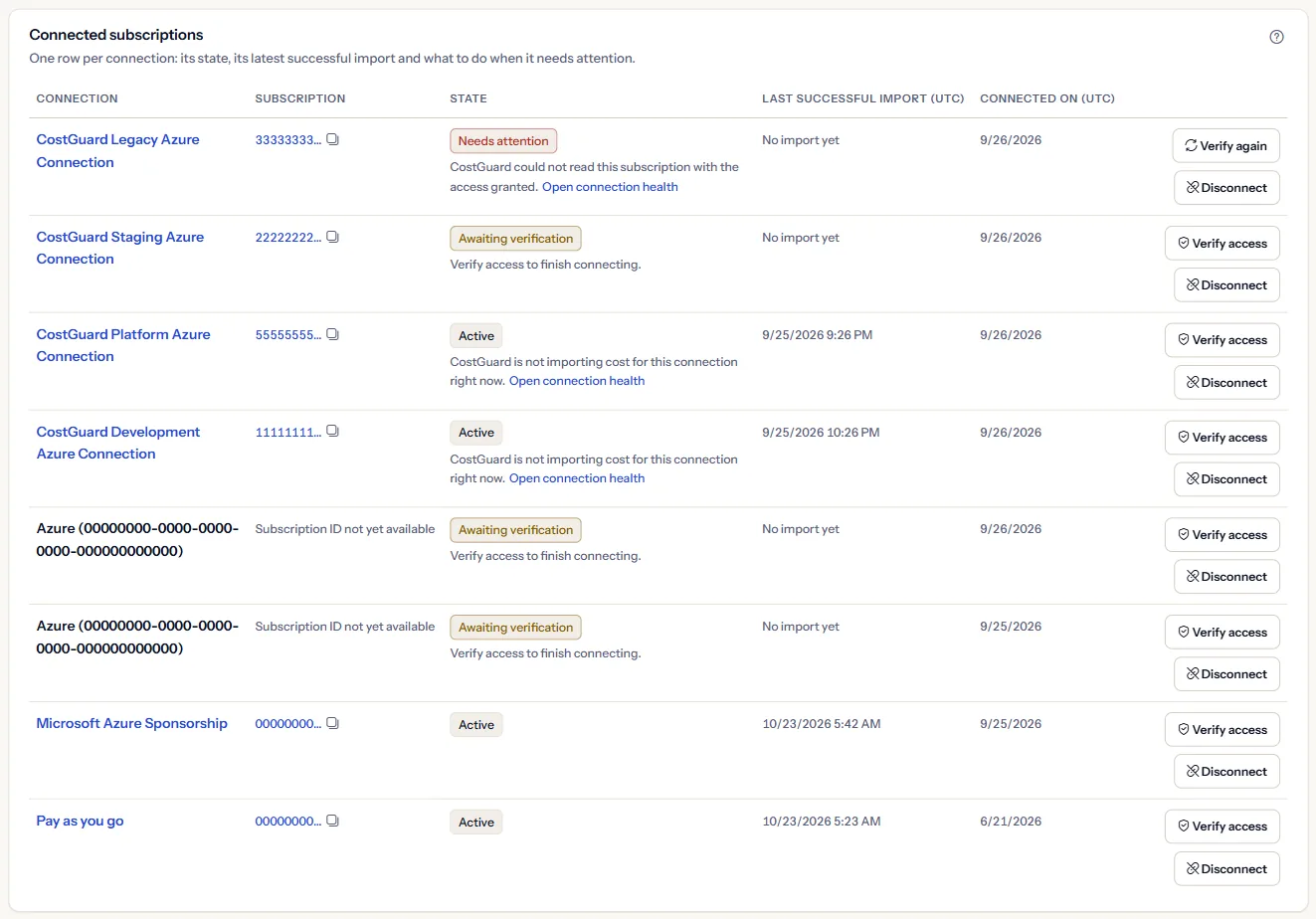
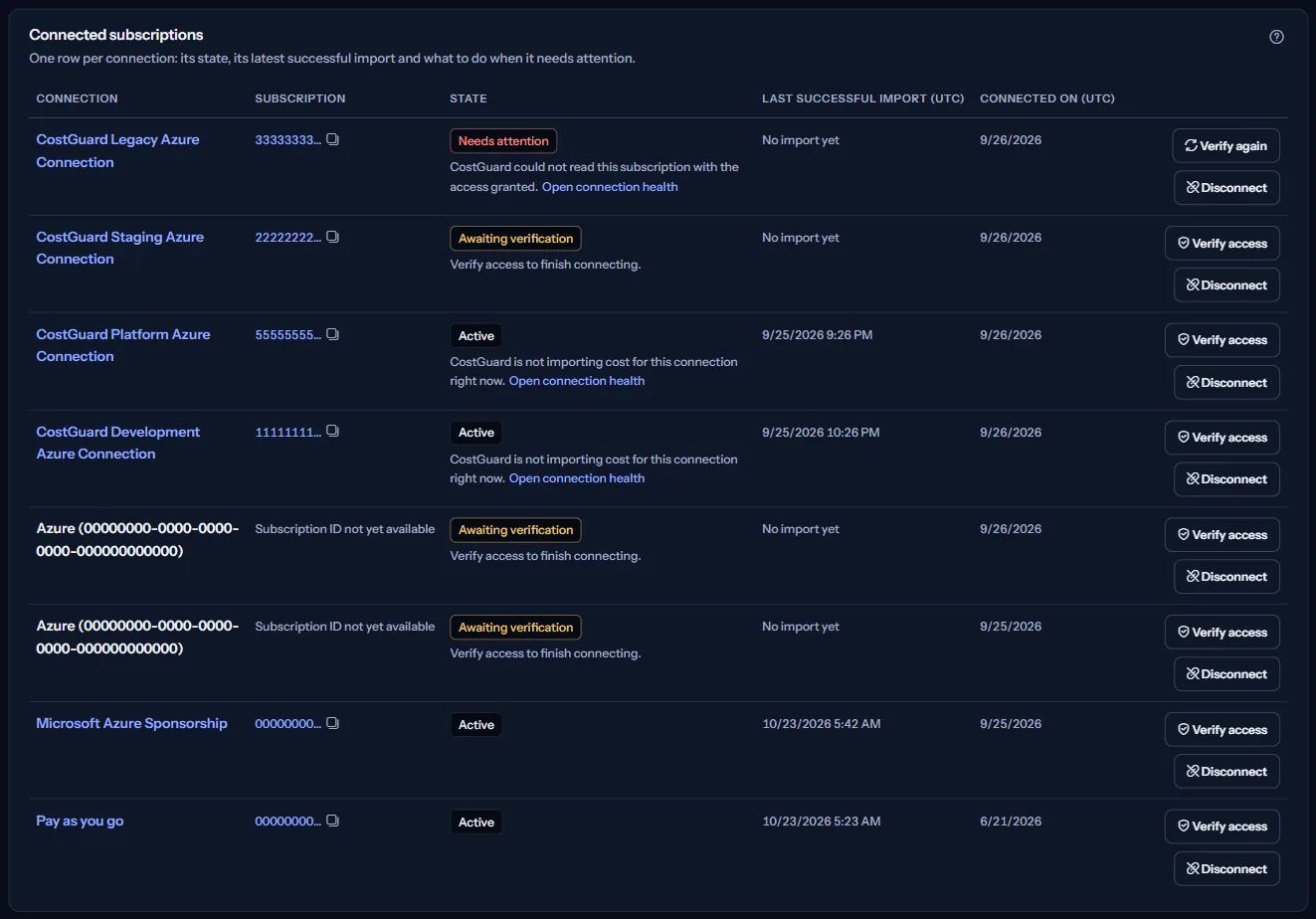
“Connected subscriptions” has one row per connection:
- “Connection”: the name of the connection; it opens the subscription in the Azure portal in a new tab.
- “Subscription”: the first characters of the subscription ID. “Copy Subscription ID” copies the whole ID; this is the only page that offers it.
- “State”: “Active”, “Awaiting verification”, “Needs attention” or “Unknown”, with a sentence that says what to do when the connection needs attention.
- “Last successful import (UTC)” and “Connected on (UTC)”: when the cost of the subscription was last imported successfully, and when it was connected.
- “Actions”: “Verify access” or “Verify again”, and “Disconnect”.
When a connection needs attention
The sentence in the row says what CostGuard knows and where to act:
- “Verify access to finish connecting.” Use “Verify access” in the same row.
- “CostGuard could not read this subscription with the access granted.” “Open connection health” says why and what to do.
- “The latest successful import is more than two days old.” “Open sync history” shows every import of the connection.
- “The latest import did not finish.” “Open sync history” shows the failed run.
A connection counts as late when its latest successful import is more than two days old. A connection that has not finished its first import yet is not counted as needing attention.
Verify access
“Verify access” asks CostGuard to check again, with the access you granted in Azure, that it can read the subscription. After a failed check the button reads “Verify again”.
The row then says “Access verified.”, “Access still needs attention.” or “Unable to complete access check. Please try again.” Nothing changes in Azure.
Disconnect a subscription
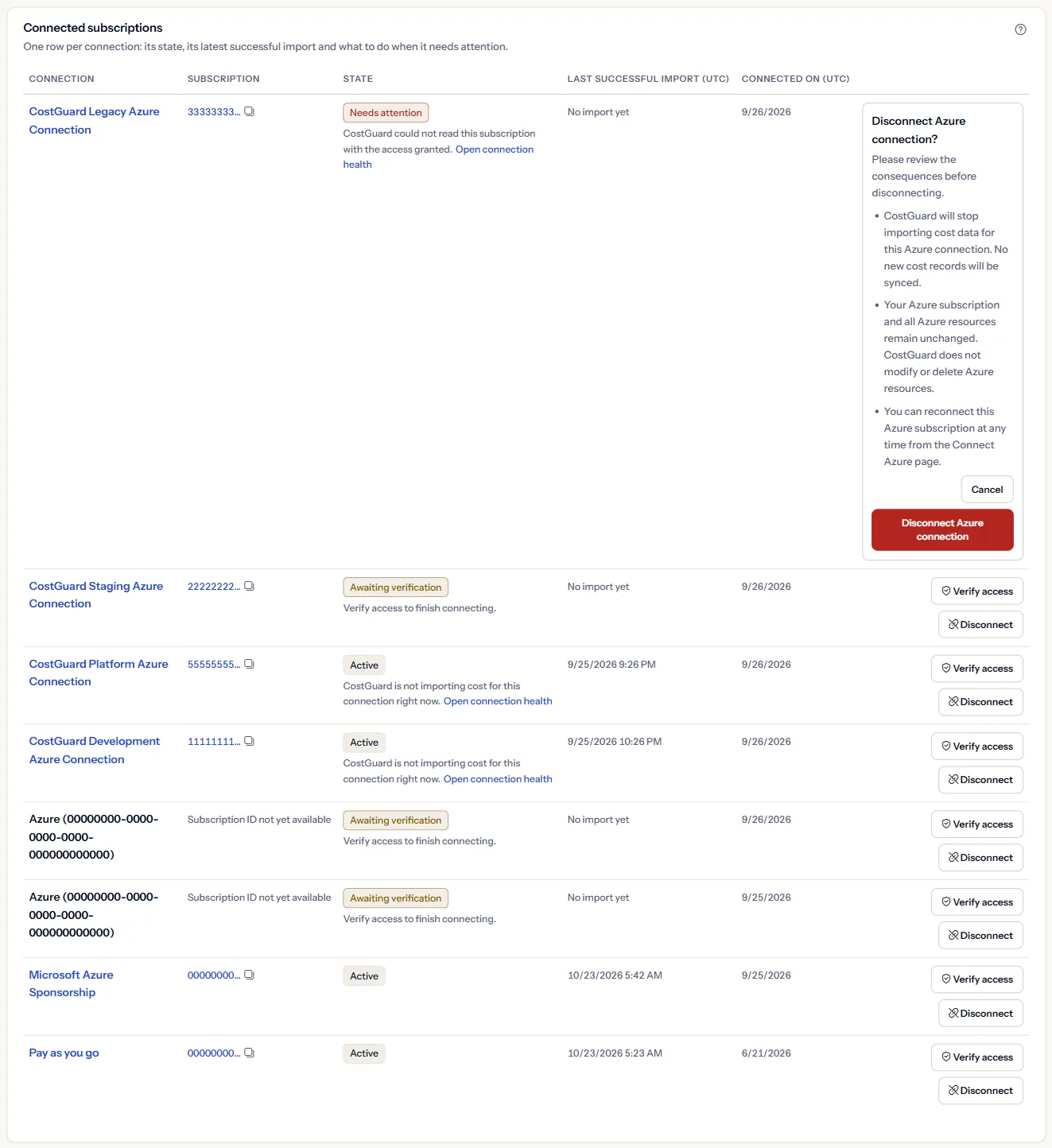
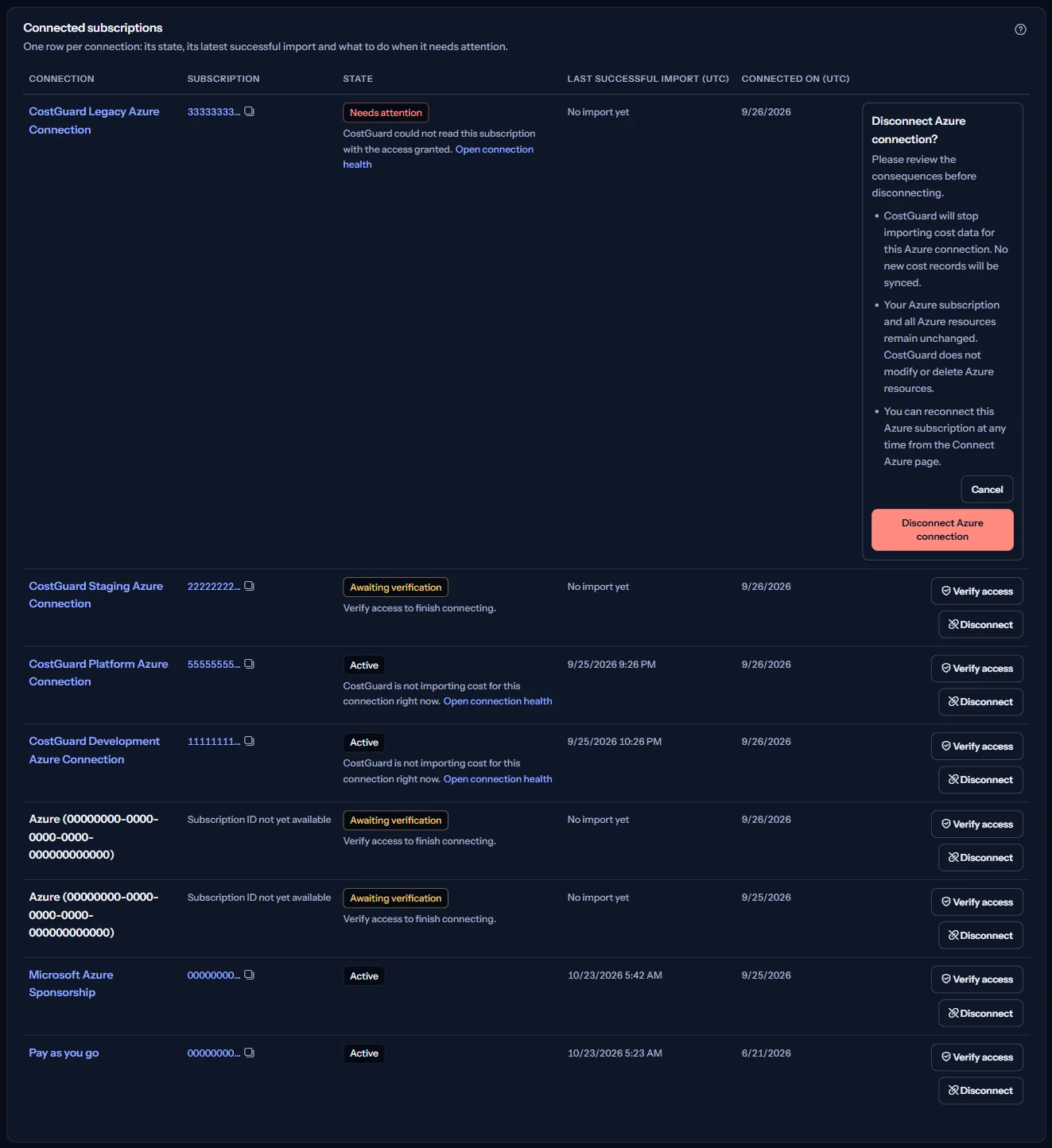
“Disconnect” first asks you to confirm. After “Disconnect Azure connection”:
- The connection leaves this list and CostGuard stops importing the cost of that subscription.
- The cost CostGuard already imported is not deleted by disconnecting.
- Nothing changes in Azure. To remove CostGuard's access there too, remove its role assignment in the Azure portal.
You can connect the subscription again at any time on “Connect Azure”. “Cancel” closes the question without changing anything.
Read-only access
Each connection reads one Azure subscription with the Reader role: its cost data and its subscription details. CostGuard never creates, changes or deletes anything in Azure.
To review or change that access, open the subscription in the Azure portal; the connection name links to it.
Go further
The links at the bottom of the page lead on:
- “Connect Azure”: Connect another subscription with read-only access.
- “Sync history”: See every import run of each connection and its result.
- “Connection health”: See why a connection needs attention and what to do.
- “Plan and usage”: See how many connections your plan includes.
What you may see
Instead of the list you may see:
- “Loading connections...” while the connections are read.
- “No Azure subscription is connected yet” with “Connect a subscription” when nothing is connected.
- “The connections could not be read. Try again.” with “Try again” when the list could not be read.
- “Not available” in a figure or a row when only that part could not be read; the rest of the page is still shown.
- A notice that your session has expired, after CostGuard tried once to sign you in again.
What each plan includes
The table shows the first plan that includes each part of the page. Every plan above it includes it too.
| Feature | Free | Starter | Growth | Pro | Enterprise |
|---|---|---|---|---|---|
| The “Azure connections” page | Included | Included | Included | Included | Included |
Every plan includes this page. How many subscriptions you can connect depends on your plan; “Plan and usage” shows your allowance.
Troubleshooting
A connection stays “Awaiting verification”
The connection was created but its access has not been checked yet. Make sure the Reader role is assigned on the subscription in Azure, then use “Verify access”. Role assignments can take a few minutes to apply.
A connection shows “Needs attention”
CostGuard could not read the subscription with the access granted, for example because the role assignment was removed. Check the role in Azure, then use “Verify again”. “Open connection health” gives the reason it recorded.
The cost does not look current
Azure reports cost a day or two late, so yesterday may still be missing. If a row says its import is late or did not finish, open “Open sync history” for that connection.
You cannot connect another subscription
Your plan's connection limit is reached. “Plan and usage” shows the limit; disconnecting a subscription you no longer need frees a place.