
Connect Azure: give CostGuard read-only access
How to connect an Azure subscription in four steps: the admin consent, the Reader role, the access check and the choice of subscription.
What this page is for
Connect Azure is where CostGuard gets read-only access to one Azure subscription, so it can import that subscription's cost. Everything else in CostGuard reads the cost that a connection imports.
Connecting needs two people or one person with both rights: an administrator of your Microsoft Entra tenant who approves CostGuard's app, and someone who can assign an Azure role on the subscription. You create no app registration and no client secret.
Before you start
Before you select “Connect Azure”, have these ready:
- An account that can grant admin consent in your Microsoft Entra tenant, such as a Global Administrator or a Cloud Application Administrator.
- Owner, User Access Administrator or Role Based Access Control Administrator on the subscription, to assign the Reader role.
- Room in your plan: every plan includes a number of connected subscriptions, and Connect Azure says when the workspace has reached it.
What CostGuard reads
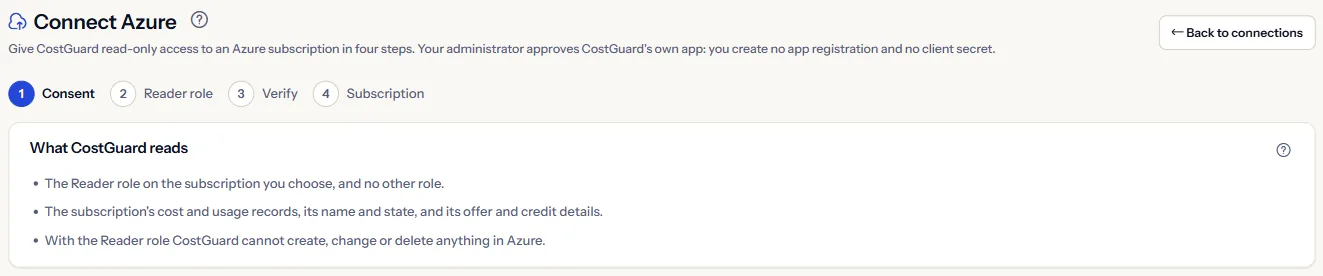
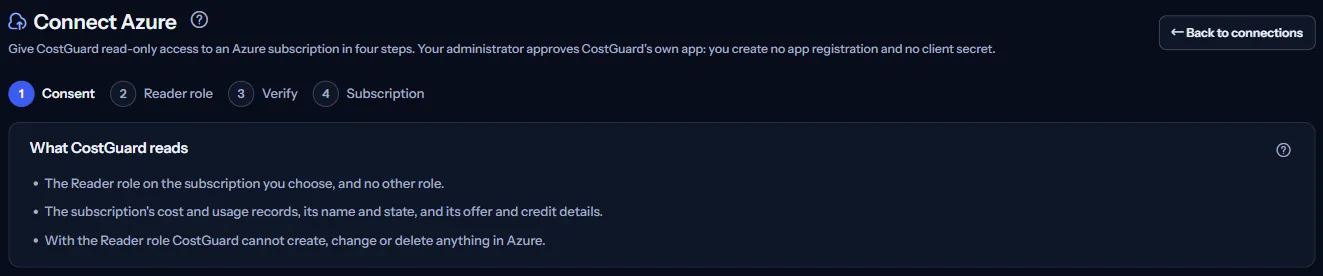
The panel “What CostGuard reads” lists the whole of CostGuard's access before you start:
- The Reader role on the subscription you choose, and no other role.
- The subscription's cost and usage records, its name and state, and its offer and credit details.
- With the Reader role CostGuard cannot create, change or delete anything in Azure.
Under the list, a line counts the subscriptions already connected in this workspace against the number your plan includes.
The four steps
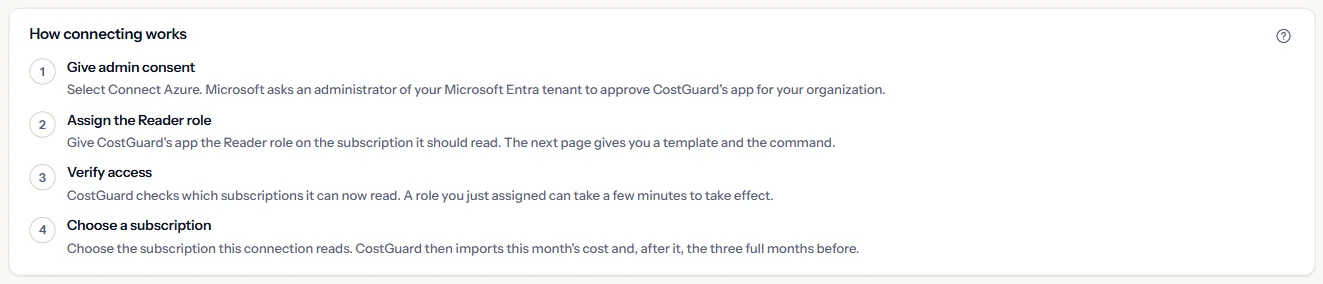
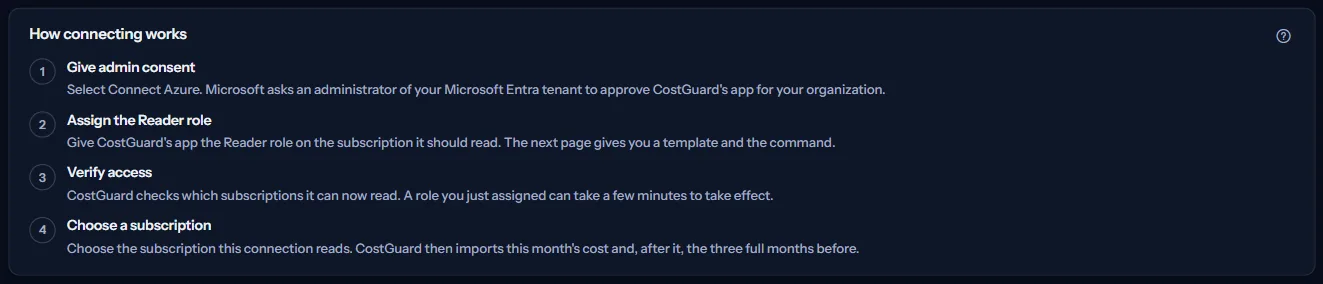
The panel “How connecting works” and the step indicator at the top of each page of the flow show where you are: consent, Reader role, verify, subscription. Each step is explained below. The connection exists after the consent; it reads cost only once a subscription is chosen.
Step 1: give admin consent
Select “Connect Azure”. Microsoft opens in the same tab and asks an administrator of your tenant to approve CostGuard's app for your organisation. The request is valid for 30 minutes and only once.
The consent only lets the app exist in your tenant; it gives no access to any Azure resource. That is what the Reader role in step 2 does.
Microsoft then sends you back to the consent result page. It continues to the Reader role step when the consent was given, or says why not: “The Azure consent was not completed”, “Invalid or expired request” for a request older than 30 minutes or already used, or “The connection could not be created” when CostGuard could not confirm the new connection.
Step 2: assign the Reader role
The Verify access page shows the identity to give the role to. The simplest way is “Deploy to Azure”: it opens a ready-made template in the Azure portal that gives CostGuard's app the Reader role on the subscription you choose there.
Or paste the subscription ID and use “Copy command” or “Copy and open Cloud Shell” to run the Azure CLI command in Azure Cloud Shell; an Azure PowerShell command is offered too.
Assigning the role needs Owner, User Access Administrator or Role Based Access Control Administrator on the subscription. If you have none of these, send the template or the command to someone who does.
Step 3: verify access
Select “Verify access”. CostGuard asks Azure which subscriptions its app can now read and lists them. A role you just assigned can take a few minutes to take effect.
When the list stays empty, the page says “No subscriptions found”: check the role assignment, wait a few minutes and verify again. CostGuard never shows Azure's own error text.
Step 4: choose the subscription
Each listed subscription shows its name, its ID and its state in Azure. Select “Select” on the one this connection should read. One connection reads one subscription; a subscription already read by another connection of the workspace shows “Already connected”.
When the subscription is chosen, the page shows “Connection complete” with links to “Azure connections” and to “Sync history”.
The first import
CostGuard then imports this month's cost and, after it, the three full months before. Azure publishes cost a day or two after it is incurred, so the newest days fill in over the next imports.
Follow the import on “Sync history”; the connection is listed on “Azure connections”.
What you may see instead of figures
While the page reads, grey bars stand where the panels will appear. After that, the page may show one of these instead:
- “Your plan's connection limit is reached”: the workspace already has as many connections as its plan includes. Remove one you no longer need, or open “View plan and usage”.
- “Invalid or expired request”: the answer from Microsoft did not match a request of yours, or the request was older than 30 minutes. Start again from “Connect Azure”.
- “The Azure consent was not completed”: the administrator declined or closed the Microsoft page. Choose “Try again”, or ask your Azure administrator to approve CostGuard's app.
- “No subscriptions found”: CostGuard cannot read any subscription through this connection yet. Check the Reader role and use “Verify access again”.
- When your sign-in could not be renewed, the page asks you to sign in again once, then says your session has ended instead of showing a failed check.
What each plan includes
The table shows the first plan that includes each part of the page. Every plan above it includes it too.
| Feature | Free | Starter | Growth | Pro | Enterprise |
|---|---|---|---|---|---|
| Connecting Azure subscriptions | Included | Included | Included | Included | Included |
Every plan can connect Azure; the plans differ in how many subscriptions a workspace may connect: one on Free, three on Starter, ten on Growth, and no fixed number on Pro and Enterprise. The allowance is checked on the server, and the page never shows a price.
Troubleshooting
The administrator approved, but Verify access finds nothing
The consent gives no access by itself. Assign the Reader role on the subscription (step 2), wait a few minutes for Azure to apply it, then verify again.
The subscription I need is not in the list
The role was given on another subscription, or in another tenant than the one that gave consent. Check where the role assignment was made, then verify again.
The page says the connection limit is reached
The workspace has as many connections as its plan includes. Disconnect one you no longer need on “Azure connections”, or compare plans from “Plan and usage”.
The connection is made, but no cost appears yet
The first import is still running or has not started. Follow it on “Sync history”; Azure also publishes cost a day or two late, so the newest days arrive with later imports.