
Unit economics: revenue, cloud cost and margin
Unit economics sets the revenue you record against your Azure cost that has an owner, one currency at a time. It shows the margin that is left, how it changed against the previous period and how it moved month by month.
What this page is for
The Unit economics page answers one question: how much of the revenue you recorded does your Azure cost take, and is the margin that remains holding month over month?
It is for the founder, finance lead or FinOps lead of a company that sells software, with the engineering lead who owns the platform cost. It leads to three decisions: act on cost or on pricing when cost takes a growing share, give an owner to cost that has none so the margin leaves nothing out, and record the revenue that is still missing.
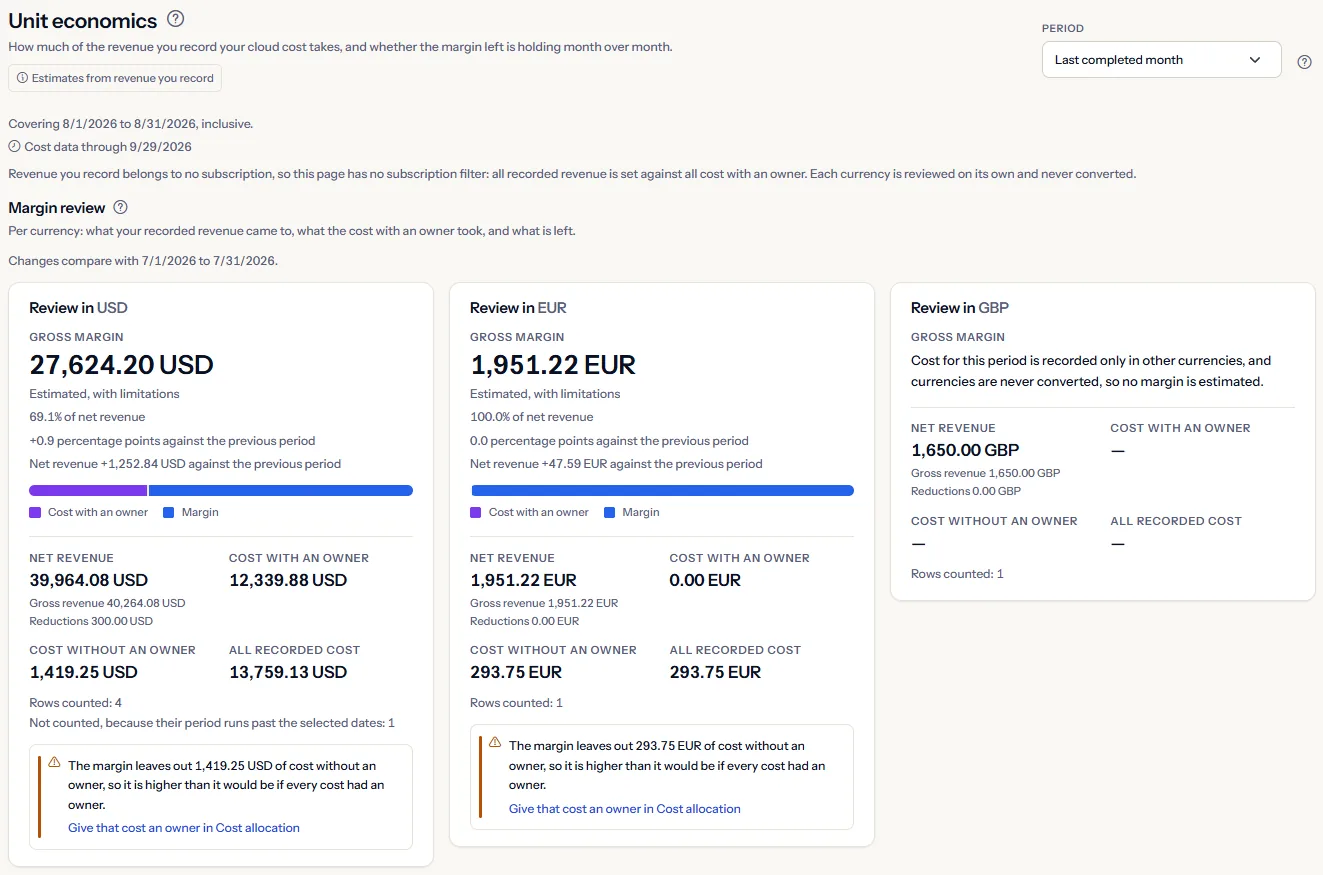
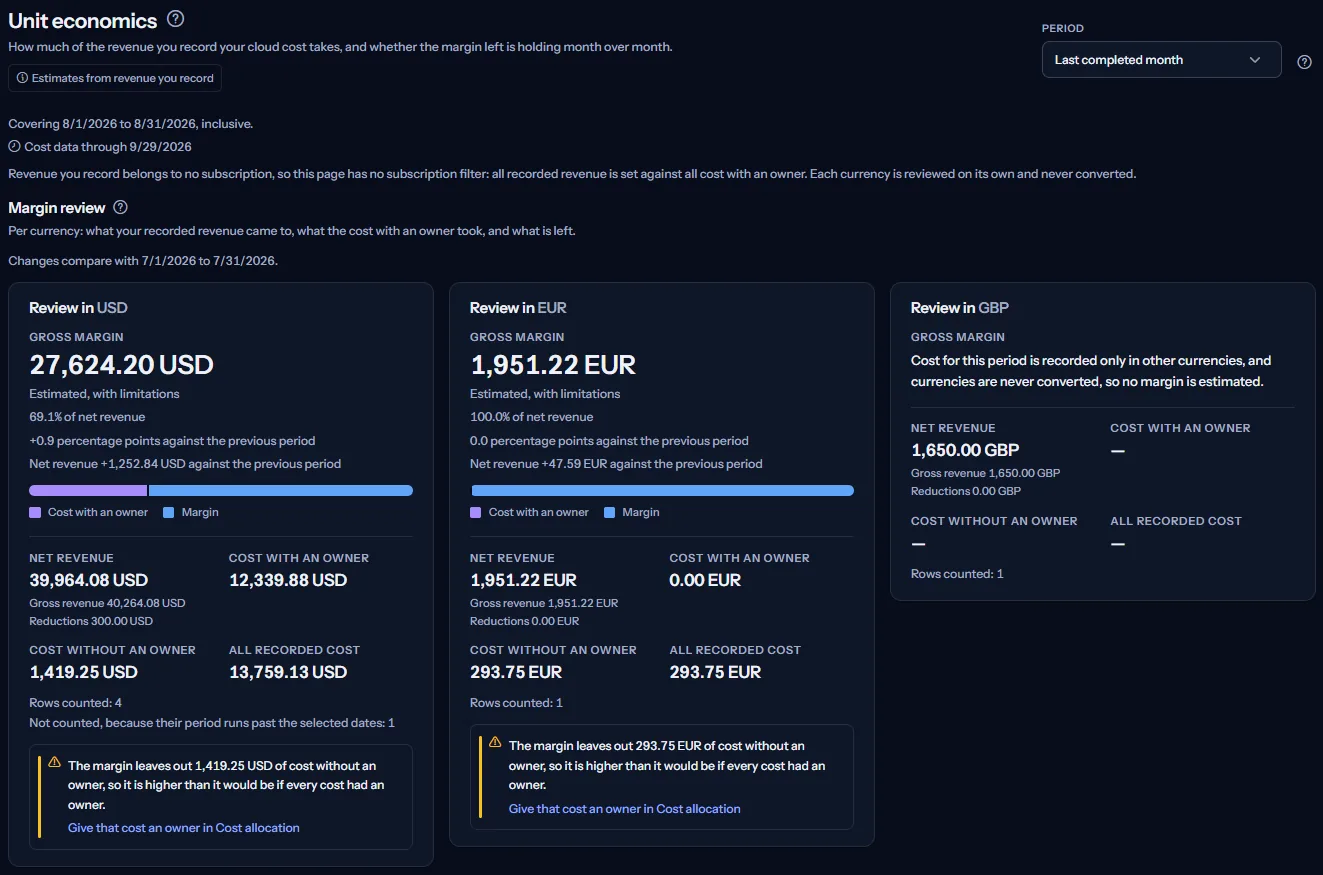
From top to bottom the page shows the month scope, the dates the figures cover, “Margin review” with one card per currency, “Margin by month”, “Revenue you recorded” with the form that records a figure, and “What needs more data”. The label “Estimates from revenue you record” under the title is a reminder that every figure is an estimate.
Before you start
The margin is set against the cost CostGuard has imported from Azure. Until a connection has completed a cost import, there is no cost to set your revenue against.
Read the Getting started guide
CostGuard reads no billing system, payment processor or accounting package. The revenue on this page is only what someone in your workspace records under “Revenue you recorded”, and CostGuard does not verify it.
The margin subtracts only the cost that has an owner, and owners come from the ownership assignments of the Cost allocation page. Until your cost has owners, the margin leaves that cost out; the section on cost without an owner explains what that means.
Cost allocation: see who owns your Azure cost
Unit economics is part of the Pro and Enterprise plans. On the Free, Starter and Growth plans the page shows a labelled sample instead of your figures.
Choose the months
The “Period” list at the top of the page sets the months the figures cover. The page reviews whole calendar months only:
- “Last completed month”: the month before the current one. The page opens with it, because it is the latest month that can show a margin.
- “Last three completed months” and “Last twelve completed months”: the three or twelve whole months before the current one.
- “This month, still open”: the current month. Its revenue figures show, but the margin waits until the month has ended.
- “Custom months”: any run of whole months you choose.
A change of period reads the margin review, the previous period and “Margin by month” again. “Revenue you recorded” keeps its rows, and its “In this period” column follows the new dates.
Choose your own months
- Choose “Custom months” in the “Period” list. Two lists appear, “From month” and “To month”, set to the months already shown.
- Choose the first and the last month. Both months are included, and the page reads the new months as soon as you choose one.
Limits to know
Each list offers the current month and the 24 before it. When the first month comes after the last, a message says so and nothing is read until you correct it.
The lines under the title
The first line gives the first and last day the figures cover, both included. The next, “Cost data through”, gives the latest day CostGuard holds cost for.
Azure reports cost a day or two late. When that day falls before the end of the selected months, a note says that cost for the last days may still arrive, so a margin for a month that has just ended can still change a little.
Why there is no subscription or currency list
The revenue you record belongs to no subscription, so the page has no subscription filter: a margin for one subscription would set all your revenue against part of your cost. All recorded revenue is set against all cost with an owner, across every subscription of the workspace.
There is no currency list either. Each currency you record revenue in has its own card, side by side, because amounts in different currencies are never converted or added.
Margin review
“Margin review” has one card for each currency you recorded revenue in for the selected months. The currency with the most counted rows comes first. Each card shows, all in its own currency:
- “Gross margin”: net revenue minus the cost with an owner, with its state beside it: “Estimated, from complete inputs”, or “Estimated, with limitations” when some of that currency's cost has no owner.
- The margin as a share of net revenue, with one decimal, and a bar that splits net revenue into the part “Cost with an owner” takes and the “Margin” left.
- “Net revenue”, with “Gross revenue” and “Reductions” under it.
- “Cost with an owner”: the cost your ownership assignments claim for the same months and currency.
- “Cost without an owner”: the cost of that currency that no assignment claims.
- “All recorded cost”: the two cost figures added together, for reference.
- How many revenue rows were counted and, when some were not, how many run past the selected dates.
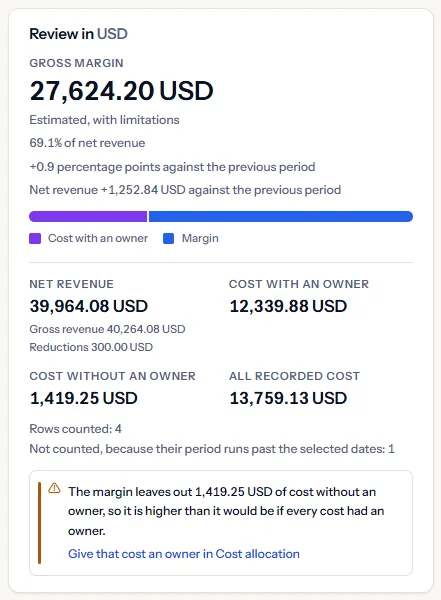
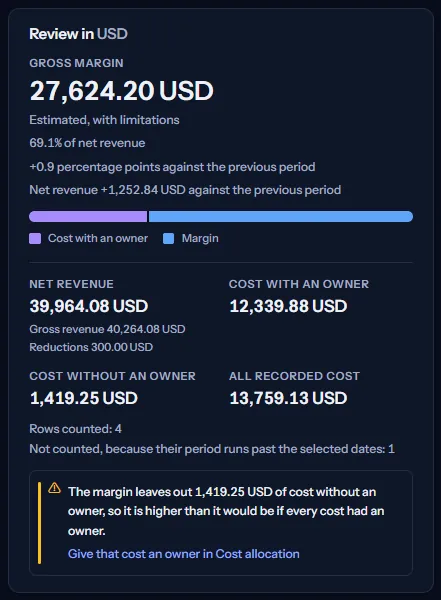
Under the margin, two lines compare it with the previous period, and a callout appears when some cost has no owner. Both are explained in their own sections below.
When a cost figure could not be read, the card shows a dash rather than a zero. When no margin can be estimated, a sentence in its place says why.
Note
Every figure here is an estimate built from the revenue you record. It is never a figure CostGuard has confirmed with your billing or accounting records.
How the margin is calculated
- “Gross revenue” adds the counted rows of “Monthly recurring revenue”, “Annual recurring revenue, stated monthly” and “One-time revenue”.
- “Reductions” adds the counted rows of “Discount”, “Refund” and “Credit” without their sign: a refund recorded as -200 and one recorded as 200 both reduce revenue by 200.
- “Net revenue” is gross revenue minus reductions.
- “Gross margin” is net revenue minus “Cost with an owner”, for the same months and the same currency.
- The margin share is the margin divided by net revenue, as a percentage rounded to one decimal place, with halves rounded away from zero.
“Cost with an owner” is the cost the Cost allocation page shows as allocated for exactly the same months, across all subscriptions. Its rules apply unchanged: an ownership assignment claims cost only when its dates cover every day of the selected months, so an assignment that starts part-way through a long period claims nothing in it.
“All recorded cost” is shown beside it but never subtracted. The page computes no margin against all recorded cost; the next section explains why that matters.
When no margin is shown
The revenue figures are shown whenever a row was counted. The margin, or only its share, is left out for one of these reasons, and the card says which:
- The selected months have not ended yet. Cost is still arriving for days your revenue already covers, so the margin waits for the period to end.
- Your cost for these months is recorded only in other currencies. Currencies are never converted, so there is no cost to set this revenue against.
- No cloud cost at all was recorded for these months.
- No row lies wholly inside the selected months, so nothing was counted.
- Net revenue is zero or below. The margin amount is still shown, but not its share.
Cost without an owner
When some of a currency's cost has no owner and a margin was estimated, the card shows a callout: the margin leaves out that amount of cost without an owner, so it is higher than it would be if every cost had an owner.
This is how the margin is defined: it subtracts only “Cost with an owner”. “Cost without an owner” is shown beside it and never subtracted. The more of your cost has no owner, the higher the margin reads, and a currency whose cost has no owner at all shows a margin share of 100.0%.
Read the margin together with “All recorded cost”. Net revenue minus all recorded cost is what the margin would be if every cost had an owner; the page does not show that figure, so work it out from the two amounts on the card when you need it.
Tip
“Give that cost an owner in Cost allocation” opens the Cost allocation page, where you give owners to the largest cost that has none. The margin includes a new assignment as soon as it covers the selected months.
The Cost allocation help article explains how an assignment claims cost:
Change against the previous period
Each card compares its figures with the previous period: as many whole months, ending with the month before the selected ones. A line above the cards names its dates.
- The change of the margin share, in percentage points. A fall is highlighted.
- The change of net revenue, in the card's currency.
A change is shown only when both periods have the figure in the same currency. When the previous period could not be read, a note says so and the cards show no change.
Margin by month
“Margin by month” shows the twelve whole months that end with the last of the selected months, one currency at a time. Each month is reviewed on its own, with the same rules as the cards:
- Two bars on one scale: “Net revenue” and “Cost with an owner”.
- The margin share above each month, or a dash when there is none.
- A month that has not ended is marked with an asterisk, and with “open” in the table. Its margin waits.
- A month in which no revenue was counted has no revenue bar and no share.
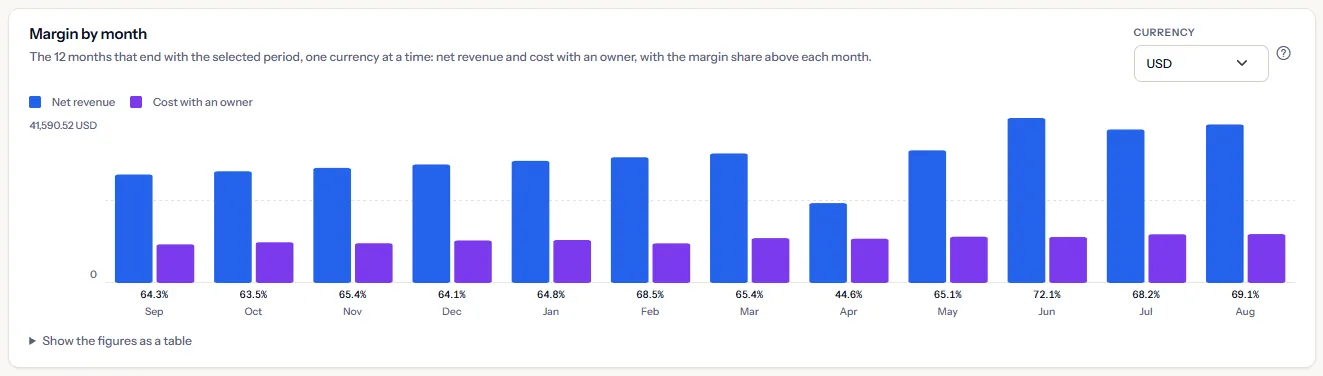
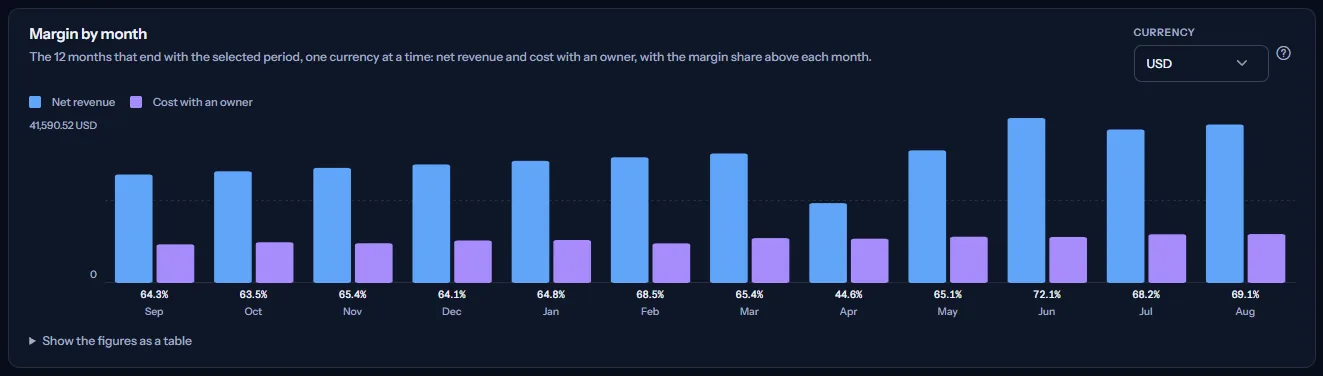
When more than one currency has rows in these months, a “Currency” list appears beside the title. It starts on the currency with the most counted rows.
Because each month is reviewed on its own, a row whose period covers several months, such as a quarter, is not counted in any single month. The chart reads from left to right in every language, and pointing at a month shows its figures.
“Show the figures as a table” opens the same figures as a table: “Month”, “Net revenue”, “Cost with an owner”, “Gross margin share” and “State”, which says whether the margin is estimated or why it is not.
Revenue you recorded
“Revenue you recorded” lists the revenue rows of your workspace that touch the selected months, the latest period first. When other rows exist, “Show all rows” lists every row and “Show only rows in this period” goes back. Each row shows:
- “Reference”: the reference you gave the row.
- “Kind”: what the figure is, such as “Monthly recurring revenue” or “Refund”.
- “Amount”: the amount as recorded, with its currency code.
- “Period”: the first and last day the figure covers.
- “In this period”: “Counted” when the selected months hold the row's whole period, otherwise “Not counted: its period runs past the selected dates”. A row that lies wholly outside the selected months, listed when you show every row, reads “Outside the selected period”.
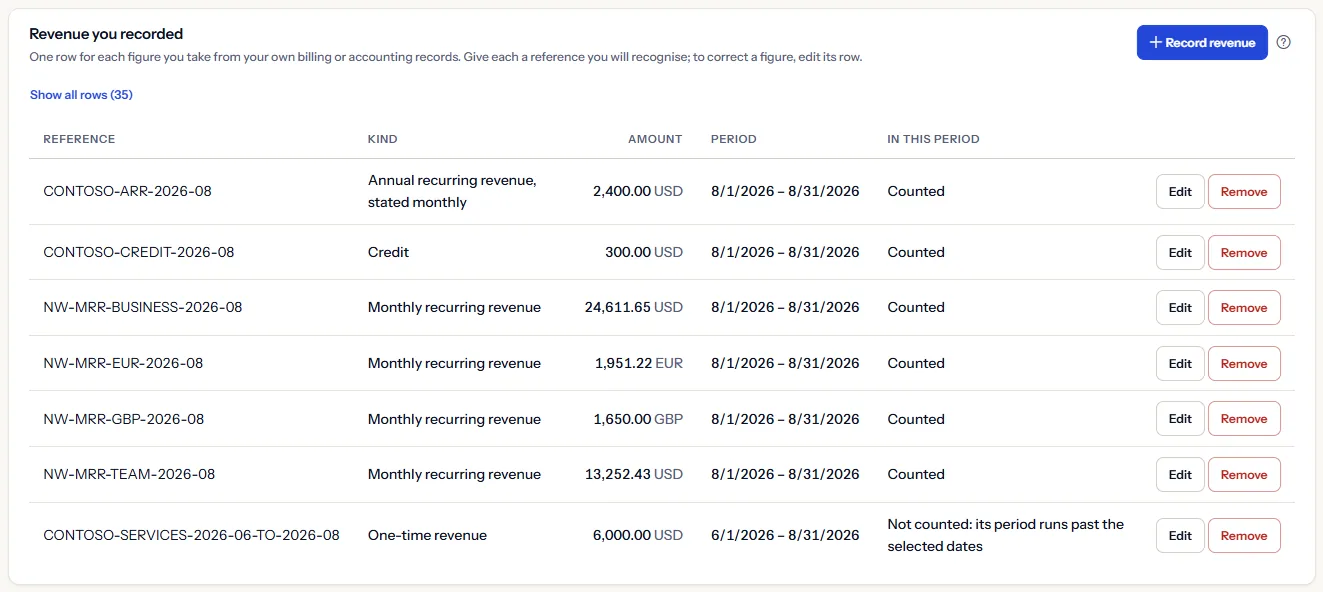
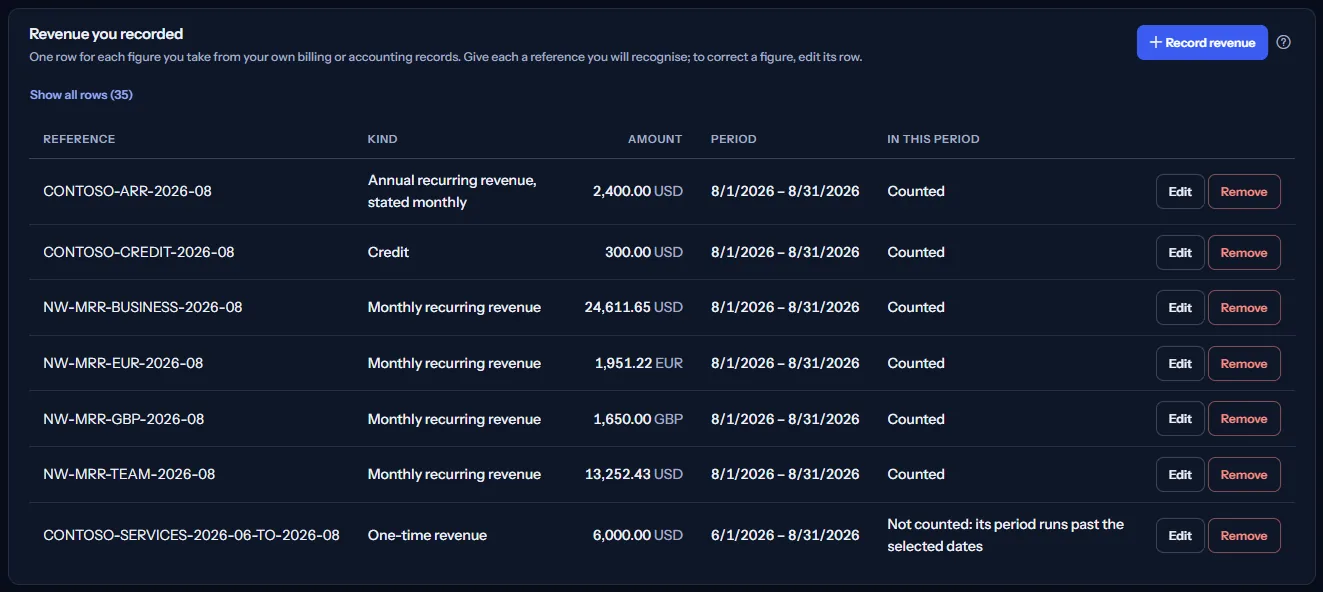
“Record revenue” above the table opens the form that records a figure. “Edit” and “Remove” in each row change or remove it.
The rows are what your workspace stated. CostGuard does not verify them, and a customer label on a row is a label only: it is never linked to any cost.
Record revenue
“Record revenue” opens the form “Record a figure” above the table. Record one row for each figure you take from your own billing or accounting records:
- Under “Your reference”, give the row a reference you will recognise, such as a billing run or a month and plan. It identifies the row later.
- Under “Kind”, choose what the figure is: “Monthly recurring revenue”, “Annual recurring revenue, stated monthly”, “One-time revenue”, “Discount”, “Refund” or “Credit”.
- Under “Amount”, enter the amount. Only a discount, a refund or a credit may be negative, and it reduces revenue either way.
- Under “Currency”, choose a currency. The list holds the currencies your cost is recorded in and those you have already used; “Other” lets you type a three-letter code under “Currency code, three letters”.
- Under “Period from” and “Period to”, enter the first and last day the figure covers. A new row starts on the first and last day of the selected months.
- “Where you took it from”, “Customer label” and “Notes” are optional and only help you recognise the row.
- Select “Store”. “Close” closes the form without storing anything.
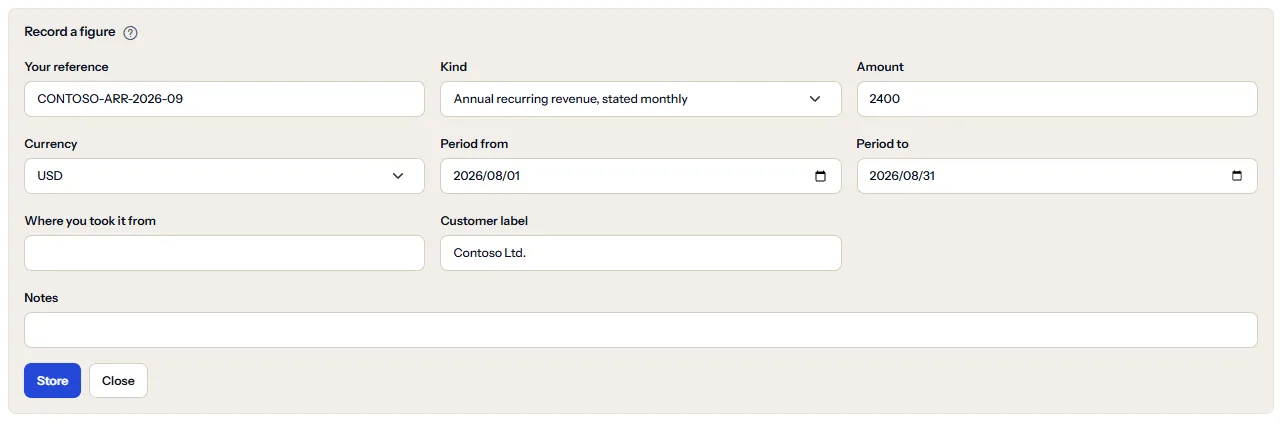
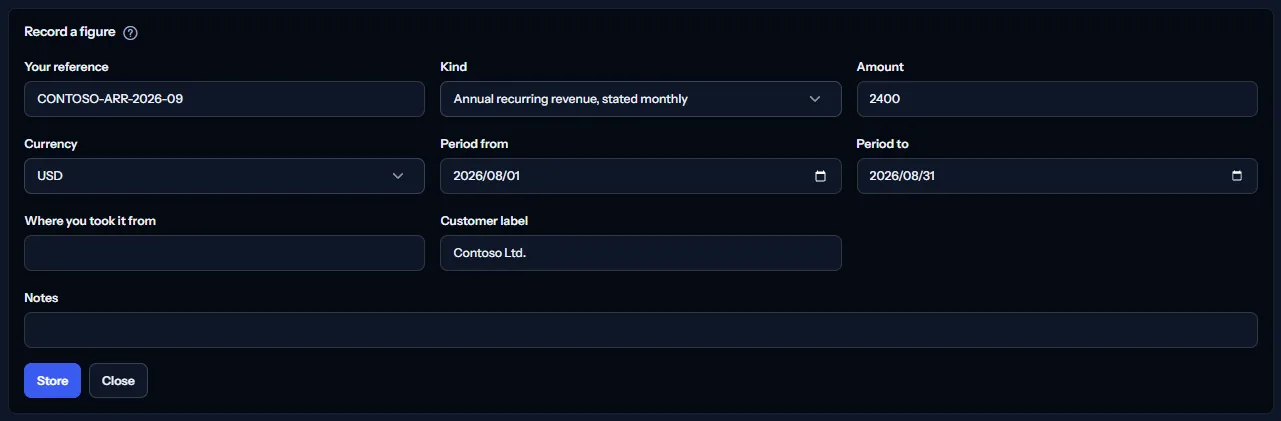
For an annual contract, choose “Annual recurring revenue, stated monthly” and enter its monthly part, one row per month. CostGuard adds the amount as you enter it and never divides it by twelve.
Limits to know
A reference, a source and a customer label hold at most 128 characters, and the notes 512. An amount has at most four decimal places and fifteen digits before the decimal point, a currency is exactly three letters, and the last day cannot come before the first. No text may contain a link, an email address, markup or a control character.
A new row whose reference already exists is refused, even when only the capital letters differ: edit that row instead.
When a check fails, the form stays open with every reason above it, in your language, so you can correct what you typed. After a row is stored, the page reads the cards, the months and the register again.
Edit or remove a row
“Edit” opens the form on the row. Every field can change except “Your reference”, which identifies the row.
If the row was changed or removed after you opened it, nothing is stored: select “Reload” to see the rows as they are now, then make your change again. An edit never overwrites a change you have not seen.
“Remove” asks “Remove this row?” in the same row: “Remove” removes the row, and “Keep” keeps it. A removed row is no longer counted in any period.
To correct a figure, edit its row rather than recording a second one: two rows for the same revenue would both be counted.
How revenue is counted
A row counts toward the selected months only when they hold its whole period. A row that starts or ends outside them is not counted at all, not even in part: the page never splits a figure across periods.
Rows that touch the selected months without fitting inside them are never dropped in silence: each card counts them, and the register marks each one “Not counted: its period runs past the selected dates”.
So record revenue in rows that match the months you review: one row per month for monthly figures. A quarter-long row is counted when the selected months cover the whole quarter, for example with “Custom months”.
When a period has ended
A period has ended once its last day is before the current date in UTC. Until then the revenue figures show, but the margin waits, because cost is still arriving for days your revenue already covers.
The page does not wait for Azure's reporting delay. On the first day of a month, the month before already counts as ended even if the cost of its last days has not arrived; the note under the dates tells you when that is the case.
Currencies
Each currency is reviewed on its own. CostGuard holds no exchange rate, so it never converts an amount and never adds two currencies together. A margin needs the same currency and the same period on both sides.
Cost is matched to revenue by its currency code. Revenue recorded in a currency your cost is not billed in has no cost to be set against, so its card shows the revenue figures and says that no margin is estimated.
To see a margin, record revenue in the currency your Azure cost is billed in. The form's currency list shows the currencies your cost is recorded in.
What needs more data
“What needs more data”, at the bottom of the page, lists what these figures cannot tell you from recorded revenue and cost alone. It stays the same whatever you select:
- Every figure is an estimate, and the revenue you record is not verified against a payment processor or an accounting package.
- Cost per active user, per API request, per transaction and per report need usage figures from your own systems, which CostGuard does not hold, so they are not calculated.
- Cost per customer, cost per tenant and customer profitability need a mapping from cost to each customer or tenant, which CostGuard does not hold. The same applies to a feature.
- Cost per AI request needs AI usage figures; AI usage is never inferred from cost alone.
- A margin needs the same currency and the same period on both sides, and cost without an owner lowers how far you can rely on it.
None of these is shown as a zero. A zero would say that a customer or a request costs nothing.
What you may see instead of figures
While the figures load, grey placeholder bars stand where they will appear. After that, the page shows one of these instead of figures when there is nothing to show:
- “Record your revenue to see a margin”, with “Record your first figure”: nothing has been recorded under “Revenue you recorded” yet. The button opens the form.
- A sentence that no revenue has been recorded for this period: the register holds rows, but none touches the selected months. Choose other months or record the figures.
- “Review unavailable”, with “Try again”: the review could not be read. Nothing is shown rather than an empty result, and the other panels still show what they could read.
- A message in “Margin by month” or in “Revenue you recorded”, with “Try again”: only that panel could not be read. While the register cannot be read, nothing can be recorded.
- A note that no cloud cost was recorded for this period, or that the previous period could not be read: the revenue figures still stand.
- A notice that your session has expired, with a link to sign in again. The page shows no figures until you do.
- A message above the form when a row is refused, in your language, with “Reload” when a fresh read resolves it.
Sample data when your plan has no unit economics
When your plan does not include unit economics, the page shows a fixed example under the label “Sample data”, with the sentence “Your current plan does not include this feature. The figures shown here are an example, not your data.”
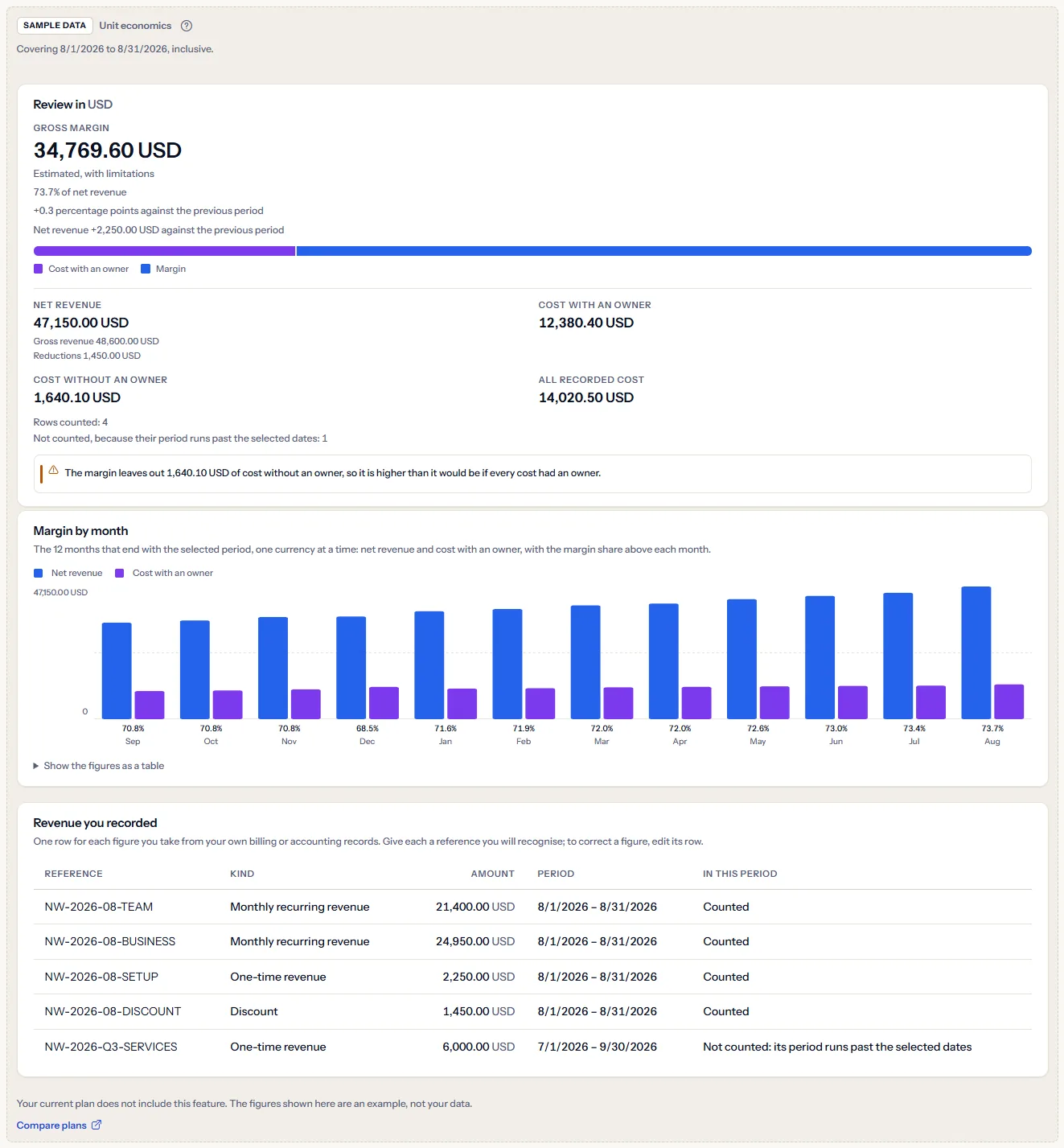
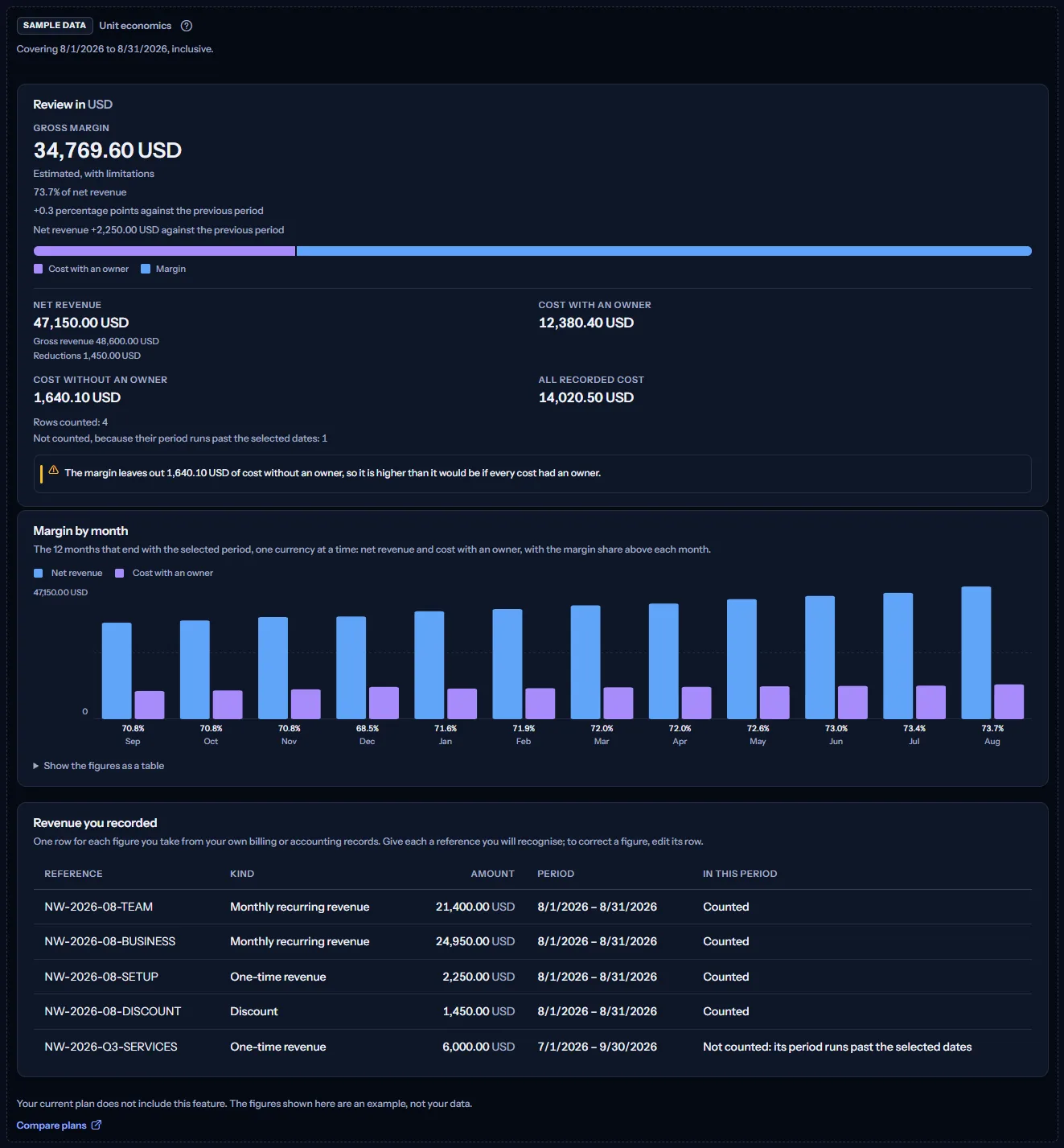
The sample shows an example company's revenue in US dollars: one currency card, twelve months of margin and five register rows. It has no month scope and no actions, and nothing in it can be changed. “Compare plans” opens the pricing page in a new tab.
What each plan includes
The table shows the first plan that includes each part of the page. Every plan above it includes it too.
| Feature | Free | Starter | Growth | Pro | Enterprise |
|---|---|---|---|---|---|
| A labelled sample of the page | Included | Included | Included | Included | Included |
| Unit economics with your own revenue and cost | Not included | Not included | Not included | Included | Included |
Unit economics is included in Pro and Enterprise. Free, Starter and Growth show the labelled sample.
Troubleshooting
No margin is shown for the current month
The month has not ended, so the margin waits. Choose “Last completed month” to see the latest month that can show one.
The margin looks too high
Look at “Cost without an owner” on the card. The margin leaves that cost out, so it reads higher than it would if every cost had an owner. Give owners to that cost on the Cost allocation page.
A row I recorded is not counted
Its period runs past the selected months, even by one day. Choose months that hold its whole period, or record it as one row per month.
One currency shows revenue but no margin
Your cost for these months is recorded only in other currencies, and amounts are never converted. Record that revenue in the currency your cost is billed in.
The margin amount is shown but not its share
Net revenue is zero or below, for example in a month where refunds and credits exceed the revenue. A share of zero or negative revenue would mean nothing.
My row was refused
The reasons are listed above the form: the reference already exists (edit that row instead), a value is too long or holds a link, the amount's sign does not fit its kind, the currency is not three letters, or the period ends before it starts. If the row was changed after you opened it, select “Reload” and make your change again.
The cost of the last days seems to be missing
Azure reports cost a day or two late. Check “Cost data through” under the title: a margin for a month that has just ended can still move while the last days arrive.
The page shows sample data
Your plan does not include unit economics. The table above shows which plan does, and the link under it opens the pricing page.