
Cost allocation: see who owns your Azure cost
Cost allocation shows how much of each currency's recorded cost your ownership assignments account for, who owns it, and which cost has no owner yet. You add and change the assignments on the same page.
What this page is for
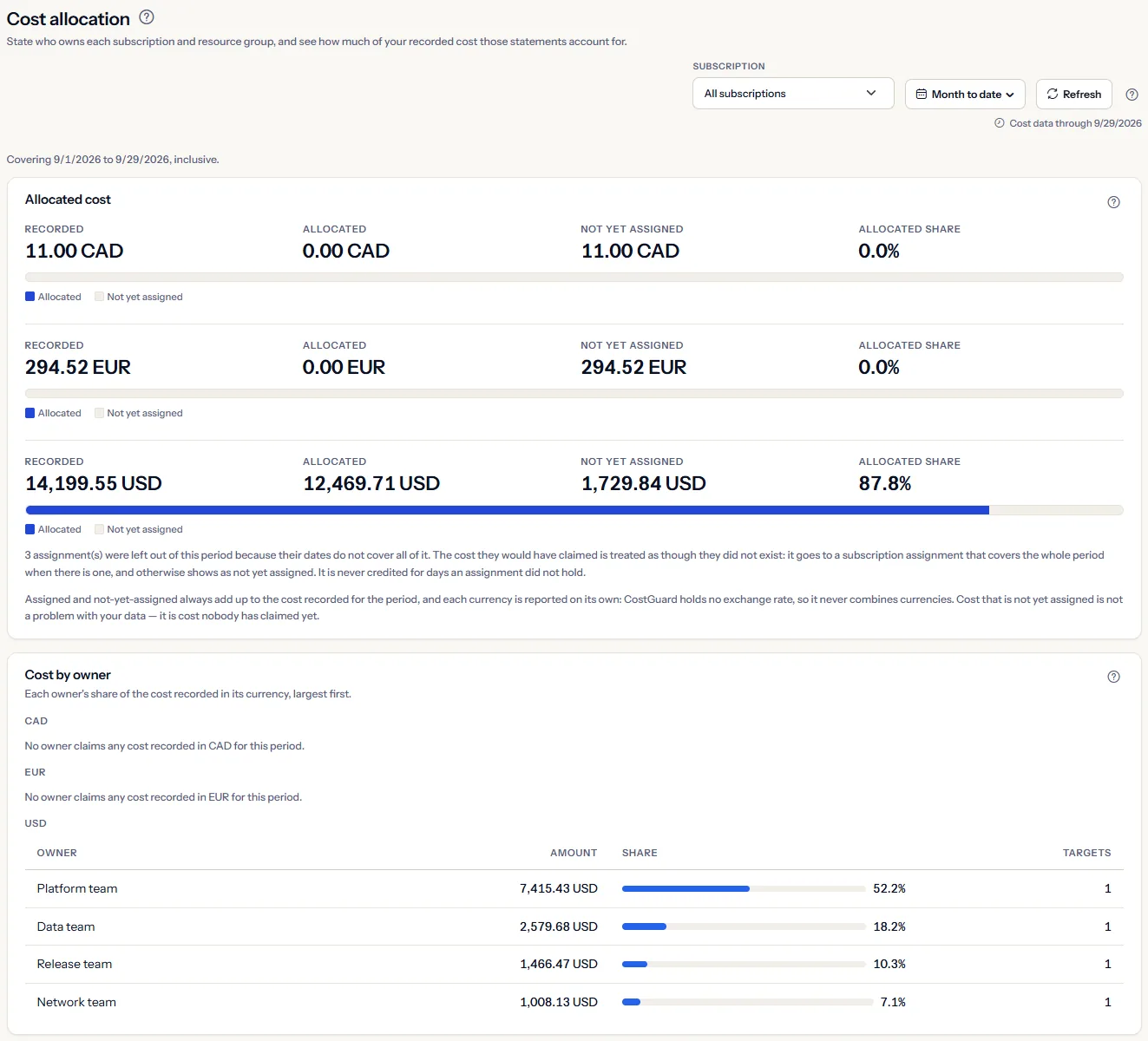
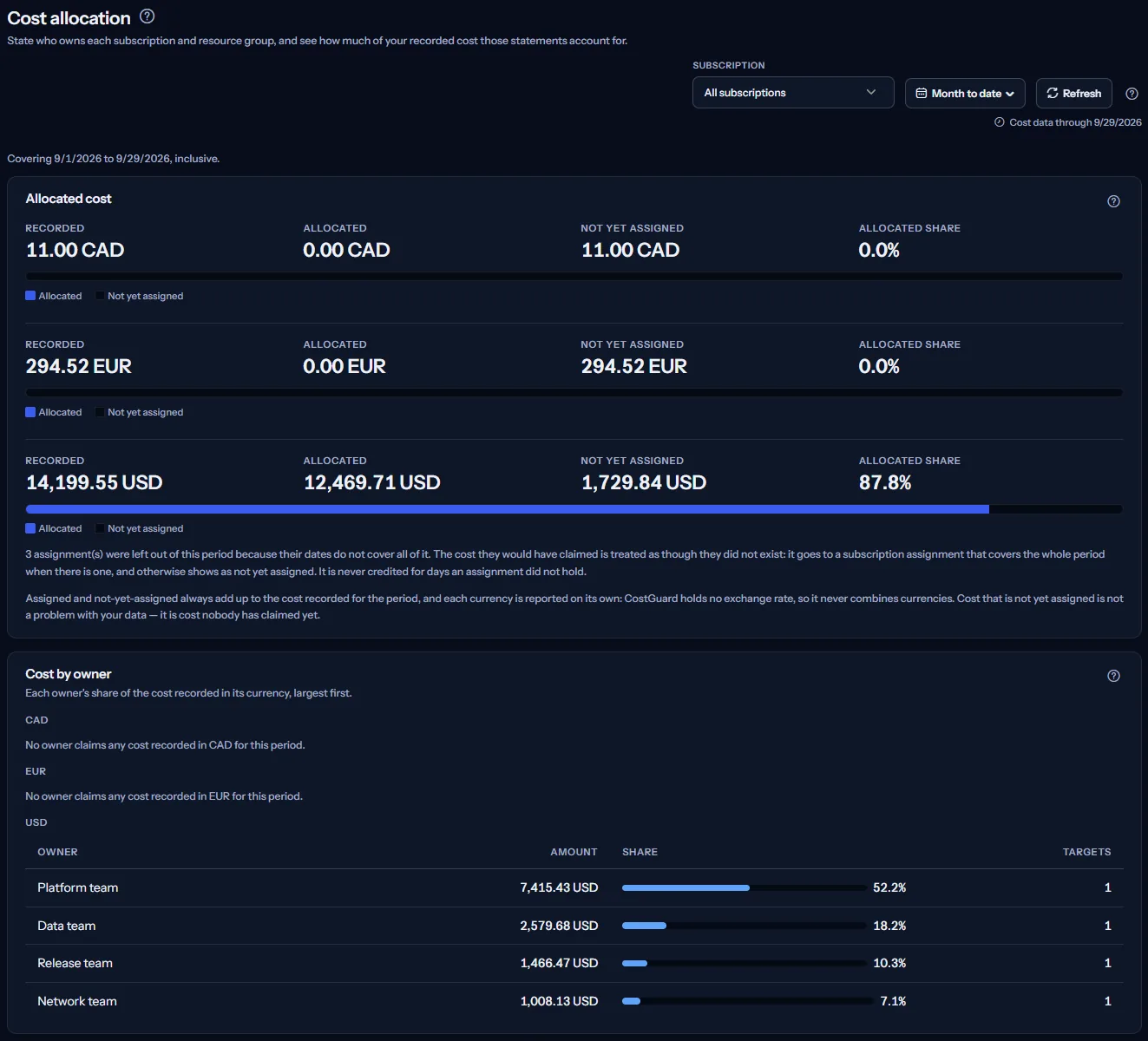
The Cost allocation page answers one question: who owns this period's cost, and which cost has no owner yet?
It is for the finance owner or FinOps lead, and for the engineering leads who own subscriptions and resource groups. It leads to three decisions: give an owner to the largest cost that has none, correct an assignment that did not apply, and send each owner their share.
From top to bottom the page shows the scope bar, the first and last day the figures cover, four panels (“Allocated cost”, “Cost by owner”, “Cost without an owner” and “Ownership assignments”) and two notes: how a resource group assignment matches its group, and why there is no allocation by tag.
Before you start
The page allocates the cost CostGuard has imported from Azure. Until a connection has completed a cost import, there is no cost to allocate.
Read the Getting started guide
Cost allocation is part of the Pro and Enterprise plans. On the Free, Starter and Growth plans the page shows a labelled sample instead of your cost.
Azure does not report who owns a subscription or a resource group. Every owner on this page comes from an assignment someone in your workspace entered, and cost stays not yet assigned until an assignment claims it.
Choose the scope: subscription and dates
The bar at the top of the page sets the scope. The “Allocated cost”, “Cost by owner” and “Cost without an owner” panels are calculated again for what you select. The “Ownership assignments” panel lists the same assignments for every scope, because they belong to the workspace; only its “This period” column follows the dates.
- “Subscription”: “All subscriptions” or one subscription. Choosing one narrows the cost to that subscription. Assignments still count across the workspace: a resource group assignment still claims a group with its name inside the chosen subscription, and the note about assignments left out still counts those of the whole workspace.
- The date range: “Last 7 days”, “Last 30 days”, “Month to date” (the page opens with it), “Previous month”, “Last 90 days”, “Last 12 months” or “Custom range”.
- “Refresh” reads the figures and the assignments again.
The page has no currency list. Every currency your cost is recorded in is shown side by side, because choosing one would hide the cost of the others that has no owner yet.
Set a custom range
- Open the date range list and choose “Custom range”.
- Enter a date under “From” and a date under “To”. Both days are included.
- Select “Apply”. “Cancel” closes the fields and keeps the range you had.
Limits to know
A custom range covers at most 366 days, starts on or before its end date and cannot end after today. When a date does not fit, a message beside the fields says what to correct, and nothing is reloaded until you do.
How far the cost data reaches
“Cost data through” shows the latest day CostGuard holds cost for. Azure reports cost with a delay of a day or two, so the latest days can still change, and a range that ends today is not final yet.
Allocated cost
The “Allocated cost” card has one block for each currency your cost is recorded in, in the order of the currency codes. Each block shows:
- “Recorded”: all the cost recorded in that currency for the scope and dates.
- “Allocated”: the part an assignment claims.
- “Not yet assigned”: the part no assignment claims.
- “Allocated share”: the allocated part as a percentage of the recorded cost, with one decimal, also drawn as a bar.
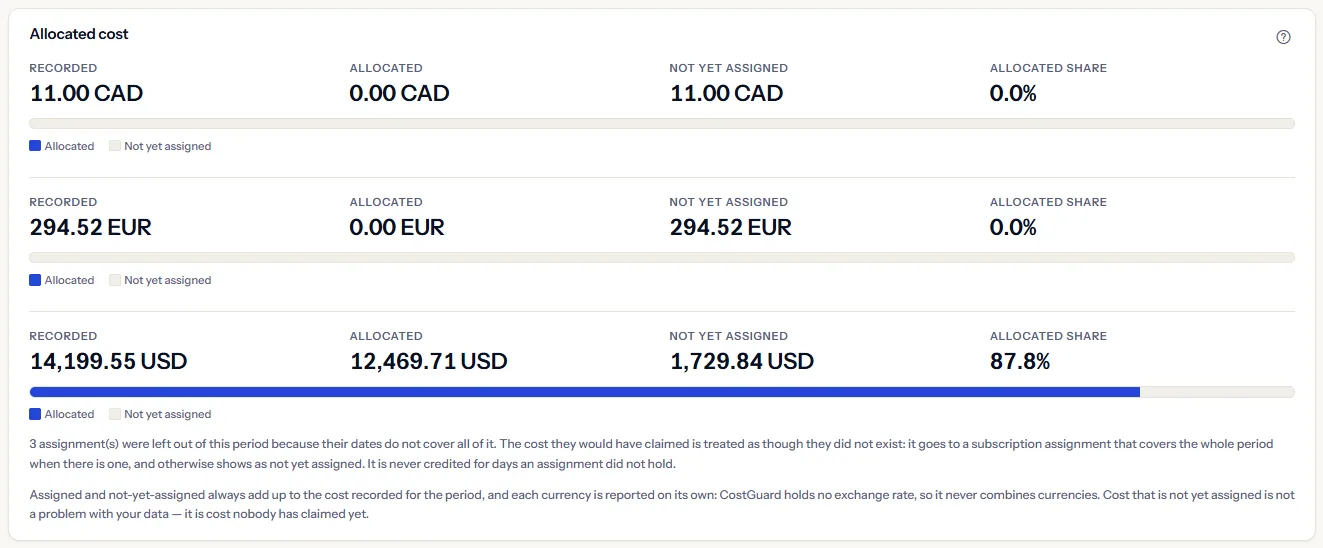
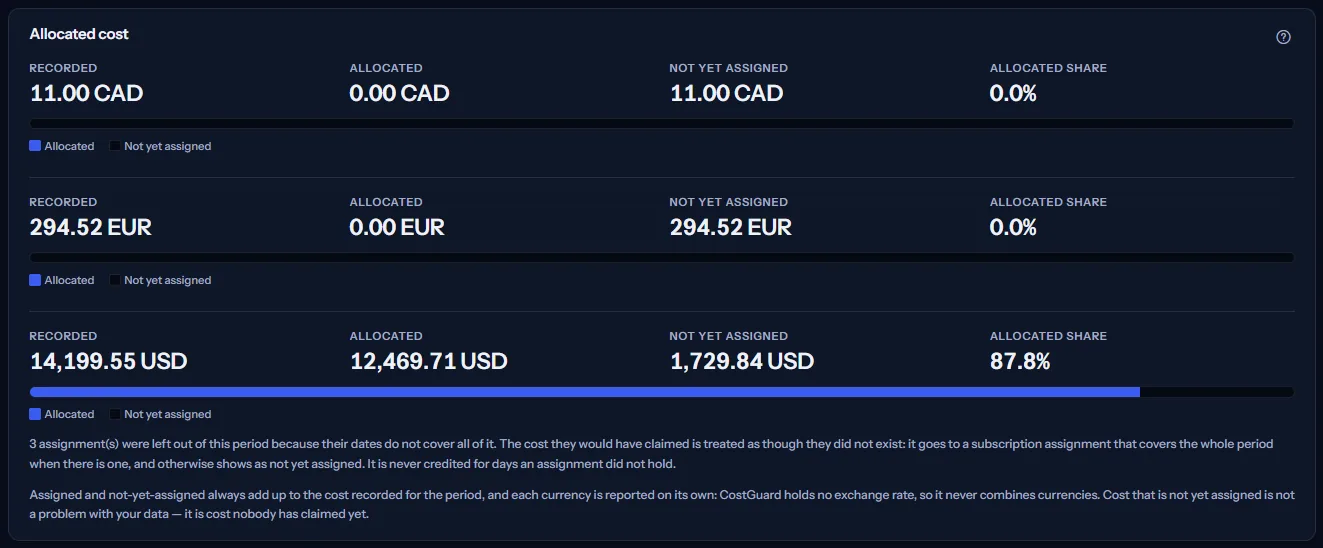
“Allocated” plus “Not yet assigned” always equals “Recorded”. The page reads the same recorded cost as the other cost pages, so it never disagrees with them about how much was spent; it only adds who owns it.
When active assignments do not cover the whole period, a note under the blocks says how many were left out. The section on how an assignment applies, further down, explains where their cost goes.
Note
Cost that is not yet assigned is not a fault in your data. It is cost nobody has claimed yet.
Cost by owner
“Cost by owner” lists, for each currency, every owner that claims cost in the period, the largest amount first. When your cost is in more than one currency, each currency has its own table under its code, and a currency that no owner claims says so in one line.
- “Owner”: the owner's name as it was typed in the assignment.
- “Amount”: the cost the owner claims in that currency.
- “Share”: that amount as a share of the cost recorded in the same currency, with a bar.
- “Targets”: how many of the owner's assignments claimed cost in the period.
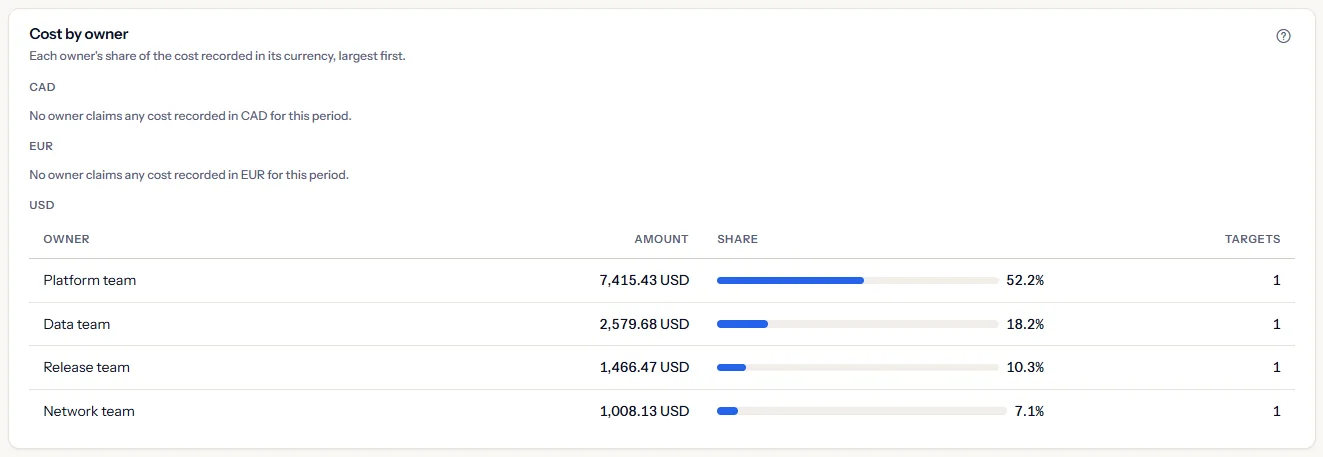
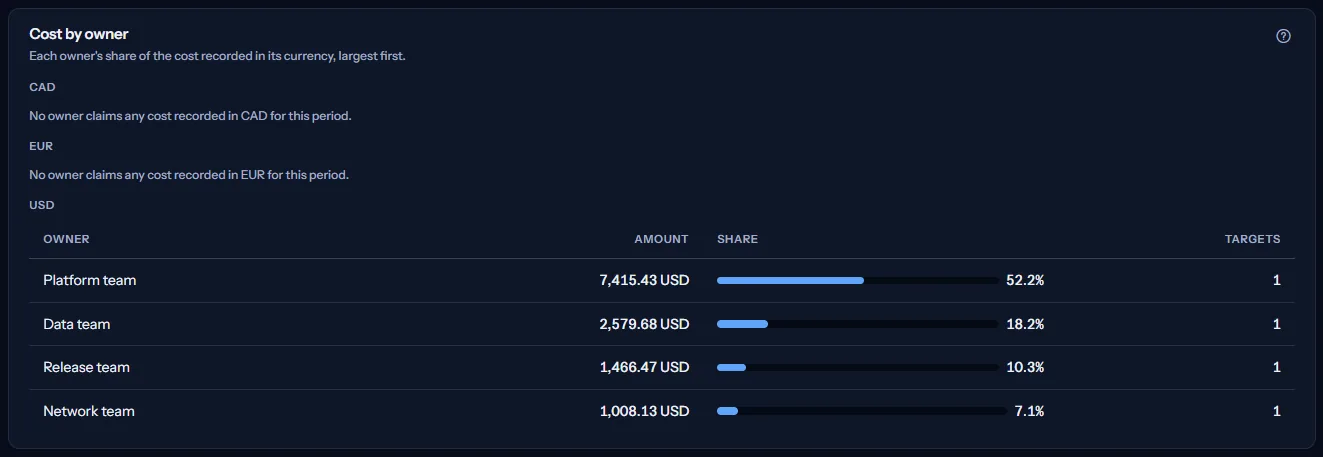
Owners are grouped by name. Two assignments that name the same owner add up in one row, and its “Targets” count is 2. The name must match exactly: a different capital letter or spelling makes a second row.
Cost without an owner
“Cost without an owner” names the cost no assignment claims, so you can see what to assign next. For each currency it lists the largest scopes first, ten at most. A scope is one resource group in one subscription, or the cost recorded in a subscription without a resource group.
- “Scope”: the resource group, or “No resource group”, with its subscription under it, by name when CostGuard knows the name.
- “Amount”: the cost of that scope in the period.
- “Share”: that cost as a share of the cost recorded in the same currency.
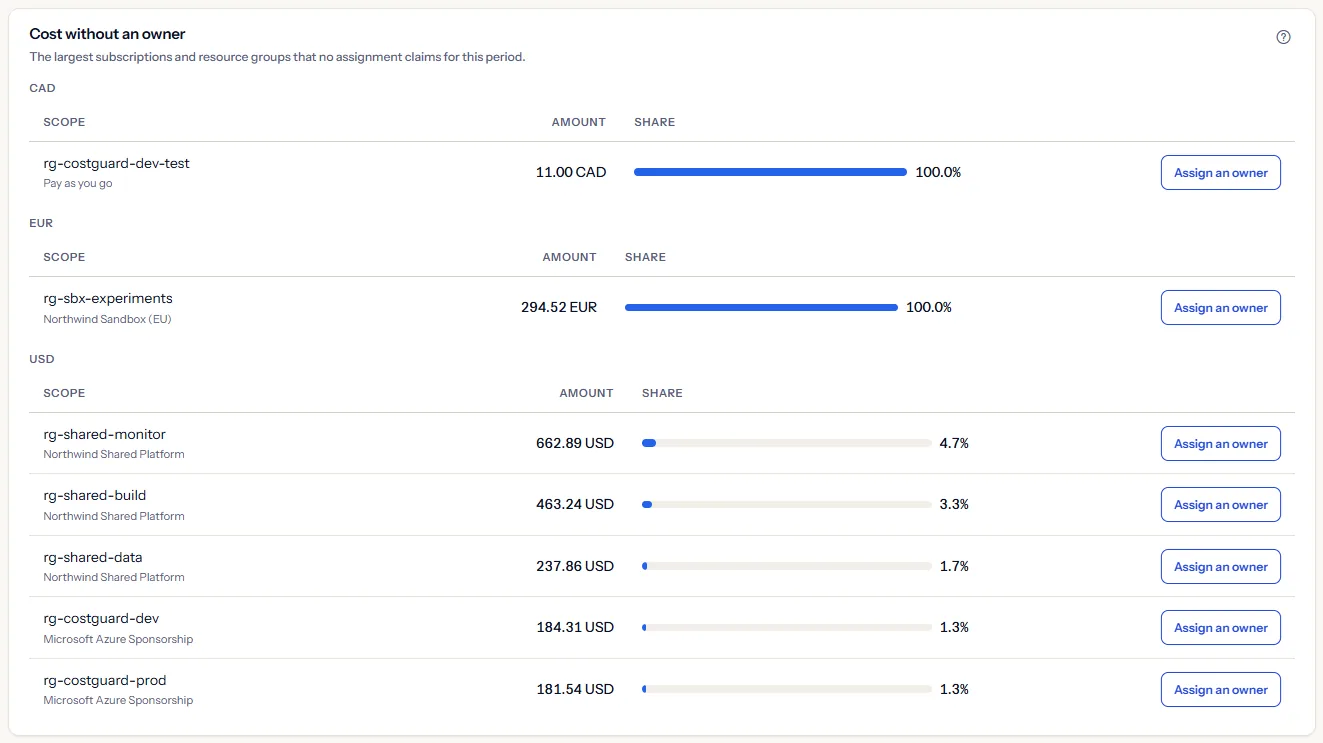
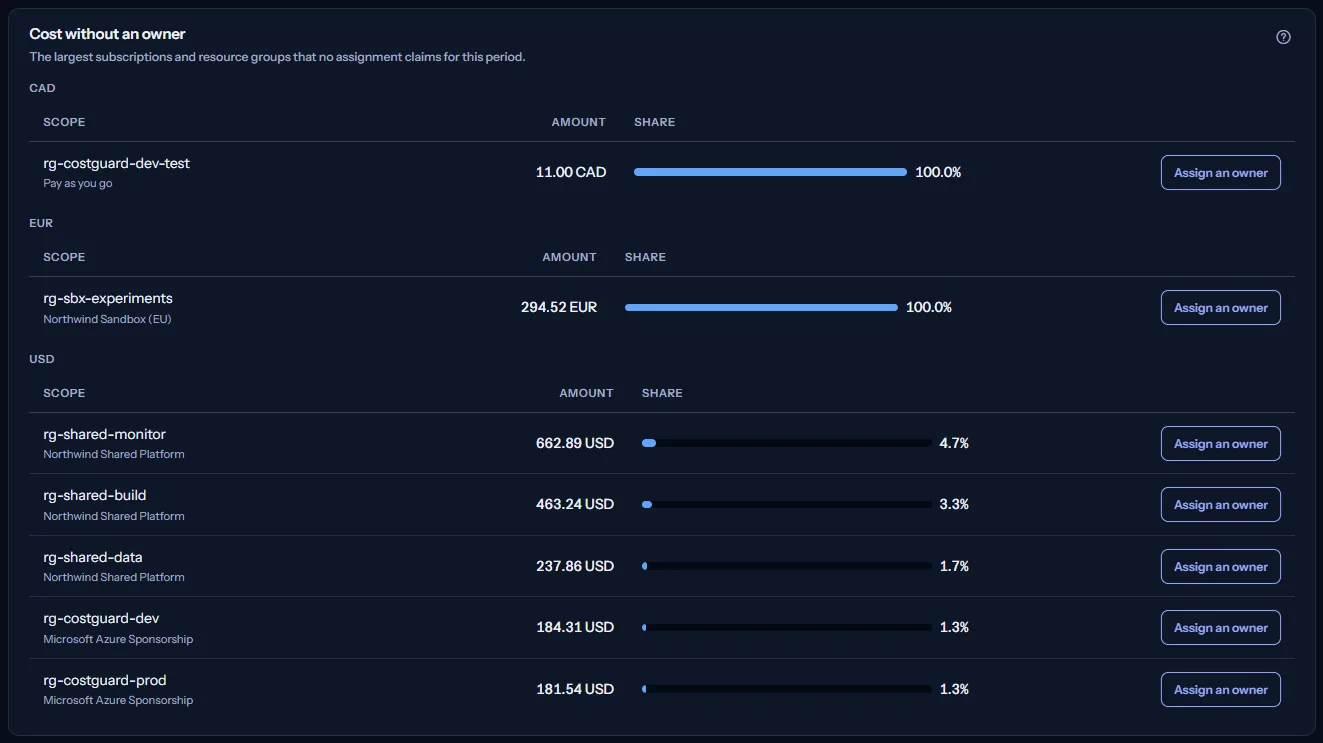
When more scopes have no owner than the table shows, a line under it says how many more there are. When every cost in a currency has an owner, one line says so.
“Assign an owner” opens the assignment form with the target filled in: the resource group when the scope has one, otherwise the subscription. Choose the owner and save.
Limits to know
An assignment made from a resource group row claims that group's name in every subscription of the workspace, not only in the subscription shown in the row.
Ownership assignments
“Ownership assignments” lists every assignment of the workspace, whatever the scope: subscriptions first, then resource groups. “Assign an owner” at the top of the panel opens an empty form.
- “Kind”: “Subscription” or “Resource group”.
- “Target”: the subscription by its name when CostGuard knows it, otherwise its identifier; or the resource group name as it was typed.
- “Owner”: the owner's name, with the owner kind under it.
- “Status”: “Active” or “Inactive”, as it was saved; “Expired” once its last day has passed; “Not yet in effect” while its first day is still ahead. The last two follow from the dates, and you never choose them.
- “Applies”: “Always” when the assignment has no dates, otherwise its first day, its last day or both.
- “This period”: whether the assignment took part in the selected period: “Applied”, “Inactive”, “Expired” (it ended before the period began), “Not yet in effect” (it starts after the period ends) or “Covers part of this period”. The column is shown only when the figures could be read.
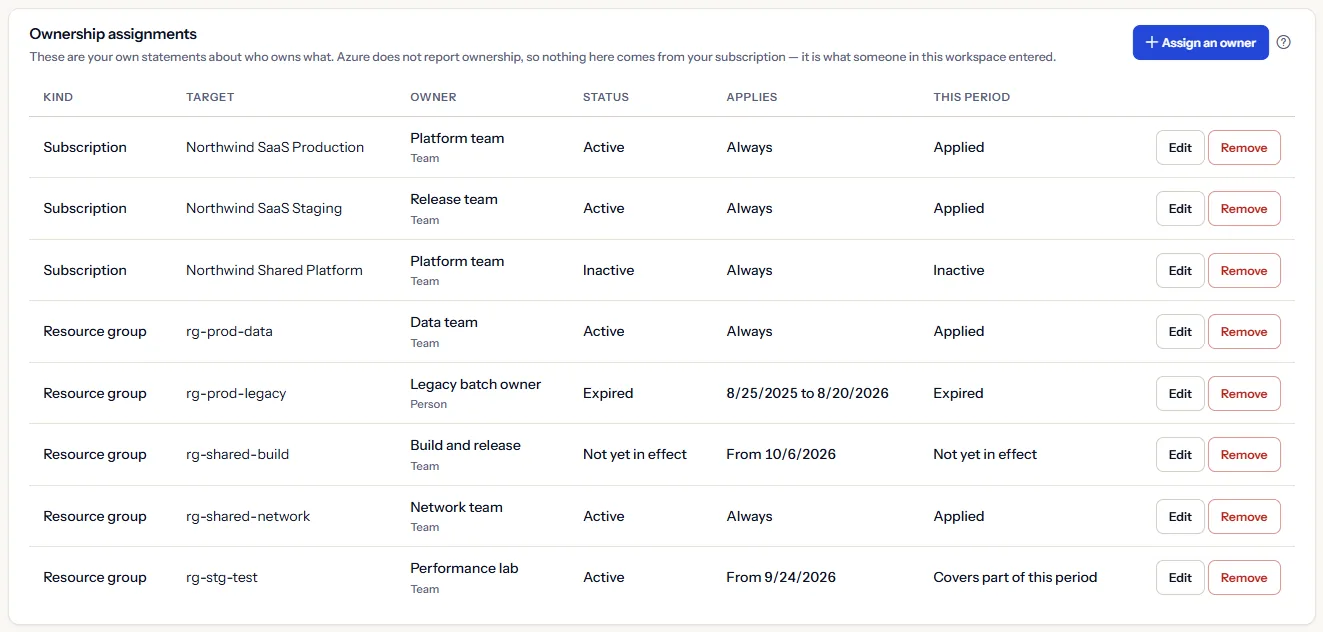
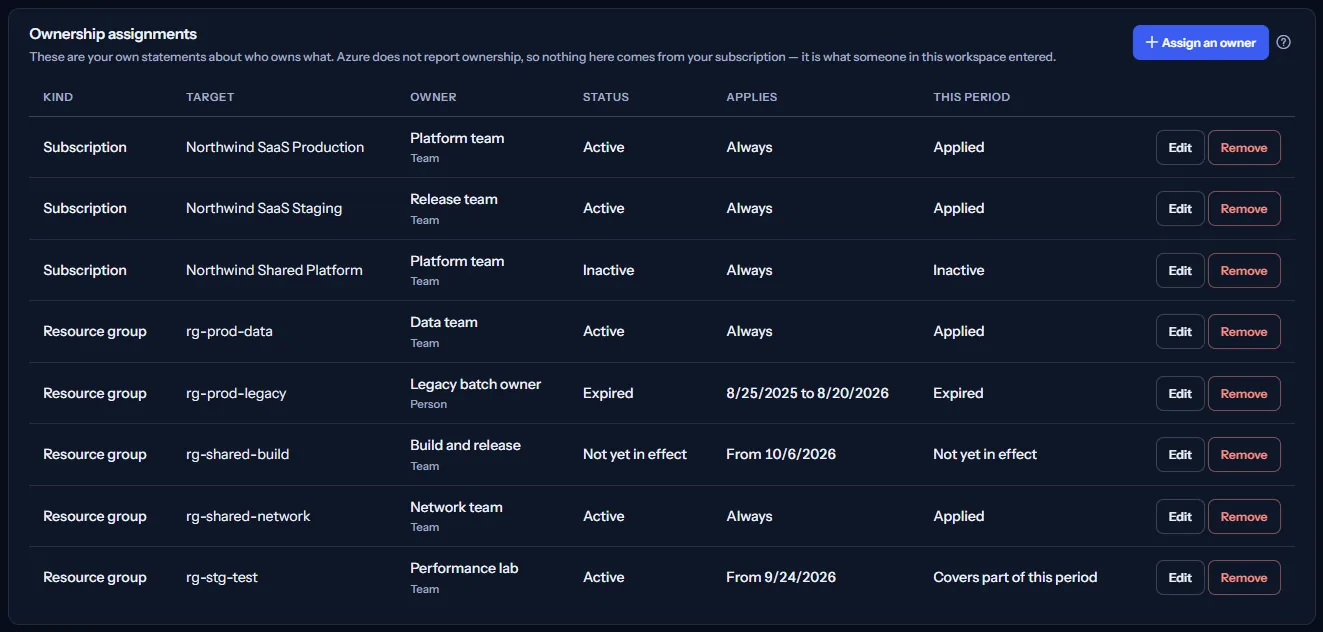
“Edit” opens the form on the assignment. “Remove” asks “Remove this assignment?” in the same row: “Remove” removes the assignment, and “Keep” keeps it.
After a save or a removal, the page reads the figures and the list again, so every panel shows the change.
Add or edit an assignment
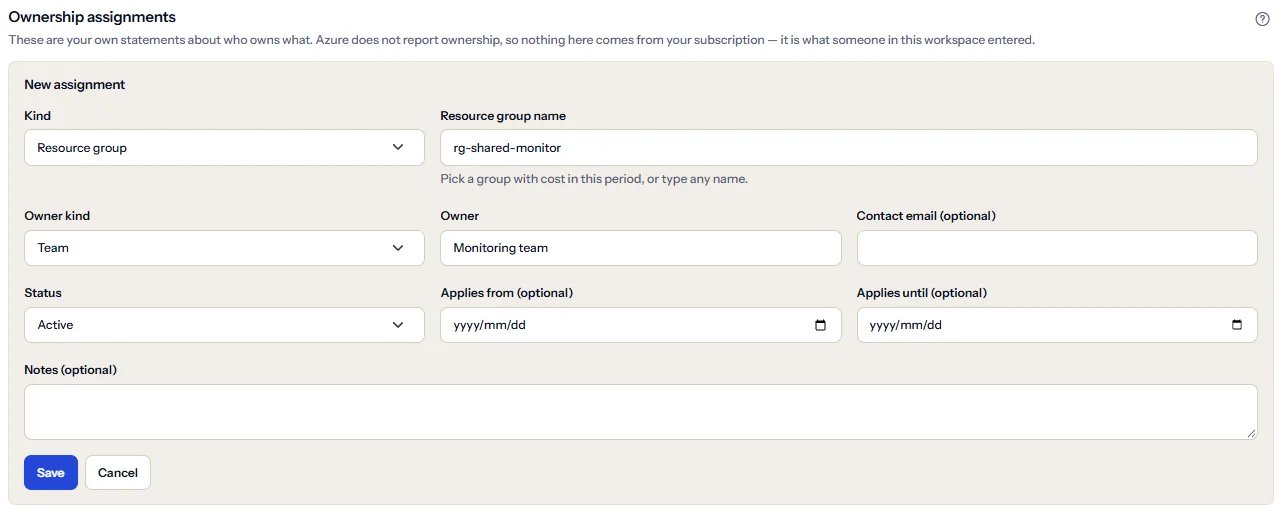
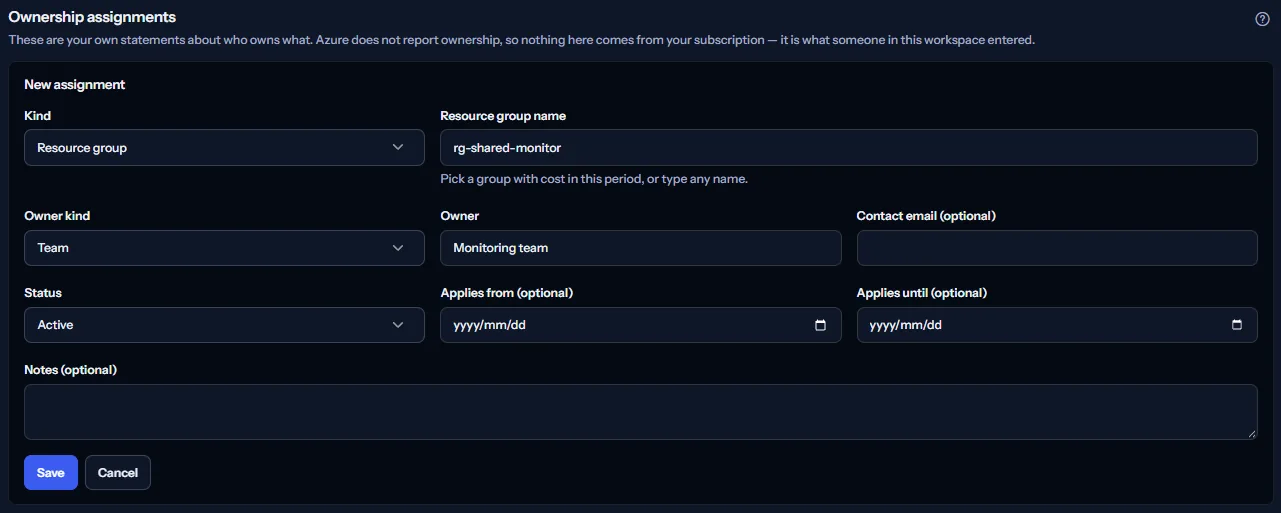
The form opens under “New assignment” for a new assignment and under “Edit assignment” for one that exists.
- Under “Kind”, choose “Subscription” or “Resource group”. Changing the kind clears the target.
- For a subscription, choose it by name under “Subscription”. For a resource group, type its name under “Resource group name”: the list suggests the groups with cost in the selected period, and any other name is accepted, so you can assign a group before it has cost.
- Under “Owner kind”, choose “Team”, “Person”, “Role” or “Service owner”, then type the name under “Owner”. A contact email is optional.
- Under “Status”, choose “Active” or “Inactive”. An inactive assignment is kept but never applied.
- Set “Applies from (optional)” and “Applies until (optional)” only when the ownership is limited in time. Both days are included. Without dates the assignment always applies.
- Add notes if they help, then select “Save”. “Cancel” closes the form without saving.
Limits to know
The owner name holds at most 128 characters, a resource group name 256, the notes 512 and the contact email 320. The owner name, the target and the notes cannot contain a link, the email must be a valid address, and the last day cannot come before the first.
A target has one assignment. Saving a second one for the same subscription or resource group is refused, even when only the capital letters differ: edit the assignment that exists instead.
When a save is refused, the form stays open with the reason above it, so you can correct what you typed. If someone changed or removed the assignment after you opened it, the save is refused too: select “Reload” to see what is stored now, then make your change again.
How an assignment applies
Each piece of cost is recorded against a subscription, usually a resource group, and a currency. CostGuard gives it an owner in this order:
- An active resource group assignment for the group's name. It takes precedence over the subscription's assignment, because it is the more specific statement.
- Otherwise, an active assignment for the subscription.
- Otherwise, the cost stays not yet assigned.
A resource group assignment records the group's name only, not its subscription. It therefore claims every resource group with that name in every subscription of the workspace, ahead of each subscription's own assignment. Names are compared without regard to capital letters. The note at the bottom of the page says the same.
An assignment applies to a period only when its dates cover every day of it. One that covers only part of the period, or none of it, claims nothing, and its cost is owned as though it did not exist: a resource group's cost goes to its subscription's assignment when that one covers the whole period, and otherwise stays not yet assigned. A week of ownership is never counted as a month.
An inactive assignment never applies.
Limits to know
Assignments keep no history. The page applies the assignments as they are now to any period you choose, so after you change an owner, earlier periods show the new owner too.
What is not allocated
Ownership is assigned by subscription and by resource group only, because those are the two things CostGuard records against your cost.
There is no allocation by tag, such as team, product, environment or cost centre. CostGuard does not ask Azure for resource tags and stores none, so it has no tag values to allocate by.
There is no allocation by region, by service or by single resource either. An assignment names a subscription or a resource group, nothing else.
Cost is not split between owners. Each scope of cost belongs to one owner or to none.
Currencies
Each currency is reported on its own. CostGuard holds no exchange rate, so it never converts an amount and never adds two currencies together.
Every share on the page is worked out within one currency: an owner's share is its amount divided by the cost recorded in the same currency. An owner with cost in two currencies appears in the table of each.
A currency that no assignment claims shows all its cost as not yet assigned, and its largest scopes under “Cost without an owner”.
Go further
These articles explain the pages that show the same cost from other sides:
What you may see instead of figures
While the figures load, grey placeholder bars stand where they will appear. After that, the page shows one of these instead of figures when there is nothing to show:
- “Allocation unavailable”, with “Try again”: the figures could not be read. When the assignments could be read, their list still shows below. Nothing about your cost or your assignments was changed.
- “Your ownership assignments could not be read just now. Nothing about them has changed.” With “Try again” beside it: only the list of assignments failed, and the figures above it are correct.
- “No cost has been recorded for this period.” The scope holds no cost for the dates you chose: try a longer range or all subscriptions.
- “No ownership has been assigned yet, so all recorded cost shows as not yet assigned.” Start with the largest rows under “Cost without an owner”.
- A notice that your session has expired, with a link to sign in again. The page shows no figures until you do.
When a change is refused
A save or a removal that is refused shows its reason at the top of the “Ownership assignments” panel, with “Reload”, which closes the form and reads everything again.
Sample data when your plan has no cost allocation
When your plan does not include cost allocation, the page shows a fixed example under the label “Sample data”, with the sentence “Your current plan does not include this feature. The figures shown here are an example, not your data.”
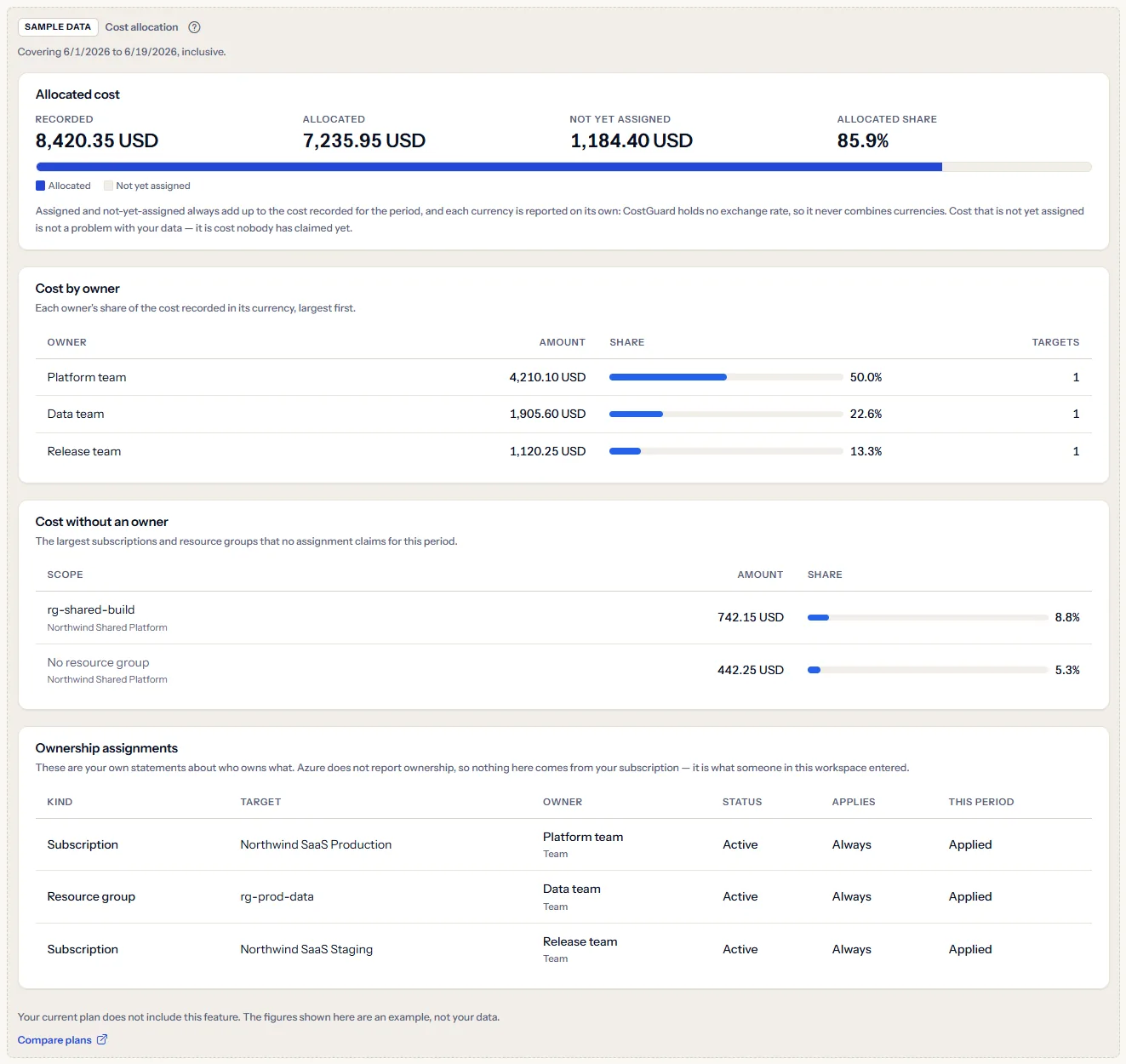
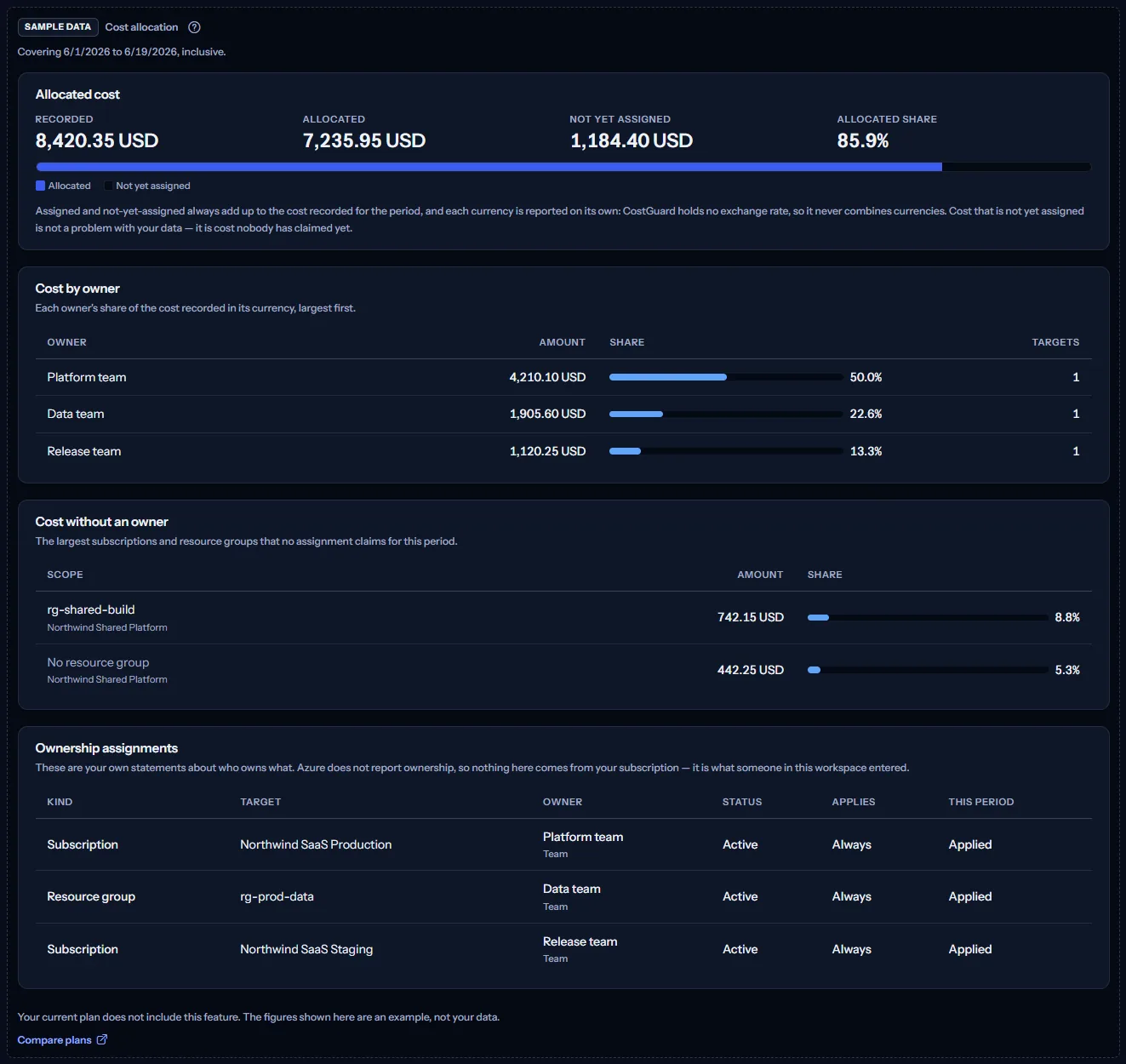
The sample shows an example Northwind company in US dollars: three owners, two scopes without an owner and three assignments. It has no scope bar and no actions, and nothing in it can be changed. “Compare plans” opens the pricing page in a new tab.
What each plan includes
The table shows the first plan that includes each part of the page. Every plan above it includes it too.
| Feature | Free | Starter | Growth | Pro | Enterprise |
|---|---|---|---|---|---|
| A labelled sample of the page | Included | Included | Included | Included | Included |
| Cost allocation with your own cost and assignments | Not included | Not included | Not included | Included | Included |
Cost allocation is included in Pro and Enterprise. Free, Starter and Growth show the labelled sample.
Troubleshooting
An assignment shows “Covers part of this period”
Its first day is after the start of the period, or its last day is before the end, so it claims nothing in that period. Choose dates inside its range, or change its dates.
A resource group is owned in a subscription I did not assign
A resource group assignment claims every group with that name, in every subscription. If groups with the same name belong to different owners, remove the resource group assignment and assign each subscription instead.
All the cost in one currency is not yet assigned
No assignment that applies to the period claims a scope billed in that currency. Assign the subscriptions or resource groups listed for that currency under “Cost without an owner”.
The page shows no cost
No cost import has completed yet, or the scope holds no cost for the dates. Azure reports cost with a delay of a day or two, so the latest days may be missing: check “Cost data through” in the scope bar.
An assignment I added changed nothing
Look at its “This period” column. An inactive assignment, one whose dates do not cover the period, or one whose target has no cost in the scope claims nothing. A subscription's assignment also gives way to a resource group assignment for the same cost.
My save was refused
The reason is shown above the form: the target already has an assignment (edit that one), the last day is before the first, a value is too long or holds a link, or the assignment was changed elsewhere after you opened it. In that last case select “Reload” and make your change again.
The page shows sample data
Your plan does not include cost allocation. The table above shows which plan does, and the link under it opens the pricing page.