
AI and Azure OpenAI spend: cost data and your register
See what your AI services cost in the Azure cost data your workspace imported, beside a register of the periods you record from your own bills, one currency and one cost measure at a time.
What this page is for
The AI and Azure OpenAI spend page answers one question: what do your AI services cost, is that cost growing, and which service, meter or grouping drives it?
It is for the engineering lead or platform owner who runs AI workloads on Azure, with the FinOps lead and the founder or finance lead who watch the AI line of the bill. It leads to three decisions: look into a jump before it repeats, review in Azure before changing capacity or deployments, and set a budget on the services that carry the cost.
The page shows two sources side by side and never mixes them. “In your Azure cost data” shows the cost your workspace's imported Azure cost data holds for the services you count as AI. Below it, “Recorded AI spend”, “Recorded month by month” and “Recorded periods” read the register: the periods someone in your workspace recorded from a bill or an export. The two are never compared, subtracted or reconciled.
The five labels under the title say what stays true of every figure: the page never changes anything in Azure, every figure is an estimate, nothing is kept in step with a provider, monitoring is advisory, and the workspace holds no telemetry. None of them is a warning. At the end of the page, “How to read these figures” and “Limitations and boundaries” say what the figures cannot tell you.


Before you start
The Azure cost panel reads the cost data your Azure connection has imported. Until a connection has completed its first cost import, the panel shows “No cost data yet” with a link to Getting started.
Read the Getting started guide
The register needs nothing but your own figures. It stays empty until someone records a period from a bill or an export you already hold; CostGuard reads no bill and reaches no AI provider to fill it.
The page is part of the Pro and Enterprise plans. On Free, Starter and Growth it shows a labelled sample instead.
Entries belong to the workspace, not to the person who recorded them: anyone who can open the page in the workspace sees every entry and can edit or remove it.
Choose what the figures cover
The page has two scopes, because its two sources are shaped differently. Changing one never changes the other.
In your Azure cost data
The panel has the same scope bar as the other cost pages:
- “Subscription”: “All subscriptions” or one subscription.
- “Currency”: the one currency every figure is in. Cost in another currency is left out, never converted.
- The date range: “Last 7 days”, “Last 30 days” (the default), “Month to date”, “Previous month”, “Last 90 days”, “Last 12 months” or “Custom range”, which covers at most 366 days and ends today at the latest.
Until you choose a currency, the panel opens on the currency resolved for the scope. If that currency holds no service whose name suggests AI, and you have not changed the service choice, the panel opens on the first other currency of the scope that holds one. A currency you chose is never replaced.
Under the bar, “Cost data through” and a line with the dates and the currency say what the figures include.
The register
“Recorded AI spend” carries the register's scope, and “Recorded month by month” and “Recorded periods” follow it:
- “Currency”: shown only when the register holds more than one currency; otherwise the one recorded currency is used.
- “Cost measure”: “Billed actual cost” (the default) or “Amortized effective cost”. The two are never combined or compared.
- “Window (by period end)”: “Last 12 months” (the default), “Last 24 months” or “All entries”. A period counts in the window by its last day, from the first day of the month 12 or 24 months before the current one.
The currency and the cost measure apply to the summary and the monthly series. The table of recorded periods follows the window only, so it lists every currency and cost measure recorded in it.
Why the register has no subscription filter
A “Subscription” grouping in an entry is a label you type in your own words. It is not linked to a subscription of your Azure connection, and a filter on it would suggest a link that does not exist, so the register has none.
To see the AI cost of one subscription as Azure records it, choose that subscription in the Azure cost panel.
In your Azure cost data
“In your Azure cost data” shows the cost your imported Azure cost data holds for the services you count as AI, in the scope chosen above it. It reads the same cost data as the other cost pages; nothing is estimated.
Services counted as AI
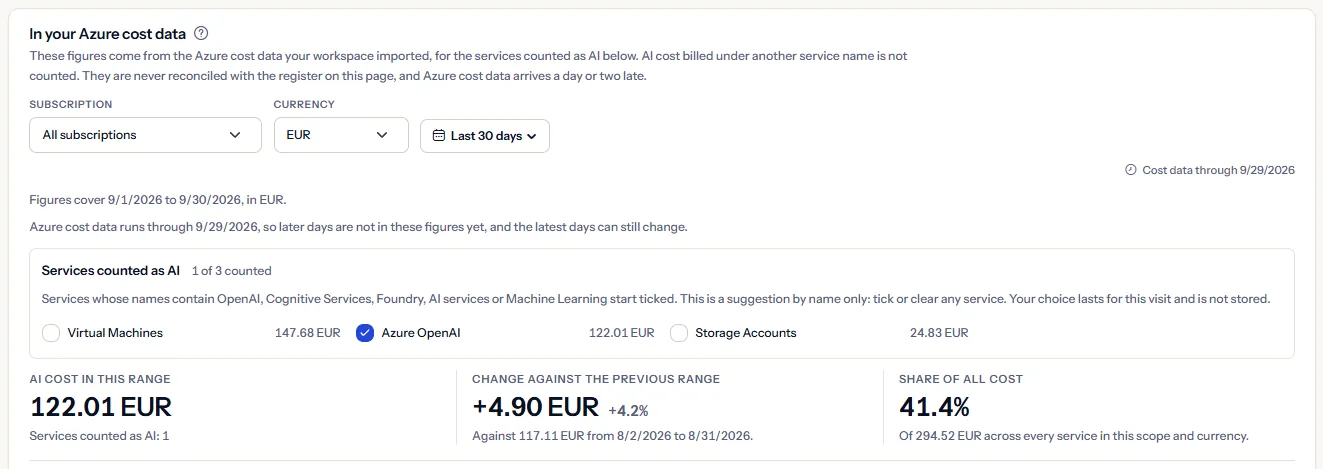
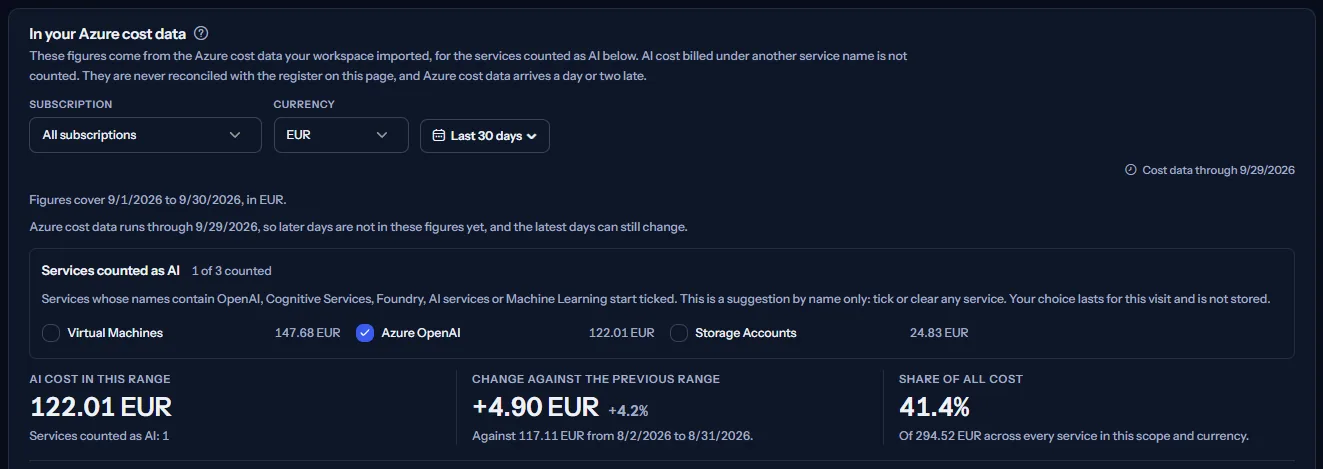


Open “Services counted as AI” to see every service of the scope in the shown currency, largest first, with its cost. The line beside the title counts them, for example “1 of 3 counted”.
Services whose names contain OpenAI, Cognitive Services, Foundry, AI services or Machine Learning start ticked, whatever their letter case. This is a suggestion by name only: it reads no usage, no model and no deployment. Tick or clear any service, and the figures, the chart and the meters follow. Your choice lasts for this visit and is not stored.
Limits to know
AI cost billed under a service name that contains none of these words is not ticked, and a matching name does not prove AI use. Check the list against how your AI workloads are billed.
Watch it in motion
The three figures
- “AI cost in this range”: the cost of the ticked services in the range, added up in the one currency. The note under it counts the services.
- “Change against the previous range”: that cost against the range of the same length just before the selected one, as an amount and a percentage. It reads “Not available” when those services had no cost in the previous range or the previous range could not be loaded.
- “Share of all cost”: the ticked services' cost as a share of the cost of every service in the same scope and currency.
A change wears no colour: AI cost going up or down is neither money saved nor a risk by itself.
When the scope also holds cost in other currencies, a line under the panel names them; choose one in “Currency” to see its figures.
Note
These figures are never compared with, subtracted from or reconciled with the register below. The register holds what someone recorded; this panel holds what your imported cost data holds.
Daily AI cost
“Daily AI cost” shows one bar per day of the range: the cost of the ticked services on that day, added up in the one currency. Time runs from left to right in every language, and pointing at a bar shows its date and cost.
A day without cost data is left empty, never drawn as zero, because Azure may not have delivered it yet. The highest value is written at the top of the axis.
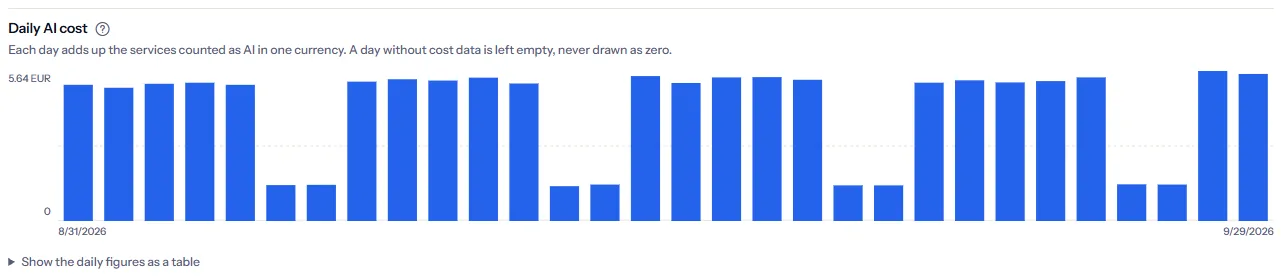
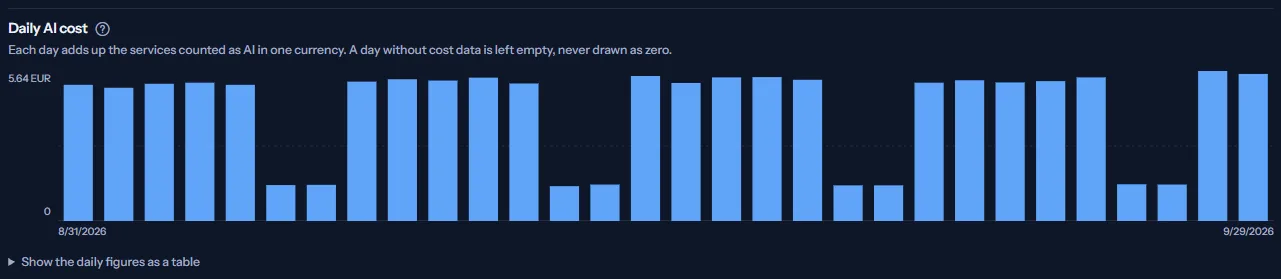
“Show the daily figures as a table” opens the same figures as a table of dates and costs.
The chart reads the daily cost of each ticked service. If one of those reads fails, the chart shows “The daily AI cost could not be loaded.” with “Try again” rather than a sum that leaves a service out.
Meters of the services counted as AI
“Meters of the services counted as AI” ranks the meters of the ticked services by their cost in the range. A meter is the unit Azure bills a service by; its name is shown as Azure records it, beside the service it belongs to.
The ten largest meters are listed by name, and the rest are added into one row, “Other meters”. A meter without a name in the cost data is listed as “Meter without a name”.


A meter tells what was billed, not who or what used it: a billed quantity of tokens is not a count of requests, and a meter does not tell which model or deployment used it.
Recorded AI spend
“Recorded AI spend” reads the register in the currency, cost measure and window chosen at its top. Every total on it is one somebody recorded; nothing is added up from groupings.
- “Latest recorded period”: the total of the entry whose period ends last, with its dates. When two entries end on the same day, the shorter period is taken.
- “Change against the previous period”: that total against the latest earlier entry that covers a period of the same length (a calendar month, a calendar quarter, a calendar year, or the same number of days), in the same currency and cost measure. The earlier entry may lie outside the window, and the percentage appears only when its total is above zero.
- “Entries in this window”: how many entries of this currency and cost measure end in the window.
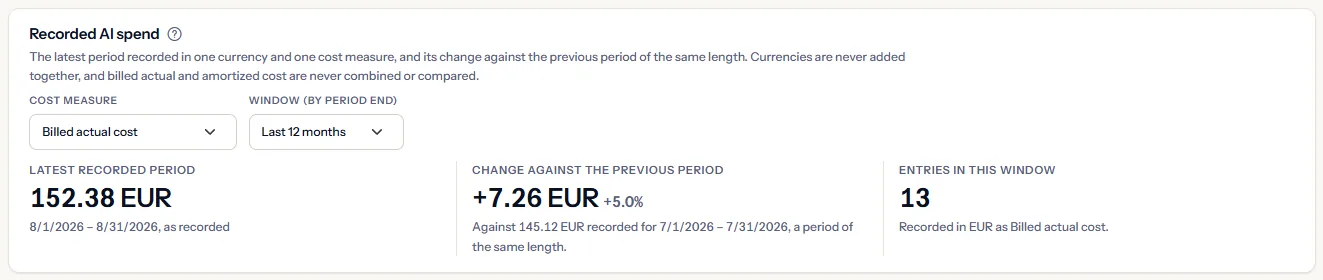
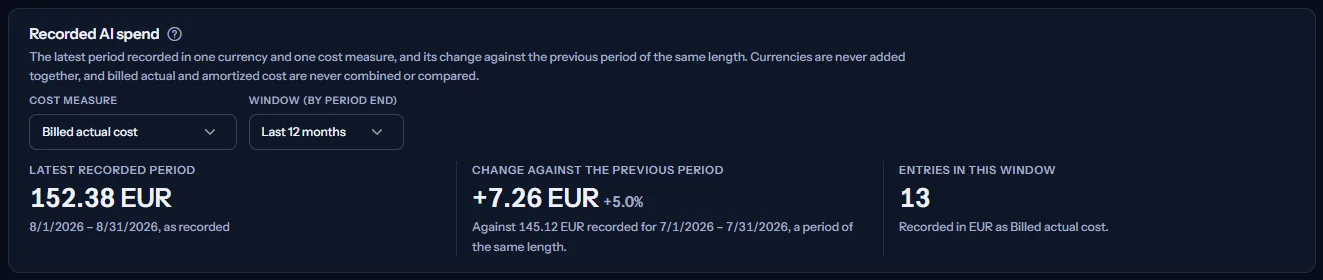
When no earlier entry of the same length exists, the change reads “Not available” and says why. A change wears no colour: AI cost going up or down is neither money saved nor a risk by itself.
When the register also holds other currencies, a line names them; choose one in “Currency”.
Recorded month by month
“Recorded month by month” shows the total recorded for each calendar month, in the currency and cost measure chosen above, as bars from left to right:
- Only entries that cover one whole calendar month, from its first day to its last, are in the series.
- The months run from the start of the window (or the first recorded month, when the window holds every entry) to the last completed month, or to the last recorded month when that is later.
- A month nobody recorded stays empty; it is never drawn as zero. A line under the chart counts the empty months.
- “Show the months as a table” opens the same months as a table, each marked “Recorded” or “Not recorded”.
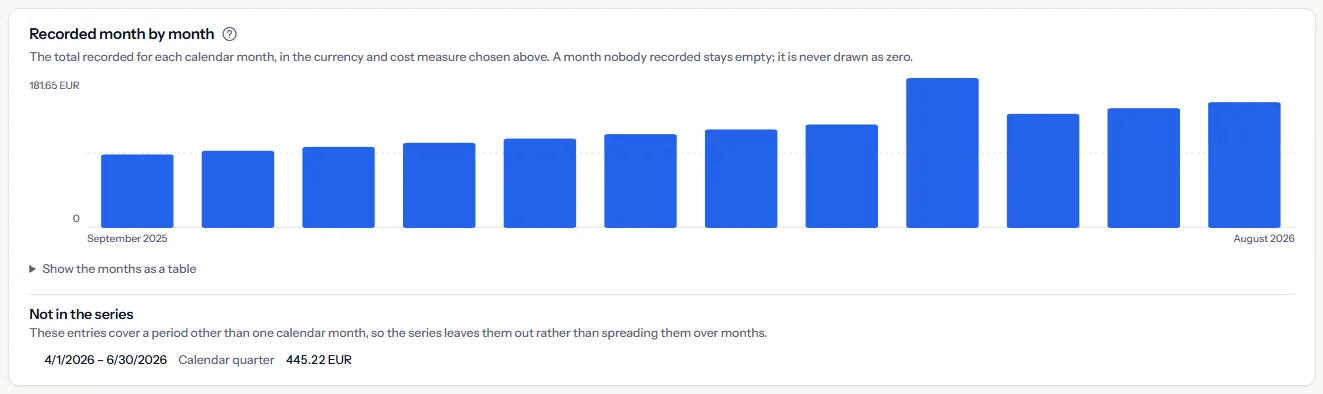
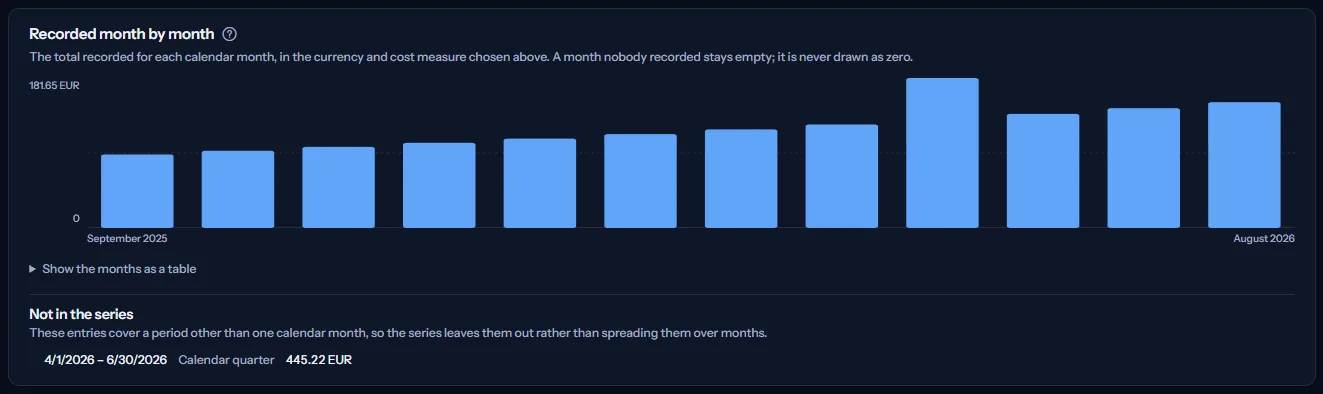
Entries that cover another length, such as a calendar quarter, are listed under “Not in the series” with their length. They are never spread over months.
Recorded periods
“Recorded periods” lists the entries whose period ends in the window, newest first, in every currency and cost measure. Each row shows:
- “Period”: the first and the last day the entry covers.
- “Total”: the total recorded for the period, beside its currency.
- “Measure”: “Billed actual cost” or “Amortized effective cost”.
- “Source”: “Manual entry” or “Customer-provided export”, as the entry states.
- “State”: always “Estimated with limitations”, because a figure typed from a bill carries limitations that no grouping removes.
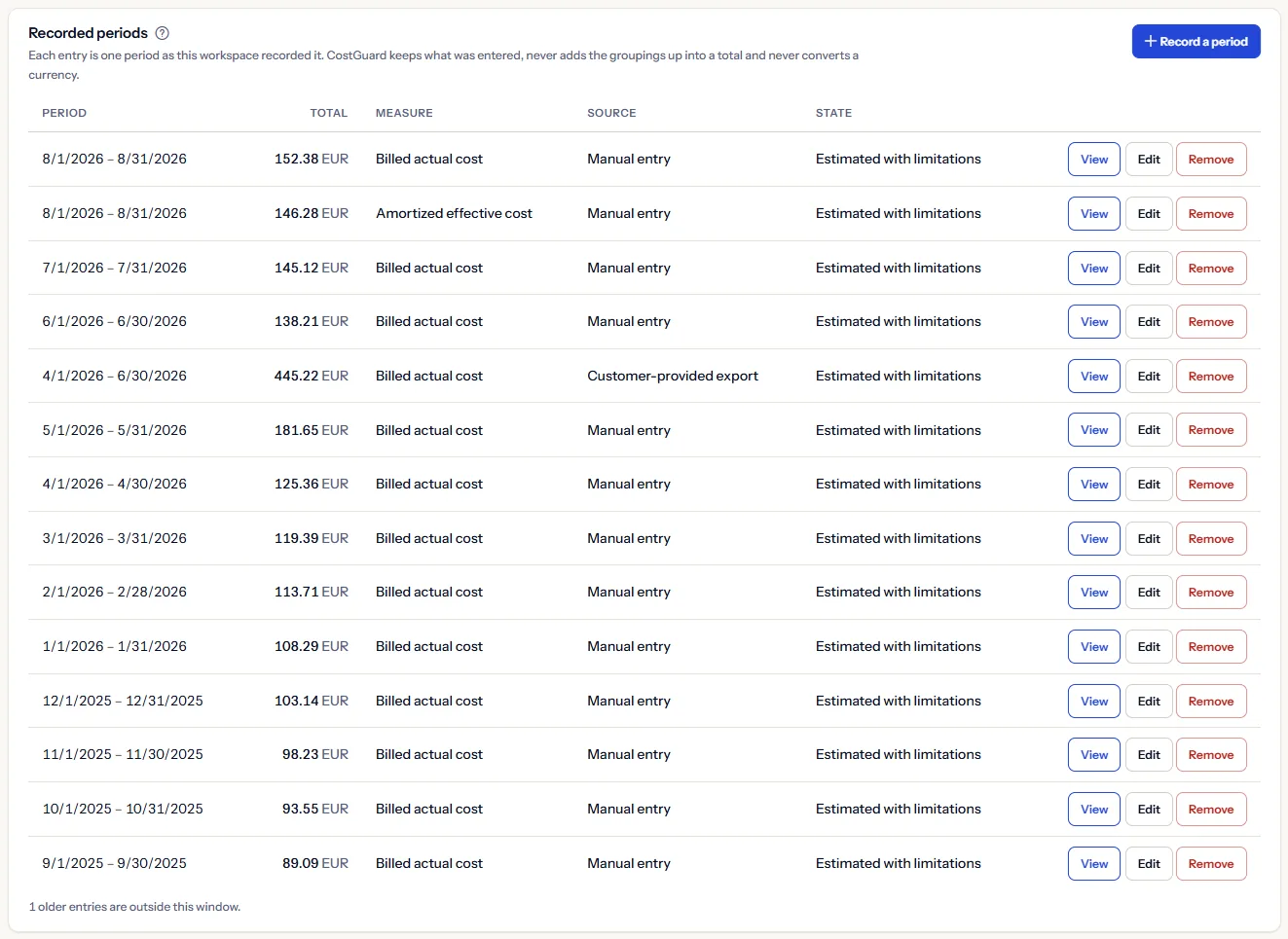
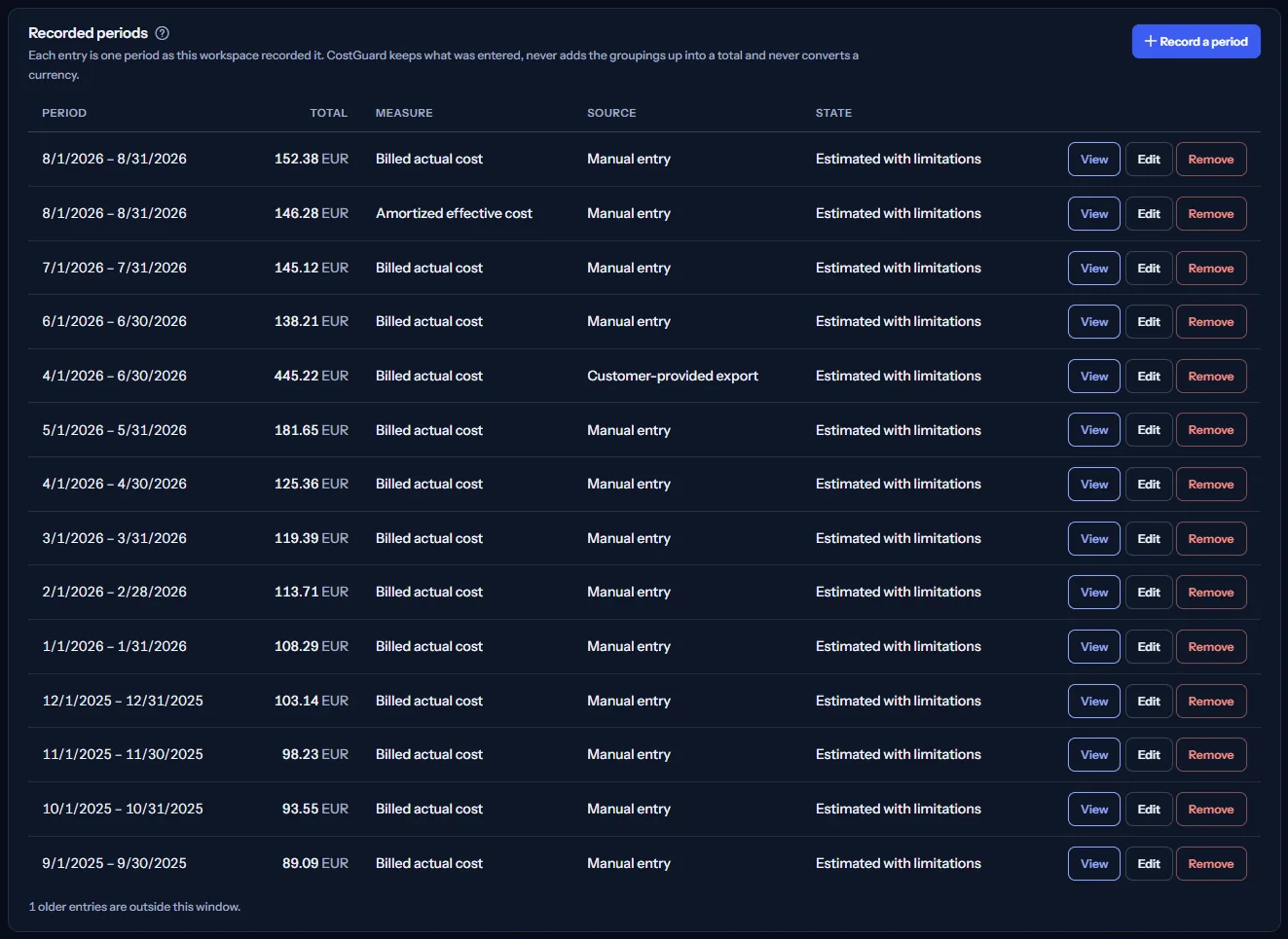
Under the table, a line counts the older entries outside the window. When no entry ends in the window, a sentence replaces the table; choose “All entries” to list every period.
Each row has “View”, “Edit” and “Remove”. “View” opens what the entry records under its own row; the next section explains it.
What an entry records and what each grouping rests on
Under “AI spend breakdown”, an opened entry shows its source, its state and the day it was last changed, then the groupings you recorded beside the total, from the largest recorded amount down.
The groupings are your own breakdown: CostGuard never shows them as shares of the total, never adds them up and never checks that they match it. The total is the figure you recorded.
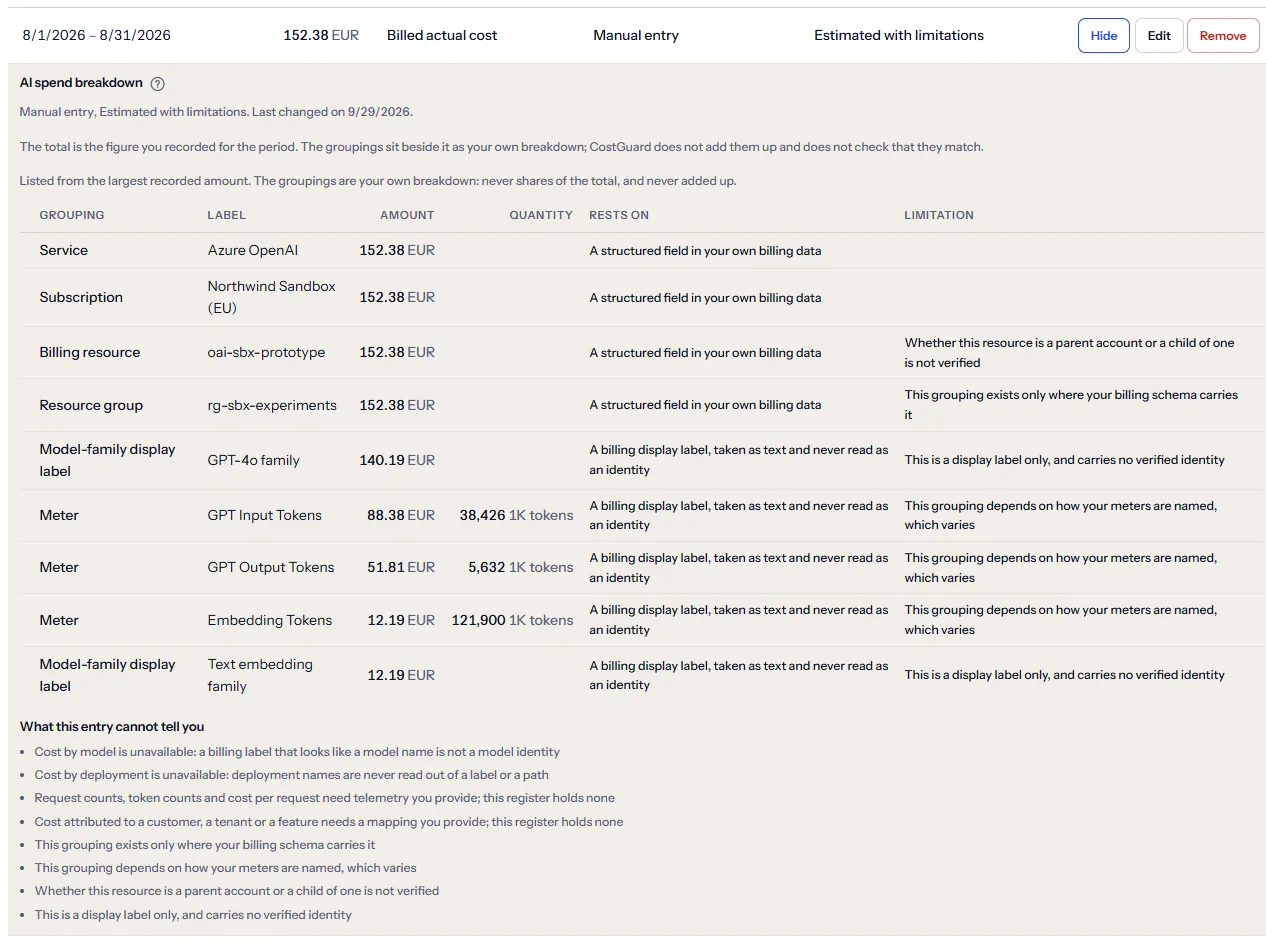
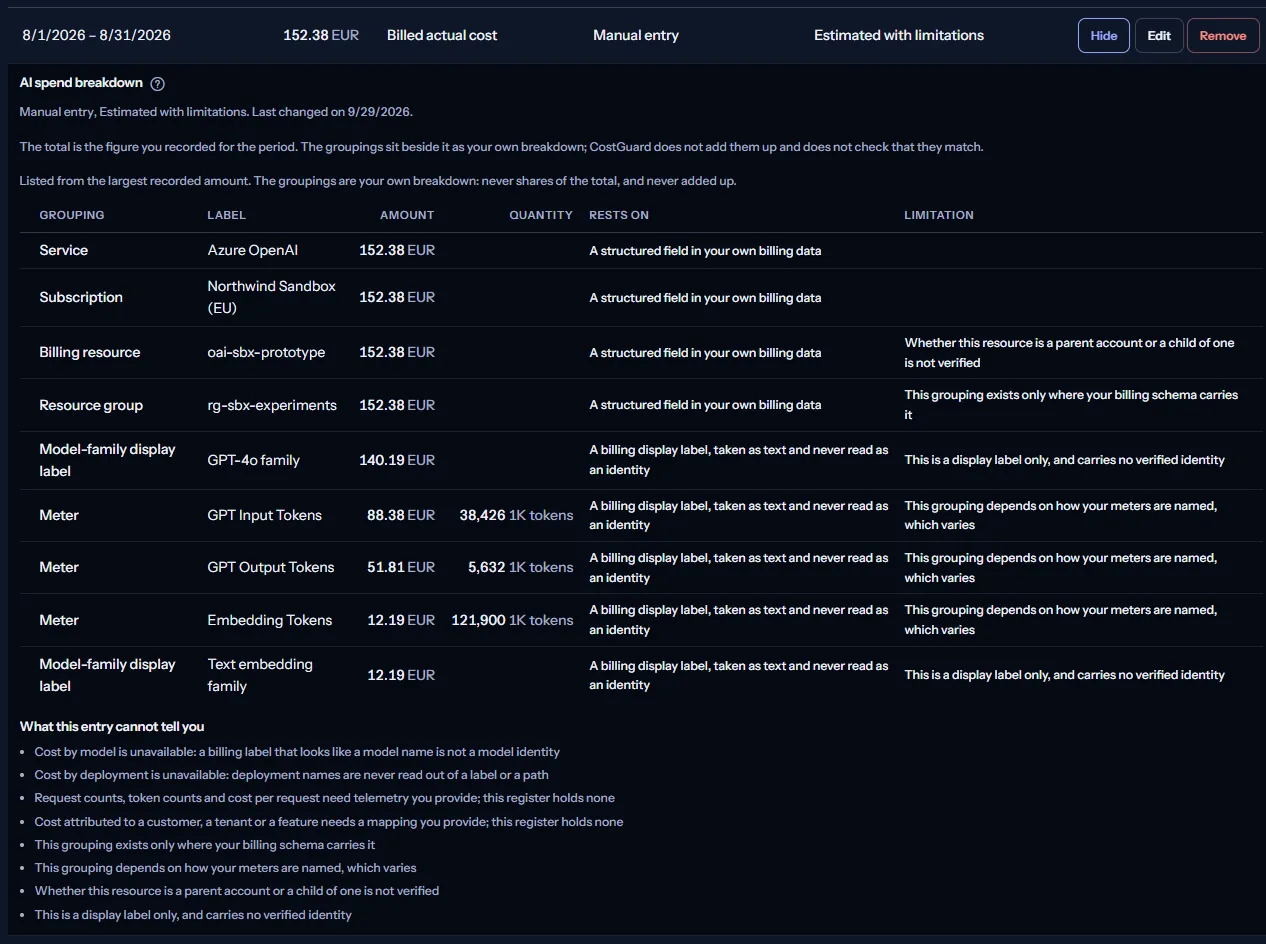
Each grouping shows its kind, its label, its amount, a billed quantity with its unit when you recorded one, what it rests on under “Rests on”, and its limitation under “Limitation”. What a grouping rests on follows from its kind; you never choose it:
- “Subscription” and “Service”: “A structured field in your own billing data”, with no limitation of their own.
- “Resource group”: “A structured field in your own billing data”; it exists only where your billing data carries it.
- “Billing resource”: “A structured field in your own billing data”; whether the resource is a parent account or a child of one is not checked.
- “Service tier or meter subcategory” and “Meter”: “A billing display label, taken as text and never read as an identity”; they depend on how your meters are named, which varies.
- “Model-family display label”: “A billing display label, taken as text and never read as an identity”; a display label only, never a model identity.
Model and deployment are not offered as groupings: a billing label that looks like a model name is not a model identity, and deployment names are never read out of a label or a path.
“What this entry cannot tell you” lists what the entry cannot tell you. It always says that cost by model and by deployment is unavailable, that request counts, token counts and cost per request need telemetry you provide, and that cost for a customer, a tenant or a feature needs a mapping you provide. The limitation of each grouping kind you recorded is added to the list.
Record a period
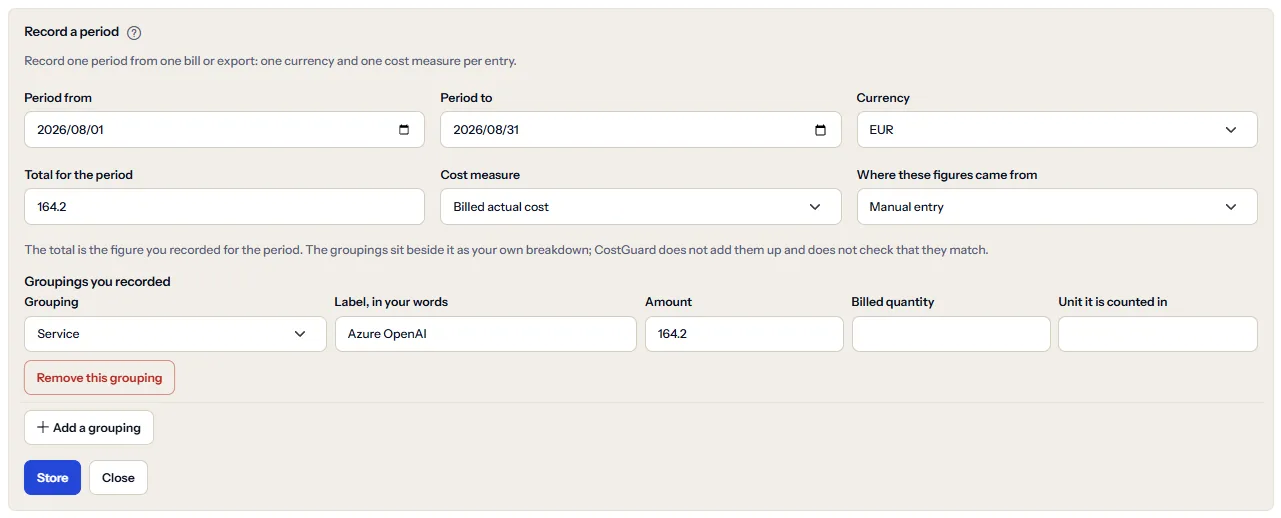
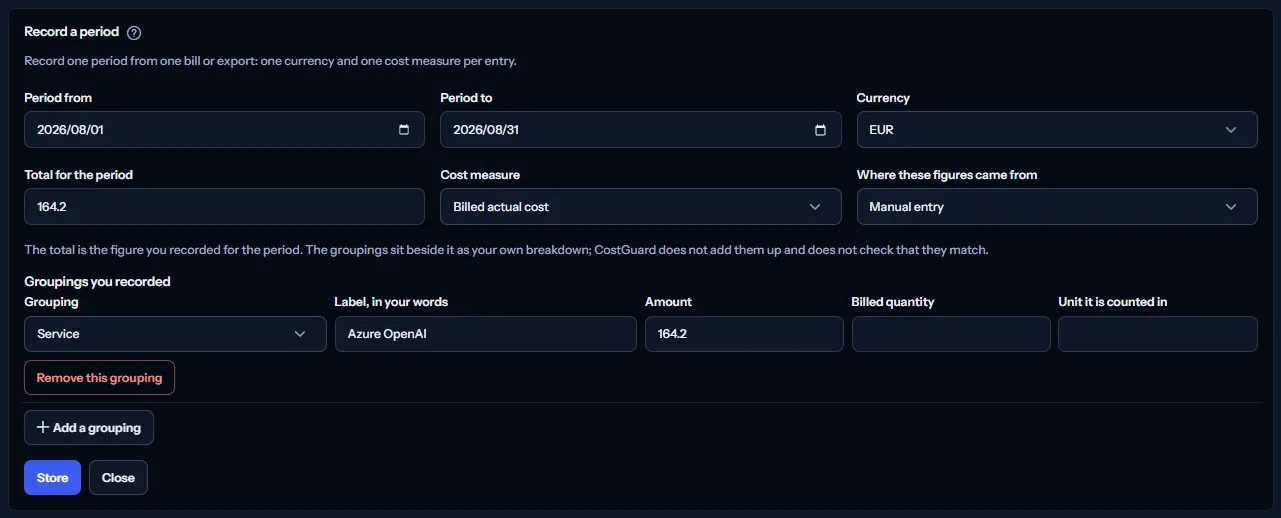
“Record a period” opens the form above the table. It starts on the last completed month and on the register's currency, or on the first currency of your cost data when nothing is recorded yet.
- Set “Period from” and “Period to” to the first and the last day the bill or export covers.
- Choose “Currency”: the list offers the currencies of your cost data and the currencies already recorded, and “Other currency” lets you type a three-letter code.
- Type “Total for the period” as the bill or export states it.
- Choose “Cost measure”: “Billed actual cost” or “Amortized effective cost”.
- Choose “Where these figures came from”: “Manual entry” or “Customer-provided export”.
- Under “Groupings you recorded”, record at least one grouping: its “Grouping”, “Label, in your words”, “Amount” and, if the bill states one, a “Billed quantity” with its “Unit it is counted in”. “Add a grouping” adds another; “Remove this grouping” removes one.
- Select “Store”. “Close” closes the form without storing anything.
The rules an entry must meet
The page checks these rules before anything is sent, and the register checks them again. Every broken rule is listed above the form in your language:
- Both days of the period, with the last day not before the first.
- A currency of three letters, shared by every figure of the entry. No figure is converted.
- No negative amount or quantity, at most six decimal places (a figure is never rounded) and at most thirteen digits before the decimal point.
- One entry per period, currency and cost measure in the workspace; edit the existing entry instead.
- At least one grouping, each with a label of at most 128 characters. Labels that differ only in letter case name the same grouping, so a label appears once per kind.
- No web address, e-mail address, resource path or identifier in a label or a unit: describe it in your own words.
- A billed quantity and its unit go together, a unit has at most 64 characters, and every grouping of an entry that has a quantity uses the same unit.
Note
The total is the figure you recorded for the period. The groupings sit beside it as your own breakdown; CostGuard does not add them up and does not check that they match.
Edit or remove an entry
“Edit” opens the same form on the entry, with every value it holds. “Store” replaces the entry, and the register is read again.
The form remembers when the entry was last changed. If someone changed it after you opened it, nothing is stored and the page says so, with “Reload the register”: reload, then make your change again. If the entry was removed in the meantime, the page says it no longer exists. A change never overwrites one you have not seen.
“Remove” asks “Remove this entry?” in the entry's own row: “Remove” removes it, “Keep” keeps it. Removing the entry that is open in the form closes the form.
When no answer confirms a change, the page says so rather than guessing: reload the register to see whether the change was stored before you try again.
How to read these figures
“How to read these figures” opens under the register. It holds the notes that stay true of every figure on the page:
- Billed actual and amortized effective cost are separate cost measures and are never mixed.
- Subscription, resource group and service groupings rest on structured billing fields; tier, meter and model-family groupings are display labels; model or deployment granularity is not assumed.
- Request and token analysis would need aggregate telemetry you provide, which this page does not hold; a billed token quantity is not a request count.
- Cost by customer, tenant, feature, model or deployment needs a mapping you provide; none is inferred.
- Budgets and anomaly signals are advisory: nothing is evaluated on this page, a threshold is never a spending cap, and CostGuard never stops requests or changes capacity. Review in Azure before changing capacity or deployments.
“Safe summary states” names the states a summary can be in: “Estimated with limitations”, “Not calculated yet” and “Not enough data”. A stored entry is always in the first.
What this page cannot tell you
“Limitations and boundaries” lists what these figures cannot tell you, whatever you record. In short:
- There is no cost per request or per token without usage telemetry you provide, and a billed token quantity never equals a request count.
- Meter, product and SKU names are display labels, not a model identity, and cost by model or deployment is not assumed.
- Cost by customer, tenant, feature, model or deployment needs a mapping you provide.
- Azure cost data is delayed and may be incomplete, and retail prices are not what you are billed.
- Currencies, periods, cost measures and billing units are never mixed.
- Nothing is synchronized, reconciled or enforced: no alert is sent and no action is taken at a provider.
The page never shows a zero for something it cannot know: a missing figure is a state, not a value.
Currencies and cost measures
No exchange rate exists in CostGuard, so no figure on this page adds two currencies or converts one into another.
The Azure cost panel shows one currency at a time and names the others under its figures. The register's summary and monthly series show one currency at a time; the table lists every currency beside its totals.
Billed actual cost is what a bill charged for the period; amortized effective cost spreads the price of commitments, such as reservations, over the period they cover. They answer different questions, so the register keeps one cost measure per entry and never combines or compares them.
What you may see instead of figures
While the figures load, grey placeholder bars stand where they will appear. After that, the page shows one of these instead of figures when there is nothing to show:
- “The Azure cost figures could not be loaded”, with “Try again”: the Azure cost figures could not be read. The register below is not affected.
- “No cost data yet”, with “Open Getting started”: no Azure cost data has been imported yet.
- “No cost in this range”: your workspace has cost data, but none of it falls in this range and scope.
- “No service is counted as AI”: no service is ticked in “Services counted as AI”, so nothing is counted.
- “The daily AI cost could not be loaded.” or “The meters could not be loaded.”, each with “Try again”: only that part failed, and the rest of the panel is correct.
- A message that the register could not be read, with “Try again”. The page shows no empty list and no empty summary instead, because a failed read is not a register with nothing in it.
- An empty register until a period is recorded; the summary then says “Nothing is summarized until a period is recorded.”
- A notice that your session has expired, with a link to sign in again. The page shows no figures until you do.
- When the plan does not include the page, the labelled sample described below. Any other refusal of access shows a notice that says why.
Sample data when your plan has no AI cost
When your plan does not include AI cost, the page shows a fixed example under the label “Sample data”, with the sentence “Your current plan does not include this feature. The figures shown here are an example, not your data.”
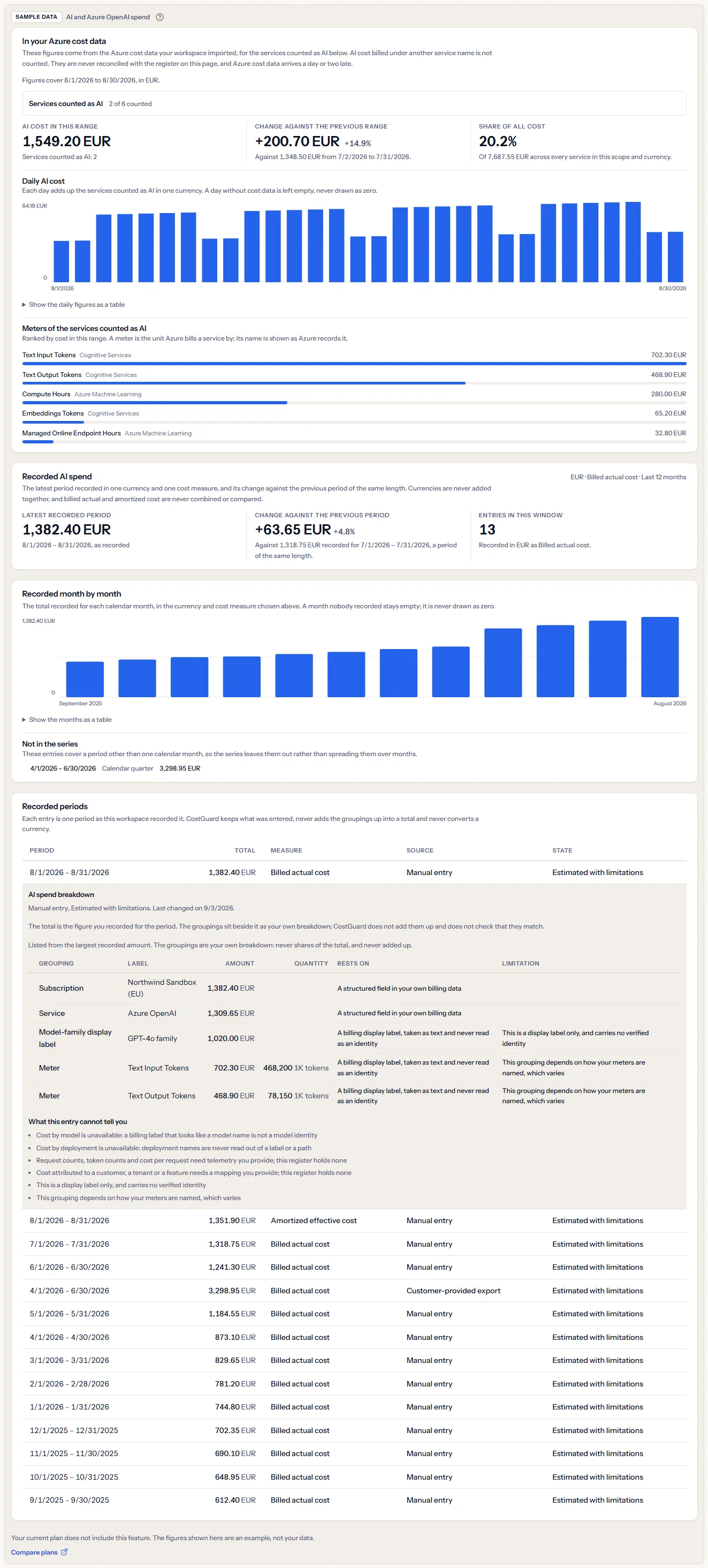
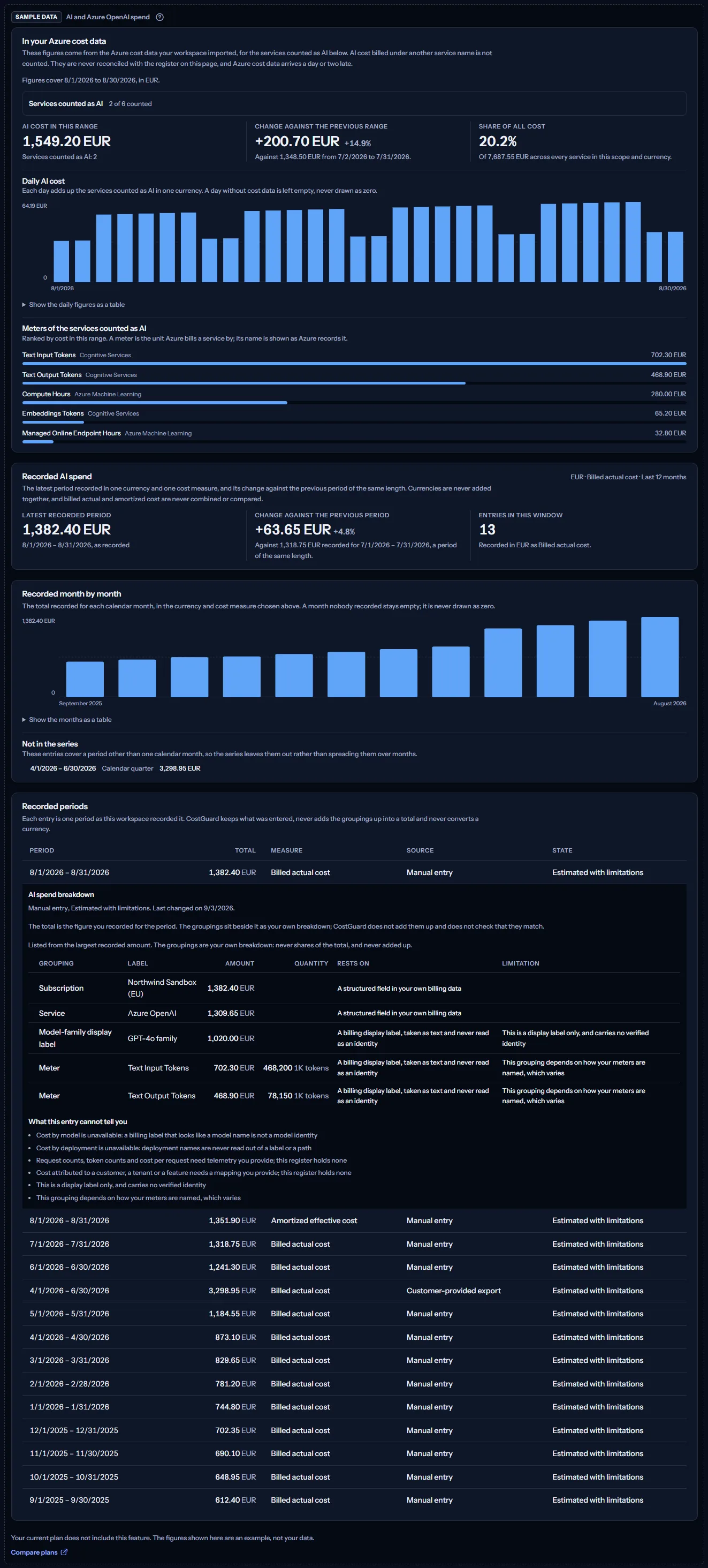
The sample shows an example Azure cost panel in euros, with Cognitive Services and Azure Machine Learning counted as AI, and an example register of fourteen entries (twelve months of billed actual cost, one amortized month and one quarter), the latest one opened. It has no working control, and nothing in it is your data. “Compare plans” opens the pricing page in a new tab.
What each plan includes
The table shows the first plan that includes each part of the page. Every plan above it includes it too.
| Feature | Free | Starter | Growth | Pro | Enterprise |
|---|---|---|---|---|---|
| A labelled sample of the page | Included | Included | Included | Included | Included |
| The page with your own Azure cost data and register | Not included | Not included | Not included | Included | Included |
The plan is checked on the server: the register answers only a workspace whose plan includes AI cost, and the page never shows a price.
Troubleshooting
The Azure cost panel counts none of my AI cost
Your AI cost may be billed under a service name that contains none of the suggested words, or in another currency. Open “Services counted as AI” and tick the services your AI workloads are billed under, or choose the other currency in “Currency”.
A service is counted that is not AI
The suggestion reads names only. Clear the service in “Services counted as AI”, and the figures follow. Your choice is not stored, so the suggestion applies again on your next visit.
The panel opened in a currency I did not expect
When you have not chosen a currency, the panel opens on a currency of the scope that holds a service whose name suggests AI. Choose the currency you want in “Currency”.
The cost of the last days seems to be missing
Azure reports cost a day or two late. Check “Cost data through” above the figures: the latest days can still change while Azure completes its cost data.
The Azure cost panel and the register do not agree
They are separate sources and are never reconciled. The panel reads your imported cost data for the services you ticked and the range you chose; the register holds what someone recorded from a bill or an export, for its own periods, currency and cost measure. A difference between them is not an error of either.
The summary and the series are empty
Nothing is recorded yet, or nothing in the chosen currency, cost measure and window. Record a period, or choose “All entries” or the other cost measure.
The change reads “Not available”
No earlier entry covers a period of the same length in the same currency and cost measure. A month is compared with a month and a quarter with a quarter, never with each other.
A recorded period is missing from the monthly series
Only entries that cover one whole calendar month are in the series. An entry for a quarter, a year or a number of days is listed under “Not in the series”.
My entry was refused
The reasons are listed above the form: a rule of the section on recording a period is broken, or the workspace already records an entry for that period, currency and cost measure (edit that one instead). If the entry was changed or removed after you opened it, select “Reload the register” and make your change again.
The page shows sample data
Your plan does not include AI cost. The table above shows which plan does, and the link under it opens the pricing page.