
Cost map: where your cost sits and which branch moved
The cost map nests the recorded cost of the selected scope by subscription, then resource group, then service. It shows each branch's share of the level above and its change against the period just before, and ranks the resource groups whose cost moved the most.
What this page is for
The Cost map page answers one question: where in your Azure estate does this period's cost sit - which subscription, which resource group inside it, which service inside that - and which branch grew or shrank against the period just before?
It is for the engineering lead or platform owner who runs the Azure estate, and for the FinOps lead who reviews it with them. The other cost pages are flat: each shows one dimension at a time. This page nests the three scopes Azure records cost against, so you can follow a surprising number down to the resource group and the service it comes from. It leads to a few decisions: open the branch that moved in Cost by resource group or Cost Explorer, record who owns it in Cost allocation, set a budget on it, and review it in Azure before changing anything.
Every figure is in one currency and covers the same scope and date range. The page never adds two currencies together and converts nothing.
To open it, choose “Advanced” in the sidebar, then select “Cost Map” under “Costs”.
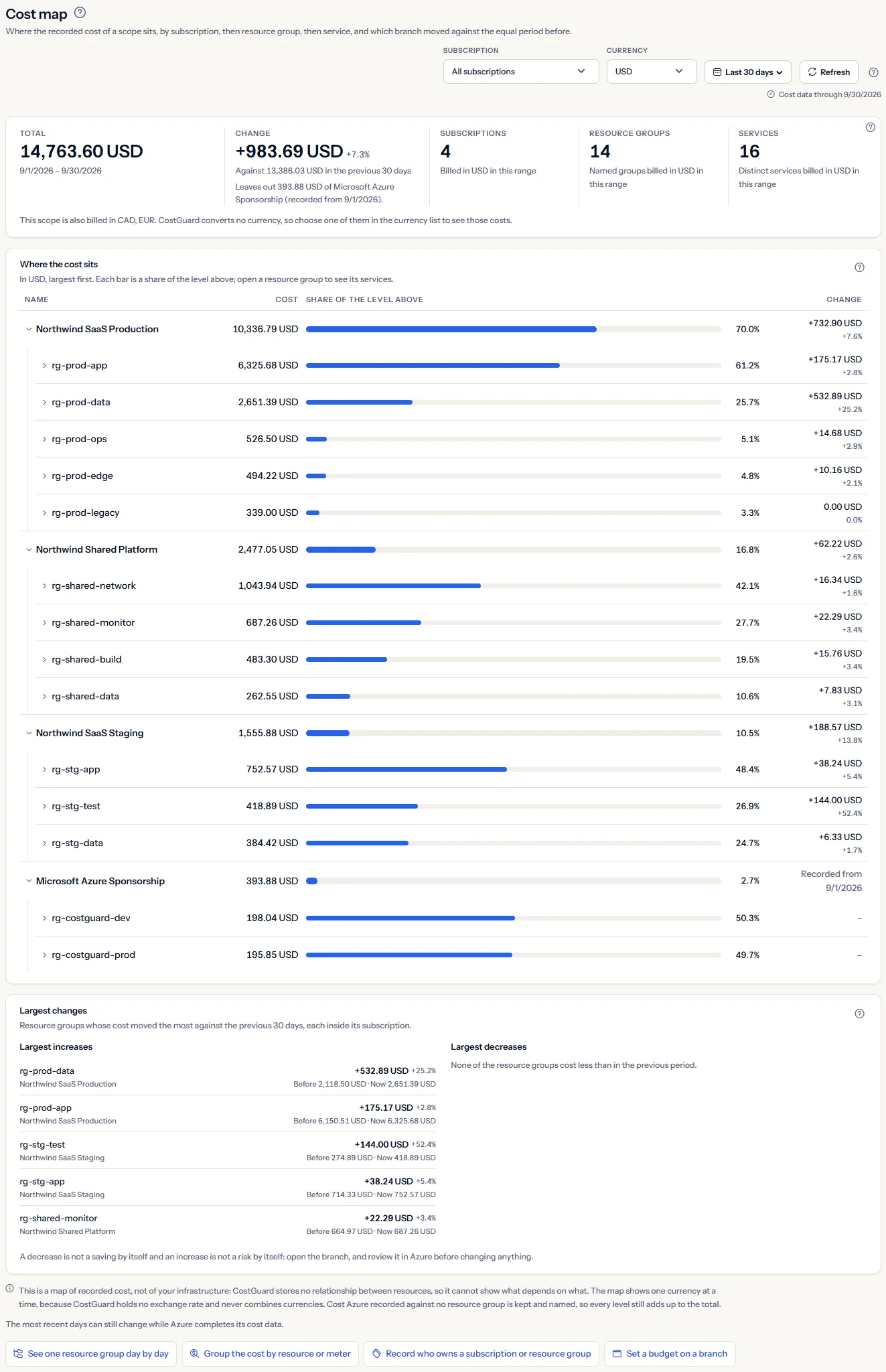
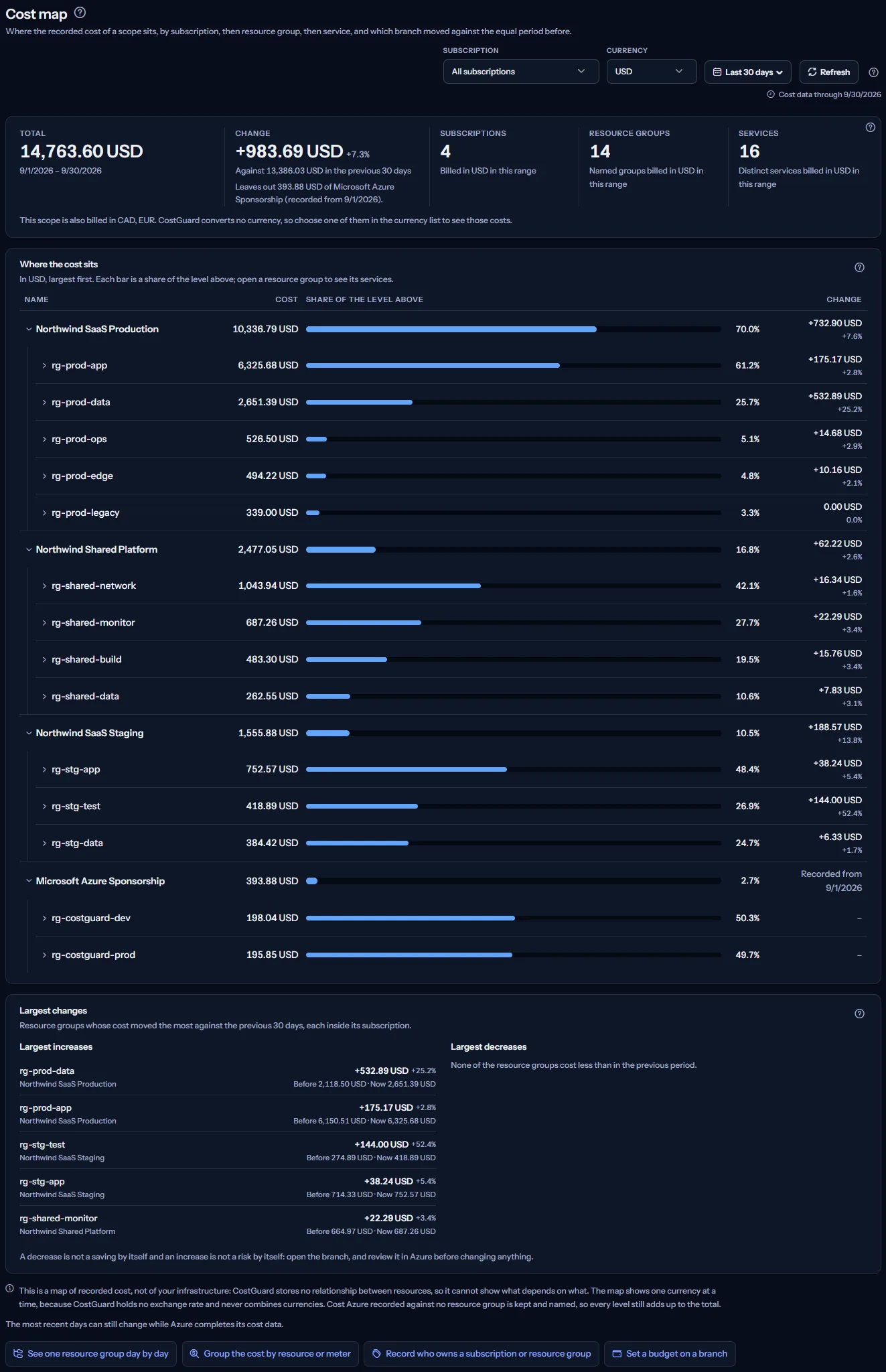
Before you start
The page shows a map once an Azure connection has imported its cost data. Until then it shows “No cost data yet” and a button, “Open Getting started”, which leads to the steps for connecting Azure and the first import.
Read the Getting started guide
Cost analytics is part of the Starter plan and every plan above it. On the Free plan the page shows a labelled sample instead of your data.
The change against the period before needs cost data for those days too. When your cost history starts later, the page shows the map and holds back the change it cannot measure, as explained further down.
Choose the scope: subscription, currency and dates
The bar at the top of the page sets the scope. Every figure, table and list below it is calculated again for what you select.
- “Subscription”: “All subscriptions” or one subscription. The list holds the subscriptions that have recorded cost.
- “Currency”: shown only when the scope is billed in more than one currency. CostGuard holds no exchange rate, so it never adds two currencies. Every figure is in the one currency you select.
- The date range: “Last 7 days”, “Last 30 days” (the page opens with it), “Month to date”, “Previous month”, “Last 90 days”, “Last 12 months” or “Custom range”. The two longer presets are offered on this page because a branch that grows slowly shows more clearly over a longer view.
- “Refresh” reads everything again for the same scope.
When you have not chosen a currency, the page uses the same one as the Dashboard and the Cost overview for the same scope, so one scope reads in one currency on every cost page. “Last 12 months” runs from the day after the same date a year ago through today.
When the scope changes, the figures, the map and the largest changes are read again. Each range is compared with the same number of days just before it, in the same subscription and currency. The branches you opened or closed stay as you left them.


Set a custom range
- Open the date range list and choose “Custom range”.
- Enter a date under “From” and a date under “To”. Both days are included.
- Select “Apply”. “Cancel” closes the fields and keeps the range you had.
Limits to know
A custom range covers at most 366 days, starts on or before its end date and cannot end after today. When a date does not fit, a message beside the fields says what to correct, and nothing is reloaded until you do.
How far the cost data reaches
“Cost data through” shows the latest day CostGuard holds cost for. Azure reports cost with a delay of a day or two, so the latest days can still change, and a range that ends today is not final yet.
The five figures of the map
Five figures sum up the map, all in the one currency of the scope:
- “Total”: what the scope cost in the range, with the first and the last day of the range under it. It is the sum of every subscription of the map.
- “Change”: the total of the subscriptions compared minus their cost in the same number of days just before the range, in money and as a percentage of that earlier cost. Every subscription is compared unless its recorded history starts later, as explained further down. The line under it names that earlier total. When those days had no cost, the line reads “No cost in the previous period” and no percentage is shown.
- “Subscriptions”: how many subscriptions had a cost in this currency in the range.
- “Resource groups”: how many named resource groups had a cost; a group is counted once in each subscription it belongs to. Cost recorded against no resource group is not a group, and the line under the figure says when the map holds some.
- “Services”: how many different services had a cost, each counted once however many resource groups it runs in.


The total adds up the same cost records as Cost by resource group and Cost Explorer, so for the same subscription, currency and dates the three pages show the same total. Their change can differ only when part of the period before is not recorded: this page then leaves the subscriptions concerned out of the comparison, where the other pages count their cost as new, as explained further down.
When the scope is also billed in another currency, a sentence under the figures names it. Those costs are in no figure: choose that currency in the scope bar to see them.
Read the map
“Where the cost sits” lists every subscription with cost in the range, largest first. Inside each subscription come its resource groups, and inside each resource group its services, each level again largest first. Subscriptions start open, so their resource groups show at once; select a resource group to open it and see its services, and select it again to close it.
Each row shows:
- “Name”: the subscription, resource group or service. A subscription is named as in the scope bar. Two subscriptions with the same name are told apart by the last characters of their identifier, never the whole identifier, and a subscription recorded without a name reads “Unnamed subscription”.
- “Cost”: what that branch cost in the range.
- “Share of the level above”: its part of the row it sits under, as a bar and a percentage.
- “Change”: the difference from the same number of days just before the range.
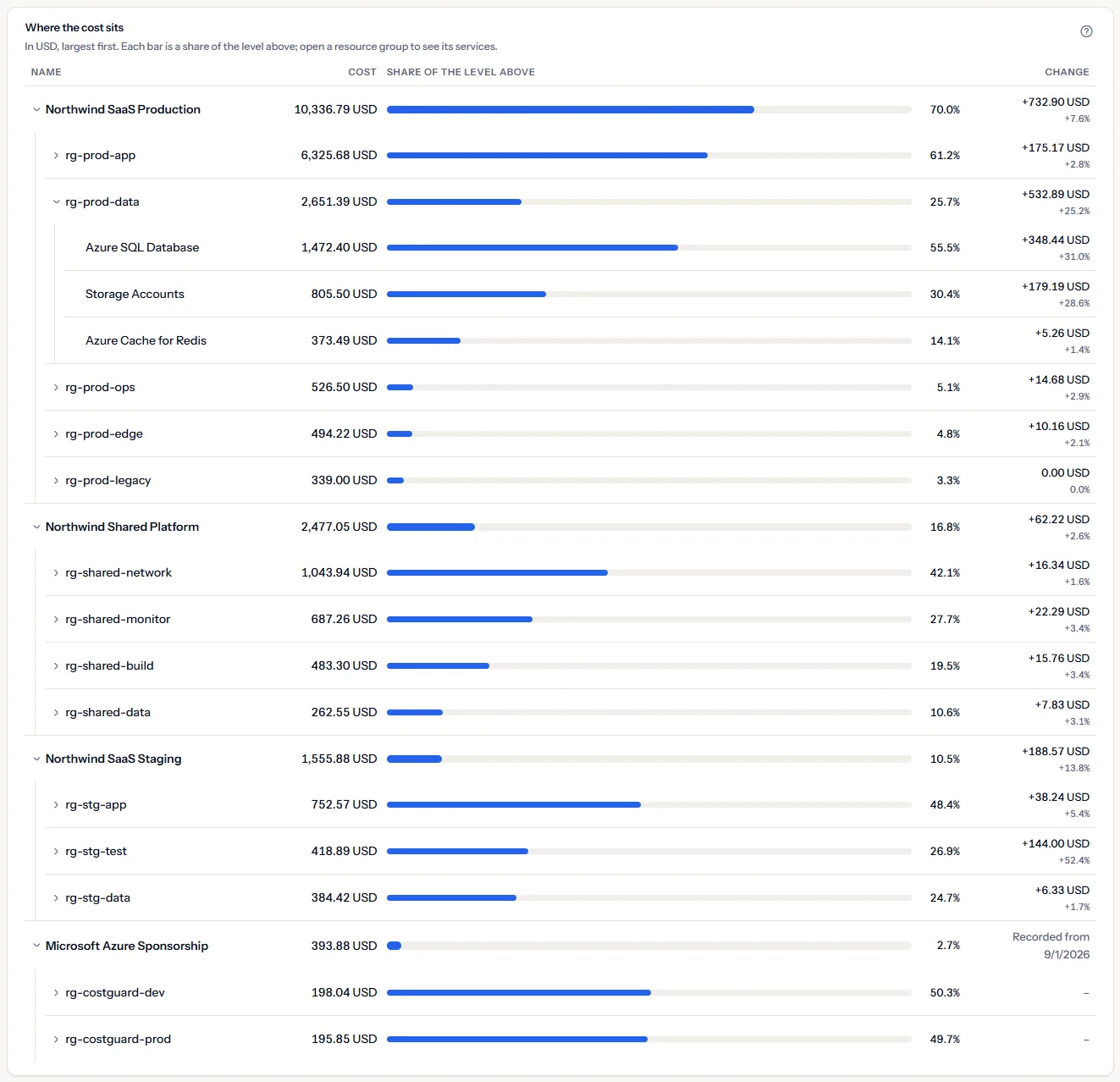
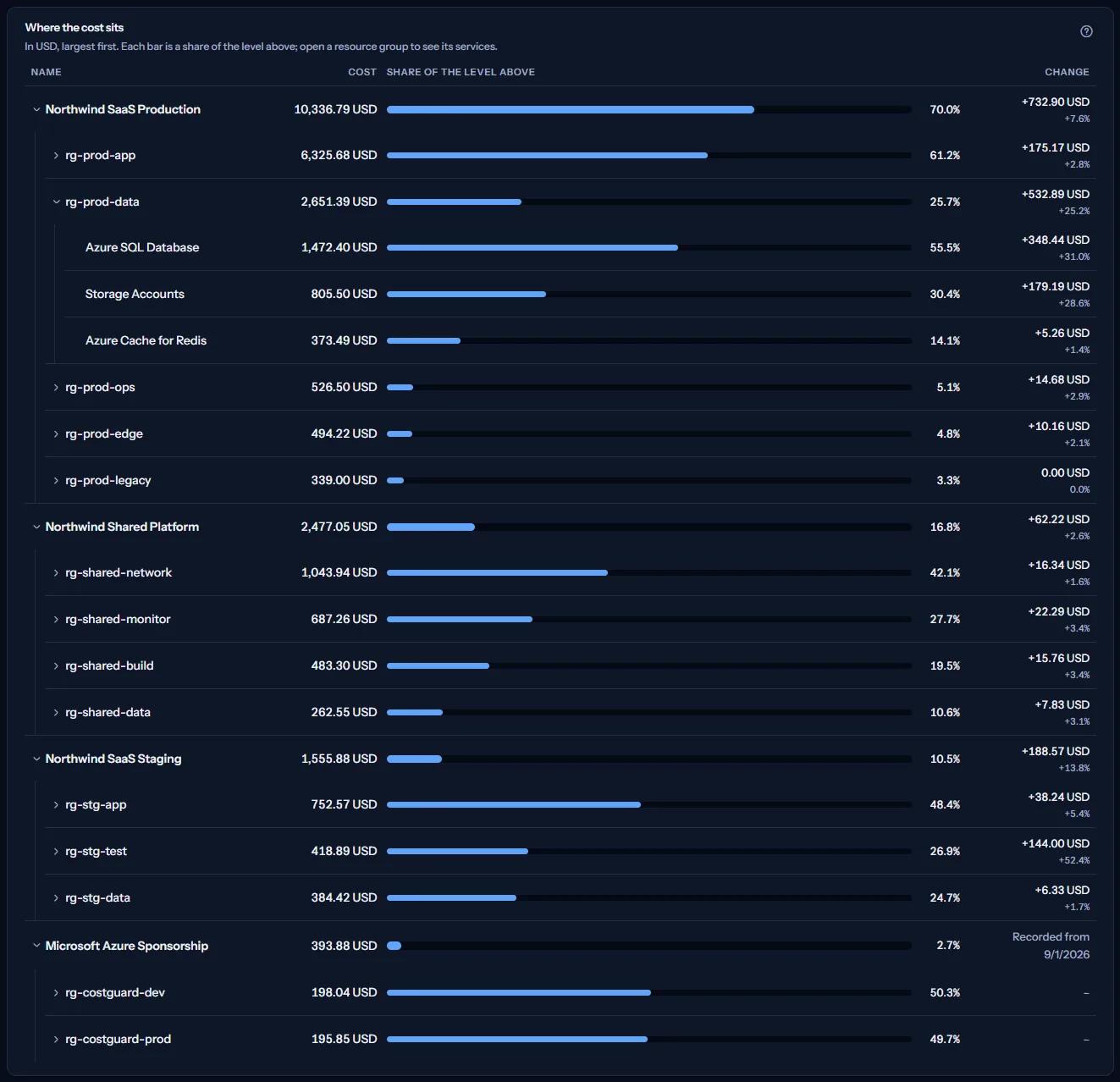
A level with more than ten rows lists the ten largest first. The button under it, for example “Show all 14”, lists the rest, and “Show the first 10 only” shortens it again.
A subscription is known by its identifier, so a subscription renamed during the range stays one branch. A resource group is known by its name inside its subscription, so two groups with the same name in two subscriptions stay two branches. Names are matched without regard to upper and lower case, as Azure treats them.
Share of the level above
The share is a part of the level above: a subscription's share of the total, a resource group's share of its subscription, a service's share of its resource group. It is drawn as a bar, with the percentage beside it rounded to one decimal place.
The bars show size only, so they all wear one colour. A row that is the only one on its level holds all of the level above: it shows its percentage without a bar, since a full bar would compare it with nothing.
A recorded amount is never negative, so every share lies between 0 and 100 percent. The shares of one level can add up to slightly more or less than 100 percent, because each one is rounded on its own.
Change against the previous period
The period before is the same number of days that ends the day before the range starts, in the same subscription and currency. With “Last 30 days” it is the 30 days before; with “Previous month” it is the same number of days before that month, which is not always the calendar month before it.
In the change column each row shows its cost minus its cost in the period before, in money and, when it had a cost then, also as a percentage. “New” marks a row that had no cost in the period before.
Note
A change wears no colour: a rise or a fall is neither money saved nor a risk by itself. Open the branch, and review it in Azure before changing anything.
When the period before could not be read, the map shows no change column, “Change” reads “Not available”, and the line under it says “The previous period could not be loaded.” The map and its other figures still show.
When the previous period is only partly recorded
A comparison is only fair when the period before is recorded. When your cost history begins after that period starts, the missing days are not an absence of cost, and comparing with them would read the missing history as growth. So the page holds back what it cannot compare:
- When the history of every subscription of the map starts that late, no change is shown at all: “Change” reads “Not available”, the line under it says on which day the recorded history starts, the map has no change column, and the largest changes are replaced by “Largest changes are not shown: the previous period is not fully recorded.”
- When only some subscriptions start that late, for example one connected after the others, those of them with cost in the range are left out of the comparison and the rest are compared. Such a subscription's row reads “Recorded from …” with the day its history starts, and each row inside it shows a dash in the change column; on a narrow screen, and for a screen reader, the dash is the words “Not compared”. The line under “Change” names those subscriptions and how much of the total they hold, so you can rebuild the change from the figures shown.
The change is then measured on the compared subscriptions only, and the subscriptions left out take no part in the largest changes or in what has no cost this period. Their cost still counts in the total and in every share, because it was recorded. A subscription that starts that late but has no cost in the range is still compared and listed under “No cost this period”: missing history can only make its earlier cost look smaller, never create growth.
The page takes the day each subscription's history starts from your cost data: the first day that holds cost for it in the selected currency. With “Last 12 months”, the period before is the twelve months before that, which a young workspace may not reach; a shorter range is then compared in full.
Cost with no resource group
“No resource group” is cost that Azure recorded against a subscription itself rather than a resource group, for example a reservation purchase. It is real spend, so the map keeps it as a branch of its own in each subscription it belongs to, and every level still adds up to its total. Open it to see which services carry it.
It is never merged with a resource group that happens to carry the same name, and it is not counted under “Resource groups”. When the map holds such a branch, a sentence under the map says what it is.
Branches with no cost this period
A subscription, resource group or service that had a cost in the period before and none in the range is never drawn as a row of zero. It is listed apart under “No cost this period”, each with what it cost before.
Subscriptions with no cost this period are listed under the map, resource groups under their subscription, and services under their resource group. Nothing is listed when the period before could not be read or when the history of every subscription of the map starts after it begins, and nothing is listed for a subscription left out of the comparison.
Read the largest changes
“Largest changes” ranks the resource groups whose cost moved the most against the period before, each inside its subscription: up to five under “Largest increases” and up to five under “Largest decreases”, largest change first. Cost with no resource group takes part like a group.
Each entry names the resource group and its subscription, the change in money, and what the group cost “Before” and “Now”. Beside the change, “New” marks a group that had no cost before and “No cost this period” a group with no cost now; otherwise the change is also given as a percentage.
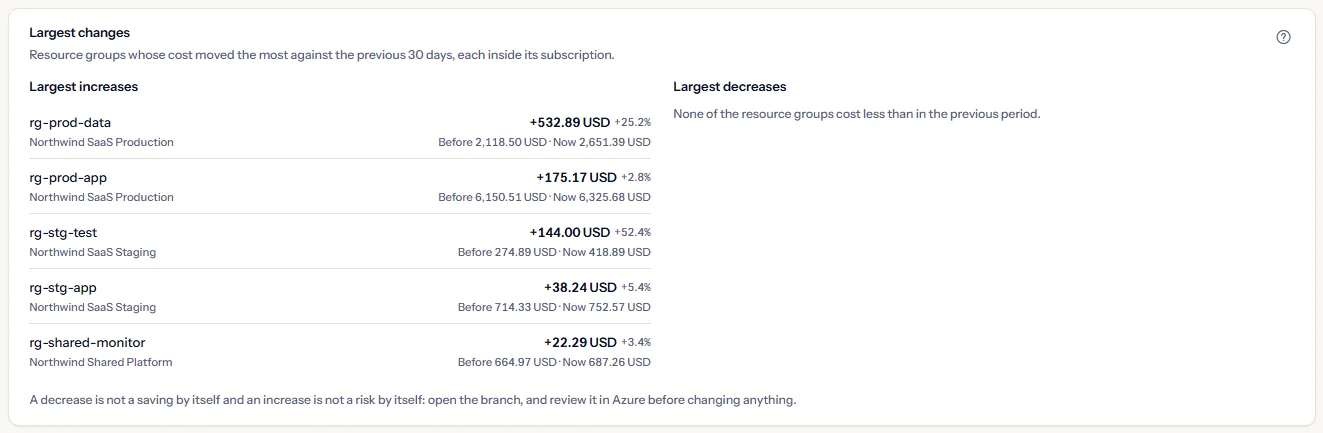
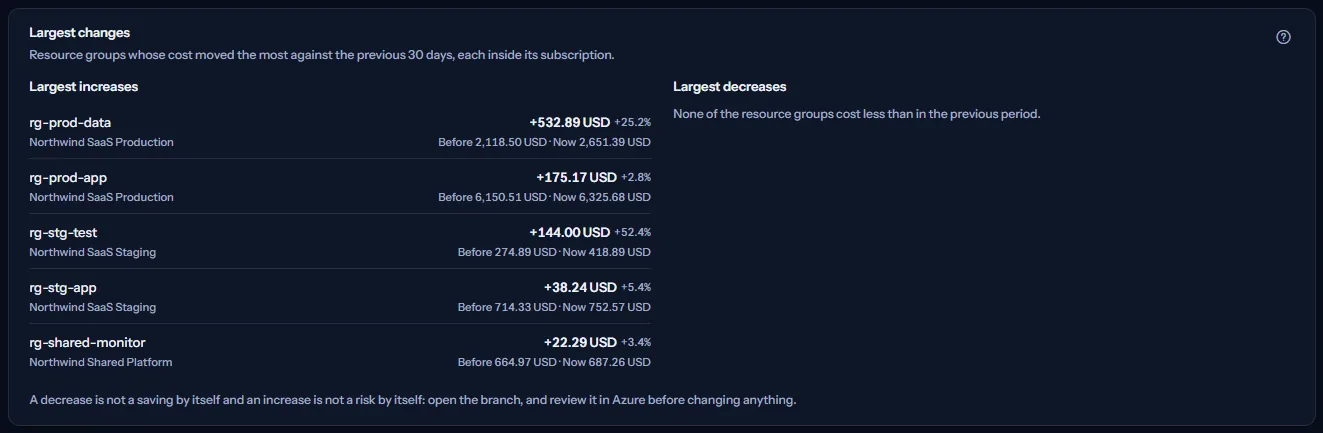
When no group moved one way, that list says so. The panel is left out when fewer than two resource groups can be compared, since it would only repeat the map. Subscriptions left out of the comparison are left out of these lists too.
When the period before could not be read, a line in its place reads “The previous period could not be loaded, so no change is shown.” When that period is only partly recorded for every subscription, the line reads “Largest changes are not shown: the previous period is not fully recorded.”
One currency at a time
CostGuard holds no exchange rate, so the map shows one currency at a time and never adds two together. When you have not chosen a currency, the map uses the one the Dashboard and the Cost overview use for the same scope.
When the scope is also billed in other currencies, the sentence under the figures names them. Choose one of them under “Currency” in the scope bar, and the whole page is drawn again in that currency, with the subscriptions, resource groups and services billed in it.
A map of cost, not of infrastructure
Limits to know
The map shows where recorded cost sits among the three scopes Azure records cost against: subscription, resource group and service. It is not a map of your infrastructure. CostGuard stores no relationship between resources, so it cannot show what depends on what, and your cost data carries no region and no tag, so the page cannot place cost on a map of the world or group it by tag.
The note under the largest changes says the same on the page. Under it, a line reminds you that the most recent days can still change while Azure completes its cost data.
Go further
The links at the bottom of the page take a branch further. Each page opens with its own settings, not the scope chosen here.
- “See one resource group day by day” opens Cost by resource group, which shows one resource group's cost day by day and its services.
- “Group the cost by resource or meter” opens Cost Explorer, which lists the cost by resource, meter and other groupings, each item against the period before.
- “Record who owns a subscription or resource group” opens Cost allocation, where you record who owns a subscription or resource group. It is listed only when your plan includes cost allocation.
- “Set a budget on a branch” opens Budgets, where a budget can watch a subscription, a resource group or a service.
What you may see instead of figures
While the figures load, grey placeholder bars stand where they will appear. After that, the page shows one of these instead of figures when there is nothing to show:
- “No cost data yet”, with “Open Getting started”: no connection has imported cost yet.
- “No cost in this range”: the workspace has cost data, but none of it falls in the selected range and scope.
- “Not available” under “Change”, with “The previous period could not be loaded.”, a map without its change column, and “The previous period could not be loaded, so no change is shown.” in place of the largest changes: the period before could not be read. The map and its other figures still show; “Refresh” in the scope bar tries again.
- “The map could not be read just now. Nothing about your cost has changed.”, with “Try again”: the map of the scope could not be read.
- A notice that your session has expired, with a link to sign in again. The page shows no figures until you do.
- “Not available” under “Change” with a line naming the day your recorded history starts, or a subscription that reads “Recorded from …” with a dash in the change column of each row inside it: the period before is not fully recorded, as explained above.
Sample data when your plan has no cost analytics
When your plan does not include cost analytics, the page shows a fixed example under the label “Sample data”, with the sentence “Your current plan does not include this feature. The figures shown here are an example, not your data.”
The sample shows an example map of three Northwind subscriptions for 30 days in June 2026, in US dollars, with its five figures and its largest changes: a resource group that grew, one that shrank, one that is new, one with no cost any more, and a charge recorded against no resource group. The figures are the same for everyone and never your data. There is no scope bar, and although you can open its branches, it reads nothing from your workspace.
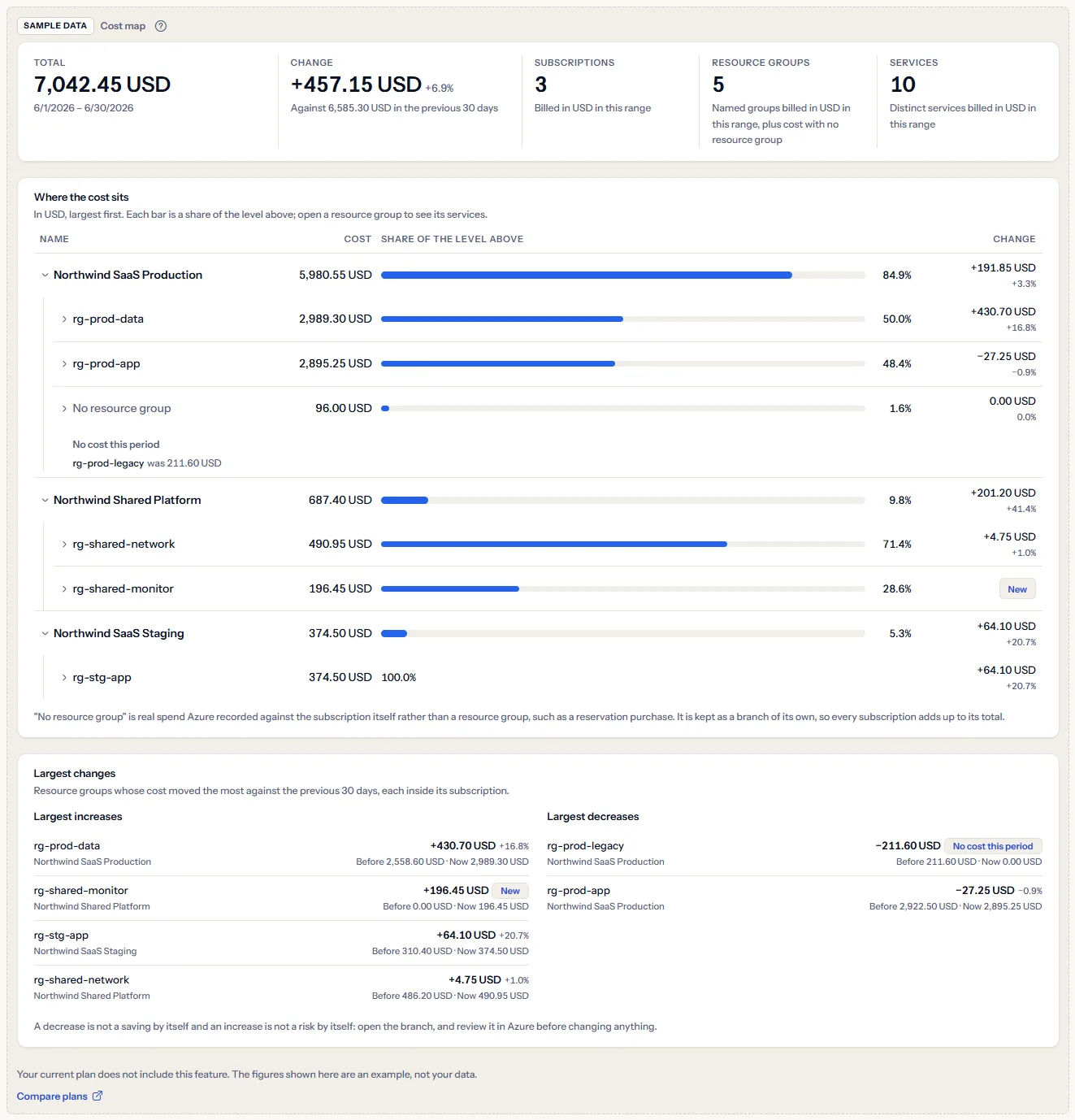
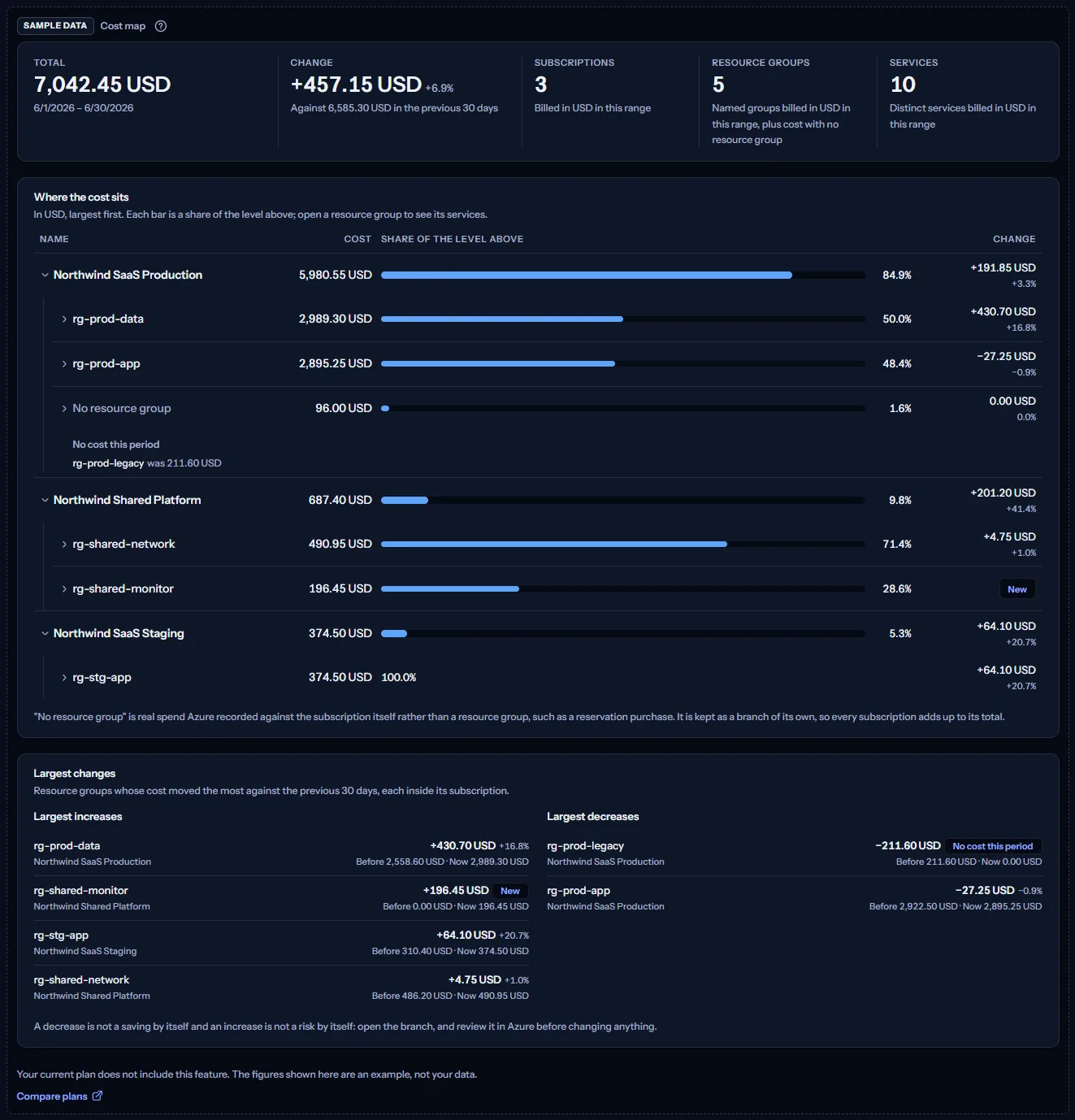
“Compare plans” opens the pricing page in a new tab. CostGuard decides what your plan includes on the server; the sample is only how the page shows it.
What each plan includes
The table shows the first plan that includes each part of the page. Every plan above it includes it too.
| Feature | Free | Starter | Growth | Pro | Enterprise |
|---|---|---|---|---|---|
| A labelled sample of the page | Included | Included | Included | Included | Included |
| The cost map with your own cost data | Not included | Included | Included | Included | Included |
Starter, Growth, Pro and Enterprise include the cost map with your own data; Free shows the labelled sample. The plan is checked on the server, and the page never shows a price.
Troubleshooting
The page says “No cost data yet”
You have no connection yet, or its first import has not finished. Open Getting started and follow the steps; the figures appear when the first import completes.
The last days look too low
Azure reports cost with a delay of a day or two. Check the date beside “Cost data through” in the scope bar. Days after it hold no cost yet, so a range that ends today reads lower than it will be.
A resource group or service is missing from the map
The map holds what had a cost in the selected range, subscription and currency. A branch billed in another currency appears when you choose that currency in the scope bar, and one billed only in the period before is listed under “No cost this period”. A level with more than ten rows lists the ten largest until you select the button under it, and a resource group shows its services once you open it.
The page says “No cost in this range”
The selected subscription has no recorded cost on the selected dates, or the whole range ends before your cost history starts. Choose a later or wider range, or all subscriptions.
The change reads “Not available”, or a row shows a dash instead of a change
The period before could not be read, or part of it lies before your recorded cost history; the line under “Change” says which. With “Last 12 months” the period before is the twelve months before that, which your history may not reach: choose a shorter range to compare in full.
A subscription name ends with characters in brackets
Two of your subscriptions carry the same name, for example Azure's default name for a new subscription. Each is followed by the last characters of its identifier so you can tell them apart, in the map and in the scope bar alike. The full identifier is never shown.
“No resource group” appears in the map
Azure recorded that cost against a subscription itself, not against a resource group, for example a reservation purchase. It is part of what the scope cost, so the map keeps it; open it to see which services carry it.
The largest changes are missing
The panel is shown only when at least two resource groups can be compared with the period before. When that period could not be read, or is not fully recorded, a line in its place says so.
The page shows sample data
Your plan does not include cost analytics. The table above shows which plan does, and the link under it opens the pricing page.