
Open recommendations: the work queue of cost signals
The Open recommendations page is the work queue of your workspace: every recommendation CostGuard has raised that still needs a decision, for all subscriptions or one. It shows how severe each one is, what its evidence says, how long it has been open and whether it is still detected, and lets you dismiss it, resolve it or give feedback on it.
What this page is for
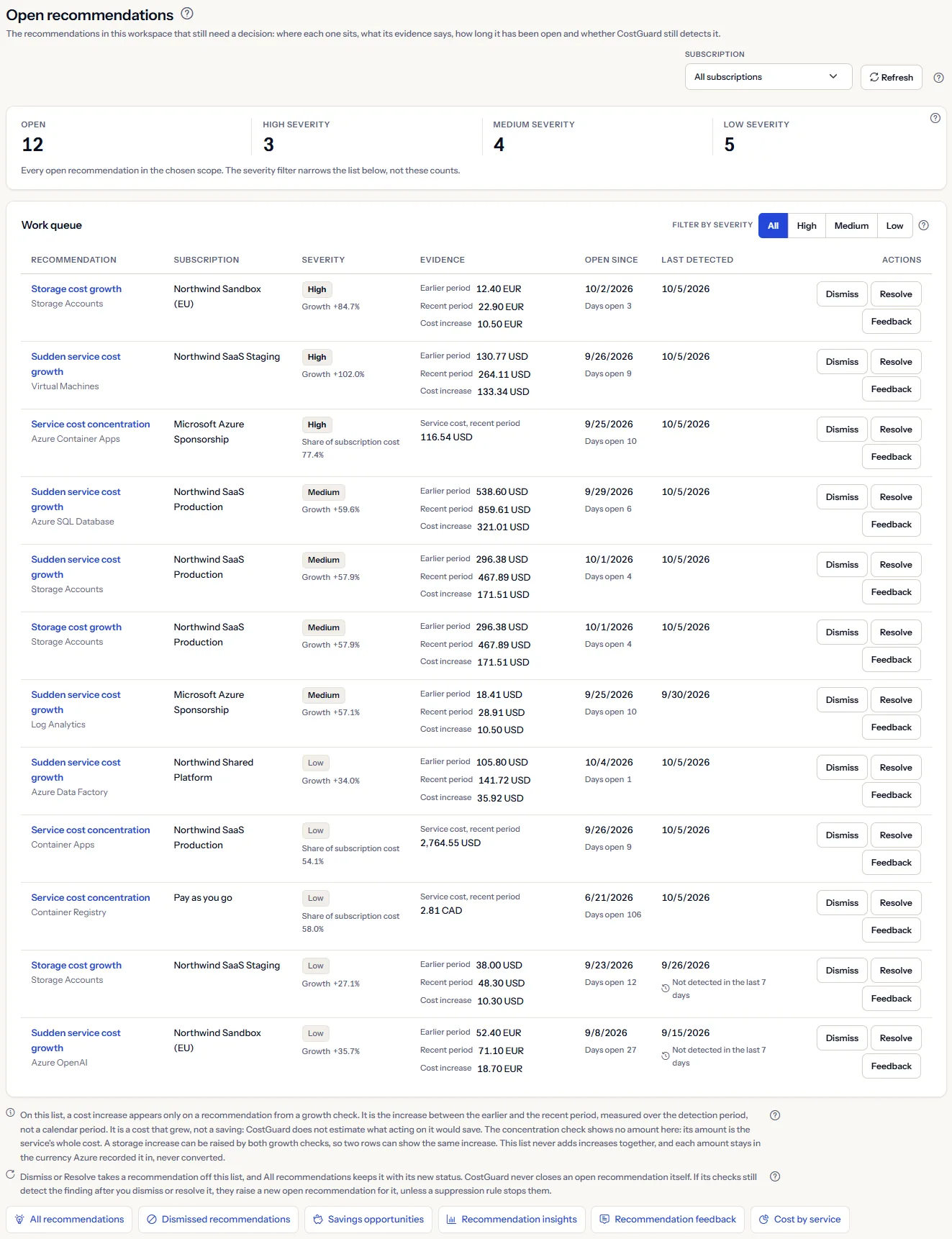
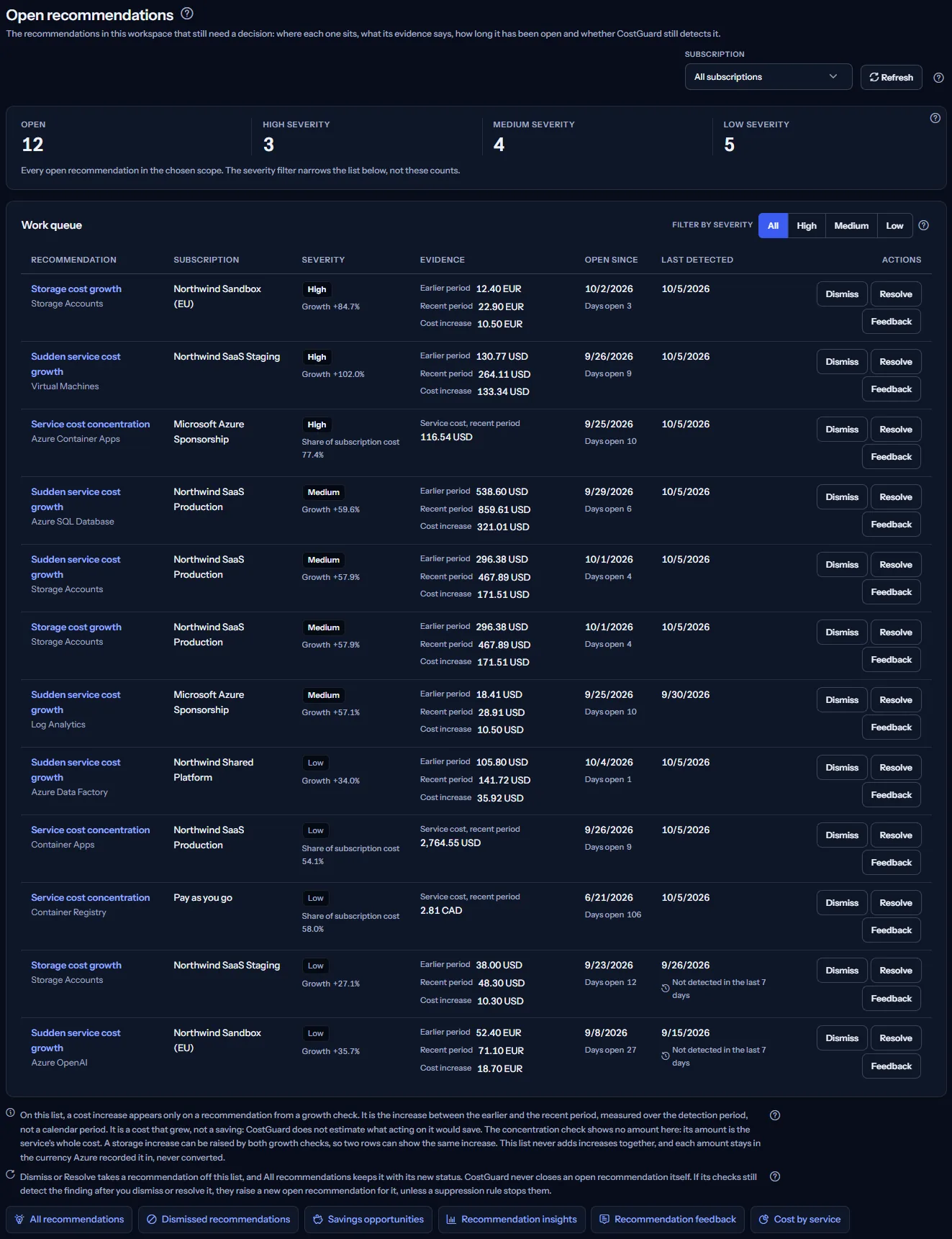
The Open recommendations page answers one question: of the recommendations CostGuard has raised in this workspace, which still need a decision, how severe is each one, where does it sit, how long has it been open, and is it still being detected?
It is for the engineering lead or platform owner who works through cost signals day to day. “All recommendations” is the register of every status; this page is the work queue: open recommendations only, with the two decisions and the feedback at hand on each row.
A recommendation is a cost signal from one of CostGuard's three checks over your imported Azure cost. It is not rightsizing or reservation advice, and it does not come from Azure Advisor. CostGuard only reads your Azure data: no button on this page changes anything in Azure.
To open it, select “Open recommendations” under “Recommendations” in the sidebar. The entry is there in both “Simple” and “Advanced” mode.
Before you start
Recommendations are raised from the Azure cost CostGuard imports. Until a connection has imported cost, the page shows “No cost data yet” with the button “Open Getting started”, which leads to the steps for connecting Azure and the first import.
Read the Getting started guide
Recommendations are part of the Growth, Pro and Enterprise plans. On Free and Starter, CostGuard raises none, and the page shows a labelled sample instead of your data.
The two growth checks compare the recent period with the period before it, so they raise nothing until cost is recorded in both. The concentration check needs the recent period only.
Choose the scope: all subscriptions or one
The “Subscription” list at the top of the page sets which recommendations the page reads: “All subscriptions”, which the page opens with, or one subscription. It is offered when there is more than one subscription to choose from.
It lists the subscriptions with recorded cost, by the name Azure records with the cost, and every other subscription that holds an open recommendation. Two subscriptions with the same name are told apart by the last characters of their identifier in brackets; a subscription without a name reads “Unnamed subscription”, and one with no recorded cost reads “Subscription” followed by the end of its identifier. The page never shows a full subscription identifier.


Choosing a subscription reads the page again: the counts and the queue then describe that subscription only, and the severity filter you chose stays as it was. “Refresh” reads the open recommendations and the subscription names again.
There is no date range and no currency to choose: the page lists every open recommendation of the scope, however long it has been open, each in the currency Azure recorded its cost in.
The open count and the severity mix
Four counts sum up the queue: “Open”, then “High severity”, “Medium severity” and “Low severity”. They count recommendations, not money, and the three severities add up to the open count.


They always describe the whole chosen scope. The severity filter of the queue narrows the rows below, never these counts, so choosing “High” leaves the other counts as they were.
The page reads every open recommendation of the scope at once, so the counts are complete: they are not limited to the rows the queue shows first.
Read the work queue
The “Work queue” panel lists the open recommendations of the scope. Its filter, “Filter by severity” - “All”, “High”, “Medium” or “Low” - narrows the rows. When no open recommendation of the scope has the chosen severity, the panel says “No open recommendation in this scope has this severity.”
Each row has these columns:
- “Recommendation”: the kind of recommendation and the service, as a link to the recommendation's own page.
- “Subscription”: the subscription's name, as the scope list shows it.
- “Severity”: “High”, “Medium” or “Low”, with the figure it rests on, explained below.
- “Evidence”: the amounts the check measured, in the currency Azure recorded them in, and the cost increase where there is one.
- “Open since”: the date CostGuard first detected the finding, and under it “Days open”, the number of days since.
- “Last detected”: the last time a check found the pattern, with the mark “Not detected in the last 7 days” when that was a week ago or more.
- “Actions”: “Dismiss” and “Resolve”, and “Feedback”, which opens the feedback of the row under it.
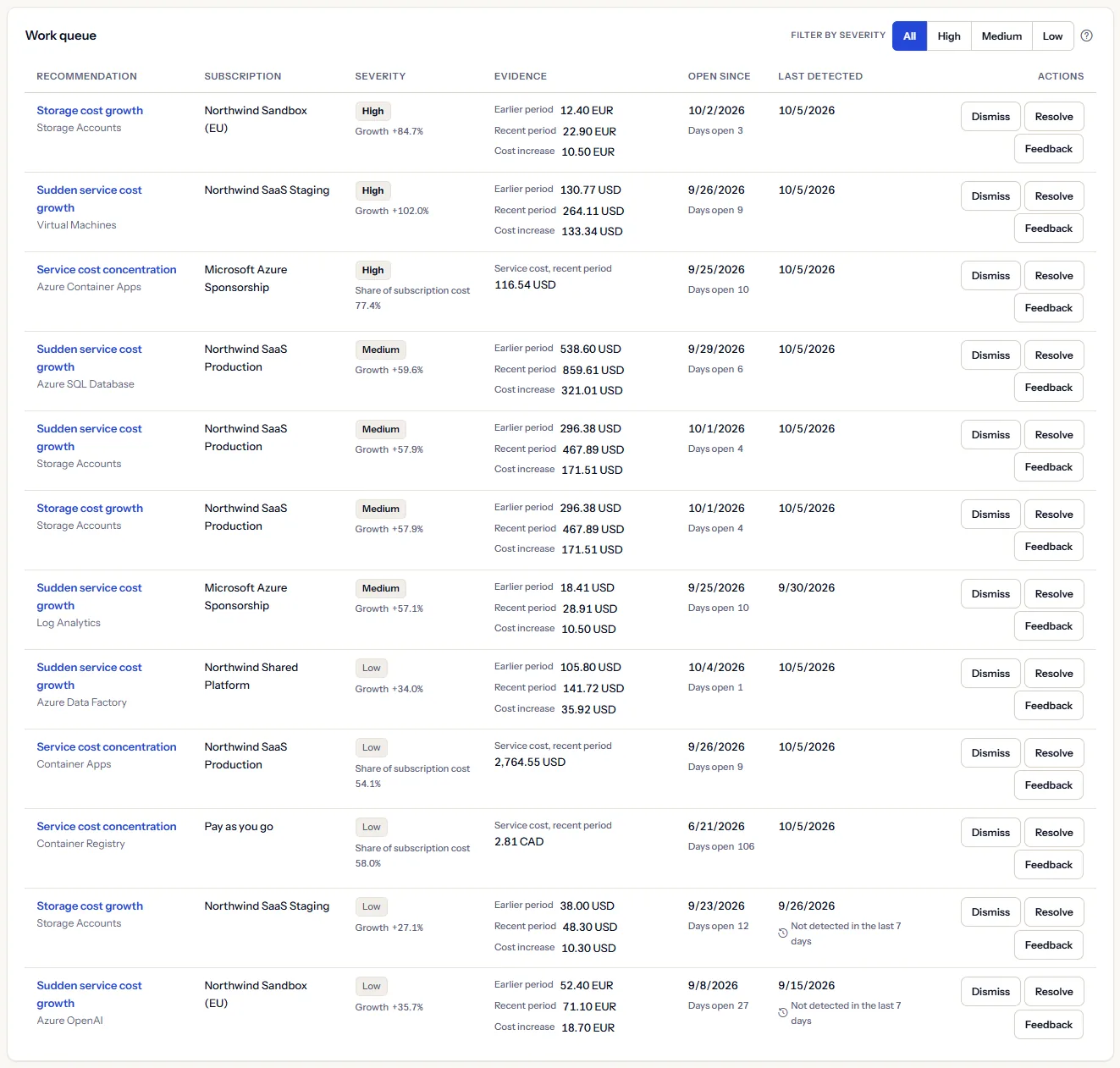
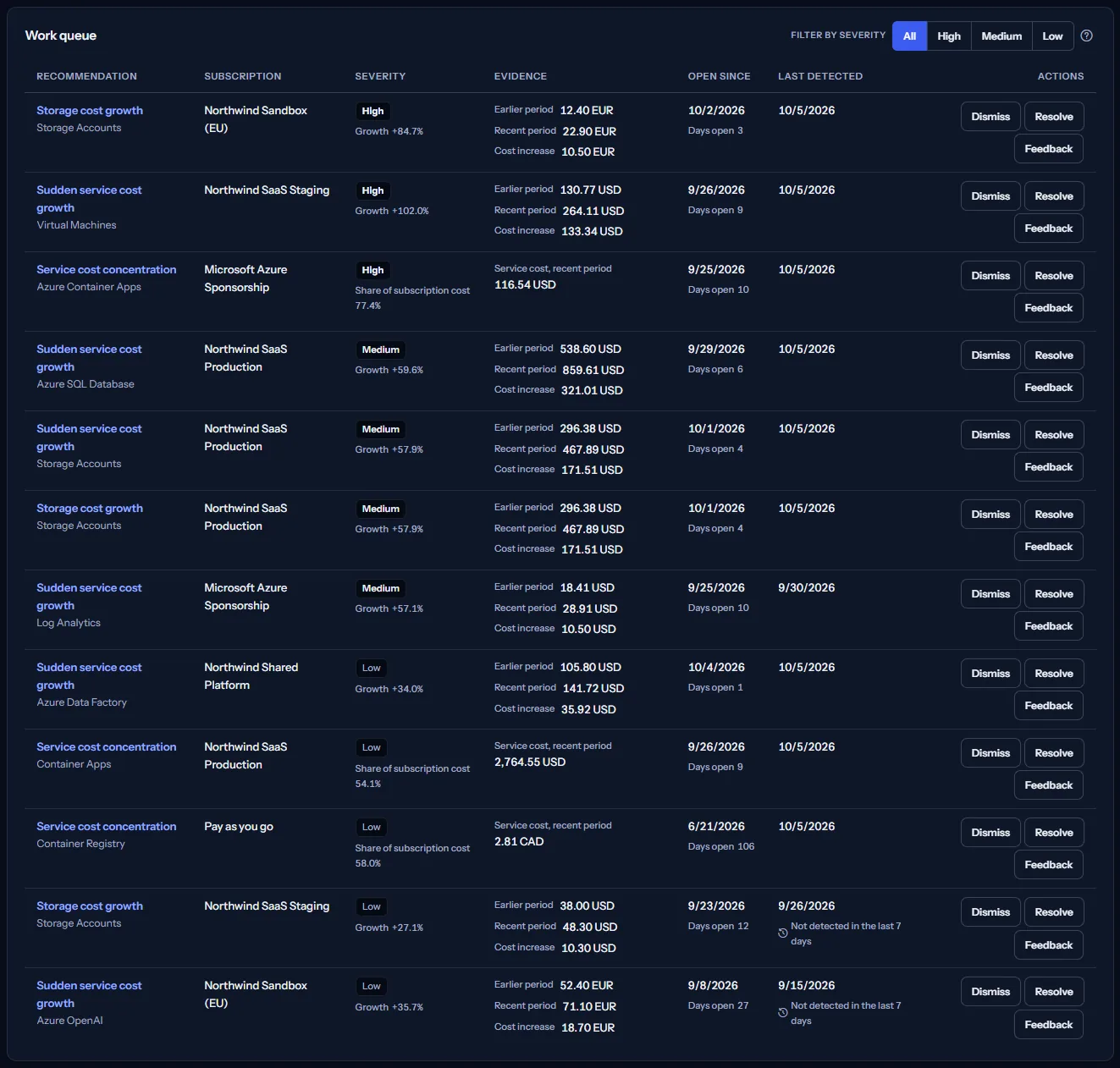
The rows are ordered by severity from high to low, then the most recently detected first, then by service name. Nothing is ranked by amount, because amounts in different currencies are never compared.
The list shows its first 25 rows; “Show all” lists the rest and “Show fewer” returns to the first 25. Dates are shown as the date in UTC.
Note
The words of each row are built from the kind of check and the service, so they read in your language. Service and subscription names stay as Azure records them.
How long a recommendation has been open
Two dates tell you how old a signal is and whether it is still live:
- “Open since” is the first detection of this recommendation, and “Days open” counts the calendar days in UTC from that date to the day the page was read.
- “Last detected” moves on at every check that still finds the pattern, and the figures of the row are updated with it.
- “Not detected in the last 7 days” appears when the last detection is seven days or more before the page was read.
A marked row is often one whose growth has stopped: review the service, and resolve the recommendation if the change you made worked, or dismiss it if the growth was expected. CostGuard never closes it for you.
Limits to know
The mark says only that no check has found the pattern for a week. It does not say the cost went down: a check also stops finding it when the connection is no longer active, when the plan no longer includes recommendations, or when a suppression rule covers it.
The three kinds of recommendation
Each row names the check that raised it:
- “Sudden service cost growth”: a service whose cost in the recent period is at least 30% above the earlier period and at least 10.00 higher in its currency. The evidence shows “Earlier period” and “Recent period”.
- “Storage cost growth”: the same comparison for a service whose name contains storage, disk, blob or file, from 25% and at least 10.00 higher.
- “Service cost concentration”: one service carrying at least 50% of its subscription's cost in the recent period, in one currency. The evidence shows “Service cost, recent period”, and the severity shows its “Share of subscription cost”.
- “Unrecognized recommendation type”: a kind of recommendation the page cannot describe. Its evidence cell says “Open the recommendation to read its evidence.”
A service that had no cost in the earlier period is never reported as growth, because there is nothing to grow from. A storage service whose cost grew at least 30% is found by both growth checks, so the same increase can appear on two rows with the same figures.
Limits to know
Concentration is not a cost increase. It says that one service carries most of a subscription's cost, which is worth knowing when that service changes; it does not say the cost is too high.
Severity and what it rests on
For the two growth checks, the severity follows the growth between the two periods, shown beside it as “Growth”: “High” from 75%, “Medium” from 50%, “Low” below that.
For the concentration check, it follows the service's share of the subscription's cost, shown as “Share of subscription cost”: “High” from 70%, “Medium” from 60%, “Low” from 50%.
A severity says how large the change or the share is, nothing more. It is not a priority: CostGuard does not know how hard or risky a change would be. The recommendation's own page lets you state that under “Your assessment”.
An open recommendation is updated at every check that still finds it, so its severity can move up or down.
The cost increase
“Cost increase” appears only on an open recommendation from one of the two growth checks. It is how much more the service cost in the recent period than in the earlier one. It is measured over the periods the check compared, not over a calendar period, and it says where cost rose, not how much you could save.
It is a cost that rose, not money saved, and it is not shown in green: CostGuard estimates no saving anywhere. A dismissed or resolved recommendation shows no cost increase, and resolving a recommendation does not mean any amount was saved: CostGuard records your decision and does not check it.
The concentration check shows no cost increase: its amount is the service's whole cost. The page never adds cost increases together, and each stays in the currency Azure recorded it in, never converted.
Note
Because one storage increase can be found by both growth checks, two rows can show the same amount for one increase. Adding them would count it twice.
Dismiss or resolve
What you decide about a recommendation is its status. The buttons change it in CostGuard only; nothing changes in Azure.
- “Dismiss”: the recommendation is expected or not relevant. It becomes “Dismissed”, with the date.
- “Resolve”: you have acted on it, for example after reviewing the service in Azure. It becomes “Resolved”, with the date.
A decided recommendation leaves this queue at once: the page says so, for example “Recommendation dismissed. It has left this list; All recommendations keeps it as dismissed.”, and reads the queue again, so the counts follow. “All recommendations” keeps it with its new status and lets you reopen it there. Each change is recorded, with who made it and when, in the recommendation's activity.
If a change cannot be made, the page says “Action failed. Please try again.” and keeps the list as it was.
Give feedback on a recommendation
“Feedback” on a row opens “Was this helpful?” under it, and selecting it again closes it. Each answer is recorded for that recommendation:
- “Useful” or “Not useful”: whether the signal helped you.
- “Expected”: the change was planned, for example a launch or a migration.
- “False positive”: the check read the cost wrongly for your case.
- “Not now”: you are not ready to judge it yet. The answer is recorded; no reminder is sent.
- “Ignore”: asks “Ignore recommendations for” - “This recommendation type”, “This service” or “This subscription” - and records your choice.
- No answer changes the status of the recommendation: it stays in the queue until you dismiss or resolve it.


After you choose what to ignore, the row offers a second, separate decision: whether to stop new recommendations for that scope from being raised. Nothing is suppressed unless you choose “Suppress these”; “No thanks” keeps only the answer.
A suppression rule applies to the whole workspace for 90 days: the checks raise no new recommendation of that kind, for that service or in that subscription until then. The row says until when, and “Manage suppression rules” opens “Recommendation feedback”, where you can see the rules and end one early.
Note
A suppression does not close anything: an open recommendation it covers stays in the queue until you dismiss or resolve it. Its figures and its last detection are no longer updated, so after seven days it is marked “Not detected in the last 7 days”.
When a recommendation comes back
Dismissing or resolving a recommendation does not stop the checks. If a later check still finds the same pattern for the same service, subscription and currency, CostGuard raises a new open recommendation, and it appears in this queue with a new “Open since” date. The one you decided stays in “All recommendations” as it was.
Only one recommendation per finding is open at a time, so the queue never lists a finding twice. To stop a known pattern from coming back, choose “Ignore” in the row's feedback and confirm the suppression, as described above.
How All recommendations shows a recommendation that came back
Open a recommendation
The kind and the service of each row link to the recommendation's own page. There you find “What CostGuard observed”; “Your assessment”, where you state what CostGuard cannot know, such as how hard or risky a change would be; the recommendation's “Activity”; and “Add a comment”.
A priority score appears there only once every part of your assessment is stated. CostGuard never works one out from cost alone, which is why this page shows no priority.
Go further
The links at the bottom of the page lead on:
- “All recommendations”: every recommendation in every status, the decided ones included, where a closed one can be reopened.
- “Dismissed recommendations”: the recommendations the workspace decided not to act on, when each was dismissed and whether its finding is open again.
- “Savings opportunities”: the open growth recommendations that carry a cost increase, ranked within each currency.
- “Recommendation insights”: how the recommendations of the workspace break down.
- “Recommendation feedback”: how feedback works, and the suppression rules that stop a known pattern from coming back.
- “Cost by service”: the cost of each service, to see the service behind a recommendation in context.
What you may see instead of the queue
While the page reads, grey bars stand where the counts and the queue will appear. After that, the page may show one of these instead:
- “No cost data yet”, with “Open Getting started”: no connection has imported cost yet.
- “No open recommendations”, with “Open All recommendations”: nothing in the workspace needs a decision now. This says nothing about how efficient your cost is; the decided recommendations are on All recommendations.
- “No open recommendations for this subscription”: nothing in the chosen subscription needs a decision. Choose “All subscriptions” to see the rest of the workspace.
- “Unable to load recommendations. Please try again.”, with “Retry”: the open recommendations could not be read. The page then shows no queue and no count, because a failed read does not mean nothing is open.
- A notice that your session has expired, with a link to sign in again. The page shows no figures until you do.
- A note that subscription names could not be read: each subscription is then shown by the end of its identifier. The recommendations are still listed, and “Refresh” tries again.
Sample data when your plan has no recommendations
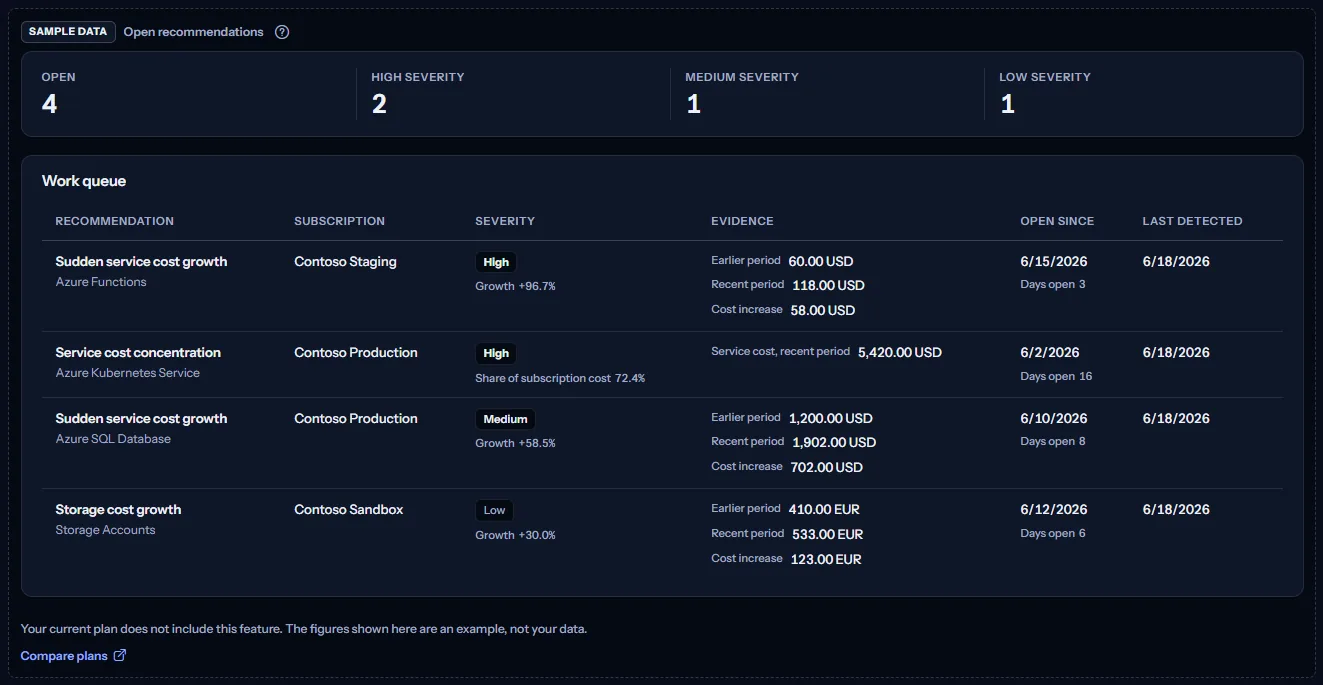
When your plan does not include recommendations, the page shows a fixed example under the label “Sample data”, with the sentence “Your current plan does not include this feature. The figures shown here are an example, not your data.”
The sample shows four open recommendations of three Contoso subscriptions from June 2026, in US dollars and in euros, with their counts by severity, their evidence and their age. The rows are the same for everyone and never your data, and the sample offers no filter, no link and no action.
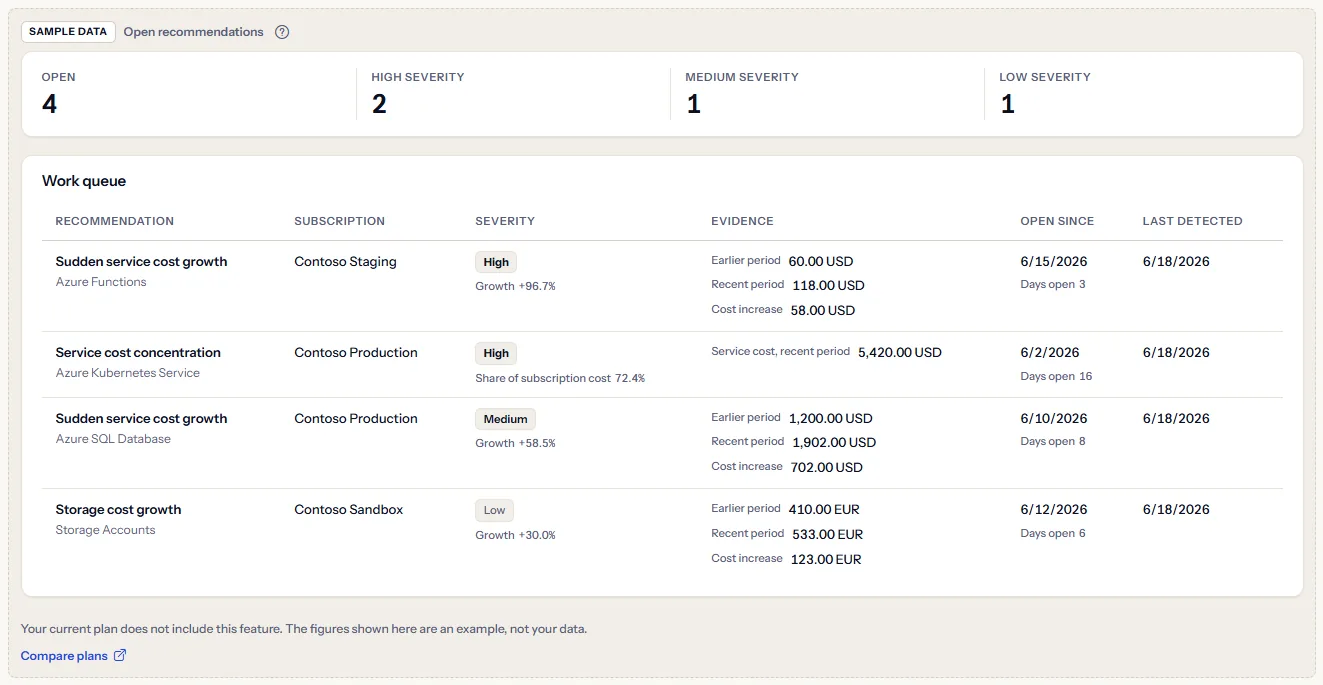
“Compare plans” opens the pricing page in a new tab. CostGuard decides what your plan includes on the server; the sample is only how the page shows it.
What each plan includes
The table shows the first plan that includes each part of the page. Every plan above it includes it too.
| Feature | Free | Starter | Growth | Pro | Enterprise |
|---|---|---|---|---|---|
| A labelled sample of the page | Included | Included | Included | Included | Included |
| The work queue of your workspace's open recommendations, with dismiss, resolve and feedback | Not included | Not included | Included | Included | Included |
Growth, Pro and Enterprise include recommendations: CostGuard's checks run for the workspace, and the page lists what they raise. Free and Starter show the labelled sample, and no recommendation is raised for them. The plan is checked on the server, and the page never shows a price.
Troubleshooting
The page says “No cost data yet”
No connection has imported cost yet, or its first import has not finished. Open Getting started and follow the steps; the checks run once cost is recorded.
The page says “No open recommendations”
Every recommendation has been decided, or the checks have found nothing yet. The growth checks need cost in both periods, and a rise below 30% (25% for storage) or smaller than 10.00 in its currency is not reported. Open All recommendations to see what was decided.
A row is marked “Not detected in the last 7 days”
No check has found its pattern for a week: the growth may have stopped, its connection may no longer be active, or a suppression rule may cover it. Nothing closes a recommendation on its own; review the service, then resolve or dismiss it.
The same increase shows on two rows
A storage service that grew at least 30% is found by both growth checks. The two rows describe one increase; do not add their cost increases.
A recommendation I dismissed or resolved is back
A later check found the same pattern and raised a new open recommendation, with a new “Open since” date. To stop the pattern from coming back, choose “Ignore” in its feedback and confirm the suppression.
A subscription gets no recommendation
The checks run for the subscription of each active Azure connection. A connection that is no longer active gets no new recommendation; the ones it already has stay listed.
A growth shows later than it happened
Azure reports cost with a delay of a day or two, so the last days of the recent period hold less cost than they will. A growth can therefore be found a little after it began.
The page shows sample data
Your plan does not include recommendations. The table above shows which plan does, and the link under it opens the pricing page.