
Data access and permissions: what CostGuard reads
What CostGuard reads from Azure for your workspace, how that access was granted, how to withdraw it, and who in the workspace can see it.
What this page is for
Data access and permissions shows, for the workspace you are working in, what CostGuard reads from Azure, how that access was granted and how to withdraw it. Anyone who needs to answer a security or privacy question about CostGuard opens it.
The page is a summary: it changes nothing. Connections are added and disconnected on “Azure connections”.
Before you start
The page needs a selected workspace. Every member can open it, on every plan; until a subscription is connected, it says that CostGuard imports no Azure data for the workspace.
What CostGuard reads
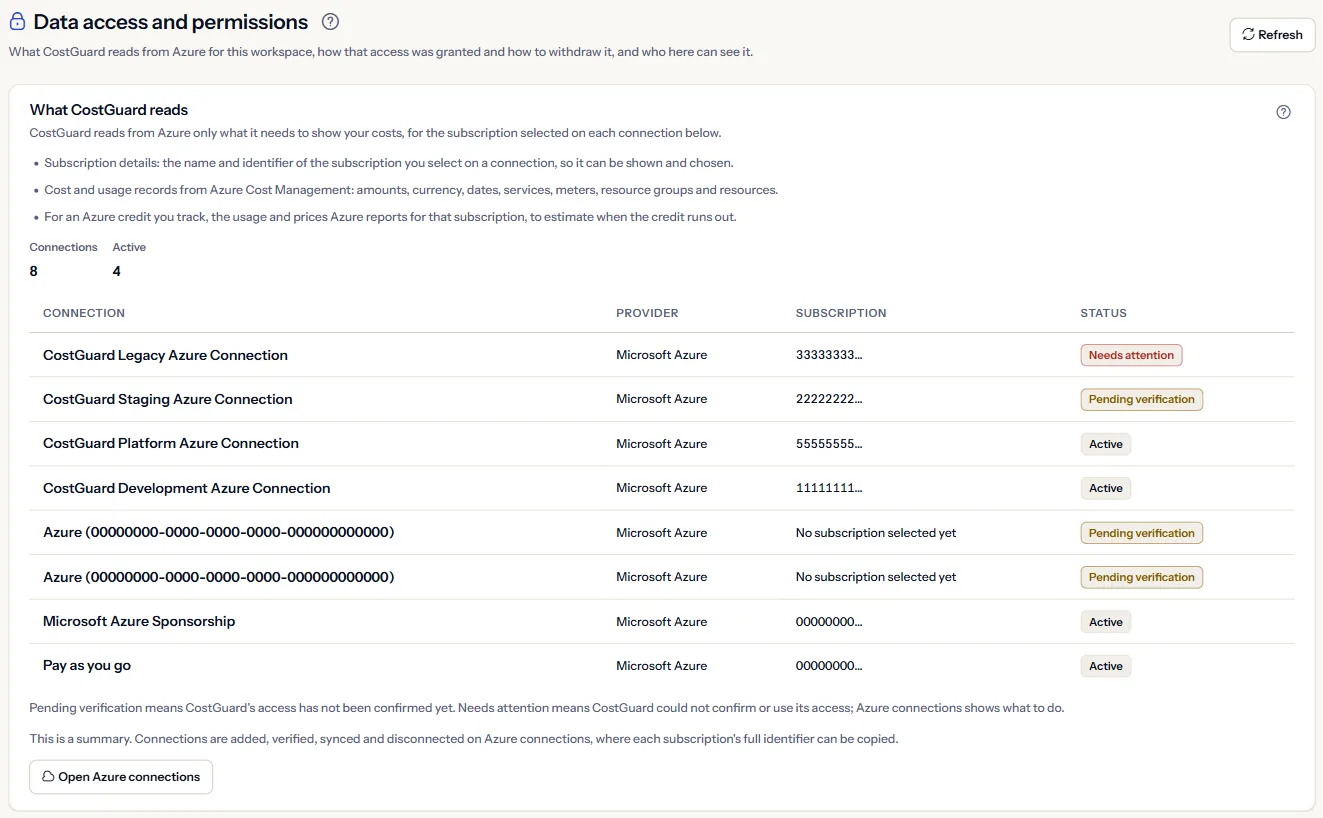
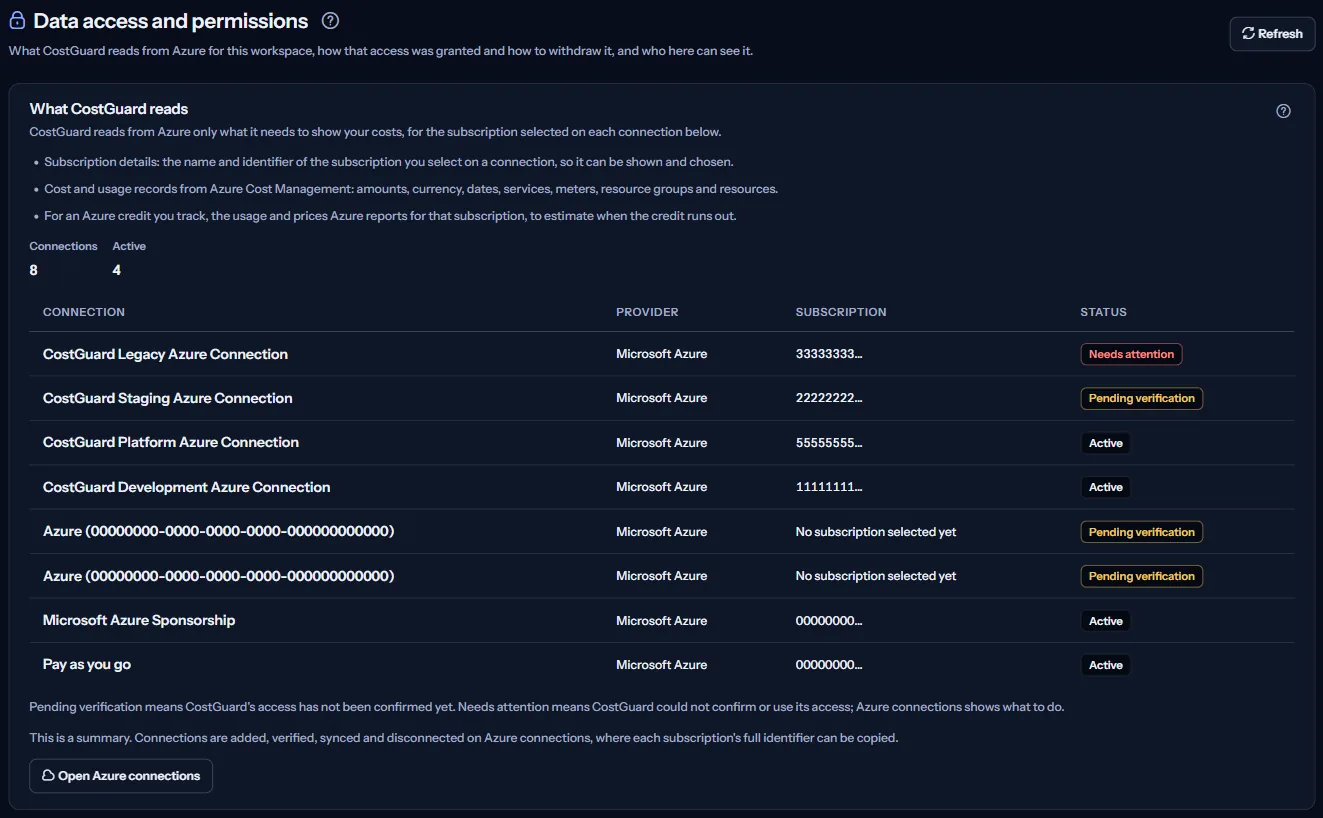
CostGuard reads from Azure only what it needs to show your costs, for the subscription selected on each connection below. The panel “What CostGuard reads” names three kinds of data:
- Subscription details: the name and identifier of the subscription you select on a connection, so it can be shown and chosen.
- Cost and usage records from Azure Cost Management: amounts, currency, dates, services, meters, resource groups and resources.
- For an Azure credit you track, the usage and prices Azure reports for that subscription, to estimate when the credit runs out.
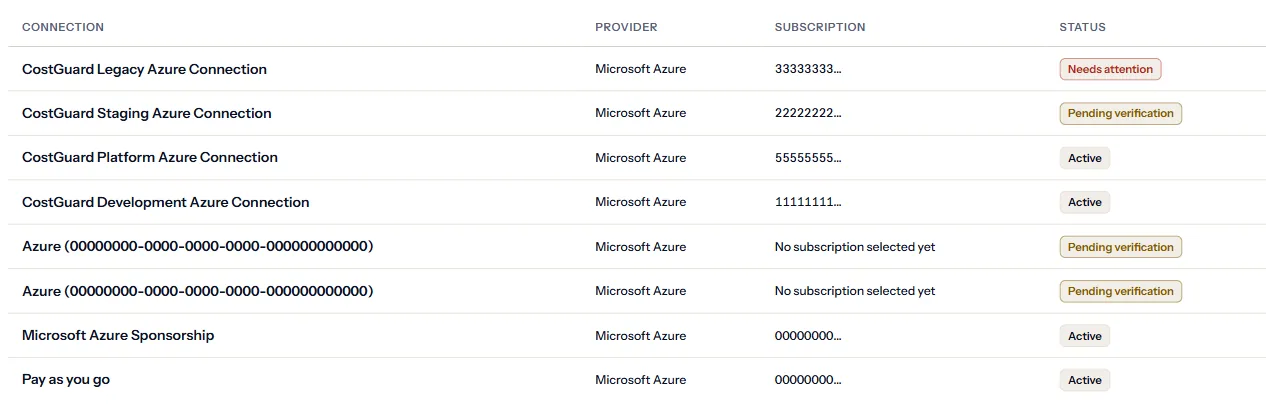
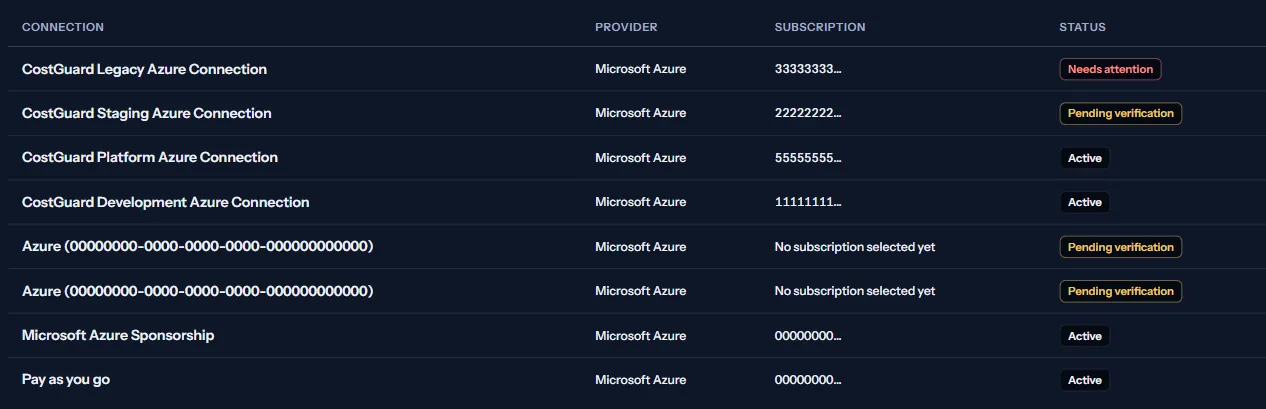
Below them, the page counts the workspace's connections and lists each one with “Connection”, “Subscription” and “Status”. The subscription shows only its first characters here; its full identifier can be copied on “Azure connections”.
Pending verification means CostGuard's access has not been confirmed yet. Needs attention means CostGuard could not confirm or use its access; Azure connections shows what to do.
How access was granted
A connection is established in your own Microsoft Entra tenant: an administrator grants consent to the CostGuard Azure integration application, or the connection is configured with credentials you supply. The grant is made in Azure and can be withdrawn there.
Microsoft Entra consent on its own does not give access to Azure resources. An Azure role assignment on the subscription is also required before CostGuard can read cost data, and that assignment is made and held in your Azure subscription.
CostGuard does not receive or store a record of which Azure role is assigned to it, so this page cannot list your Azure permissions. Review the role assignments for the CostGuard application on the subscription in the Azure portal.
How to withdraw access
Access can be withdrawn in two places, and either is enough to stop the reading of that subscription:
- In CostGuard, disconnect the connection: CostGuard stops importing cost data for it, and your Azure subscription and its resources stay as they are.
- In Azure, remove the role assignment you made for CostGuard on the subscription, or remove the CostGuard application from your Microsoft Entra tenant: CostGuard can then no longer read that subscription.
What CostGuard never does
CostGuard never creates, changes or deletes Azure resources, and it changes no setting of your Azure subscription.
CostGuard does not read your application code, the contents of your databases, secrets held in your workloads, or the configuration of your Azure resources.
How data is handled, how long it is kept and which subprocessors are involved are published rather than restated here, so there is one version of them to read. The panel links to “Data access & Azure permissions” and the “Trust Center” on the public site.
Who can see this
Every member of this workspace can open this page, whatever their role. Only an owner can change who has access, on Members and roles.
The panel “Who here can see this” also shows “Your role” in this workspace, and an owner sees “Open Members and roles”.
Go further
The links at the bottom of the page lead on:
- “Azure connections”: Add, verify, sync or disconnect a connection, and copy each subscription's full identifier.
- “Sync history”: When each import of cost data ran, and how it ended.
- “Security”: Your account, your role and how you sign in.
- “Audit log”, for owners: Who changed what in this workspace, and when.
What you may see instead of figures
While the page reads, grey bars stand where the panels will appear. After that, the page may show one of these instead:
- Select a workspace to see what CostGuard reads for it.
- This workspace has no cloud connection, so CostGuard is importing no Azure data for it.
- The connections for this workspace could not be read just now. That does not mean nothing is connected - try again in a moment.
- The connections are not shown because your sign-in could not be renewed. Sign in again to see them.
What each plan includes
The table shows the first plan that includes each part of the page. Every plan above it includes it too.
| Feature | Free | Starter | Growth | Pro | Enterprise |
|---|---|---|---|---|---|
| The Data access and permissions page | Included | Included | Included | Included | Included |
Every plan includes this page, and it never shows a price.
Troubleshooting
A subscription I expect is missing
CostGuard reads only the subscription chosen on each connection. Connect it on “Connect Azure”, or choose it for a connection that has none yet.
A connection shows “Needs attention”
CostGuard could not confirm or use its access, for example after the role was removed in Azure. “Azure connections” says what to do for that connection.
Which Azure role does CostGuard hold?
CostGuard is not told which role was assigned to it, so the page cannot list it. Review the role assignments of the CostGuard application on the subscription in the Azure portal.