
Audit log: the record of actions in your workspace
How to read the Audit log: what CostGuard records and what it does not, the filters, the summary of the loaded entries and each column of an entry.
What this page is for
The Audit log is the read-only record of the actions CostGuard recorded for the workspace: connections created, checked or removed, cost imports, prepared recommendations, forecasts and weekly reports, and changes to the workspace itself. An owner opens it to see what happened and when.
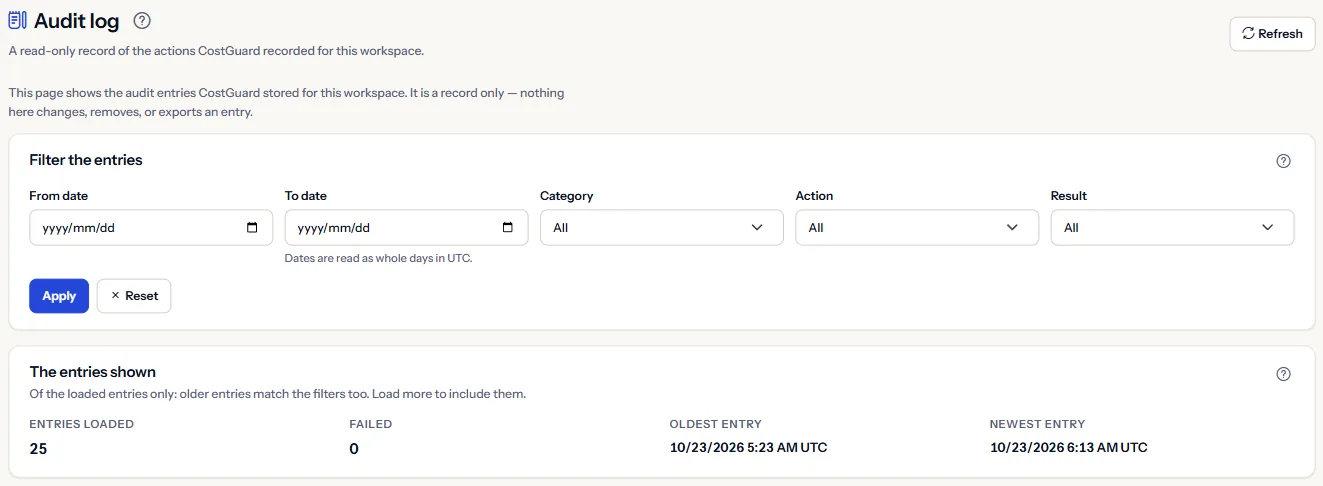
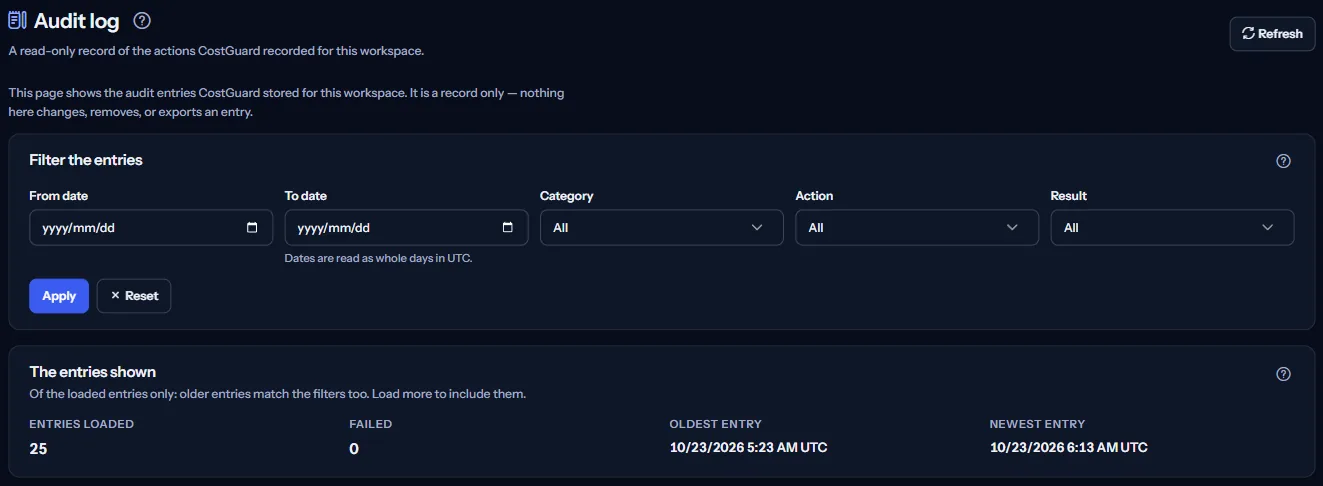
This page shows the audit entries CostGuard stored for this workspace. It is a record only — nothing here changes, removes, or exports an entry.
Before you start
The Audit log is part of the Growth, Pro and Enterprise plans, and only an owner of the workspace can read it. On Free and Starter the page shows a labelled sample instead.
Filter the entries
The panel “Filter the entries” narrows the record on the server:
- “From date” and “To date”: Dates are read as whole days in UTC.
- “Category” and “Action”: the kind of action, such as a cost import or a cloud connection change.
- “Result”: Started, Succeeded, Failed or Skipped.
Choose “Apply” to read the record again with them, or “Reset” to clear every filter.
The entries shown
The panel “The entries shown” gives “Entries loaded”, “Failed”, “Oldest entry” and “Newest entry”, with times in UTC.
These figures describe the loaded entries only. While older entries still match the filters, the panel says “Of the loaded entries only: older entries match the filters too. Load more to include them.”; once every matching entry is loaded, it says “Every entry that matches the filters is loaded.”
Each entry
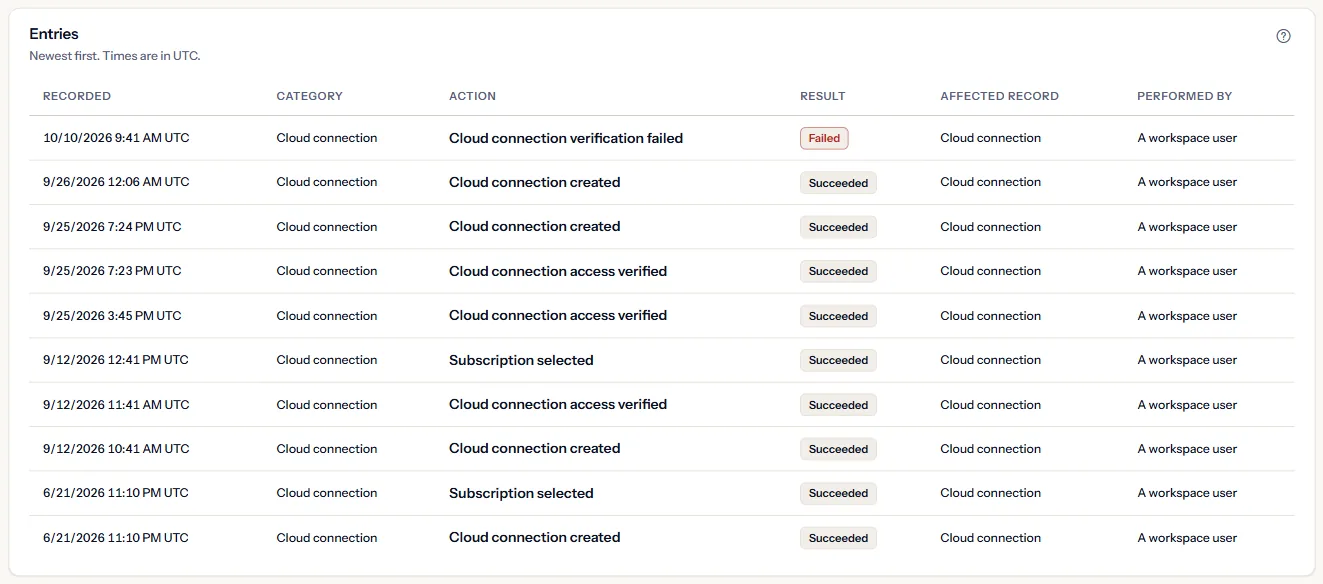
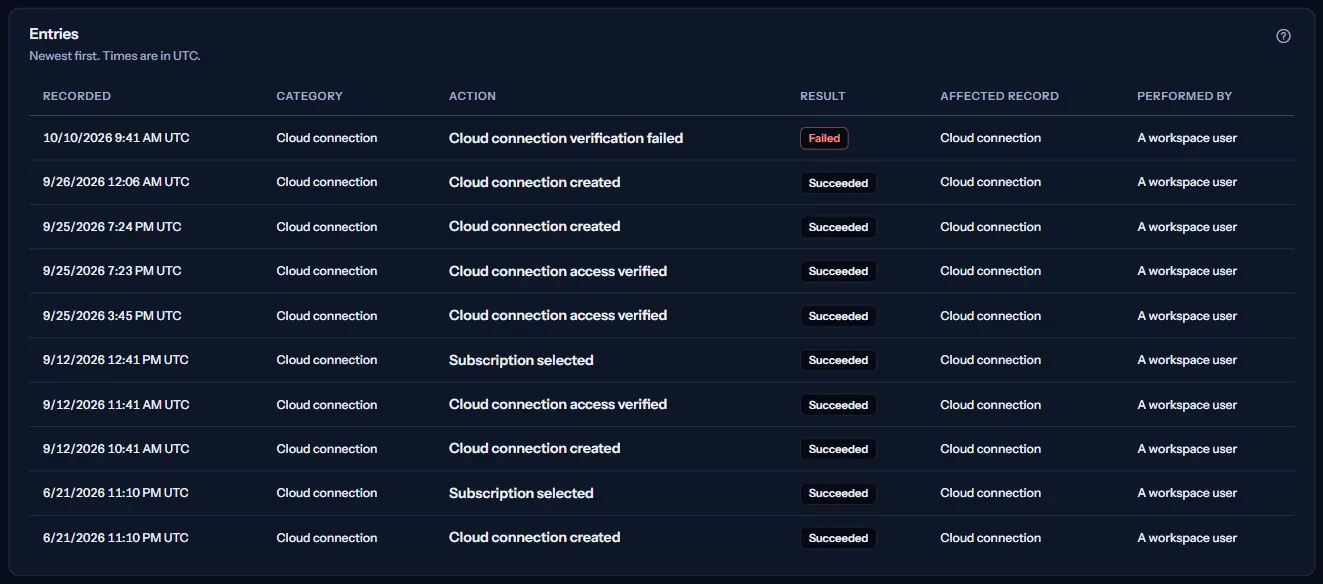
“Entries” lists the newest entries first, a page at a time; “Load more” reads older ones. Each entry has:
- “Recorded”: when CostGuard recorded it, in UTC.
- “Category” and “Action”: what happened, in words.
- “Result”: a failed action is marked; the others are plain.
- “Affected record” and “Performed by”: the kind of record affected, and the kind of actor.
Performed by names the kind of actor only: a workspace user, a CostGuard background process or a CostGuard platform operator. No name or address is shown.
What is recorded, and what is not
CostGuard records an entry when a cloud connection is created, checked, given its subscription or removed; when cost data is imported, on schedule or by a manual sync; when recommendations, forecasts or a weekly report are prepared, or fail; when the workspace is deactivated or reactivated; and when a CostGuard operator starts or ends a preview of a lower plan for it.
Changes to budgets, alert rules, notification settings, members, webhooks, report schedules and exports, and a change of a recommendation's status, write no entry today, so they do not appear here.
CostGuard applies no audit retention or archiving schedule, so this page shows the entries stored right now.
What you may see instead of figures
While the page reads, grey bars stand where the panels will appear. After that, the page may show one of these instead:
- “No entries recorded yet”: CostGuard has not recorded an action for this workspace yet. Entries appear here once it does, for example after the first cost import.
- “No matching audit entries”: No audit entries in this workspace match the selected filters.
- “Audit entries could not be read”: nothing was changed; choose “Try again”.
- Older entries could not be read just now. The entries above are unchanged; try again.
- Your workspace role or plan does not allow reading this workspace's audit entries.
When your plan does not include the audit log
On Free and Starter, the page shows a fixed example under the label “Sample data”, with the sentence “Your current plan does not include this feature. The figures shown here are an example, not your data.”
The sample uses invented entries for an example company; none of your workspace's entries are read or shown.
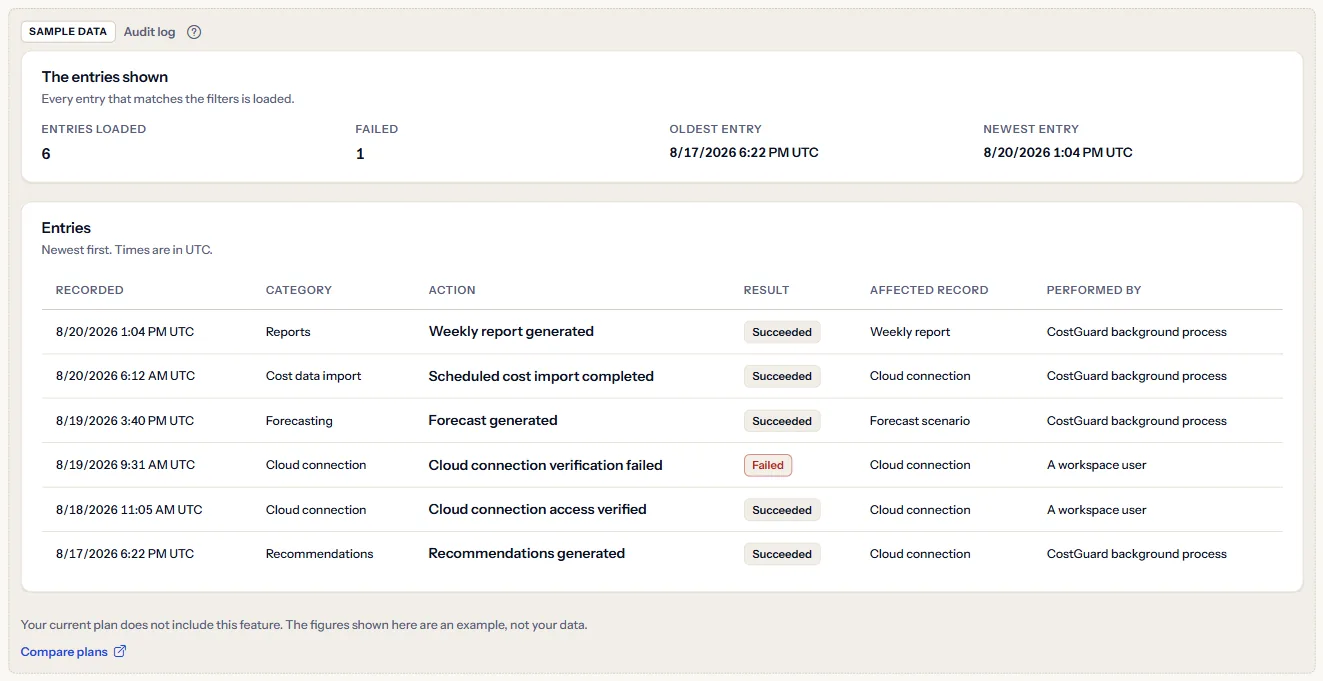
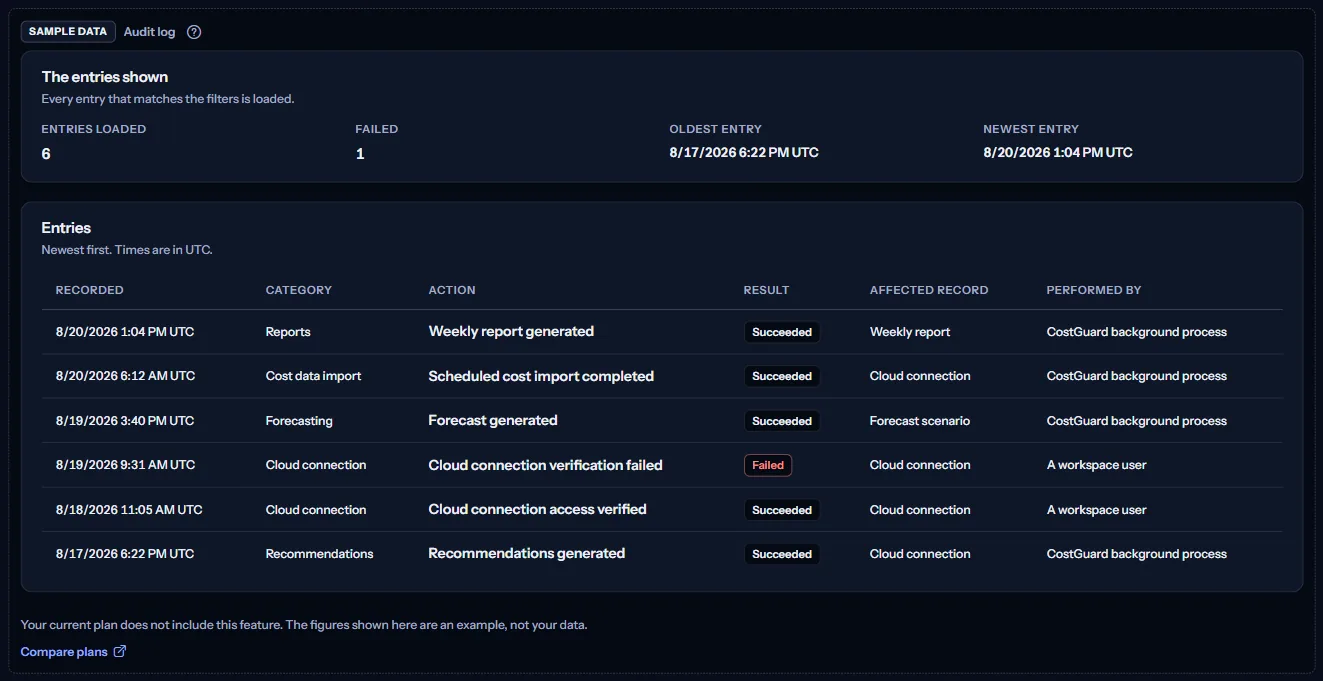
“Compare plans” opens the pricing page in a new tab. CostGuard decides what your plan includes on the server; the sample is only how the page shows it.
What each plan includes
The table shows the first plan that includes each part of the page. Every plan above it includes it too.
| Feature | Free | Starter | Growth | Pro | Enterprise |
|---|---|---|---|---|---|
| A labelled sample of the page | Included | Included | Included | Included | Included |
| Your workspace's audit entries | Not included | Not included | Included | Included | Included |
Growth, Pro and Enterprise include the audit log; Free and Starter show the labelled sample. The plan is checked on the server, and the page never shows a price.
Troubleshooting
A change I made is not in the log
Not every change writes an entry today: budgets, alert rules, notification settings, members, webhooks, report schedules and exports, and a recommendation's status do not. See the list under “What this record covers”.
The page asks for another role or plan
Only an owner of the workspace can read the audit log, and only on Growth or a higher plan. Ask an owner, or see what your plan includes on “Plan and usage”.
The newest entries are all from background processes
Scheduled cost imports and prepared reports write entries regularly. Filter by “Category” or by dates to find a particular action.
Can I export the log?
No. The page reads the entries stored right now; it does not export, change or remove an entry.